Skip to content
Skip to main content
Ahosting Logo
  • Hosting
    • WordPress Hosting
      Fast, secure hosting for WordPress sites
    • Web Hosting
      Reliable, affordable hosting for sites
    • FFMpeg Hosting
      Fast hosting for FFmpeg projects
    • Reseller Hosting
      Start hosting biz with white-label plans
    • VPS Hosting
      Scalable VPS with full control & power
    • Dedicated Server
      High-power servers for max security
    • WooCommerce Hosting
      Fast hosting for WooCommerce shops
  • Domain
    • Register a Domain
      Secure your domain name in minutes
    • Domain Transfer
      Move domains to Ahosting with ease
    • Premium SSL Certificate
      Enterprise SSL to build customer trust
  • Support
    • Submit A Ticket
      Expert 24/7 help from our support team
    • Abuse Report
      Report abuse to keep network safe
    • Knowledge Base
      Quick answers via step-by-step guides
  • Company
    • Blog
      Expert articles to power your online growth
    • Compare Hosts
      Side-by-side comparison
    • Datacenter
      Secure, high tech datacenter for hosting
    • About Us
      Learn about our mission, values & team
    • Contact Us
      Contact sales for plans, pricing & advice
    • Sitemap
      Find info fast with our clear site map
My Account
Ahosting Logo
  • Hosting
    • Web Hosting
    • WordPress Hosting
    • FFMpeg Hosting
    • Reseller Hosting
    • VPS Hosting
    • Dedicated Server
    • WooCommerce Hosting
  • Domain
    • Register a Domain
    • Domain Transfer
    • Premium SSL Certificate
  • Support
    • Knowledge Base
    • Abuse Report
    • Submit A Ticket
  • Company
    • About Us
    • Contact Us
    • Blog
    • Sitemap
    • Datacenter
  • Legal
    • Privacy Policy
    • Terms of Service
    • Acceptable Use Policy
    • Service Level Agreement
    • Resource Abuse Policy
My Account

AHosting Blog

Category: FFmpeg / Video Hosting

  • FFmpeg Server Requirements: How to Size a Plan From Your Own Encode Queue

    FFmpeg Server Requirements: How to Size a Plan From Your Own Encode Queue

    • FFmpeg Server Requirements Start With One Number, and It Is Not Cores
      • Encode-Minutes In, Core-Hours Out
      • Why Shared, VPS or Dedicated Is the Last Question
    • What Shared Hosting Clears Against Real FFmpeg Server Requirements
      • Three Ceilings, and Only One of Them Is CPU
      • The Work That Does Fit on a Shared Plan
      • Bronze to Gold, Translated Into Cores
    • What a VPS Actually Guarantees: Cores, Threads and vCPUs
      • A vCPU Is a Scheduled Process, Not a Piece of Silicon
      • Six Cores or Twelve? Encoding Cares Which
      • FFStart and FFPower Are KVM-4 and KVM-8 With FFmpeg Pre-Built
    • The Measured Constant: What One Minute of 1080p Costs
      • What the Test Did Not Cover
      • Measuring Your Own FFmpeg Server Requirements Constant
    • One Source Is Not One Encode: The FFmpeg Server Requirements Multiplier
      • A Three-Rung Ladder Is Three Encodes
      • Jobs or Threads? Both Our Numbers Are Right
    • The AHosting FFmpeg Encode Capacity Ladder
      • How the Derived FFmpeg Server Requirements Rows Were Derived
      • When Bare Metal Is the Answer
    • Matching Your Queue to a Tier: FFmpeg Server Requirements by Workload
    • A Practical Checklist: Are Your FFmpeg Server Requirements Covered?
    • Frequently Asked Questions About FFmpeg Server Requirements
      • What are the FFmpeg server requirements for encoding 1080p video in 2026?
      • What are the CPU and RAM requirements to run FFmpeg?
      • FFmpeg server requirements on VPS vs dedicated hardware: which is right in 2026?
      • Is shared hosting vs a VPS a real choice for FFmpeg encoding work?
      • When do FFmpeg server requirements push you past AHosting's 8 vCPU FFPower plan?
      • Can a 4 vCPU plan hold a continuous 1080p live transcode at real time?
      • How do I convert my encode queue into FFmpeg server requirements in core-hours?
      • What is the AHosting FFmpeg Encode Capacity Ladder and how do I read it?
      • Do AHosting FFmpeg hosting plans meet the FFmpeg server requirements for HEVC output?
      • Do FFmpeg server requirements change if I add a three-rung HLS ladder in 2026?
    TL;DR

    FFmpeg server requirements come from one number: finished encode-minutes per day. Measure a single job, multiply by your rendition ladder, then read off the tier that clears it. The plan name is the last decision, not the first.

    Most FFmpeg hosting advice ends at a recommendation: start with four to eight cores and see how it goes. That is not a specification, it is a guess with a number attached, and it fails in the two directions that cost money. Real FFmpeg server requirements are arithmetic, and the inputs are things you already know about your own queue. This post supplies the arithmetic, the measured constants it runs on, and the two boundaries the usual recommendation hides. It is the third in a series: post one found your CPU cap, post two set the per-job thread ceiling, and this one sizes the machine. If you are still deciding whether server-side media processing is the right shape for your project at all, the buyer-side guide to FFmpeg hosting covers that ground first.

    Listen: 8 minutes on why cores is the wrong unit for sizing an encoding server, and the arithmetic that replaces it. By Matt Chrust, Director of Business Development, AHosting.

    FFmpeg Server Requirements Start With One Number, and It Is Not Cores

    FFmpeg server requirements reduce to finished encode-minutes per day. Everything else — cores, threads, tier names, price — is downstream of it. Count what your pipeline has to produce in 24 hours, and the hardware question answers itself.

    Encode-Minutes In, Core-Hours Out

    Encoding is one of the few web workloads with an honest unit. A visitor is unpredictable; an encode is not. Given the same source, the same codec and the same preset, a machine finishes a fixed number of output minutes per hour, and that rate barely moves. Therefore capacity planning here is closer to a factory line than to traffic estimation: throughput in, throughput out, and a queue that either drains or grows.

    The unit that matters is output, not input. A single 10-minute upload that becomes three delivery renditions is 30 encode-minutes of work, not 10. Consequently the first thing to establish is your daily output figure, and the multiplier that produces it is covered further down.

    Why Shared, VPS or Dedicated Is the Last Question

    Tier names describe how a machine is sold, not what it finishes. Two plans with the same core count can differ in whether you are permitted to hold those cores for four hours, which is the variable that actually decides whether an encode completes. In practice the sequence runs the other way round from how it is usually presented: work out the daily figure, check which tiers are allowed to sustain that kind of load at all, and only then compare prices among the ones that clear it.

    What Shared Hosting Clears Against Real FFmpeg Server Requirements

    Shared hosting runs FFmpeg perfectly well for the cheap half of a media pipeline and cannot run the expensive half at all. That boundary is set by policy and by process limits rather than by raw speed, which is why adding cores to a shared plan would not move it.

    Three Ceilings, and Only One of Them Is CPU

    CloudLinux expresses a shared account’s CPU allowance as a percentage of one core — the documentation states that a SPEED limit of 100% means one core, so 400% means four. Notably, hitting that ceiling does not kill anything: the account simply runs slower. The two limits that actually stop an encode are different. Entry processes cap how many concurrent connections, SSH sessions and cron jobs an account may hold at once, and the execution-time limit stops a long-running job part-way.

    That last one produces the symptom people misdiagnose most often. Furthermore, a truncated output file with no error message from FFmpeg reads exactly like a bad command, because FFmpeg did not fail — it was terminated. Our knowledge base article on what you can and cannot do with FFmpeg on shared hosting walks through the symptom set in detail. Worth stating plainly: a temporary entry-process increase is not a thing that exists. It is a plan change.

    The Work That Does Fit on a Shared Plan

    Anything that does not decode and re-encode a whole video is usually fine. Probing a file with ffprobe returns in milliseconds. Pulling a thumbnail reads a small part of the file. Stream copies — trimming, joining, remuxing — move data rather than processing it, so a two-hour source is handled in seconds. Short audio conversion is comparatively light. In fact a well-designed pipeline often keeps all of that on a standard hosting plan and sends only the encoding elsewhere.

    Bronze to Gold, Translated Into Cores

    AHosting’s four shared tiers carry LVE SPEED allocations of 100, 200, 300 and 400 — one through four cores — with entry-process allowances of 20, 30, 40 and 50. Those figures are read from the server configuration rather than from a plan page, and no shared plan page publishes them. Ultimately they are beside the point for this decision: the ceiling that stops sustained encoding is the execution-time limit, and it applies at every one of those tiers. If you want to see where your own account’s cap sits before deciding anything, post one in this series shows you how to find your CPU cap on shared hosting with two commands.

    What a VPS Actually Guarantees: Cores, Threads and vCPUs

    A VPS removes the policy ceiling and replaces it with a scheduling guarantee. That is a real change, and it is worth understanding precisely what is being guaranteed, because the words on plan pages across this industry are not consistent.

    A vCPU Is a Scheduled Process, Not a Piece of Silicon

    Under KVM, the project’s own documentation is blunt about this: once running, a virtual machine is just a regular process on the host, managed with ordinary tools. A guaranteed vCPU is therefore a promise about how the host scheduler treats your machine, not a physical core welded to your name. In practice that promise is what matters, and it is verifiable: AHosting’s published encode test recorded CPU steal time at zero throughout on both plans, which is the measurement that shows nothing was taking the cores back.

    Six Cores or Twelve? Encoding Cares Which

    Bare-metal listings across this industry mix cores and threads freely, and for encoding the difference is not cosmetic. Intel’s specification for the Xeon E-2136 gives six cores and twelve threads, while the Xeon Silver 4114 is ten cores and twenty threads per socket. A dual-4114 machine is therefore a 20-core, 40-thread box. Additionally, a second hardware thread on a busy encoder adds far less than a second core does, so a listing that prints only the larger number is describing something you will not get. AHosting’s dedicated listings print both, which is the format to insist on wherever you buy.

    FFStart and FFPower Are KVM-4 and KVM-8 With FFmpeg Pre-Built

    Worth knowing before you compare line items: the two FFmpeg plans are the same machines as the four- and eight-core tiers of the general VPS range, at the same prices, shipped with FFmpeg and FFprobe already compiled and on your PATH. FFStart is 4 vCPU, 8 GB and 75 GB of SSD; FFPower is 8 vCPU, 16 GB and 100 GB. Above them the KVM line continues to 16 vCPU and 32 GB. Specifically what the FFmpeg plans add is the build, not the hardware, so the sizing arithmetic below applies identically across both ranges.

    The Measured Constant: What One Minute of 1080p Costs

    Every FFmpeg server requirements calculation in this post rests on one measured constant, and it is published rather than estimated. AHosting Technical Operations ran the same source file and the same command on both FFmpeg plans, varying only the core count.

    JobFFStart — 4 vCPUFFPower — 8 vCPU
    Down to 720p, H.26451.5 s — 1.16x real time27.6 s — 2.18x real time
    Stay at 1080p, H.26488.8 s — 0.67x real time47.5 s — 1.26x real time
    1080p, HEVC (x265)110.5 s — 0.54x real time67.7 s — 0.88x real time
    Decoding the source alone17.0 s10.7 s
    Wall-clock time to process 60 seconds of 1920×1080 H.264 source at roughly 25 Mbps, preset medium. Mean of three runs, run-to-run variation under 2%. Published on the AHosting FFmpeg hosting page.

    What the Test Did Not Cover

    Three limits are worth stating before the numbers get multiplied. Firstly, the test covers four and eight vCPUs only, so every other figure in this post is arithmetic from those two rows and says so. Secondly, source complexity moves results by roughly 30% between a detailed live-action shot and a flat animated one, which is a wider band than most tier differences. Thirdly, the preset matters as much as the plan: the same job dropped from 50.3 s to 29.4 s on four cores purely by moving from preset medium to preset veryfast, and for delivery renditions that trade is usually worth taking.

    Measuring Your Own FFmpeg Server Requirements Constant

    Your files are not our files, so the honest version of this exercise replaces our constant with yours. Take a representative source, run your real command on your current box, and record wall-clock seconds against source seconds. That ratio is your throughput multiplier, and it slots into every calculation below in place of ours. Post one in this series covers the measurement itself, including how to tell a throttled result from a genuine one.

    One Source Is Not One Encode: The FFmpeg Server Requirements Multiplier

    The single most common error in estimating FFmpeg server requirements is counting uploads instead of outputs. A rendition ladder multiplies your daily figure by the number of rungs, and it does so before any hardware decision is made.

    A Three-Rung Ladder Is Three Encodes

    Adaptive streaming works by offering the same content at several bit rates. RFC 8216 defines the master playlist as one that references media playlists, each of which specifies media encoded at a particular bit rate, in a particular format, and at a particular resolution. Accordingly a 1080p, 720p and 480p ladder is three separate encodes of every source you accept. For example, 100 source minutes a day is 100 encode-minutes with a single output and 300 with three, and the hardware requirement triples with it.

    Jobs or Threads? Both Our Numbers Are Right

    Two AHosting measurements look, at first glance, as though they disagree. Our published plan test found that four simultaneous encodes on four cores returned only 1.08x the throughput of running them one after another. Post two in this series argues that past a codec’s useful thread ceiling the win comes from more jobs rather than more threads. In fact both hold, and the variable is core count: on four cores a single 1080p x264 job already occupies everything available, so fanning out buys nothing, while the parallel win appears only once a machine has more cores than one job can usefully consume. That is exactly the 16-core and bare-metal case, and it is why the thread ceiling governs the top of the ladder and not the bottom. When you do reach the point of running a queue in parallel, the knowledge base covers how to run FFmpeg jobs in parallel without overloading the box.

    The AHosting FFmpeg Encode Capacity Ladder

    Below is every AHosting tier on one scale, which is where FFmpeg server requirements stop being a category question and become a lookup. Two rows are measured on plans we sell; the rest are arithmetic from them, and every row says which it is. A day is 1,440 minutes, so a throughput multiplier above 1.0x means the machine finishes faster than real time.

    Finished 1080p minutes per 24 hours, measured on four and eight dedicated vCPUs Two horizontal bars are compared against a marker at 1,440 minutes, the length of one day. The four vCPU bar reaches 964 minutes and falls short of the marker. The eight vCPU bar reaches 1,814 minutes and passes it. Figures are AHosting measurements of 1080p H.264 at preset medium. Finished 1080p minutes in 24 hours H.264, preset medium. Measured by AHosting Technical Operations. 1,440 = real time 4 vCPU 964 8 vCPU 1,814 Live 1080p needs the bar to pass the dashed line, every hour of the day ahosting.net | a day is 1,440 minutes; a bar past the line finishes faster than real time
    TierGuaranteed coresSustained encoding?1080p H.264 throughputFinished 1080p minutes / 24 hBasis
    Bronze (shared)1 (SPEED 100)No — execution-time limit——Policy
    Silver (shared)2 (SPEED 200)No——Policy
    WooStart (shared)3 (SPEED 300)No——Policy
    Gold (shared)4 (SPEED 400)No——Policy
    KVM-22 vCPUYes0.35x504Derived
    FFStart / KVM-44 vCPUYes0.67x964Measured
    FFPower / KVM-88 vCPUYes1.26x1,814Measured
    KVM-1616 vCPUYes1.81x2,606Derived
    Dedicated, 6 cores / 12 threads6 coresYes0.67x–1.26x964–1,814Derived, bracketed
    Dedicated, 20 cores / 40 threads20 coresYes2 concurrent 8-core jobs3,628Derived, concurrency
    Dedicated, 32 cores / 64 threads32 coresYes4 concurrent 8-core jobs7,256Derived, concurrency
    The AHosting FFmpeg Encode Capacity Ladder — finished 1080p H.264 minutes per 24 hours at 100% duty, preset medium. Size to about 60% duty in practice.

    How the Derived FFmpeg Server Requirements Rows Were Derived

    Three assumptions carry the derived rows, and each is printed so you can disagree with it. Doubling from four to eight cores measured 1.88x, so the KVM-2 row divides the FFStart figure by that same factor. AHosting states that going from eight to sixteen returns only half as much again, so the KVM-16 row applies 1.44x to FFPower rather than another 1.88x. The bare-metal rows do not scale a single job at all; instead they count how many 8-core jobs fit, because a single encode stops using extra cores long before 20 of them. Above all, one thing these rows cannot model is clock speed: a 3.2 GHz bare-metal core and a virtualized core are not interchangeable, and the concurrency multiples are upper bounds rather than promises.

    When Bare Metal Is the Answer

    Two conditions push past the KVM range, and neither is single-job speed. The first is job count: a live channel plus a VOD queue is two sustained workloads competing for one machine, and past a point the only fix is more cores to divide between them. The second is the physical layout that comes with them. Kernel documentation notes that memory access by CPUs attached to the same node is faster and higher-bandwidth than access to remote nodes, so a dual-socket box is not two independent machines for one job that spans both. By contrast, it is close to two independent machines for two jobs pinned one per socket — which is the argument for a whole physical machine once your workload is genuinely several parallel pipelines rather than one large one.

    Matching Your Queue to a Tier: FFmpeg Server Requirements by Workload

    Four shapes cover most real pipelines, and each one turns FFmpeg server requirements into a single row. Each row multiplies daily source minutes by renditions, divides by a 60% duty target, and reads down the ladder to the first tier that clears it.

    Workload shapeSource min/dayRenditionsFinished min/dayCapacity needed at 60% dutyTier
    Podcast, three 45-minute episodes a week19 (audio)1NegligibleBelow the first tierShared Gold, or KVM-2 if the queue is automated
    Course platform, four 20-minute lectures a day803240400FFStart — clears at 964
    VOD library, thirty 10-minute uploads a day30039001,500FFPower — clears at 1,814
    One continuous 1080p live channel1,44011,440 at real timeSustained 1.0x or betterFFPower minimum — FFStart runs at 0.67x and falls behind
    Live channel plus a VOD queue1,440 + 2001 and 32,0403,400Dedicated, 20 cores — clears at 3,628
    The Queue-to-Tier Table — worked examples in finished 1080p H.264 minutes. Audio-only work is far cheaper than video and is sized against the decode-only row of the measured table.

    Run your own numbers below. The calculator uses the same measured constants and prints them, so nothing about the arithmetic is hidden.

    Encode Capacity Calculator

    Enter the queue you actually have. Every constant below is the measured AHosting figure for that codec, printed in the note so the arithmetic is auditable.

    See what the FFmpeg plans allocate

    One honest note on where this lands commercially. The measurement that anchors every row here was run on the plans we sell, and the tier that clears your FFmpeg server requirements without throttling is what the FFmpeg plans allocate: guaranteed vCPU, no cron time limits, and FFmpeg already built. Therefore the four- and eight-core rows are ours and measured; the rest is arithmetic from them, and the plan that clears your number is the one to order.

    A Practical Checklist: Are Your FFmpeg Server Requirements Covered?

    • You have a daily figure in finished encode-minutes, not in uploads or gigabytes.
    • The figure includes every rung of your rendition ladder, plus thumbnails and preview clips.
    • You have measured your own throughput multiplier on a representative source, with your real command.
    • You have sized to roughly 60% duty, so a heavy day drains instead of accumulating.
    • Live work, if any, is sized on the peak and needs a sustained rate above 1.0x real time.
    • Your chosen tier is permitted to hold CPU for hours — that rules out every shared plan.
    • You have checked cores against threads on any bare-metal listing, not just the larger number.
    • Storage is sized for a working set rather than an archive, with object storage behind it if needed.
    • You know whether your codec is H.264 or HEVC, because HEVC needs roughly a quarter more capacity.
    • You have a queue, so nothing encodes inside a web request.

    Frequently Asked Questions About FFmpeg Server Requirements

    What are the FFmpeg server requirements for encoding 1080p video in 2026?

    Specifically, they are the number of finished encode-minutes your queue produces each day, divided by the throughput a plan sustains. AHosting measured a 4 vCPU plan at 0.67x real time and an 8 vCPU plan at 1.26x on 1080p H.264, so a 4 vCPU machine finishes about 964 minutes of 1080p in a day and an 8 vCPU machine about 1,814. Work out your own daily figure first; the capacity ladder in this post then reads off which tier clears it.

    What are the CPU and RAM requirements to run FFmpeg?

    Specifically the CPU side is set by your daily output minutes, and on the AHosting plans the RAM arrives with the tier rather than being chosen separately. Measured 1080p H.264 throughput is 0.67x real time on the four dedicated vCPUs of FFStart, which ships 8 GB, and 1.26x on the eight vCPUs of FFPower, which ships 16 GB. Because encoding throughput scales with cores rather than with memory, size the tier on finished encode-minutes per day and let the memory follow it; in practice it is the number of concurrent jobs that consumes RAM, not a single encode.

    FFmpeg server requirements on VPS vs dedicated hardware: which is right in 2026?

    In practice a VPS is right until one machine can no longer run enough concurrent jobs, which is usually somewhere past 16 cores. A single encode stops using extra cores well before that point, so the reason to buy bare metal is job count and sustained live work, not single-job speed. Dedicated hardware also brings a second socket into play, and two sockets are not two independent machines.

    Is shared hosting vs a VPS a real choice for FFmpeg encoding work?

    Notably it is not a real choice for encoding, and the constraint is policy rather than arithmetic. Shared plans exist on the assumption that nobody holds a core for hours, so the execution-time limit stops a long encode part-way and leaves a truncated file that looks like a command error. Shared hosting handles probing, thumbnails, stream copies and short audio work perfectly well; sustained transcoding needs a machine you are allowed to saturate.

    When do FFmpeg server requirements push you past AHosting's 8 vCPU FFPower plan?

    Ultimately at the point where one machine cannot hold your live stream and drain your VOD queue at the same time. A continuous 1080p transcode consumes real-time throughput all day, and FFPower sustains about 1.26x real time, so a single live channel leaves roughly 374 finished minutes a day for everything else. Anything larger than that is a job-count problem, which is what a 20-core or 32-core machine solves.

    Can a 4 vCPU plan hold a continuous 1080p live transcode at real time?

    However tempting the price is, no. The measured 1080p H.264 rate on four dedicated vCPUs is 0.67x real time, which means the encoder falls a third of a minute behind for every minute of broadcast and never recovers. Eight vCPUs measure 1.26x, which clears real time with about a quarter of headroom. Live work is sized on the peak, never on the average.

    How do I convert my encode queue into FFmpeg server requirements in core-hours?

    First and foremost, count outputs rather than inputs. Take your daily source minutes, multiply by the number of renditions each source produces, and you have finished encode-minutes per day. Divide that by the throughput multiplier a tier sustains for your codec and resolution, then divide again by your target duty cycle. The result is the daily capacity the plan has to carry, and it is the only number that decides the tier.

    What is the AHosting FFmpeg Encode Capacity Ladder and how do I read it?

    Accordingly it is a table that puts every AHosting tier on one scale: guaranteed cores, whether sustained encoding is permitted at all, the 1080p throughput multiplier, and the finished 1080p minutes a tier clears in 24 hours. Two rows are measured on plans we sell and the rest are arithmetic from them, and every cell says which it is. Read down to the first row whose daily figure exceeds your own.

    Do AHosting FFmpeg hosting plans meet the FFmpeg server requirements for HEVC output?

    Indeed they do, with the caveat that HEVC costs noticeably more CPU than H.264. The same measured test put 1080p HEVC at 0.54x real time on four vCPUs and 0.88x on eight, against 0.67x and 1.26x for H.264. Both plans ship libx265 pre-built, so nothing needs compiling; the practical effect is that an HEVC queue needs roughly a quarter more capacity than the same queue in H.264.

    Do FFmpeg server requirements change if I add a three-rung HLS ladder in 2026?

    For example, a library of 100 source minutes a day becomes 300 finished minutes the moment you publish three variant streams instead of one. HLS master playlists reference several media playlists, each encoded at its own bit rate and resolution, and every rung is a separate encode. Adding a rung is therefore a capacity decision rather than a packaging one, which is why the multiplier belongs in the arithmetic before the tier is chosen.
    September 8, 2026
  • FFmpeg Threads and CPU Allocation: How Many Threads Actually Help

    FFmpeg Threads and CPU Allocation: How Many Threads Actually Help

    • Why More FFmpeg Threads Stop Making Encodes Faster
      • The Two Ceilings, and Only One of Them Is Your CPU
    • What Actually Sets Your Useful FFmpeg Thread Count
      • Frame Geometry Caps Useful FFmpeg Threads, Not Your Core Count
      • x265 Picks Its Own Frame Threads and Warns You Off More
      • Why the Scheduler Makes Extra FFmpeg Threads Cost You
    • The AHosting FFmpeg Thread Budget
      • Two Assumptions Behind the FFmpeg Threads Column
    • Jobs, Not Threads: The Split That Uses the Box You Paid For
      • Why One Job at Eight FFmpeg Threads Leaves an 8 vCPU Box Idle
      • Running the Split with xargs
      • Adaptive Bitrate Ladders Are the Clearest Case
    • When FFmpeg Threads Are Not Your Problem At All
    • What Guaranteed vCPU Changes
    • A Practical Checklist: Setting FFmpeg Threads on Your Plan
    • Frequently Asked Questions About FFmpeg Threads
      • Does setting FFmpeg threads to 16 speed up a 1080p x264 encode on 8 vCPU?
      • How many threads should I use for FFmpeg encoding in 2026?
      • How many FFmpeg threads can an AHosting FFStart plan actually use in 2026?
      • FFmpeg threads vs parallel jobs: which finishes a batch of encodes faster?
      • AHosting FFStart vs FFPower: how many parallel jobs and FFmpeg threads each in 2026?
      • Why does raising the x265 frame thread count sometimes reduce performance?
      • What is the FFmpeg thread budget, and how do I calculate mine?
      • What does the FFmpeg threads option actually control during encoding?
      • How should I set FFmpeg threads for a five-rung HLS ladder on 4 vCPU?
      • Does AHosting FFmpeg hosting throttle vCPU during long encodes in 2026?
    TL;DR

    Useful FFmpeg threads are capped by the video, not by your core count. At 1080p that cap is about four, so spare vCPU buys a second job rather than a bigger thread number.

    You moved the work onto a server with eight dedicated cores, set FFmpeg threads to eight to match, and the encode finished barely faster than it did on four. Nothing is throttling you, the machine is genuinely yours, and half of it looks busy doing very little. That is not a misconfiguration, and it is not a bad plan. It is the point at which the number of cores stops being the number that matters.

    Listen: why matching thread count to core count stops working, and what to run instead. By Matt Chrust, Director of Business Development, AHosting.

    Specifically, the thing that decides how many workers an encoder can keep busy is the video, not the processor. A codec parallelises by splitting the picture into pieces that can be worked on independently, and there are only so many pieces in a frame. Once you have a worker for each one, another worker has nothing to pick up. The codec projects publish this openly, in numbers, and almost nobody writing about encoding performance quotes them.

    Therefore this article does two things. It gives you the ceiling for your output resolution and the arithmetic that turns it into a per-job thread count, and it shows what to do with the cores that ceiling leaves over. If your encode is slow on a shared plan rather than a server of your own, start with the three-number diagnostic for slow FFmpeg encoding instead, because a capped container changes the answer completely. For the buying side of the question, our guide to FFmpeg hosting for video creators covers what to look for before you have a server at all.

    Why More FFmpeg Threads Stop Making Encodes Faster

    In practice, extra threads stop helping at the point where the encoder runs out of independent work to hand them. That point arrives well before most people expect, and it has nothing to do with how much CPU you bought. An encoder cannot invent parallelism that is not in the source.

    Notably, the default hides this. Left alone, FFmpeg picks a thread count from the machine, so on an eight-core server you get eight workers whether or not there is eight workers’ worth of work. The command looks correct, the process starts, every core shows activity in a monitor, and the result is a modest gain over half as many FFmpeg threads. Nothing reports the waste, because from the operating system’s point of view nothing is wrong.

    The Two Ceilings, and Only One of Them Is Your CPU

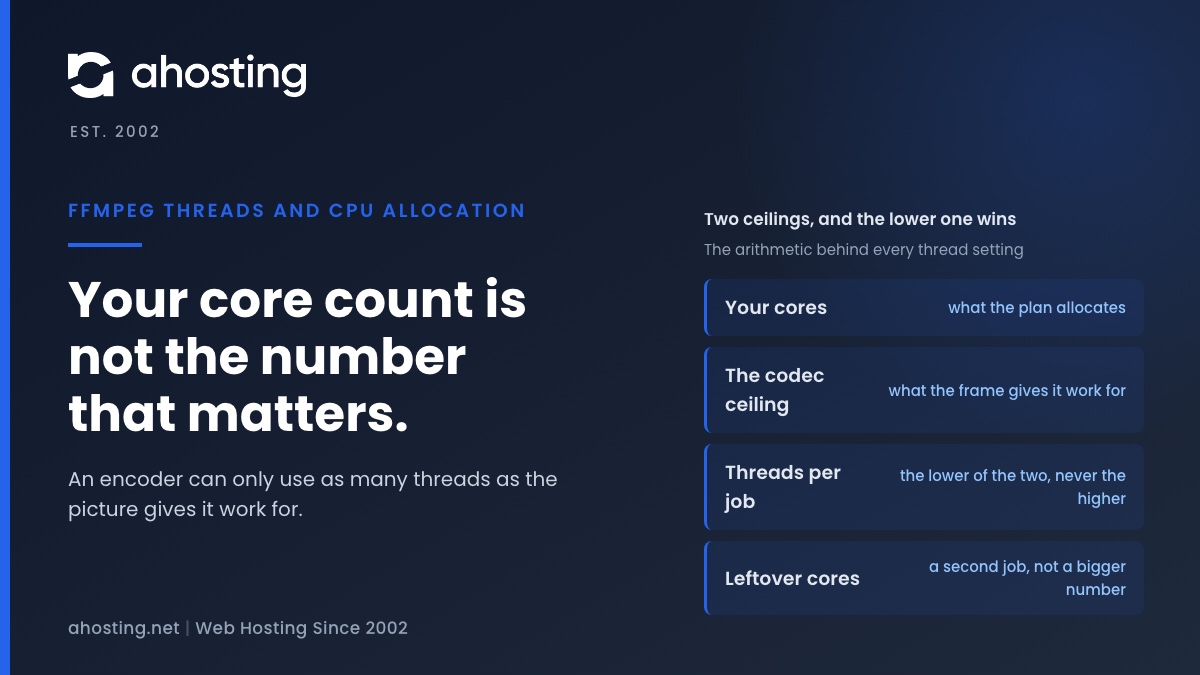
    Fortunately, the situation resolves into two numbers. One is familiar: the cores your plan allocates, a hard limit on how much CPU time you can spend per second. The second is the one that gets missed: the number of threads the codec can actually put to work on a frame of a given size. Your per-job thread count is the lower of the two, and which one is lower changes the advice completely, because setting FFmpeg threads to your core count is only correct when the cores are the smaller number.

    By contrast, most tuning guidance addresses only the first. Our own knowledge base article on FFmpeg presets, CRF and command-level tuning is the right reference once you know which ceiling binds you, and it covers the levers that genuinely reduce the CPU cost of an encode. This article is upstream of it: before choosing a preset, work out whether the machine or the material is the constraint, because that decides whether you are looking for a faster command or a different way to run it.

    What Actually Sets Your Useful FFmpeg Thread Count

    Frame Geometry Caps Useful FFmpeg Threads, Not Your Core Count

    Ultimately, the cap comes from how the codec divides a picture. Google publishes recommended settings for VP9 video on demand, and the table is a resolution ladder rather than a hardware one: 640×360 and 640×480 get two threads, 1280×720 and 1920×1080 get four, and 2560×1440 and 3840×2160 get eight. The figure moves with frame size, and it stops moving well below the core count of an ordinary server. The same page notes that “there is limited value to multiple threads when the output frame size is very small.”

    Similarly, the WebM project states the general recommendation as the number of real cores minus one, and explains the mechanism plainly: rows of macro-blocks are encoded simultaneously on different threads. Rows are the unit of parallelism, so a frame with few rows has few pieces to hand out. That is why a 4K encode can keep eight threads busy while a 480p encode of the same length cannot keep three busy, on identical hardware, with an identical command.

    x265 Picks Its Own Frame Threads and Warns You Off More

    Interestingly, the clearest statement of the problem comes from an encoder that already solves it for you. The x265 project allocates one thread per CPU core by default and auto-detects a frame-thread count from the core count — two frame threads at four cores, three at eight, five at sixteen. It then warns against overriding that upward, because frame threads “each allocate a large amount of memory” and the reference lag between frames limits how much of the work is genuinely independent.

    Above all, note how the project phrases the consequence: beyond the auto-detected count you get limited benefit, and “often the extra frame encoders reduce performance.” Not the same speed for more memory, but slower. An encoder shipping a conservative default and a written warning against raising it is a strong signal that the received wisdom about matching threads to cores is wrong.

    Why the Scheduler Makes Extra FFmpeg Threads Cost You

    Consequently, threads you cannot feed are not free. The Linux scheduler documentation describes its model as an ideal CPU running every task in parallel at 1/nr_running speed — as the number of runnable tasks rises, each one’s share falls proportionally. Sixteen threads on eight cores do not get sixteen cores’ worth of time. They get eight cores’ worth, cut into sixteen thinner slices, with the switching between them charged to you.

    For example, the same counting error shows up elsewhere on a server. Our post on how many concurrent users WordPress shared hosting can handle works through the identical mistake in PHP workers: raising the worker count past what the CPU can serve does not raise throughput, it just spreads the same capacity thinner and adds contention. Encoders are the same arithmetic with a different unit of work.

    The AHosting FFmpeg Thread Budget

    Accordingly, the two ceilings combine into one table. The AHosting FFmpeg Thread Budget below sets each plan’s effective cores against the useful thread ceiling for 1080p output, and reads off the per-job thread count and the split that follows from it. Shared tiers take their core figure from the CloudLinux CPU speed allocation, where 100 percent is one core; the FFmpeg plans take theirs from the vCPU on the plan page.

    AHosting tierEffective coresUseful threads per 1080p jobThe split that follows
    Bronze shared111 job at 1 thread
    Silver shared221 job at 2 threads
    WooStart shared331 job at 3 threads
    Gold shared441 job at 4 threads
    FFStart4 vCPU, guaranteed41 job at 4 threads
    FFPower8 vCPU, guaranteed4 (capped by the codec)2 jobs at 4 threads
    The AHosting FFmpeg Thread Budget. Effective cores are published allocations; the 1080p ceiling is the VP9 VOD recommendation for that frame size. Arithmetic over published figures, not benchmark data.

    Read the last row first, because it is where the argument lands. FFPower is the only tier whose core count exceeds the codec ceiling, which means it is the only tier where adding threads to a single job cannot spend what you are paying for. Everywhere above it, one job at the full thread count already uses the plan. The shared rows come from the shared plan allocations, and they carry a caveat the FFmpeg rows do not: a container reaches its cap only while its neighbors leave it free.

    Two Assumptions Behind the FFmpeg Threads Column

    Two assumptions are printed rather than buried. The ceiling column is for 1920×1080; at 1440p and above it rises to eight and the FFPower row becomes one job at eight threads. And every figure here is arithmetic over published numbers, not a measurement — we have benchmarked no encodes and are not implying otherwise.

    Jobs, Not Threads: The Split That Uses the Box You Paid For

    That said, a ceiling is only useful if it tells you what to do with the headroom. The answer is that spare cores go to another job, because a second file arrives with a full set of frames of its own and none of the dependencies that limit the first.

    One job at eight FFmpeg threads against two jobs at four, on the same 8 vCPU server Two panels showing the same eight vCPU server. On the left a single encode started with eight threads keeps four vCPU busy and leaves four idle, because the useful thread ceiling at 1080p is four. On the right two concurrent encodes at four threads each keep all eight vCPU busy, because the second file brings frames of its own. The same 8 vCPU box, split two ways At 1080p the codec has useful work for about four threads. What you do with the other four vCPU is the whole decision. One job, -threads 8 encoding encoding encoding encoding idle idle idle idle Four vCPU do the work. Four have nothing to encode. Two jobs, -threads 4 each file A file A file A file A file B file B file B file B Eight vCPU busy. The second file supplies the missing work. threads per job = the lower of your cores and the codec ceiling for your resolution Concurrent jobs then fill whatever cores are left, because a second file has frames of its own to divide. Ceiling shown is the published VP9 recommendation at 1920×1080. It rises to eight at 1440p and above. AHosting, 2026.

    Why One Job at Eight FFmpeg Threads Leaves an 8 vCPU Box Idle

    Indeed, the diagram is the whole finding. On eight vCPU encoding 1080p, a single job with eight threads has genuine work for about four of them; the rest wait on frame dependencies and get scheduled anyway. Two concurrent jobs at four threads each have eight threads’ worth of real work, because file B’s frames do not have to wait for file A’s.

    In fact, this is why throughput and latency pull in opposite directions here. One file that has to be finished as fast as possible should take every thread the codec can use and no more. A queue of twenty files should be run as several concurrent jobs, because total elapsed time for the queue is what you are minimising, and that is a throughput problem rather than a latency one.

    Running the Split with xargs

    Typically, you do not need a job runner to do this. The xargs -P option runs up to that many processes at a time, and it is present on every Linux server you are likely to meet. Piping a file list into it with -P set to your job count and -threads set to your per-job figure is the entire implementation.

    However, the detail of doing that safely — output naming, failure handling, keeping a long queue from swamping the box — is its own subject, and our knowledge base covers it in how to run FFmpeg jobs in parallel without overloading. What this article contributes is the number to put after -P, which that article reasonably leaves to you. The planner further down produces both figures and the command line that carries them.

    Adaptive Bitrate Ladders Are the Clearest Case

    For example, a five-rung ladder encodes one source at five bitrates, and the rungs do not depend on each other at all. Research on multi-representation encoding treats this as the standard approach: with multi-core CPUs, multiple representations of the same content can be encoded in parallel. Five concurrent single-threaded encodes on four cores will finish a ladder sooner than five four-threaded encodes run one after another.

    Shape of the workWhat you are minimisingThe splitWhy
    One file against a deadlineElapsed time for that fileAll useful threads on one jobLatency. Spare cores have no second source of work.
    A batch or queue of filesElapsed time for the whole queueCores divided by the ceilingThroughput. Each file brings its own frames.
    An adaptive bitrate ladderElapsed time for the full ladderOne job per renditionThe renditions are independent encodes of one source.
    A heavy filter graphElapsed time for that fileFewer jobs, more threadsFiltering is a separate stage with its own threading.
    The Jobs-vs-Threads Decision Table. Match the split to what you are minimising, not to the core count.

    Above all, batch work is where the difference compounds rather than appearing once. A ladder or a nightly queue runs the same arithmetic every night, and the gap between a saturated box and a half-used one is the whole reason sustained encoding workloads justify their own hardware rather than sharing capacity with anything else.

    When FFmpeg Threads Are Not Your Problem At All

    Honestly, none of this applies if something else is capping you first, and the failure looks identical from the outside. An encode that is slow because a container limits CPU speed does not get faster from a better thread split, because the constraint is the total CPU time you are permitted rather than how you divide it.

    Therefore check that before you act on anything above. The three-number diagnostic in the previous post in this series separates a throttled container from a disk bottleneck from a genuinely single-threaded encode, and it costs one timed run. If it tells you that you are throttled, the split in this article is the right plan for after you move, not a fix for where you are.

    Similarly, storage can be the real limit. A job reading and writing over a network mount will show idle cores no matter how the threads are arranged, and adding concurrent jobs makes it worse rather than better by putting more pressure on the same device. Where the diagnosis points at the plan rather than the command, no arrangement of FFmpeg threads recovers it, and the shared hosting versus VPS comparison and the VPS plan range set out what changes and what does not.

    What Guaranteed vCPU Changes

    In particular, a thread plan is only worth making if the cores it assumes are actually yours for the duration. On a shared container the allocation is a share of a core that you reach when the neighbors are quiet, so a split calculated against four effective cores can find two on a busy evening. The plan is not wrong; the input moved.

    Specifically, that is what the FFmpeg plans allocate. FFStart ships four vCPU and FFPower eight, both described on the plan page as guaranteed and unthrottled, with no cron time limits — so a six-hour batch is not slowed as an allowance runs down or cut off when a wall-clock limit arrives. Encoding the way this article describes needs CPU that stays where you put it, and that is the difference the plans are actually selling.

    Furthermore, both plans ship FFmpeg and FFprobe pre-built with full root and SSH access, on Ubuntu 24.04.3 LTS with CloudPanel by default, and cover H.264, H.265, VP9 and AV1 with HLS and DASH output. Work out your own split first with the planner below, then check it against what each tier can hold, since the plan decides the cores and the cores cap the FFmpeg threads.

    FFmpeg Job and Thread Planner

    Give it the cores you have, the resolution you are writing out, and the shape of the work. It returns the per-job thread count, how many jobs to run at once, and the command that runs them.

    Arithmetic over published figures: the ceiling is the VP9 VOD recommendation for that frame size, and the core count is yours. It is a starting point to measure from, not a prediction of encode time.

    See the FFmpeg hosting plans

    A Practical Checklist: Setting FFmpeg Threads on Your Plan

    Finally, work through this in order. Each item is answerable from the numbers this article has produced, and the sequence matters — a split calculated before the ceiling is known is a guess with arithmetic attached to it.

    • Throttling ruled out first, with a timed run, before any thread number is chosen.
    • Output resolution written down, since that is what sets the ceiling.
    • Codec ceiling read off for that resolution: two below 720p, four at 720p and 1080p, eight above.
    • Effective cores known from the plan allocation rather than from the processor count reported by the machine.
    • Per-job thread count set to the lower of those two figures, never to the higher.
    • Work classified as one deadline file, a queue, or a ladder, because each takes a different split.
    • Leftover cores assigned to concurrent jobs rather than to a larger thread number.
    • Source and destination confirmed to sit on local storage before concurrency is raised.
    • The chosen split timed once against the previous arrangement, so the change is measured rather than assumed.

    Overall, the discipline this article asks for is small: read one published ceiling, compare it against one allocation, and spend the difference on jobs instead of on FFmpeg threads. That is a few minutes of arithmetic, and on an eight-core box running routine 1080p work it is the difference between using half the machine and using all of it.

    Frequently Asked Questions About FFmpeg Threads

    Does setting FFmpeg threads to 16 speed up a 1080p x264 encode on 8 vCPU?

    Typically, no, and it can cost you a little. The useful thread count at 1080p is set by how the codec divides the frame, not by how many cores you own, and Google publishes four threads as the recommended figure at that resolution. Threads beyond the point the encoder can use still get scheduled, which spends CPU on switching between them rather than on encoding. The budget table below gives the ceiling for each AHosting tier.

    How many threads should I use for FFmpeg encoding in 2026?

    Specifically, start at the lower of two numbers: your available cores, and the useful ceiling for your output resolution. At 720p and 1080p that ceiling is four; at 1440p and above it rises to eight. The WebM project puts the general recommendation at the number of real cores minus one. Anything above the lower of those two figures buys scheduling overhead rather than speed.

    How many FFmpeg threads can an AHosting FFStart plan actually use in 2026?

    Notably, FFStart ships four vCPU, described on the plan page as guaranteed and unthrottled, so four is both the core count and the practical ceiling for a single 1080p job. One encode at four threads therefore uses the whole plan. Above 1080p the codec can use more threads than the plan has cores, which makes four the binding limit rather than the codec.

    FFmpeg threads vs parallel jobs: which finishes a batch of encodes faster?

    In practice, parallel jobs win once your core count exceeds the codec’s useful thread ceiling. A single job cannot spend cores the encoder has no work for, whereas a second independent job has its own frames to divide and starts using them immediately. Below the ceiling the two are equivalent, which is why the crossover lands at eight cores for ordinary 1080p work.

    AHosting FFStart vs FFPower: how many parallel jobs and FFmpeg threads each in 2026?

    Ultimately, FFStart’s four vCPU suit one 1080p job at four threads, while FFPower’s eight vCPU suit two concurrent jobs at four threads each. That difference is the whole argument for the larger plan on batch work: the second job is what converts the extra four vCPU into finished files. Both plans advertise guaranteed, unthrottled vCPU and no cron time limits.

    Why does raising the x265 frame thread count sometimes reduce performance?

    Fortunately, the x265 project states this outright rather than leaving it to be discovered. Frame threads each allocate a large amount of memory, and the reference lag between frames limits how much genuine parallelism is available, so beyond the auto-detected count the extra frame encoders often reduce performance. The encoder already reads your core count and picks a figure from it.

    What is the FFmpeg thread budget, and how do I calculate mine?

    Accordingly, the thread budget is two numbers compared: the cores your plan allocates, and the useful thread ceiling for your output resolution. The lower one is your per-job thread count, and the cores left over are what you fill with a second job rather than with more threads. The named table below works this through for all six AHosting tiers.

    What does the FFmpeg threads option actually control during encoding?

    Indeed, it controls how many workers the encoder is permitted to start, not how much parallel work exists for them to do. The available work comes from the video itself, through the rows, tiles and frames the codec can process independently. Where the option is left at its default it resolves to the machine’s processor count, which is why it so often exceeds what the content can use.

    How should I set FFmpeg threads for a five-rung HLS ladder on 4 vCPU?

    For example, run the five renditions as five concurrent jobs at one thread each rather than five jobs in sequence at four threads. Each rendition is an independent encode of the same source, so the renditions supply the parallelism the frames cannot. Research on multi-representation encoding treats parallel renditions on multi-core CPUs as the standard approach for exactly this reason.

    Does AHosting FFmpeg hosting throttle vCPU during long encodes in 2026?

    Additionally, no: the FFStart and FFPower plan pages state guaranteed, unthrottled vCPU and no cron time limits, so a long encode is not slowed or cut short by an allowance running out. That is the difference from a shared container, where CPU speed is capped as a share of a core. Which situation you are in decides whether this article or the diagnostic in the previous post applies.

    September 3, 2026
  • Slow FFmpeg Encoding on Shared Hosting: Find Your CPU Cap

    Slow FFmpeg Encoding on Shared Hosting: Find Your CPU Cap

    • Why Slow FFmpeg Encoding Is Almost Never the Command
      • The two numbers that decide every encode
    • What Causes Slow FFmpeg Encoding Inside a Shared Container
      • CPU speed is a time budget, not a core count
      • Why FFmpeg counts cores you are not allowed to use
      • The limits that stop an encode instead of slowing it
    • The Shared Hosting Encode Ceiling
    • Measure It Yourself: The Three-Number Slow FFmpeg Encoding Diagnostic
      • First step: time a single encode
      • Second step: read real against user against sys
      • Third step: work out your effective parallelism
    • If Slow FFmpeg Encoding Is Throttling, Tuning Buys Less Than You Think
      • What the preset flag actually moves
      • What the threads flag cannot move
    • When Shared Hosting Is the Wrong Machine for the Job
    • What Dedicated CPU Changes
    • A Practical Checklist: Is Your Hosting FFmpeg-Ready?
    • Frequently Asked Questions About Slow FFmpeg Encoding
      • Why is slow FFmpeg encoding almost never caused by the wrong command?
      • Why is my FFmpeg encode so slow on shared hosting?
      • What CPU speed limit does an AHosting shared plan give FFmpeg in 2026?
      • CPU throttling vs disk I/O: which one is causing slow FFmpeg encoding?
      • AHosting FFStart VPS vs a Gold shared plan for slow FFmpeg encoding in 2026: which finishes first?
      • How do real, user and sys times explain slow FFmpeg encoding?
      • What is the shared hosting encode ceiling and how do I calculate mine?
      • Does raising the threads flag fix slow FFmpeg encoding on a CPU-limited container?
      • When should an HLS ladder suffering slow FFmpeg encoding move onto an FFmpeg VPS?
      • Which codecs and streaming formats does AHosting FFmpeg hosting ship in 2026?
    TL;DR

    Slow FFmpeg encoding on shared hosting is usually a CPU cap, not a bad command. Time one encode, divide user seconds by your plan’s cores, and you have the floor no flag can beat.

    An encode that used to take twenty minutes is still running after two hours, and every guide you find tells you to change a flag. Before you change anything, it is worth knowing that slow FFmpeg encoding on a shared plan is far more often a property of the container than of the command. The encoder is not misconfigured. It is being handed less CPU time than it asked for, and it has no way to tell you so.

    Listen: why an over-running encode on shared hosting is usually a CPU speed cap rather than a wrong flag. By Matt Chrust, Director of Business Development, AHosting.

    This post is the measurement that comes first. It shows what a shared container actually gives FFmpeg when slow FFmpeg encoding is the symptom, how to read your own numbers in one timed run, and how to work out the floor below which no flag can take you. If the measurement says your command is the problem, our FFmpeg performance optimization tips cover the tuning in detail. If it says the container is the problem, tuning was never going to help. For the wider picture on what a media host needs, see our complete guide to FFmpeg hosting for video creators.

    Why Slow FFmpeg Encoding Is Almost Never the Command

    Consequently, the most useful thing you can do first is stop trying flags. Encoding is one of the few workloads that will consume every scrap of CPU it is offered, indefinitely, without ever raising an error. That property is what makes it so easy to misdiagnose: a database query that runs out of resources fails loudly, while an encode that runs out of resources simply takes longer.

    Notably, the encoder cannot distinguish the two states either. FFmpeg asks the operating system to run its threads and the operating system obliges, just more slowly than the thread count implies. Nothing in the progress output says so. The frames-per-second figure drops and keeps dropping, which reads exactly like a hard encoding preset even when the preset is fine. That ambiguity is why slow FFmpeg encoding gets misattributed to the command so consistently.

    The two numbers that decide every encode

    Specifically, only two quantities matter, and neither is a flag. The first is the total CPU time the encode requires, measured in CPU seconds. That is a property of the source file, the codec and the settings, and it is the number a preset change actually moves. The second is the rate at which your container is permitted to spend CPU time. That is a property of your hosting plan, and no command you type will move it at all.

    Together those two numbers give the answer directly. Divide the CPU seconds by the effective cores your plan allows, and you have the shortest wall-clock time the encode can possibly take. Everything else in this post is either how to measure those two numbers or what to do once you have them, because slow FFmpeg encoding is entirely determined by that pair.

    What Causes Slow FFmpeg Encoding Inside a Shared Container

    Fundamentally, a shared hosting account is not a small server. It is a fenced region of a large one, and the fence is enforced by limits your account never sees. Three of them touch encoding, and they behave in two completely different ways: one slows work down, and the others stop it outright.

    CPU speed is a time budget, not a core count

    Notably, the limit that governs encoding is expressed as a percentage rather than a number of cores. CloudLinux, which enforces the limits on most cPanel shared platforms, defines it as a “CPU speed limit, relative to a single core” and gives the conversion plainly: CloudLinux documents that “100% would mean 1 core, 150% would mean 1.5 cores.” Your plan does not own two processors. It owns the right to spend two seconds of CPU time per second of wall time.

    Consequently, exceeding that rate does not produce an error. The kernel simply stops scheduling your threads until the next accounting period begins. Documentation for Linux CFS bandwidth control states the mechanism precisely: “Once all quota has been assigned any additional requests for quota will result in those threads being throttled.” Throttled, not refused. The work still happens, and it happens at whatever pace the quota permits.

    In practice, that single design decision explains the entire symptom. There is no failure to find in a log, because nothing failed. CloudLinux even notes the side effect that gives the game away, warning that low speed limits cause “CPU context switching which leads to increased %sys” — a number you can read yourself in a moment.

    Why FFmpeg counts cores you are not allowed to use

    Furthermore, FFmpeg does not know about any of this, and its defaults actively work against you. The FFmpeg codec documentation states that the threads option will “Set the number of threads to be used, in case the selected codec implementation supports multi-threading,” with a “Default value is ‘auto’.” Automatic sounds safe. The question is automatic with respect to what.

    Specifically, it is automatic with respect to the machine, not your allowance. The FFmpeg command-line documentation is explicit for the filter pipeline: the default thread count “is the number of available CPUs.” On a shared server that is the physical host, which may hold dozens of cores belonging almost entirely to other people. FFmpeg cheerfully starts a thread for each one.

    Moreover, the tools you would use to check this mislead in the same direction. The nproc manual page promises “the number of processing units available to the current process, which may be less than the number of online processors,” and its all option prints installed processors “disregarding any OpenMP environment variables, or CPU quotas.” A speed cap is not a restriction on which processors you may touch; it is a cap on how much time you may spend across all of them. So the count looks generous and the budget is not.

    The limits that stop an encode instead of slowing it

    By contrast, the other two limits fail loudly, which makes them easier to recognize. When the entry process limit is reached, CloudLinux notes that the server “will return error code 508” — the subject of our guide to what entry process limits really mean. When the process limit is reached, no new process can start at all, and the platform returns a 500 or 503 instead.

    Therefore, a useful rule of thumb: if your encode errors, look at entry processes, process count or memory. If your encode finishes correctly but late, look at CPU speed. These are different limits with different symptoms, and confusing them sends you tuning the wrong thing entirely. The distinction matters when you compare shared hosting plans, because the published feature list rarely separates them.

    The Shared Hosting Encode Ceiling

    Accordingly, here is the arithmetic in full, using the CPU speed allocations on AHosting shared plans. These figures were pulled directly from the platform on 31 August 2026 and are not published on any plan page, ours included, which is precisely why anyone diagnosing slow FFmpeg encoding is so rarely handed the one calculation that settles it.

    PlanCPU speed limitEffective coresFloor for a 600-CPU-second encodeFloor for a 3,600-CPU-second encode
    Bronze100%1.010m 0s1h 0m
    Silver200%2.05m 0s30m 0s
    WooStart300%3.03m 20s20m 0s
    Gold400%4.02m 30s15m 0s
    FFStart VPS4 dedicated vCPU4.02m 30s15m 0s
    FFPower VPS8 dedicated vCPU8.01m 15s7m 30s
    The Shared Hosting Encode Ceiling — minimum wall-clock time by plan, derived as measured CPU seconds divided by effective cores. AHosting CPU allocations verified 31 August 2026. Assumptions: the encode parallelizes perfectly across the allowance, no storage wait, no contention from neighboring accounts. Real encodes are slower than the floor and never faster.

    Ultimately, two readings of that table matter more than the numbers themselves. The first is that Gold and FFStart share a floor of four cores, so the arithmetic alone does not separate them — what separates them is that a shared container only reaches its cap while its neighbors are idle, whereas dedicated vCPU are always there. The second is that the floor scales with nothing you type. A preset change alters the left-hand input; the plan alters the divisor.

    Measure It Yourself: The Three-Number Slow FFmpeg Encoding Diagnostic

    Fortunately, you do not have to take any of this on trust, and you do not need server access to check it. One command produces three numbers, and those three numbers distinguish a throttled container from a disk bottleneck from a genuinely single-threaded encode. Those three causes of slow FFmpeg encoding call for completely different responses, and guessing between them wastes the most time.

    First step: time a single encode

    Specifically, run the encode you already run, with the word time in front of it. The time manual page describes what you get: when the command finishes, time “writes a message to standard error giving timing statistics about this program run.” Use a representative source file rather than a short clip, because startup costs distort anything under about a minute.

    Notably, you want the run to be otherwise ordinary. Do not lower the preset for the test and do not run two encodes at once. The point is to characterize the workload you actually have, not a tuned version of it.

    Second step: read real against user against sys

    Specifically, real is “the elapsed real time between invocation and termination” — the wall clock. User is CPU time your code spent in user mode, and sys is CPU time spent in the kernel on your behalf. The important thing is that user and sys are sums across every thread, so on a genuinely parallel machine they can far exceed real.

    Therefore, the ratio is the signal. Divide user by real and you have your effective parallelism: how many cores the encode actually managed to use, averaged over the run. A four-core machine doing four-core work reports close to 4.0. A container capped at one core reports close to 1.0 no matter how many threads FFmpeg started, which is the fingerprint of throttling.

    Third step: work out your effective parallelism

    Consequently, three comparisons resolve almost every case. Read them against your own numbers rather than against a benchmark, because the absolute values depend entirely on your source material.

    What you observeEffective parallelism (user divided by real)What it meansWhat to do
    user is far below real, sys is smallWell under 1.0The process is waiting, not computing. Storage or network is the bottleneck.Stop tuning the encoder. Check where the source and destination files live.
    user is close to real, and stays there however many threads you setClose to 1.0You are capped near one core. This is CPU throttling.A preset change helps proportionally. A thread change does not help at all.
    sys is an unusually large share of total CPU timeAny valueContext switching overhead, the documented side effect of a low speed limit.Reduce the thread count toward your effective cores rather than raising it.
    user is a clean multiple of real, near your plan’s core figureClose to your allowanceYou are using everything the plan permits. Nothing is broken.You are at the ceiling. Only more CPU or less work changes the outcome.
    The Three-Number Diagnostic — interpreting real, user and sys from a single timed FFmpeg run. Effective parallelism is user divided by real.
    What actually happens when FFmpeg asks for eight cores Threads are not refused. They are queued against a fixed CPU budget, which is why the encode slows rather than fails. 1. FFmpeg counts the machine nproc reports the host: 8 processors -threads defaults to auto, so eight threads start. 2. The container caps the spend LVE CPU speed limit: 100% = 1 core Eight threads now share one core of CPU time. 3. The kernel throttles Over-quota threads are throttled No error, no exit code. Just a longer wall time. The consequence, stated as arithmetic minimum wall time = measured CPU seconds divided by effective cores An encode costing 600 CPU seconds cannot finish in under 600 seconds on a one-core cap, or under 150 on a four-core cap. Effective cores come from the plan’s CPU speed limit, not from the processor count the machine reports. AHosting, 2026.

    If Slow FFmpeg Encoding Is Throttling, Tuning Buys Less Than You Think

    That said, tuning is not useless, and the diagnostic tells you exactly how much it is worth. The two families of change behave very differently once a cap is in play, and knowing which is which saves a great deal of time.

    What the preset flag actually moves

    In practice, the preset is the one lever that reliably works under a cap, because it reduces the left-hand side of the division. A faster preset asks the encoder to search fewer options per frame, which costs fewer CPU seconds and therefore lowers the floor itself. You pay for it in file size at the same visual quality, which may or may not matter for your delivery.

    Similarly, cutting before encoding, scaling down before encoding rather than after, and avoiding a re-encode altogether with a stream copy all reduce the CPU cost rather than the rate. Our guide to FFmpeg presets, CRF and stream copying covers each of those in command-level detail, and it is the right next stop once the diagnostic points at the workload rather than the container.

    What the threads flag cannot move

    By contrast, thread count changes nothing about the total CPU seconds required and therefore nothing about the floor. Raising it on a capped container divides the same budget among more workers, which adds scheduling overhead for no gain — the increased system time CloudLinux warns about. Lowering it toward your effective core count sometimes recovers a few percent, which is worth doing and is not a fix.

    Furthermore, this pattern will be familiar to anyone who has tried to solve a resource problem by raising a number in a configuration file. It is the same shape as the reason raising the WordPress memory limit does not work on shared hosting: a setting inside the container cannot grant something the container itself is denied. The number goes up and the ceiling does not move.

    When Shared Hosting Is the Wrong Machine for the Job

    Ultimately, some workloads do not belong on a shared plan at all, and the honest answer is to say so rather than to keep tuning. Where slow FFmpeg encoding is structural, tuning never reaches it. Three tests settle that question, and each one uses numbers you now have.

    First and foremost, the deadline test. Take your measured CPU seconds, divide by your plan’s effective cores, and compare the result with the window you actually have. When a nightly batch needs six hours of floor inside a four-hour window, no flag closes that gap — the arithmetic has already ruled it out.

    Secondly, the ladder test. An adaptive HLS or DASH ladder encodes the same source once per rung, so a five-rung ladder costs roughly five times a single encode. Multiply before you plan, because ladders are where shared plans stop being merely slow and start missing publishing schedules altogether. This is the usual trigger for moving to a VPS with guaranteed resources.

    Thirdly, the sustained-load test. A shared container reaches its cap only while its neighbors leave it free, which is tolerable for an occasional encode and unreliable for continuous work. Where encoding runs most of the day, the right machine is a server whose CPU nobody else can claim. If you are weighing the step up more generally, our comparison of shared hosting against VPS hosting for growing sites sets out what changes and what does not.

    What Dedicated CPU Changes

    Accordingly, the value of moving is narrower and more specific than most upgrade advice suggests. Dedicated CPU does not make FFmpeg faster. It removes the divisor problem: the cores are yours for the whole run, so the floor you calculate is the floor you get, every time, rather than the floor you get when the server is quiet.

    Specifically, AHosting FFStart provides 4 vCPU, 8 GB of RAM, 75 GB of SSD storage and 6 TB of traffic, while FFPower doubles the processor and memory allocation to 8 vCPU and 16 GB. Both ship FFmpeg with codecs and a segmenter already installed on Ubuntu 24.04.3 LTS, with CloudPanel and SSH access, covering libx264, libx265, VP9 and AV1 alongside HLS and MPEG-DASH output. The encoding described in this post needs guaranteed CPU rather than a share of somebody else’s, and that is what the FFmpeg hosting plans allocate.

    Notably, none of that is a reason to move if your diagnostic came back clean. A container running at its full allowance on an occasional encode is working exactly as intended, and the money is better spent elsewhere. The calculator below is there to make the comparison concrete rather than persuasive.

    Encode Ceiling Calculator

    Run your encode once under time, take the user figure in seconds, and enter it here. The result is the shortest wall-clock time that encode can take on each tier. No command-line flag can go below it.

    Arithmetic only, from published CPU allocations. It is a floor, not a prediction: real encodes also wait on storage, and a shared container reaches its cap only while its neighbors leave it free.

    See the FFmpeg hosting plans

    A Practical Checklist: Is Your Hosting FFmpeg-Ready?

    Finally, run through this before you change anything. Each item is answerable from the numbers this post has produced, and the order matters — measuring after tuning tells you nothing.

    • One representative encode timed, with real, user and sys written down.
    • Effective parallelism calculated to one decimal place by dividing user by real.
    • Your plan’s CPU speed limit known as a percentage, rather than guessed from the processor count.
    • The floor computed from measured CPU seconds divided by effective cores, then compared against your deadline.
    • Symptom classified: does the encode error, or does it finish correctly but late?
    • Rungs counted in any adaptive ladder, with the CPU cost multiplied accordingly.
    • Source and destination files confirmed to sit on local storage rather than a network mount.
    • A faster preset tried, which lowers the CPU cost, before the thread count, which does not.
    • Workload characterized as occasional or continuous, since that is what decides shared against dedicated.

    Ultimately, the discipline this post asks for is a single timed run before any tuning. Diagnosing slow FFmpeg encoding costs exactly one encode, and it tells you which half of the problem you are in, which is more than any amount of flag experimentation will do.

    Frequently Asked Questions About Slow FFmpeg Encoding

    Why is slow FFmpeg encoding almost never caused by the wrong command?

    Typically, the command is the second thing to check rather than the first. A container capped on CPU speed spends the same total CPU seconds whichever flags you pass, so the real question is how quickly your plan lets FFmpeg spend them. Measure before you tune: the three-number diagnostic below separates a throttled container from a badly written command in a single run.

    Why is my FFmpeg encode so slow on shared hosting?

    Specifically, a shared plan gives your account a fixed share of a CPU core and FFmpeg cannot exceed it. Where that share is 100 percent of one core, an encode needing 600 seconds of CPU time cannot finish in under 600 seconds of wall time. Extra threads divide the same budget into smaller pieces rather than adding to it.

    What CPU speed limit does an AHosting shared plan give FFmpeg in 2026?

    Notably, AHosting shared plans allocate CloudLinux LVE CPU speed as Bronze 100 percent, Silver 200 percent, WooStart 300 percent and Gold 400 percent, where 100 percent equals one core. Those four figures were pulled from the platform on 31 August 2026. The ceiling table below converts each one into a minimum wall-clock time for any encode whose CPU cost you have measured.

    CPU throttling vs disk I/O: which one is causing slow FFmpeg encoding?

    Fortunately, one timed run answers this. When user time approaches real time multiplied by your effective core count, the encode is CPU bound and throttled. When real time is far larger than user and sys time added together, the process is waiting on storage instead, and no encoder flag will help. The decision table below maps each combination to its cause.

    AHosting FFStart VPS vs a Gold shared plan for slow FFmpeg encoding in 2026: which finishes first?

    In practice, FFStart finishes first in the general case even though both allow roughly four cores of CPU time. A Gold container reaches its 400 percent cap only while the neighbors sharing that server leave it free, whereas FFStart ships four dedicated vCPU that nobody else can claim. Sustained batch work is where that difference compounds.

    How do real, user and sys times explain slow FFmpeg encoding?

    Specifically, real is elapsed wall-clock time, user is CPU time spent running your code and sys is CPU time spent inside the kernel. Dividing user by real gives your effective parallelism. A machine genuinely using four cores reports close to 4.0; a container capped at one core reports close to 1.0 however many threads FFmpeg started.

    What is the shared hosting encode ceiling and how do I calculate mine?

    Ultimately, the ceiling is a single division: measured CPU seconds divided by your plan’s effective cores gives the shortest wall-clock time an encode can possibly take. Nothing in the command lowers that floor, because the container sets it rather than the encoder. The calculator below runs the arithmetic across every AHosting tier once you supply your own measured figure.

    Does raising the threads flag fix slow FFmpeg encoding on a CPU-limited container?

    Indeed, it usually makes matters marginally worse. FFmpeg defaults its thread count to auto, which resolves to the number of processors the machine reports rather than the number your plan permits. More threads against a fixed CPU budget means more context switching for the same total work, which is exactly why CloudLinux warns that low speed limits drive system time upward.

    When should an HLS ladder suffering slow FFmpeg encoding move onto an FFmpeg VPS?

    For example, a five-rung HLS ladder re-encodes one source five times, so its CPU cost is roughly five single encodes. Once that total exceeds what your plan can spend inside the window you actually have, the ladder belongs on dedicated CPU. The three tests below express that threshold in terms of your own measured numbers rather than a generic recommendation.

    Which codecs and streaming formats does AHosting FFmpeg hosting ship in 2026?

    Additionally, AHosting FFmpeg plans ship FFmpeg with codecs and a segmenter preinstalled on Ubuntu 24.04.3 LTS, covering H.264 through libx264, H.265 through libx265, VP9 and AV1. Both HLS with m3u8 manifests and MPEG-DASH with mpd manifests are supported. FFStart provides four dedicated vCPU and FFPower provides eight.

    August 31, 2026
  • WordPress Hosting for Online Courses: LMS Requirements & Setup Guide 2026

    WordPress Hosting for Online Courses: LMS Requirements & Setup Guide 2026

    • What Makes WordPress Hosting For Online Courses Different from Standard Hosting
    • Minimum Server Requirements for WordPress Hosting for Online Courses & LMS Sites in 2026
      • Why PHP 8.3 Matters for LMS Performance in 2026: Factor 1
    • Can Shared Hosting Run WordPress Hosting for Online Courses & LMS? The Real Answer
    • Course Video Hosting: Why FFmpeg Support Changes Everything
    • When to Upgrade from WordPress Hosting to a VPS: 5 Signals
      • Signal 1: Concurrent Active Students Exceed 100
      • Signal 2: TTFB Climbs Above 600 Milliseconds
      • Signal 3: cPanel Resource Usage Logs Show CPU at 80 Percent or Higher
      • Signal 4: WooCommerce Checkout Timeouts During Course Launches
      • Signal 5: Five or More Video Courses with Self-Hosted Files
    • Setting Up WordPress Hosting for Online Courses: 5 Essential Hosting Steps
      • First Step: Confirm Your PHP Version and Memory Limit
      • Second Step: Enable Object Caching at the Server Level
      • Third Step: Optimize Your Database Before Student Activity Builds
      • Fourth Step: Configure Cloudflare CDN for Static Assets (Not Logged-In Pages)
      • Fifth Step: Create a Staging Environment and Test Every Plugin Update There First
    • WooCommerce and LMS: Selling Courses Requires Payment-Grade Hosting
    • AHosting's 22-Year Foundation – The Perfect WordPress Hosting For Online Courses Hosting
    • Is Your WordPress Hosting For Online Courses Ready? Pre-Launch Checklist
    • Conclusion: The Right WordPress Hosting for Online Courses is your Foundation for Success
    • Frequently Asked Questions: WordPress LMS Hosting
      • What makes WordPress hosting for online courses different from regular WordPress hosting?
      • How much RAM does a WordPress LMS site need?
      • Can shared hosting run a WordPress LMS like LearnDash or LifterLMS?
      • What PHP version do I need for LearnDash in 2026?
      • Do I need special hosting to serve course videos on WordPress?
      • When should I upgrade from WordPress shared hosting to a VPS for my course site?
      • Does WooCommerce add extra hosting requirements when selling courses?
      • What is object caching and why does it matter for WordPress LMS sites?
      • How many students can a shared WordPress hosting plan support?
      • What hosting features should I look for when launching a WordPress LMS site?
    TL;DR WordPress hosting for online courses requires PHP 8.1 or higher, a 256 MB PHP memory limit, NVMe SSD storage, and object caching support. Shared hosting works for up to 100 concurrent students; beyond that, a VPS upgrade is the reliable path. If you self-host course videos, you also need FFmpeg support — a feature most hosts skip entirely.
    Listen to Podcast – Part of the Ahosting WordPress Podcast Series

    WordPress hosting for online courses is a fundamentally different infrastructure challenge from hosting a blog or a brochure site, and choosing the wrong plan before you launch will cost you students, sales, and hours of troubleshooting mid-course. This guide covers the exact server requirements your LMS site needs, the honest answer to whether shared hosting is enough, how to handle course video delivery with FFmpeg, and the five signals that tell you it is time to upgrade to a VPS.


    What Makes WordPress Hosting For Online Courses Different from Standard Hosting

    WordPress hosting for online courses creates a constant stream of database write activity that ordinary shared plans were not designed to absorb. Every student interaction — a lesson marked complete, a quiz submitted, a progress percentage updated, a certificate generated — writes to the WordPress database in real time. On a standard blog, most traffic is read-only: visitors load cached pages and the database barely moves. On an LMS site, every logged-in student triggers live writes with every click.

    The practical result is that standard caching strategies do not work the same way. Full-page caching, which makes most WordPress sites fast, cannot cache pages for logged-in users — and all of your students are logged in. That means every dashboard load, every lesson page, and every quiz result hits your server fresh. Your hosting stack has to be ready for that.

    Three infrastructure differences matter most for LMS workloads: PHP memory limits, object caching availability, and database I/O throughput. We cover each in the sections below.


    Minimum Server Requirements for WordPress Hosting for Online Courses & LMS Sites in 2026

    The server requirements for a WordPress LMS site start from the official WordPress 7.0 Hosting Requirements but go significantly further once you add an LMS plugin on top.

    RequirementWordPress MinimumLMS RecommendedPower LMS (100+ students)
    PHP version7.48.18.3
    PHP memory limit64 MB256 MB512 MB
    DatabaseMySQL 5.7 / MariaDB 10.4MySQL 8.0 / MariaDB 10.6Same
    Storage typeHDD (any)NVMe SSDNVMe SSD
    Object cachingNot requiredRedis or MemcachedRedis (required)
    Web serverApache / NginxAny + LiteSpeed preferredLiteSpeed + LSCache
    SSLRequiredRequiredRequired

    PHP memory limit is the single most common LMS failure point. LearnDash, LifterLMS, and TutorLMS each load significant amounts of data into memory during course rendering. A 64 MB or 128 MB memory limit — common on budget shared hosting — causes “Allowed memory size exhausted” fatal errors under normal student activity. Always confirm the memory limit with your host before installing an LMS plugin.

    Why PHP 8.3 Matters for LMS Performance in 2026: Factor 1

    PHP 8.3 delivers measurably faster execution for object-heavy PHP workloads than PHP 7.4 — the kind of workload an LMS plugin produces constantly. According to benchmarks published by the PHP project and corroborated by hosting performance research, PHP 8.3 handles 14 to 20 percent more requests per second than PHP 7.4 for typical WordPress workloads. For WooCommerce course sales, the gains are even larger: roughly 23 percent higher throughput.

    PHP 8.1, 8.0, and 8.2 have all reached end-of-life or are approaching it. PHP 8.3 is the safe, well-supported choice for a new LMS build in 2026.


    Can Shared Hosting Run WordPress Hosting for Online Courses & LMS? The Real Answer

    Shared hosting can run a WordPress LMS site — with specific conditions attached. At AHosting, we have been running WordPress sites on shared infrastructure since 2002 and have seen every configuration of LMS hosting succeed and fail. The honest answer depends on your course load, not just your plan tier.

    Shared hosting works for LMS when:

    • Your active concurrent student count stays below 100
    • You are running a single LMS plugin (not LearnDash + WooCommerce + a membership plugin simultaneously)
    • Course content is text-based or embeds external video (YouTube, Vimeo) rather than self-hosted video files
    • Your host provides a 256 MB PHP memory limit and NVMe SSD storage
    • Object caching (Redis or Memcached) is available on the plan

    Shared hosting struggles when:

    • You run course launches that spike enrollment by 50 to 100 students simultaneously
    • Host video files directly on your server (without FFmpeg transcoding, large files strain both storage and CPU)
    • You run WooCommerce alongside your LMS (combined database writes during a launch can saturate shared resources)
    • Your host uses HDD storage instead of NVMe SSD, producing slow database queries under concurrent load

    The dividing line in our 22 years of operational experience: a well-configured shared hosting plan on modern infrastructure (NVMe, LiteSpeed, PHP 8.1+, Redis) serves early-stage course creators reliably. The moment a course launch sends simultaneous signups past 80 to 100 active users, the shared environment’s resource-sharing model becomes the bottleneck.


    Course Video Hosting: Why FFmpeg Support Changes Everything

    Self-hosting video content on WordPress is where most course creators run into an infrastructure wall that has nothing to do with their LMS plugin. Raw video files — the .mp4 or .mov files that come off a camera or screen recorder — are large, inconsistently formatted, and incompatible with all browsers without conversion.

    FFmpeg is the industry-standard open-source tool that transcodes video into web-optimized formats: H.264/AAC for broad compatibility, multiple resolutions for adaptive bitrate streaming, and compressed file sizes that reduce storage costs and load times. Without FFmpeg running at the server level, raw video is delivered as-is — which means slow loads, failed playback on certain devices, and storage bills that grow faster than your student count.

    Most shared and managed WordPress hosts do not include FFmpeg. It requires dedicated server resources and configuration, which most hosting companies do not provide outside of their highest-tier VPS or dedicated plans.

    AHosting’s FFmpeg hosting plans include server-side FFmpeg support alongside your WordPress environment. This means your course videos are transcoded, optimized, and served from the same hosting account as your LMS — without routing through a third-party video platform. For course creators who want full ownership of their video content and delivery, this is the configuration that makes self-hosting practical.

    For a detailed breakdown of how FFmpeg integrates with video hosting workflows, see our post on using FFmpeg hosting to build audiences.

    WordPress LMS Hosting Architecture — AHosting Diagram showing the request flow for a WordPress LMS site: Student Browser sends a request through Cloudflare CDN, then to LiteSpeed Web Server running under CloudLinux CageFS, which calls PHP 8.3, which checks Redis Object Cache before hitting the NVMe SSD database. All layers protected by SSL and Solid Security firewall. WordPress LMS Hosting Architecture Request flow: student to database Student Browser Cloudflare CDN + SSL LiteSpeed Web Server CloudLinux CageFS PHP 8.3 256 MB+ RAM WordPress + LMS Plugin LearnDash / LifterLMS Redis Cache Object Caching NVMe SSD MySQL 8.0 DB Cache HIT No DB query needed FFmpeg Video Transcoding Course video delivery WooCommerce Course sales + checkout Diagram: AHosting LMS Stack — ahosting.net
    WordPress LMS hosting architecture: how student requests flow from browser through Cloudflare, LiteSpeed, PHP 8.3, Redis object cache, and NVMe database. AHosting serves all these layers from one hosting account. By Matt Chrust, Director of Business Development, AHosting.

    When to Upgrade from WordPress Hosting to a VPS: 5 Signals

    Your shared WordPress hosting plan has a natural capacity ceiling. That ceiling is not posted in your plan’s feature list — it appears at runtime, usually during a course launch at the worst possible moment. Recognizing the upgrade signals before you hit the wall is the difference between a planned migration and an emergency one.

    At AHosting, we have watched these five patterns consistently precede the decision to upgrade:

    Signal 1: Concurrent Active Students Exceed 100

    Shared hosting resource pools are designed for burst traffic, not sustained concurrent load. A course launch that enrolls 80 to 120 students in a two-hour window — all logging in, loading lesson pages, and submitting quizzes simultaneously — creates a sustained database and PHP execution load that shared infrastructure cannot absorb cleanly. The first symptoms are slow admin dashboard responses and quiz submission timeouts. By the time your students notice, the damage to your course experience is done.

    Signal 2: TTFB Climbs Above 600 Milliseconds

    Time to First Byte (TTFB) above 600 ms on a logged-in student page means your server is spending too long processing each request before it sends the first byte back. This is a database I/O problem at its core. On NVMe SSD shared hosting with Redis enabled, TTFB should sit below 300 ms even under moderate concurrent load. If it consistently drifts higher, your shared environment’s resources are being contended by other accounts on the same server.

    Signal 3: cPanel Resource Usage Logs Show CPU at 80 Percent or Higher

    Your cPanel → Metrics → Resource Usage section shows real-time CPU and memory utilization. LMS sites that regularly push CPU above 70 to 80 percent during student activity windows are operating at the limit of their shared container. CloudLinux, which AHosting runs on all shared plans, enforces hard per-account CPU limits — which means resource spikes beyond the limit are queued, not served instantly.

    Signal 4: WooCommerce Checkout Timeouts During Course Launches

    If WooCommerce checkout pages time out or return errors specifically during enrollment windows, the problem is almost always database write saturation. WooCommerce and an LMS plugin running simultaneously during a launch spike can generate hundreds of concurrent database write operations. A VPS with dedicated CPU and RAM handles this workload without affecting the student experience on the LMS side.

    Signal 5: Five or More Video Courses with Self-Hosted Files

    Each self-hosted video course adds storage overhead, media library load, and streaming bandwidth pressure to your hosting environment. Shared hosting plans with storage and bandwidth limits will begin to strain at five or more active video courses with substantial enrollment. At this scale, either AHosting’s VPS hosting plans or our FFmpeg hosting tier — which handles video transcoding and delivery separately from your core WordPress environment — is the appropriate infrastructure choice.

    MetricShared Hosting ComfortableUpgrade Recommended
    Concurrent active studentsUp to 100100+
    TTFB (logged-in pages)Under 300 ms600 ms+
    cPanel CPU usageUnder 60%80%+ consistently
    Checkout timeout rate0%Any consistent errors
    Video courses hosted1–45+
    Monthly enrolled studentsUnder 500500+

    Setting Up WordPress Hosting for Online Courses: 5 Essential Hosting Steps

    Getting your WordPress hosting for online courses configured correctly before you install your LMS plugin saves hours of troubleshooting later. These five steps are the ones we walk through with every new LMS hosting customer.

    First Step: Confirm Your PHP Version and Memory Limit

    In cPanel, go to Software → Select PHP Version. Confirm you are running PHP 8.1 or higher — ideally PHP 8.3. Then open PHP Settings and locate memory_limit. It should be set to 256M or higher. If your host has locked the memory limit below 256M, contact support before installing an LMS plugin.

    Second Step: Enable Object Caching at the Server Level

    Object caching for WordPress requires server-side support — Redis or Memcached must be installed and running on your host’s server before any plugin can connect to it. Ask your host directly: “Is Redis or Memcached available on my plan?” If yes, install the Redis Object Cache plugin by Till Krüss from the WordPress.org plugin directory, then activate it from Settings → Redis. If Redis is not available on shared hosting, it is one of the primary reasons to move to a VPS.

    Third Step: Optimize Your Database Before Student Activity Builds

    LMS plugins write heavily to the WordPress options table and generate post meta at scale. Before you launch, run an initial database optimization using WP-CLI or a plugin like WP-Optimize to clean expired transients and post revisions. Schedule a weekly database optimization — LMS databases accumulate bloat faster than standard WordPress sites because every student progress update and quiz result is a database row.

    Fourth Step: Configure Cloudflare CDN for Static Assets (Not Logged-In Pages)

    Cloudflare’s CDN caches static assets — images, CSS, JavaScript — extremely well and should be enabled on all course sites. However, confirm that Cloudflare is configured to bypass caching for logged-in users and for WooCommerce cart and checkout pages. The Cloudflare WordPress plugin and W3 Total Cache’s CDN integration handle this automatically, but verify the bypass rules are active before your first launch.

    Fifth Step: Create a Staging Environment and Test Every Plugin Update There First

    Plugin conflicts are the leading cause of LMS site failures on shared hosting. A staging environment — a copy of your live site running on a separate subdomain or directory — lets you test LearnDash, LifterLMS, WooCommerce, and security plugin updates before applying them to production. This is particularly important for LMS sites because a broken quiz engine or a failed checkout page directly affects paying students. AHosting’s cPanel environment supports staging subdomain configuration out of the box.

    Course Hosting Finder

    Answer 4 quick questions to find the right AHosting plan for your online course site.

    1. How many active students do you expect at launch?

    2. Will you be selling courses directly through your site?

    3. How are you hosting your course videos?

    4. How technical are you?

    View Plan

    WooCommerce and LMS: Selling Courses Requires Payment-Grade Hosting

    Adding WooCommerce to your WordPress LMS site changes the hosting equation materially. Course sales through WooCommerce mean every enrollment goes through a checkout process that writes to the database at least five times per transaction: the cart is created, the order is placed, the payment gateway is called, the order status is updated, and the LMS plugin grants course access — all in sequence, sometimes within three seconds of the student clicking Buy.

    During a course launch window, you may have 50 to 100 students completing this sequence simultaneously. Without object caching and sufficient PHP memory, the checkout queue backs up, producing errors that cost you real revenue.

    AHosting's WooCommerce hosting plans are configured with the resource isolation and caching infrastructure that checkout-heavy LMS sites need. The plans run on CloudLinux, which guarantees that a traffic spike from a neighboring account on the shared server cannot borrow your CPU or RAM — a critical guarantee during the window when your launch is live and your students are paying.

    For course creators who are also managing multiple client sites or building a portfolio of online course products, AHosting's reseller hosting plans allow you to host multiple independent WordPress + WooCommerce + LMS installations under one cPanel/WHM account, each with its own isolated container.


    AHosting's 22-Year Foundation - The Perfect WordPress Hosting For Online Courses Hosting

    We have been running WordPress hosting since WordPress was in its earliest versions. That history is not just a marketing line — it means AHosting has seen every configuration of WordPress, WooCommerce, and LMS hosting succeed, fail, and recover.

    Our infrastructure runs LiteSpeed Web Server with LSCache, CloudLinux with CageFS resource isolation, PHP 8.1 as the current production standard (with PHP 8.3 available), and NVMe SSD storage across our shared and VPS tiers. We run cPanel and WHM across all plans, which means the setup path for an LMS site is the same documented cPanel workflow your developers already know.

    For online course creators specifically, the three AHosting products that matter are:

    • WordPress hosting plans — the starting point for new LMS builds with 1–100 students
    • WooCommerce hosting plans — optimized for checkout-heavy course sales
    • FFmpeg hosting plans — for course creators self-hosting video on their own server

    Is Your WordPress Hosting For Online Courses Ready? Pre-Launch Checklist

    Work through this checklist before you run your first course launch:

    Server Configuration

    • PHP version is 8.1 or higher (8.3 preferred)
    • PHP memory limit is set to 256 MB or higher
    • MySQL 8.0 or MariaDB 10.6 is the active database version
    • NVMe SSD storage is confirmed (ask your host if unsure)

    Caching and Performance

    • Redis or Memcached is available and configured for object caching
    • W3 Total Cache or LiteSpeed Cache is installed and active
    • Cloudflare is configured with logged-in user bypass rules active
    • TTFB on a logged-in student page is below 300 ms

    LMS Plugin Readiness

    • LearnDash, LifterLMS, or your chosen LMS plugin is on the latest version
    • WooCommerce (if used for course sales) is on the latest version
    • PHP Compatibility Checker has been run — no critical warnings
    • Staging environment created and used to test the latest plugin updates

    Video and Media

    • Course video files have been transcoded (FFmpeg or third-party tool)
    • Video files are under 500 MB per lesson where possible
    • CDN is configured to serve static media (images, CSS, JS)
    • If self-hosting video: FFmpeg support confirmed with your host

    Conclusion: The Right WordPress Hosting for Online Courses is your Foundation for Success

    WordPress hosting for online courses is not simply a matter of picking any WordPress plan and installing LearnDash. The database write patterns, concurrent user load, video delivery requirements, and WooCommerce checkout pressure that LMS sites generate require specific server-level features that generic shared hosting often lacks: sufficient PHP memory, object caching, NVMe SSD storage, and — if you plan to self-host videos — FFmpeg support.

    The good news is that a well-configured shared hosting plan covers the needs of most early-stage course creators. The upgrade path to VPS is clear and predictable. And for the specific combination of WordPress, WooCommerce course sales, and self-hosted video, AHosting has been running the infrastructure since 2002.

    Frequently Asked Questions: WordPress LMS Hosting

    What makes WordPress hosting for online courses different from regular WordPress hosting?

    LMS sites generate far more database writes than standard WordPress blogs. Every quiz submission, lesson completion, course progress update, and student login triggers database transactions that a basic shared plan was not designed to absorb. WordPress hosting for online courses needs a higher PHP memory limit (256 MB minimum), object caching support, and NVMe SSD storage to keep those transactions fast under concurrent load.

    How much RAM does a WordPress LMS site need?

    A WordPress LMS site needs at least 256 MB of PHP memory per site for smooth operation with plugins like LearnDash or LifterLMS. For sites with 100 or more concurrent students, 512 MB or more is advisable. The memory limit is a hosting-level setting — check your cPanel PHP Settings or ask your host before installing an LMS plugin.

    Can shared hosting run a WordPress LMS like LearnDash or LifterLMS?

    Yes, shared hosting can run a WordPress LMS for early-stage course sites with fewer than 100 active students, provided the host offers PHP 8.1 or higher, a 256 MB PHP memory limit, and NVMe SSD storage. Once you cross 100 concurrent users, process more than 30 quiz submissions per minute, or add video courses, VPS hosting becomes the more reliable choice.

    What PHP version do I need for LearnDash in 2026?

    LearnDash 4.x and above requires PHP 7.4 as a minimum, but the LearnDash team recommends PHP 8.1 or higher for full feature compatibility and performance in 2026. PHP 8.3 is the recommended version according to WordPress.org and delivers meaningful speed improvements for LMS database-heavy operations.

    Do I need special hosting to serve course videos on WordPress?

    Self-hosting course videos on WordPress requires FFmpeg support at the server level for video transcoding, format conversion, and delivery optimization. Without FFmpeg, raw video files are served as-is — large, slow, and incompatible with all browsers. AHosting FFmpeg hosting plans include server-side FFmpeg support specifically for video transcoding workloads.

    When should I upgrade from WordPress shared hosting to a VPS for my course site?

    The five clearest signals that your course site has outgrown shared hosting are: more than 100 concurrent active students, consistent TTFB above 600 ms, CPU usage hitting 80 percent or more in your cPanel resource log, WooCommerce checkout timeouts during course launches, and five or more live video courses consuming significant storage and bandwidth simultaneously.

    Does WooCommerce add extra hosting requirements when selling courses?

    WooCommerce adds significant database write pressure on top of the LMS plugin activity. Each checkout creates an order record, triggers payment gateway API calls, and logs customer data simultaneously. Object caching (Redis or Memcached), a PHP memory limit of at least 512 MB, and a host with isolated resources prevents checkout slowdowns from affecting your students course experience.

    What is object caching and why does it matter for WordPress LMS sites?

    Object caching stores the results of repeated database queries in memory using Redis or Memcached, so your server does not re-run the same query each time a student loads their dashboard. For LMS sites where every student sees a unique progress state, object caching dramatically reduces database load compared to standard page caching, which cannot cache logged-in user views.

    How many students can a shared WordPress hosting plan support?

    A well-configured shared WordPress hosting plan with PHP 8.1, 256 MB memory, and an object cache can support 50 to 100 concurrent active students reliably. Sites with large course libraries, video content, and active WooCommerce selling consistently exceed these limits and experience checkout timeouts or slow dashboards once active enrollment grows past that threshold.

    What hosting features should I look for when launching a WordPress LMS site?

    The essential hosting features for a WordPress LMS site are: PHP 8.1 or higher, a 256 MB or higher PHP memory limit, NVMe SSD storage, object caching support (Redis or Memcached), CloudLinux or similar resource isolation so other accounts do not affect your performance, daily backups, a staging environment for testing plugin updates, and SSL included. Bonus: FFmpeg support for self-hosted video courses.

    May 29, 2026
  • FFmpeg Hosting for Video Creators: The Complete 2026 Guide

    FFmpeg Hosting for Video Creators: The Complete 2026 Guide

    TL;DR
    FFmpeg hosting 2026 isn’t just for video sharing sites — it’s the processing backbone of AI-generated video tools like Runway and Sora. Your host needs pre-installed FFmpeg, dedicated CPU allocation, and HLS/DASH support to keep pace. AHosting has had all three since day one.
    • What Is FFmpeg Hosting? (And Why It Still Matters in 2026)
    • The 2026 Video Landscape: What FFmpeg Hosts Now Need to Handle
      • YouTube Shorts, Twitch, and Substack Video
      • AI Video Tools: Runway, Sora, and Pika + FFmpeg Processing
      • 4K/8K Delivery and HLS/DASH Adaptive Streaming
    • Self-Hosted Video vs Cloud Transcoding: The Real Cost Comparison
    • What to Look for in an FFmpeg Hosting 2026 Provider
      • Pre-Installed and Optimized FFmpeg
      • Dedicated CPU Allocation
      • HLS and DASH Adaptive Streaming Support
      • GPU-Readiness for AI Video Workloads
      • Storage and Bandwidth That Match Video Reality
    • AHosting FFmpeg Hosting: Built for Video Since 2002
    • Practical Checklist: Is Your FFmpeg Host Ready for 2026?
    • The AHosting Advantage: 20+ Years of Video Hosting Experience
    • Conclusion: Video Hosting Has Changed — Your Server Should Too
    • FAQ
    The AHosting SEO Podcast · Episode: FFmpeg Hosting 2026 · Hosted by Matt Chrust, Director of Business Development

    What Is FFmpeg Hosting? (And Why It Still Matters in 2026)

    If you’ve ever uploaded a video to YouTube and watched it magically appear in six different resolutions — from 4K down to a stuttery 240p for someone on a slow connection — you’ve already experienced FFmpeg doing its job. You just didn’t see it.

    FFmpeg is the open-source multimedia framework that powers transcoding, streaming, recording, and conversion across almost every major video platform on the planet. It’s not glamorous software. There’s no shiny UI. But it’s the engine under the hood of video infrastructure that most people never think about — until they need it.

    (more…)
    August 16, 2013
Ahosting Logo

Hosting

  • WordPress Hosting
  • Web Hosting
  • FFmpeg Hosting
  • WooCommerce Hosting
  • Reseller Hosting
  • VPS Hosting
  • Dedicated Server

Domain

  • Register a Domain
  • Domain Transfer
  • Premium SSL Certificate

Support

  • Knowledge Base
  • Abuse Report
  • Submit A Ticket

Company

  • Compare Hosts
  • About Us
  • Datacenter
  • Contact Us
  • Blog
  • Sitemap

Legal

  • Privacy Policy
  • Terms of Service
  • Acceptable Use Policy
  • Service Level Agreement
  • Resource Abuse Policy
  • Hosting
    • WordPress Hosting
    • Web Hosting
    • FFMpeg Hosting
    • WooCommerce Hosting
    • Reseller Hosting
    • VPS Hosting
    • Dedicated Server
  • Domain
    • Register a Domain
    • Domain Transfer
    • Premium SSL Certificate
  • Support
    • Knowledge Base
    • Abuse Report
    • Submit A Ticket
  • Company
    • About Us
    • Datacenter
    • Contact Us
    • Blog
    • Sitemap
  • Legal
    • Privacy Policy
    • Terms of Service
    • Acceptable Use Policy
    • Service Level Agreement
    • Resource Abuse Policy

Copyright © 2026 All Rights Reserved

Ahosting, Inc. BBB Accredited Business, A+ rating
Facebook X/Twitter Instagram LinkedIn YouTube