
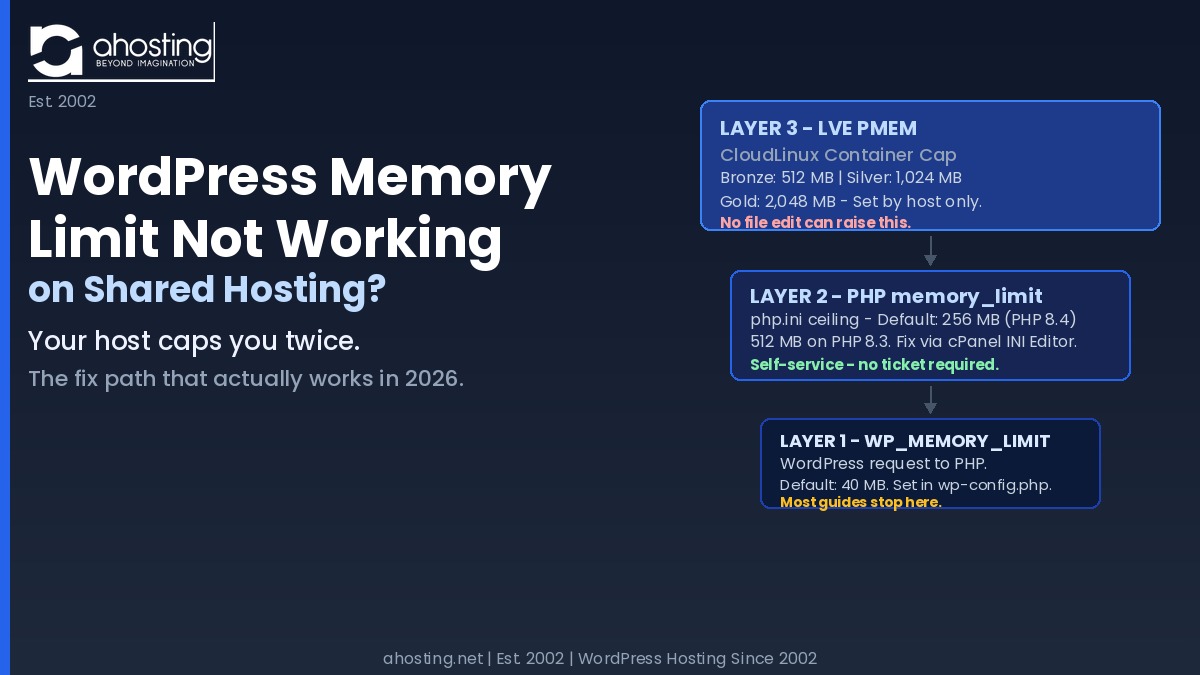
Is your WordPress Memory Limit not working? When your WordPress memory limit is not working after a wp-config.php edit, a second ceiling — the CloudLinux LVE PMEM container cap — is almost always the real blocker on shared hosting, and no configuration file you can edit will change it.
Editing wp-config.php to fix your WordPress memory limit not working is the advice every guide gives — and it only solves the problem on servers where PHP’s own ceiling is the bottleneck. On shared hosting running CloudLinux — which describes most WordPress hosts in 2026 — there is a third layer above PHP that no WordPress or PHP configuration file can touch. Additionally, that layer is what keeps sending the fatal error even after your edits look correct. Fortunately, this guide explains all three memory ceilings, identifies which one you are actually hitting, and gives you the correct fix path for each.
WordPress Memory Limit Not Working? The Three-Layer Problem
Is your WordPress Memory Limit not working? Most memory guides treat the problem as a single ceiling to raise. In practice, on shared hosting, three separate memory layers are stacked on top of each other — and a fix that works at one layer may still fail because the ceiling above it has not moved. Notably, this is not a WordPress bug or a configuration error on your part. Your WordPress memory limit not working error is a result of the architecture of modern shared hosting platforms running CloudLinux.
The Three Memory Layers Behind Every WordPress Server
WordPress runs PHP, and PHP consumes RAM. However, three separate systems control how much RAM is actually available to your site at any given moment. Understanding which layer is the bottleneck is the prerequisite for choosing the right fix.
Layer 1 — WP_MEMORY_LIMIT (the WordPress request). WordPress asks PHP to reserve a block of memory at startup. Specifically, the default is 40 MB for a single site and 64 MB for Multisite installations. Adding define('WP_MEMORY_LIMIT', '256M'); to wp-config.php tells WordPress to request 256 MB from PHP — but PHP decides whether to grant it, based on its own ceiling. Refer to the WordPress wp-config.php documentation for the full list of memory constants including WP_MAX_MEMORY_LIMIT for admin-area tasks.
Layer 2 — PHP memory_limit (the php.ini ceiling). PHP enforces its own per-script memory cap, defined in php.ini or equivalent configuration. If this limit is 128 MB and WordPress requests 256 MB, WordPress receives 128 MB. Consequently, the most reliable way to change this layer on a cPanel host is the MultiPHP INI Editor — not wp-config.php, which only raises the WordPress request and cannot exceed the PHP ceiling.
Layer 3 — LVE PMEM (the CloudLinux container cap). On servers running CloudLinux OS — the operating system used by most shared WordPress hosts — a third ceiling sits above PHP. The LVE Physical Memory (PMEM) cap limits the total physical RAM the entire hosting account can use at one time, across all PHP processes, cron jobs, and background tasks combined. Importantly, no configuration file you can edit touches PMEM. It is enforced at the OS kernel level and set entirely by your hosting provider on a per-plan basis.
Why wp-config.php Is a Request, Not an Override
Adding WP_MEMORY_LIMIT to wp-config.php is frequently the correct first step — and it works when PHP’s ceiling is the actual bottleneck. However, it has two distinct failure modes that most guides do not address.
First, if PHP’s memory_limit is lower than the value you set in wp-config.php, PHP ignores the request and enforces its own ceiling. Tools › Site Health › Info › Server shows the PHP-enforced value — not what you wrote in wp-config.php — giving the impression that the change had no effect at all.
Second, even if a wp-config.php edit successfully raises the value WordPress reports in Site Health, the LVE PMEM container cap may still be the bottleneck during peak moments. Specifically, when multiple PHP processes run simultaneously — WooCommerce checkouts, media imports, admin updates, and background cron jobs stacking up — the container runs out of physical RAM and CloudLinux forces a 503. The per-script PHP limit looks fine; the container ceiling is what gives way. For a deeper look at how CloudLinux entry-process limits interact with memory, the companion post on WordPress 503 errors and PHP worker counts explains the relationship in detail. Additionally, WooCommerce hosting plans on AHosting are sized specifically to avoid this pattern at checkout.

The Hidden Ceiling That Can Cause “WordPress Memory Limit Not Working”: CloudLinux LVE PMEM on Shared Hosting
What PMEM Is and Why Your WordPress Memory Limit Won’t Budge
LVE stands for Lightweight Virtual Environment — a kernel-level isolation mechanism built into CloudLinux OS that gives each hosting account its own resource container. PMEM is the physical memory cap within that container. Notably, it operates at a level below anything accessible through the WordPress file system:
- WordPress reports
memory_limit = 512Min Site Health — correct at the PHP layer. - PHP attempts to allocate 512 MB for a new script — permitted by the PHP ceiling.
- However, if the LVE PMEM cap for the account is also 512 MB and two existing PHP processes are each using 200 MB, the new script hits the container wall at 512 MB total — not at its own script limit.
The result is memory exhausted errors or 503 responses that persist even after a successful php.ini increase. Importantly, this behavior is the direct reason the standard “just edit wp-config.php” advice fails for many shared hosting users — the edit succeeds at the PHP layer, but PMEM is a ceiling that PHP itself cannot see or exceed. This is the same CloudLinux container system that generates 508 Resource Limit Reached errors when entry processes are the bottleneck — a related constraint from the same LVE infrastructure.
How to Tell Which Ceiling Is Blocking Your WordPress Memory Increase
Fortunately, diagnosing the specific layer causing your WordPress memory limit not working issue is straightforward using tools already inside your WordPress dashboard.
Diagnosis step one — check the PHP layer first (after verifying your “WordPress Memory Limit Not Working” status). Go to WordPress dashboard › Tools › Site Health › Info › Server. The “PHP memory limit” line shows the current PHP-enforced ceiling. If this value matches what you set in wp-config.php, Layer 2 is resolved and PMEM may be the next wall.
Diagnosis step two — if Site Health still shows the old value after a wp-config.php edit, PHP’s own ceiling is still the bottleneck. The cPanel MultiPHP INI Editor is the correct fix at this point — detailed in the fix section below.
Diagnosis step three — if Site Health shows the correct higher value but errors persist under load, PMEM is the remaining ceiling. At this point, no file you can edit changes the outcome. Furthermore, a temporary phpinfo.php file (containing <?php phpinfo(); ?>, deleted immediately after use) confirms the active memory_limit value PHP is actually enforcing as a cross-check against what Site Health reports.
WordPress Memory Limit Not Working: Why Every Common Fix Has a Failure Mode
Understanding why each common fix has a specific point where it stops working tells you exactly which tool to reach for — and which ones to skip entirely on a LiteSpeed + CloudLinux server. The table below covers every method you are likely to encounter, and its real-world behavior on cPanel shared hosting. Note: object-cache and page-cache memory managed by the LiteSpeed Cache plugin operate independently of the PHP memory_limit configurations covered below.
| Fix Method | Layer It Raises | Works on LiteSpeed + CloudLinux? | Silently Fails When | Verdict |
|---|---|---|---|---|
WP_MEMORY_LIMIT in wp-config.php | WordPress request only | Yes — if PHP ceiling is already higher | PHP memory_limit is equal to or lower than the requested value | First step only — not a guaranteed fix |
php_value memory_limit in .htaccess | PHP layer (Apache mod_php only) | No — LiteSpeed LSAPI and PHP-FPM ignore this directive; can produce 500 errors | Server runs LiteSpeed, Nginx, or PHP-FPM | Skip entirely on LiteSpeed hosts |
Custom .user.ini file in site root | PHP layer | Sometimes — only if host permits user-level INI overrides | Host enforces a server-level php.ini that takes priority | Host-dependent — verify with phpinfo() |
| cPanel MultiPHP INI Editor | PHP layer directly | Yes — always on cPanel hosts | LVE PMEM cap is still in effect above the PHP layer | Most reliable self-service fix |
| Plan upgrade (Bronze › Silver › Gold) | LVE PMEM container ceiling | Yes — always; raises the real container ceiling | Only if dedicated memory with no container ceiling is needed (VPS solves this) | The real fix when PMEM is the bottleneck |
AHosting’s Memory Architecture by Plan — What Your Limit Can Actually Reach
Most shared hosts publish their PHP memory limits. AHosting publishes both — the PHP memory_limit and the LVE PMEM container cap per plan — because both matter to understanding why your WordPress memory limit is not working and what will actually fix it. The table below is drawn directly from the AHosting server configuration on sh193, verified June 2026.
AHosting WordPress Plan Memory Tiers — 2026
| Plan | Default PHP memory_limit | LVE PMEM Cap | PHP Workers (EP) | Best Fit |
|---|---|---|---|---|
| WP Bronze | 256 MB (PHP 8.4 default) | 512 MB | 15 | Standard WordPress sites, basic page builders |
| WP Silver | 256 MB (PHP 8.4 default) | 1,024 MB | 25 | Elementor Pro, WooCommerce, multi-plugin builds |
| WP Gold | 256 MB (PHP 8.4 default) | 2,048 MB | 40 | High-traffic, heavy page builders, media-intensive sites |
Note: Switching from PHP 8.4 to PHP 8.3 via cPanel MultiPHP Manager raises the default memory_limit to 512 MB at no additional cost on any plan. All plans allow self-service memory_limit increases via the cPanel MultiPHP INI Editor — up to the plan’s PMEM ceiling. Neither change requires a support ticket.
Additionally, the default 256 MB memory_limit on PHP 8.4 meets Elementor’s recommended minimum requirement out of the box. For Elementor Pro builds with many widgets and global kits, switching to PHP 8.3 (512 MB default) or using the MultiPHP INI Editor to raise the limit is the recommended approach before a plan upgrade. Full plan details are on the AHosting WordPress hosting page.
What Actually Works: The Correct Fix Path for "WordPress Memory Limit Not Working" Tickets.
The cPanel MultiPHP INI Editor: The Self-Service Fix Most Guides Skip
The cPanel MultiPHP INI Editor — found under cPanel › Software › MultiPHP INI Editor — changes php.ini directives per PHP version without requiring a manual php.ini file or .htaccess directives that break under LiteSpeed. Consequently, it is the most reliable self-service fix on cPanel hosts because it modifies the server-side value directly, and what you see in Tools › Site Health afterward is the actual enforced ceiling.
The process on AHosting is: cPanel › Software › MultiPHP INI Editor › select your PHP version (typically PHP 8.4) › find the memory_limit row › increase the value (256M to 512M is the common first target) › Save. No server restart is required — LiteSpeed applies the change immediately. Importantly, the value you can set here is bounded by your plan’s LVE PMEM cap, so raising the PHP ceiling above PMEM will not give your site more usable memory under concurrent load — the container ceiling is still in effect.
Confirming Your Memory Limit Change Actually Took Effect
After any memory change — wp-config.php edit, MultiPHP INI Editor, or plan upgrade — confirm the outcome by checking Tools › Site Health › Info › Server. The “PHP memory limit” row is the ground truth value that PHP is currently enforcing. Additionally, the WordPress server requirements page confirms the recommended minimums: 64 MB absolute minimum, 256 MB recommended for most sites.
If Site Health shows the new value and memory errors stop, the fix worked at the PHP layer. If Site Health shows the new, correct value and errors still occur under load — specifically during WooCommerce checkouts, large media imports, or simultaneous admin operations — PMEM is still the ceiling.
When a Plan Upgrade Raises the PMEM Ceiling
A plan upgrade is the correct fix when the PHP layer is already at the right value — that is, when Site Health shows 256 MB or higher — but memory errors still occur during peak load or when multiple admin tasks run simultaneously. At that point, the PMEM container ceiling is the bottleneck, and only a plan change moves it.
On AHosting, upgrading from Bronze (512 MB PMEM) to Silver (1,024 MB PMEM) gives Elementor Pro builds, membership sites, and standard WooCommerce stores sufficient container headroom. For high-traffic scenarios where even 1,024 MB PMEM is still the constraint — heavy WooCommerce catalogs, multi-language plugins, large media libraries with concurrent background optimization jobs — Gold (2,048 MB) or a WordPress VPS upgrade removes the shared container ceiling entirely. The guide to signs your WordPress site has outgrown shared hosting covers the full decision checklist for when VPS is the right move.
Switching Hosts: Why PMEM Transparency Is the Signal
Finally, most shared hosts publish their PHP memory limits. Very few publish their LVE PMEM container tiers. When a host routes every memory issue through a support queue — rather than a self-service INI editor — and will not disclose the container ceiling, the architecture is the real constraint.
Specifically, the signal that host transparency is the issue — rather than plan tier — is this pattern: you have raised the PHP memory_limit to the maximum the support team allows, optimized your plugin stack, and memory errors still occur under normal traffic. That pattern means the PMEM ceiling is the bottleneck and the host will not move it within the current plan. Transparent PMEM tiers — published before you buy, self-adjustable via cPanel INI Editor — are the practical test for whether a shared hosting infrastructure will scale with your WordPress site over time.
WordPress Memory Limit Not Working: A Quick Diagnostic Checklist
Run through these steps in order before contacting your host or purchasing an upgrade. Furthermore, steps one through three are entirely self-service and take under five minutes on a cPanel host.
- Open Tools › Site Health › Info › Server and note the current “PHP memory limit” value — this is the PHP-enforced ceiling, not WordPress’s estimate.
- If the value is below your target: add
define('WP_MEMORY_LIMIT', '256M');to wp-config.php above the “That’s all, stop editing” comment. Refresh Site Health. - If Site Health still shows the old value: go to cPanel › Software › MultiPHP INI Editor, select your PHP version, raise
memory_limitto 256M or 512M, and save. Refresh Site Health to confirm. - If Site Health now shows the correct value but errors persist under load (and you still observe your WordPress Memory Limit not working): the LVE PMEM container cap is the bottleneck. No file edit will help — a plan upgrade is the correct next step.
- To raise the PMEM ceiling on AHosting: upgrade from Bronze (512 MB PMEM) to Silver (1,024 MB PMEM), or to Gold (2,048 MB PMEM) for the highest shared-hosting tier.
- After any change: confirm with a fresh Site Health check. For the highest certainty, create a temporary phpinfo.php file in your site root, verify the
memory_limitrow, and delete the file immediately.
Additionally, the companion post on WordPress memory limit errors and why wp-config changes often fail covers the full range of error messages and diagnosis paths in more detail.
Frequently Asked Questions: WordPress Memory Limit Not Working on Shared Hosting
Why does my WordPress memory limit not change after editing wp-config.php on shared hosting in 2026?
Typically, this happens because WP_MEMORY_LIMIT in wp-config.php is a request to PHP, not an override. WordPress asks PHP to allocate more memory, but PHP can only honor the request up to its own php.ini ceiling — and on CloudLinux shared hosting, there is a third ceiling above that called the LVE PMEM cap. If the php.ini ceiling or the PMEM cap is lower than what you requested, the change appears to fail silently. The fix depends on which ceiling you are actually hitting, which the cPanel MultiPHP INI Editor and the AHosting plan tier table above help identify.
What is the three-layer WordPress memory stack, and which layer is impossible to raise by editing files alone?
Specifically, the three layers are: WP_MEMORY_LIMIT (what WordPress requests from PHP), PHP memory_limit (the PHP ceiling in php.ini), and the LVE PMEM cap (the CloudLinux kernel-level container ceiling). The third layer — LVE PMEM — cannot be raised by editing any WordPress or PHP configuration file. It is set at the operating system level by CloudLinux and is controlled entirely by the hosting provider, either through a cPanel account setting or by upgrading to a higher plan tier.
WordPress memory_limit in wp-config.php vs. LVE PMEM — which one is the real ceiling on CloudLinux shared hosting?
Notably, LVE PMEM is the real ceiling on CloudLinux shared hosting. PHP memory_limit controls how much memory a single PHP script can request — but LVE PMEM caps the total physical memory the entire hosting account can use at once. A wp-config.php change raises the WordPress request layer and can help when PHP memory_limit is the bottleneck, but it cannot affect LVE PMEM. On AHosting plans, the PMEM ceiling ranges from 512 MB on Bronze to 2,048 MB on Gold — see the AHosting WordPress Plan Memory Tiers table above.
WordPress Memory Limit Not Working Tickets: When should I use the cPanel MultiPHP INI Editor instead of wp-config.php to fix a WordPress memory limit issue?
The cPanel MultiPHP INI Editor is the right tool when wp-config.php appears to change nothing — that is, when Tools › Site Health still shows the old memory limit after you added the WP_MEMORY_LIMIT constant. The MultiPHP INI Editor raises the PHP layer directly, without going through WordPress. It is the most reliable self-service fix on cPanel hosts like AHosting, and changes take effect immediately without restarting the server.
What is LVE PMEM and why does it override php.ini memory settings on CloudLinux shared hosting?
Essentially, LVE PMEM (Physical Memory) is the CloudLinux kernel-level cap on the total physical RAM a hosting account can allocate at any one time. It is enforced at the operating system layer — above PHP, above WordPress, and above any configuration file a site owner can edit. Because PMEM is a container ceiling rather than a per-script limit, it applies to the combined memory of every PHP process, cron job, and background task running in the account simultaneously. When an account’s combined usage hits PMEM, additional PHP processes receive a 503 error regardless of what php.ini says.
WordPress Silver vs. Bronze plan at AHosting — how much PMEM headroom does each give for memory-intensive plugins and how does this fix my WordPress Memory Limit not working?
Specifically, AHosting Bronze provides a 512 MB PMEM ceiling and 256 MB default PHP memory_limit — appropriate for standard WordPress sites and basic Elementor builds. Silver doubles the PMEM to 1,024 MB, giving Elementor Pro, WooCommerce stores, and multi-plugin setups genuine headroom without hitting the container ceiling during peak load. Gold raises PMEM to 2,048 MB, designed for high-traffic or highly customized WordPress installations. All plan details and upgrade options are available on the AHosting WordPress hosting page.
When does increasing the PHP memory limit in WordPress fail to fix the error on LiteSpeed shared hosting in 2026?
Unfortunately, increasing the PHP memory limit fails to fix memory exhausted errors on LiteSpeed shared hosting in 2026 when the LVE PMEM container cap is the actual ceiling — not PHP memory_limit - meaning this won't address your WordPress memory limit not working issue. This happens most often on Bronze-tier plans running Elementor Pro, WooCommerce with heavy extensions, or multiple concurrent admin tasks. In those scenarios, the PHP limit may read 512 MB in Site Health, but the container runs out of PMEM before any individual PHP script hits that limit. The solution is either a plan upgrade or offloading background tasks to reduce peak concurrent memory usage.
How do I confirm a WordPress memory limit fix actually took effect on my AHosting cPanel account in 2026?
If you previously found your WordPress memory limit not working, the most reliable confirmation method is WordPress Tools › Site Health › Info › Server — the “PHP memory limit” line there reflects the active server-side value, not just what WordPress requested in wp-config.php. If the value still shows 256 MB after a wp-config.php change, the PHP layer is the ceiling and the cPanel MultiPHP INI Editor is the correct next step. AHosting customers can also create a temporary phpinfo.php file in their site root and check the memory_limit row to see the value PHP is actually enforcing, then delete the file after confirming.
What PHP memory limit does AHosting set by default in 2026, and what is the PMEM ceiling on each plan?
Currently, AHosting WordPress accounts default to PHP 8.4 with a 256 MB memory_limit — meeting Elementor’s recommended minimum out of the box. PHP 8.3 accounts receive 512 MB by default. On the PMEM side, Bronze plans cap the container at 512 MB, Silver at 1,024 MB, and Gold at 2,048 MB. Customers can raise the PHP memory_limit via the cPanel MultiPHP INI Editor without opening a support ticket, up to the plan’s PMEM ceiling.
Does shared hosting cause WordPress memory limit errors more frequently than VPS or managed WordPress hosting?
Generally, yes — shared hosting generates WordPress memory limit errors more often because every account shares a server’s physical RAM within fixed LVE PMEM containers, rather than having dedicated memory allocation. On VPS or managed WordPress hosting, memory limits are either higher by default or configurable without container constraints. That said, shared hosting is appropriate for most WordPress sites when the plan tier’s PMEM ceiling matches the site’s actual load — the key is matching memory tiers to site requirements rather than assuming shared hosting cannot scale.
Related posts:
 WordPress Memory Limit Errors: Why Raising It in wp-config Often Fails (2026)
 “Resource Limit Reached” vs. 503 vs. 500 Error WordPress: A Diagnostic Decision Tree
 WordPress Staging Site: What Your Hosting Plan Needs to Make It Work (2026 Guide)
 “508 Resource Limit Reached” on WordPress: What Entry Process (EP) Limits Really Mean