
- What the "Allowed Memory Size Exhausted" WordPress Memory Limit Error Actually Means
- Why Raising the WordPress Memory Limit in wp-config Often Does Nothing
- How Much WordPress Memory Limit Your Site Actually Needs in 2026
- The Self-Service Fix: Raising the WordPress Memory Limit Without a Support Ticket
- When More WordPress Memory Limit Won't Help: Outgrowing Shared Resource Limits
- A Practical Checklist: Is Your Hosting Memory-Ready for WordPress?
- Frequently Asked Questions: WordPress Memory Limit
- Is 128MB memory limit enough for a WordPress site in 2026?
- WP_MEMORY_LIMIT vs PHP memory_limit: which controls the WordPress memory limit?
- What does the WordPress memory limit error actually mean in 2026?
- What is the two-ceiling problem in the WordPress memory limit on shared hosting?
- How do I raise the WordPress memory limit on AHosting without a support ticket?
- WooCommerce vs blog: what WordPress memory limit does each need in 2026?
- When should I upgrade from Bronze to Silver instead of raising the AHosting memory limit?
- Why does my WordPress memory limit reset after I edit wp-config.php?
- How can I check my real WordPress memory limit in the Site Health screen?
- Does AHosting publish the LVE memory cap for every WordPress plan?
WP_MEMORY_LIMIT in wp-config.php often fails because two separate ceilings govern shared hosting: the PHP memory_limit and, on CloudLinux, the LVE container cap (PMEM). On AHosting you raise the first yourself in cPanel’s PHP INI Editor with no ticket, while the second rises with your plan tier (512MB Bronze, 1024MB Silver, 2048MB Gold). PHP 8.4 already ships at 256MB, so most sites never hit the wall.
Few WordPress errors arrive with worse timing than the WordPress memory limit failure. Specifically, you publish a product, run a plugin update, or open a page builder, and the screen goes blank or returns Fatal error: Allowed memory size of 134217728 bytes exhausted. Furthermore, almost every guide gives the same advice: add a line to wp-config.php and, if that fails, contact support. In practice, that advice is incomplete, and on modern CloudLinux hosting it explains why so many fixes quietly do nothing.
Notably, AHosting has run WordPress on shared, reseller, and VPS infrastructure since 2002, and the memory wall is one of the most common tickets our team sees. Therefore, this guide does what the generic articles skip: it explains the two independent ceilings that actually control your WordPress memory limit, shows how to raise the one you control without a support ticket, and publishes the exact per-plan container caps so you can size a plan against real numbers instead of guessing.
What the “Allowed Memory Size Exhausted” WordPress Memory Limit Error Actually Means
Specifically, the “Allowed memory size exhausted” error means a single PHP request tried to allocate more RAM than its memory_limit permits, so PHP stopped the script to protect the server. In other words, it is a safety valve, not a sign your site is corrupted. Moreover, the error names the file and line where the ceiling was hit, but that location is rarely the real cause — it is simply where the cumulative weight of your theme and plugins finally crossed the line.
Importantly, PHP allocates memory per request. Consequently, the memory_limit is not how much RAM your site has overall; it is how much one page load or one admin task is allowed to use before PHP halts it. For a full breakdown of the official thresholds, the WordPress server requirements page documents the recommended minimums that modern themes and plugins are built against.
Front-End vs Admin: WP_MEMORY_LIMIT and WP_MAX_MEMORY_LIMIT
In short, WordPress actually tracks two memory values. WP_MEMORY_LIMIT governs front-end requests — what your visitors load — and defaults to 40MB for a single site. By contrast, WP_MAX_MEMORY_LIMIT governs admin-side work inside /wp-admin/ and defaults to 256MB, because plugin updates, media uploads, and WP-Cron jobs legitimately need more headroom. As a result, a site can run fine for visitors while still failing during a bulk import in the dashboard.
Crucially, both of these WordPress values sit beneath the server’s PHP memory_limit. Therefore, WordPress can never grant itself more memory than the server allows, no matter what numbers you place in wp-config.php. The official wp-config.php documentation covers both constants and the order in which they apply.
Why the Byte Number in the WordPress Memory Limit Error Doesn’t Change the Fix
Notably, the byte figure in the message — 33554432, 134217728, 268435456 — is just your current limit expressed in bytes (32MB, 128MB, 256MB respectively). In other words, it tells you the ceiling you hit, not the amount you were short by. Consequently, the remedy is identical regardless of the number: raise the effective memory_limit, or reduce what the request is trying to do. Chasing the specific byte value is a distraction.
Why Raising the WordPress Memory Limit in wp-config Often Does Nothing
Here is the single most important fact the generic guides omit: WP_MEMORY_LIMIT in wp-config.php is a request, not a command. Specifically, it asks PHP for memory up to the server’s configured ceiling — and it cannot push past it. Therefore, if your host caps PHP at 128MB and you set 512MB in wp-config.php, your site still runs at 128MB and the error returns. This is why editing one file so often changes nothing.
The Two Ceilings: PHP memory_limit vs the LVE Container Cap
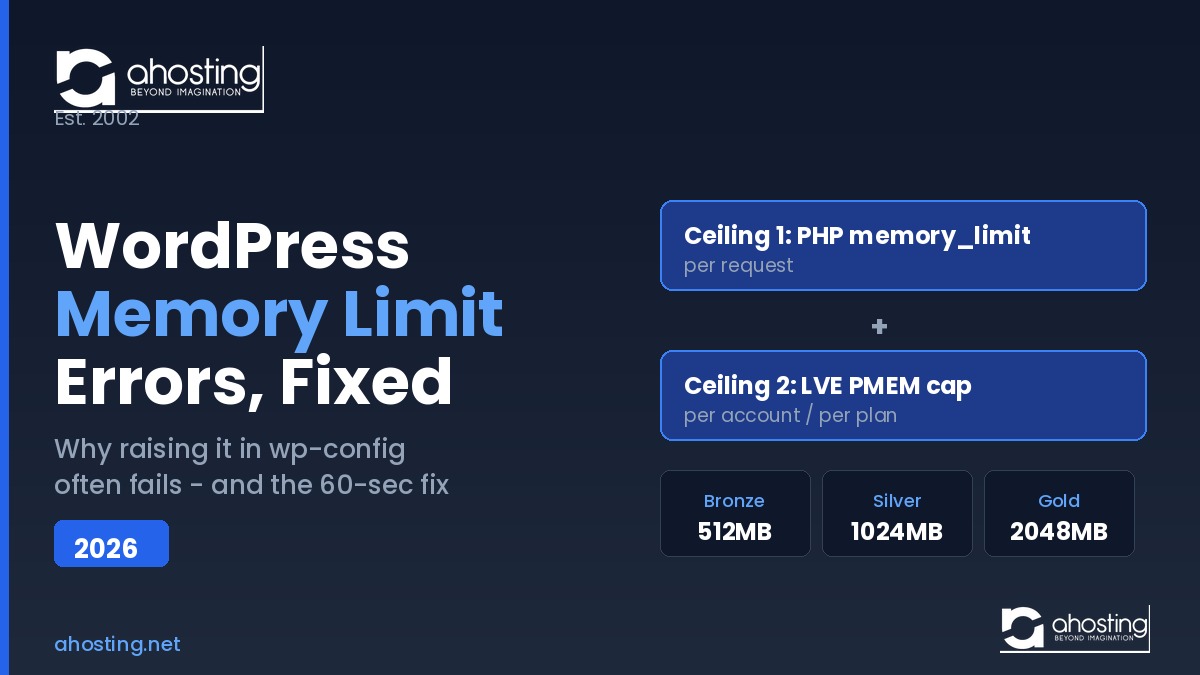
Specifically, on CloudLinux shared hosting — the platform that runs the majority of cPanel WordPress accounts worldwide — there are two independent memory ceilings, and both must have headroom. First, the PHP memory_limit caps how much RAM a single request may use. Second, the CloudLinux LVE PMEM (physical memory) cap limits the total RAM your entire account may consume across all concurrent requests at once.
As a result, you can raise the PHP memory_limit to 512MB and still fail, because the LVE container is capped lower or because several requests together exhaust the account-wide PMEM ceiling. According to the CloudLinux limits documentation, when an account exceeds its physical memory limit the platform frees disk cache first and then terminates processes — which the visitor sees as a 500 or 503 error. In other words, the “two-ceiling problem” is why a correct-looking wp-config.php edit can still leave you stuck.
Furthermore, this matters most for heavy page builders. A single Elementor Pro editor session can request 512MB on its own; if the container cap is also 512MB, there is zero room left for the visitor traffic hitting your front end at the same moment. For the full builder-specific picture, our guide to WordPress hosting tuned for Elementor covers the memory and worker settings that keep the editor responsive. Consequently, the real question is not just “what is my PHP memory_limit” but “how much PMEM headroom does my plan give me above it.”
How to Check Your Real WordPress Memory Limit in 60 Seconds
First, open your WordPress dashboard and go to Tools → Site Health → Info → Server, then read the PHP memory limit value. Indeed, this is the number your site is genuinely running under, and it reflects the server ceiling rather than whatever you typed into wp-config.php. Additionally, if the value here is lower than what your config requests, you have just confirmed a server-side cap is overriding you — which is your signal to fix the limit at the server, not in WordPress.
How Much WordPress Memory Limit Your Site Actually Needs in 2026
Generally, the right WordPress memory limit depends on what your site does, not on setting the highest number possible. Indeed, over-allocating wastes nothing on its own — PHP only uses what each request needs — but a sky-high limit can mask a genuinely broken plugin that should be fixed instead. Therefore, match the limit to the workload using the table below.
| Site type (2026) | Recommended memory_limit | Why |
|---|---|---|
| Simple blog, light theme, <10 plugins | 128MB | Runs comfortably; rarely hits the wall |
| Business site with Elementor or Divi | 256MB | Page builders are memory-heavy at render |
| WooCommerce store (standard) | 256MB | WooCommerce recommended minimum |
| WooCommerce 1,000+ products / imports | 512MB | Bulk edits and CSV imports spike admin memory |
| Membership site / LMS | 256–512MB | Session and access logic adds overhead |
| Heavy Elementor Pro build | 512MB | Editor sessions can request 512MB alone |
Notably, these are per-request targets, and they align with the official WooCommerce server requirements, which specify a 256MB minimum for stores. Consequently, the moment you set 512MB for a builder, you also need to confirm your account has container headroom above that figure — which brings us to the part you actually control.
The Self-Service Fix: Raising the WordPress Memory Limit Without a Support Ticket
Specifically, the generic advice to “contact support” assumes you cannot change the server limit yourself. On AHosting, that assumption is wrong. Indeed, every WordPress plan includes cPanel’s PHP INI Editor, so you can raise the effective memory_limit on your own in under a minute — no ticket, no waiting, no upsell.
The AHosting PHP INI Editor Path (cPanel, No Ticket)
First, log in to cPanel and open MultiPHP INI Editor. Second, select your domain from the dropdown. Third, find the memory_limit row and set it to 256M or 512M. Finally, click Apply and confirm the change in WordPress under Site Health. Additionally, because AHosting WordPress accounts default to PHP 8.4 with a 256MB memory_limit out of the box, most sites already clear the page-builder threshold before you touch anything.
Crucially, raising the PHP value only solves the first ceiling. Therefore, the table below publishes the second ceiling — the LVE PMEM container cap — for every AHosting WordPress tier, so you can confirm real headroom before you commit to a high memory_limit. Unlike most hosts, which hide these numbers, AHosting puts them in writing.
AHosting WordPress Memory Ceilings by Plan (2026)
| Plan | Default PHP memory_limit | LVE PMEM container cap | Self-service raise? |
|---|---|---|---|
| WP Bronze | 256MB (PHP 8.4) | 512MB | Yes — PHP INI Editor |
| WP Silver | 256MB (PHP 8.4) | 1024MB | Yes — PHP INI Editor |
| WP Gold | 256MB (PHP 8.4) | 2048MB | Yes — PHP INI Editor |
| WooCommerce (WooStart) | 256MB (PHP 8.4) | 1024MB | Yes — PHP INI Editor |
In practice, this table answers the question competitors leave open. For example, if you want a 512MB memory_limit for a heavy Elementor Pro build, Bronze gives you exactly 512MB of container headroom — workable for the editor alone, but tight once live visitors arrive. By contrast, Silver’s 1024MB PMEM leaves real room for concurrent traffic, which is why we steer demanding builder sites toward it. Customers needing guaranteed dedicated memory can move to VPS hosting with dedicated resources rather than a shared container.
When More WordPress Memory Limit Won’t Help: Outgrowing Shared Resource Limits
Importantly, more memory is not always the answer. Indeed, if a single plugin leaks memory or a theme runs an unbounded loop, raising the ceiling just delays the crash and hides the real defect — and it can quietly drag down performance, as our breakdown of what actually controls WordPress hosting speed explains. Therefore, before you push the limit higher, deactivate plugins one at a time to find the culprit, and check whether the spike is a one-off admin task or a steady front-end pattern.
That said, there is a genuine point where shared hosting is simply the wrong tier. Specifically, when your sustained workload needs more container memory than even Gold’s 2048MB PMEM provides, or when you need guaranteed memory that is never shared with neighbors, you have outgrown shared infrastructure. At that point, a plan with dedicated resources is the correct move — not a bigger number in a config file. Use the checker below to see where your site lands.
A Practical Checklist: Is Your Hosting Memory-Ready for WordPress?
Ultimately, a memory-ready WordPress host clears both ceilings and lets you adjust the first one yourself. Specifically, run through this checklist against any plan before you commit, and against your current host if you keep hitting the wall.
- Does the default PHP
memory_limitalready meet 256MB? (AHosting ships PHP 8.4 at 256MB.) - Can you raise
memory_limityourself in cPanel without a support ticket? (AHosting: yes, via PHP INI Editor.) - Is the LVE PMEM container cap published, and does it sit comfortably above your per-request need?
- Does the container headroom leave room for concurrent front-end traffic, not just one editor session?
- Is there a clear upgrade path to dedicated memory if you outgrow the shared container?
- Does the host run a current PHP version (8.3/8.4/8.5), which is more memory-efficient than 8.1?
For a deeper look at how concurrency interacts with these limits, our companion guide on how many PHP workers your WordPress site needs explains the entry-process side of the same resource picture. Together, memory ceilings and worker counts determine whether your site stays up under load. When your build is genuinely memory-bound on shared infrastructure, AHosting’s managed WordPress hosting plans publish both numbers so you can size correctly the first time, and high-volume stores can step up to WooCommerce-optimized hosting with the container headroom that bulk catalogs demand.
Frequently Asked Questions: WordPress Memory Limit
Is 128MB memory limit enough for a WordPress site in 2026?
Typically, 128MB runs a simple blog with a light theme and a handful of plugins, but it is not enough for most 2026 sites. Specifically, page builders such as Elementor and Divi want 256MB, and WooCommerce stores want 256MB to 512MB. As a result, 256MB is the safer default for any site beyond a basic blog, and the recommendation table above maps each site type to its target.
WP_MEMORY_LIMIT vs PHP memory_limit: which controls the WordPress memory limit?
In short, the server PHP memory_limit is the true ceiling, and WP_MEMORY_LIMIT can only request memory up to that figure, never beyond it. Therefore, if PHP is capped at 128MB, a 512MB value in wp-config.php has no effect. Moreover, on CloudLinux a third factor, the LVE container cap, sits above both and can override them, which the two-ceiling section explains in full.
What does the WordPress memory limit error actually mean in 2026?
Specifically, the “Allowed memory size exhausted” error means a single PHP request tried to use more RAM than its per-request memory_limit allows, so PHP halted the script. The byte number in the message is your current ceiling, not the amount you are missing. Furthermore, the fix is the same regardless of which byte value appears, because the limit is what changed, not the page.
What is the two-ceiling problem in the WordPress memory limit on shared hosting?
Notably, the two-ceiling problem describes the two independent memory caps that govern a WordPress request on CloudLinux shared hosting: the PHP memory_limit (per request) and the LVE PMEM container cap (the total RAM your whole account may use). Consequently, raising one without headroom in the other still produces memory errors, which is why the wp-config-only fix so often fails. The plan ceiling table shows both numbers per AHosting tier.
How do I raise the WordPress memory limit on AHosting without a support ticket?
On AHosting, you raise the WordPress memory limit yourself in cPanel’s PHP INI Editor by setting memory_limit to 256M or 512M and saving, with no support ticket required. Additionally, because PHP 8.4 ships with a 256MB memory_limit by default, many accounts never need to change it at all. Check the plan ceiling table for the safe maximum on your specific tier.
WooCommerce vs blog: what WordPress memory limit does each need in 2026?
Generally, a simple blog runs comfortably at 128MB, while a WooCommerce store wants a 256MB minimum and 512MB once it carries 1,000+ products or runs bulk imports. Specifically, large CSV imports and bulk edits in wp-admin draw on WP_MAX_MEMORY_LIMIT, which defaults to 256MB. Therefore, a store should size both the front-end and admin limits, not just one.
When should I upgrade from Bronze to Silver instead of raising the AHosting memory limit?
Specifically, upgrade when your heavy Elementor Pro build needs a 512MB PHP memory_limit but Bronze’s LVE PMEM container cap is also 512MB, leaving no headroom for concurrent visitors. On AHosting, Silver raises that container cap to 1024MB, so it is the safer tier for demanding builder workloads. The checklist above lists the exact thresholds to watch.
Why does my WordPress memory limit reset after I edit wp-config.php?
In practice, the value did not reset; it never took effect, because the server PHP memory_limit overrides whatever wp-config.php requests. Therefore, Site Health keeps showing the server figure rather than your edited number. Consequently, the durable fix is to raise memory_limit at the server through cPanel’s PHP INI Editor, not inside WordPress.
How can I check my real WordPress memory limit in the Site Health screen?
First, open Tools then Site Health then Info then Server in your WordPress dashboard and read the PHP memory limit value, which shows the limit your site is truly running under. Additionally, the server PHP memory_limit overrides any higher value you set in wp-config.php, so trust Site Health over your config file. The 60-second walkthrough is in the section above.
Does AHosting publish the LVE memory cap for every WordPress plan?
Yes, AHosting publishes the LVE PMEM container cap for every WordPress tier: 512MB on Bronze, 1024MB on Silver, and 2048MB on Gold, with WooStart matching Silver at 1024MB. Unlike most hosts, which hide these numbers, AHosting puts them in writing so you can size a plan against real memory math. The plan ceiling table lists all four.
Related posts:
 Why Raising the WordPress Memory Limit Doesn’t Work on Shared Hosting (and What Does)
 “Resource Limit Reached” vs. 503 vs. 500 Error WordPress: A Diagnostic Decision Tree
 WordPress 503 Errors Explained: How Many WordPress PHP Workers Your Site Actually Needs (2026)
 WordPress Cron Jobs Hosting 2026 — Why WP-Cron Fails