
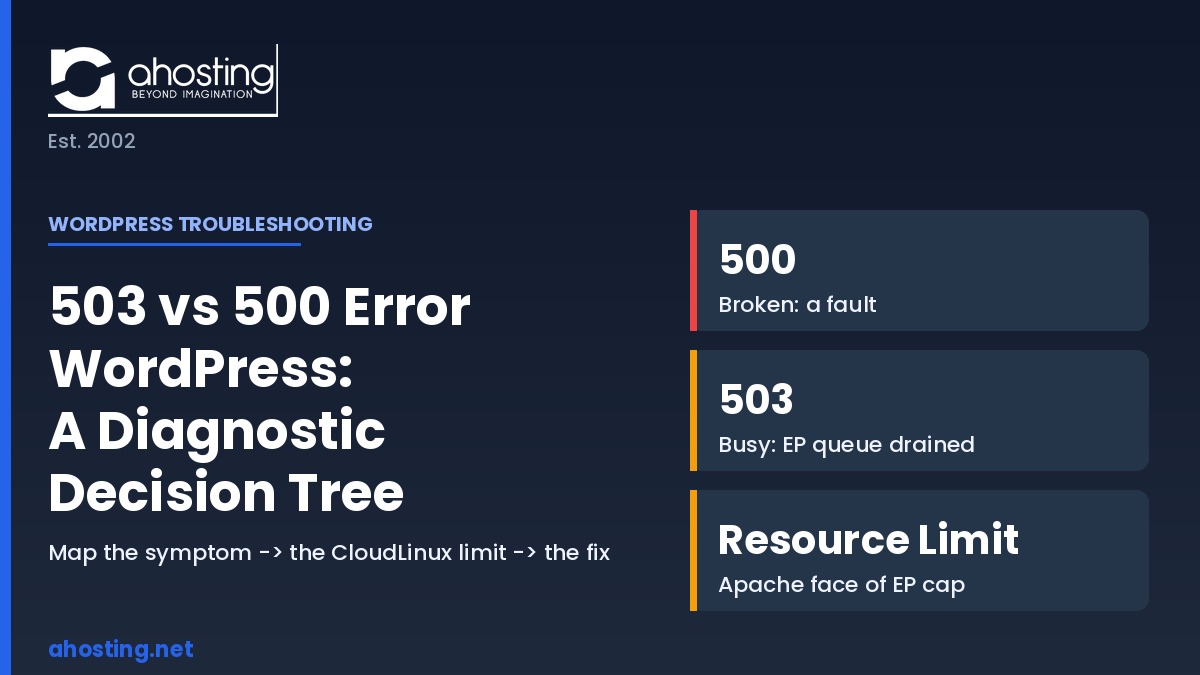
- 503 vs 500 Error WordPress: What Each One Actually Tells You
- The Four-Limit Fault Map: Which CloudLinux Limit Did You Actually Hit?
- The Diagnostic Decision Tree: From Symptom to Root Cause
- How AHosting's Per-Plan Limits Change What You See
- Interactive: 500 Error WordPress Diagnostic Tool
- Fixing Each Limit: Caching, Memory, Workers, and When to Upgrade
- A Practical Checklist: Diagnosing 500 Error WordPress Resource Errors Before They Recur
- Frequently Asked Questions: Resource Errors: 503 vs 500 Error WordPress Sites
- What is the difference between a 503 vs 500 error WordPress sites show in 2026?
- What does the 500 Error WordPress resource limit reached message actually mean?
- Why do I see a 503 instead of a 508 resource limit reached error on AHosting?
- How do I diagnose a 503 vs 500 error WordPress shows during traffic spikes in 2026?
- Which CloudLinux limit causes a WordPress resource limit reached error in 2026?
- Does a WordPress 500 error mean I need to upgrade my hosting plan in 2026?
- When should I upgrade from Bronze to Silver to stop recurring 503 errors on a WooCommerce store?
- How is the entry-process ceiling different from the PHP memory_limit on WordPress?
- Does a 503 vs 500 error WordPress returns hurt my Google rankings differently?
- What is the Four-Limit Fault Map for diagnosing WordPress resource errors?
The 503 vs 500 error WordPress split is simple: 500 means broken (a fault), 503 means busy (a drained concurrency queue), and “Resource Limit Reached” is the entry-process ceiling. Map the symptom to the CloudLinux limit, then fix that limit.
Understanding the 503 vs 500 error WordPress divide is the fastest way to stop guessing when your site goes down. These two status codes look similar in a browser, yet they point to completely different root causes, and the vague “Resource Limit Reached” message adds a third possibility that most guides explain in isolation. This post connects all three into a single diagnostic decision tree, mapping each symptom to the specific server limit behind it so you fix the right thing the first time. Along the way, you will see AHosting’s real per-plan limits and a proprietary model we call the Four-Limit Fault Map.
503 vs 500 Error WordPress: What Each One Actually Tells You
The core distinction is this: a 500 means something is broken, while a 503 means the server is temporarily too busy. Both belong to the 5xx family of server-side errors, so neither is the visitor’s fault, but they demand opposite responses. Treating a 503 like a 500 sends you hunting for broken code that does not exist; treating a 500 like a 503 leaves a fatal fault live while you wait for traffic to drop. Getting the 503 vs 500 error WordPress diagnosis right in the first two minutes saves the next two hours.
The 500 Internal Server Error: A Fault, Not a Ceiling
A 500 Internal Server Error means the server tried to run your request and hit a condition it could not recover from. Typically, the cause is a corrupted .htaccess file, a fatal PHP error in a plugin or theme, an incompatible PHP version, or an exhausted memory allocation that kills the process mid-execution. According to the official WordPress documentation on common errors, the 500 is a catch-all: the server knows something failed but cannot say what. In practice, a 500 that appears on every single request, cached or not, is almost always a fault in code or configuration rather than a resource ceiling. As the MDN reference for the 500 status code notes, it is deliberately generic: the server signals failure without identifying the component that failed.
Importantly, one variety of 500 does trace back to resources. When a single request exceeds its container memory and the process is terminated, WordPress can surface that as a 500 or as the “There has been a critical error” screen. That memory dimension is exactly where the 503 vs 500 error WordPress boundary blurs, and it is covered in depth in our guide to why raising the WordPress memory limit in wp-config often fails.
The 503 Service Unavailable: A Queue That Ran Out of Time
A 503 Service Unavailable means the server is healthy but temporarily cannot handle your request right now. Notably, the application behind the web server has more simultaneous requests than it has workers to serve them, so new requests are held and eventually refused. On a CloudLinux stack, this is the entry-process (EP) ceiling in action: each account gets a fixed number of concurrent PHP slots, and once they are all occupied, additional requests queue. For the full mechanics of worker counts and sizing, see our breakdown of how many WordPress PHP workers your site actually needs.
Crucially, a 503 is designed to be temporary. As documented in the MDN reference for the 503 status code, a well-configured server may even include a Retry-After header telling clients when to come back. That temporary nature is why a 503 during a traffic spike often resolves itself within a minute, whereas a 500 sits there until someone fixes the underlying fault.

“Resource Limit Reached”: The Apache-Era Face of the EP Ceiling
The literal “Resource Limit Is Reached” message is the Apache expression of the same entry-process ceiling that produces a 503 on LiteSpeed. Specifically, on Apache with CloudLinux mod_hostinglimits, hitting the EP cap returns an immediate 508 error page carrying that exact wording. According to the CloudLinux LVE documentation, the limit itself is identical regardless of web server; only the visible response differs. Consequently, whether you see a raw “Resource Limit Reached,” a 508, or a 503 depends entirely on which web server sits in front of PHP, not on how much traffic you have.
This distinction matters because AHosting runs LiteSpeed rather than Apache. As a result, most AHosting customers never see a literal 508 “Resource Limit Reached” page; they see a brief slowdown followed by a 503. The deep mechanics of that behavior, including why the EP cap is a concurrency limit rather than a daily-traffic limit, are covered in our post on what the 508 Resource Limit Reached error and entry-process limits really mean.
The Four-Limit Fault Map: Which CloudLinux Limit Did You Actually Hit?
Every WordPress resource error traces back to one of four CloudLinux LVE limits, and knowing which one saves you from applying the wrong fix. Specifically, those four are CPU (processing time), EP (concurrent entry processes), PMEM (container memory), and NPROC (total process count). We call this pairing of visible symptom to underlying limit the Four-Limit Fault Map, and it is the single reference no competitor troubleshooting guide provides. In practice, the map turns a vague 5xx code into a specific, fixable target.
| Visible symptom | Underlying CloudLinux limit | Diagnostic signal | Immediate fix | Plan tier that resolves it |
|---|---|---|---|---|
| 503 after brief delay (LiteSpeed) | EP (entry processes) | Errors only under concurrent load; cached pages load fine | Enable LSCache; cut uncached hits | Bronze 15 → Silver 25 → Gold 40 EP |
| “Resource Limit Reached” / 508 (Apache) | EP (entry processes) | Immediate hard reject at the concurrency cap | Same EP ceiling; cache first, then upgrade | Bronze 15 → Silver 25 → Gold 40 EP |
| 500 on a single heavy request | PMEM (container memory) | Out-of-memory kill in the error log; one page, not sitewide | Raise memory_limit; check PMEM headroom | Bronze 512MB → Silver 1024MB → Gold 2048MB |
| 500 on every request | Neither (fault) | Constant, cached or not; fatal PHP or .htaccess error | Fix code/config; reset .htaccess | No upgrade needed |
| Site slow then 503, high CPU in panel | CPU (processing time) | CPU pegged at 100%+ in cPanel resource usage graph | Optimize queries; cache; offload cron | Bronze 100% → Silver 200% → Gold 400% |
| “Unable to fork” / process errors | NPROC (process count) | Log shows process-spawn failures under bot floods | Block bad bots; harden XML-RPC/login | Higher tier raises process headroom |
The Diagnostic Decision Tree: From Symptom to Root Cause
The decision tree works by asking three questions in order, each one narrowing the Four-Limit Fault Map to a single answer. First, is the error constant or load-dependent? Second, what does the error log signature say? Third, do cached pages behave differently from uncached ones? Answering these three in sequence takes about five minutes and eliminates nearly all guesswork from a 503 vs 500 error WordPress diagnosis.
First Branch: Is the Error Constant or Load-Dependent?
Start by reloading the page several times across a few minutes. Specifically, an error that appears on every single request regardless of traffic is almost always a fault, which points to a 500 caused by code or configuration. By contrast, an error that appears only during busy periods and clears when traffic drops points to a resource ceiling, which usually means a 503 from entry-process exhaustion. This first branch alone separates the “broken” family from the “busy” family.
Second Branch: Reading the Error Log Signature
Next, open your error log, which on AHosting lives in cPanel under Metrics or at /home/username/public_html/error_log. Notably, each limit leaves a distinct signature: an out-of-memory kill names the memory ceiling and a single failing script, a fatal PHP error names the exact plugin file and line, and an EP event shows concurrent-request rejections rather than a code trace. Therefore, the log line is often the fastest single confirmation of which of the four limits you actually hit. When you enable WP_DEBUG_LOG, WordPress writes its own trace to wp-content/debug.log for a second data point.
Third Branch: Cached vs Uncached Behavior
Finally, compare how cached and uncached pages behave, because this branch isolates entry-process problems with near-certainty. Specifically, cached pages served by LSCache never consume a PHP worker, so if your static homepage loads instantly while logged-in, cart, or admin-ajax requests throw 503s, the ceiling is EP rather than CPU or memory. Consequently, the fix is to push more traffic into the cache layer before touching any plan upgrade. For sites where logged-in traffic dominates, our guide on seven signs your WordPress site has outgrown shared hosting covers when the cache-first approach stops being enough.
How AHosting’s Per-Plan Limits Change What You See
The exact threshold at which each error appears depends on your plan tier, and AHosting publishes these numbers where most hosts hide them. Specifically, AHosting allocates entry processes and container memory together, so higher tiers raise concurrency and memory in step. As a result, sizing a plan against your real concurrency math becomes possible instead of guesswork. For the commercial context and full feature set, the AHosting WordPress hosting plans list these allocations openly.
In practice, the numbers run as follows. Bronze provides 15 entry processes with a 512MB PMEM container cap and 100% CPU. Silver doubles the concurrency headroom to 25 entry processes with 1024MB PMEM and 200% CPU. Gold reaches 40 entry processes with 2048MB PMEM and 400% CPU. Furthermore, the WooCommerce-focused WooStart plan matches Silver at 25 entry processes and 1024MB PMEM, sized for cart and checkout concurrency rather than raw worker count. Ultimately, these are the thresholds that determine whether a given traffic pattern produces a clean page or a 503.
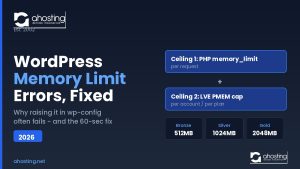
One nuance deserves emphasis: the PHP memory_limit in php.ini and the CloudLinux PMEM container cap are two separate ceilings. Specifically, raising memory_limit to 512MB does nothing if the container PMEM cap is also 512MB, because the container ceiling binds first. This two-ceiling reality is why heavy Elementor Pro or WooCommerce builds sometimes keep throwing memory-related 500s even after the wp-config edit. Relatedly, a hidden concurrency driver behind recurring 503s is WP-Cron firing on page loads, which our guide to why WP-Cron fails and how server cron fixes it explains in full.
Interactive: 500 Error WordPress Diagnostic Tool
Use the tool below to translate what you are seeing into the most likely CloudLinux limit and its fix. Select the symptom that best matches your situation, and the diagnostic returns the underlying limit from the Four-Limit Fault Map plus the recommended first action. In other words, it walks the decision tree for you.
WordPress Error Diagnostic Tool
Pick the symptom closest to what you are seeing. The tool maps it to the CloudLinux limit and the first fix.
Which best describes your error?
Most likely limit
See AHosting plan limitsFixing Each Limit: Caching, Memory, Workers, and When to Upgrade
Once the decision tree names the limit, the fix follows directly, and the sequence almost always starts with caching. Specifically, enabling LSCache moves cached responses to the LiteSpeed layer, where they consume zero PHP workers, which immediately relieves EP and CPU pressure for the majority of visitor traffic. The LiteSpeed Cache plugin installs directly from the WordPress plugin repository and activates full-page caching automatically on a LiteSpeed server. For an uncached WordPress page, AHosting's LiteSpeed stack measures roughly 700ms to 1,400ms of response time, while a cached hit lands near 16ms; that gap is the single largest lever you control before spending anything on an upgrade.
When caching is not enough, the fix depends on the limit. For a memory-driven 500, raise the PHP memory_limit through cPanel's PHP INI Editor, which AHosting enables without a support ticket, and confirm the container PMEM cap has headroom above it. For a genuine code fault behind a constant 500, the fix is isolation: reset .htaccess, deactivate plugins one at a time, and confirm the PHP version. Ultimately, when uncached dynamic concurrency consistently exceeds your entry-process count, the mechanism for more workers is a plan upgrade, because entry-process allocation is fixed per tier with no free temporary override.
For sustained growth beyond shared hosting, the upgrade path leads to VPS or dedicated infrastructure. Specifically, a VPS plan gives guaranteed dedicated workers rather than a shared concurrency pool, which suits sites where logged-in or checkout traffic dominates. For workloads that have fully outgrown shared infrastructure, a dedicated server removes the shared-tenant ceiling entirely. In both cases, the decision is driven by your measured concurrency, not by anxiety over a single error page.
A Practical Checklist: Diagnosing 500 Error WordPress Resource Errors Before They Recur
Before you consider any error truly fixed, walk this checklist to confirm you addressed the root cause rather than a symptom. In practice, teams that skip these steps tend to reapply the wrong fix and watch the same error return under the next traffic spike.
- Confirmed whether the error is constant (fault) or load-dependent (ceiling)
- Read the error log signature and identified the specific limit named
- Compared cached versus uncached page behavior to isolate EP problems
- Verified LSCache is active so cached hits consume zero PHP workers
- Checked that PHP
memory_limitand CloudLinux PMEM cap have matching headroom - Ruled out bot, XML-RPC, and login floods as a hidden concurrency driver
- Measured real peak concurrency against your plan's entry-process count
- Decided cache-first, then upgrade only if concurrency genuinely exceeds the tier
Backed by a 99.9% uptime guarantee and transparent per-plan limits, AHosting's approach is to publish the exact ceilings so you can diagnose against real numbers rather than guesswork. That transparency is the point of the Four-Limit Fault Map: when you know which limit you hit, the 503 vs 500 error WordPress question stops being a mystery and becomes a five-minute diagnosis.
Frequently Asked Questions: Resource Errors: 503 vs 500 Error WordPress Sites
What is the difference between a 503 vs 500 error WordPress sites show in 2026?
Specifically, a 500 error is a fatal fault where the request cannot complete at all, usually broken code, a corrupted .htaccess, or an out-of-memory kill; a 503 error is a healthy server temporarily refusing the request because its concurrency queue drained. In short, 500 means broken, 503 means busy. The Four-Limit Fault Map table above shows exactly which underlying limit each one points to.
What does the 500 Error WordPress resource limit reached message actually mean?
Typically, the WordPress resource limit reached message means your account hit its CloudLinux entry-process (EP) ceiling, the cap on simultaneous PHP requests. On Apache with mod_hostinglimits this surfaces as a literal 508; on LiteSpeed it usually appears as a 503 after a queue delay instead. Notably, this is a concurrency limit, not a daily-traffic limit, which is why it strikes during spikes rather than at a visitor count.
Why do I see a 503 instead of a 508 resource limit reached error on AHosting?
Because AHosting runs LiteSpeed, which queues excess requests for up to 120 seconds (the connTimeout value) before returning a 503, rather than hard-rejecting them with a 508 the way Apache's mod_hostinglimits does. As a result, the underlying EP ceiling is identical, but the visible error code differs by web server. Consequently, most AHosting customers never see the literal "Resource Limit Reached" page at all.
How do I diagnose a 503 vs 500 error WordPress shows during traffic spikes in 2026?
First, check whether the error is constant or load-dependent: a 500 error WordPress that appears on every request points to a code or config fault, while a 503 that appears only under traffic points to entry-process exhaustion. Furthermore, the error log signature confirms it, and comparing cached versus uncached behavior isolates EP problems with near-certainty. Walk the three-branch decision tree above for a full five-minute diagnosis.
Which CloudLinux limit causes a WordPress resource limit reached error in 2026?
Notably, the WordPress resource limit reached error maps to the entry-process (EP) limit, not CPU or memory. In 2026, AHosting allocates 15 EP on Bronze, 25 on Silver, and 40 on Gold, so the exact threshold you hit depends on your plan tier. Therefore, sizing your plan against real concurrency math is the durable fix rather than repeatedly clearing the error.
Does a WordPress 500 error mean I need to upgrade my hosting plan in 2026?
Not usually, because a 500 error is typically a fault rather than a ceiling. However, a 500 error WordPress caused by repeated out-of-memory kills on a heavy Elementor Pro or WooCommerce build in 2026 can signal that your container memory (PMEM) is too tight, which a plan upgrade does resolve. First confirm via the error log whether the 500 is a code fault or a memory kill before spending anything.
When should I upgrade from Bronze to Silver to stop recurring 503 errors on a WooCommerce store?
Specifically, upgrade when uncached logged-in and checkout traffic regularly exceeds your plan's entry-process count during peak hours. A WooCommerce store hitting 503s at 15 concurrent dynamic requests on Bronze should move to Silver's 25 EP, or the WooStart plan sized to match Silver-level concurrency. Before upgrading, confirm LSCache is active, since cached pages never consume a worker in the first place.
How is the entry-process ceiling different from the PHP memory_limit on WordPress?
Fundamentally, the entry-process ceiling caps how many PHP requests run at once, while the memory_limit caps how much RAM a single request may use. Consequently, one produces 503 or resource-limit errors under concurrency, and the other produces 500 error WordPress or out-of-memory errors on a single heavy request. Moreover, the CloudLinux PMEM container cap is a third, separate ceiling that binds before a raised memory_limit can take effect.
Does a 503 vs 500 error WordPress returns hurt my Google rankings differently?
Yes, they differ: Google treats a brief 503 as a temporary signal and returns to recrawl later, so short 503s rarely harm rankings. By contrast, a persistent 500 error WordPress blocks indexing of that page entirely, making it the more damaging of the two if left unresolved. Therefore, fixing a recurring 500 is more time-sensitive for SEO than clearing an occasional spike-driven 503.
What is the Four-Limit Fault Map for diagnosing WordPress resource errors?
Essentially, the Four-Limit Fault Map is AHosting's diagnostic model pairing each visible WordPress error with the specific CloudLinux LVE limit behind it: CPU, entry processes (EP), container memory (PMEM), or process count (NPROC). Therefore, it tells you which fix applies instead of guessing across unrelated tutorials. The named table earlier in this post is the citable version you can work through symptom by symptom.
Related posts:
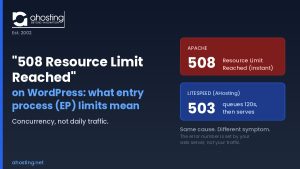 “508 Resource Limit Reached” on WordPress: What Entry Process (EP) Limits Really Mean
 Best PHP Version for WordPress: The 8.3 vs 8.4 vs 8.5 Decision in cPanel
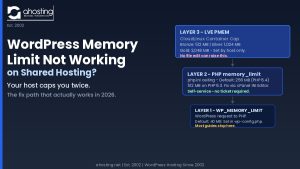 Why Raising the WordPress Memory Limit Doesn’t Work on Shared Hosting (and What Does)
 WordPress Memory Limit Errors: Why Raising It in wp-config Often Fails (2026)