- What WP-Cron Actually Is — and Why It Was Never Designed for Reliable WordPress Cron Hosting
- How Your Host's PHP Infrastructure Controls WordPress Cron Jobs Hosting Reliability
- The Four Signs WP-Cron Is Silently Failing on Shared Hosting
- How to Replace WP-Cron with a Real Server Cron on AHosting
- WP-Cron vs. Server Cron vs. External HTTP Ping: Which WordPress Cron Hosting Architecture Does Your Site Need?
- AHosting's WordPress Cron Support: What the Feature Listing Actually Means
- Pre-Launch Cron Checklist: 8 Checks Before Your WordPress Site Goes Live
- FAQ: WordPress Cron Jobs and Hosting (2026)
- Is shared hosting or VPS more reliable for WordPress cron jobs hosting in 2026?
- WP-Cron vs. server cron on CloudLinux: which does AHosting recommend for WordPress?
- What is the biggest risk of WordPress cron jobs hosting on a high-traffic WordPress site in 2026?
- Should I switch to a server cron for WooCommerce on AHosting's cPanel shared hosting?
- What happens if I disable WP-Cron on AHosting but do not set up a server cron?
- What is the WP-Cron entry-process collision and why does it matter on CloudLinux shared hosting?
- What is the correct WordPress cron jobs hosting command for AHosting's jailshell server environment in 2026?
- WordPress cron jobs hosting with CageFS vs. standard shared hosting: how does AHosting's approach differ?
- How do I verify that WordPress cron jobs hosting is actually working on my site?
- Should I disable WP-Cron to improve WordPress hosting performance?
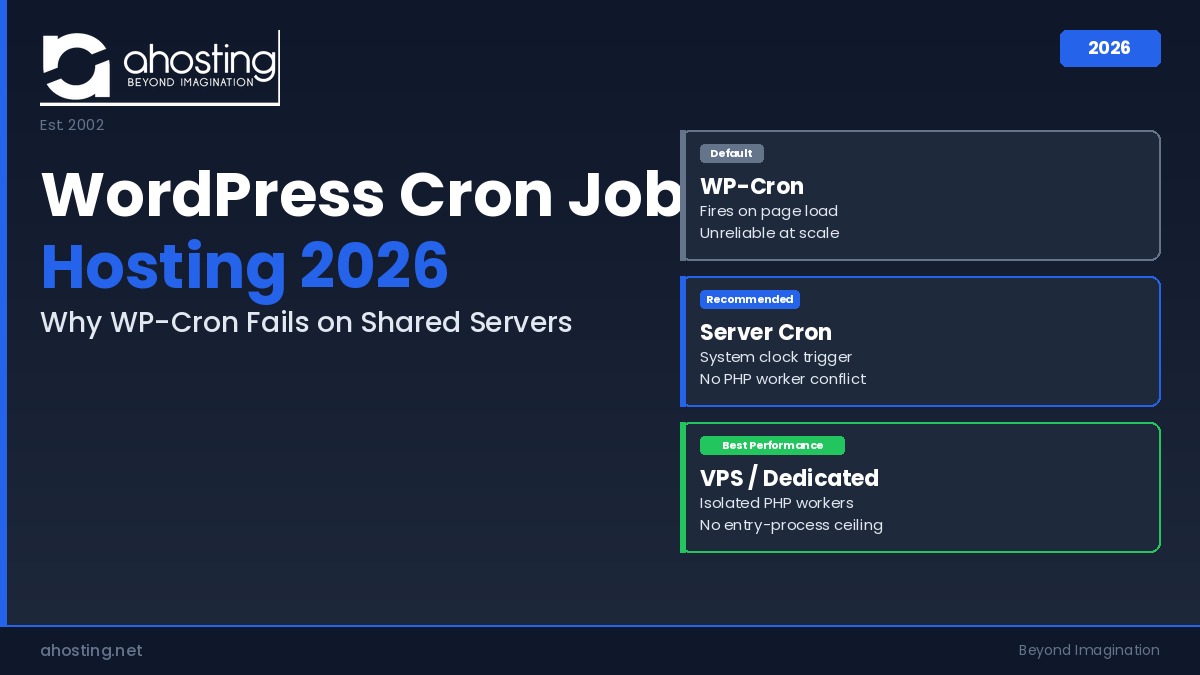
WP-Cron is not a real cron job — it fires only on page loads, making reliable WordPress cron jobs hosting dependent on your host’s PHP worker architecture. On shared servers, AHosting recommends replacing WP-Cron with a real server cron via cPanel to eliminate the entry-process collision that causes 508 errors during traffic spikes.
Most WordPress tutorials treat WordPress cron jobs hosting as a solved problem: add a constant to wp-config.php, paste a cPanel cron command, done. What those guides skip is the hosting layer underneath — specifically, the PHP worker pool that determines whether your cron job fires cleanly or collides with real visitor traffic. That collision is the source of unexplained 508 errors, missed scheduled posts, and stalled WooCommerce queues that support tickets blame on plugins. It is not a plugin problem. It is a hosting architecture problem, and the fix depends on understanding what your host’s infrastructure actually does when WP-Cron fires.
What WP-Cron Actually Is — and Why It Was Never Designed for Reliable WordPress Cron Hosting
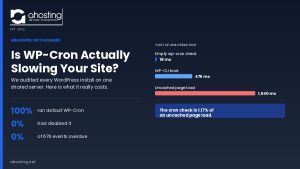
WP-Cron is not a cron job in the Unix sense. It is a PHP function that runs scheduled tasks by piggybacking on page loads — it only fires when a visitor or bot hits your site and WordPress decides it is time to check for due tasks. No visitor traffic, no cron execution. This is a deliberate architectural choice made when WordPress was first built, designed for simplicity on shared servers where real cron access was rare. The problem is that WP-Cron’s page-load dependency is now the most common cause of unreliable scheduled task execution on modern WordPress sites, and the hosting layer underneath it determines exactly how badly that dependency hurts you.
WordPress Cron Jobs Hosting Factor 1: The Page-Load Dependency Problem
Every time a page on your WordPress site loads, WP-Cron checks whether any scheduled tasks are due. If tasks are due, it spawns a background PHP process to run them — while the visitor’s page request continues in parallel. On a low-traffic site, scheduled posts may not publish on time because the right page load simply does not happen at the scheduled moment. On a high-traffic site, the opposite problem occurs: WP-Cron fires constantly, each check consuming a PHP worker slot even when there are no due tasks. Both scenarios reflect the same underlying limitation: task scheduling is coupled to visitor behavior rather than a system clock. Reliable WordPress cron jobs hosting requires decoupling those two systems, which is exactly what a real server cron accomplishes.
The Three Background Tasks WP-Cron Controls That Most Site Owners Never See
WordPress core registers several recurring cron events at install. Most site owners are aware of scheduled posts — WP-Cron fires publish_future_post at the scheduled time. Less visible are the tasks running continuously in the background: wp_version_check checks for WordPress core updates daily, wp_update_plugins polls for plugin updates, and wp_scheduled_delete clears the trash. Every active plugin that uses WordPress’s Cron API adds its own scheduled events on top of these — AIOSEO registers sitemap regeneration events, WooCommerce registers order status and coupon expiry tasks, and backup plugins register export jobs. On a typical production WordPress site, there are between 15 and 40 active cron events registered at any given time. Each one depends on WP-Cron firing reliably, which brings the page-load dependency from theoretical to operational very quickly.
How Your Host’s PHP Infrastructure Controls WordPress Cron Jobs Hosting Reliability
The hosting layer is where most WP-Cron reliability guides stop short. They explain what WP-Cron does but not what happens at the server level when it fires. On a CloudLinux-based WordPress hosting plan, every account operates inside a Lightweight Virtual Environment (LVE) — a resource container enforced at the kernel level. LVE imposes a hard cap on the number of simultaneous PHP processes your account can run. That cap is the constraint that turns WP-Cron from a minor inefficiency into an active problem during traffic spikes. AHosting provides sufficient PHP workers for WordPress on every plan, but the architecture of how those workers are allocated determines whether WP-Cron and real visitor traffic can coexist cleanly.
WordPress Cron Jobs Hosting Factor 2: Entry Processes, PHP Workers, and the WP-Cron Collision
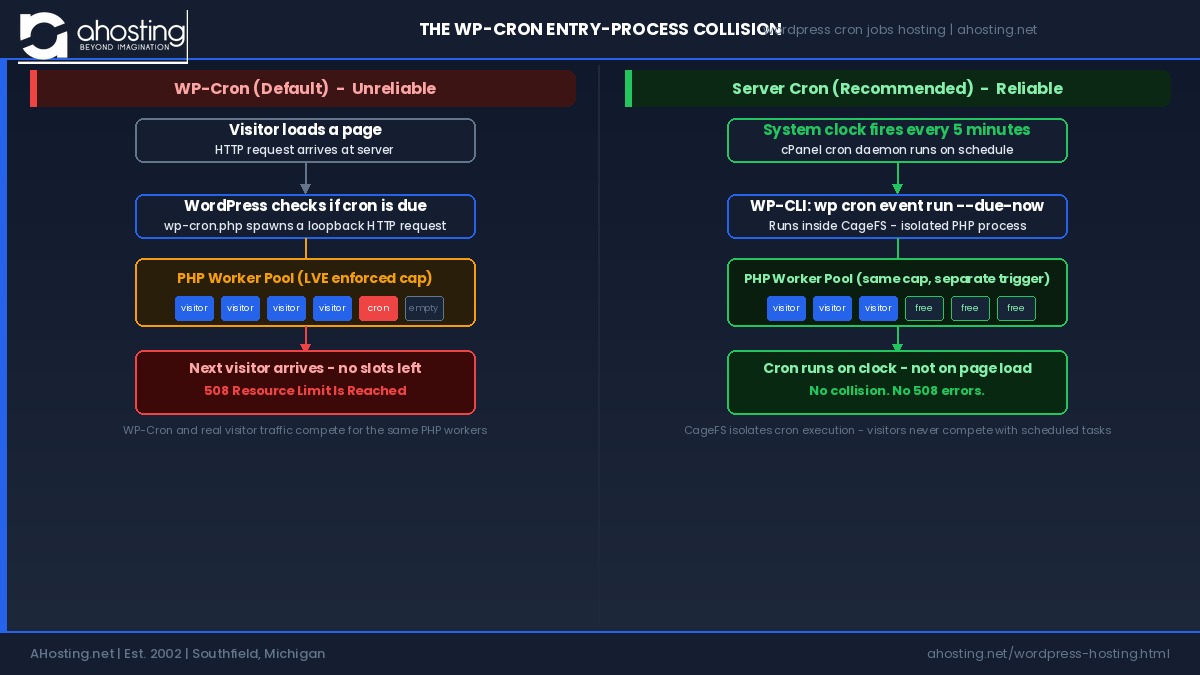
When WP-Cron fires, it opens an outbound HTTP request back to the site’s own URL — a loopback request — and that request enters the PHP worker queue like any other page load. If your account’s entry-process ceiling is reached and a WP-Cron loopback request arrives at the same moment as real visitor traffic, one of them gets a 508 Resource Limit Is Reached error. This is the WP-Cron entry-process collision — the specific failure pattern where scheduled task execution consumes the same PHP worker pool as real visitor traffic at exactly the wrong moment. It is the most common root cause of unexplained 508 errors on shared WordPress hosting, and it is misdiagnosed as a plugin conflict or traffic anomaly in the vast majority of support tickets AHosting receives on complex deployments, particularly WooCommerce and membership sites under promotion traffic.
What CloudLinux CageFS Does to Cron Jobs (The Security Benefit Most Hosts Never Mention)
On a standard shared server without CloudLinux, cron jobs run under the system user and can have filesystem visibility that extends beyond the account boundary. CageFS changes this by placing every account — including its cron processes — inside a per-account virtual file system cage. A cron job running under your account can see your own files, your own PHP binaries, and the system libraries your account is configured to use. It cannot traverse upward into other accounts’ directories or into sensitive server paths. For WordPress cron specifically, this means that even if a scheduled backup job, an auto-update script, or a compromised plugin’s cron event attempts to read or write outside your account, the cage blocks that access at the kernel level. This is a security property that most shared hosting providers do not document and that does not exist on servers running without CloudLinux.
The Four Signs WP-Cron Is Silently Failing on Shared Hosting
WP-Cron failure is almost always silent — WordPress does not display an error when a scheduled task is skipped. The signs show up indirectly, often misattributed to plugins, themes, or hosting instability. These four patterns are the most consistent signals on shared hosting environments.
Scheduled posts publish late or not at all. WordPress marks a post as “Scheduled” and WP-Cron is responsible for calling publish_future_post at the exact timestamp. If no page load triggers WP-Cron in the window around that timestamp — common on low-traffic sites — the post stays in “Scheduled” status indefinitely. Refreshing the site after the scheduled time is the workaround most authors discover by accident.
Plugin update checks fall behind by days. WordPress checks for plugin updates on a recurring cron schedule. On sites where WP-Cron fires infrequently, the “Updates” badge in the admin dashboard can lag by 48–72 hours relative to the actual plugin repository. This is a symptom of cron starvation, not a slow repository or a connectivity issue.
Intermittent 508 errors during traffic spikes. As described above, WP-Cron’s loopback request competes with real visitor traffic for PHP workers. If your server logs show 508 errors clustered around periods of moderate traffic, and your plugins are not unusually resource-intensive, the entry-process collision is the most likely culprit. The timing is the tell — these errors appear in clusters, not randomly.
WooCommerce order status and email queues stall. WooCommerce relies heavily on cron for order processing, stock sync, and transactional email dispatch. When WP-Cron fires inconsistently, order status transitions are delayed, “processing” orders stay in limbo, and customers receive delayed confirmation emails. This pattern is especially common after a traffic event that exhausts the PHP worker pool precisely when WooCommerce’s cron queue is largest. For sites running WooCommerce, a dedicated WooCommerce hosting setup with a real server cron is not optional — it is a functional requirement for reliable order processing.
How to Replace WP-Cron with a Real Server Cron on AHosting
Replacing WP-Cron with a real server cron is a three-step process on AHosting. The setup takes under five minutes and results in cron execution that runs on a system clock, independent of visitor traffic, with no PHP worker contention. This approach to WordPress cron jobs hosting is recommended for any site that runs scheduled tasks more than twice per day, uses WooCommerce, or has a membership or course plugin with time-sensitive automations.
First Step: Disable WP-Cron in wp-config.php
Open your site’s wp-config.php file — via cPanel File Manager or SFTP — and add the following constant before the line that reads /* That's all, stop editing! */:
define( 'DISABLE_WP_CRON', true );This constant tells WordPress to stop firing WP-Cron on page loads. Importantly, it does not delete or cancel any existing cron events — it removes only the page-load trigger. All registered events remain in the cron queue, waiting for the next trigger. That trigger will now be your server cron job rather than a visitor page load. Do not add this constant until your server cron is set up and confirmed — if you disable WP-Cron without a server cron replacement, all scheduled tasks stop running entirely.
Second Step: Set Up the cPanel Cron Job with the Correct Command
Log in to cPanel, navigate to Advanced → Cron Jobs, and add a new cron job. Set the frequency to run every five minutes (minute: */5, all other fields: *). In the Command field, enter the following — replacing yourusername with your actual cPanel username:
/opt/cpanel/ea-php81/root/bin/php -q /usr/local/bin/wp cron event run --due-now --path=/home/yourusername/public_html/blog --quiet 2>/dev/nullThis command uses the PHP 8.1 binary available on AHosting’s CloudLinux server stack. The -q flag suppresses PHP startup notices. The --due-now flag tells WP-CLI to run only events that are currently due, not all registered events. The --quiet flag suppresses WP-CLI’s own output, and 2>/dev/null redirects stderr away from cPanel’s cron log. The result is silent execution that only generates output if something actually fails. This exact command format is tested on AHosting’s jailshell environment — the path structure and PHP binary location are specific to this server stack. For sites that have grown to require more infrastructure headroom, WordPress VPS hosting provides isolated PHP workers with no entry-process ceiling shared across accounts.
Third Step: Confirm Your Cron Is Running via WP-CLI
After setting up the cPanel cron job, wait five minutes, then verify via SSH that events are being processed. Connect to your server and run:
/opt/cpanel/ea-php81/root/bin/php -q /usr/local/bin/wp cron event list --path=/home/yourusername/public_html/blogThis command lists all registered cron events and their next scheduled run time. If your server cron is working correctly, you should see no events with a “next run” timestamp in the past — they will have been cleared by the most recent cron execution. If overdue events persist, verify that the cPanel cron job command is saved correctly and that the path to your WordPress installation is exact. The WP-CLI cron documentation covers additional diagnostic commands including wp cron event run --due-now for manual triggering during testing.
WP-Cron vs. Server Cron vs. External HTTP Ping: Which WordPress Cron Hosting Architecture Does Your Site Need?
There are three architectures for triggering WordPress scheduled tasks, and each has a different performance profile, reliability ceiling, and infrastructure requirement. The right WordPress cron jobs hosting approach depends on your traffic level, task complexity, and hosting tier.
| Architecture | Trigger | Best For | Key Limitation | AHosting Setup | Reliability |
|---|---|---|---|---|---|
| WP-Cron (default) | Page load | Low-traffic blogs, dev sites | Misses tasks on low traffic; causes 508 on high traffic | No setup required | Low |
| Server Cron (cPanel) | System clock | Most production WordPress sites | Requires SSH / cPanel access and jailshell-specific command format | 5-min cPanel job + DISABLE_WP_CRON constant | High |
| External HTTP Ping | Third-party service polls wp-cron.php URL | Sites without server cron access | External service dependency; free tiers have minimum 15-min intervals | Add URL to EasyCron or cron-job.org; no server access needed | Medium |
For most production sites on AHosting’s shared WordPress hosting, the server cron approach is the correct choice. It is more reliable than WP-Cron and does not introduce an external service dependency the way the HTTP ping approach does. External HTTP ping services are appropriate when a site is on a platform without cPanel access, or as a temporary setup during migration testing — they are not a permanent replacement for a properly configured server cron. For high-traffic or high-task-volume sites that have outgrown shared infrastructure, dedicated server hosting removes the entry-process ceiling entirely and gives root-level cron control without any LVE constraints. For context on how cron architecture intersects with broader site performance, see our WordPress hosting speed guide for 2026 — PHP worker allocation affects both page load times and cron execution in the same underlying LVE bucket.
AHosting’s WordPress Cron Support: What the Feature Listing Actually Means
“Cron job support” appears on most shared hosting marketing pages, including AHosting’s WordPress hosting feature list. What that listing means in practice varies significantly between providers. At AHosting, it means: access to cPanel’s cron job manager, a PHP binary path that works inside the jailshell environment, WP-CLI pre-installed and accessible on every shared account, and CloudLinux CageFS isolation that sandboxes each cron process at the kernel level. These four infrastructure components are what allow the server cron setup documented above to work correctly on the first attempt, rather than requiring server-level debugging. Use the checker below to assess whether your current setup is configured for reliable WordPress cron jobs hosting.
Pre-Launch Cron Checklist: 8 Checks Before Your WordPress Site Goes Live
Before launching any WordPress site — or before pushing a significant feature update — verify these eight cron configuration points. They represent the most common oversights that lead to scheduled task failures in the first 48 hours after a launch or migration. Each check applies to the WordPress cron jobs hosting setup documented in this post.
1. Confirm DISABLE_WP_CRON is set in wp-config.php. If you are using a server cron, this constant must be present. Without it, WP-Cron fires on every page load in addition to your server cron — doubling cron execution and consuming PHP workers unnecessarily.
2. Verify the cPanel cron command path matches your account. The --path argument must point to your exact WordPress installation directory. A wrong path produces a silent failure — WP-CLI exits with no error, and no tasks run.
3. Run wp cron event list immediately after setup. Via SSH, run the event list command from Step 3 of this guide. Overdue events should clear within five minutes of the server cron firing. Persistent overdue events indicate the cron command is not reaching WordPress correctly.
4. Install WP Crontrol for visual confirmation. This plugin displays all registered cron events and their next run times in the WordPress admin. It is the fastest way to confirm that specific events — WooCommerce, SEO plugin, backup events — are scheduling correctly after setup.
5. Remove any duplicate cron triggers. If you previously used an external HTTP ping service or a different server cron setup, remove those before finalizing. Duplicate triggers cause tasks to run multiple times — especially harmful for WooCommerce email dispatch and backup jobs.
6. Confirm cron execution runs silently. By default, cPanel sends an email for every cron execution that produces output. Your cron command should run silently. If you receive cron emails, verify that --quiet and 2>/dev/null are correctly appended to the command.
7. Test scheduled post publication before launch. Create a test post scheduled five minutes in the future and wait. If it publishes on time, cron is working. If it does not publish within two minutes of the scheduled time, cron is not firing. A thorough WordPress security and server configuration review should include this cron verification as a standard go-live step.
8. Schedule a cron check at 30 days post-launch. Cron failures that begin after launch are often caused by a plugin update that registers new event types, or by traffic growth that starts triggering the entry-process collision pattern. The WP-Cron Reliability Checker widget above takes under 30 seconds to run and is worth revisiting whenever traffic level or active plugins change. For sites where uptime and scheduled reliability are critical infrastructure decisions, our guide on WordPress hosting uptime in 2026 covers the full picture of what server architecture choices affect availability at scale.
FAQ: WordPress Cron Jobs and Hosting (2026)
Is shared hosting or VPS more reliable for WordPress cron jobs hosting in 2026?
Specifically, VPS hosting is more reliable for WordPress cron jobs hosting in 2026 because it provides dedicated PHP workers that are never shared with other accounts. On shared hosting, WP-Cron competes for the same entry-process pool as real visitor traffic — during traffic spikes, that competition causes cron events to be delayed or silently skipped, and real visitors receive 508 errors. VPS eliminates that competition entirely by isolating PHP resources to a single account. For sites with moderate traffic and simple scheduling needs, a correctly configured server cron on AHosting's shared platform closes most of this reliability gap — the full comparison of architectures and upgrade thresholds is in the comparison table above.
WP-Cron vs. server cron on CloudLinux: which does AHosting recommend for WordPress?
Notably, AHosting recommends replacing WP-Cron with a real server cron on all CloudLinux accounts that run scheduled tasks more than twice per day. WP-Cron fires only when a page is loaded, making it unreliable on low-traffic schedules and a PHP worker burden on high-traffic ones. A real server cron on AHosting's CloudLinux infrastructure runs on a system clock independent of visitor traffic, executes inside CageFS for security isolation, and uses the exact WP-CLI invocation documented in this post. The DISABLE_WP_CRON constant combined with a five-minute cPanel cron job is the recommended standard setup.
What is the biggest risk of WordPress cron jobs hosting on a high-traffic WordPress site in 2026?
Fortunately, this risk is avoidable once identified: the biggest risk in 2026 is the WP-Cron entry-process collision — where WP-Cron's loopback PHP request competes with real visitor traffic for your account's finite PHP worker pool. When that pool is exhausted, visitors receive a 508 Resource Limit Is Reached error. Most site owners trace this to plugin conflicts or traffic anomalies without identifying the root cause. This failure pattern worsens as traffic grows and does not self-resolve — and it is especially dangerous when a traffic spike and a WooCommerce cron burst coincide. The WP-Cron Reliability Checker widget in this post scores your specific risk level in under 30 seconds.
Should I switch to a server cron for WooCommerce on AHosting's cPanel shared hosting?
Indeed, WooCommerce sites on AHosting's cPanel shared hosting should replace WP-Cron with a real server cron. WooCommerce registers scheduled tasks for order status transitions, stock sync, email queue dispatch, and coupon expiry — all requiring reliable, time-based execution that WP-Cron cannot guarantee on shared infrastructure when traffic fluctuates. The exact cPanel cron command for AHosting's jailshell environment, including the correct PHP binary path and WP-CLI flags, is in the server cron setup section above. Setup takes under five minutes and eliminates the most common class of WooCommerce order processing failures on shared hosting.
What happens if I disable WP-Cron on AHosting but do not set up a server cron?
Specifically, disabling WP-Cron in wp-config.php on AHosting without a replacement server cron causes all scheduled WordPress tasks to stop running entirely. There is no error message — scheduled posts stay in "Scheduled" status indefinitely, plugin update checks halt, email queues stall, and WooCommerce order processing freezes. Tasks remain queued and will execute the next time something triggers cron, but with DISABLE_WP_CRON set and no server cron configured, that trigger never comes. Always set up and verify the cPanel server cron before adding the DISABLE_WP_CRON constant. The pre-launch checklist in this post covers the exact verification sequence.
What is the WP-Cron entry-process collision and why does it matter on CloudLinux shared hosting?
Importantly, the WP-Cron entry-process collision is the specific failure mode where WP-Cron's page-triggered PHP loopback request occupies one of the finite PHP worker slots enforced by CloudLinux LVE at exactly the moment real visitor traffic also needs those slots. CloudLinux LVE enforces a hard ceiling on simultaneous PHP entry processes per account. When WP-Cron fires during a traffic spike, it consumes a worker for the full duration of execution — which can be several seconds for complex backup or email tasks. Visitors whose requests arrive during that window receive a 508 error. This collision concept distinguishes WordPress cron jobs hosting on CloudLinux from cron behavior on servers without per-account resource enforcement — the PHP infrastructure section of this post explains the full mechanism and how AHosting's setup addresses it.
What is the correct WordPress cron jobs hosting command for AHosting's jailshell server environment in 2026?
Specifically, the correct WordPress cron jobs hosting command for AHosting's jailshell environment in 2026 is: /opt/cpanel/ea-php81/root/bin/php -q /usr/local/bin/wp cron event run --due-now --path=/home/yourusername/public_html/blog --quiet 2>/dev/null — replacing yourusername with your actual cPanel account name. This uses AHosting's PHP 8.1 binary, invokes WP-CLI directly, runs only due events with --due-now, suppresses all output with --quiet and stderr redirection, and is structured to function correctly inside cPanel's restricted jailshell. Commands that work in a full bash session may fail silently inside cPanel cron without this exact structure. The full setup procedure including cPanel frequency settings is in the server cron setup section.
WordPress cron jobs hosting with CageFS vs. standard shared hosting: how does AHosting's approach differ?
In contrast to standard shared hosting, AHosting's CloudLinux CageFS isolates every cron job inside a per-account virtual file system cage. On a standard shared server, a cron job runs under the system user and may have visibility into paths belonging to adjacent accounts. Under CageFS on AHosting, the cron process is contained in a virtual environment that includes only your account's files, configured PHP binaries, and permitted system libraries. A malicious script, compromised plugin cron event, or accidental path traversal cannot exit the cage. This per-account cron isolation is a function of CloudLinux's kernel-level enforcement and is not available on servers running standard cPanel without CloudLinux. The WordPress cron jobs hosting security implications are covered in the CageFS section above.
How do I verify that WordPress cron jobs hosting is actually working on my site?
Additionally, the most reliable verification methods are: (1) install the WP Crontrol plugin and check for overdue events in the Cron Events list — any event with a "next run" timestamp in the past indicates cron is not firing; (2) run the WP-CLI event list command documented in Step 3 of this post and check whether due events clear after five minutes; (3) create a scheduled post five minutes in the future and verify it publishes on time. AIOSEO, Yoast, and most backup plugins register visible cron events — if those are consistently overdue, cron is stalled. The pre-launch checklist covers all eight verification steps in sequence.
Should I disable WP-Cron to improve WordPress hosting performance?
Typically, disabling WP-Cron improves WordPress hosting performance only when paired with a real server cron replacement. The benefit comes from removing WP-Cron's PHP loopback request from the page-load cycle — that request adds latency for the visitor whose page load triggers it and consumes a PHP worker slot during execution. Disabling WP-Cron alone stops the latency but also stops all scheduled task execution. Whether your site needs this change depends on traffic level, active cron event count, and hosting tier — the WP-Cron Reliability Checker widget above scores your specific setup and recommends the right action in under 30 seconds.