Skip to content
Skip to main content
Ahosting Logo
  • Hosting
    • WordPress Hosting
      Fast, secure hosting for WordPress sites
    • Web Hosting
      Reliable, affordable hosting for sites
    • FFMpeg Hosting
      Fast hosting for FFmpeg projects
    • Reseller Hosting
      Start hosting biz with white-label plans
    • VPS Hosting
      Scalable VPS with full control & power
    • Dedicated Server
      High-power servers for max security
    • WooCommerce Hosting
      Fast hosting for WooCommerce shops
  • Domain
    • Register a Domain
      Secure your domain name in minutes
    • Domain Transfer
      Move domains to Ahosting with ease
    • Premium SSL Certificate
      Enterprise SSL to build customer trust
  • Support
    • Submit A Ticket
      Expert 24/7 help from our support team
    • Abuse Report
      Report abuse to keep network safe
    • Knowledge Base
      Quick answers via step-by-step guides
  • Company
    • Blog
      Expert articles to power your online growth
    • Compare Hosts
      Side-by-side comparison
    • Datacenter
      Secure, high tech datacenter for hosting
    • About Us
      Learn about our mission, values & team
    • Contact Us
      Contact sales for plans, pricing & advice
    • Sitemap
      Find info fast with our clear site map
My Account
Ahosting Logo
  • Hosting
    • Web Hosting
    • WordPress Hosting
    • FFMpeg Hosting
    • Reseller Hosting
    • VPS Hosting
    • Dedicated Server
    • WooCommerce Hosting
  • Domain
    • Register a Domain
    • Domain Transfer
    • Premium SSL Certificate
  • Support
    • Knowledge Base
    • Abuse Report
    • Submit A Ticket
  • Company
    • About Us
    • Contact Us
    • Blog
    • Sitemap
    • Datacenter
  • Legal
    • Privacy Policy
    • Terms of Service
    • Acceptable Use Policy
    • Service Legal Agreement
    • Resource Abuse Policy
My Account

Blog Home

Category: How To

  • How to Optimize a WordPress Site for AI Search (AEO/GEO): The Infrastructure Half Nobody Covers

    How to Optimize a WordPress Site for AI Search (AEO/GEO): The Infrastructure Half Nobody Covers

    • What "Optimize WordPress for AI Search" Actually Means in 2026
      • AEO, GEO, and the Retrieval Pipeline in One Pass
      • The Content Half Everyone Writes About — and the Server Half Nobody Does
    • Optimize WordPress for AI Search Factor 1: AI Crawlers Never Run Your JavaScript
      • How to See Exactly What GPTBot Sees
      • Where WordPress Sites Break This
    • Optimize WordPress for AI Search Factor 2: Crawler Access — robots.txt, WAF Rules, and the Silent 429
      • Training Bots, Search Bots, and User-Fetch Agents Are Not the Same Thing
      • Rate Limits and Firewall Rules That Block Crawlers robots.txt Allows
      • Verifying Real Crawlers Against Spoofed Ones
    • Server Speed Is Factor 3: TTFB and the Retrieval-Time Budget
    • Factor 4: Uptime, Crawl Consistency, and Why Sampling Punishes Flapping
    • IP Identity Is Factor 5: What a Shared IP Costs in AI Search
    • The AI Crawler Reachability Ladder: Blocked to Citable
    • Does llms.txt Help You Optimize WordPress for AI Search?
    • How AHosting Covers the Server Half of AI Search Optimization
    • The Server-Side Audit: Is Your WordPress Hosting AI-Search Ready?
    • Frequently Asked Questions About Optimizing WordPress for AI Search
      • How do I optimize WordPress for AI search in 2026 if my site already ranks well on Google?
      • What is the difference between AEO and GEO when you optimize WordPress for AI search?
      • Do GPTBot, ClaudeBot, and PerplexityBot render JavaScript on a WordPress site?
      • My WordPress site uses a page builder that loads FAQs with JavaScript — will AI crawlers see them?
      • Blocking GPTBot vs blocking OAI-SearchBot: which one actually removes you from ChatGPT answers?
      • What is the AI Crawler Reachability Ladder AHosting uses to optimize WordPress for AI search?
      • Does AHosting hosting help you optimize WordPress for AI search in 2026?
      • Can a Web Application Firewall or rate limit block AI crawlers my robots.txt already allows?
      • Is llms.txt worth adding to a WordPress site in 2026?
      • Which AHosting plan features matter most when you optimize WordPress for AI search?
    TL;DR

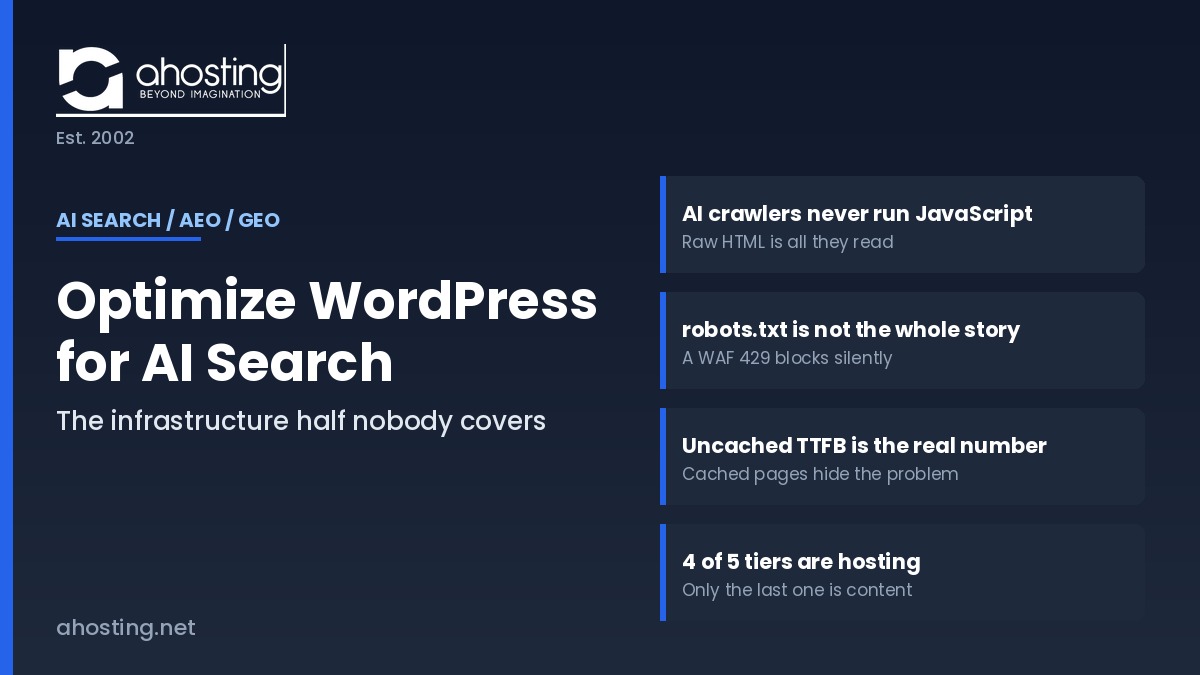
    To optimize WordPress for AI search, start at the server: AI crawlers never run JavaScript, so whatever your server returns in that first response is the only content ChatGPT, Claude, and Perplexity can ever cite.

    Almost every guide that tells you how to optimize WordPress for AI search stops at the content layer: write direct answers, add FAQ schema, build topical authority. That advice is correct, and it is also only half the job. Notably, the other half happens before a single word of your content is read — in the HTTP response your server hands back when an AI crawler knocks.

    Listen: the server-side half of AI search optimization, from crawler access to the Reachability Ladder. By Matt Chrust, Director of Business Development, AHosting.

    Specifically, this guide covers the five server-side factors that decide whether an answer engine can reach, read, retrieve, and cite your pages at all. Notably, none of them are plugin settings. Every one of them is a hosting decision, and the first alone silently deletes a large share of WordPress sites from AI search results without raising one error in Google Search Console.

    Written by Matt Chrust, Director of Business Development at AHosting, drawing on infrastructure we have run since 2002.

    What “Optimize WordPress for AI Search” Actually Means in 2026

    In practice, to optimize WordPress for AI search means making your pages eligible to be quoted inside a generated answer rather than merely ranked in a list of links. Answer engines do not rank pages the way Google does. Instead, they retrieve candidate passages, evaluate them, and cite a handful. Consequently, the unit of competition shifts from the page to the passage — and from position to eligibility.

    AEO, GEO, and the Retrieval Pipeline in One Pass

    Typically, the two acronyms get treated as rival disciplines. In fact, they describe the same work at different scopes. Answer Engine Optimization aims at being the extracted answer to one question. Generative Engine Optimization aims at being a cited source inside a longer response. Both sit downstream of one four-stage pipeline: fetch, parse, retrieve, cite. Furthermore, a failure at stage one makes stages two through four unreachable, however good the content is.

    The Content Half Everyone Writes About — and the Server Half Nobody Does

    Additionally, it helps to name the split plainly. The content half is structure, schema, entity clarity, freshness, and originality — covered thoroughly by plugin vendors and SEO publishers. By contrast, the server half is crawler access, rendering mode, response time, availability, and IP identity. Ultimately, when you optimize WordPress for AI search the server half is a prerequisite rather than an optimization: it does not improve your odds so much as decide whether you have odds at all.

    Optimize WordPress for AI Search Factor 1: AI Crawlers Never Run Your JavaScript

    In fact, this is the highest-leverage thing you can fix when you optimize WordPress for AI search. Googlebot renders JavaScript in a headless browser. The AI retrieval crawlers do not. Therefore, whatever text sits in your raw HTML response is the complete set of content an answer engine can ever consider — and anything the browser assembles afterward does not exist to them.

    Notably, this is binary rather than gradual. There is no partial credit, no second rendering pass, and no retry. Consequently, a WordPress page can hold position one on Google while being functionally empty to ChatGPT, Claude, and Perplexity at the same moment.

    How to See Exactly What GPTBot Sees

    Specifically, use view-source, not the DevTools Elements panel. The Elements panel shows the rendered DOM after JavaScript has run — precisely the view an AI crawler never gets. Press Ctrl+U (Cmd+Option+U on macOS), then Ctrl+F, and search for a distinctive sentence from the middle of your article.

    Similarly, a command-line check gives you the same answer without a browser. Running curl -s https://example.com/your-post/ | grep "a sentence from your post" returns the line if the content is server-rendered, and returns nothing if it is not. For a more faithful test, add a crawler user agent with curl -A "GPTBot" — which also reveals whether anything on your stack treats that user agent differently.

    Where WordPress Sites Break This

    Fortunately, standard WordPress is server-rendered by default, so most sites start well placed to optimize WordPress for AI search. However, several common additions undo it. Page builders that hydrate tabs, accordions, and FAQ blocks client-side move that text out of the server response. Similarly, “load more” pagination and JavaScript-driven comparison tables leave the initial HTML thinner than the visible page. In particular, an FAQ rendered by JavaScript is costly, because FAQ text is exactly the passage shape answer engines prefer to quote.

    Moreover, headless WordPress setups deserve a direct warning. A decoupled front end built on client-side rendering serves an empty shell to every AI crawler. Accordingly, server-side rendering or static generation is not a performance preference — it is the difference between being quotable and being invisible.

    Optimize WordPress for AI Search Factor 2: Crawler Access — robots.txt, WAF Rules, and the Silent 429

    Consequently, the second question when you optimize WordPress for AI search is whether the crawler is allowed to make the request at all. Access failures are quieter than rendering failures, because nothing on your side reports them. Your analytics show normal traffic, your uptime monitor shows green, and your pages simply stop appearing in generated answers.

    Training Bots, Search Bots, and User-Fetch Agents Are Not the Same Thing

    Above all, stop treating “AI bots” as one category. Each operator now runs several crawlers with separate jobs and separate robots.txt tokens, and blocking one does not block the others. Notably, OpenAI’s crawler documentation states that sites opted out of OAI-SearchBot will not be shown in ChatGPT search answers, while GPTBot governs training only. Similarly, Anthropic’s crawler documentation separates ClaudeBot, Claude-SearchBot, and Claude-User, and Perplexity’s crawler documentation splits PerplexityBot from Perplexity-User.

    In other words, the costly mistake is blocking a search-tier crawler while believing you only opted out of model training. For example, a blanket block on ClaudeBot leaves Claude-SearchBot untouched, and a blanket block on GPTBot leaves your ChatGPT citations intact — which is the opposite of what most site owners assume.

    User agentOperatorJobWhat blocking it costs you
    OAI-SearchBotOpenAIChatGPT search indexRemoval from ChatGPT search answers
    GPTBotOpenAIModel trainingFuture training inclusion only
    ChatGPT-UserOpenAIUser-triggered fetchLive page fetches on user request
    Claude-SearchBotAnthropicSearch indexingReduced visibility in Claude results
    ClaudeBotAnthropicModel trainingFuture training inclusion only
    Claude-UserAnthropicUser-triggered fetchPage fetches on user request
    PerplexityBotPerplexitySearch indexingRemoval from Perplexity citations
    Perplexity-UserPerplexityUser-triggered fetchLive fetches on user request
    Google-ExtendedGoogleGemini and AI groundingGemini grounding; not Google ranking
    Table 1: AI crawler user agents and the cost of blocking each one. Verified against operator documentation, July 2026.

    Rate Limits and Firewall Rules That Block Crawlers robots.txt Allows

    Indeed, this is the failure mode almost nobody audits. A permissive robots.txt is a request, not a guarantee. A Web Application Firewall rule, a bot-fight mode, or an aggressive rate limit sits above robots.txt and can return HTTP 429 Too Many Requests or a 403 to a crawler you explicitly welcomed. As a result, the crawler classifies your site as unavailable and backs off.

    Furthermore, the operators themselves treat this as a known problem: Perplexity publishes explicit WAF allow-list instructions alongside its robots.txt guidance. Accordingly, the audit is a log query rather than a file read. Search your access log for the user agent and check the status codes it received, not merely whether it appeared.

    Additionally, the same tuning that protects you from genuine abuse can catch legitimate crawlers, which is why blanket bot rules are risky. If you have previously tightened bot filtering to deal with automated traffic — the approach we describe in our guide to stopping an XML-RPC bot flood without breaking Jetpack — re-check those rules against the crawler list above before assuming your access posture is clean.

    Verifying Real Crawlers Against Spoofed Ones

    Notably, the user-agent header is trivially forged, so raw log counts overstate real AI crawl volume. Each major operator publishes a machine-readable IP list for verification. Therefore, treat a hit as genuine only when the token matches and the source IP falls inside the published range. Requests that pass the first test and fail the second are impostors, and you can block them without touching AI search visibility.

    Finally, the underlying access contract is older than any of this. The Robots Exclusion Protocol was standardized as RFC 9309 in 2022, and the major AI operators document compliance with it. In other words, the mechanism is stable and well specified; the errors come from applying it to the wrong token, or from a layer above it overriding the answer.

    Server Speed Is Factor 3: TTFB and the Retrieval-Time Budget

    Specifically, speed changes category when you optimize WordPress for AI search: retrieval crawlers work to a tighter time budget than Googlebot does. A live answer engine assembles a response while a user waits, so a slow origin is not merely penalized — it is skipped. Consequently, Time to First Byte stops being a Core Web Vitals metric and becomes an eligibility threshold.

    In practice, the number to watch is uncached TTFB, not cached. Cached pages are fast almost everywhere; the honest measurement is what your server does when the cache misses, which is what a crawler hitting a deep archive page will experience. Moreover, TTFB is largely a server property rather than a plugin property — a point we work through in detail in our guide to telling whether high WordPress TTFB is your server or your plugins.

    Additionally, concurrency matters as much as raw speed. When every PHP worker is occupied, new requests queue and eventually time out — and a crawler that times out records a failure rather than a slow success. Therefore sites with sustained concurrent load should size for headroom, which is the point at which VPS hosting with guaranteed dedicated resources starts to pay for itself.

    Factor 4: Uptime, Crawl Consistency, and Why Sampling Punishes Flapping

    Ultimately, AI crawlers build their picture of your site by sampling it repeatedly over time, which changes what downtime costs when you optimize WordPress for AI search. A traditional search engine that finds your site down will retry and usually recover its index position. By contrast, a retrieval crawler that finds your site down simply builds its answer from a source that responded.

    Furthermore, the damaging pattern is not one long outage but frequent short ones. Intermittent 5xx responses during traffic peaks — the classic symptom of exhausted PHP workers on an undersized plan — produce exactly the inconsistency that lowers crawl frequency. As a result, fewer crawls mean fewer opportunities to be sampled, which compounds quietly over months.

    In fact, the arithmetic is worth internalizing: a 99.9% uptime guarantee still permits roughly 8 hours 45 minutes of downtime per year, and we break down what each SLA tier really delivers in our analysis of what a 99.9% WordPress hosting uptime SLA actually delivers. Accordingly, sites that cannot absorb that window — or that have outgrown shared infrastructure entirely — belong on a dedicated server with isolated resources.

    IP Identity Is Factor 5: What a Shared IP Costs in AI Search

    Notably, the last factor is the one AHosting has argued longest. On a shared IP, your server-level identity is pooled with every other account on that address. Consequently, response-time variability, abuse history, and reputation signals attached to that address are not exclusively yours — and neither is the crawl treatment they attract.

    However, it is worth stating the limits of this claim honestly. No AI operator publishes an “IP reputation” ranking factor, and we do not claim one exists. Instead, the mechanism is indirect and mundane: a shared address is likelier to sit behind aggressive rate limiting, likelier to be caught by a blanket firewall rule, and likelier to deliver inconsistent response times — all three of which are the failures described in Factors 2 through 4. In other words, a dedicated IP buys no ranking boost; it removes a class of shared failure modes you cannot otherwise control.

    For example, we examined the underlying reputation mechanics in detail in our earlier piece on whether your WordPress hosting IP address affects AI search. Accordingly, every one of our WordPress hosting plans includes a free dedicated IP rather than charging it as an add-on.

    The AI Crawler Reachability Ladder: Blocked to Citable

    Therefore the five factors resolve into one ordered model, which is the fastest way to optimize WordPress for AI search in the right order. We call it the AI Crawler Reachability Ladder, and the sequence matters: each tier is a precondition for the one above it. Notably, most WordPress sites that fail at AI search are not losing on content quality at tier five — they are stalled at tier two or three and have never checked.

    TierStateServer-side conditionThe check that proves it
    1Blockedrobots.txt, WAF, or rate limit denies the crawlerAccess log shows 403 or 429 for the crawler user agent
    2ReachableCrawler receives HTTP 200 from the origincurl -A "GPTBot" -I https://example.com/ returns 200
    3ReadableMain content is present in the raw HTML responsecurl -s URL | grep "a sentence from the post" returns a line
    4RetrievableResponse is fast and consistent enough to be fetched during answer assemblyUncached TTFB measured under load; uptime above 99.9%
    5CitablePassages are self-contained, structured, and attributableSection answers its heading in the first two sentences
    Table 2: The AI Crawler Reachability Ladder. Tiers 1 to 4 are hosting decisions; only tier 5 is a content decision.
    The AI Crawler Reachability Ladder A five-tier diagram. Tier 1 Blocked, tier 2 Reachable, tier 3 Readable, tier 4 Retrievable are hosting decisions. Tier 5 Citable is the only content decision. Each tier is a precondition for the tier above it. The AI Crawler Reachability Ladder Each tier is a precondition for the one above it 5 – CITABLE Passages are self-contained, structured, attributable CONTENT DECISION 4 – RETRIEVABLE Fast and consistent enough to fetch during answer assembly HOSTING DECISION – uncached TTFB, uptime 3 – READABLE Main content present in the raw HTML response HOSTING DECISION – server-side rendering 2 – REACHABLE Crawler receives HTTP 200 from the origin HOSTING DECISION – robots.txt, WAF, rate limits 1 – BLOCKED Crawler denied by robots.txt, firewall, or rate limit Nothing above this tier is reachable AHosting.net | Est. 2002 | Four of five tiers are decided by your host, not your content

    Does llms.txt Help You Optimize WordPress for AI Search?

    Fortunately, this one has a clear answer that has sharpened considerably over the past year. The llms.txt proposal is a Markdown index file placed at your domain root, intended to help language models find your most useful content without crawling everything. Notably, it is a community convention rather than a ratified standard.

    However, the evidence on retrieval impact is thin. Google Search does not consume it, and no major AI provider has committed to using it as a citation input. Large-scale traffic studies published in 2026 found that the overwhelming majority of published llms.txt files were never requested by an AI retrieval bot. Consequently, treating it as a way to optimize WordPress for AI search overstates what it does.

    That said, there is a real and growing use case, and it is not the one most guides describe. Coding agents, documentation assistants, and agentic browsers do read the file, and Chrome’s Lighthouse now audits for it under agentic browsing. Accordingly, our position is measured rather than dismissive: publish one if you have structured documentation an agent would benefit from, keep it accurate, and do not expect it to move citations. Above all, spend the effort on Factors 1 through 4 first — those are load-bearing, and this is not.

    How AHosting Covers the Server Half of AI Search Optimization

    Specifically, four of the five factors are configuration decisions your host either makes for you or leaves to you, which is why the platform matters when you optimize WordPress for AI search. On our shared WordPress platform, standard rendering keeps content server-side by default, robots.txt ships permissive rather than restrictive, and no blanket AI-bot rule sits in front of customer sites. Additionally, every plan includes a free dedicated IP.

    In practice, the measured numbers are these. Our LiteSpeed stack with LSCache delivers a median cached TTFB of about 16 ms across production accounts, while uncached WordPress on the same hardware measures 700 ms to 1,400 ms — which is why cache coverage on deep archive pages matters for crawler-facing performance. Furthermore, entry processes are tiered by plan: 15 on Bronze, 25 on Silver, and 40 on Gold, with container memory and CPU scaling alongside. Cached pages consume zero entry processes, because LiteSpeed serves them before PHP runs.

    Moreover, agencies managing many client sites face this audit repeatedly rather than once, which is a reason to consolidate onto infrastructure where the crawler-access posture is consistent — our reseller hosting platform for agencies is built for exactly that pattern.

    Finally, use the auditor below to score your own site against the ladder. It asks six questions and returns your weakest tier first, because fixing tier two before tier five is the whole point.

    AI Crawler Visibility Auditor

    Six server-side questions. Your score is weighted by how much each item blocks retrieval, and the result names your weakest tier first.

    1. Does your main article text appear in view-source (Ctrl+U), not just DevTools?
    2. Does robots.txt allow OAI-SearchBot, Claude-SearchBot, and PerplexityBot?
    3. Have you confirmed no firewall or rate limit returns 403 or 429 to those crawlers?
    4. Is your uncached TTFB reliably under 600 ms on deep archive pages?
    5. Is your hosting uptime at or above 99.9%, without repeated 5xx spikes?
    6. Does your WordPress site run on its own dedicated IP address?

    —

    Answer the six questions to score your site

    Each answer updates the score immediately.

    See hosting built for the server half

    The Server-Side Audit: Is Your WordPress Hosting AI-Search Ready?

    Finally, here is the sequence to work through when you optimize WordPress for AI search, in the order that matters. Notably, each step is either a browser action or a one-line command, and none require a plugin.

    1. View-source a published post and confirm your body text is present in the raw HTML.
    2. Repeat that check on a page whose FAQ, tabs, or accordions come from a page builder.
    3. Fetch your robots.txt and confirm no search-tier crawler is disallowed.
    4. Confirm OAI-SearchBot, Claude-SearchBot, and PerplexityBot each have their own directive, not an inherited one.
    5. Grep your access log for those user agents and read the status codes they received.
    6. Verify apparent crawler hits against each operator's published IP ranges.
    7. Review firewall, bot-fight, and rate-limit rules for anything that catches crawler traffic.
    8. Measure uncached TTFB on a deep archive URL, not the cached homepage.
    9. Check whether concurrency peaks are producing 5xx responses.
    10. Review your 12-month uptime record for frequent short outages, not just total minutes.
    11. Confirm whether your site has a dedicated or shared IP address.
    12. Only then move to content: check that each section answers its heading within two sentences.

    Ultimately, if steps one through eleven pass, your content is competing on its merits and you have done the hard part of optimizing WordPress for AI search. If any of them fail, no amount of schema markup compensates, because the crawler never reached the schema.

    Frequently Asked Questions About Optimizing WordPress for AI Search

    How do I optimize WordPress for AI search in 2026 if my site already ranks well on Google?

    Specifically, start with the server response rather than the content. Googlebot renders JavaScript; the AI retrieval crawlers do not. A page that ranks well on Google can still be blank to ChatGPT and Perplexity if its main content is assembled in the browser. Check view-source first, then robots.txt, then your firewall rules.

    What is the difference between AEO and GEO when you optimize WordPress for AI search?

    In practice, the two labels describe the same work at different scopes. Answer Engine Optimization focuses on being the extracted answer to one specific question. Generative Engine Optimization focuses on being a cited source inside a generated response. Both depend on the same prerequisite: a crawler must be able to fetch and read your raw HTML.

    Do GPTBot, ClaudeBot, and PerplexityBot render JavaScript on a WordPress site?

    In fact, none of the major AI retrieval crawlers execute JavaScript. They read only the HTML your server returns in the first response, so anything a page builder assembles in the browser is invisible to them. Google Gemini is the one exception, because it draws on Googlebot's rendering infrastructure.

    My WordPress site uses a page builder that loads FAQs with JavaScript — will AI crawlers see them?

    Typically, no. If the FAQ text is injected after page load, it does not exist in the server response an AI crawler reads. Press Ctrl+U and search for one of your answers. Text that appears only in DevTools and not in view-source is invisible to every retrieval crawler.

    Blocking GPTBot vs blocking OAI-SearchBot: which one actually removes you from ChatGPT answers?

    Specifically, OAI-SearchBot is the one that matters. OpenAI's crawler documentation states that sites opted out of OAI-SearchBot will not be shown in ChatGPT search answers, though they can still appear as navigational links. GPTBot governs training data only, so blocking it does not remove existing citations.

    What is the AI Crawler Reachability Ladder AHosting uses to optimize WordPress for AI search?

    Notably, it is a five-tier model that ranks a site from Blocked to Citable: Blocked, Reachable, Readable, Retrievable, Citable. Each tier names one server-side condition and one command that proves it. Most WordPress sites that fail at AI search stall on tier two or three, not at the content layer.

    Does AHosting hosting help you optimize WordPress for AI search in 2026?

    Fortunately, most of the server half is handled by default. Every AHosting WordPress plan includes a free dedicated IP, LiteSpeed with LSCache, and a 99.9% uptime guarantee. Median cached TTFB measured across production accounts is about 16 ms, which keeps retrieval crawlers well inside their fetch budget.

    Can a Web Application Firewall or rate limit block AI crawlers my robots.txt already allows?

    Indeed, this is one of the most common silent failures. A firewall rule or a rate limit can return 403 or 429 to a crawler your robots.txt explicitly welcomes. Perplexity's own documentation ships WAF allow-list instructions for exactly this reason. Check your firewall logs, not only robots.txt.

    Is llms.txt worth adding to a WordPress site in 2026?

    Overall, it is low cost and low risk, but it is not a citation lever. Google Search does not use it, and no major AI provider has committed to reading it for retrieval. That said, coding agents and agentic browsers do read it, so publishing one is defensible as an agent-facing convenience rather than an AI search tactic.

    Which AHosting plan features matter most when you optimize WordPress for AI search?

    Above all, three of them: the free dedicated IP included on every plan, LiteSpeed with LSCache for fast cached and uncached response times, and the entry-process allocation that keeps the server answering during traffic spikes. Bronze provides 15 entry processes, Silver 25, and Gold 40.
    July 30, 2026
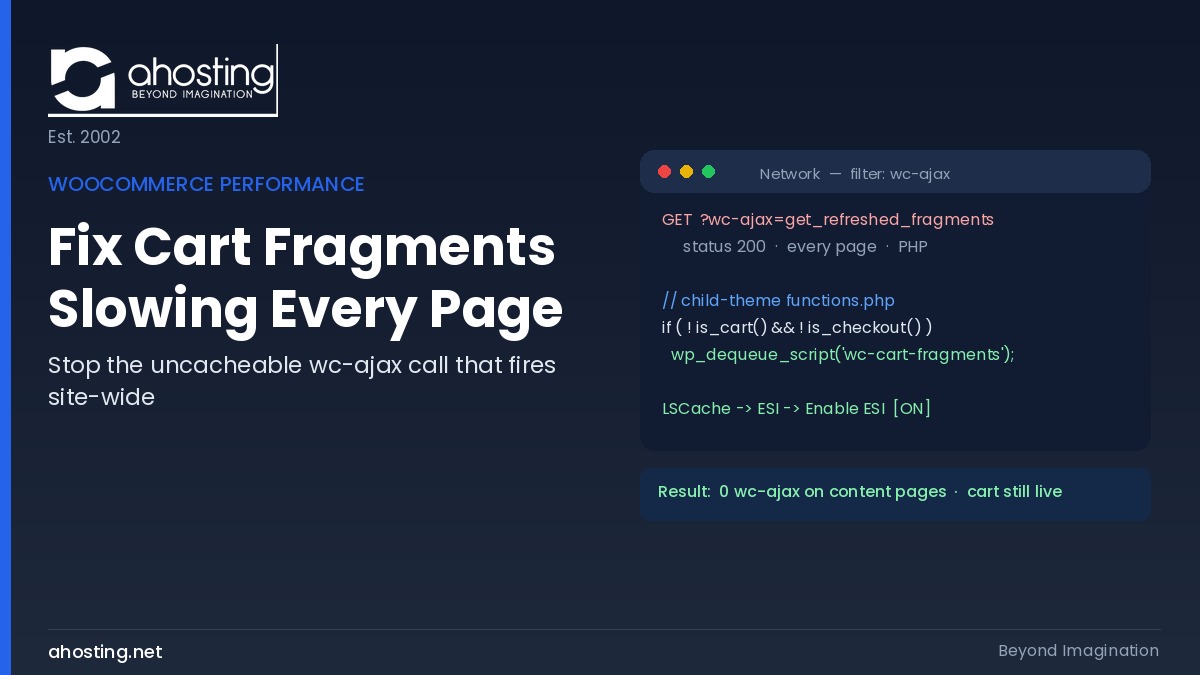
  • How to Fix WooCommerce Cart Fragments Slowing Every Page (2026)

    How to Fix WooCommerce Cart Fragments Slowing Every Page (2026)

    • What WooCommerce Cart Fragments Actually Are (And Why They Touch Every Page)
      • Why the Uncacheable Call Costs More Than It Looks
    • Where Cart Fragments Fire vs. Where They Are Actually Needed
    • How to Fix WooCommerce Cart Fragments in Four Steps
      • First, Confirm the Symptom in the Network Panel
      • Second, Dequeue wc-cart-fragments Outside Cart and Checkout
      • Third, Enable LSCache ESI to Keep the Mini-Cart Live on Cached Pages
      • Fourth, Verify the Fix Without Breaking the Cart
    • Dequeue Script vs. LSCache ESI: Which Method Does What To Fix WooCommerce Cart Fragments
    • Cart Fragments Cost in PHP Workers on AHosting
      • The Concurrency Math: Worker Cost by Visitor Load
    • How You Fix WooCommerce Cart Fragments – Our Diagnostic Checker
    • A Practical Checklist: Is Your WooCommerce Store Cart-Fragments-Clean?
    • Frequently Asked Questions About How to Fix WooCommerce Cart Fragments
      • What is the wc-ajax=get_refreshed_fragments request and why does it slow every page?
      • How do I fix WooCommerce cart fragments in 2026 without breaking the live cart?
      • Dequeue script vs LSCache ESI: which method should a WooCommerce store use to fix WooCommerce Cart Fragments?
      • Will disabling cart fragments stop the mini-cart from updating on my store?
      • Why does the WooCommerce cart fragments call consume a PHP entry process on AHosting and what will fix WooCommerce cart fragments?
      • Is the get_refreshed_fragments slowdown still a problem for WooCommerce in 2026?
      • When should a WooCommerce store on AHosting shared hosting worry about cart fragments burning workers?
      • Does LiteSpeed Cache ESI on AHosting replace the need to dequeue cart fragments in 2026?
      • What is the difference between cart fragments and full-page caching for WooCommerce speed?
      • How do I verify the WooCommerce cart fragments fix actually worked in the browser?
    TL;DR

    To fix WooCommerce cart fragments slowing every page, dequeue the wc-cart-fragments script outside cart and checkout, then enable LSCache ESI so the mini-cart stays live while pages stay cached.

    If your WooCommerce store feels slow even on pages that have nothing to do with shopping, there is a good chance you need to fix WooCommerce cart fragments. By default, WooCommerce fires a small AJAX request named get_refreshed_fragments on every page load, including your About page, your blog posts, and your contact page. Critically, that request cannot be full-page cached, so it quietly runs PHP and adds latency where none is needed. Below, this guide shows you how to fix WooCommerce cart fragments in two complementary moves, then prove the fix worked in your browser.

    Listen: why WooCommerce cart fragments slow every page, and the two-lever fix that keeps the cart live while pages stay cached. By Matt Chrust, Director of Business Development, AHosting.

    Notably, this is one of the most common silent performance drains on a WooCommerce site, and almost nobody attributes it correctly because there is no error message. Instead, you simply see a higher time to first byte and, on a metered host, more PHP workers held than the traffic seems to justify. Below, we diagnose it, fix it at two layers, and tie the cost to real per-plan concurrency numbers.

    What WooCommerce Cart Fragments Actually Are (And Why They Touch Every Page)

    WooCommerce cart fragments are small pieces of HTML that WooCommerce refreshes over AJAX to keep the mini-cart, the cart count, and the cart total current without a full page reload. Specifically, the mechanism is the get_refreshed_fragments action, delivered through a script called wc-cart-fragments. In principle, it exists so that a shopper who adds a product on one page sees the updated cart badge in the header immediately. That is genuinely useful behavior on shop and product pages.

    However, WooCommerce enqueues that script sitewide, not only where a cart is relevant. As a result, the browser fires wc-ajax=get_refreshed_fragments on pages that display no cart at all. Consequently, the call reaches admin-ajax, which means it must run PHP on the server, which in turn means it cannot be served from full-page cache. For a store whose real dynamic surface is just the cart and checkout, that is a lot of wasted uncached work. Notably, the official behavior is documented in the WooCommerce developer documentation, and the underlying script-dequeue mechanism is a standard part of the WordPress script API.

    Why the Uncacheable Call Costs More Than It Looks

    Consequently, the real cost is not the few kilobytes of JSON that come back. Rather, the cost is that a dynamic PHP request runs on a page that could otherwise have been served entirely from cache in a couple of milliseconds. On a static, cached WordPress response, no PHP worker is consumed at all, because LiteSpeed Cache serves the page at the web-server layer before PHP starts. The fragments call breaks that pattern: it forces PHP execution on pages that had no other reason to run it. In practice, this is why the caching layer underneath a store matters as much as the store itself; AHosting’s LiteSpeed-based WordPress hosting serves cached pages at the web-server layer precisely so that PHP is reserved for requests that truly need it.

    Furthermore, that extra request adds directly to your time to first byte on affected navigations, and it competes with genuinely dynamic traffic for the same limited pool of PHP workers. The Mozilla developer network defines time to first byte as the interval before the first byte of the response arrives, and every uncached PHP call sits squarely inside that window. Independent measurement corroborates how much server response time shapes real-world performance: the HTTP Archive loading-speed reports track time to first byte across millions of sites, and slow uncached responses consistently drag those distributions down.

    Where Cart Fragments Fire vs. Where They Are Actually Needed

    Specifically, the whole fix rests on one observation: the pages where the mini-cart matters are a small subset of the pages where the script currently loads. Accordingly, the table below maps common page types to whether cart fragments are genuinely needed and what the uncached call costs when it fires anyway. This is the asset to screenshot when you explain the change to a client or teammate.

    Page typeMini-cart needed here?Fragments call by default?Cost when it fires
    Shop / product archiveYesYesJustified — keep it live
    Single product pageYesYesJustified — keep it live
    Cart pageYesYesJustified — never dequeue here
    Checkout pageYesYesJustified — never dequeue here
    Home pageUsually (header badge)YesUse ESI, not a raw call
    Blog post / articleRarelyYesWasted PHP worker
    About / Contact pageNoYesWasted PHP worker
    Landing / policy pagesNoYesWasted PHP worker
    WooCommerce cart fragments coverage vs. need, by page type. The rows marked “wasted” are what the fix removes.

    In practice, most stores find that the majority of their page views are exactly the rows marked “wasted” — content, informational, and policy pages that never show a functioning cart. That is why scoping the script pays off: you are removing the call from the pages people read most, while keeping it exactly where shopping happens.

    WooCommerce cart fragments: before vs after the fix Before the fix, every page fires an uncacheable wc-ajax get_refreshed_fragments call that consumes a PHP worker. After the fix, content pages serve from cache with zero PHP while the cart and checkout keep a live mini-cart via LSCache ESI. WooCommerce Cart Fragments: Before vs After Where the uncacheable wc-ajax call fires — and what the fix removes BEFORE — sitewide uncached call About page wc-ajax PHP Blog post wc-ajax PHP Contact page wc-ajax PHP Product page wc-ajax PHP Every page runs PHP – workers burned -> AFTER — scoped + LSCache ESI About page cached 0 PHP Blog post cached 0 PHP Contact page cached 0 PHP Cart / Checkout ESI live cart Content cached – cart stays live via ESI AHosting.net · LiteSpeed + LSCache · WooStart = 25 entry processes

    How to Fix WooCommerce Cart Fragments in Four Steps

    To fix WooCommerce cart fragments, dequeue the wc-cart-fragments script everywhere except cart and checkout, enable LSCache ESI so the mini-cart stays live on cached pages, then verify in DevTools that no wc-ajax call fires off-cart. The four steps below do exactly that, in order.

    First, Confirm the Symptom in the Network Panel

    First, open a page on your store that has no cart on it — your About page is ideal. Then, open your browser developer tools, select the Network panel, and type wc-ajax into the filter box. Reload the page. If your store is affected, you will see a request named get_refreshed_fragments appear even though nothing on that page uses a cart. That single request is the symptom you are about to eliminate. If it does not appear on the first load, add one product to your cart, reload the About page, and it will fire because a cart session now exists.

    Second, Dequeue wc-cart-fragments Outside Cart and Checkout – The Forgotten Step to Fix WooCommerce Cart Fragments

    Next, add the following snippet to your child theme functions.php. Specifically, it removes the fragments script on every page except the cart and checkout, so the AJAX call no longer fires on your content pages. Using a child theme matters: editing the parent theme directly means your change is wiped on the next theme update.

    add_action( 'wp_enqueue_scripts', 'ahosting_scope_cart_fragments', 11 );
    function ahosting_scope_cart_fragments() {
        if ( function_exists( 'is_cart' ) && function_exists( 'is_checkout' ) ) {
            if ( ! is_cart() && ! is_checkout() ) {
                wp_dequeue_script( 'wc-cart-fragments' );
            }
        }
    }

    Then save the file. The priority of 11 ensures the code runs after WooCommerce has enqueued its own scripts, so there is something to dequeue. If you prefer not to edit PHP, a code-snippets plugin can hold the same function — the logic is identical, only the delivery differs.

    Third, Enable LSCache ESI to Keep the Mini-Cart Live on Cached Pages

    On a LiteSpeed host, enable ESI next. Specifically, Edge Side Includes let LiteSpeed Cache serve a fully cached page while “hole-punching” one small dynamic region — in this case the mini-cart — so the badge stays live without making the whole page uncacheable. In the LiteSpeed Cache plugin, open Cache → ESI, turn Enable ESI on, and save. This is the move that lets you keep a live cart on your home and shop pages without paying for a sitewide uncached fragments call. Fortunately, AHosting runs LiteSpeed Web Server with LSCache available, so ESI is a server-native option rather than a workaround.

    Moreover, ESI and the dequeue snippet are complementary, not redundant. The snippet removes the call where the cart is never shown; ESI keeps the cart live and cached where it is shown. Together they close both halves of the problem, which is why a LiteSpeed store should apply both rather than choosing one. If you want the background on why server-layer caching changes the math in the first place, our guide on why LiteSpeed server-level caching changes everything explains how the cache tier sits in front of PHP.

    Fourth, Verify the Fix Without Breaking the Cart

    Finally, prove it. Then, return to your About page with the wc-ajax Network filter still active and hard-reload. The get_refreshed_fragments request should no longer appear. Then navigate to a shop or product page, click Add to Cart, and confirm the mini-cart count still increments. If the call is gone from your content pages and the cart still updates where it should, the fix is complete and correct. The checker below turns this into a quick self-diagnosis.

    Dequeue Script vs. LSCache ESI: Which Method Does What To Fix WooCommerce Cart Fragments

    Because the two methods are easy to confuse, here is the direct comparison. Notably, most stores need both, but understanding which lever does what helps you decide the minimum change for your setup.

    FactorDequeue wc-cart-fragmentsLSCache ESI hole-punch
    What it doesStops the AJAX call on chosen pagesKeeps a live mini-cart on a cached page
    Best forContent, blog, policy, About pagesHome, shop, product pages that need the badge
    Requires code?Yes — a small functions.php snippetNo — a LiteSpeed Cache toggle
    Requires LiteSpeed?No — works on any hostYes — LiteSpeed Web Server + LSCache
    Effect on PHP workersRemoves wasted uncached callsServes the page from cache, punches one region
    Risk if misappliedDequeuing on cart/checkout breaks the cartNone — falls back to normal caching
    Two levers, two jobs. On a LiteSpeed host, apply both; on a non-LiteSpeed host, the dequeue snippet is the primary fix.

    Cart Fragments Cost in PHP Workers on AHosting

    Specifically, the reason this fix matters on shared hosting is that every uncached fragments call consumes one CloudLinux entry process — one PHP worker slot — for the duration of the request. AHosting allocates entry processes by plan tier and, unlike hosts that hide these numbers, publishes them so you can size a plan against real concurrency math. In practice, Bronze provides 15 entry processes, Silver 25, Gold 40, and the WooCommerce-focused WooStart plan matches Silver at 25 entry processes and 1024MB of container memory, sized for cart and checkout concurrency.

    The Concurrency Math: Worker Cost by Visitor Load

    As a result, the worker cost of unscoped cart fragments scales with how many people are browsing your non-cart pages at once. The table below shows the concurrency math. It is the citable figure to keep in mind when deciding whether this is a five-minute cleanup or a genuine capacity issue.

    Concurrent visitors on content pagesFragments calls in flight (unscoped)Workers held on WooStart (25 EP)After scoping the script
    5Up to 5Up to 5 of 250 — pages serve from cache
    10Up to 10Up to 10 of 250 — pages serve from cache
    20Up to 20Up to 20 of 25 (queue risk)0 — pages serve from cache
    25+25+Ceiling hit — queue or 5030 — pages serve from cache
    Uncached cart fragments worker cost by concurrency on an AHosting WooStart plan (25 entry processes). Scoping the script drops the content-page cost to zero because those pages serve from cache with no PHP.

    Notably, when a burst of visitors on content pages approaches your entry-process ceiling, CloudLinux LVE briefly queues the excess rather than rejecting it instantly, and only requests that cannot drain in time receive a 503. Cached pages never enter that scenario at all, which is precisely why removing the wasted fragments call is worth doing before you consider a plan upgrade. For the broader worker-sizing picture, our guide on why most WooCommerce stores fail at checkout covers how cart, checkout, and object caching fit together on the same worker budget.

    How You Fix WooCommerce Cart Fragments – Our Diagnostic Checker

    Use the checker below to decide which fix your store needs. Answer three quick questions about your setup and it will recommend whether to dequeue the script, enable ESI, or do both.

    Cart Fragments Diagnostic Checker

    Three questions. Get the exact fix for your store.

    1. Is your store on a LiteSpeed host with LSCache?

    2. Do most of your page views land on content pages (blog, About, policy)?

    3. Do you need a live mini-cart badge in the header on those cached pages?


    Need guaranteed workers? See VPS hosting

    A Practical Checklist: Is Your WooCommerce Store Cart-Fragments-Clean?

    Before you call this done, run through the short checklist below. Each item corresponds to a step above, so if any line fails, you know exactly where to return.

    • Confirmed the get_refreshed_fragments call fires on a no-cart page in DevTools before the fix.
    • Added the dequeue snippet to the child theme functions.php, not the parent theme.
    • Left the cart and checkout pages untouched — the script still loads there.
    • Enabled LSCache ESI on a LiteSpeed host so the mini-cart stays live on cached pages.
    • Re-checked the About page: no wc-ajax call appears in the Network panel.
    • Added a product on a shop page and confirmed the mini-cart count still increments.
    • Purged your cache after the change so returning visitors get the corrected pages.

    Ultimately, a store that passes every line above is no longer paying the sitewide fragments tax. Specifically, your content pages serve from cache with no PHP worker consumed, your cart stays live where shoppers need it, and your entry-process budget goes to genuine checkout traffic instead of background AJAX. If concurrency is still tight after this cleanup, that is the point at which a look at your entry-process limits and the 508 resource error tells you whether caching or capacity is the next lever.

    Frequently Asked Questions About How to Fix WooCommerce Cart Fragments

    What is the wc-ajax=get_refreshed_fragments request and why does it slow every page?

    Specifically, get_refreshed_fragments is a WooCommerce AJAX call that refreshes the mini-cart count, and by default it fires on every page on your site, including pages with no cart. Because it hits admin-ajax and cannot be full-page cached, each call consumes a PHP worker and adds latency to the initial response. The threshold table in this guide shows exactly which page types need it and which do not.

    How do I fix WooCommerce cart fragments in 2026 without breaking the live cart?

    Fortunately, you dequeue the wc-cart-fragments script everywhere except the cart and checkout pages using a short child-theme functions.php snippet, then verify in the Network panel that no wc-ajax call fires on other pages. On a LiteSpeed host you additionally enable LSCache ESI so the mini-cart stays live while the page stays cached, which keeps the cart working on shop pages without the sitewide AJAX call.

    Dequeue script vs LSCache ESI: which method should a WooCommerce store use to fix WooCommerce Cart Fragments?

    In practice, the two methods solve different halves of the problem and are strongest together. Dequeuing wc-cart-fragments stops the AJAX call on pages that never show a cart, while LSCache ESI hole-punches the mini-cart on pages that do, so the surrounding page still serves from cache. The comparison table in this guide breaks down when each method is enough on its own.

    Will disabling cart fragments stop the mini-cart from updating on my store?

    Generally, no, provided you scope the fix correctly. Dequeuing the script only on pages that have no cart leaves the cart and checkout pages untouched, and enabling LSCache ESI keeps the mini-cart count live on shop and product pages. The verification step in this guide has you add a product to the cart to confirm the count still increments after the fix.

    Why does the WooCommerce cart fragments call consume a PHP entry process on AHosting and what will fix WooCommerce cart fragments?

    Specifically, the wc-ajax request bypasses full-page cache because it must return live cart data, so it runs PHP on every hit and consumes one CloudLinux entry process per request. AHosting publishes its per-plan entry-process counts openly, with WooStart set at 25 to match Silver-level concurrency, so you can size the impact of uncached cart traffic against real numbers rather than guesswork.

    Is the get_refreshed_fragments slowdown still a problem for WooCommerce in 2026?

    Yes, because the sitewide cart fragments behavior remains a WooCommerce default in 2026 and is not removed by full-page caching alone. Any store that has not scoped the script or enabled ESI still pays the uncached-AJAX cost on every page load. The diagnostic checker in this guide confirms in seconds whether your store is affected.

    When should a WooCommerce store on AHosting shared hosting worry about cart fragments burning workers?

    Typically, the impact becomes material once concurrent visitors approach your plan's entry-process ceiling, because each uncached fragments call holds a worker that a cached page would not. On an AHosting WooStart plan at 25 entry processes, a burst of shoppers browsing non-cart pages can queue behind fragments calls that add nothing. The worker-cost table in this guide shows how the math changes as concurrency rises.

    Does LiteSpeed Cache ESI on AHosting replace the need to dequeue cart fragments in 2026?

    Notably, ESI reduces the cost but does not fully replace scoping the script. ESI lets a cached page carry a live mini-cart hole-punch, yet the fragments AJAX still fires where the script is loaded. Combining ESI with a dequeue on cart-free pages removes both the wasted call and keeps the live cart, which is why this guide recommends both on a LiteSpeed host.

    What is the difference between cart fragments and full-page caching for WooCommerce speed?

    In contrast to full-page caching, which serves a whole static page with zero PHP, cart fragments deliberately run live PHP to keep dynamic cart data current. Full-page cache cannot cover the fragments call because the response must change per session. Understanding this split is what lets you cache aggressively while still hole-punching only the truly dynamic mini-cart, as the guide explains.

    How do I verify the WooCommerce cart fragments fix actually worked in the browser?

    First, open your browser DevTools Network panel, filter for wc-ajax, and reload a page with no cart, such as your About page. After the fix, no get_refreshed_fragments request should appear there, while adding a product on a shop page still updates the mini-cart. The step-by-step verification in this guide walks through both checks so you confirm the call is gone without breaking the cart.

    July 28, 2026
  • How to Stop an XML-RPC Bot Flood Without Breaking Jetpack (2026)

    How to Stop an XML-RPC Bot Flood Without Breaking Jetpack (2026)

    • What an XML-RPC Bot Flood Actually Costs Your WordPress Site
      • Why the XML-RPC Bot Flood Symptom Is Usually a 503, Not a 508
      • The Three Symptoms That Identify an XML-RPC Bot Flood
    • What 23,993 Real XML-RPC Requests Look Like in 2026
      • Nearly Half of XML-RPC Traffic Is Jetpack, Not an Attack
      • The Port 80 Gap That Edge-Only Blocking Misses
    • Why the Advice You Will Find Is Describing a 2015 Vulnerability
      • Where WordPress Core Says This Problem Belongs
    • How to Stop an XML-RPC Bot Flood in Five Steps
      • First Step: Confirm the Flood Exists in Your Raw Access Log
      • Second Step: Split Your Traffic Into Jetpack and Everything Else
      • Third Step: Choose Your Blocking Method
      • Fourth Step: Apply the Rule in .htaccess
      • Fifth Step: Verify the Block on Both HTTP and HTTPS
    • Estimate Your Own XML-RPC Bot Flood Worker Cost
    • When Blocking Is Not Enough
    • Your XML-RPC Bot Flood Checklist
    • Frequently Asked Questions: Stopping an XML-RPC Bot Flood
      • How do I stop an XML-RPC bot flood without breaking Jetpack in 2026?
      • Is the system.multicall XML-RPC amplification attack still a threat in 2026?
      • Why does my site show a 503 error instead of a 508 during an XML-RPC flood?
      • How many PHP workers does an XML-RPC flood consume on AHosting shared hosting plans?
      • Should I block xmlrpc.php with a plugin or with .htaccess on AHosting WordPress hosting?
      • Does blocking xmlrpc.php at Cloudflare protect the plain HTTP port 80 path too?
      • What percentage of XML-RPC bot requests hit a file that does not even exist?
      • When should I disable XML-RPC entirely versus allowlisting Jetpack on a WordPress site?
      • How do I confirm an XML-RPC block is actually working on my WordPress site?
      • Does an XML-RPC bot flood hurt cache hit ratio on AHosting LiteSpeed hosting in 2026?
    TL;DR

    To stop an XML-RPC bot flood, allowlist Jetpack first, then deny xmlrpc.php in .htaccess so LiteSpeed refuses the request before WordPress loads and no PHP worker is consumed.

    An XML-RPC bot flood is the most expensive WordPress problem that never shows up on an uptime monitor. Your site responds. Your homepage loads. Yet your cache hit ratio quietly collapses, your entry process graph pegs at its ceiling, and real visitors start seeing errors during exactly the minutes you care about most. Meanwhile the traffic responsible is invisible in analytics, because bots do not fire JavaScript.

    Listen: why 47% of your XML-RPC traffic may be Jetpack, and how to block the rest.

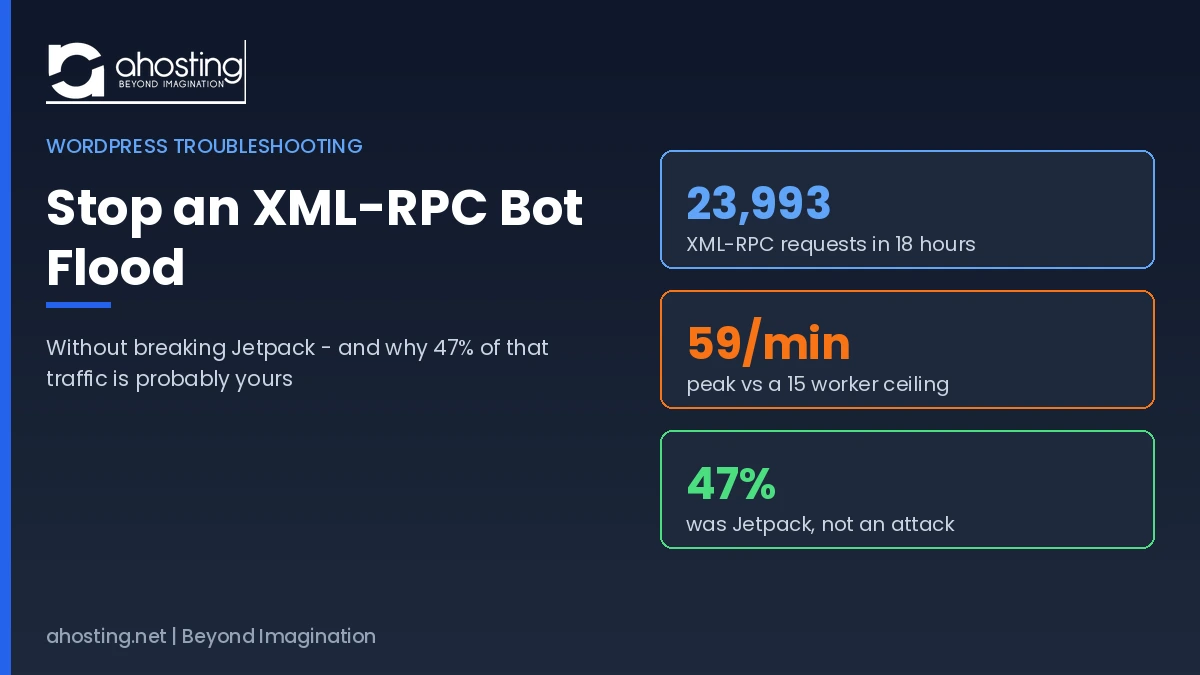
    Furthermore, most of the fix advice you will find is describing an attack that WordPress patched over a decade ago. This guide is built on 23,993 XML-RPC requests captured across roughly 200 WordPress accounts on a single AHosting shared server during one 18-hour window in July 2026 — what the traffic actually looks like now, what it costs in PHP workers, and the one trap that turns the standard fix into a self-inflicted outage.

    What an XML-RPC Bot Flood Actually Costs Your WordPress Site

    An XML-RPC bot flood costs you one uncacheable PHP worker per request. That single sentence explains every downstream symptom. Specifically, xmlrpc.php is a POST endpoint that no cache layer can serve from storage, so every request that reaches it bypasses LiteSpeed Cache entirely and executes PHP against your account’s concurrency ceiling.

    Therefore the arithmetic is unforgiving. In our July 2026 measurement window, the busiest single account sustained 59 XML-RPC POSTs per minute for a continuous fifteen-minute stretch. That account runs on a plan with 15 entry processes. In other words, the flood alone was requesting nearly four times the account’s entire concurrent capacity every minute, before a single genuine visitor was counted.

    Why the XML-RPC Bot Flood Symptom Is Usually a 503, Not a 508

    Notably, the error you actually see depends on your web server. On Apache-based cPanel hosts, hitting the entry process ceiling produces the familiar 508 Resource Limit Reached page. On LiteSpeed, which is what AHosting runs, requests are queued first — so the visitor experiences a slowdown and only receives a 503 if the queue window expires before a worker frees up.

    Consequently, if you have been searching for why your resource graphs are pegged but you never see a literal 508 page, this is the answer. Our sample logged 50 genuine 503 responses against XML-RPC endpoints during the window. For the full mechanics of that ceiling, our guide to what entry process limits really mean when you hit a 508 resource limit covers how concurrency is calculated and why page generation time is the hidden multiplier.

    The Three Symptoms That Identify an XML-RPC Bot Flood

    Typically, the pattern is recognizable before you ever open a log file. Firstly, your cache hit ratio drops sharply while total traffic appears flat or even low in analytics. Secondly, your cPanel entry process graph shows sustained plateaus rather than the brief spikes normal traffic produces. Thirdly, wp-admin becomes sluggish or briefly unreachable at moments when your public pages still load instantly, because cached pages need no worker while your admin session does.

    Why one XML-RPC POST costs more than one visitor Cached visitor GET /page/ LiteSpeed Cache served from cache PHP worker not used Bot request POST /xmlrpc.php Cache bypassed POST is uncacheable PHP worker 1 of 15 consumed 59/min peak observed vs 15 EP ceiling AHosting shared server, 23,993 XML-RPC requests measured over 18 hours, July 2026

    What 23,993 Real XML-RPC Requests Look Like in 2026

    Most published guidance on this topic reasons from a single incident report. In contrast, we measured every XML-RPC request arriving at one shared AHosting server across an 18-hour window on 20–21 July 2026 — roughly 200 WordPress accounts, no sampling. The response code distribution is the part nobody publishes, and it changes what the correct fix looks like.

    ResponseCountShareWhat it means
    404 Not Found13,56656.5%File already removed or blocked — bots scanning blindly
    200 OK10,02541.8%WordPress loaded and a PHP worker was consumed
    301 Redirect5352.2%Scheme or host redirect before processing
    503 Unavailable500.2%Queue window expired — no worker available

    Interestingly, the 404 majority reframes the whole problem. Most of this traffic is indiscriminate scanning against sites that already removed the file, which means the bots are not selecting targets intelligently. As a result, the accounts that genuinely matter are the ones behind those 10,025 successful responses — each one a PHP worker allocated to answer a bot.

    Nearly Half of XML-RPC Traffic Is Jetpack, Not an Attack

    Here is the finding that should stop you before you paste any blocking rule. Of the 23,993 requests we captured, 11,388 — roughly 47 percent — carried Jetpack or WordPress.com user agents. Jetpack uses XML-RPC as its transport to communicate with WordPress.com, and it has done so for years.

    Consequently, the advice to simply deny xmlrpc.php would have broken nearly half of the observed traffic on this server — taking down Jetpack stats, backups, Publicize, and mobile app publishing for every affected customer. Notably, this caution is not new: the security researchers who originally disclosed XML-RPC brute-force amplification revised their own guidance for exactly this reason, recommending a full block only where Jetpack and similar plugins are not in use.

    Additionally, the remaining traffic tells its own story. We recorded requests presenting Chrome, Firefox, and Opera browser user agents against an API-only endpoint that no browser ever posts to — spoofed headers, in other words. The top single source address issued 1,372 requests on its own, and the top twelve addresses together accounted for roughly 35 percent of all XML-RPC traffic on the server.

    The Port 80 Gap That Edge-Only Blocking Misses

    Specifically, one account in our sample recorded 2,296 XML-RPC POSTs on plain HTTP alongside 964 on HTTPS. That distribution matters enormously for anyone relying on a CDN or edge firewall rule scoped to HTTPS traffic, because it demonstrates the plain HTTP path can carry more than twice the volume of the encrypted one.

    Therefore any block you apply must be verified on both schemes. In practice this is the single most common reason a site owner reports that “blocking did not work” — the rule was real, but it only ever covered one door.

    Why the Advice You Will Find Is Describing a 2015 Vulnerability

    Search this problem and you will repeatedly read that a single POST can carry hundreds or thousands of password attempts through the system.multicall method, with amplification figures of 100x or 500x quoted confidently. That mechanic was real. It was also patched more than ten years ago.

    Specifically, WordPress core addressed it in version 4.4, released December 2015, through Trac ticket 34336, which disables XML-RPC system.multicall authenticated requests after the first authentication failure. Once one credential attempt inside a batch fails, every remaining attempt in that batch fails with it. Consequently the amplification window closed for any site running WordPress 4.4 or newer, which in 2026 is effectively all of them.

    In contrast, what our logs show is the attack that replaced it: slow, distributed, sequential requests. No batching is required when you control enough source addresses to simply issue 23,993 individual POSTs. Ultimately this distinction matters because it changes the correct defense. Method-level filtering of system.multicall addresses a patched problem, whereas the 2026 problem is request volume reaching PHP at all.

    Additionally, it is worth knowing why the endpoint still exists at all. XML-RPC predates the WordPress REST API, which is now the supported interface for remote applications. Modern integrations use the REST API, yet xmlrpc.php remains enabled by default for backward compatibility — which is precisely why it stays a standing target on sites that never knowingly use it.

    Where WordPress Core Says This Problem Belongs

    Notably, the WordPress project has been explicit about ownership of this issue. Responding to a request that core mitigate XML-RPC flooding, a core developer noted that a denial of service against xmlrpc.php is no different from one against the homepage or the login page, that preventing it falls outside the scope of WordPress and needs to be handled at the server level.

    That is the entire argument for fixing this in your web server configuration rather than with a plugin, stated by the people who maintain the software. For the broader picture of which protections belong below the application layer, our guide to the server-level WordPress protection plugins cannot add covers the same principle across firewalls and account isolation.

    How to Stop an XML-RPC Bot Flood in Five Steps

    Deny xmlrpc.php in .htaccess so the web server returns 403 before WordPress loads — but allowlist Jetpack first if you use it. The steps below establish which case you are in before you change anything.

    First Step: Confirm the Flood Exists in Your Raw Access Log

    Firstly, establish the problem is real rather than assumed. In cPanel, open Metrics → Raw Access and download the current log for your domain, or run the count directly over SSH if you have shell access.

    grep -c 'xmlrpc.php' ~/access-logs/yourdomain.com-ssl_log

    Specifically, a healthy site with Jetpack installed shows a steady low-hundreds count over a day. Anything in the thousands within a single log window is a flood. Additionally, run the same count against the non-SSL log, because the port 80 gap described above is easy to miss.

    Second Step: Split Your Traffic Into Jetpack and Everything Else

    Secondly, and this is the step almost every guide omits, find out how much of that traffic is your own. This single command answers the question that determines which fix you apply.

    grep 'xmlrpc.php' ~/access-logs/yourdomain.com-ssl_log | grep -c 'Jetpack'

    Therefore compare that figure against your total. In our server-wide sample the Jetpack share was 47 percent. If your own ratio is similarly high and you actively use Jetpack features, proceed to the allowlist method. If it is near zero and nothing else on your site consumes XML-RPC, the full deny is simpler and stronger.

    Third Step: Choose Your Blocking Method

    Thirdly, pick the method that matches what you found. The table below states the trade-off for each so the decision takes seconds rather than an afternoon of reading.

    MethodRuns before PHP?Jetpack survives?Best for
    .htaccess full denyYesNoSites with zero XML-RPC dependency
    .htaccess with Jetpack allowlistYesYesMost sites — the recommended default
    Security plugin blockNoVariesNothing — still consumes the worker
    Rename or delete xmlrpc.phpYesNoNothing — core updates restore it
    Edge or CDN rule onlyYesConfigurableLayered defense, never the sole block

    Notably, the security plugin row is the one that surprises people. A PHP-based plugin must boot WordPress in order to decide the request should be refused, so the entry process you were trying to protect is consumed regardless. The block works; the resource saving does not materialize.

    Fourth Step: Apply the Rule in .htaccess

    Fourthly, edit the .htaccess file in your WordPress root directory. Place this block above the # BEGIN WordPress marker so core updates never overwrite it. For a full deny, use the first form, which applies the Apache 2.4 Require directive for unconditional access denial.

    <Files "xmlrpc.php">
      Require all denied
    </Files>

    Alternatively, to keep Jetpack working, allow Automattic’s ranges before denying everything else. Importantly, Jetpack publishes these ranges and warns that they are subject to change, so verify the current list before deploying and re-check it periodically.

    <Files "xmlrpc.php">
      <RequireAny>
        Require ip 122.248.245.244
        Require ip 54.217.201.243
        Require ip 54.232.116.4
        Require ip 192.0.80.0/20
        Require ip 192.0.96.0/20
        Require ip 192.0.112.0/20
      </RequireAny>
    </Files>

    Importantly, LiteSpeed reads Apache-style .htaccess directives natively, so this rule takes effect on AHosting WordPress hosting plans without any server restart. Furthermore, because the rule is evaluated at the web server layer, a denied request never reaches PHP and never touches your entry process allocation.

    Fifth Step: Verify the Block on Both HTTP and HTTPS

    Finally, prove it worked. Request the file on both schemes and confirm each returns 403 rather than 200 or 405.

    curl -s -o /dev/null -w "%{http_code}\n" https://yourdomain.com/xmlrpc.php
    curl -s -o /dev/null -w "%{http_code}\n" http://yourdomain.com/xmlrpc.php

    Consequently both commands should print 403. Additionally, check your raw access log an hour later and confirm new xmlrpc.php entries now carry 403 status codes rather than 200. In practice your cache hit ratio and entry process graph should visibly recover within the same day.

    Estimate Your Own XML-RPC Bot Flood Worker Cost

    Specifically, this calculator converts your raw log count into the concurrency figure that actually matters — how much of your plan’s entry process ceiling the flood is consuming. Enter the number you measured in the first step.

    XML-RPC Worker Cost Calculator

    Convert your log count into entry process pressure.

    Importantly, this estimate assumes roughly one second of uncached execution per request, which is typical for WordPress on shared infrastructure. Furthermore, if your result exceeds your ceiling, blocking is urgent rather than optional — and if it still exceeds capacity after blocking, the underlying concurrency headroom is the real constraint. Our guide to how many PHP workers your WordPress site actually needs covers how to size that properly.

    When Blocking Is Not Enough

    Ultimately, an .htaccess deny returns 403 cheaply, but the request still arrives, still occupies a connection slot, and still appears in your logs. For the volumes in our sample this is entirely sustainable. However, at sustained rates well beyond what we measured, the connection handling itself becomes the constraint.

    Therefore the escalation path runs in three stages. Firstly, add an edge or firewall rule so the traffic is refused before it reaches your server at all — layered with, never instead of, the origin rule. Secondly, if a small number of source addresses dominate as they did in our sample, block those ranges at the firewall level. Thirdly, if your site genuinely needs more concurrent capacity for legitimate traffic, dedicated server infrastructure removes the shared ceiling entirely.

    Notably, agencies managing many client sites face this at multiplied scale, since every unprotected client site is an independent target. Applying the same rule across a portfolio at provisioning time is far cheaper than diagnosing it per site later, which is one practical argument for isolated per-client hosting accounts.

    Your XML-RPC Bot Flood Checklist

    • Count xmlrpc.php hits in both your SSL and non-SSL raw access logs
    • Measure what share carries a Jetpack user agent before deciding the method
    • Confirm you are on WordPress 4.4 or newer, so the multicall amplification window is closed
    • Apply the rule in .htaccess above the # BEGIN WordPress marker
    • Allowlist Automattic ranges first if Jetpack handles your stats, backups, or Publicize
    • Verify 403 on both HTTPS and plain HTTP
    • Re-check the access log an hour later for 403 status codes on new entries
    • Watch entry process usage and cache hit ratio recover over the following day
    • Never rely on a PHP security plugin alone — it consumes the worker it blocks

    Frequently Asked Questions: Stopping an XML-RPC Bot Flood

    How do I stop an XML-RPC bot flood without breaking Jetpack in 2026?

    Specifically, allowlist Jetpack’s Automattic IP ranges first, then deny xmlrpc.php for everyone else in .htaccess so the request is refused at the web server before WordPress loads. In our July 2026 server logs, Jetpack accounted for 47 percent of all XML-RPC traffic, so a blanket deny would have broken nearly half the observed requests. The full allowlist syntax appears in the numbered fix section.

    Is the system.multicall XML-RPC amplification attack still a threat in 2026?

    Notably, no. WordPress core patched it in version 4.4, released December 2015, via Trac ticket 34336: once one authentication attempt inside a system.multicall batch fails, every remaining attempt in that batch fails too. Much of the advice ranking for this problem still describes the pre-4.4 mechanic. The 2026 problem is sequential request volume, not batched credential amplification.

    Why does my site show a 503 error instead of a 508 during an XML-RPC flood?

    Specifically, LiteSpeed queues requests when your entry process ceiling is reached rather than rejecting them instantly, so the visitor waits and then receives a 503 only if the queue window expires first. Apache-based hosts surface the same underlying concurrency event as a literal 508 page. Both errors mean the same thing: no free PHP worker.

    How many PHP workers does an XML-RPC flood consume on AHosting shared hosting plans?

    Specifically, one uncacheable PHP worker per request that reaches WordPress. In our July 2026 measurement window the busiest account sustained 59 XML-RPC POSTs per minute against a 15 entry process ceiling, the AHosting Bronze allocation. Consequently the flood alone can saturate the plan’s entire concurrency allocation before a single real visitor is served.

    Should I block xmlrpc.php with a plugin or with .htaccess on AHosting WordPress hosting?

    Therefore use .htaccess. A PHP-based security plugin still boots WordPress to decide the request should be denied, which consumes the entry process you were trying to protect. A web server rule refuses the request before PHP ever loads, so the worker is never allocated. WordPress core developers state the same thing: denial of service against xmlrpc.php needs handling at the server level.

    Does blocking xmlrpc.php at Cloudflare protect the plain HTTP port 80 path too?

    Importantly, not necessarily. One account in our July 2026 logs recorded 2,296 XML-RPC POSTs on port 80 alongside 964 on port 443. Consequently an edge rule scoped only to HTTPS traffic can leave the plain HTTP path fully open. Always verify the block returns 403 on both schemes.

    What percentage of XML-RPC bot requests hit a file that does not even exist?

    Interestingly, 56 percent in our July 2026 sample: 13,566 of 23,993 requests returned 404 because xmlrpc.php had already been removed or blocked on those accounts. In other words most of this traffic is indiscriminate scanning rather than targeted attack, and the accounts that matter are the 10,025 that returned 200.

    When should I disable XML-RPC entirely versus allowlisting Jetpack on a WordPress site?

    Specifically, deny it outright when nothing on the site uses XML-RPC: no Jetpack, no WordPress mobile app publishing, no remote editor, and no pingbacks you rely on. Allowlist instead when Jetpack handles your stats, backups, or Publicize. The comparison table in this guide names the trade-off for each method.

    How do I confirm an XML-RPC block is actually working on my WordPress site?

    Specifically, request the file and confirm the response is 403 rather than 200 or 405. Then grep your raw access log for xmlrpc.php and confirm new entries show 403 status codes. Additionally, watch your cPanel entry process graph and cache hit ratio recover over the following hours.

    Does an XML-RPC bot flood hurt cache hit ratio on AHosting LiteSpeed hosting in 2026?

    Fundamentally, yes. Every XML-RPC POST is uncacheable by definition, so it bypasses LiteSpeed Cache on AHosting entirely and executes PHP. As a result your cached-to-uncached ratio collapses in reporting, and the workers those requests occupy are unavailable to visitors whose pages would otherwise have been generated quickly.

    July 21, 2026
  • Disable WordPress AI Features in WordPress 7.0 (2026 Guide)

    Disable WordPress AI Features in WordPress 7.0 (2026 Guide)

    • How WordPress 7.0 Turned AI Connectors On by Default
    • How to Disable WordPress AI Features in 7.0
      • First, Back Up and Open a Staging Copy
      • Next, Open wp-config.php in cPanel File Manager
      • Then, Add the WP_AI_SUPPORT Constant
      • Finally, Verify That AI Support Is Off
    • Three Ways to Disable WordPress AI Features: Constant vs. Filter vs. Plugin
    • Disable WordPress AI Features: What's Covered and What Isn't
    • Optional: Hide the Settings → Connectors Screen With an mu-plugin
    • Diagnostic: Did You Fully Disable WordPress AI Features?
    • Editing wp-config.php Safely on AHosting WordPress Hosting
    • Frequently Asked Questions: Disable WordPress AI Features in 7.0
      • How do I disable WordPress AI features in WordPress 7.0?
      • WP_AI_SUPPORT constant vs. wp_supports_ai filter: which should I use?
      • Is it safe to disable WordPress AI features in 2026?
      • Should agencies disable WordPress AI features across client sites on AHosting reseller hosting?
      • Does WordPress 7.0 send my content to AI providers by default?
      • WP_AI_SUPPORT constant vs. the Turn Off AI Features plugin: which is more reliable?
      • Will disabling WordPress AI features also stop plugins that have their own AI?
      • What happens if I define WP_AI_SUPPORT as false on a WordPress multisite network?
      • Can I edit wp-config.php to disable AI on AHosting WordPress hosting in 2026?
      • Does AHosting support disabling WordPress AI features in 2026?
    TL;DR

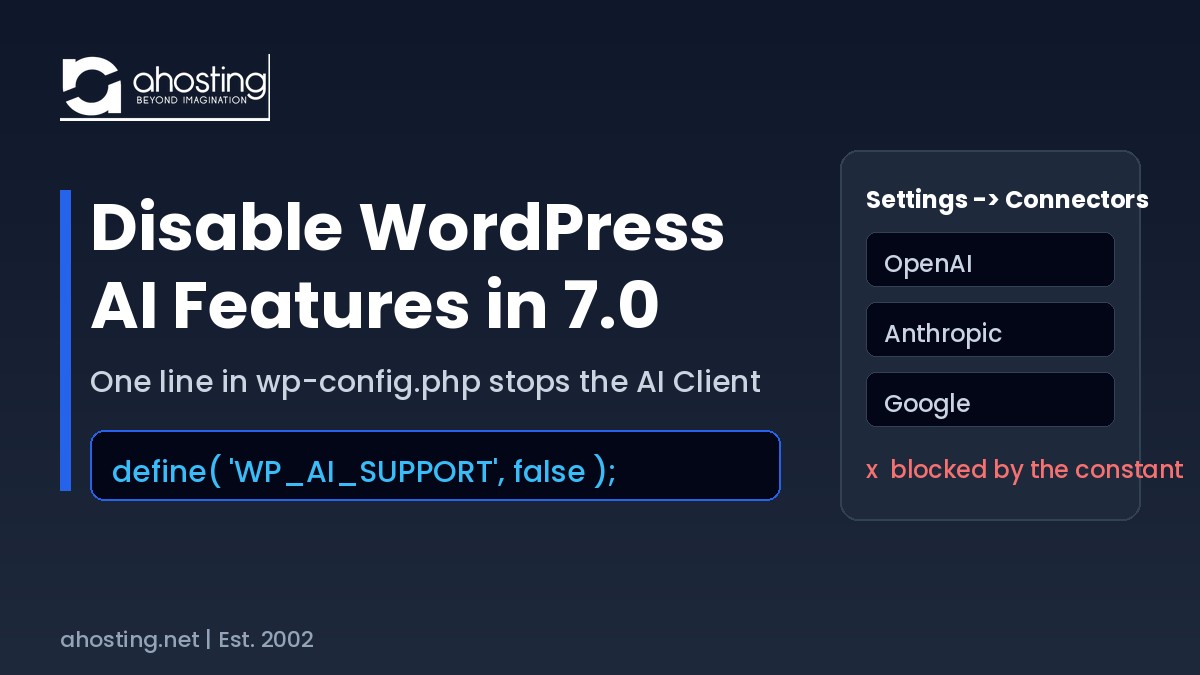
    To disable WordPress AI features in WordPress 7.0, add define( 'WP_AI_SUPPORT', false ); to wp-config.php. It overrides the wp_supports_ai filter, blocks every AI provider call site-wide, and a plugin cannot re-enable it.

    Disable WordPress AI Features: Audio Explainer

    WordPress 7.0 shipped a built-in AI Client and a Settings → Connectors screen that any administrator or editor can wire to OpenAI, Anthropic, or Google — and there is no dashboard switch to turn it back off. This guide shows how to disable WordPress AI features in minutes by adding one line to wp-config.php, then proving the change actually took effect. The whole fix is a single constant, but the reasons to apply it — contracts, data-protection rules, and a smaller attack surface — are worth understanding first.

    How WordPress 7.0 Turned AI Connectors On by Default

    WordPress 7.0, released May 20, 2026, added three AI building blocks to core: the AI Client (a provider-agnostic PHP API exposed through wp_ai_client_prompt()), the Connectors API, and a new Settings → Connectors admin screen. That screen lists three featured provider cards — OpenAI, Anthropic, and Google — and lets an administrator paste one API key that every compatible plugin then shares, as documented in the WordPress 7.0 Field Guide.

    Importantly, this infrastructure is inert until someone enters a key. WordPress core bundles no provider credentials, and per core changeset 61700, the platform “will not send prompts or data to any external service” without explicit configuration and explicit calling code. The provider-agnostic layer itself lives in the bundled WordPress php-ai-client library.

    However, “off until configured” is not the same as “safe to ignore.” Any user with the right capability can open Settings → Connectors and paste a key, at which point content can flow to a third-party model. Connector keys are also stored masked but not encrypted in the database (tracked in Trac #64789), so a live key can travel inside database dumps, staging refreshes, and backups. For a site under an NDA or a data-protection obligation, that is a surface most teams would rather remove than police. In practice, disabling the AI Client by default and opting sites in later is the cleaner policy — and it is one line.

    The WordPress 7.0 AI data path (and where to cut it) Editor / Plugin calls AI Client Settings -> Connectors stores provider API key OpenAI / Anthropic / Google your content leaves the server WP_AI_SUPPORT = false wp_supports_ai() returns false Cuts the path before any key is used

    How to Disable WordPress AI Features in 7.0

    To disable WordPress AI features, add define( 'WP_AI_SUPPORT', false ); to wp-config.php above the “stop editing” line, then confirm wp_supports_ai() returns false. The four steps below do exactly that, safely, using the tools included with your hosting.

    First, Back Up and Open a Staging Copy

    First and foremost, never edit wp-config.php straight on production. On AHosting, open cPanel, create a one-click staging clone, and confirm your daily backup is current so you have a restore point. Editing a staging copy first means a typo in the config file — the classic cause of a white screen — never touches your live site. If you also manage many sites, the same edit is easy to standardize across them, which is why the wp-config approach scales better than clicking through each dashboard.

    Next, Open wp-config.php in cPanel File Manager

    Next, in cPanel open File Manager, navigate to the site’s document root (typically public_html), select wp-config.php, and click Edit. Scroll to the line that reads /* That's all, stop editing! Happy publishing. */. Everything you add must go above that line, because WordPress ignores configuration defined after it. If you prefer SFTP, the same file in the same location works identically.

    Then, Add the WP_AI_SUPPORT Constant

    Then paste this single line above the “stop editing” comment and save. The constant is read at the very top of wp_supports_ai(), before any plugin or theme loads, which is why it is the most reliable off switch and cannot be reversed by a plugin at runtime, per the official wp_supports_ai reference.

    // Disable the WordPress 7.0 AI Client site-wide (enforced)
    define( 'WP_AI_SUPPORT', false );

    Finally, Verify That AI Support Is Off

    Finally, prove the fix took effect rather than assuming it. If you have terminal access, WP-CLI answers in one line and should print bool(false):

    wp eval "var_dump( wp_supports_ai() );"

    Alternatively, reload Settings → Connectors in wp-admin: with AI support off, provider connections no longer initialize. For a deeper look at editing configuration safely, our guide on why raising limits in wp-config often fails covers the same file and the two-ceiling gotcha that trips people up.

    Three Ways to Disable WordPress AI Features: Constant vs. Filter vs. Plugin

    Specifically, WordPress 7.0 gives you three levers, and they are not equal. The constant is enforced earliest and cannot be undone by a plugin; the filter is flexible but runs later and is override-able; a plugin is the no-code option for owners who cannot edit wp-config.php. The developer-friendly filter version, popularized in Shawn Hooper’s write-up, looks like this:

    add_filter( 'wp_supports_ai', static function ( $supported ) {
        return false;
    }, 1000 );

    Table 1 compares the three methods so you can match the lever to the site. Use it as a standalone reference when deciding what to deploy across a fleet versus a single site you fully control.

    Table 1 — WordPress 7.0 AI Disable Methods Compared
    Method Where it lives Can an editor undo it? Hides Connectors screen? Best for
    WP_AI_SUPPORT constant wp-config.php No — loads before plugins No (add the mu-plugin) Production sites, whole fleets
    wp_supports_ai filter Theme or snippet Yes — a later hook can override No Single sites you fully control
    Disable-AI plugin Plugins screen Yes — if deactivated Yes (most hide it) No-code owners, locked wp-config

    Consequently, the plugin route matters on managed platforms where wp-config.php is not directly editable. Two well-maintained options are “Turn Off AI Features” and “Disable AI for Security,” both of which wrap the same wp_supports_ai filter and add an admin badge. On AHosting you have full cPanel access, so the constant remains the recommended path.

    Disable WordPress AI Features: What’s Covered and What Isn’t

    In practice, the constant is comprehensive for core AI but has one honest boundary: it only governs code that checks wp_supports_ai(). Plugins that ship their own AI integration — rather than calling the core client — are unaffected and must be handled in their own settings. Table 2 draws that line clearly so you do not assume more coverage than the constant provides.

    Table 2 — What WP_AI_SUPPORT = false Stops (and What It Doesn’t)
    Surface Covered by the constant?
    Core AI Client calls (wp_ai_client_prompt()) Yes — short-circuited site-wide
    Featured connectors (OpenAI / Anthropic / Google) Yes — no prompts run, keys stay inert
    Settings → Connectors admin screen visibility No — still visible unless you add the mu-plugin
    Plugins with their own bundled AI No — disable each plugin’s AI separately

    Optional: Hide the Settings → Connectors Screen With an mu-plugin

    Additionally, the constant blocks AI calls but leaves the Settings → Connectors menu item visible. To remove it and block direct access, drop a small must-use plugin into wp-content/mu-plugins/ — a location that loads automatically, survives theme switches, and cannot be deactivated from the Plugins screen. The removal hooks admin_menu at a high priority (not admin_init, which would break admin-ajax) using the core remove_submenu_page function:

    <?php
    /**
     * Plugin Name: Hide WordPress AI Connectors
     * Description: Removes Settings -> Connectors and blocks direct access.
     */
    add_action( 'admin_menu', function () {
        remove_submenu_page( 'options-general.php', 'options-connectors.php' );
    }, 999 );
    
    add_action( 'admin_init', function () {
        global $pagenow;
        if ( 'options-connectors.php' === $pagenow ) {
            wp_safe_redirect( admin_url() );
            exit;
        }
    } );

    That said, screen names can change between releases, so treat the mu-plugin as belt-and-suspenders on top of the constant, not a replacement for it. The constant is what actually stops the AI calls; hiding the menu just removes the temptation.

    Diagnostic: Did You Fully Disable WordPress AI Features?

    Interestingly, most “still exposed” sites have the constant right but miss the two edge cases: the visible Connectors screen and plugins with their own AI. Answer the four checks below to see exactly where your site stands.

    AI Connector Exposure Check

    1. Is your site running WordPress 7.0 or newer?

    Yes No

    2. Is define( ‘WP_AI_SUPPORT’, false ); in your wp-config.php?

    Yes No

    3. Have you hidden the Settings -> Connectors screen (mu-plugin)?

    Yes No

    4. Do any active plugins ship their own built-in AI?

    Yes No
    Answer all four to see your exposure verdict.

    Editing wp-config.php Safely on AHosting WordPress Hosting

    Fortunately, the riskiest part of this fix is not the constant — it is editing wp-config.php without a safety net. Every AHosting WordPress hosting plan ships one-click staging, daily backups, and cPanel File Manager, so you can test the edit on a clone and restore instantly if anything looks off. That staging-plus-backup workflow is the same one we recommend in our server-level WordPress security guide.

    Moreover, if you run AI features intentionally, they make outbound calls from your server to provider endpoints — and every AHosting plan includes a free dedicated IP, so those calls carry a stable, isolated identity rather than a shared reputation. Agencies standardizing an AI-off policy across many client sites can do it per account on white-label reseller hosting, and sites that have simply outgrown shared concurrency can move the same configuration onto managed VPS without changing a line of it. For the full pre-update picture, see our WordPress 7.0 hosting requirements checklist.

    Frequently Asked Questions: Disable WordPress AI Features in 7.0

    How do I disable WordPress AI features in WordPress 7.0?

    Specifically, add define( 'WP_AI_SUPPORT', false ); to your wp-config.php file above the “stop editing” comment. The core function wp_supports_ai() then returns false everywhere, so no provider connector or AI-aware feature runs.

    WP_AI_SUPPORT constant vs. wp_supports_ai filter: which should I use?

    Fundamentally, the WP_AI_SUPPORT constant is the stronger control because it is read at the top of wp_supports_ai() before any plugin loads, so nothing can override it. The wp_supports_ai filter runs later and a higher-priority plugin can undo it.

    Is it safe to disable WordPress AI features in 2026?

    Yes. Disabling WordPress AI features only short-circuits the core AI Client; it does not affect posts, editing, media, or any non-AI functionality. You can re-enable it in seconds by removing the constant.

    Should agencies disable WordPress AI features across client sites on AHosting reseller hosting?

    Typically, defaulting AI off is the lower-risk posture for agencies. On AHosting reseller hosting each client account is isolated, so you can set WP_AI_SUPPORT per account and opt a client in only when their contract allows external AI processing.

    Does WordPress 7.0 send my content to AI providers by default?

    Notably, no. WordPress core ships no AI provider keys and, per changeset 61700, will not send prompts or data externally without explicit configuration and explicit calling code. The risk is that an editor can add a connector key later.

    WP_AI_SUPPORT constant vs. the Turn Off AI Features plugin: which is more reliable?

    Typically, the constant is more reliable for production because it lives in wp-config.php and cannot be deactivated from the Plugins screen. A plugin is easier for non-technical owners but only enforces the setting while it stays active.

    Will disabling WordPress AI features also stop plugins that have their own AI?

    Importantly, no. WP_AI_SUPPORT gates only plugins that call the core AI Client. A plugin bundling its own AI integration ignores the setting, so you must disable that plugin’s AI separately in its own settings.

    What happens if I define WP_AI_SUPPORT as false on a WordPress multisite network?

    On multisite, the constant applies network-wide from wp-config.php, so every subsite has AI off at once. The Settings → Connectors screen can still appear on subsites, so pair the constant with the optional mu-plugin to hide it.

    Can I edit wp-config.php to disable AI on AHosting WordPress hosting in 2026?

    Yes. Every AHosting WordPress plan includes cPanel File Manager, one-click staging, and daily backups, so you can edit wp-config.php on a staging clone, verify the fix, and push it live with a restore point in place.

    Does AHosting support disabling WordPress AI features in 2026?

    Indeed. AHosting runs WordPress 7.0 on LiteSpeed with cPanel access on every plan, so the WP_AI_SUPPORT constant, the wp_supports_ai filter, and the mu-plugin method all work without a support ticket.

    July 17, 2026
  • How to Disable the WordPress Heartbeat (Before It Eats Your PHP Workers)

    How to Disable the WordPress Heartbeat (Before It Eats Your PHP Workers)

    • What the WordPress Heartbeat Actually Does (And Why It Costs You If You Don't Disable WordPress Heartbeat)
      • The uncacheable-path problem in one sentence
      • Heartbeat is not WP-Cron — do not confuse the two
    • See the Problem: Watch Heartbeat Fire in Your Own Browser
    • Heartbeat Worker Cost vs Your AHosting Plan (The Numbers)
    • How to Disable WordPress Heartbeat Safely in 4 Steps
      • First Step: Choose Where the Code Lives
      • Second Step: Add the Throttle-and-Scope Filter To Disable WordPress Heartbeat
      • Third Step: Save and Clear Cache
      • Fourth Step: Verify in the Network Panel
    • Plugin vs Filter vs LiteSpeed Toggle: Which Method to Use
    • Heartbeat Decision Checker: Throttle, Scope, or Disable WordPress Heartbeat?
    • When Disabling Heartbeat Is a Symptom of Outgrowing Your Plan
    • Frequently Asked Questions: Disabling the WordPress Heartbeat
      • Does disabling the WordPress Heartbeat break autosave or post locking?
      • What is the safest way to disable the WordPress Heartbeat in 2026?
      • Heartbeat Control plugin vs the heartbeat_settings filter: which should I use?
      • Disable WordPress Heartbeat in functions.php or in a snippet plugin: what is the difference?
      • How much server load does the WordPress Heartbeat cause on AHosting shared hosting in 2026?
      • Why does admin-ajax.php show high CPU even when my WordPress site has no traffic?
      • Does AHosting's LiteSpeed cache stop Heartbeat from consuming PHP workers without needing to disable WordPress Heartbeat?
      • Should I throttle the WordPress Heartbeat or disable WordPress Heartbeat on a 2026 WooCommerce store?
      • Is the WordPress Heartbeat the same thing as WP-Cron?
      • Will my WordPress 7.0 dashboard on AHosting be faster if I disable WordPress Heartbeat?
    TL;DR

    To disable WordPress Heartbeat safely, throttle its interval to 60 seconds and deregister it on the front end with one heartbeat_settings filter — this cuts admin-ajax.php load about 75% while keeping autosave and post locking.

    Listen: why the Heartbeat costs PHP workers and how one filter fixes it. By Matt Chrust, Director of Business Development, AHosting.

    If you want to disable WordPress Heartbeat, the goal is almost never to kill it outright — it is to stop it from quietly flooding admin-ajax.php with requests that consume PHP workers while nobody is reading your site. The Heartbeat API polls your server on a timer every time an admin or editor tab is open, and because that request path cannot be cached, even a well-tuned WordPress hosting stack serves each tick through PHP. Fortunately, one filter fixes it without breaking autosave.

    Notably, this is a silent cost. There is no error, no warning, and no visible slowdown until concurrency stacks up and the server starts queuing requests. Below, we show you how to confirm the problem in your own browser, apply the safe fix, verify it worked, and — using AHosting’s published PHP-worker counts — see exactly how much of your plan the Heartbeat can occupy.

    What the WordPress Heartbeat Actually Does (And Why It Costs You If You Don’t Disable WordPress Heartbeat)

    Specifically, the Heartbeat API is a polling system introduced in WordPress 3.6 that lets your browser talk to the server on a fixed interval — a “tick” every 15 to 120 seconds. It powers autosave, post locking (so two editors do not overwrite each other), session expiry warnings, and plugin notifications. Under the hood it is a classic AJAX request pattern. According to the WordPress Heartbeat API handbook, each tick sends a POST to admin-ajax.php, the server prepares a response, and the browser waits for it.

    However, the design has a sharp edge. In practice the tick runs whether or not the site has visitors, and the admin-ajax.php path is uncacheable — it bypasses page caching entirely and executes PHP on every call. Consequently, an open dashboard left in a background tab keeps spending server resources on nothing. Multiply that by several editors, several tabs, and a few plugins hooking the stream, and you get high CPU that looks mysterious because traffic is low.

    The uncacheable-path problem in one sentence

    Ultimately, this is why “just add more caching” does not help. Server-level caching — including the LiteSpeed and LSCache stack AHosting runs — serves a cached visitor page with zero PHP workers, but it cannot cache a logged-in admin-ajax.php POST. Therefore every Heartbeat tick is a full dynamic request. The fix is not more cache; it is fewer, smarter ticks. For the deeper server-side picture, our companion guide on the server-side factors no plugin can fix covers the caching layer in full.

    Heartbeat is not WP-Cron — do not confuse the two

    Importantly, the Heartbeat is often mistaken for WP-Cron, and the mix-up leads people to apply the wrong fix. In contrast, WP-Cron runs scheduled server tasks triggered on page loads, while the Heartbeat is a browser-to-server poll that only runs while an admin tab is open. They are separate subsystems on separate triggers. If your issue is scheduled jobs stacking up rather than idle-tab polling, see our guide on why WP-Cron fails and how to replace it instead.

    See the Problem: Watch Heartbeat Fire in Your Own Browser

    First, confirm the symptom before you change anything. Open any post in the editor, press F12 to open your browser’s developer tools Network panel, and watch the request list. Type admin-ajax into the filter box, then simply wait — without touching the keyboard. Within about 15 seconds a POST request to admin-ajax.php appears; roughly 15 seconds later, another. That steady pulse, with no visitor activity, is the Heartbeat.

    Furthermore, you can watch the same pattern in your hosting resource graphs. On a CloudLinux account, sustained admin-ajax.php processes appearing in the process list — often flagged near a 508 “resource limit reached” event — are the Heartbeat and similar loopback calls competing for the same PHP workers your visitors need. That connection to your plan’s worker ceiling is the part most guides skip, so we quantify it next.

    Cached visitor request vs uncacheable Heartbeat request A cached visitor page is served at the LiteSpeed cache layer using zero PHP workers, while each Heartbeat admin-ajax tick bypasses cache and consumes one PHP worker. Two requests, two very different costs CACHED VISITOR PAGE Served at the LiteSpeed layer Never touches PHP 0 PHP workers HEARTBEAT admin-ajax.php Uncacheable by design Runs PHP every tick 1 worker / tick AHosting.net — Est. 2002

    Heartbeat Worker Cost vs Your AHosting Plan (The Numbers)

    Here is the data no generic tutorial can give you, because it requires knowing the host’s real worker counts. AHosting publishes its PHP worker (entry-process) allocation per plan — Bronze 15, Silver 25, Gold 40 — so we can map the Heartbeat’s appetite directly onto a ceiling. Each open post-editor tab ticks about four times per minute, and each tick occupies one worker on the uncacheable path. The table below shows what that means as concurrent editors climb.

    Open post-editor tabs (15s ticks)Ticks / minShare of Bronze (15 EP)Share of Silver (25 EP)Share of Gold (40 EP)
    1 editor47%4%2%
    2 editors813%8%5%
    5 editors2033%20%12%
    10 editors4067%40%25%
    15 editors60100%60%38%
    Heartbeat Worker Cost vs AHosting Plan EP Ceiling. Each open post-editor tab ticks ~4×/min; each tick is one uncacheable admin-ajax.php request occupying one PHP worker. Cached visitor pages consume zero workers. Source: AHosting published per-plan entry-process counts.

    Consequently, the headline figure is stark: 15 editors with post-editor tabs open can occupy 100% of a Bronze plan’s PHP workers — spent entirely on polling, with zero visitors served. Even at throttled 60-second intervals, that pressure drops roughly fourfold, which is precisely why throttling beats brute-force disabling for busy teams. If your concurrency is regularly pushing these numbers, that is a genuine signal to move to a plan with more workers or to WordPress VPS hosting with dedicated resources.

    How to Disable WordPress Heartbeat Safely in 4 Steps

    Here is the shortest correct fix: add one heartbeat_settings filter that raises the interval to 60 seconds and deregisters Heartbeat on the front end, leaving the editor’s autosave and post locking intact. The four steps below walk through it and verify the result.

    First Step: Choose Where the Code Lives

    First, decide where to put the snippet. A code-snippet plugin such as WPCode or Code Snippets is the durable choice because it survives theme switches; a child theme’s functions.php works too but disappears if you change themes. Either way, you are adding a small PHP filter — no core files are touched. Avoid pasting into the parent theme’s functions.php, since a theme update will overwrite it.

    Second Step: Add the Throttle-and-Scope Filter To Disable WordPress Heartbeat

    Next, add the filter below. The first function raises the tick interval to the maximum 60 seconds; the second stops Heartbeat entirely on the public front end, where logged-out visitors gain nothing from it. Together they keep the editor fully functional while removing the bulk of the load. The heartbeat_settings hook reference documents the interval values (anything 15–120).

    // 1. Throttle Heartbeat to the maximum 60-second interval.
    add_filter( 'heartbeat_settings', 'ah_throttle_heartbeat' );
    function ah_throttle_heartbeat( $settings ) {
        $settings['interval'] = 60; // allowed range is 15-120
        return $settings;
    }
    
    // 2. Disable Heartbeat on the public front end only.
    add_action( 'init', 'ah_disable_frontend_heartbeat', 1 );
    function ah_disable_frontend_heartbeat() {
        if ( ! is_admin() ) {
            wp_deregister_script( 'heartbeat' );
        }
    }

    Third Step: Save and Clear Cache

    Then save the snippet (or update functions.php) and clear any page cache so the front-end change takes effect. On a LiteSpeed host, purge LSCache; if OPcache is active on your PHP pool, the new function may take a few seconds to load, so allow a moment before testing. No visitor-facing markup changes, so there is nothing to break on the front end.

    Fourth Step: Verify in the Network Panel

    Finally, prove it worked. Reload the post editor, open developer tools, and filter the Network panel to admin-ajax again. Where you previously saw a request every 15 seconds, you should now see roughly one per minute — about 75% fewer calls. Type a word in the draft and confirm the “Saving… / Saved” autosave indicator still fires. If it does, you have throttled the Heartbeat without losing the features that matter.

    Plugin vs Filter vs LiteSpeed Toggle: Which Method to Use

    Above all, pick the method that matches how you manage the site. The filter is the lightest; a plugin is the most approachable; the LiteSpeed Cache toggle is convenient if you already run that plugin. All three reach the same outcome — fewer admin-ajax.php calls — so the decision is about maintainability, not capability.

    MethodBest forTrade-off
    heartbeat_settings filterDevelopers; leanest installRequires editing PHP
    Heartbeat Control / snippet pluginNon-coders; theme-independentOne more plugin to maintain
    LiteSpeed Cache toggleSites already on LSCacheOnly if LSCache is installed
    Three routes to the same result; choose by maintainability.

    Moreover, the choice interacts with your other plugins. If a page builder such as Elementor, or a WooCommerce extension, depends on Heartbeat for editor or cart behavior, prefer the throttle-only route rather than deregistering the script — a point the interactive checker below helps you decide. For a store specifically, the same worker math applies to checkout, which we cover in our WooCommerce hosting breakdown.

    Heartbeat Decision Checker: Throttle, Scope, or Disable WordPress Heartbeat?

    Use the checker below to get a recommendation based on your setup. It maps three common answers to the safe action so you do not accidentally disable a feature your site relies on.

    Heartbeat Decision Checker

    What does your site depend on? Pick the closest match.

    Your setup

    See AHosting WordPress plans

    When Disabling Heartbeat Is a Symptom of Outgrowing Your Plan

    Finally, treat a chronic Heartbeat problem as a signal, not just a nuisance. Occasionally, throttling is enough forever. But if you are throttling, deregistering, and still bumping the worker ceiling during normal editing, the real constraint is concurrency headroom. As the table above shows, the same tick count that occupies 100% of a Bronze plan barely touches a Gold plan — the difference is published worker allocation, not a hidden setting.

    Therefore, the durable fix for a growing team is more workers behind the same polling, which is what higher shared tiers and VPS provide. Heartbeat tuning buys you room; capacity buys you certainty. Size the plan against the concurrency math in this guide, and you will stop firefighting admin-ajax.php for good.

    Last updated: July 15, 2026

    Frequently Asked Questions: Disabling the WordPress Heartbeat

    Does disabling the WordPress Heartbeat break autosave or post locking?

    Specifically, disabling Heartbeat everywhere removes autosave and post locking, but throttling it to 60 seconds keeps both while cutting requests by about 75 percent. Therefore the recommended pattern is throttle in the editor, disable on the front end. The filter earlier in this guide does exactly that.

    What is the safest way to disable the WordPress Heartbeat in 2026?

    Generally, the safest way to disable the WordPress Heartbeat in 2026 is to throttle the interval to 60 seconds and deregister the script only on the front end, leaving the editor untouched. Consequently autosave and post locking keep working while admin-ajax.php load drops sharply.

    Heartbeat Control plugin vs the heartbeat_settings filter: which should I use?

    In practice, the heartbeat_settings filter is lighter because it adds no plugin overhead, while the Heartbeat Control plugin is friendlier if you avoid code. Both reach the same result. The comparison table above maps each method to the resource cost it removes.

    Disable WordPress Heartbeat in functions.php or in a snippet plugin: what is the difference?

    Notably, a functions.php edit is theme-bound and disappears on theme switch, whereas a code-snippet plugin survives theme changes and is easier to toggle. Therefore a snippet plugin is the more durable place to disable the WordPress Heartbeat on a production site.

    How much server load does the WordPress Heartbeat cause on AHosting shared hosting in 2026?

    Concretely, each Heartbeat tick is one uncacheable admin-ajax.php request that consumes one PHP worker for its duration. As a result, fifteen open editor tabs can occupy every worker on an entry-level plan. The plan-by-plan table above shows exactly where that ceiling sits on Bronze, Silver, and Gold.

    Why does admin-ajax.php show high CPU even when my WordPress site has no traffic?

    Fundamentally, admin-ajax.php runs the Heartbeat API on a timer, so it fires whether or not visitors are on the site. Because that path bypasses page caching, LiteSpeed cannot absorb it. In other words, the CPU is spent polling from an open admin tab, not serving readers.

    Does AHosting's LiteSpeed cache stop Heartbeat from consuming PHP workers without needing to disable WordPress Heartbeat?

    Unfortunately no, because admin-ajax.php is uncacheable by design, so LiteSpeed serves it through PHP like any dynamic request. However, AHosting publishes its per-plan worker counts, so you can size the Heartbeat cost against a known ceiling rather than guessing.

    Should I throttle the WordPress Heartbeat or disable WordPress Heartbeat on a 2026 WooCommerce store?

    Typically, throttle rather than disable when a WooCommerce store or membership plugin depends on Heartbeat for cart, stock, or session updates. Accordingly, set the interval to 60 seconds instead of deregistering the script, so real-time features survive while load falls.

    Is the WordPress Heartbeat the same thing as WP-Cron?

    No, and confusing the two leads to the wrong fix. Whereas WP-Cron runs scheduled server tasks on page load, the Heartbeat is a browser-to-server poll that only runs while an admin tab is open. Disabling one does nothing to the other.

    Will my WordPress 7.0 dashboard on AHosting be faster if I disable WordPress Heartbeat?

    Often yes, because a sluggish WordPress 7.0 dashboard is frequently a Heartbeat storm from several open editor tabs rather than a slow server. After you disable the WordPress Heartbeat on the front end and throttle the editor, admin-ajax.php pressure drops and the dashboard feels lighter.

    July 15, 2026
Ahosting Logo

Hosting

  • WordPress Hosting
  • Web Hosting
  • FFmpeg Hosting
  • WooCommerce Hosting
  • Reseller Hosting
  • VPS Hosting
  • Dedicated Server

Domain

  • Register a Domain
  • Domain Transfer
  • Premium SSL Certificate

Support

  • Knowledge Base
  • Abuse Report
  • Submit A Ticket

Company

  • Compare Hosts
  • About Us
  • Datacenter
  • Contact Us
  • Blog
  • Sitemap

Legal

  • Privacy Policy
  • Terms of Service
  • Acceptable Use Policy
  • Service Legal Agreement
  • Resource Abuse Policy
  • Hosting
    • WordPress Hosting
    • Web Hosting
    • FFMpeg Hosting
    • WooCommerce Hosting
    • Reseller Hosting
    • VPS Hosting
    • Dedicated Server
  • Domain
    • Register a Domain
    • Domain Transfer
    • Premium SSL Certificate
  • Support
    • Knowledge Base
    • Abuse Report
    • Submit A Ticket
  • Company
    • About Us
    • Datacenter
    • Contact Us
    • Blog
    • Sitemap
  • Legal
    • Privacy Policy
    • Terms of Service
    • Acceptable Use Policy
    • Service Legal Agreement
    • Resource Abuse Policy

Copyright © 2026 All Rights Reserved

Facebook X/Twitter Instagram LinkedIn YouTube