- How WordPress 7.0 Turned AI Connectors On by Default
- How to Disable WordPress AI Features in 7.0
- Three Ways to Disable WordPress AI Features: Constant vs. Filter vs. Plugin
- Disable WordPress AI Features: What's Covered and What Isn't
- Optional: Hide the Settings → Connectors Screen With an mu-plugin
- Diagnostic: Did You Fully Disable WordPress AI Features?
- Editing wp-config.php Safely on AHosting WordPress Hosting
- Frequently Asked Questions: Disable WordPress AI Features in 7.0
- How do I disable WordPress AI features in WordPress 7.0?
- WP_AI_SUPPORT constant vs. wp_supports_ai filter: which should I use?
- Is it safe to disable WordPress AI features in 2026?
- Should agencies disable WordPress AI features across client sites on AHosting reseller hosting?
- Does WordPress 7.0 send my content to AI providers by default?
- WP_AI_SUPPORT constant vs. the Turn Off AI Features plugin: which is more reliable?
- Will disabling WordPress AI features also stop plugins that have their own AI?
- What happens if I define WP_AI_SUPPORT as false on a WordPress multisite network?
- Can I edit wp-config.php to disable AI on AHosting WordPress hosting in 2026?
- Does AHosting support disabling WordPress AI features in 2026?
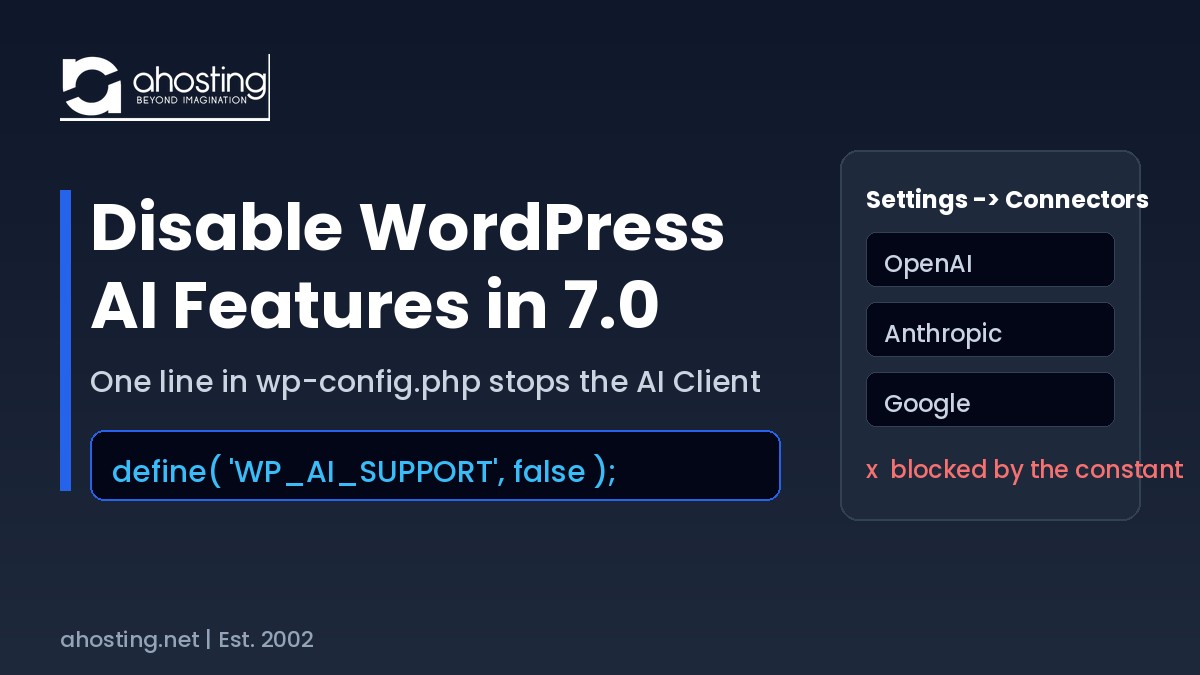
To disable WordPress AI features in WordPress 7.0, add define( 'WP_AI_SUPPORT', false ); to wp-config.php. It overrides the wp_supports_ai filter, blocks every AI provider call site-wide, and a plugin cannot re-enable it.
WordPress 7.0 shipped a built-in AI Client and a Settings → Connectors screen that any administrator or editor can wire to OpenAI, Anthropic, or Google — and there is no dashboard switch to turn it back off. This guide shows how to disable WordPress AI features in minutes by adding one line to wp-config.php, then proving the change actually took effect. The whole fix is a single constant, but the reasons to apply it — contracts, data-protection rules, and a smaller attack surface — are worth understanding first.

How WordPress 7.0 Turned AI Connectors On by Default
WordPress 7.0, released May 20, 2026, added three AI building blocks to core: the AI Client (a provider-agnostic PHP API exposed through wp_ai_client_prompt()), the Connectors API, and a new Settings → Connectors admin screen. That screen lists three featured provider cards — OpenAI, Anthropic, and Google — and lets an administrator paste one API key that every compatible plugin then shares, as documented in the WordPress 7.0 Field Guide.
Importantly, this infrastructure is inert until someone enters a key. WordPress core bundles no provider credentials, and per core changeset 61700, the platform “will not send prompts or data to any external service” without explicit configuration and explicit calling code. The provider-agnostic layer itself lives in the bundled WordPress php-ai-client library.
However, “off until configured” is not the same as “safe to ignore.” Any user with the right capability can open Settings → Connectors and paste a key, at which point content can flow to a third-party model. Connector keys are also stored masked but not encrypted in the database (tracked in Trac #64789), so a live key can travel inside database dumps, staging refreshes, and backups. For a site under an NDA or a data-protection obligation, that is a surface most teams would rather remove than police. In practice, disabling the AI Client by default and opting sites in later is the cleaner policy — and it is one line.
How to Disable WordPress AI Features in 7.0
To disable WordPress AI features, add define( 'WP_AI_SUPPORT', false ); to wp-config.php above the “stop editing” line, then confirm wp_supports_ai() returns false. The four steps below do exactly that, safely, using the tools included with your hosting.
First, Back Up and Open a Staging Copy
First and foremost, never edit wp-config.php straight on production. On AHosting, open cPanel, create a one-click staging clone, and confirm your daily backup is current so you have a restore point. Editing a staging copy first means a typo in the config file — the classic cause of a white screen — never touches your live site. If you also manage many sites, the same edit is easy to standardize across them, which is why the wp-config approach scales better than clicking through each dashboard.
Next, Open wp-config.php in cPanel File Manager
Next, in cPanel open File Manager, navigate to the site’s document root (typically public_html), select wp-config.php, and click Edit. Scroll to the line that reads /* That's all, stop editing! Happy publishing. */. Everything you add must go above that line, because WordPress ignores configuration defined after it. If you prefer SFTP, the same file in the same location works identically.
Then, Add the WP_AI_SUPPORT Constant
Then paste this single line above the “stop editing” comment and save. The constant is read at the very top of wp_supports_ai(), before any plugin or theme loads, which is why it is the most reliable off switch and cannot be reversed by a plugin at runtime, per the official wp_supports_ai reference.
// Disable the WordPress 7.0 AI Client site-wide (enforced)
define( 'WP_AI_SUPPORT', false );
Finally, Verify That AI Support Is Off
Finally, prove the fix took effect rather than assuming it. If you have terminal access, WP-CLI answers in one line and should print bool(false):
wp eval "var_dump( wp_supports_ai() );"Alternatively, reload Settings → Connectors in wp-admin: with AI support off, provider connections no longer initialize. For a deeper look at editing configuration safely, our guide on why raising limits in wp-config often fails covers the same file and the two-ceiling gotcha that trips people up.
Three Ways to Disable WordPress AI Features: Constant vs. Filter vs. Plugin
Specifically, WordPress 7.0 gives you three levers, and they are not equal. The constant is enforced earliest and cannot be undone by a plugin; the filter is flexible but runs later and is override-able; a plugin is the no-code option for owners who cannot edit wp-config.php. The developer-friendly filter version, popularized in Shawn Hooper’s write-up, looks like this:
add_filter( 'wp_supports_ai', static function ( $supported ) {
    return false;
}, 1000 );
Table 1 compares the three methods so you can match the lever to the site. Use it as a standalone reference when deciding what to deploy across a fleet versus a single site you fully control.
| Method | Where it lives | Can an editor undo it? | Hides Connectors screen? | Best for |
|---|---|---|---|---|
WP_AI_SUPPORT constant |
wp-config.php | No — loads before plugins | No (add the mu-plugin) | Production sites, whole fleets |
wp_supports_ai filter |
Theme or snippet | Yes — a later hook can override | No | Single sites you fully control |
| Disable-AI plugin | Plugins screen | Yes — if deactivated | Yes (most hide it) | No-code owners, locked wp-config |
Consequently, the plugin route matters on managed platforms where wp-config.php is not directly editable. Two well-maintained options are “Turn Off AI Features” and “Disable AI for Security,” both of which wrap the same wp_supports_ai filter and add an admin badge. On AHosting you have full cPanel access, so the constant remains the recommended path.
Disable WordPress AI Features: What’s Covered and What Isn’t
In practice, the constant is comprehensive for core AI but has one honest boundary: it only governs code that checks wp_supports_ai(). Plugins that ship their own AI integration — rather than calling the core client — are unaffected and must be handled in their own settings. Table 2 draws that line clearly so you do not assume more coverage than the constant provides.
| Surface | Covered by the constant? |
|---|---|
Core AI Client calls (wp_ai_client_prompt()) |
Yes — short-circuited site-wide |
| Featured connectors (OpenAI / Anthropic / Google) | Yes — no prompts run, keys stay inert |
| Settings → Connectors admin screen visibility | No — still visible unless you add the mu-plugin |
| Plugins with their own bundled AI | No — disable each plugin’s AI separately |
Optional: Hide the Settings → Connectors Screen With an mu-plugin
Additionally, the constant blocks AI calls but leaves the Settings → Connectors menu item visible. To remove it and block direct access, drop a small must-use plugin into wp-content/mu-plugins/ — a location that loads automatically, survives theme switches, and cannot be deactivated from the Plugins screen. The removal hooks admin_menu at a high priority (not admin_init, which would break admin-ajax) using the core remove_submenu_page function:
<?php
/**
 * Plugin Name: Hide WordPress AI Connectors
 * Description: Removes Settings -> Connectors and blocks direct access.
 */
add_action( 'admin_menu', function () {
    remove_submenu_page( 'options-general.php', 'options-connectors.php' );
}, 999 );

add_action( 'admin_init', function () {
    global $pagenow;
    if ( 'options-connectors.php' === $pagenow ) {
        wp_safe_redirect( admin_url() );
        exit;
    }
} );
That said, screen names can change between releases, so treat the mu-plugin as belt-and-suspenders on top of the constant, not a replacement for it. The constant is what actually stops the AI calls; hiding the menu just removes the temptation.
Diagnostic: Did You Fully Disable WordPress AI Features?
Interestingly, most “still exposed” sites have the constant right but miss the two edge cases: the visible Connectors screen and plugins with their own AI. Answer the four checks below to see exactly where your site stands.
AI Connector Exposure Check
1. Is your site running WordPress 7.0 or newer?
Yes No2. Is define( ‘WP_AI_SUPPORT’, false ); in your wp-config.php?
Yes No3. Have you hidden the Settings -> Connectors screen (mu-plugin)?
Yes No4. Do any active plugins ship their own built-in AI?
Yes NoEditing wp-config.php Safely on AHosting WordPress Hosting
Fortunately, the riskiest part of this fix is not the constant — it is editing wp-config.php without a safety net. Every AHosting WordPress hosting plan ships one-click staging, daily backups, and cPanel File Manager, so you can test the edit on a clone and restore instantly if anything looks off. That staging-plus-backup workflow is the same one we recommend in our server-level WordPress security guide.
Moreover, if you run AI features intentionally, they make outbound calls from your server to provider endpoints — and every AHosting plan includes a free dedicated IP, so those calls carry a stable, isolated identity rather than a shared reputation. Agencies standardizing an AI-off policy across many client sites can do it per account on white-label reseller hosting, and sites that have simply outgrown shared concurrency can move the same configuration onto managed VPS without changing a line of it. For the full pre-update picture, see our WordPress 7.0 hosting requirements checklist.
Frequently Asked Questions: Disable WordPress AI Features in 7.0
How do I disable WordPress AI features in WordPress 7.0?
Specifically, add define( 'WP_AI_SUPPORT', false ); to your wp-config.php file above the “stop editing” comment. The core function wp_supports_ai() then returns false everywhere, so no provider connector or AI-aware feature runs.
WP_AI_SUPPORT constant vs. wp_supports_ai filter: which should I use?
Fundamentally, the WP_AI_SUPPORT constant is the stronger control because it is read at the top of wp_supports_ai() before any plugin loads, so nothing can override it. The wp_supports_ai filter runs later and a higher-priority plugin can undo it.
Is it safe to disable WordPress AI features in 2026?
Yes. Disabling WordPress AI features only short-circuits the core AI Client; it does not affect posts, editing, media, or any non-AI functionality. You can re-enable it in seconds by removing the constant.
Should agencies disable WordPress AI features across client sites on AHosting reseller hosting?
Typically, defaulting AI off is the lower-risk posture for agencies. On AHosting reseller hosting each client account is isolated, so you can set WP_AI_SUPPORT per account and opt a client in only when their contract allows external AI processing.
Does WordPress 7.0 send my content to AI providers by default?
Notably, no. WordPress core ships no AI provider keys and, per changeset 61700, will not send prompts or data externally without explicit configuration and explicit calling code. The risk is that an editor can add a connector key later.
WP_AI_SUPPORT constant vs. the Turn Off AI Features plugin: which is more reliable?
Typically, the constant is more reliable for production because it lives in wp-config.php and cannot be deactivated from the Plugins screen. A plugin is easier for non-technical owners but only enforces the setting while it stays active.
Will disabling WordPress AI features also stop plugins that have their own AI?
Importantly, no. WP_AI_SUPPORT gates only plugins that call the core AI Client. A plugin bundling its own AI integration ignores the setting, so you must disable that plugin’s AI separately in its own settings.
What happens if I define WP_AI_SUPPORT as false on a WordPress multisite network?
On multisite, the constant applies network-wide from wp-config.php, so every subsite has AI off at once. The Settings → Connectors screen can still appear on subsites, so pair the constant with the optional mu-plugin to hide it.
Can I edit wp-config.php to disable AI on AHosting WordPress hosting in 2026?
Yes. Every AHosting WordPress plan includes cPanel File Manager, one-click staging, and daily backups, so you can edit wp-config.php on a staging clone, verify the fix, and push it live with a restore point in place.
Does AHosting support disabling WordPress AI features in 2026?
Indeed. AHosting runs WordPress 7.0 on LiteSpeed with cPanel access on every plan, so the WP_AI_SUPPORT constant, the wp_supports_ai filter, and the mu-plugin method all work without a support ticket.