Skip to content
Skip to main content
Ahosting Logo
  • Hosting
    • WordPress Hosting
      Fast, secure hosting for WordPress sites
    • Web Hosting
      Reliable, affordable hosting for sites
    • FFMpeg Hosting
      Fast hosting for FFmpeg projects
    • Reseller Hosting
      Start hosting biz with white-label plans
    • VPS Hosting
      Scalable VPS with full control & power
    • Dedicated Server
      High-power servers for max security
    • WooCommerce Hosting
      Fast hosting for WooCommerce shops
  • Domain
    • Register a Domain
      Secure your domain name in minutes
    • Domain Transfer
      Move domains to Ahosting with ease
    • Premium SSL Certificate
      Enterprise SSL to build customer trust
  • Support
    • Submit A Ticket
      Expert 24/7 help from our support team
    • Abuse Report
      Report abuse to keep network safe
    • Knowledge Base
      Quick answers via step-by-step guides
  • Company
    • Blog
      Expert articles to power your online growth
    • Compare Hosts
      Side-by-side comparison
    • Datacenter
      Secure, high tech datacenter for hosting
    • About Us
      Learn about our mission, values & team
    • Contact Us
      Contact sales for plans, pricing & advice
    • Sitemap
      Find info fast with our clear site map
My Account
Ahosting Logo
  • Hosting
    • Web Hosting
    • WordPress Hosting
    • FFMpeg Hosting
    • Reseller Hosting
    • VPS Hosting
    • Dedicated Server
    • WooCommerce Hosting
  • Domain
    • Register a Domain
    • Domain Transfer
    • Premium SSL Certificate
  • Support
    • Knowledge Base
    • Abuse Report
    • Submit A Ticket
  • Company
    • About Us
    • Contact Us
    • Blog
    • Sitemap
    • Datacenter
  • Legal
    • Privacy Policy
    • Terms of Service
    • Acceptable Use Policy
    • Service Legal Agreement
    • Resource Abuse Policy
My Account

AHosting Blog Home

Tag: WordPress

  • Why Raising the WordPress Memory Limit Doesn’t Work on Shared Hosting (and What Does)

    Why Raising the WordPress Memory Limit Doesn’t Work on Shared Hosting (and What Does)

    TL;DR

    Is your WordPress Memory Limit not working? When your WordPress memory limit is not working after a wp-config.php edit, a second ceiling — the CloudLinux LVE PMEM container cap — is almost always the real blocker on shared hosting, and no configuration file you can edit will change it.

    Editing wp-config.php to fix your WordPress memory limit not working is the advice every guide gives — and it only solves the problem on servers where PHP’s own ceiling is the bottleneck. On shared hosting running CloudLinux — which describes most WordPress hosts in 2026 — there is a third layer above PHP that no WordPress or PHP configuration file can touch. Additionally, that layer is what keeps sending the fatal error even after your edits look correct. Fortunately, this guide explains all three memory ceilings, identifies which one you are actually hitting, and gives you the correct fix path for each.

    Listen: Why your WordPress memory limit edits fail on shared hosting — and what actually fixes it. By Matt Chrust, Director of Business Development, AHosting.

    WordPress Memory Limit Not Working? The Three-Layer Problem

    Is your WordPress Memory Limit not working? Most memory guides treat the problem as a single ceiling to raise. In practice, on shared hosting, three separate memory layers are stacked on top of each other — and a fix that works at one layer may still fail because the ceiling above it has not moved. Notably, this is not a WordPress bug or a configuration error on your part. Your WordPress memory limit not working error is a result of the architecture of modern shared hosting platforms running CloudLinux.

    The Three Memory Layers Behind Every WordPress Server

    WordPress runs PHP, and PHP consumes RAM. However, three separate systems control how much RAM is actually available to your site at any given moment. Understanding which layer is the bottleneck is the prerequisite for choosing the right fix.

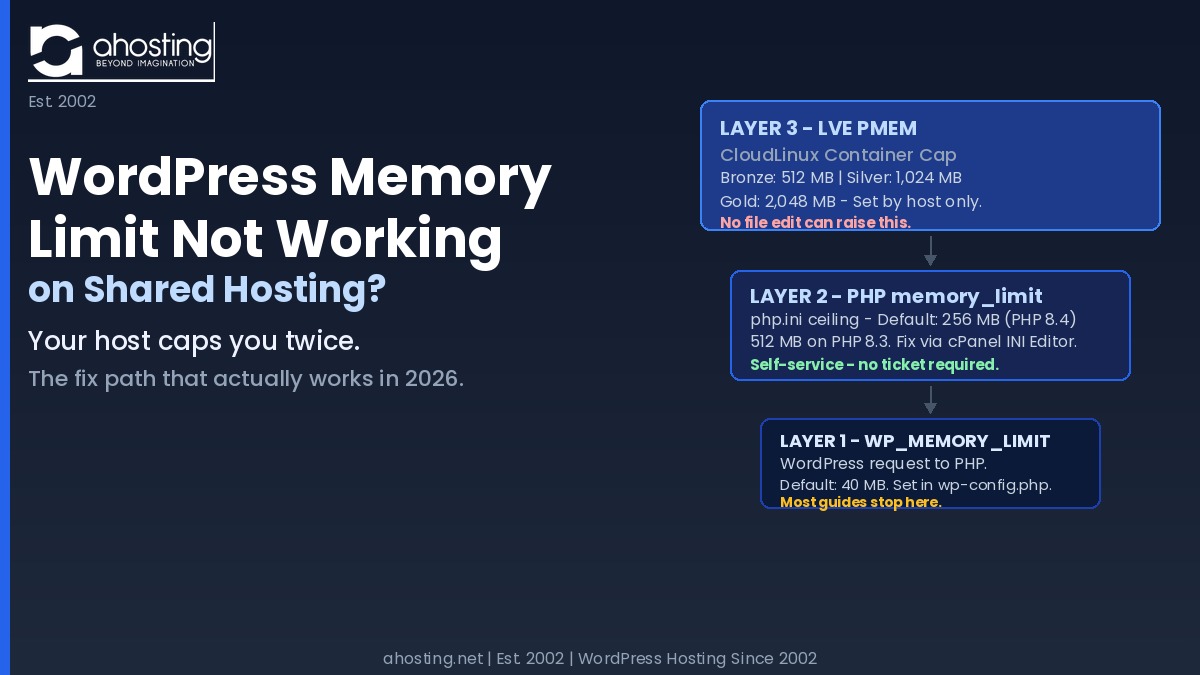
    Layer 1 — WP_MEMORY_LIMIT (the WordPress request). WordPress asks PHP to reserve a block of memory at startup. Specifically, the default is 40 MB for a single site and 64 MB for Multisite installations. Adding define('WP_MEMORY_LIMIT', '256M'); to wp-config.php tells WordPress to request 256 MB from PHP — but PHP decides whether to grant it, based on its own ceiling. Refer to the WordPress wp-config.php documentation for the full list of memory constants including WP_MAX_MEMORY_LIMIT for admin-area tasks.

    Layer 2 — PHP memory_limit (the php.ini ceiling). PHP enforces its own per-script memory cap, defined in php.ini or equivalent configuration. If this limit is 128 MB and WordPress requests 256 MB, WordPress receives 128 MB. Consequently, the most reliable way to change this layer on a cPanel host is the MultiPHP INI Editor — not wp-config.php, which only raises the WordPress request and cannot exceed the PHP ceiling.

    Layer 3 — LVE PMEM (the CloudLinux container cap). On servers running CloudLinux OS — the operating system used by most shared WordPress hosts — a third ceiling sits above PHP. The LVE Physical Memory (PMEM) cap limits the total physical RAM the entire hosting account can use at one time, across all PHP processes, cron jobs, and background tasks combined. Importantly, no configuration file you can edit touches PMEM. It is enforced at the OS kernel level and set entirely by your hosting provider on a per-plan basis.

    Why wp-config.php Is a Request, Not an Override

    Adding WP_MEMORY_LIMIT to wp-config.php is frequently the correct first step — and it works when PHP’s ceiling is the actual bottleneck. However, it has two distinct failure modes that most guides do not address.

    First, if PHP’s memory_limit is lower than the value you set in wp-config.php, PHP ignores the request and enforces its own ceiling. Tools › Site Health › Info › Server shows the PHP-enforced value — not what you wrote in wp-config.php — giving the impression that the change had no effect at all.

    Second, even if a wp-config.php edit successfully raises the value WordPress reports in Site Health, the LVE PMEM container cap may still be the bottleneck during peak moments. Specifically, when multiple PHP processes run simultaneously — WooCommerce checkouts, media imports, admin updates, and background cron jobs stacking up — the container runs out of physical RAM and CloudLinux forces a 503. The per-script PHP limit looks fine; the container ceiling is what gives way. For a deeper look at how CloudLinux entry-process limits interact with memory, the companion post on WordPress 503 errors and PHP worker counts explains the relationship in detail. Additionally, WooCommerce hosting plans on AHosting are sized specifically to avoid this pattern at checkout.

    The Hidden Ceiling That Can Cause “WordPress Memory Limit Not Working”: CloudLinux LVE PMEM on Shared Hosting

    What PMEM Is and Why Your WordPress Memory Limit Won’t Budge

    LVE stands for Lightweight Virtual Environment — a kernel-level isolation mechanism built into CloudLinux OS that gives each hosting account its own resource container. PMEM is the physical memory cap within that container. Notably, it operates at a level below anything accessible through the WordPress file system:

    • WordPress reports memory_limit = 512M in Site Health — correct at the PHP layer.
    • PHP attempts to allocate 512 MB for a new script — permitted by the PHP ceiling.
    • However, if the LVE PMEM cap for the account is also 512 MB and two existing PHP processes are each using 200 MB, the new script hits the container wall at 512 MB total — not at its own script limit.

    The result is memory exhausted errors or 503 responses that persist even after a successful php.ini increase. Importantly, this behavior is the direct reason the standard “just edit wp-config.php” advice fails for many shared hosting users — the edit succeeds at the PHP layer, but PMEM is a ceiling that PHP itself cannot see or exceed. This is the same CloudLinux container system that generates 508 Resource Limit Reached errors when entry processes are the bottleneck — a related constraint from the same LVE infrastructure.

    How to Tell Which Ceiling Is Blocking Your WordPress Memory Increase

    Fortunately, diagnosing the specific layer causing your WordPress memory limit not working issue is straightforward using tools already inside your WordPress dashboard.

    Diagnosis step one — check the PHP layer first (after verifying your “WordPress Memory Limit Not Working” status). Go to WordPress dashboard › Tools › Site Health › Info › Server. The “PHP memory limit” line shows the current PHP-enforced ceiling. If this value matches what you set in wp-config.php, Layer 2 is resolved and PMEM may be the next wall.

    Diagnosis step two — if Site Health still shows the old value after a wp-config.php edit, PHP’s own ceiling is still the bottleneck. The cPanel MultiPHP INI Editor is the correct fix at this point — detailed in the fix section below.

    Diagnosis step three — if Site Health shows the correct higher value but errors persist under load, PMEM is the remaining ceiling. At this point, no file you can edit changes the outcome. Furthermore, a temporary phpinfo.php file (containing <?php phpinfo(); ?>, deleted immediately after use) confirms the active memory_limit value PHP is actually enforcing as a cross-check against what Site Health reports.

    The Three-Layer WordPress Memory Stack A stacked diagram showing three memory ceilings on shared hosting. Layer 3 at top: LVE PMEM container cap, set by host, Bronze 512 MB to Gold 2048 MB. Layer 2 in middle: PHP memory_limit in php.ini, default 256 MB, fixable via cPanel INI Editor. Layer 1 at bottom: WP_MEMORY_LIMIT WordPress request, default 40 MB, set in wp-config.php. Layer 3 cannot be changed by editing files. THE THREE-LAYER WORDPRESS MEMORY STACK LAYER 3 — LVE PMEM (CloudLinux Container Cap) Set per plan by host at OS kernel level. Bronze: 512 MB | Silver: 1,024 MB | Gold: 2,048 MB No wp-config.php, php.ini, or .htaccess change can touch this layer. LAYER 2 — PHP memory_limit (php.ini / cPanel INI Editor) Default: 256 MB (PHP 8.4) or 512 MB (PHP 8.3 — selectable via MultiPHP Manager) Self-service fix: cPanel MultiPHP INI Editor. Changes take effect immediately. LAYER 1 — WP_MEMORY_LIMIT (WordPress Request to PHP) Default: 40 MB single site / 64 MB Multisite. Set in wp-config.php. Most guides only address Layer 1. The real ceiling on shared hosting is Layer 3.

    WordPress Memory Limit Not Working: Why Every Common Fix Has a Failure Mode

    Understanding why each common fix has a specific point where it stops working tells you exactly which tool to reach for — and which ones to skip entirely on a LiteSpeed + CloudLinux server. The table below covers every method you are likely to encounter, and its real-world behavior on cPanel shared hosting. Note: object-cache and page-cache memory managed by the LiteSpeed Cache plugin operate independently of the PHP memory_limit configurations covered below.

    Fix MethodLayer It RaisesWorks on LiteSpeed + CloudLinux?Silently Fails WhenVerdict
    WP_MEMORY_LIMIT in wp-config.phpWordPress request onlyYes — if PHP ceiling is already higherPHP memory_limit is equal to or lower than the requested valueFirst step only — not a guaranteed fix
    php_value memory_limit in .htaccessPHP layer (Apache mod_php only)No — LiteSpeed LSAPI and PHP-FPM ignore this directive; can produce 500 errorsServer runs LiteSpeed, Nginx, or PHP-FPMSkip entirely on LiteSpeed hosts
    Custom .user.ini file in site rootPHP layerSometimes — only if host permits user-level INI overridesHost enforces a server-level php.ini that takes priorityHost-dependent — verify with phpinfo()
    cPanel MultiPHP INI EditorPHP layer directlyYes — always on cPanel hostsLVE PMEM cap is still in effect above the PHP layerMost reliable self-service fix
    Plan upgrade (Bronze › Silver › Gold)LVE PMEM container ceilingYes — always; raises the real container ceilingOnly if dedicated memory with no container ceiling is needed (VPS solves this)The real fix when PMEM is the bottleneck

    AHosting’s Memory Architecture by Plan — What Your Limit Can Actually Reach

    Most shared hosts publish their PHP memory limits. AHosting publishes both — the PHP memory_limit and the LVE PMEM container cap per plan — because both matter to understanding why your WordPress memory limit is not working and what will actually fix it. The table below is drawn directly from the AHosting server configuration on sh193, verified June 2026.

    AHosting WordPress Plan Memory Tiers — 2026

    PlanDefault PHP memory_limitLVE PMEM CapPHP Workers (EP)Best Fit
    WP Bronze256 MB (PHP 8.4 default)512 MB15Standard WordPress sites, basic page builders
    WP Silver256 MB (PHP 8.4 default)1,024 MB25Elementor Pro, WooCommerce, multi-plugin builds
    WP Gold256 MB (PHP 8.4 default)2,048 MB40High-traffic, heavy page builders, media-intensive sites

    Note: Switching from PHP 8.4 to PHP 8.3 via cPanel MultiPHP Manager raises the default memory_limit to 512 MB at no additional cost on any plan. All plans allow self-service memory_limit increases via the cPanel MultiPHP INI Editor — up to the plan’s PMEM ceiling. Neither change requires a support ticket.

    Additionally, the default 256 MB memory_limit on PHP 8.4 meets Elementor’s recommended minimum requirement out of the box. For Elementor Pro builds with many widgets and global kits, switching to PHP 8.3 (512 MB default) or using the MultiPHP INI Editor to raise the limit is the recommended approach before a plan upgrade. Full plan details are on the AHosting WordPress hosting page.

    Memory Fix Path Selector

    Answer one question to find your next step.

    After editing wp-config.php, what does Tools › Site Health › Info › Server show as the “PHP memory limit”?

    PHP ceiling is still active.
    wp-config.php raised the WordPress request, but PHP memory_limit is unchanged. Log in to cPanel → Software → MultiPHP INI Editor → select your PHP version → find memory_limit → set to 256M or 512M → Save. Refresh Site Health to confirm the new value.
    PHP layer resolved — but PMEM may still be the ceiling.
    Site Health reflects the new PHP memory_limit. If errors still occur under load (concurrent requests, WooCommerce checkout, media imports), the LVE PMEM container cap is the remaining bottleneck. A plan upgrade from Bronze (512 MB PMEM) to Silver (1,024 MB PMEM) is the correct next step.
    Check first — it takes 30 seconds.
    Go to WordPress dashboard → Tools → Site Health → Info tab → Server section → find “PHP memory limit.” That value tells you exactly which ceiling PHP is enforcing and determines whether wp-config.php or the cPanel MultiPHP INI Editor is your next step.

    What Actually Works: The Correct Fix Path for "WordPress Memory Limit Not Working" Tickets.

    The cPanel MultiPHP INI Editor: The Self-Service Fix Most Guides Skip

    The cPanel MultiPHP INI Editor — found under cPanel › Software › MultiPHP INI Editor — changes php.ini directives per PHP version without requiring a manual php.ini file or .htaccess directives that break under LiteSpeed. Consequently, it is the most reliable self-service fix on cPanel hosts because it modifies the server-side value directly, and what you see in Tools › Site Health afterward is the actual enforced ceiling.

    The process on AHosting is: cPanel › Software › MultiPHP INI Editor › select your PHP version (typically PHP 8.4) › find the memory_limit row › increase the value (256M to 512M is the common first target) › Save. No server restart is required — LiteSpeed applies the change immediately. Importantly, the value you can set here is bounded by your plan’s LVE PMEM cap, so raising the PHP ceiling above PMEM will not give your site more usable memory under concurrent load — the container ceiling is still in effect.

    Confirming Your Memory Limit Change Actually Took Effect

    After any memory change — wp-config.php edit, MultiPHP INI Editor, or plan upgrade — confirm the outcome by checking Tools › Site Health › Info › Server. The “PHP memory limit” row is the ground truth value that PHP is currently enforcing. Additionally, the WordPress server requirements page confirms the recommended minimums: 64 MB absolute minimum, 256 MB recommended for most sites.

    If Site Health shows the new value and memory errors stop, the fix worked at the PHP layer. If Site Health shows the new, correct value and errors still occur under load — specifically during WooCommerce checkouts, large media imports, or simultaneous admin operations — PMEM is still the ceiling.

    When a Plan Upgrade Raises the PMEM Ceiling

    A plan upgrade is the correct fix when the PHP layer is already at the right value — that is, when Site Health shows 256 MB or higher — but memory errors still occur during peak load or when multiple admin tasks run simultaneously. At that point, the PMEM container ceiling is the bottleneck, and only a plan change moves it.

    On AHosting, upgrading from Bronze (512 MB PMEM) to Silver (1,024 MB PMEM) gives Elementor Pro builds, membership sites, and standard WooCommerce stores sufficient container headroom. For high-traffic scenarios where even 1,024 MB PMEM is still the constraint — heavy WooCommerce catalogs, multi-language plugins, large media libraries with concurrent background optimization jobs — Gold (2,048 MB) or a WordPress VPS upgrade removes the shared container ceiling entirely. The guide to signs your WordPress site has outgrown shared hosting covers the full decision checklist for when VPS is the right move.

    Switching Hosts: Why PMEM Transparency Is the Signal

    Finally, most shared hosts publish their PHP memory limits. Very few publish their LVE PMEM container tiers. When a host routes every memory issue through a support queue — rather than a self-service INI editor — and will not disclose the container ceiling, the architecture is the real constraint.

    Specifically, the signal that host transparency is the issue — rather than plan tier — is this pattern: you have raised the PHP memory_limit to the maximum the support team allows, optimized your plugin stack, and memory errors still occur under normal traffic. That pattern means the PMEM ceiling is the bottleneck and the host will not move it within the current plan. Transparent PMEM tiers — published before you buy, self-adjustable via cPanel INI Editor — are the practical test for whether a shared hosting infrastructure will scale with your WordPress site over time.

    WordPress Memory Limit Not Working: A Quick Diagnostic Checklist

    Run through these steps in order before contacting your host or purchasing an upgrade. Furthermore, steps one through three are entirely self-service and take under five minutes on a cPanel host.

    • Open Tools › Site Health › Info › Server and note the current “PHP memory limit” value — this is the PHP-enforced ceiling, not WordPress’s estimate.
    • If the value is below your target: add define('WP_MEMORY_LIMIT', '256M'); to wp-config.php above the “That’s all, stop editing” comment. Refresh Site Health.
    • If Site Health still shows the old value: go to cPanel › Software › MultiPHP INI Editor, select your PHP version, raise memory_limit to 256M or 512M, and save. Refresh Site Health to confirm.
    • If Site Health now shows the correct value but errors persist under load (and you still observe your WordPress Memory Limit not working): the LVE PMEM container cap is the bottleneck. No file edit will help — a plan upgrade is the correct next step.
    • To raise the PMEM ceiling on AHosting: upgrade from Bronze (512 MB PMEM) to Silver (1,024 MB PMEM), or to Gold (2,048 MB PMEM) for the highest shared-hosting tier.
    • After any change: confirm with a fresh Site Health check. For the highest certainty, create a temporary phpinfo.php file in your site root, verify the memory_limit row, and delete the file immediately.

    Additionally, the companion post on WordPress memory limit errors and why wp-config changes often fail covers the full range of error messages and diagnosis paths in more detail.

    Frequently Asked Questions: WordPress Memory Limit Not Working on Shared Hosting

    Why does my WordPress memory limit not change after editing wp-config.php on shared hosting in 2026?

    Typically, this happens because WP_MEMORY_LIMIT in wp-config.php is a request to PHP, not an override. WordPress asks PHP to allocate more memory, but PHP can only honor the request up to its own php.ini ceiling — and on CloudLinux shared hosting, there is a third ceiling above that called the LVE PMEM cap. If the php.ini ceiling or the PMEM cap is lower than what you requested, the change appears to fail silently. The fix depends on which ceiling you are actually hitting, which the cPanel MultiPHP INI Editor and the AHosting plan tier table above help identify.

    What is the three-layer WordPress memory stack, and which layer is impossible to raise by editing files alone?

    Specifically, the three layers are: WP_MEMORY_LIMIT (what WordPress requests from PHP), PHP memory_limit (the PHP ceiling in php.ini), and the LVE PMEM cap (the CloudLinux kernel-level container ceiling). The third layer — LVE PMEM — cannot be raised by editing any WordPress or PHP configuration file. It is set at the operating system level by CloudLinux and is controlled entirely by the hosting provider, either through a cPanel account setting or by upgrading to a higher plan tier.

    WordPress memory_limit in wp-config.php vs. LVE PMEM — which one is the real ceiling on CloudLinux shared hosting?

    Notably, LVE PMEM is the real ceiling on CloudLinux shared hosting. PHP memory_limit controls how much memory a single PHP script can request — but LVE PMEM caps the total physical memory the entire hosting account can use at once. A wp-config.php change raises the WordPress request layer and can help when PHP memory_limit is the bottleneck, but it cannot affect LVE PMEM. On AHosting plans, the PMEM ceiling ranges from 512 MB on Bronze to 2,048 MB on Gold — see the AHosting WordPress Plan Memory Tiers table above.

    WordPress Memory Limit Not Working Tickets: When should I use the cPanel MultiPHP INI Editor instead of wp-config.php to fix a WordPress memory limit issue?

    The cPanel MultiPHP INI Editor is the right tool when wp-config.php appears to change nothing — that is, when Tools › Site Health still shows the old memory limit after you added the WP_MEMORY_LIMIT constant. The MultiPHP INI Editor raises the PHP layer directly, without going through WordPress. It is the most reliable self-service fix on cPanel hosts like AHosting, and changes take effect immediately without restarting the server.

    What is LVE PMEM and why does it override php.ini memory settings on CloudLinux shared hosting?

    Essentially, LVE PMEM (Physical Memory) is the CloudLinux kernel-level cap on the total physical RAM a hosting account can allocate at any one time. It is enforced at the operating system layer — above PHP, above WordPress, and above any configuration file a site owner can edit. Because PMEM is a container ceiling rather than a per-script limit, it applies to the combined memory of every PHP process, cron job, and background task running in the account simultaneously. When an account’s combined usage hits PMEM, additional PHP processes receive a 503 error regardless of what php.ini says.

    WordPress Silver vs. Bronze plan at AHosting — how much PMEM headroom does each give for memory-intensive plugins and how does this fix my WordPress Memory Limit not working?

    Specifically, AHosting Bronze provides a 512 MB PMEM ceiling and 256 MB default PHP memory_limit — appropriate for standard WordPress sites and basic Elementor builds. Silver doubles the PMEM to 1,024 MB, giving Elementor Pro, WooCommerce stores, and multi-plugin setups genuine headroom without hitting the container ceiling during peak load. Gold raises PMEM to 2,048 MB, designed for high-traffic or highly customized WordPress installations. All plan details and upgrade options are available on the AHosting WordPress hosting page.

    When does increasing the PHP memory limit in WordPress fail to fix the error on LiteSpeed shared hosting in 2026?

    Unfortunately, increasing the PHP memory limit fails to fix memory exhausted errors on LiteSpeed shared hosting in 2026 when the LVE PMEM container cap is the actual ceiling — not PHP memory_limit - meaning this won't address your WordPress memory limit not working issue. This happens most often on Bronze-tier plans running Elementor Pro, WooCommerce with heavy extensions, or multiple concurrent admin tasks. In those scenarios, the PHP limit may read 512 MB in Site Health, but the container runs out of PMEM before any individual PHP script hits that limit. The solution is either a plan upgrade or offloading background tasks to reduce peak concurrent memory usage.

    How do I confirm a WordPress memory limit fix actually took effect on my AHosting cPanel account in 2026?

    If you previously found your WordPress memory limit not working, the most reliable confirmation method is WordPress Tools › Site Health › Info › Server — the “PHP memory limit” line there reflects the active server-side value, not just what WordPress requested in wp-config.php. If the value still shows 256 MB after a wp-config.php change, the PHP layer is the ceiling and the cPanel MultiPHP INI Editor is the correct next step. AHosting customers can also create a temporary phpinfo.php file in their site root and check the memory_limit row to see the value PHP is actually enforcing, then delete the file after confirming.

    What PHP memory limit does AHosting set by default in 2026, and what is the PMEM ceiling on each plan?

    Currently, AHosting WordPress accounts default to PHP 8.4 with a 256 MB memory_limit — meeting Elementor’s recommended minimum out of the box. PHP 8.3 accounts receive 512 MB by default. On the PMEM side, Bronze plans cap the container at 512 MB, Silver at 1,024 MB, and Gold at 2,048 MB. Customers can raise the PHP memory_limit via the cPanel MultiPHP INI Editor without opening a support ticket, up to the plan’s PMEM ceiling.

    Does shared hosting cause WordPress memory limit errors more frequently than VPS or managed WordPress hosting?

    Generally, yes — shared hosting generates WordPress memory limit errors more often because every account shares a server’s physical RAM within fixed LVE PMEM containers, rather than having dedicated memory allocation. On VPS or managed WordPress hosting, memory limits are either higher by default or configurable without container constraints. That said, shared hosting is appropriate for most WordPress sites when the plan tier’s PMEM ceiling matches the site’s actual load — the key is matching memory tiers to site requirements rather than assuming shared hosting cannot scale.
    June 29, 2026
  • WordPress Cron Jobs Hosting 2026 — Why WP-Cron Fails

    WordPress Cron Jobs Hosting 2026 — Why WP-Cron Fails

    • What WP-Cron Actually Is — and Why It Was Never Designed for Reliable WordPress Cron Hosting
      • WordPress Cron Jobs Hosting Factor 1: The Page-Load Dependency Problem
      • The Three Background Tasks WP-Cron Controls That Most Site Owners Never See
    • How Your Host's PHP Infrastructure Controls WordPress Cron Jobs Hosting Reliability
      • WordPress Cron Jobs Hosting Factor 2: Entry Processes, PHP Workers, and the WP-Cron Collision
      • What CloudLinux CageFS Does to Cron Jobs (The Security Benefit Most Hosts Never Mention)
    • The Four Signs WP-Cron Is Silently Failing on Shared Hosting
    • How to Replace WP-Cron with a Real Server Cron on AHosting
      • First Step: Disable WP-Cron in wp-config.php
      • Second Step: Set Up the cPanel Cron Job with the Correct Command
      • Third Step: Confirm Your Cron Is Running via WP-CLI
    • WP-Cron vs. Server Cron vs. External HTTP Ping: Which WordPress Cron Hosting Architecture Does Your Site Need?
    • AHosting's WordPress Cron Support: What the Feature Listing Actually Means
    • Pre-Launch Cron Checklist: 8 Checks Before Your WordPress Site Goes Live
    • FAQ: WordPress Cron Jobs and Hosting (2026)
      • Is shared hosting or VPS more reliable for WordPress cron jobs hosting in 2026?
      • WP-Cron vs. server cron on CloudLinux: which does AHosting recommend for WordPress?
      • What is the biggest risk of WordPress cron jobs hosting on a high-traffic WordPress site in 2026?
      • Should I switch to a server cron for WooCommerce on AHosting's cPanel shared hosting?
      • What happens if I disable WP-Cron on AHosting but do not set up a server cron?
      • What is the WP-Cron entry-process collision and why does it matter on CloudLinux shared hosting?
      • What is the correct WordPress cron jobs hosting command for AHosting's jailshell server environment in 2026?
      • WordPress cron jobs hosting with CageFS vs. standard shared hosting: how does AHosting's approach differ?
      • How do I verify that WordPress cron jobs hosting is actually working on my site?
      • Should I disable WP-Cron to improve WordPress hosting performance?
    TL;DR

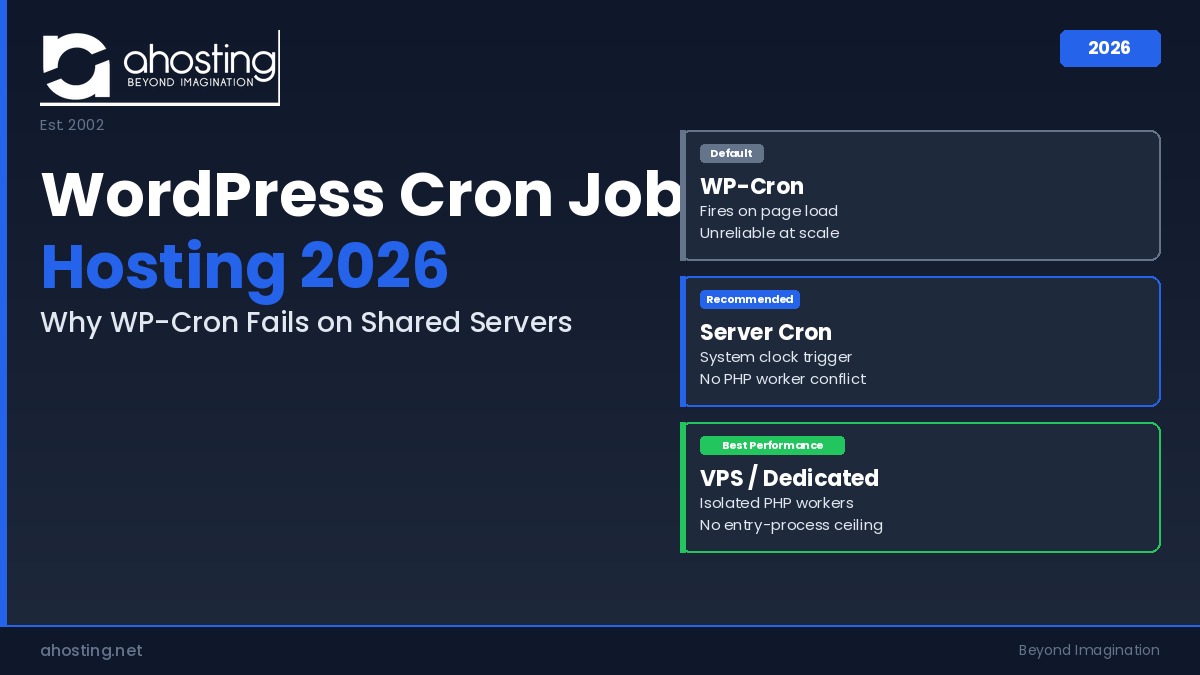
    WP-Cron is not a real cron job — it fires only on page loads, making reliable WordPress cron jobs hosting dependent on your host’s PHP worker architecture. On shared servers, AHosting recommends replacing WP-Cron with a real server cron via cPanel to eliminate the entry-process collision that causes 508 errors during traffic spikes.

    Audio version of the AHosting blog post on wordpress cron jobs hosting and the WP-Cron entry-process collision. Narrated by Matt Chrust, Director of Business Development.

    Most WordPress tutorials treat WordPress cron jobs hosting as a solved problem: add a constant to wp-config.php, paste a cPanel cron command, done. What those guides skip is the hosting layer underneath — specifically, the PHP worker pool that determines whether your cron job fires cleanly or collides with real visitor traffic. That collision is the source of unexplained 508 errors, missed scheduled posts, and stalled WooCommerce queues that support tickets blame on plugins. It is not a plugin problem. It is a hosting architecture problem, and the fix depends on understanding what your host’s infrastructure actually does when WP-Cron fires.

    What WP-Cron Actually Is — and Why It Was Never Designed for Reliable WordPress Cron Hosting

    WP-Cron is not a cron job in the Unix sense. It is a PHP function that runs scheduled tasks by piggybacking on page loads — it only fires when a visitor or bot hits your site and WordPress decides it is time to check for due tasks. No visitor traffic, no cron execution. This is a deliberate architectural choice made when WordPress was first built, designed for simplicity on shared servers where real cron access was rare. The problem is that WP-Cron’s page-load dependency is now the most common cause of unreliable scheduled task execution on modern WordPress sites, and the hosting layer underneath it determines exactly how badly that dependency hurts you.

    WordPress Cron Jobs Hosting Factor 1: The Page-Load Dependency Problem

    Every time a page on your WordPress site loads, WP-Cron checks whether any scheduled tasks are due. If tasks are due, it spawns a background PHP process to run them — while the visitor’s page request continues in parallel. On a low-traffic site, scheduled posts may not publish on time because the right page load simply does not happen at the scheduled moment. On a high-traffic site, the opposite problem occurs: WP-Cron fires constantly, each check consuming a PHP worker slot even when there are no due tasks. Both scenarios reflect the same underlying limitation: task scheduling is coupled to visitor behavior rather than a system clock. Reliable WordPress cron jobs hosting requires decoupling those two systems, which is exactly what a real server cron accomplishes.

    The Three Background Tasks WP-Cron Controls That Most Site Owners Never See

    WordPress core registers several recurring cron events at install. Most site owners are aware of scheduled posts — WP-Cron fires publish_future_post at the scheduled time. Less visible are the tasks running continuously in the background: wp_version_check checks for WordPress core updates daily, wp_update_plugins polls for plugin updates, and wp_scheduled_delete clears the trash. Every active plugin that uses WordPress’s Cron API adds its own scheduled events on top of these — AIOSEO registers sitemap regeneration events, WooCommerce registers order status and coupon expiry tasks, and backup plugins register export jobs. On a typical production WordPress site, there are between 15 and 40 active cron events registered at any given time. Each one depends on WP-Cron firing reliably, which brings the page-load dependency from theoretical to operational very quickly.

    How Your Host’s PHP Infrastructure Controls WordPress Cron Jobs Hosting Reliability

    The hosting layer is where most WP-Cron reliability guides stop short. They explain what WP-Cron does but not what happens at the server level when it fires. On a CloudLinux-based WordPress hosting plan, every account operates inside a Lightweight Virtual Environment (LVE) — a resource container enforced at the kernel level. LVE imposes a hard cap on the number of simultaneous PHP processes your account can run. That cap is the constraint that turns WP-Cron from a minor inefficiency into an active problem during traffic spikes. AHosting provides sufficient PHP workers for WordPress on every plan, but the architecture of how those workers are allocated determines whether WP-Cron and real visitor traffic can coexist cleanly.

    WordPress Cron Jobs Hosting Factor 2: Entry Processes, PHP Workers, and the WP-Cron Collision

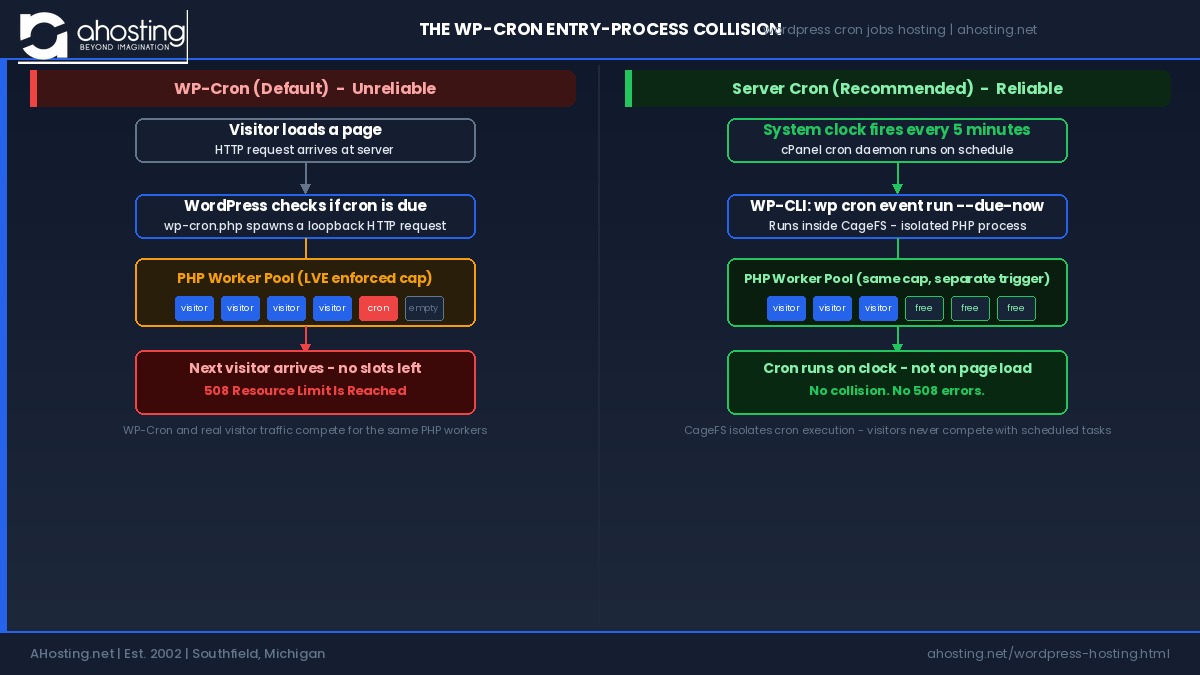
    When WP-Cron fires, it opens an outbound HTTP request back to the site’s own URL — a loopback request — and that request enters the PHP worker queue like any other page load. If your account’s entry-process ceiling is reached and a WP-Cron loopback request arrives at the same moment as real visitor traffic, one of them gets a 508 Resource Limit Is Reached error. This is the WP-Cron entry-process collision — the specific failure pattern where scheduled task execution consumes the same PHP worker pool as real visitor traffic at exactly the wrong moment. It is the most common root cause of unexplained 508 errors on shared WordPress hosting, and it is misdiagnosed as a plugin conflict or traffic anomaly in the vast majority of support tickets AHosting receives on complex deployments, particularly WooCommerce and membership sites under promotion traffic.

    What CloudLinux CageFS Does to Cron Jobs (The Security Benefit Most Hosts Never Mention)

    On a standard shared server without CloudLinux, cron jobs run under the system user and can have filesystem visibility that extends beyond the account boundary. CageFS changes this by placing every account — including its cron processes — inside a per-account virtual file system cage. A cron job running under your account can see your own files, your own PHP binaries, and the system libraries your account is configured to use. It cannot traverse upward into other accounts’ directories or into sensitive server paths. For WordPress cron specifically, this means that even if a scheduled backup job, an auto-update script, or a compromised plugin’s cron event attempts to read or write outside your account, the cage blocks that access at the kernel level. This is a security property that most shared hosting providers do not document and that does not exist on servers running without CloudLinux.

    The Four Signs WP-Cron Is Silently Failing on Shared Hosting

    WP-Cron failure is almost always silent — WordPress does not display an error when a scheduled task is skipped. The signs show up indirectly, often misattributed to plugins, themes, or hosting instability. These four patterns are the most consistent signals on shared hosting environments.

    Scheduled posts publish late or not at all. WordPress marks a post as “Scheduled” and WP-Cron is responsible for calling publish_future_post at the exact timestamp. If no page load triggers WP-Cron in the window around that timestamp — common on low-traffic sites — the post stays in “Scheduled” status indefinitely. Refreshing the site after the scheduled time is the workaround most authors discover by accident.

    Plugin update checks fall behind by days. WordPress checks for plugin updates on a recurring cron schedule. On sites where WP-Cron fires infrequently, the “Updates” badge in the admin dashboard can lag by 48–72 hours relative to the actual plugin repository. This is a symptom of cron starvation, not a slow repository or a connectivity issue.

    Intermittent 508 errors during traffic spikes. As described above, WP-Cron’s loopback request competes with real visitor traffic for PHP workers. If your server logs show 508 errors clustered around periods of moderate traffic, and your plugins are not unusually resource-intensive, the entry-process collision is the most likely culprit. The timing is the tell — these errors appear in clusters, not randomly.

    WooCommerce order status and email queues stall. WooCommerce relies heavily on cron for order processing, stock sync, and transactional email dispatch. When WP-Cron fires inconsistently, order status transitions are delayed, “processing” orders stay in limbo, and customers receive delayed confirmation emails. This pattern is especially common after a traffic event that exhausts the PHP worker pool precisely when WooCommerce’s cron queue is largest. For sites running WooCommerce, a dedicated WooCommerce hosting setup with a real server cron is not optional — it is a functional requirement for reliable order processing.

    https://www.ahosting.net/blog/wordpress-cron-jobs-hosting-2026/
    The WP-Cron entry-process collision (left) vs. server cron on AHosting CloudLinux (right). WP-Cron’s loopback request competes with real visitor traffic for the same PHP worker pool — causing 508 errors at exactly the wrong moment.

    How to Replace WP-Cron with a Real Server Cron on AHosting

    Replacing WP-Cron with a real server cron is a three-step process on AHosting. The setup takes under five minutes and results in cron execution that runs on a system clock, independent of visitor traffic, with no PHP worker contention. This approach to WordPress cron jobs hosting is recommended for any site that runs scheduled tasks more than twice per day, uses WooCommerce, or has a membership or course plugin with time-sensitive automations.

    First Step: Disable WP-Cron in wp-config.php

    Open your site’s wp-config.php file — via cPanel File Manager or SFTP — and add the following constant before the line that reads /* That's all, stop editing! */:

    define( 'DISABLE_WP_CRON', true );

    This constant tells WordPress to stop firing WP-Cron on page loads. Importantly, it does not delete or cancel any existing cron events — it removes only the page-load trigger. All registered events remain in the cron queue, waiting for the next trigger. That trigger will now be your server cron job rather than a visitor page load. Do not add this constant until your server cron is set up and confirmed — if you disable WP-Cron without a server cron replacement, all scheduled tasks stop running entirely.

    Second Step: Set Up the cPanel Cron Job with the Correct Command

    Log in to cPanel, navigate to Advanced → Cron Jobs, and add a new cron job. Set the frequency to run every five minutes (minute: */5, all other fields: *). In the Command field, enter the following — replacing yourusername with your actual cPanel username:

    /opt/cpanel/ea-php81/root/bin/php -q /usr/local/bin/wp cron event run --due-now --path=/home/yourusername/public_html/blog --quiet 2>/dev/null

    This command uses the PHP 8.1 binary available on AHosting’s CloudLinux server stack. The -q flag suppresses PHP startup notices. The --due-now flag tells WP-CLI to run only events that are currently due, not all registered events. The --quiet flag suppresses WP-CLI’s own output, and 2>/dev/null redirects stderr away from cPanel’s cron log. The result is silent execution that only generates output if something actually fails. This exact command format is tested on AHosting’s jailshell environment — the path structure and PHP binary location are specific to this server stack. For sites that have grown to require more infrastructure headroom, WordPress VPS hosting provides isolated PHP workers with no entry-process ceiling shared across accounts.

    Third Step: Confirm Your Cron Is Running via WP-CLI

    After setting up the cPanel cron job, wait five minutes, then verify via SSH that events are being processed. Connect to your server and run:

    /opt/cpanel/ea-php81/root/bin/php -q /usr/local/bin/wp cron event list --path=/home/yourusername/public_html/blog

    This command lists all registered cron events and their next scheduled run time. If your server cron is working correctly, you should see no events with a “next run” timestamp in the past — they will have been cleared by the most recent cron execution. If overdue events persist, verify that the cPanel cron job command is saved correctly and that the path to your WordPress installation is exact. The WP-CLI cron documentation covers additional diagnostic commands including wp cron event run --due-now for manual triggering during testing.

    WP-Cron vs. Server Cron vs. External HTTP Ping: Which WordPress Cron Hosting Architecture Does Your Site Need?

    There are three architectures for triggering WordPress scheduled tasks, and each has a different performance profile, reliability ceiling, and infrastructure requirement. The right WordPress cron jobs hosting approach depends on your traffic level, task complexity, and hosting tier.

    ArchitectureTriggerBest ForKey LimitationAHosting SetupReliability
    WP-Cron (default)Page loadLow-traffic blogs, dev sitesMisses tasks on low traffic; causes 508 on high trafficNo setup requiredLow
    Server Cron (cPanel)System clockMost production WordPress sitesRequires SSH / cPanel access and jailshell-specific command format5-min cPanel job + DISABLE_WP_CRON constantHigh
    External HTTP PingThird-party service polls wp-cron.php URLSites without server cron accessExternal service dependency; free tiers have minimum 15-min intervalsAdd URL to EasyCron or cron-job.org; no server access neededMedium

    For most production sites on AHosting’s shared WordPress hosting, the server cron approach is the correct choice. It is more reliable than WP-Cron and does not introduce an external service dependency the way the HTTP ping approach does. External HTTP ping services are appropriate when a site is on a platform without cPanel access, or as a temporary setup during migration testing — they are not a permanent replacement for a properly configured server cron. For high-traffic or high-task-volume sites that have outgrown shared infrastructure, dedicated server hosting removes the entry-process ceiling entirely and gives root-level cron control without any LVE constraints. For context on how cron architecture intersects with broader site performance, see our WordPress hosting speed guide for 2026 — PHP worker allocation affects both page load times and cron execution in the same underlying LVE bucket.

    AHosting’s WordPress Cron Support: What the Feature Listing Actually Means

    “Cron job support” appears on most shared hosting marketing pages, including AHosting’s WordPress hosting feature list. What that listing means in practice varies significantly between providers. At AHosting, it means: access to cPanel’s cron job manager, a PHP binary path that works inside the jailshell environment, WP-CLI pre-installed and accessible on every shared account, and CloudLinux CageFS isolation that sandboxes each cron process at the kernel level. These four infrastructure components are what allow the server cron setup documented above to work correctly on the first attempt, rather than requiring server-level debugging. Use the checker below to assess whether your current setup is configured for reliable WordPress cron jobs hosting.

    WP-Cron Reliability Checker

    3 questions – get your cron risk score in under 30 seconds.

    1. How much daily traffic does this WordPress site receive?

    2. What type of scheduled tasks does your site run?

    3. What is your current cron setup?

    Explore WordPress Hosting at AHosting

    Pre-Launch Cron Checklist: 8 Checks Before Your WordPress Site Goes Live

    Before launching any WordPress site — or before pushing a significant feature update — verify these eight cron configuration points. They represent the most common oversights that lead to scheduled task failures in the first 48 hours after a launch or migration. Each check applies to the WordPress cron jobs hosting setup documented in this post.

    1. Confirm DISABLE_WP_CRON is set in wp-config.php. If you are using a server cron, this constant must be present. Without it, WP-Cron fires on every page load in addition to your server cron — doubling cron execution and consuming PHP workers unnecessarily.

    2. Verify the cPanel cron command path matches your account. The --path argument must point to your exact WordPress installation directory. A wrong path produces a silent failure — WP-CLI exits with no error, and no tasks run.

    3. Run wp cron event list immediately after setup. Via SSH, run the event list command from Step 3 of this guide. Overdue events should clear within five minutes of the server cron firing. Persistent overdue events indicate the cron command is not reaching WordPress correctly.

    4. Install WP Crontrol for visual confirmation. This plugin displays all registered cron events and their next run times in the WordPress admin. It is the fastest way to confirm that specific events — WooCommerce, SEO plugin, backup events — are scheduling correctly after setup.

    5. Remove any duplicate cron triggers. If you previously used an external HTTP ping service or a different server cron setup, remove those before finalizing. Duplicate triggers cause tasks to run multiple times — especially harmful for WooCommerce email dispatch and backup jobs.

    6. Confirm cron execution runs silently. By default, cPanel sends an email for every cron execution that produces output. Your cron command should run silently. If you receive cron emails, verify that --quiet and 2>/dev/null are correctly appended to the command.

    7. Test scheduled post publication before launch. Create a test post scheduled five minutes in the future and wait. If it publishes on time, cron is working. If it does not publish within two minutes of the scheduled time, cron is not firing. A thorough WordPress security and server configuration review should include this cron verification as a standard go-live step.

    8. Schedule a cron check at 30 days post-launch. Cron failures that begin after launch are often caused by a plugin update that registers new event types, or by traffic growth that starts triggering the entry-process collision pattern. The WP-Cron Reliability Checker widget above takes under 30 seconds to run and is worth revisiting whenever traffic level or active plugins change. For sites where uptime and scheduled reliability are critical infrastructure decisions, our guide on WordPress hosting uptime in 2026 covers the full picture of what server architecture choices affect availability at scale.

    FAQ: WordPress Cron Jobs and Hosting (2026)

    Is shared hosting or VPS more reliable for WordPress cron jobs hosting in 2026?

    Specifically, VPS hosting is more reliable for WordPress cron jobs hosting in 2026 because it provides dedicated PHP workers that are never shared with other accounts. On shared hosting, WP-Cron competes for the same entry-process pool as real visitor traffic — during traffic spikes, that competition causes cron events to be delayed or silently skipped, and real visitors receive 508 errors. VPS eliminates that competition entirely by isolating PHP resources to a single account. For sites with moderate traffic and simple scheduling needs, a correctly configured server cron on AHosting's shared platform closes most of this reliability gap — the full comparison of architectures and upgrade thresholds is in the comparison table above.

    WP-Cron vs. server cron on CloudLinux: which does AHosting recommend for WordPress?

    Notably, AHosting recommends replacing WP-Cron with a real server cron on all CloudLinux accounts that run scheduled tasks more than twice per day. WP-Cron fires only when a page is loaded, making it unreliable on low-traffic schedules and a PHP worker burden on high-traffic ones. A real server cron on AHosting's CloudLinux infrastructure runs on a system clock independent of visitor traffic, executes inside CageFS for security isolation, and uses the exact WP-CLI invocation documented in this post. The DISABLE_WP_CRON constant combined with a five-minute cPanel cron job is the recommended standard setup.

    What is the biggest risk of WordPress cron jobs hosting on a high-traffic WordPress site in 2026?

    Fortunately, this risk is avoidable once identified: the biggest risk in 2026 is the WP-Cron entry-process collision — where WP-Cron's loopback PHP request competes with real visitor traffic for your account's finite PHP worker pool. When that pool is exhausted, visitors receive a 508 Resource Limit Is Reached error. Most site owners trace this to plugin conflicts or traffic anomalies without identifying the root cause. This failure pattern worsens as traffic grows and does not self-resolve — and it is especially dangerous when a traffic spike and a WooCommerce cron burst coincide. The WP-Cron Reliability Checker widget in this post scores your specific risk level in under 30 seconds.

    Should I switch to a server cron for WooCommerce on AHosting's cPanel shared hosting?

    Indeed, WooCommerce sites on AHosting's cPanel shared hosting should replace WP-Cron with a real server cron. WooCommerce registers scheduled tasks for order status transitions, stock sync, email queue dispatch, and coupon expiry — all requiring reliable, time-based execution that WP-Cron cannot guarantee on shared infrastructure when traffic fluctuates. The exact cPanel cron command for AHosting's jailshell environment, including the correct PHP binary path and WP-CLI flags, is in the server cron setup section above. Setup takes under five minutes and eliminates the most common class of WooCommerce order processing failures on shared hosting.

    What happens if I disable WP-Cron on AHosting but do not set up a server cron?

    Specifically, disabling WP-Cron in wp-config.php on AHosting without a replacement server cron causes all scheduled WordPress tasks to stop running entirely. There is no error message — scheduled posts stay in "Scheduled" status indefinitely, plugin update checks halt, email queues stall, and WooCommerce order processing freezes. Tasks remain queued and will execute the next time something triggers cron, but with DISABLE_WP_CRON set and no server cron configured, that trigger never comes. Always set up and verify the cPanel server cron before adding the DISABLE_WP_CRON constant. The pre-launch checklist in this post covers the exact verification sequence.

    What is the WP-Cron entry-process collision and why does it matter on CloudLinux shared hosting?

    Importantly, the WP-Cron entry-process collision is the specific failure mode where WP-Cron's page-triggered PHP loopback request occupies one of the finite PHP worker slots enforced by CloudLinux LVE at exactly the moment real visitor traffic also needs those slots. CloudLinux LVE enforces a hard ceiling on simultaneous PHP entry processes per account. When WP-Cron fires during a traffic spike, it consumes a worker for the full duration of execution — which can be several seconds for complex backup or email tasks. Visitors whose requests arrive during that window receive a 508 error. This collision concept distinguishes WordPress cron jobs hosting on CloudLinux from cron behavior on servers without per-account resource enforcement — the PHP infrastructure section of this post explains the full mechanism and how AHosting's setup addresses it.

    What is the correct WordPress cron jobs hosting command for AHosting's jailshell server environment in 2026?

    Specifically, the correct WordPress cron jobs hosting command for AHosting's jailshell environment in 2026 is: /opt/cpanel/ea-php81/root/bin/php -q /usr/local/bin/wp cron event run --due-now --path=/home/yourusername/public_html/blog --quiet 2>/dev/null — replacing yourusername with your actual cPanel account name. This uses AHosting's PHP 8.1 binary, invokes WP-CLI directly, runs only due events with --due-now, suppresses all output with --quiet and stderr redirection, and is structured to function correctly inside cPanel's restricted jailshell. Commands that work in a full bash session may fail silently inside cPanel cron without this exact structure. The full setup procedure including cPanel frequency settings is in the server cron setup section.

    WordPress cron jobs hosting with CageFS vs. standard shared hosting: how does AHosting's approach differ?

    In contrast to standard shared hosting, AHosting's CloudLinux CageFS isolates every cron job inside a per-account virtual file system cage. On a standard shared server, a cron job runs under the system user and may have visibility into paths belonging to adjacent accounts. Under CageFS on AHosting, the cron process is contained in a virtual environment that includes only your account's files, configured PHP binaries, and permitted system libraries. A malicious script, compromised plugin cron event, or accidental path traversal cannot exit the cage. This per-account cron isolation is a function of CloudLinux's kernel-level enforcement and is not available on servers running standard cPanel without CloudLinux. The WordPress cron jobs hosting security implications are covered in the CageFS section above.

    How do I verify that WordPress cron jobs hosting is actually working on my site?

    Additionally, the most reliable verification methods are: (1) install the WP Crontrol plugin and check for overdue events in the Cron Events list — any event with a "next run" timestamp in the past indicates cron is not firing; (2) run the WP-CLI event list command documented in Step 3 of this post and check whether due events clear after five minutes; (3) create a scheduled post five minutes in the future and verify it publishes on time. AIOSEO, Yoast, and most backup plugins register visible cron events — if those are consistently overdue, cron is stalled. The pre-launch checklist covers all eight verification steps in sequence.

    Should I disable WP-Cron to improve WordPress hosting performance?

    Typically, disabling WP-Cron improves WordPress hosting performance only when paired with a real server cron replacement. The benefit comes from removing WP-Cron's PHP loopback request from the page-load cycle — that request adds latency for the visitor whose page load triggers it and consumes a PHP worker slot during execution. Disabling WP-Cron alone stops the latency but also stops all scheduled task execution. Whether your site needs this change depends on traffic level, active cron event count, and hosting tier — the WP-Cron Reliability Checker widget above scores your specific setup and recommends the right action in under 30 seconds.

    June 15, 2026
  • Dedicated IP WordPress Hosting: The Free Feature Most Hosts Charge $5/mo For

    Dedicated IP WordPress Hosting: The Free Feature Most Hosts Charge $5/mo For

    • The Myth That Won't Die: Does Dedicated IP WordPress Hosting Boost SEO Directly?
    • The Google Rankings Myth: What John Mueller Actually Said
      • First Step: Why the Myth Persists
    • What Dedicated IP WordPress Hosting Actually Does: 4 Real Benefits in 2026
    • Benefit One: Email Deliverability From Your WordPress Site
      • Second Step: The WooCommerce Implication
    • Benefit Two: Bad-Neighbor Protection — The Risk You Carry Right Now without Dedicated IP WordPress Hosting
      • Third Step: A Comparison Worth Remembering
    • Benefit Three: AI Crawler Trust in the 2026 Search Landscape
      • Fourth Step: AI Crawlers to Allow in Your robots.txt
    • Benefit Four: Brand Entity Consistency for AI Knowledge Graphs
    • Dedicated IP WordPress Hosting at AHosting: Standard Since 2002
    • The Decision Framework: Who Actually Needs Dedicated IP WordPress Hosting?
    • The Bottom Line: Dedicated IP in the AI Era
    • FAQ
    TL;DR
    Dedicated IP WordPress hosting does not directly boost your Google rankings, but it protects your email deliverability, shields your site from bad-neighbor reputation damage, and strengthens the trust signals AI search engines use when deciding which sources to cite.

    The Myth That Won’t Die: Does Dedicated IP WordPress Hosting Boost SEO Directly?

    Everyone who has researched dedicated IP WordPress hosting has hit the same wall. You ask whether a dedicated IP address helps your site. You get one of two answers. Either a hosting company insists it is essential for SEO and offers to sell it to you for an extra $5 per month, or a skeptical forum post tells you dedicated IPs are a scam and Google does not care about them at all.

    Both answers are incomplete. Moreover, in 2026, both answers are dangerously out of date.

    The dedicated IP debate has always focused on one narrow question: does Google rank sites with dedicated IPs higher than sites on shared IPs? The answer to that specific question is no, and it has been no for years. But that framing misses four concrete ways a dedicated IP does affect your WordPress site’s performance, deliverability, and authority — especially in a search landscape where AI engines like Perplexity and ChatGPT now retrieve and cite content differently from traditional search crawlers.

    This post covers what dedicated IP WordPress hosting actually does, what it does not do, and why AHosting has included it as standard on every WordPress plan since 2002.

    The Google Rankings Myth: What John Mueller Actually Said

    A dedicated IP address does not improve your Google search rankings. That statement is accurate and has been confirmed by Google’s own Webmaster Trends Analyst John Mueller, who noted that Google’s crawlers distinguish between sites hosted on the same IP without penalizing them. The algorithm evaluates content quality, backlink authority, page experience, and relevance — not the IP address your server uses.

    This means that switching from a shared IP to a dedicated IP, on its own, will not move your Google rankings at all. Anyone claiming otherwise is either misinformed or upselling you.

    That said, the conversation about dedicated IPs starts — not ends — with that fact.

    First Step: Why the Myth Persists

    The dedicated IP myth persists because it contains a kernel of truth that got overstated. Historically, before Server Name Indication (SNI) became standard, dedicated IPs were required for SSL certificates. Hosting companies bundled them with SSL. When SNI eliminated that requirement around 2013, the marketing around dedicated IPs shifted to vague SEO claims. Those claims entered the hosting advice ecosystem and have circulated unchecked ever since.

    In 2026, virtually every browser supports SNI. Dedicated IPs are not required for HTTPS, for SSL, or for any Google ranking signal. The myth is dead on that front. But the reasons to care about your IP address are alive and well — they have just moved to different parts of the problem.

    What Dedicated IP WordPress Hosting Actually Does: 4 Real Benefits in 2026

    Rather than rankings, what a dedicated IP genuinely affects comes down to four areas: email deliverability, bad-neighbor reputation protection, AI crawler behavior, and brand entity consistency. Each one is concrete, measurable, and more relevant in 2026 than it has ever been.

    Benefit One: Email Deliverability From Your WordPress Site

    Email deliverability is the most underappreciated reason to care about your hosting IP, and it affects almost every WordPress site that sends any automated mail at all.

    WordPress sends email constantly. Password reset links, new user registrations, contact form submissions, WooCommerce order confirmations, shipping notifications, and abandoned cart reminders all go out through your hosting server’s mail system, originating from your server’s IP address. Spam filters at Gmail, Outlook, and other inbox providers evaluate that sending IP’s reputation before they decide whether your email belongs in the inbox or the junk folder.

    On a shared IP, you share that reputation with every other site the hosting company has placed on the same address. If one of those neighboring sites begins sending phishing emails or marketing blasts that users mark as spam, the IP’s reputation degrades. Your WooCommerce order confirmations — which your customers are actively waiting for — start arriving in spam folders. You never changed anything. But a neighbor’s behavior changed your customers’ experience.

    A dedicated IP means you and only you are responsible for the reputation of that IP’s sending history. Your transactional emails arrive reliably in inboxes because the IP has never been associated with anyone else’s abuse.

    Second Step: The WooCommerce Implication

    For WooCommerce stores specifically, email deliverability is not a nice-to-have. It is revenue-critical. A customer who does not receive their order confirmation calls support, opens a dispute, or abandons the merchant entirely. A missed abandoned cart email is a missed sale. WooCommerce hosting that includes a dedicated IP is not a luxury upgrade — it is operational reliability.

    Benefit Two: Bad-Neighbor Protection — The Risk You Carry Right Now without Dedicated IP WordPress Hosting

    The bad-neighbor effect is real, documented, and more consequential than the old dedicated-IP-for-SEO myth ever was.

    On shared hosting, your site coexists on a server with dozens or hundreds of other websites. If the hosting provider’s screening is poor, or if a previously legitimate site gets compromised and begins distributing malware, the server’s IP can be added to blocklists maintained by major internet infrastructure providers. Those blocklists are not limited to email — some are used by CDN networks, DNS resolvers, and increasingly by AI crawler infrastructure to pre-screen sources.

    Being blacklisted does not require any mistake on your part. It requires only that you share an IP with someone who made one.

    The practical consequence varies by how well-managed the shared hosting environment is. Premium shared hosting with strict resource and abuse monitoring limits exposure significantly. But the exposure never reaches zero on a shared IP. A dedicated IP reduces it to zero — your IP’s history is exclusively your own.

    Third Step: A Comparison Worth Remembering

    Shared IPDedicated IP
    Email reputationShared with all co-tenantsYours alone
    Blacklist riskPresent — neighbor can trigger itNone — only your behavior matters
    CDN trust signalVariableStable
    AI crawler evaluationShared reputation poolIndependent
    ControlNone over neighborsComplete
    Cost at AHostingIncludedAlso included — no extra charge
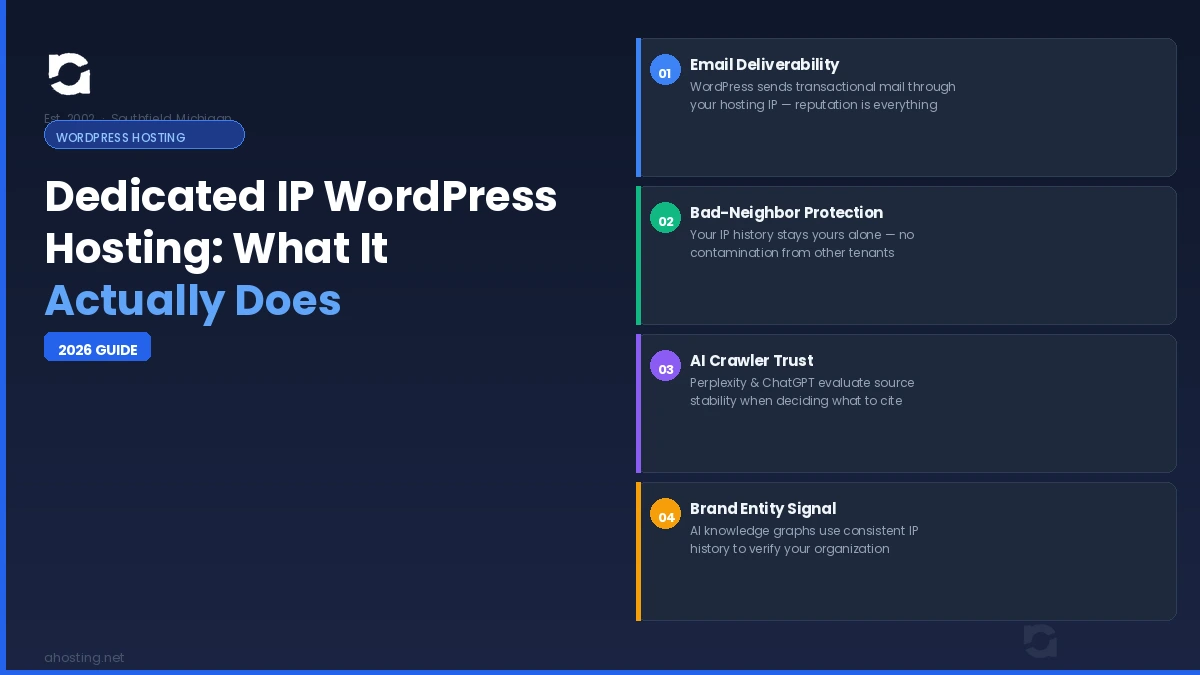
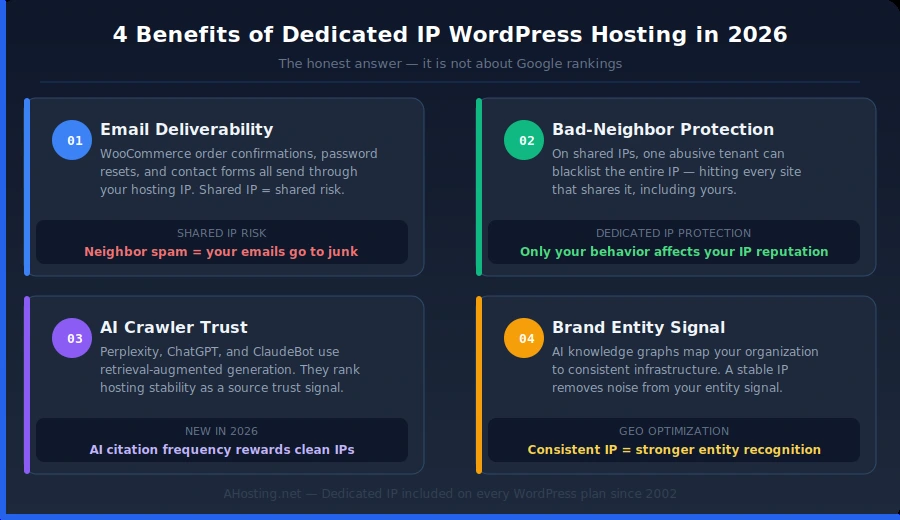
    Dedicated IP WordPress Hosting Infographic
    Dedicated IP WordPress hosting: what it actually does in 2026. By Matt Chrust, Director of Business Development, AHosting — hosting since 2002.

    Benefit Three: AI Crawler Trust in the 2026 Search Landscape

    This is the benefit that no existing dedicated IP guide covers, and it is the one that matters most in 2026.

    AI search engines — Perplexity, ChatGPT with web access, Google AI Overviews, and Anthropic’s Claude — do not work like traditional search crawlers. They use Retrieval-Augmented Generation (RAG), meaning they retrieve content from sources they have evaluated for trustworthiness and then generate answers by synthesizing that retrieved content. When you get cited by Perplexity, it is because Perplexity decided your page was a reliable source to pull from.

    The evaluation criteria for that trustworthiness decision is not fully public. But hosting infrastructure is part of it. AI crawlers evaluate domain age, site consistency, crawl accessibility, and increasingly the stability and cleanliness of the IP address a site resolves to. A shared IP that has been flagged in spam databases, appeared on CDN blocklists, or shown irregular traffic patterns from neighboring abuse is a less stable signal than a dedicated IP with a clean, consistent history.

    AHosting has run dedicated IPs on every WordPress hosting plan since the company’s founding in 2002. That is 22+ years of clean, consistent IP history per domain — exactly the kind of stable infrastructure signal that AI retrieval systems reward when deciding which sources to trust. Our FFmpeg hosting guide also noted how dedicated IPs contribute to CDN trust signals for media-heavy sites — the same principle applies here.

    Fourth Step: AI Crawlers to Allow in Your robots.txt

    GPTBot          — ChatGPT / OpenAI web access
    PerplexityBot   — Perplexity AI
    ClaudeBot       — Anthropic / Claude
    Google-Extended — Google AI Overviews
    OAI-SearchBot   — OpenAI Search

    If any of these appear in a Disallow rule on your site, AI search engines cannot index your content and cannot cite you. Allowing them is required. A clean dedicated IP is the infrastructure that makes being cited worthwhile once they do.

    Benefit Four: Brand Entity Consistency for AI Knowledge Graphs

    AI systems maintain knowledge graphs — structured databases of entities (people, organizations, products) and the relationships between them. Google’s Knowledge Graph, Bing’s entity index, and the entity models embedded in large language models all contain representations of organizations they have indexed.

    For AI to cite your content consistently, it needs to identify you as a coherent, trustworthy entity. That identification draws on dozens of signals: your domain name, your NAP data (name, address, phone), your schema markup, your social presence — and your infrastructure consistency. An IP address that is stable, clean, and consistently associated with one domain strengthens the entity signal. A shared IP that rotates tenants, accumulates abuse flags from different sites, or resolves to dozens of domains simultaneously weakens it.

    This is not a claim that IP address is a primary entity factor. It is a claim that it is one consistent contributing signal in a complex evaluation — and that dedicated IP WordPress hosting removes a source of noise from that evaluation.

    The entity consistency argument ties directly to the broader GEO (Generative Engine Optimization) principle: everything that makes you easier to identify as a distinct, authoritative entity makes you more likely to be cited by AI systems. According to the Princeton Generative Engine Optimization research, source trustworthiness and entity clarity are among the strongest predictors of AI citation frequency.

    Dedicated IP WordPress Hosting at AHosting: Standard Since 2002

    AHosting has included a dedicated IP address as standard on every WordPress hosting plan since the company launched in 2002. This is not a 2026 upgrade or a response to AI search trends — it has been the architecture from the beginning.

    Most hosting providers treat dedicated IPs as an optional add-on. The practical result at AHosting: every site across the WordPress hosting plans — from the entry-level W Bronze tier through W Gold — has its own IP address, its own email reputation, and its own isolated hosting identity from day one. No shared-IP risk, no extra line item on the invoice.

    AHosting’s web hosting and VPS hosting plans carry the same philosophy: infrastructure quality is baseline, not premium.

    The Decision Framework: Who Actually Needs Dedicated IP WordPress Hosting?

    Given the four benefits above, the question is not whether dedicated IP hosting is better than shared IP hosting. It clearly is, all else being equal. The question is how much it matters for your specific situation.

    You benefit most from dedicated IP WordPress hosting if you run a WooCommerce store, send transactional emails from WordPress, are actively building AI search visibility, have been burned by email deliverability problems on shared hosting, or are building a brand entity you want AI systems to recognize and cite consistently.

    Your exposure is lower if you run a static brochure site with no outbound email, use a dedicated third-party email service such as Mailgun or Postmark for all WordPress mail, or already use a VPS or dedicated server with a clean IP history.

    The honest answer is that most WordPress sites benefit from dedicated IP hosting and most users do not realize it because the damage from shared IPs is invisible — it shows up as “emails going to spam” rather than a clear hosting diagnosis.

    Dedicated IP Risk Checker

    Answer 4 quick questions to see whether your current WordPress setup is exposed to shared-IP risks.

    1. Does your WordPress site send any automated emails?
    Yes — orders or bookings
    Yes — contact forms only
    No automated email
    2. Do you run a WooCommerce store?
    Yes, active store
    Planning to launch one
    No WooCommerce
    3. Are you building a brand you want AI search engines to cite?
    Yes, actively investing in AI visibility
    Somewhat — want more organic reach
    Not a priority right now
    4. Do you currently have a dedicated IP with your host?
    Yes — already included
    Yes — paying extra for it
    No — on shared IP
    Not sure

    The Bottom Line: Dedicated IP in the AI Era

    The old debate was narrow: does a dedicated IP boost Google rankings? The answer is no, and it has always been no. But that answer became a reason to dismiss dedicated IPs entirely, which was the wrong conclusion.

    In 2026, dedicated IP WordPress hosting matters for four reasons that have nothing to do with PageRank. It controls your email deliverability. It isolates your reputation from bad neighbors. It presents a stable, clean signal to AI search crawlers that are actively evaluating which sources to trust. And it contributes to the brand entity consistency that determines whether AI systems cite your content or your competitor’s.

    AHosting has included dedicated IPs on every WordPress hosting plan since 2002. Not because the SEO myth required it, but because it is the right way to host a site. The infrastructure question was always about reliability and trust — and in the AI era, that answer has only gotten more important.

    If you are currently paying extra for a dedicated IP that should have been included, or if you are on a shared IP and wondering why your WooCommerce emails keep landing in spam, the answer starts with your hosting choice.

    FAQ

    Frequently Asked Questions
    Everything you need to know about dedicated IP WordPress hosting
    0 of 10 answered

    Matt Chrust is Director of Business Development at AHosting.net. AHosting has provided web hosting services since 2002, with a focus on WordPress, WooCommerce, FFmpeg, and VPS hosting solutions.

    May 28, 2026
  • WordPress 7.0 Real-Time Collaboration: Is Your Hosting Ready?

    WordPress 7.0 Real-Time Collaboration: Is Your Hosting Ready?

    • Introduction: The Collaboration Feature Site Owners Are Scrambling to Understand
    • What WordPress 7.0 Real-Time Collaboration Actually Does
    • The Critical Hosting Gap: HTTP Polling vs WebSocket
    • WordPress Real-Time Collaboration Hosting: The Comparison Table
    • The Shared Hosting Reality in 2026
    • WordPress Real-Time Collaboration Hosting at AHosting: What's Already Supported
    • What Else Your Site Needs for Smooth Collaboration
      • First Check: PHP Version and Memory Allocation
      • Second Check: Heartbeat API Configuration
      • Third Check: Object Caching for Lower Latency
      • Fourth Check: User Roles and Permissions
      • Fifth Check: Caching Layer Compatibility
    • The AHosting Advantage: 23 Years of WordPress Real-Time Collaboration Hosting Ready Infrastructure
    • A Practical Checklist: Is Your WordPress Real-Time Collaboration Hosting Ready?
    • Conclusion: WordPress Real-Time Collaboration Hosting Starts at the Foundation
    TL;DR
    WordPress real-time collaboration hosting determines whether your team can co-edit in WP 7.0 — HTTP polling works on all shared plans out of the box, while WebSocket sync requires VPS or dedicated hosting with persistent connection support.

    Introduction: The Collaboration Feature Site Owners Are Scrambling to Understand

    WordPress 7.0 landed on May 20, 2026 — and it brought the platform’s most significant new capability in years. Specifically, multiple team members can now edit the same post simultaneously, with changes appearing in near-real time for every connected editor. However, most upgrade guides explain what the feature does. This one explains whether your server can actually run it. In short, your WordPress real-time collaboration hosting environment — not the feature itself — is what determines the quality of the experience. For a full list of what shipped, see the official WordPress 7.0 release announcement.

    Furthermore, the answer is not simple. Specifically, WordPress 7.0 ships with two transport modes for syncing collaborative edits, and each mode has very different hosting requirements. Notably, one works everywhere, and one works only on servers with the right infrastructure. Consequently, site owners on shared hosting are not locked out — but they do need to understand which mode they are running and what limitations come with it.


    What WordPress 7.0 Real-Time Collaboration Actually Does

    WordPress 7.0’s collaboration engine works at the block level. Additionally, it uses Conflict-free Replicated Data Types — CRDTs — to resolve simultaneous edits without data loss. Notably, this is the same underlying technology Google Docs and Figma use. Moreover, it means two editors can change the same paragraph at the same time and both changes merge cleanly. The full technical architecture is documented on the Make WordPress Core blog.

    In practice, the collaboration session activates automatically when a second editor opens a post that someone else is already editing. Furthermore, live cursors show each editor’s position in the document. Specifically, inline comments, @mentions, and a revision timeline round out the collaborative experience.

    However, all of that happens through one of two underlying transport layers.

    HTTP Polling (default) fires a POST request to admin-ajax.php every few seconds. Consequently, it works on every hosting environment without any server configuration changes. Additionally, it requires no special port access, no persistent process, and no root-level server configuration.

    WebSocket transport (optional) maintains a persistent, bidirectional connection between the browser and server. Moreover, it delivers near-instantaneous sync — under 100 milliseconds, versus 2–5 seconds for polling. However, it requires hosting infrastructure that explicitly supports WebSocket upgrades and long-lived PHP processes.

    The WordPress core team made a deliberate architectural decision. Specifically, they shipped HTTP polling as the universal default because it works on any host. WebSocket support, in contrast, is an optional upgrade requiring the right server environment.


    The Critical Hosting Gap: HTTP Polling vs WebSocket

    Here is where WordPress real-time collaboration hosting gets technically interesting. Most shared hosting environments impose hard constraints on persistent connections and PHP process lifetimes. Specifically, CloudLinux LVE — Lightweight Virtual Environment — constraints common on cPanel shared hosting cap concurrent PHP workers and terminate idle processes after 30–60 seconds.

    As a result, WebSocket connections typically fail on shared hosting before they can be useful. Additionally, shared hosting typically runs Apache with PHP-LSAPI or mod_php, neither of which supports WebSocket protocol upgrades natively without additional server-side configuration.

    Fortunately, this does not mean collaboration breaks on shared hosting. Instead, the WordPress core automatically detects that WebSocket is unavailable and falls back to HTTP polling. Consequently, the feature still works — it simply runs with 2–5 second latency between edits rather than sub-100ms.

    Furthermore, WordPress 7.0’s HTTP polling transport was a deliberate design choice, not a limitation. The core team explicitly built it to ensure the collaboration feature functions on the broadest possible range of hosting environments from day one.


    WordPress Real-Time Collaboration Hosting: The Comparison Table

    TransportWorks on Shared?Sync SpeedSimultaneous EditorsBest For
    HTTP PollingYes — all shared plans2–5 seconds2–3 editorsSmall teams, content sites
    Server-Sent EventsDepends on host config~1 second3–5 editorsMid-size teams
    WebSocketRarely on shared hostingUnder 100ms10+ editorsAgencies, large newsrooms
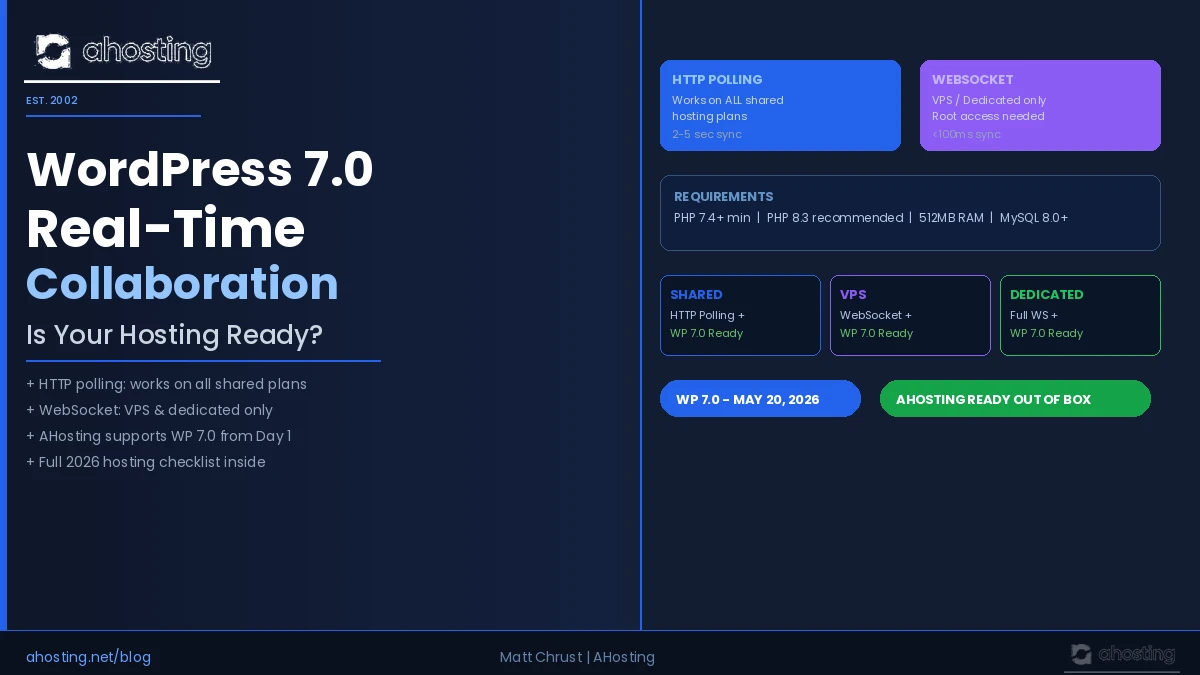
    WordPress Real-Time Collaboration Hosting: Transport Mode vs Hosting Type WordPress Real-Time Collaboration Hosting: Transport vs Plan SHARED HOSTING VPS HOSTING DEDICATED SERVER HTTP POLLING + All plans + All plans + All plans SERVER-SENT EVENTS ~ Config needed + Supported + Supported WEBSOCKET TRANSPORT x LVE limits + Root access + Full support POLLING SYNC 2-5 seconds WEBSOCKET SYNC Under 100ms FULL WS SYNC Under 100ms ahosting.net | WordPress Real-Time Collaboration Hosting Guide 2026
    WordPress real-time collaboration hosting transport comparison by plan type — AHosting 2026

    Notably, for the majority of WordPress site owners — individual bloggers, small businesses, and content teams of two or three — HTTP polling delivers a perfectly usable editing experience. Furthermore, it requires zero hosting changes and activates automatically the moment WordPress 7.0 is installed.


    The Shared Hosting Reality in 2026

    Most shared hosting plans run under CloudLinux with CageFS isolation. Specifically, each account operates inside a Lightweight Virtual Environment with defined CPU, RAM, and PHP worker limits. Consequently, persistent WebSocket connections — which require the server to hold an open process for each connected editor indefinitely — exceed these per-account process limits.

    The practical result is straightforward. On shared WordPress real-time collaboration hosting, polling mode activates automatically, and the feature works. However, the latency between a collaborator’s edit and its appearance on your screen is 2–5 seconds rather than under 100ms. For a two-person content team editing a blog post together, this is barely noticeable.

    Additionally, the WordPress Heartbeat API — which powers post locking, autosave, and now collaboration polling — fires more frequently with multiple editors active. Each pulse is an uncacheable POST request to admin-ajax.php. Moreover, ten simultaneous editors on a shared server generate 40+ uncacheable requests per minute. For most shared accounts with 2–3 editors, this load is manageable. However, larger editorial teams will begin to feel the PHP worker ceiling.

    Specifically, site owners expecting to run five or more simultaneous editors in real time should upgrade to VPS hosting. Furthermore, agencies managing multiple client sites with editorial teams should treat WebSocket hosting as a competitive differentiator for their managed WordPress services.


    WordPress Real-Time Collaboration Hosting at AHosting: What’s Already Supported

    AHosting’s WordPress hosting plans support the full HTTP polling collaboration mode out of the box. Specifically, every shared plan ships with PHP 8.1, 8.3, and 8.4 via cPanel’s MultiPHP Manager — the minimum PHP 7.4 requirement is easily met. Moreover, our infrastructure runs PHP-LSAPI on CloudLinux CageFS, delivering stable resource isolation without the aggressive process-killing timeouts found on older shared stacks.

    Additionally, all AHosting WordPress plans include:

    • PHP 8.3 and 8.4 available with no plan upgrade required
    • 512MB PHP memory limit — meets the WP 7.0 WP AI Client requirement
    • W3 Total Cache pre-configured for static asset delivery
    • Cloudflare CDN integration at no extra cost
    • MySQL 8.0 on all plans — recommended by WordPress 7.0

    For teams that require WebSocket-level collaboration speed, AHosting’s VPS hosting provides full root access, configurable persistent processes, and unblocked WebSocket upgrade support. Consequently, agencies and larger editorial teams can unlock sub-100ms collaboration without switching hosting providers.

    Furthermore, AHosting’s WooCommerce hosting customers benefit from the same PHP 8.3 baseline that supports the WP AI Client — the new Abilities API layer introduced alongside collaboration in WordPress 7.0.


    What Else Your Site Needs for Smooth Collaboration

    First Check: PHP Version and Memory Allocation

    Specifically, WordPress 7.0’s real-time collaboration engine requires PHP 7.4 as a minimum. However, the CRDT conflict-resolution library performs significantly better on PHP 8.2 or higher, and the WP AI Client component requires 512MB of PHP memory to run reliably. In cPanel, verify both settings under Software → MultiPHP Manager and Software → MultiPHP INI Editor. Moreover, switching PHP versions in cPanel takes under 60 seconds — no support ticket required.

    Second Check: Heartbeat API Configuration

    The WordPress Heartbeat API is the engine driving collaboration polling. Consequently, its tick rate directly determines how quickly collaborative changes appear for co-editors. By default, Heartbeat fires every 15 seconds. Notably, some performance optimization plugins — including certain configurations of WP Rocket and Perfmatters — reduce this interval to 60 seconds or disable it entirely to save server resources. Therefore, before enabling multi-editor collaboration, verify that Heartbeat is active at its default 15-second interval.

    Third Check: Object Caching for Lower Latency

    HTTP polling responses hit the database on every tick for each active editor. Specifically, without an object cache, each admin-ajax.php request generates multiple database queries for post state, user data, and CRDT merge tables. Moreover, enabling a persistent object cache — Redis or Memcached — reduces this database pressure significantly. However, on shared hosting, object caching typically requires a host that provisions a dedicated Redis instance per account. Indeed, checking with your host before enabling WP_CACHE in wp-config.php is essential.

    Fourth Check: User Roles and Permissions

    Real-time collaboration requires Editor or Administrator role on the post being edited. Additionally, Contributor and Author roles cannot trigger collaborative sessions by default. Consequently, reviewing your editorial team’s user role assignments in Users → All Users before expecting collaboration to work across all accounts prevents frustrating access failures.

    Fifth Check: Caching Layer Compatibility

    Page-level caching — W3 Total Cache, WP Rocket, or LiteSpeed Cache — must exclude the /wp-admin/ directory from all cache rules. Furthermore, the admin-ajax.php endpoint must never be cached at the server, plugin, or CDN level. Otherwise, collaboration polling requests return stale cached responses, effectively breaking the sync loop entirely. Therefore, verify exclusion rules in your caching plugin settings and in your Cloudflare Page Rules before inviting collaborators to a live editing session.


    WordPress Collaboration Hosting Checker

    Answer 4 quick questions to find out which collaboration mode your hosting supports.

    1. What type of hosting plan are you on?
    2. Which PHP version is active on your site?
    3. How many editors will co-edit the same post at once?
    4. Is your Heartbeat API enabled at the default interval?

    The AHosting Advantage: 23 Years of WordPress Real-Time Collaboration Hosting Ready Infrastructure

    AHosting has been operating WordPress hosting since 2002. Consequently, we have navigated every major WordPress infrastructure transition — from MySQL 4 to MySQL 8, from PHP 4 to PHP 8.4, from mod_php to PHP-LSAPI. Furthermore, our shared web hosting plans are built on CloudLinux with per-account CageFS isolation, delivering the stable PHP process environment that WordPress 7.0’s HTTP polling collaboration requires.

    “WordPress 7.0’s real-time collaboration uses HTTP polling as its default transport — which works on any properly configured shared host. Our infrastructure has supported this configuration since Day 1 of the WordPress 7.0 launch.” — Matt Chrust, Director of Business Development, AHosting

    Additionally, AHosting’s reseller hosting customers can offer their clients collaboration-ready WordPress plans without managing server configuration overhead. Moreover, PHP version selection in cPanel’s MultiPHP Manager takes seconds — giving every client account immediate access to PHP 8.3 or 8.4 collaboration performance without a plan change or support ticket.

    Furthermore, for teams ready to unlock WebSocket-level collaboration, AHosting’s VPS plans provide the persistent process control and root access required. Specifically, upgrading from shared to VPS within AHosting means no data migration, no DNS changes, and no downtime — just a faster collaborative editing experience.


    A Practical Checklist: Is Your WordPress Real-Time Collaboration Hosting Ready?

    Server Requirements

    • PHP 7.4 minimum installed — PHP 8.3+ recommended
    • PHP memory limit at 512MB or higher
    • MySQL 8.0 or MariaDB 10.6 installed
    • WordPress 7.0 update applied

    Collaboration Feature Checks

    • Heartbeat API active at 15-second default interval
    • Multiple editor accounts set to Editor or Administrator role
    • /wp-admin/ directory excluded from page caching
    • admin-ajax.php not cached at server, plugin, or CDN level

    For WebSocket Mode (VPS or Dedicated Servers Only)

    • WebSocket support explicitly confirmed with hosting provider
    • PHP 8.2 or higher installed for CRDT fiber support
    • Connection timeout configured at 60 seconds minimum
    • Persistent process manager — PHP-FPM or Node.js bridge — configured

    AHosting-Specific Verification

    • PHP version confirmed in cPanel MultiPHP Manager
    • W3 Total Cache admin exclusion rules verified
    • Cloudflare Page Rules set to bypass /wp-admin/*
    • VPS plan selected if WebSocket transport is required

    Conclusion: WordPress Real-Time Collaboration Hosting Starts at the Foundation

    WordPress 7.0 delivered something the platform has never had in its 23-year history: genuine, built-in collaborative editing. Consequently, every editorial team working on WordPress content can now co-edit in real time without relying on external tools. However, the quality of that experience depends entirely on what sits beneath the site.

    For most editorial teams, shared WordPress real-time collaboration hosting with HTTP polling performs adequately. Moreover, it activates automatically on any properly configured shared plan running PHP 7.4 or higher, with no hosting changes required. Furthermore, AHosting’s shared plans already meet every requirement WordPress 7.0 sets for polling-mode collaboration from Day 1.

    For agencies and newsrooms with five or more simultaneous editors, VPS is the right path. Specifically, WebSocket transport eliminates the latency ceiling that polling mode introduces, delivering the sub-100ms sync experience teams expect from modern collaborative tools. Additionally, AHosting’s VPS plans provide the full root access and persistent process control this requires.

    In either case, the hosting foundation matters. Specifically, a properly configured server — PHP 8.3, correct memory limits, Heartbeat active, cache exclusions verified — is the difference between a smooth collaborative editing experience and a frustrating one full of sync delays. Ultimately, WordPress real-time collaboration hosting is not just an infrastructure checkbox. It is the foundation every WP 7.0 editorial team is building on right now.

    Frequently Asked Questions
    Everything you need to know about WordPress real-time collaboration hosting
    0 of 10 answered
    May 24, 2026
  • WordPress 7.0 Hosting Requirements: Is Your Host Ready?

    WordPress 7.0 Hosting Requirements: Is Your Host Ready?

    TL;DR
    WordPress 7.0 recommends PHP 8.3+ and MySQL 8.0 or MariaDB 10.6. It still runs on PHP 7.2.24+ and MySQL 5.5.5+, but both are end-of-life and a security risk. If your host has not upgraded, you risk a broken dashboard the moment you hit “update.”
    • 🎧 Listen to This Post as a Podcast
    • WordPress 7.0 Hosting Requirements: What Actually Changed
      • The Three Requirements That Changed Everything
    • The Full WordPress 7.0 Hosting Requirements: Minimum Specs
      • How to Check Your Current PHP and MySQL Versions
    • PHP 8.1 Is End-of-Life: The Most Urgent WordPress 7.0 Hosting Requirement
      • Which PHP Version Should You Run on WordPress 7.0?
    • WordPress 7.0 Hosting Requirements for AI Features
      • Why Hosting Quality Affects WordPress 7.0 AI Performance
    • MySQL 8.0: The WordPress 7.0 Hosting Requirement Most Hosts Ignore
    • Does Your Setup Meet the WordPress 7.0 Hosting Requirements?
      • ✅ PHP Version
      • ✅ Database Version
      • ✅ Memory and Resources
      • ✅ Server and IP Setup
    • AHosting: Meeting WordPress 7.0 Hosting Requirements Since 2002
      • What's Included With Every AHosting WordPress Plan
    • How to Upgrade Your Hosting to Meet WordPress 7.0 Requirements
      • First Step: Back Up Everything
      • Second Step: Set Up a Staging Site
      • Third Step: Upgrade PHP on Staging
      • Fourth Step: Upgrade Your Database
      • Fifth Step: Update WordPress 7.0 on Staging, Then Live
    • WordPress 7.0 Hosting Requirements: Quick Reference Table
    • Conclusion: Get Your WordPress 7.0 Hosting Requirements Right Before You Update
    • Frequently Asked Questions About WordPress 7.0 Hosting Requirements

    WordPress 7.0 is officially here. After months of work, two delays, and four release candidates, the biggest WordPress update in years landed on May 20, 2026. It is not just a feature drop. Indeed, it is a platform shift. The new Abilities API, WP AI Client, and DataViews admin redesign all point one way: the bar for hosting just went up. Do you know the WordPress 7.0 hosting requirements and is your host ready?

    However, most upgrade guides cover what WordPress 7.0 does. This one covers whether your hosting can actually run it — and what to do right now if it can’t.

    Whether you are a site owner who clicks “update” and hopes for the best, or a developer with a dozen client sites to manage, this post tells you exactly what to check before you hit that button.


    🎧 Listen to This Post as a Podcast


    WordPress 7.0 Hosting Requirements: What Actually Changed

    In fact, the WordPress 7.0 hosting requirements changed because the platform itself changed. For most of the past decade, hosting specs barely moved. New blocks, better tooling, small tweaks. For example, PHP 8.0 worked fine. MySQL 5.7 kept running. Budget shared hosting plans kept pace without friction.

    However, WordPress 7.0 breaks that pattern. Three things changed at once. Together, they raise the bar for what any host must provide.

    The Three Requirements That Changed Everything

    1. The PHP floor moved up. Specifically, WordPress 7.0 recommends PHP 8.3 or greater. It will still run on PHP 7.2.24+, but that version is end-of-life and WordPress.org warns it may expose your site to security
    vulnerabilities. In particular, PHP 8.3 is the recommended version, with PHP 8.4 offering the best speed of any supported release. If your host still defaults to PHP 8.1, that version went end-of-life on December 31, 2025. Your site is running without security patches.

    2. The database bar rose. Additionally, WordPress 7.0 recommends MySQL 8.0 or MariaDB 10.6. The legacy floor is MySQL 5.5.5+, but anything below 8.0 is end-of-life. MySQL 5.7 lost support in January 2024. Indeed, many budget hosts still run MySQL 5.7. That problem shows up after you update — not before. Database issues on improperly configured environments can be made even worse for sites with dynamic content.

    3. AI features need real memory. Furthermore, the new Abilities API and WP AI Client need at least 512MB of PHP memory to run well. The WordPress default has always been 64MB or 128MB. Plans capped at 256MB will, consequently, see AI features fail silently.

    In practice, none of this is theory. If you upgrade on a host that has not kept up, you will see a broken admin panel, failed plugins, or a white screen from a database conflict. Typically, you will only find out when something breaks.

    Let’s go through each WordPress 7.0 hosting requirement in detail.


    The Full WordPress 7.0 Hosting Requirements: Minimum Specs

    Before diving into the why, here is the complete list of WordPress 7.0 hosting requirements. These align with the official WordPress system requirements published on WordPress.org. Also, print it. Share it with your host. Check it before you update.

    ComponentLegacy floor (EOL/Insecure)RecommendedOptimal
    PHP7.2.24+ (EOL)8.38.4
    MySQL5.5.5+ (EOL)8.08.4
    MariaDB5.5.5 (EOL)10.611.4 LTS
    PHP Memory64MB256MB512MB+
    Disk Space1GB5GB+Varies
    HTTPSRequiredRequiredWith HTTP/2
    PHP Extensionsmod_rewrite, cURL, DOM, Exif, Fileinfo, Hash, Imagick or GD, JSON, Mbstring, OpenSSL, pcre, XMLReader, ZipSameSame

    Notably, the most important row for existing site owners is PHP. Meeting the WordPress 7.0 hosting requirements for PHP means running at least version 7.2.24+. In practice, you want 8.3 or 8.4. Specifically, anything below 8.2 is either end-of-life or close to it.

    However, the database row is the one most people miss. That jump from MySQL 5.7 to MySQL 8.0 is not a small update. It changes how the database handles queries. Moreover, the new DataViews admin is optimized for MySQL 8.0 behavior. If you are on a WordPress hosting plan set up years ago on a cheap shared tier, there is a real chance your host has not upgraded the database. Most do not announce it. Typically, you only find out when something breaks.

    How to Check Your Current PHP and MySQL Versions

    The fastest way to check your WordPress 7.0 hosting requirements is to open Tools → Site Health → Info → Server in your WordPress admin. Your PHP version, database type, and database version are all listed there.

    From the command line, for VPS hosting users:

    php -v          # Shows your PHP version
    mysql -V        # Shows your MySQL/MariaDB version

    By contrast, shared hosting users depend on their host to make upgrades. If your host has not moved to MySQL 8.0, it is time to push them — or find a host that already meets the WordPress 7.0 hosting requirements as standard.


    PHP 8.1 Is End-of-Life: The Most Urgent WordPress 7.0 Hosting Requirement

    Here is the WordPress 7.0 hosting requirement that gets the least attention. PHP 8.1 went end-of-life on December 31, 2025. That means no patches at all — not limited, and not critical-only. PHP 8.1 is therefore fully unsupported now.

    Consequently, many shared hosting plans still default new installs to PHP 8.1. Budget hosts avoid upgrade costs. As a result, you — the site owner — carry the security risk.

    Here is the full PHP lifecycle for 2026, based on the PHP supported versions page:

    PHP VersionActive SupportSecurity SupportStatus in 2026
    PHP 7.4Ended Nov 2021Ended Nov 2022⛔ Critical: unsupported 4+ years
    PHP 8.0Ended Nov 2022Ended Nov 2023⛔ Critical: unsupported 3+ years
    PHP 8.1Ended Nov 2023Ended Dec 31, 2025⚠️ EOL — no patches, active risk
    PHP 8.2Ended Dec 2024Ends Dec 2026⚠️ Security-only until year end
    PHP 8.3Ends Dec 2025Ends Dec 2027✅ Safe through 2027
    PHP 8.4Ends Dec 2026Ends Dec 2028✅ Best — safe through 2028
    PHP 8.5Ends Dec 2027Ends Dec 2029✅ Newest — broadest coverage

    Which PHP Version Should You Run on WordPress 7.0?

    Therefore, the answer for the WordPress 7.0 hosting requirements is clear: skip PHP 8.2 and go straight to 8.3 or 8.4. PHP 8.2 loses all support in December 2026. That is less than seven months away. You would upgrade only to face another upgrade before the year ends.

    As a result, PHP 8.4 is the smarter long-term pick. Security patches run through December 2028. Independent 2026 benchmarks show it delivers a 6.6% speed gain for standard WordPress sites versus PHP 7.4 — and a 21% gain for WooCommerce stores.

    Fortunately, AHosting’s WordPress hosting plans support PHP 8.3 and 8.4 on every tier. You switch versions in seconds via cPanel’s MultiPHP Manager. No support ticket, no wait, and no new plan needed.


    WordPress 7.0 Hosting Requirements for AI Features

    The biggest addition in WordPress 7.0 is not a new block. Specifically, it is the Abilities API and the WP AI Client. Together, they give WordPress a standard way to connect to AI services — OpenAI, Google Gemini, Anthropic Claude, and others — through one shared setup. This changes the WordPress 7.0 hosting requirements in ways most shared plans are not ready for. For more detail on what these tools do, see the WordPress core development blog.

    Specifically, here is what the new AI system includes:

    The Abilities API — A secure framework for AI-powered actions. Plugins use it to run tasks like content writing, image alt text, and translation. They request these through a gated system, so no plugin can grab your credentials directly.

    WP AI Client — The connection layer. Set up your AI service once in Settings → Connectors. After that, every compatible plugin shares those settings. No more entering API keys in five different places.

    AI Experiments Plugin — Ships with WordPress 7.0 core. It requires admin approval before plugins can access your AI setup. This stops a rogue plugin from quietly using your API credits.

    Why Hosting Quality Affects WordPress 7.0 AI Performance

    In practice, the WordPress 7.0 hosting requirements for AI features are not on a spec sheet. They show up in whether the features actually work. The AI tools make outbound calls from your server to an AI provider. As such, your hosting affects every one of those calls:

    • Memory limits: The WP AI Client needs headroom. A 256MB PHP limit may not be enough when several AI tasks run at once. For WooCommerce hosting stores using AI at scale, 512MB is the floor.
    • Response time: Server speed sets how fast your AI calls start and finish. Overloaded shared servers add delay to every AI task. In other words, a slow server means slow AI — every time.
    • Dedicated IP stability: AI providers track request origins. On a shared IP, your calls can be flagged or slowed due to a neighbour site’s activity — not yours. A dedicated IP gives your AI calls a clean identity. Notably, this is why email experts have always backed dedicated IPs: you control your own reputation. AHosting includes a free dedicated IP on every WordPress plan.
    • Uptime: AI workflows depend on your server being up. For example, a host with 99.9% uptime is still down eight hours per year. That gap shows up in the reliability of every AI-powered task.

    MySQL 8.0: The WordPress 7.0 Hosting Requirement Most Hosts Ignore

    Of all the WordPress 7.0 hosting requirements, the MySQL 8.0 recommended minimum gets the least coverage. That is a mistake — and indeed, it carries the potential for, at worst, broken parts of your site.

    Here is what the gap looks like:

    FeatureMySQL 5.7MySQL 8.0MariaDB 10.6
    DataViews admin tables⚠️ Errors possible✅ Full support✅ Full support
    Common Table ExpressionsLimited✅ Full support✅ Full support
    Window functions⚠️ Errors possible✅ Full support✅ Full support
    JSON functionsBasic✅ Enhanced✅ Enhanced
    UTF-8 full supportPartial✅ Full✅ Full
    Security patchesEOL Jan 2024✅ Active✅ Active

    As a result, MySQL 5.7 has been end-of-life since January 2024. Running WordPress on MySQL 5.7 today means an unsupported PHP version and an unsupported database. The combined risk is, consequently, serious.

    Fortunately, if you are on a modern plan, your host handles the MySQL upgrade during a maintenance window. With AHosting, WordPress hosting plans use MySQL 8.0 as standard. The WordPress 7.0 database recommendation is met before you even log in.


    Does Your Setup Meet the WordPress 7.0 Hosting Requirements?

    Therefore, before you update to WordPress 7.0, run through this checklist. Every unchecked box is something to resolve before you proceed. Think of it as the minimum standard for a safe update.

    Is your hosting ready for WordPress 7.0?
    Choose your current server specs below to get an instant readiness score.
    0/5
    0%
    readiness score
    Pick your specs to begin
    Your result will appear here.
    ⓘ
    View AHosting WordPress Plans →

    Manual checklist:

    ✅ PHP Version

    • PHP 8.3 or 8.4 is available on your account
    • You know how to switch PHP versions in cPanel
    • Your key plugins work on PHP 8.3+ (check changelogs)

    ✅ Database Version

    • Your account uses MySQL 8.0+ or MariaDB 10.6+
    • You have checked this via Tools → Site Health → Info → Server
    • You have contacted your host if you are still on MySQL 5.7

    ✅ Memory and Resources

    • PHP memory limit is at least 256MB (512MB for AI features)
    • You have a staging site to test the update before going live
    • You have a full backup from the last 24 hours

    ✅ Server and IP Setup

    • Your site has a dedicated IP address
    • Your server has a valid SSL certificate
    • mod_rewrite is enabled

    Once all four sections are checked, you are ready to update. If PHP or MySQL is the blocker, the fastest fix is a hosting upgrade. Any host that makes PHP switching a support ticket is not meeting the WordPress 7.0 hosting requirements — let alone the spirit of them.


    AHosting: Meeting WordPress 7.0 Hosting Requirements Since 2002

    AHosting has built WordPress-optimized hosting since 2002, right in Detroit, MI. That is more than two decades before “managed WordPress hosting” became a product category. Interestingly, the choices we made long before WordPress 7.0 was announced line up exactly with the WordPress 7.0 hosting requirements.

    “Every WordPress plan at AHosting meets the WordPress 7.0 hosting requirements from day one — PHP 8.3 and 8.4 support, MySQL 8.0, 512MB memory, and a free dedicated IP on every plan. When WordPress 7.0 launched today, our clients were already ready.” — Matt Chrust, Director of Business Development

    What’s Included With Every AHosting WordPress Plan

    Specifically, here is what every AHosting WordPress plan includes:

    • Free dedicated IP — Vital for AI API reliability and email delivery. Included on every plan, not sold as an add-on.
    • PHP 8.3 and 8.4 support — Switch in seconds via cPanel. No downtime, no ticket.
    • MySQL 8.0 as standard — Every new account uses MySQL 8.0. The database requirement is met from the start.
    • 512MB PHP memory — Set at the account level. Enough for the Abilities API and WP AI Client to run well.
    • CloudLinux with CageFS — Each account is isolated. A neighbour site’s spike or breach does not touch your resources.

    Additionally, for sites that need more than shared hosting — heavy AI work, WooCommerce at scale, or custom API setups — our VPS servers and Detroit dedicated server plans give you full control. Set your own PHP, database, and memory limits. No shared resources, no constraints.


    How to Upgrade Your Hosting to Meet WordPress 7.0 Requirements

    If you have found a gap — PHP too old, MySQL too old, memory too low — here is the safest path to meet the WordPress 7.0 hosting requirements before you run the update:

    First Step: Back Up Everything

    First and foremost, this step is non-negotiable. Before touching PHP, MySQL, or WordPress core, take a full backup. Use UpdraftPlus, Solid Backup, or your host’s own tool. Store the backup offsite — not just on the same server.

    Second Step: Set Up a Staging Site

    Next, create a staging copy of your site. Test every hosting change there before it touches live. Most good hosts offer one-click staging. If yours does not, that is worth noting.

    Third Step: Upgrade PHP on Staging

    In cPanel → MultiPHP Manager, switch to PHP 8.3 or 8.4. Then, test right away. The most common issues are:

    • Curly brace syntax in old PHP strings (e.g., $var{0} → use $var[0])
    • Old plugin code using deprecated properties
    • Composer autoloaders that need to be rebuilt for PHP 8.x

    Fourth Step: Upgrade Your Database

    Similarly, if you are on MySQL 5.7, talk to your host. That migration from 5.7 to 8.0 needs a database dump and restore. It also involves checking for old SQL syntax. For reseller hosting users with many client accounts, ask your host directly: “When are you upgrading to MySQL 8.0?”

    Fifth Step: Update WordPress 7.0 on Staging, Then Live

    Finally, once PHP 8.3+ and MySQL 8.0 are confirmed on staging, update WordPress 7.0 there. Check the admin, test DataViews in Posts and Pages, and confirm your theme and plugins are intact. Only then move to live.

    In most cases, the whole process takes two to four hours. Updating directly on a live site, however, risks downtime that takes far longer to fix.


    WordPress 7.0 Hosting Requirements: Quick Reference Table

    For reference, here is a one-page summary of every WordPress 7.0 hosting requirement, why it matters, and what happens if you skip it. Share this with your developer or host.

    RequirementWP 7.0 MinimumWhy It MattersRisk if Ignored
    PHP 7.2.24 (EOL)Hard minimumCore will not load below thisWhite screen / fatal error
    PHP 8.3+RecommendedBest plugin support + security patchesSecurity gaps, warnings
    MySQL 5.7Hard minimumMin spec, but EOLBroken admin, query errors
    MariaDB 10.6MySQL alternativeFull support for all WP 7.0 featuresSame as MySQL 5.7
    512MB MemoryAI recommendationAbilities API / WP AI Client need roomAI features fail silently
    Dedicated IPBest practiceStable AI API identityRate limiting from neighbors
    HTTPS/SSLRequiredAI Connectors need itAI connections refused
    Staging siteBest practiceTest before going liveAvoidable production downtime

    In other words, every row in this table is a specific WordPress 7.0 hosting requirement that affects whether the platform runs, stays secure, and uses AI features fully.


    Conclusion: Get Your WordPress 7.0 Hosting Requirements Right Before You Update

    WordPress 7.0 is the biggest infrastructure shift the platform has made in years. The PHP jump, the MySQL 8.0 recommendation, and the 512MB memory recommendation are not soft suggestions. They mark the direction the platform is heading. Moreover, every release from here will build on this base.

    As a result, sites that check their WordPress 7.0 hosting requirements before updating will have a smooth upgrade. Those that update first and fix hosting second will face downtime, bugs, and unhappy users.

    Ultimately, twenty-four years of WordPress hosting has taught us one thing at AHosting: hosting quality is the multiplier on everything else. Indeed, a well-tuned site on solid hosting will always beat a perfectly optimized site on weak hosting.

    Consequently, if your host does not include PHP 8.3, MySQL 8.0, and a dedicated IP as standard, WordPress 7.0 is the right moment to switch. Every AHosting WordPress plan meets the WordPress 7.0 hosting requirements and recommendations from day one — free dedicated IP included, for the AI API reliability and email delivery that other hosts charge extra for.

    Explore AHosting WordPress Hosting Plans →


    Frequently Asked Questions About WordPress 7.0 Hosting Requirements

    Frequently Asked Questions
    Everything you need to know about WordPress 7.0 hosting requirements
    0 of 10 answered
    May 20, 2026
  • Maximizing Your Exposure On WordPress

    Content may be king, but it’s nothing if you don’t know how to promote it. Even if you write the best, most enticing and most shareable post in the world and update your blog regularly, it means nothing if people aren’t aware it exists. In order to truly drive traffic to your blog, you need exposure. Obtaining it is a dual process of promotion and optimization.

    We’ll start with the latter. The best advice I can give you here is to install a plugin like All-In-One SEO. Although it won’t do all the work for you, it’ll greatly simplify the optimization process, and make it considerably easier for you to deal with Meta tags and title optimization. Scheduling is one thing you’re going to have to do yourself – personally, I’d recommend that you update your blog in the morning, as t traffic is usually highest around 11 AM. You’ll also need to figure out your focus keyword (think of this as the primary topic of your post). More than just site and keyword optimization, however, you should also practice topic optimization. (more…)

    March 10, 2014
  • Is A User Created Content Site Possible On WordPress

    Although WordPress is without a doubt the best blogging platform on the market, how suitable is it if you’re looking to create a site based on user-generated content? It’s an odd question, to be sure, but it’s one that’s been at the back of my mind for some time now. Is WordPress usable if you’re creating a content hub rather than a simple blog?

    The short answer is yes – just look at WPeddit if you’ve any doubts. The long answer…yes and no. It’s complicated. If you’ve got the right plugins and enough programming knowledge, you can use the WordPress platform to design just about anything. The problem with that, of course, is that this doesn’t necessarily mean it’s well-suited for the task. At the end of the day, there are plenty of software platforms specifically designed for user-generated content, it could save you a great deal of trouble to simply use one of those. (more…)

    March 6, 2014
  • AHosting Announces New Optimized WordPress Hosting Platform

    Hudson, FL, October 22, 2013 – AHosting, a provider of premium web hosting, has announced the introduction of a new optimized hosting platform for WordPress, the world’s most popular content management system. AHosting’s WordPress hosting packages include unlimited storage, unlimited bandwidth, and daily or weekly site backups.

    WordPress is used by over 20% of the world’s websites and has more active deployments than any other content management system. In the ten years that it has been under active development, WordPress has come to embody the perfect combination of an uncomplicated user experience with the flexibility and configurability that professional web developers demand. (more…)

    October 22, 2013
Ahosting Logo

Hosting

  • WordPress Hosting
  • Web Hosting
  • FFMpeg Hosting
  • WooCommerce Hosting
  • Reseller Hosting
  • VPS Hosting
  • Dedicated Server

Domain

  • Register a Domain
  • Domain Transfer
  • Premium SSL Certificate

Support

  • Knowledge Base
  • Abuse Report
  • Submit A Ticket

Company

  • About Us
  • Datacenter
  • Contact Us
  • Blog
  • Sitemap

Legal

  • Privacy Policy
  • Terms of Service
  • Acceptable Use Policy
  • Service Legal Agreement
  • Resource Abuse Policy
  • Hosting +
    • WordPress Hosting
    • Web Hosting
    • FFMpeg Hosting
    • Woocommerce Hosting
    • Reseller Hosting
    • VPS Hosting
    • Dedicated Server
  • Domain +
    • Register a Domain
    • Domain Transfer
    • Premium SSL Certificate
  • Support +
    • Knowledge Base
    • Abuse Report
    • Submit A Ticket
  • Company +
    • About Us
    • Datacenter
    • Contact Us
    • Blog
    • Sitemap
  • Legal +
    • Privacy Policy
    • Terms of Service
    • Acceptable Use Policy
    • Service Legal Agreement
    • Resource Abuse Policy

Copyright © All Rights Reserved