Skip to content
Skip to main content
Ahosting Logo
  • Hosting
    • WordPress Hosting
      Fast, secure hosting for WordPress sites
    • Web Hosting
      Reliable, affordable hosting for sites
    • FFMpeg Hosting
      Fast hosting for FFmpeg projects
    • Reseller Hosting
      Start hosting biz with white-label plans
    • VPS Hosting
      Scalable VPS with full control & power
    • Dedicated Server
      High-power servers for max security
    • WooCommerce Hosting
      Fast hosting for WooCommerce shops
  • Domain
    • Register a Domain
      Secure your domain name in minutes
    • Domain Transfer
      Move domains to Ahosting with ease
    • Premium SSL Certificate
      Enterprise SSL to build customer trust
  • Support
    • Submit A Ticket
      Expert 24/7 help from our support team
    • Abuse Report
      Report abuse to keep network safe
    • Knowledge Base
      Quick answers via step-by-step guides
  • Company
    • Blog
      Expert articles to power your online growth
    • Compare Hosts
      Side-by-side comparison
    • Datacenter
      Secure, high tech datacenter for hosting
    • About Us
      Learn about our mission, values & team
    • Contact Us
      Contact sales for plans, pricing & advice
    • Sitemap
      Find info fast with our clear site map
My Account
Ahosting Logo
  • Hosting
    • Web Hosting
    • WordPress Hosting
    • FFMpeg Hosting
    • Reseller Hosting
    • VPS Hosting
    • Dedicated Server
    • WooCommerce Hosting
  • Domain
    • Register a Domain
    • Domain Transfer
    • Premium SSL Certificate
  • Support
    • Knowledge Base
    • Abuse Report
    • Submit A Ticket
  • Company
    • About Us
    • Contact Us
    • Blog
    • Sitemap
    • Datacenter
  • Legal
    • Privacy Policy
    • Terms of Service
    • Acceptable Use Policy
    • Service Legal Agreement
    • Resource Abuse Policy
My Account

AHosting Blog Home

Category: Uncategorized

  • How to Migrate a WordPress Site to a New Host With Zero Downtime

    How to Migrate a WordPress Site to a New Host With Zero Downtime

    • What "Zero Downtime" Actually Means When You Migrate WordPress to a New Host
    • Before You Migrate WordPress to a New Host: The Pre-Flight Checklist
      • First Requirement: Document Your Current WordPress Stack
      • Second Requirement: Lower Your DNS TTL Before Anything Else
      • Third Requirement: Match PHP and Resource Limits on the New Server
    • Four Ways to Migrate WordPress to a New Host, Compared
      • Method One: The Migration Plugin Route
      • Method Two: The cPanel-to-cPanel Full Account Transfer
      • Method Three: Manual Command-Line Migration
      • Method Four: The Host-Managed Free Migration
    • Migrate WordPress To a New Host: The cPanel-to-cPanel Migration Method, Step by Step
      • First Step: Provision the Destination cPanel Account
      • Second Step: Transfer the Account Server to Server
      • Third Step: Run a Final Sync of Recent Changes
      • Fourth Step: Test on the New Server Using the Hosts File
      • Fifth Step: Cut Over DNS and Monitor
    • The Migrate WordPress To a New Host Hosts-File Trick: Test the New Server Before You Touch DNS
    • The DNS Cutover: Point Your Domain With Zero Downtime When You Migrate WordPress To a New Host
    • Don't Skip Email: MX Records and Dedicated IP After You Migrate WordPress To a New Host
    • Post-Migration Verification: The 8-Point Zero-Downtime Checklist To Use When You Migrate WordPress To a New Host
    • How AHosting's Free cPanel-to-cPanel Migration Actually Works (Hint: It's The Easiest Way To Migrate WordPress To a New Host)
      • Why the Account-Level Approach Beats a Plugin Copy
    • The Zero-Downtime Migration Sequence at a Glance
    • Frequently Asked Questions: Migrating WordPress to a New Host
      • Can you migrate a WordPress site to a new host without any downtime?
      • Plugin migration vs cPanel to cPanel WordPress migration: which is better?
      • How long does it take to migrate WordPress to a new host in 2026?
      • Will migrating my WordPress site to a new host hurt my Google rankings in 2026?
      • Do I need to reinstall plugins and themes when AHosting migrates my WordPress site?
      • Should I lower my DNS TTL before I migrate WordPress to a new host in 2026?
      • Does AHosting really migrate WordPress sites for free with zero downtime?
      • What is the hosts file trick for testing a migration before DNS cutover?
      • How does AHosting's free dedicated IP protect email deliverability after I migrate hosting?
      • Manual migration vs a managed migration to a new host: which is lower risk?
    TL;DR

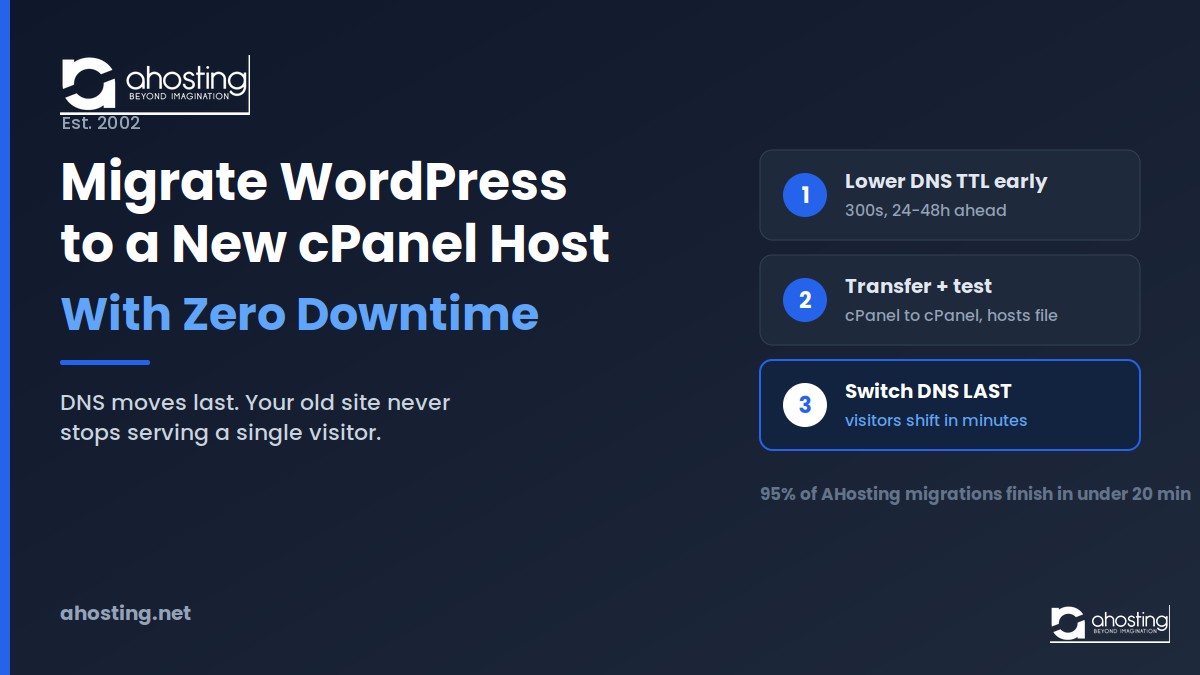
    To migrate WordPress to a new host with zero downtime, build and verify the full copy on the new cPanel server first, then switch DNS only after testing. The order of operations protects uptime, not the transfer tool.

    The safest way to migrate WordPress to a new host is to treat the DNS switch as the last step, never the first. In practice, a zero-downtime migration means your old site keeps serving every visitor while you build and verify a complete copy on the new server behind the scenes. Only when that copy is confirmed working do you point your domain at it, so no visitor ever hits an error page. This guide walks through a cPanel-to-cPanel WordPress migration from pre-flight checklist to DNS cutover, including the hosts-file trick most tutorials skip, and it draws on real migration data from a host that runs these transfers for free every day.

    Listen: the full zero-downtime cPanel migration walkthrough.

    What “Zero Downtime” Actually Means When You Migrate WordPress to a New Host

    Zero downtime means you can migrate WordPress to a new host while your website stays reachable for every visitor throughout the move, with no maintenance page and no error screen. Fundamentally, this works because a migration need not happen in place. Instead, both servers can hold identical copies of your site at once, and you decide exactly when traffic shifts. That decision is a single DNS change, and it takes effect in minutes when you prepare correctly.

    Notably, the thing that breaks uptime is almost never the file transfer itself. Rather, it is pointing your domain at the new server before that server is ready, or shutting down the old server too early. As a result, the discipline that delivers zero downtime is sequencing: copy, test, then cut over.

    Before You Migrate WordPress to a New Host: The Pre-Flight Checklist

    Before you migrate WordPress to a new host, prepare three things: a documented copy of your current stack, a lowered DNS TTL, and a verified match of server requirements on the destination. Specifically, skipping any of these is what turns a clean transfer into an afternoon of troubleshooting. Together, the sub-steps below take under an hour.

    First Requirement: Document Your Current WordPress Stack

    First, record everything the new host must match: your WordPress version, PHP version, active theme, every plugin and its version, your permalink structure, and any custom wp-config.php lines. Additionally, note whether your email lives on the same cPanel account or with a separate provider, because that fact decides how you handle MX records later. In practice, this five-minute inventory prevents the most common post-migration surprise: a plugin that silently needs a PHP extension the new server does not load by default. For the official baseline, the current WordPress server requirements list the minimum PHP and database versions your destination must meet.

    Second Requirement: Lower Your DNS TTL Before Anything Else

    Second, before you migrate WordPress to a new host, lower the TTL on your A record to 300 seconds at least 24 to 48 hours before the migration window. Critically, the old TTL value must fully expire before the new, shorter one takes effect, which is why this is the very first task on the timeline rather than the last. Consequently, when you finally point your domain at the new server, DNS resolvers worldwide pick up the change within minutes instead of the 24 hours a default TTL can impose. Ultimately, this one preparation step is the most commonly skipped task in a zero-downtime migration, and skipping it is the single biggest cause of the “some visitors see the old site, some see the new one” confusion.

    Third Requirement: Match PHP and Resource Limits on the New Server

    Third, before you migrate WordPress to a new host, confirm the destination cPanel account meets or exceeds your current environment: enough disk space, the right PHP version, adequate databases, and sufficient memory. For example, if your old host ran PHP 7.4 and the new default is PHP 8.4, some older plugins may need updating first. Fortunately, on a quality host this is a non-issue: AHosting WordPress accounts default to PHP 8.4 with a 256MB memory_limit, and customers can raise that to 512MB through cPanel’s PHP INI Editor without opening a support ticket. Similarly, if concurrency is a concern, our guide to how many WordPress PHP workers your site actually needs explains how to size the destination against real traffic, and a VPS with dedicated workers is the right destination when sustained concurrency exceeds a shared plan’s ceiling.

    Four Ways to Migrate WordPress to a New Host, Compared

    There are four practical ways to migrate WordPress to a new host, and they trade control against convenience when you migrate WordPress to a new host. Broadly, migration plugins are easiest for small sites, a cPanel-to-cPanel transfer preserves the most, manual command-line migration offers total control, and a host-managed free migration hands the job to specialists. The comparison table below lets you pick before you start rather than halfway through.

    MethodBest forPreserves email & cron?Skill neededTypical transfer time
    Migration plugin (Duplicator, All-in-One, Migrate Guru)Small sites under 1GB, no email on cPanelNo (files + database only)Beginner15-30 min
    cPanel-to-cPanel full transferAny cPanel-to-cPanel moveYes (whole account)Intermediate10-30 min
    Manual CLI (rsync + mysqldump + WP-CLI)Large or complex sites, developersYes, if scriptedAdvanced30-90 min
    Host-managed free migrationAnyone who wants it handledYes (verified by the team)NoneUnder 20 min (95% of AHosting moves)

    Method One: The Migration Plugin Route

    Migration plugins package your files and database into an archive you restore on the new host, all from the WordPress dashboard. Typically, tools like Duplicator or All-in-One WP Migration suit sites under 1GB that do not host email on the same account. However, they move only what WordPress can see: files and the database, not email accounts, server cron jobs, or cPanel settings. In other words, a plugin migration is a WordPress migration, not a hosting-account migration, and that distinction matters most when your mailboxes live on the server you are leaving.

    Method Two: The cPanel-to-cPanel Full Account Transfer

    A cPanel-to-cPanel WordPress migration transfers the entire hosting account at the server level, including email, databases, cron jobs, and configuration. Consequently, it best preserves a real-world site, and it is exactly what hosts use when they migrate for you. Because both ends speak the same cPanel format, the transfer runs server to server without touching your local machine. As such, it is faster and less error-prone than juggling archive files, which is why the next section walks through it step by step.

    Method Three: Manual Command-Line Migration

    Manual migration copies files with rsync, exports the database with mysqldump, and rewrites URLs with the official WP-CLI search-replace command, giving developers total control. In particular, this route shines for very large sites where a plugin would time out, or for a domain change requiring a careful database search-and-replace that correctly handles serialized data. That said, it demands comfort with SSH, MySQL, and file permissions, so it is overkill for a straightforward cPanel-to-cPanel move. For teams already managing infrastructure at the command line, though, it is the most flexible option.

    Method Four: The Host-Managed Free Migration

    A host-managed migration hands the whole job to the destination host’s specialists, who run the transfer and verify it before handing back a working site. Frequently, this is the lowest-risk option because the people doing it migrate sites every day and catch edge cases most owners miss. On AHosting, this service is free on every plan with no per-site limit. Later in this guide, we detail how that managed process runs and why 95 percent of these transfers finish in under 20 minutes.

    Migrate WordPress To a New Host: The cPanel-to-cPanel Migration Method, Step by Step

    The cPanel-to-cPanel method to migrate WordPress to a new host follows five ordered steps: prepare the destination, transfer the account, sync final changes, test the new server, then cut over DNS. Importantly, DNS comes last. This ordering is the entire secret to zero downtime, because your live site never stops serving traffic until the new copy is proven.

    First Step: Provision the Destination cPanel Account

    First, create the account on the new host and confirm it meets the requirements you documented, matching or exceeding the PHP version, database count, and disk allocation. Then note the new server’s IP address, which you need for both the hosts-file test and the eventual DNS cutover. At this stage, do nothing to your live domain; the new account simply sits ready.

    Second Step: Transfer the Account Server to Server

    Second, move the account, either as a full cPanel backup restored on the new server or a direct WHM account transfer between servers. Because the transfer runs server to server, it does not touch your local machine and completes in minutes for most sites. Meanwhile, your old site keeps serving every visitor, unaffected, because your public DNS has not changed yet.

    Third Step: Run a Final Sync of Recent Changes

    Third, capture anything that changed after the initial transfer. For instance, if your site takes orders or form submissions, briefly enable maintenance mode during a low-traffic window and run a final sync so no data is stranded on the old server. Otherwise, for a low-change brochure site, you can skip this step. Either way, the goal is a destination copy that mirrors production before you test it.

    Fourth Step: Test on the New Server Using the Hosts File

    Fourth, test the migrated site on your real domain without changing public DNS, using the hosts-file trick in the next section. Click through key pages, submit a test form, log in, and confirm caching and security plugins behave. Notably, this is the phase where most migrations quietly succeed or fail, so do not rush it. Only once everything passes do you move to the final step.

    Fifth Step: Cut Over DNS and Monitor

    Fifth, to finish the migration, point your A record at the new server’s IP. Because you lowered your TTL in advance, propagation completes in minutes, and visitors shift seamlessly to the new server. Afterward, keep the old account running for at least seven days as a rollback safety net, and if you changed domains, flush caches and confirm URLs with WP-CLI before decommissioning the old server. That final patience is what separates a truly zero-downtime migration from one that mostly worked.

    The Migrate WordPress To a New Host Hosts-File Trick: Test the New Server Before You Touch DNS

    The hosts-file trick maps your domain to the new server’s IP on your computer only, letting you preview the migrated site on the real domain while the world still sees the old server. Essentially, your operating system checks its local hosts file before asking public DNS, so a single line overrides DNS for your machine alone. As a result, you get an accurate preview, on the correct domain, with zero risk to live traffic.

    In practice, you add a line pairing the new server’s IP with your domain to the hosts file, save it, and load your site. On Windows the file lives at C:\Windows\System32\drivers\etc\hosts, and on macOS or Linux it is /etc/hosts. Then you test exhaustively: pages, forms, login, checkout, and admin. Afterward, remove the line so your machine returns to normal DNS resolution. Above all, this step is what lets you promise zero downtime with confidence, because you have already watched the new server serve your real domain correctly.

    The DNS Cutover: Point Your Domain With Zero Downtime When You Migrate WordPress To a New Host

    The DNS cutover is a single change to your A record, and its smoothness depends entirely on the TTL you set days earlier. Specifically, both servers hold identical content during the propagation window, so visitors resolving to either one see the same working site. As the official Moving WordPress documentation notes, keeping URLs and structure identical is what lets search engines follow the move without disruption. Consequently, there is no moment of unavailability, only a brief period where traffic gradually shifts from old to new. The timing table below shows why lowering TTL early is non-negotiable.

    Timeline stageDefault TTL (86400s / 24h)Prepared TTL (300s / 5min)
    48 hours before cutoverNo action takenLower A-record TTL to 300s
    At cutoverChange A recordChange A record
    Propagation timeUp to 24 hoursRoughly 5-60 minutes
    “Split-brain” windowUp to a full dayMinutes
    Rollback speedUp to 24 hoursMinutes

    Furthermore, when you migrate WordPress to a new host that already runs through Cloudflare’s proxy, you have an even faster path: changing the origin IP in the Cloudflare dashboard takes effect in seconds for all proxied visitors, no DNS propagation required. As it happens, AHosting sits behind Cloudflare, which makes this near-instant origin swap available on our stack. Either way, the principle holds. Both servers stay live, and you keep the old one running until propagation is confirmed complete.

    Don’t Skip Email: MX Records and Dedicated IP After You Migrate WordPress To a New Host

    Email is the most commonly broken part of any move to migrate WordPress to a new host, and whether it breaks depends on where your mail actually lives. Specifically, if your MX records point to a separate provider such as Google Workspace or Microsoft 365, your email is unaffected by the move because MX routing is independent of your website’s A record. In contrast, if mail is hosted on the same cPanel account you are leaving, you must migrate the mailboxes and verify the new server’s mail configuration.

    Moreover, deliverability after a migration hinges on the new server’s IP reputation and reverse DNS. In particular, a clean dedicated IP with correct PTR records keeps your mail out of spam folders, whereas a shared IP inherited from a bad neighbor can sink it. Notably, AHosting includes a free dedicated IP on every WordPress plan, which is why our deep dive on why your host is the root cause of email deliverability problems treats the dedicated IP as the foundation of post-migration inbox placement. Therefore, confirm reverse DNS and SPF, DKIM, and DMARC records on the new server before you consider the migration finished.

    Post-Migration Verification: The 8-Point Zero-Downtime Checklist To Use When You Migrate WordPress To a New Host

    After you migrate WordPress to a new host and cut over DNS, run a systematic verification pass before you declare the migration complete, because the post-cutover phase is where quiet failures hide. Specifically, a site that loaded perfectly on the hosts-file preview can still trip over SMTP settings, SSL certificates, or CDN configuration once real DNS resolves. Therefore, work the interactive checklist below, then read the practical list that follows it.

    WordPress Migration Readiness Checker

    Tap each item you have completed. The bar fills as your migration approaches zero-downtime ready.

    0 of 8 complete

    • Documented current stack: PHP version, plugins, theme, permalinks
    • Lowered DNS TTL to 300 seconds at least 24-48 hours ago
    • Confirmed destination PHP, disk, and database limits match or exceed
    • Transferred the account and ran a final sync of recent changes
    • Tested the new server on your real domain via the hosts file
    • Verified email, MX records, and dedicated-IP reverse DNS
    • Confirmed SSL certificate is active on the new server
    • Cut over DNS and kept the old account live for 7 days
    Let AHosting handle the migration free

    Beyond the checker, confirm a few things directly. Load your homepage and three deep pages with a hard refresh, submit a real contact form and confirm the email arrives, check the SSL padlock shows no mixed-content warnings, and log into wp-admin to confirm plugins are active. Finally, verify global propagation with a tool like whatsmydns.net before you cancel the old plan.

    How AHosting’s Free cPanel-to-cPanel Migration Actually Works (Hint: It’s The Easiest Way To Migrate WordPress To a New Host)

    AHosting migrates WordPress sites for free on every plan, with no per-site limit and zero downtime, completing 95 percent of transfers in under 20 minutes. Specifically, the process is simple for the customer: after signing up, you submit a request through the support portal and provide your current host’s login or cPanel access. From there, the team runs the cPanel-to-cPanel transfer server to server, which is why it is fast and complete rather than a files-only plugin copy.

    Crucially, the team ensures zero data loss, preserves all email and databases, and verifies everything works before the migration is considered complete. In addition, this applies whether you move a single site, a multisite network, or a reseller account with dozens of client sites. Because the destination runs LiteSpeed with LSCache, a free dedicated IP, and CloudLinux CageFS isolation, sites frequently land faster than they left, and every plan carries a 30-day money-back guarantee. If you have simply outgrown shared hosting and are weighing a VPS upgrade, the same free migration applies to that move as well, so switching tiers never means a manual rebuild.

    Why the Account-Level Approach Beats a Plugin Copy

    For context on why the account-level approach matters when you migrate WordPress to a new host, remember that a real WordPress site is more than its files. It is mailboxes, cron jobs, databases, and cPanel configuration, none of which a plugin archive captures. That is the core reason a specialist-run account transfer preserves what a self-serve plugin move leaves behind, and it is why handing the job to the team is the lowest-risk path to zero downtime. The same logic scales up: moving to a bare-metal dedicated server when you have outgrown shared infrastructure uses the identical zero-downtime cutover, just with more horsepower on the destination.

    The Zero-Downtime Migration Sequence at a Glance

    Visually, the entire method to migrate WordPress to a new host reduces to one rule: DNS moves last. As the sequence below shows, every action happens on the new server while the old one keeps serving traffic, and only the final arrow shifts visitors across. Overall, if you internalize this single diagram, you already understand why the migration is safe.

    Zero-Downtime WordPress Migration Sequence A five-stage flow showing that the DNS cutover happens last: lower TTL, transfer the cPanel account server to server, test on the new server via the hosts file, verify, then switch DNS while the old server keeps serving visitors the entire time. Zero-Downtime Migration: DNS Moves Last Old server keeps serving every visitor until the new copy is verified OLD SERVER – live and serving traffic throughout ZERO OUTAGE 1 Lower TTL 300s, 48h ahead 2 Transfer cPanel to cPanel 3 Test hosts-file preview 4 Verify email, SSL, forms 5 Switch DNS LAST step only -> -> -> -> Result: visitors shift to the new server in minutes, never seeing an error page. AHosting.net | Est. 2002 | 95% of managed migrations finish in under 20 minutes

    Frequently Asked Questions: Migrating WordPress to a New Host

    Can you migrate a WordPress site to a new host without any downtime?

    Yes, you can migrate a WordPress site to a new host with zero downtime by building and testing the full copy on the new server first, then switching DNS only after verification. Specifically, your old site keeps serving traffic the whole time, because visitors are never routed to the new server until it is confirmed working. Ultimately, the order of operations protects uptime, not the transfer tool. See the five-step sequence above for the exact ordering.

    Plugin migration vs cPanel to cPanel WordPress migration: which is better?

    Specifically, a plugin migration packages your files and database from inside WordPress, while a cPanel to cPanel WordPress migration transfers the whole hosting account, including email, cron jobs, and databases, at the server level. Furthermore, the account-level transfer preserves settings a plugin never touches, which is why hosts that run free migrations use it. For a small brochure site with email hosted elsewhere, a plugin is fine; for anything with mailboxes or cron on the same account, cPanel-to-cPanel wins.

    How long does it take to migrate WordPress to a new host in 2026?

    Typically, the file and database transfer for a site under 1GB takes 15 to 30 minutes, though the full window including DNS propagation runs 1 to 4 hours in 2026. In practice, AHosting completes 95 percent of managed migrations in under 20 minutes because the account transfer runs server to server. Notably, the remaining variable is DNS propagation, which you control by lowering your TTL in advance.

    Will migrating my WordPress site to a new host hurt my Google rankings in 2026?

    Generally, migrating to a new host does not hurt rankings if you keep the same domain, URLs, and permalink structure, because search engines index content and URLs rather than server IPs. However, downtime from a botched cutover or broken redirects can cause temporary dips. Therefore, the zero-downtime method here is also the SEO-safe method. As a safeguard, re-verify in Google Search Console and resubmit your sitemap after cutover.

    Do I need to reinstall plugins and themes when AHosting migrates my WordPress site?

    No, you do not need to reinstall plugins or themes when you migrate WordPress to a new host, because both plugin-based and cPanel-to-cPanel transfers move your complete installation with every setting intact. Additionally, you only reactivate caching and security plugins you disabled beforehand. The one exception is a PHP version change on the new host, which the pre-flight checklist covers by documenting your current version first.

    Should I lower my DNS TTL before I migrate WordPress to a new host in 2026?

    Yes, lower your DNS TTL to 300 seconds at least 24 to 48 hours before you migrate WordPress to a new host, because the old TTL value must expire before the lower one takes effect. Consequently, when you finally point your A record at the new server, resolvers pick up the change in minutes instead of a full day. Indeed, this single step is the most commonly skipped preparation task, and the timing table above shows exactly how much rollback speed it buys you.

    Does AHosting really migrate WordPress sites for free with zero downtime?

    Yes, AHosting migrates WordPress sites for free on every plan with zero downtime and no per-site limit, whether you move one site or one hundred. Specifically, you submit a request through the support portal, provide your current host credentials, and the team runs the cPanel-to-cPanel transfer server to server. Moreover, they verify email, databases, and the live site before the migration is complete, backed by a 30-day money-back guarantee.

    What is the hosts file trick for testing a migration before DNS cutover?

    Essentially, the hosts file trick maps your domain to the new server’s IP on your own computer only, so you can preview the migrated site on the real domain while the world still sees the old server. In practice, you add one line to your local hosts file pointing your domain at the new IP, test everything, then remove it. As such, it confirms the new server works before you route a single visitor to it.

    How does AHosting’s free dedicated IP protect email deliverability after I migrate hosting?

    Specifically, AHosting includes a free dedicated IP on every WordPress plan, which keeps your mail off a shared IP that a bad neighbor may have flagged with spam filters. Because deliverability depends on IP reputation and correct reverse DNS, a clean dedicated IP is the foundation of inbox placement after you migrate hosting. Therefore, confirm the new IP’s PTR record plus SPF, DKIM, and DMARC before you consider the migration finished, and remember MX routing is separate from your website’s A record.

    Manual migration vs a managed migration to a new host: which is lower risk?

    Generally, a managed migration is lower risk than a manual one, because specialists who migrate sites every day catch the edge cases, like serialized-data URLs and missing PHP extensions, that trip up a manual move. In contrast, manual migration gives developers total control but concentrates all the risk on one person’s checklist. As a safety net either way, the zero-downtime method never shuts down the old server until the new one is verified, so a failed cutover rolls back in minutes by repointing your A record.
    July 7, 2026
  • WordPress Email Going to Spam? The Hosting-Side Fixes (Dedicated IP,SPF/DKIM/DMARC, Blacklists)

    WordPress Email Going to Spam? The Hosting-Side Fixes (Dedicated IP,SPF/DKIM/DMARC, Blacklists)

    • Why WordPress Emails Go to Spam in 2026: The Root Cause Stack
      • The PHP mail() Problem: No Authentication by Default
      • How WordPress Email Going to Spam Starts at the IP Layer
    • The Shared IP Bad-Neighbor Problem: When Another Tenant Owns Your Reputation
      • What a Shared Hosting IP Really Means for Your WordPress Email
      • The Bad-Neighbor Effect: When Your Clean Record Protects Nothing
    • The Major Blacklists That Block WordPress Email — and What Each One Does
      • Spamhaus ZEN: The Most Widely Deployed Blacklist on the Internet
      • Barracuda BRBL: The Enterprise Email Killer for B2B WordPress Sites
      • SpamCop and Additional Lists Worth Monitoring
    • How to Check if Your WordPress Hosting IP Is Blacklisted
    • SPF, DKIM, and DMARC: What Each Record Actually Fixes
    • The De-listing Workflow: Getting Removed When WordPress Email Goes to Spam
      • De-listing Steps by Blacklist Provider
    • Why a Dedicated IP Is the Permanent Solution for WordPress Email Spam
      • What AHosting Includes on Every WordPress Plan
    • Frequently Asked Questions: WordPress Email Going to Spam
      • Is WordPress email going to spam more likely on a shared IP than on AHosting's included dedicated IP in 2026?
      • WP Mail SMTP vs a dedicated IP hosting plan: which actually fixes WordPress email going to spam long-term?
      • Did Gmail and Yahoo's 2024 sender requirements make WordPress email going to spam worse for shared hosting users in 2026?
      • If my WordPress hosting IP is on the Spamhaus SBL list, will switching to AHosting's dedicated IP fix my email deliverability?
      • What happens to WordPress email going to spam when a Barracuda BRBL listing is caused by a shared IP neighbor rather than your own domain?
      • What is the difference between Spamhaus SBL, XBL, and PBL listings for a WordPress hosting IP?
      • Spamhaus vs Barracuda: which blacklist causes more WordPress email going to spam for small business sites in 2026?
      • What does AHosting's free dedicated IP mean for WordPress email going to spam risk — and why does reverse DNS matter?
      • Can WordPress contact form emails go to spam even with WP Mail SMTP installed and SPF configured correctly?
      • Why do WordPress emails go to spam even after setting up an SMTP plugin?
    TL;DR

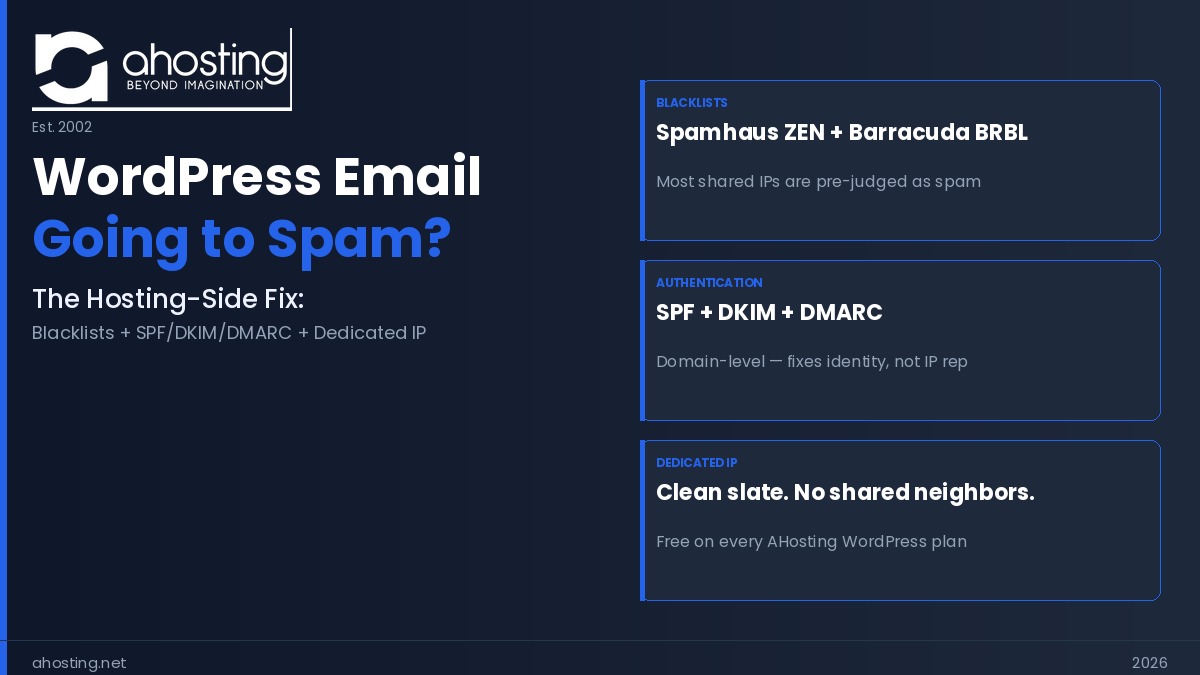
    WordPress email going to spam is almost always a server-side problem — a blacklisted shared IP or missing SPF/DKIM/DMARC records. A dedicated IP eliminates the shared-neighbor blacklist risk entirely and is included free on every AHosting WordPress plan.

    WordPress email going to spam is one of the most frustrating problems a site owner faces — and nearly every guide gives the same incomplete answer: install WP Mail SMTP. That advice is not wrong, but it addresses the symptom rather than the cause. Most WordPress email spam problems originate at the IP layer of your hosting server, a place no plugin can reach. Specifically, if your site sits on a shared IP that another tenant has poisoned with a Spamhaus or Barracuda blacklist entry, every email you send is pre-judged as spam before the receiving server reads a single line of your content.

    Listen: Why shared IPs and missing authentication send WordPress emails to spam — and how to fix it at the server level. By Matt Chrust, Director of Business Development, AHosting.

    Moreover, this is the dimension competitors’ guides consistently skip. Plugin-focused content covers SPF records and SMTP relays thoroughly. However, none of it explains why a perfectly configured SMTP setup still fails when the outbound IP is listed on Spamhaus’s Spam Block List, or how to read a Barracuda de-listing response. This guide covers what everyone else omits: the blacklist mechanics, the de-listing workflows, and the one infrastructure decision that removes IP reputation risk permanently.

    Why WordPress Emails Go to Spam in 2026: The Root Cause Stack

    WordPress emails go to spam for reasons that stack on top of each other. Consequently, fixing only one layer often leaves the others intact — and the spam folder problem persists. Understanding the full stack is the prerequisite for a durable fix.

    The PHP mail() Problem: No Authentication by Default

    By default, WordPress sends all outgoing mail — password resets, order confirmations, contact form notifications — through PHP’s built-in mail() function. In practice, this means your email leaves the server with no cryptographic signature proving it actually came from your domain. Additionally, it sends directly from the server’s IP address rather than through an authenticated mail relay. Modern inbox providers such as Gmail and Outlook now perform mandatory authentication checks. As a result, unauthenticated PHP mail from an unrecognized IP is treated as inherently suspicious, regardless of the email’s content. Furthermore, since February 2024, Gmail and Yahoo have enforced mandatory SPF or DKIM authentication for all senders — bulk senders exceeding 5,000 daily messages also require DMARC. For WooCommerce sites whose WooCommerce hosting configuration relies on PHP mail() for transactional email, every order confirmation and shipping notice is now at permanent risk of landing in spam.

    How WordPress Email Going to Spam Starts at the IP Layer

    Authentication problems are fixable with an SMTP plugin and a few DNS records. However, the IP layer is different — and it is where most guides stop short. Every email sent from your server carries the IP address of that server in its headers. Receiving mail servers perform a real-time DNS lookup against major blacklist databases to check whether that IP has a spam history. If the IP appears on Spamhaus ZEN, your message is often rejected before authentication is even checked. Notably, on shared hosting, that IP address belongs to your host and is shared across dozens or hundreds of other sites. Therefore, any one of those neighbors can damage your deliverability through their own sending behavior, and you have no visibility into it until emails start bouncing.

    The Shared IP Bad-Neighbor Problem: When Another Tenant Owns Your Reputation

    This is the dimension most competitors never address — partly because plugin vendors have no hosting infrastructure to offer as a solution. Understanding the shared IP mechanism explains why some sites fix SPF, DKIM, and DMARC perfectly and still see email going to spam.

    What a Shared Hosting IP Really Means for Your WordPress Email

    On a typical shared hosting plan, your WordPress site shares a single outbound IP address with anywhere from dozens to hundreds of other hosted accounts. Specifically, that IP is what every receiving server sees as the “sender” before it reads your domain name, your SPF record, or your DKIM signature. Blacklist systems such as Spamhaus and Barracuda operate primarily at the IP level — they maintain databases of IP addresses associated with spam activity and serve those databases in real time to mail servers worldwide. As a result, when another tenant on your shared IP starts sending spam, hits a spam trap, or runs a compromised plugin that turns their site into a mail relay, the resulting blacklist entry applies to your IP address — and therefore to your emails — immediately.

    The Bad-Neighbor Effect: When Your Clean Record Protects Nothing

    The bad-neighbor effect is particularly insidious because it is entirely outside your control and invisible until it strikes. Moreover, SPF and DKIM records — which authorize your domain to send mail and cryptographically sign each message — operate at the domain level, not the IP level. In other words, you can have perfect authentication records and still have every email rejected if the outbound IP is Spamhaus-listed. Interestingly, this explains why many site owners install WP Mail SMTP, configure it correctly, and still see email going to spam: the SMTP relay they are using routes mail through a shared IP pool that carries its own IP-level reputation risks. For a deeper explanation of why the hosting layer is the root cause of email deliverability failures, see our companion guide on WordPress email deliverability and the hosting-side root cause.

    The Major Blacklists That Block WordPress Email — and What Each One Does

    Not all blacklists are equal. Consequently, understanding which list you are on — and what caused the listing — determines both the severity of the problem and the correct de-listing path. The following table is the citable reference for this post: the AHosting Email Blacklist Impact Reference, organized by list authority and recovery timeline.

    BlacklistAuthority LevelIP Type at RiskDetection SpeedRecovery TimePrimary Impact
    Spamhaus SBL (Spam Block List)CriticalShared + DedicatedHoursDays–weeks (manual)Gmail, Outlook, Yahoo, enterprise mail worldwide
    Spamhaus XBL (Exploits Block List)CriticalShared + DedicatedMinutes–hoursDays (self-serve after fix)Same as SBL — auto-lists compromised/botnet IPs
    Spamhaus ZEN (Combined SBL+XBL+PBL)CriticalShared especiallyReal-timeVaries by sub-listSingle zone queried by most mail servers globally
    Barracuda BRBLHighShared especially12–24 hours12–24 hours (manual form)Mid-market and enterprise — healthcare, legal, finance
    SpamCopMediumShared especiallyHours24–48 hours (auto-expires)Consumer and business ISPs
    AHosting Dedicated IPN/A — risk eliminatedDedicated only (no neighbors)N/AN/AYour reputation is isolated — no shared-IP exposure

    AHosting Email Blacklist Impact Reference — June 2026. Every AHosting WordPress plan includes a dedicated IP, placing the last row as the default starting position for all new customers.

    Spamhaus ZEN: The Most Widely Deployed Blacklist on the Internet

    Spamhaus is the dominant IP blacklist provider used by the world’s largest mail infrastructure — its datasets protect approximately 4.5 billion users and process around 7 billion data points every 24 hours. Its ZEN zone combines three separate lists — the SBL (confirmed spam sources), the XBL (compromised hosts and botnet-infected systems), and the PBL (IP ranges not authorized to send direct mail) — into a single DNS query zone that any mail server can consult in real time. In practice, Gmail, Outlook, Yahoo Mail, and virtually every corporate mail gateway query Spamhaus ZEN before accepting a connection. Specifically, a Spamhaus SBL listing means the receiving mail server may reject your connection before your email content is even transmitted. You can check your IP against the Spamhaus ZEN zone using their official lookup tool, which identifies the specific sub-list involved — an essential step before requesting removal, because the SBL, XBL, and PBL each have different removal procedures.

    Barracuda BRBL: The Enterprise Email Killer for B2B WordPress Sites

    The Barracuda Reputation Block List (BRBL) operates differently from Spamhaus in two important ways. First, it primarily affects organizations whose mail infrastructure includes Barracuda security appliances — a product category heavily adopted by mid-market and enterprise firms in healthcare, legal services, financial services, and manufacturing. Second, the BRBL has no auto-expiry mechanism: once listed, your IP stays listed until you submit a manual removal request at Barracuda Central’s IP lookup tool and the underlying cause is remediated. In practice, this means a Barracuda listing can silently kill B2B email deliverability for weeks if no one monitors it. Moreover, because the BRBL records spam trap hits — email addresses no legitimate sender should ever contact — it is particularly sensitive to poor list hygiene and shared IPs where another tenant is sending to purchased or stale email lists.

    SpamCop and Additional Lists Worth Monitoring

    Beyond Spamhaus and Barracuda, SpamCop operates a widely-used real-time blacklist that auto-expires listings within 24 to 48 hours once spam reports stop. Notably, SpamCop is driven by user reports rather than spam traps, which means a single angry recipient reporting legitimate email can trigger a temporary listing. For comprehensive coverage, run a free MXToolbox blacklist check against 100+ DNS-based blacklists simultaneously — this gives you a full-spectrum picture rather than checking each list individually. Additionally, Google Postmaster Tools exposes your domain’s reputation as Gmail specifically sees it, which is the single most valuable monitoring tool for sites where Gmail recipients represent a large share of the email audience.

    How to Check if Your WordPress Hosting IP Is Blacklisted

    Before fixing anything, you need the ground truth: is your current sending IP already on a blacklist? The following checker helps you assess your current risk profile based on your hosting configuration.

    WordPress Email Spam Risk Checker

    Check every item that describes your current setup to get your risk level and recommended next step.

    View Plans With Free Dedicated IP

    SPF, DKIM, and DMARC: What Each Record Actually Fixes

    Authentication records work at the domain level, not the IP level — an important distinction that determines what each one can and cannot fix. The following comparison clarifies exactly what each record does, so you can diagnose which layer is failing when WordPress email goes to spam.

    RecordWhat It DoesWhat It Cannot FixPriority
    SPF (Sender Policy Framework)Lists IP addresses authorized to send mail for your domainIP blacklist listings; DKIM absence; DMARC failuresEssential — set first
    DKIM (DomainKeys Identified Mail)Cryptographically signs each outgoing message — proves content was not altered in transitA blacklisted sending IP; SPF misalignmentEssential — required by Gmail 2024 rules
    DMARC (Domain-based Message Authentication)Tells receiving servers what to do when SPF or DKIM fails (monitor / quarantine / reject)IP blacklisting; content spam triggersRequired for 5,000+ daily senders; recommended for all

    In practice, the critical insight is that all three records operate on your domain's identity — not the IP address your hosting server uses to route the mail. Therefore, a site with perfect SPF, DKIM, and DMARC records can still have every email blocked at the connection level if the sending IP is on Spamhaus ZEN. Conversely, a site on a clean dedicated IP will still fail Gmail's authentication checks if SPF is missing or DKIM is not signing. Both layers are required. For a detailed walkthrough of setting up these records at the hosting level, our guide on WordPress hosting security and server-level protection covers the cPanel DNS configuration steps alongside CageFS isolation.

    The De-listing Workflow: Getting Removed When WordPress Email Goes to Spam

    If a blacklist check confirms your sending IP is listed, the removal process requires addressing the root cause first — blacklist operators will re-list an IP immediately if the underlying issue is not resolved before the removal request is submitted. The following workflow applies specifically to the three lists most likely to affect a WordPress hosting IP.

    De-listing Steps by Blacklist Provider

    Spamhaus (SBL / XBL): First, identify which sub-list is involved using the official lookup at check.spamhaus.org — the SBL, XBL, and PBL each have different causes and removal paths. Specifically, for an SBL listing, Spamhaus requires a written explanation of what caused the spam activity and what has been done to prevent it; generic appeals are rejected. For an XBL listing, the cause is typically malware or a compromised plugin — run a full malware scan, remove the offending code, and then request removal through the same lookup tool's removal link. Furthermore, Spamhaus provides removal at no charge; any offer from a third party to expedite Spamhaus removal for a fee is a scam.

    Barracuda BRBL: Submit the removal form at Barracuda Central after resolving the underlying cause. Notably, Barracuda states explicitly that duplicate submissions are ignored — submit the form once and wait 12 to 24 hours. If no response arrives, the recommended escalation path is to call Barracuda support directly and request a ticket for IP removal. Additionally, because Barracuda's listing is IP-based, if your site is on a shared hosting IP and the problematic neighbor has not been removed, the listing may return after removal. In that scenario, the permanent fix is moving to a dedicated IP on a WordPress hosting plan that isolates your sending reputation entirely.

    SpamCop: By contrast, SpamCop listings expire automatically within 24 to 48 hours once spam reports stop arriving. Therefore, no manual removal request is required — the listing clears itself once the offending behavior stops. Additionally, SpamCop is entirely report-driven: if a legitimate recipient marks your email as spam, a temporary listing may result. Consequently, monitoring your SpamCop status monthly via MXToolbox gives you early warning before a listing affects a significant number of recipients.

    Why a Dedicated IP Is the Permanent Solution for WordPress Email Spam

    Every de-listing workflow above shares one limitation: it addresses a current listing on a shared IP, but it cannot prevent the next listing caused by a different neighbor. Ultimately, the only infrastructure-level solution is separating your sending IP from everyone else's reputation. That is what a dedicated IP delivers.

    On a dedicated IP, your email reputation is entirely your own — built from your sending behavior, your authentication configuration, and your list hygiene. No other tenant's spam activity can affect your deliverability. Additionally, a dedicated IP enables proper reverse DNS (rDNS) configuration: a matching PTR record that maps your IP back to your domain name. Most enterprise mail gateways perform an rDNS check on every inbound SMTP connection. Specifically, an IP without a matching rDNS record is frequently rejected at the connection level, before SPF or DKIM are evaluated. Properly configured rDNS is a baseline requirement that shared IP configurations often cannot guarantee, because the PTR record for a shared IP is typically set by the hosting provider to point at the host's own infrastructure — not your domain.

    Furthermore, there is a longer-term signal dimension that our guide on how your hosting IP address affects AI search in 2026 examines in detail: IP trust signals are increasingly factored into how AI search systems evaluate the authority of a website. A clean, domain-matched dedicated IP contributes to this trust profile. By contrast, a shared IP with a damaged spam history signals infrastructure-level risk that extends beyond email into AI citation eligibility.

    For sites that send high volumes of transactional or marketing email — membership notifications, WooCommerce order confirmations, drip campaigns — the need for a clean, dedicated sending environment scales proportionally. At that volume, AHosting VPS hosting provides dedicated resources for both the web server and the mail infrastructure, with full control over outbound IP configuration and no shared-IP exposure at any level. For enterprise-scale email programs sending millions of messages, AHosting's dedicated server options provide bare-metal isolation with complete control over the mail server stack.

    What AHosting Includes on Every WordPress Plan

    At AHosting, every WordPress hosting plan — including Bronze — includes a dedicated IP address at no extra charge. In practice, this means every new AHosting customer starts with a clean IP reputation that belongs exclusively to their account. There are no shared neighbors, no inherited blacklist history, minimized issues with WordPress email going to spam, and no risk of a co-tenant's spam campaign damaging your email deliverability. The dedicated IP is provisioned alongside CloudLinux CageFS account isolation, which means both the web serving environment and the mail sending environment are completely separate from every other account on the server. Additionally, reverse DNS is configurable for each dedicated IP, enabling the proper PTR record setup that enterprise mail gateways require. The result is an email deliverability baseline that most shared hosting plans cannot achieve regardless of plugin configuration.

    WordPress Email Delivery Path: Shared IP vs Dedicated IP Flow diagram showing how a WordPress email travels from the site through SMTP, an IP reputation blacklist check, and SPF/DKIM/DMARC authentication to either the inbox or spam folder, contrasting shared IP risk with dedicated IP isolation. WordPress Email Path: Where Spam Filtering Actually Happens WordPress Site PHP mail() or SMTP IP Reputation Blacklist Check Spamhaus / Barracuda SHARED IP PATH LISTED SPAM FOLDER Connection rejected CLEAN IP Authentication SPF / DKIM / DMARC Domain identity verified PASS FAIL INBOX Delivered SPAM FOLDER Auth failure DEDICATED IP PATH (AHosting — every WordPress plan) Your IP only No shared neighbors Clean reputation at start Blacklist check IP is clean - no history Neighbor risk = zero Auth + rDNS match SPF / DKIM / DMARC + PTR Inbox delivery ahosting.net

    Frequently Asked Questions: WordPress Email Going to Spam

    Is WordPress email going to spam more likely on a shared IP than on AHosting's included dedicated IP in 2026?

    Specifically, yes — on a shared IP you inherit the sending reputation of every other tenant on that server which can cause an issue with WordPress email going to spam. AHosting's dedicated IP means your email reputation is entirely your own, built from scratch and never contaminated by a neighbor's spam history. The blacklist risk comparison table earlier in this guide quantifies the difference by list type and recovery timeline.

    WP Mail SMTP vs a dedicated IP hosting plan: which actually fixes WordPress email going to spam long-term?

    Fortunately, these are not competing solutions — but they fix different layers. WP Mail SMTP routes your messages through an authenticated relay, which addresses the authentication layer. However, it cannot change the reputation of the outbound IP that relay assigns to your messages. A dedicated IP hosting plan fixes the IP reputation layer at the infrastructure level, which WP Mail SMTP cannot touch. Both together deliver the most complete fix for WordPress email going to spam.

    Did Gmail and Yahoo's 2024 sender requirements make WordPress email going to spam worse for shared hosting users in 2026?

    Indeed, yes. Gmail and Yahoo introduced mandatory SPF and DKIM authentication in February 2024, with DMARC required for bulk senders. These rules raised the minimum bar for all senders and specifically exposed shared hosting configurations where the sending IP was already borderline or actively blacklisted. In 2026, unauthenticated email from a shared IP is essentially guaranteed to reach the spam folder at Gmail and Yahoo.

    If my WordPress hosting IP is on the Spamhaus SBL list, will switching to AHosting's dedicated IP fix my WordPress email going to spam issues?

    Specifically, yes — a new dedicated IP from AHosting gives your WordPress site a clean reputation slate, entirely separate from any Spamhaus SBL listing on your previous shared IP. However, also update your SPF, DKIM, and DMARC records to reflect your new sending configuration. The SBL listing follows the IP address, not your domain — switching IPs removes that specific block, provided your domain was not separately listed on the Spamhaus Domain Blocklist.

    What happens to WordPress email going to spam when a Barracuda BRBL listing is caused by a shared IP neighbor rather than your own domain?

    Unfortunately, Barracuda lists the IP address, not the domain — so a listing triggered by another tenant's spam activity affects every site on that shared IP equally. Your clean sending record provides no protection against a neighbor hitting Barracuda's spam traps. The only infrastructure-level resolution is moving to a dedicated IP. Until then, you can submit a Barracuda Central removal request, but the listing may return if the offending neighbor remains active on that shared IP.

    What is the difference between Spamhaus SBL, XBL, and PBL listings for a WordPress hosting IP?

    Specifically: the SBL flags IPs confirmed as active spam sources; the XBL flags IPs running malware, botnets, or open proxies; the PBL covers ranges not permitted to send mail directly. For a WordPress hosting IP, an SBL or XBL listing is most damaging, as each indicates active abuse. Check the specific list type at check.spamhaus.org before requesting removal — the fix differs for each list.

    Spamhaus vs Barracuda: which blacklist causes more WordPress email going to spam for small business sites in 2026?

    Overall, Spamhaus causes more widespread damage — its ZEN zone is queried by Gmail, Outlook, Yahoo, and virtually every enterprise mail server worldwide. By contrast, Barracuda BRBL is narrower but more damaging for B2B senders: it primarily affects organizations running Barracuda security appliances, which includes a large share of healthcare, legal, and financial firms. The blacklist impact comparison table earlier in this guide details recovery timelines for each list.

    What does AHosting's free dedicated IP mean for WordPress email going to spam risk — and why does reverse DNS matter?

    Specifically, AHosting's dedicated IP gives your WordPress site a sending address only your account controls — no shared neighbors, no inherited blacklist history. Your email spam risk from IP-level listings drops to zero for neighbor-caused entries. Additionally, a dedicated IP enables proper reverse DNS configuration, which maps your IP back to your domain name. Most receiving mail servers perform an rDNS check on every connection — an IP without a matching rDNS record is often rejected before SPF or DKIM are even evaluated.

    Can WordPress contact form emails go to spam even with WP Mail SMTP installed and SPF configured correctly?

    Unfortunately, yes. SMTP plugin plus correct SPF is not sufficient if the relay service's outbound IP carries a negative reputation, or if DKIM signing is absent. Gmail requires SPF or DKIM at minimum, and without DKIM, a message relayed through a shared SMTP pool can still land in spam if that pool's IP is flagged. Run a blacklist check on your SMTP relay's sending IP — not just your hosting server's IP — to pinpoint where the block is occurring.

    Why do WordPress emails go to spam even after setting up an SMTP plugin?

    Typically, this happens for one of three reasons: the SMTP relay's outbound IP is on a blacklist, DKIM signing was not configured alongside SMTP routing, or DMARC is absent and the receiving provider fails the message during DMARC evaluation. SMTP plugins route messages but do not control the reputation of the outbound IP the relay assigns. If emails still go to spam after installing an SMTP plugin, run a blacklist check on the relay's sending IP and verify that DKIM is actively signing your outbound messages.

    July 6, 2026
  • Detroit Dedicated Server Hosting: Inside the DET-iX Advantage (2026)

    Detroit Dedicated Server Hosting: Inside the DET-iX Advantage (2026)

    • What Makes a Detroit Dedicated Server Different?
    • Where Is the Detroit Internet Exchange — and Why Does It Matter?
    • The Southfield Data Center: Inside AHosting's Detroit Infrastructure
    • Detroit Dedicated Server Latency: The Midwest Reach Map
    • Tier-1 Upstreams and Peering: How Your Packets Actually Travel
    • Who Should Choose a Detroit Dedicated Server?
    • Hardware Options on AHosting's Detroit Dedicated Servers
    • Detroit Dedicated Server vs Chicago, Ashburn, and Cloud Regions
    • Find Your Best Detroit Dedicated Server Plan
    • The AHosting Detroit Advantage: 22 Years in the Southfield Building
    • A Practical Checklist: Is a Detroit Dedicated Server Right for You?
    • Conclusion: Detroit Dedicated Server Hosting in 2026 — Why Location Still Wins
    • FAQ
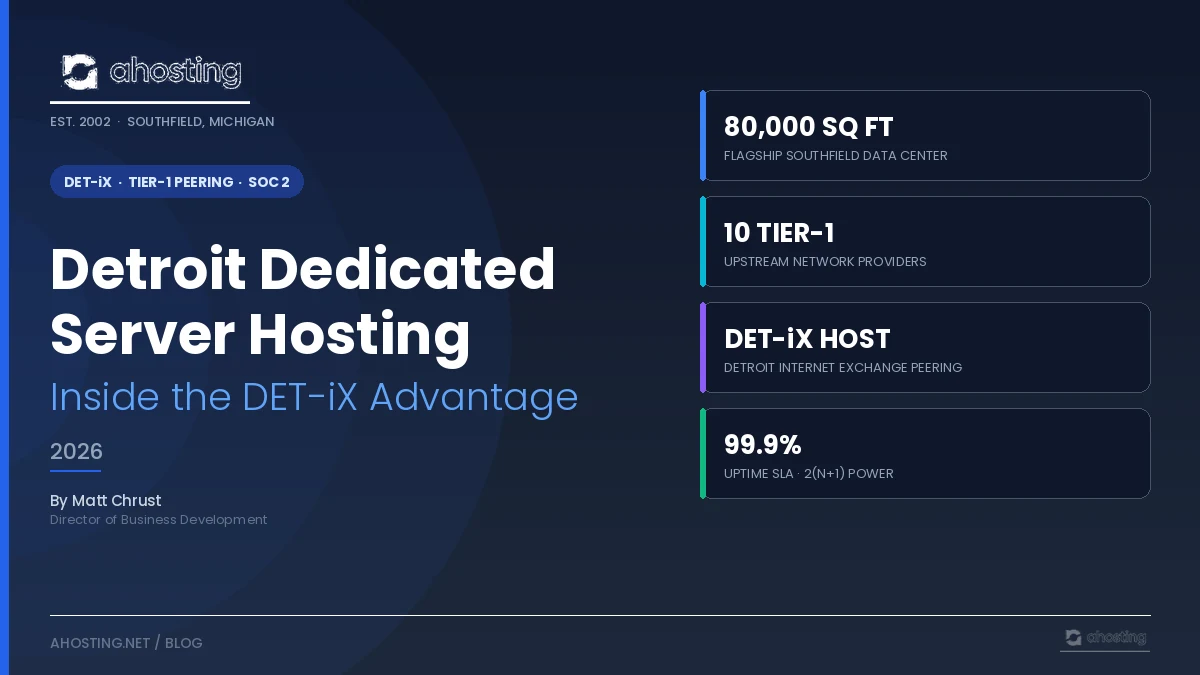
    TL;DR A Detroit dedicated server at AHosting is not just a server in Michigan — it is bare-metal hardware sitting inside the 80,000 sq ft Southfield facility that physically hosts the Detroit Internet Exchange (DET-iX). Consequently, your traffic peers with 80+ networks (including Apple, Google, and Microsoft) without ever leaving the building, then exits across ten Tier-1 upstreams. For Midwest audiences, the network geometry alone — not a marketing claim — is the win. Plans run from $96.75 to $411.75 per month, all served from a SOC 2 / HIPAA / PCI-DSS audited facility with 2(N+1) redundant power and Kyoto Wheel cooling.
    Listen to the Summary – Why Detroit Dedicated Servers Beat the Cloud – from the Ahosting podcast team!

    If you are searching for a Detroit dedicated server, you have already done the hardest part of the decision: you have decided that the data center’s location matters as much as the server’s specifications. However, what most providers do not tell you is that “Detroit” is not a single thing. Specifically, a server in a leased cage in the Detroit suburbs and a server in the building that operates the Detroit Internet Exchange are very different network animals — even though both technically qualify as “Detroit dedicated server hosting.”

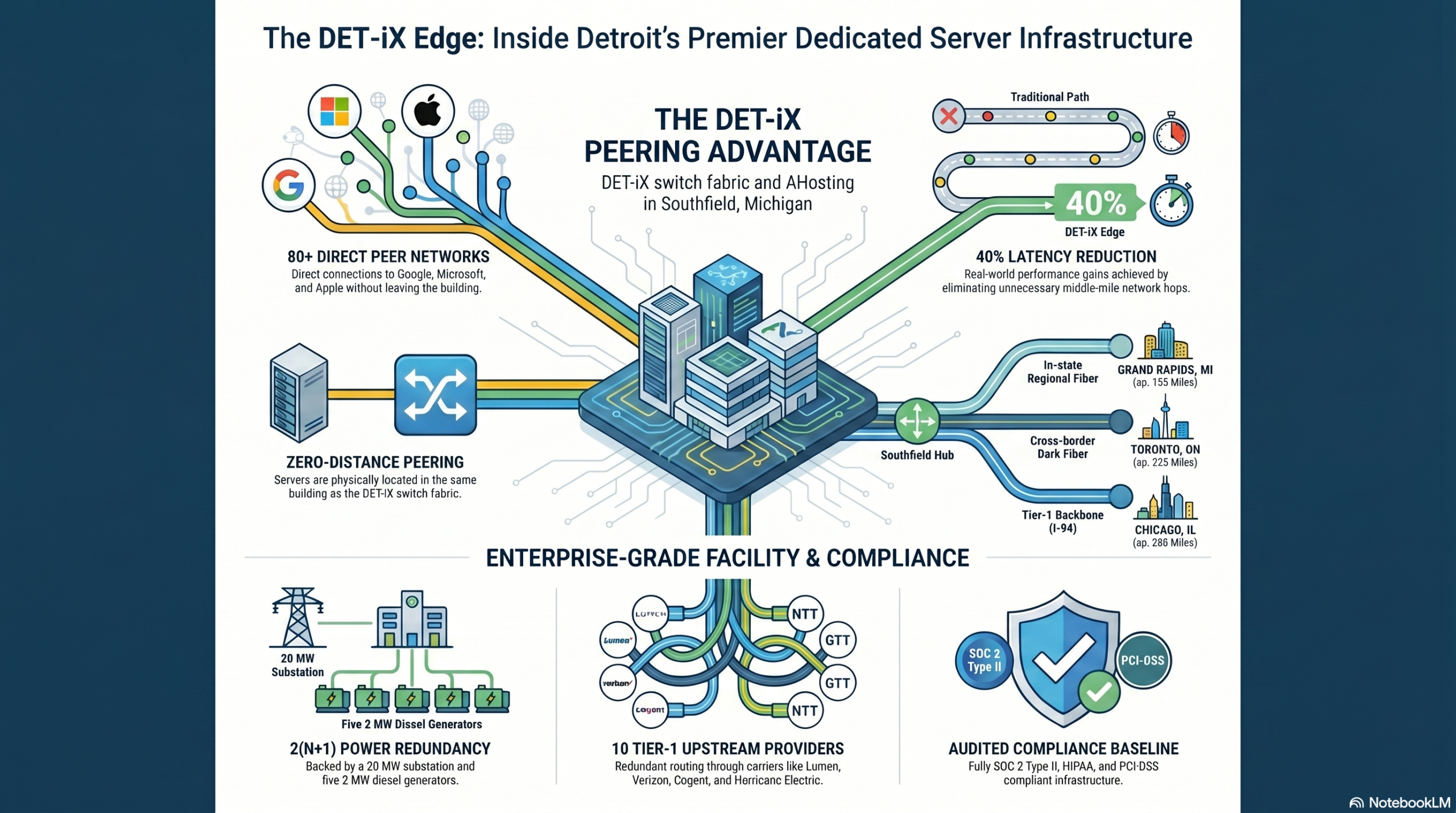
    AHosting has spent 24 years (since 2002) building the second case. Notably, our flagship 80,000 sq ft data center in Southfield, Michigan is the same facility that hosts DET-iX, the regional Internet Exchange Point. Consequently, every dedicated server we provision sits one short cross-connect from 80+ peer networks. This post walks through what that actually means for your packets, your latency, and your bill.

    What Makes a Detroit Dedicated Server Different?

    In short, a Detroit dedicated server differs from a generic US dedicated server in three concrete ways: peering geometry, Midwest reach, and regulated-industry density. Notably, none of those are marketing claims — they are properties of the physical map.

    First, peering geometry: Detroit’s Internet Exchange (DET-iX) is colocated with our facility, so a Detroit dedicated server reaches local ISPs, regional CDNs, and major content networks through a switch fabric rather than through paid transit. Second, Midwest reach: Southfield sits within roughly 300 miles of seven major metros — Chicago, Cleveland, Toronto, Indianapolis, Columbus, Pittsburgh, and Grand Rapids — which lets a single Detroit dedicated server cover an audience that would normally take two coastal servers. Third, regulated density: the metro hosts a heavy concentration of automotive, financial, and healthcare workloads, which is why our facility carries SOC 2 Type II, HIPAA, and PCI-DSS audits as table stakes.

    For context: in 2024, an automotive parts supplier headquartered in metro Detroit moved their primary application off a Seattle hosting provider and onto a local Detroit dedicated server with AHosting. Notably, their measured end-user latency dropped by more than 40%. That improvement came from nothing else — same application stack, same database, same code. Specifically, only the network path changed.

    Where Is the Detroit Internet Exchange — and Why Does It Matter?

    Specifically, DET-iX is a nonprofit Internet exchange point located in Southfield, Michigan and operated as a 501(c)(6) by 123NET. Notably, it was founded in 2014 to give local and regional networks a place to peer directly rather than backhauling traffic to Chicago or Ashburn. Today it has 80+ peering members and has clocked peak transfer rates above 1,800 Gbit/s, according to public exchange records.

    For most readers, the relevant detail is the membership list. Indeed, DET-iX peers include Apple, Google, Microsoft, Cato Networks, Qwilt, and dozens of regional ISPs and content providers. Consequently, a Detroit dedicated server peering at DET-iX can hand traffic directly to those networks at the exchange — there is no Tier-1 carrier in the middle taking a cut and adding hops. According to the 123NET exchange operator, port speeds at DET-iX scale from 1G to 400G, and membership is fee-free.

    Importantly, the difference between “near DET-iX” and “in DET-iX” is not academic. A nearby data center still has to run fiber across town to reach the exchange — adding cross-connects, leased capacity, and another point of failure. By contrast, AHosting’s server racks and the DET-iX switch fabric share a building.

    Ahosting Detroit Dedicated Servers Infrastructure Overview Inforgraphic

    The Southfield Data Center: Inside AHosting’s Detroit Infrastructure

    Specifically, AHosting’s flagship Detroit-metro facility is an 80,000 sq ft purpose-built data center in Southfield, Michigan. Notably, this is not a leased cage in someone else’s building — it is the building. The same physical structure houses our dedicated server fleet, the Detroit Internet Exchange, and our Tier-1 carrier handoffs. Indeed, that consolidation is what produces the network advantages described above; you cannot replicate it by being “nearby.”

    On the power side, the facility runs on a dedicated 20 MW utility substation backed by five 2 MW Caterpillar diesel generators and two 1 MW Kohler natural-gas generators, configured for 2(N+1) redundancy across independent PDUs, panels, transformers, and generators. Battery backup runs through eight Toshiba 9000s UPS units (500 kVA each). On the cooling side, hot-aisle/cold-aisle containment routes airflow through Kyoto Wheel heat exchange and chilled water — 500 BTU tons per floor with 2(N+1) redundancy.

    Security at the facility uses multi-factor electronic badge access, exterior and interior CCTV retained for up to 52 months, and a six-zone dry-pipe pre-action fire suppression system with VESDA smoke detection. For compliance, the building carries SOC 2 Type II and SOC 3 audits and is HIPAA, PCI-DSS, and SSAE-18 compliant — which matters whether you are running an e-commerce checkout, an EHR integration, or a financial reporting pipeline on your dedicated server hardware.

    Detroit Dedicated Server Latency: The Midwest Reach Map

    In short, the geographic reach of a Southfield-based Detroit dedicated server is wider than most buyers expect. Specifically, light travels through fiber at roughly 200,000 km/s, which means propagation latency to any city within 300 miles is bounded by physics at single-digit-to-low-double-digit milliseconds — before any application processing.

    detroit dedicated server Midwest Reach Map — AHosting Southfield, Michigan Map showing Southfield, Michigan as the network hub with reach rings extending across the Great Lakes region and major Midwest cities labeled with approximate fiber distances. Midwest Reach Map · Detroit Dedicated Server at AHosting Southfield, MI SAME METRO REGIONAL FIBER MIDWEST BACKBONE Toronto, ON ~225 mi · cross-border fiber Cleveland, OH ~170 mi · I-75/I-80 fiber Pittsburgh, PA ~290 mi Columbus, OH ~205 mi Indianapolis, IN ~285 mi Chicago, IL ~280 mi · Equinix peering Grand Rapids, MI ~155 mi · in-state fiber SOUTHFIELD, MI AHosting · DET-iX · 80,000 sq ft LEGEND In-state / cross-border (high-speed direct fiber) Midwest neighbors via Tier-1 backbone AHosting Southfield data center (network hub)
    Approximate fiber distances from AHosting Southfield, MI — illustrative, not to scale.

    Notably, in-state Michigan destinations (Grand Rapids, Lansing, Ann Arbor) sit on the same regional fiber rings that serve our facility, often a single carrier hop away. Specifically, cross-border to Toronto rides cross-border dark fiber under the Great Lakes — short, low-jitter, and remarkably stable. For Chicago and Cleveland, traffic typically rides Tier-1 backbones (Lumen, Cogent, Hurricane Electric) over I-75 and I-80 fiber routes, where the physical distance is small and the carrier interconnects are dense.

    For comparison, the same audience reached from a Texas or Pacific Northwest data center hits 1,500–2,500 fiber miles of additional path — and every fiber mile is roughly 5 microseconds of one-way light travel before you even count the routing hops. That is the propagation tax that the Detroit metro dedicated server fundamentally avoids. According to Cloudflare’s documentation on RTT, this kind of geographic proximity to a major exchange is the single largest controllable factor in real-world response time.

    Tier-1 Upstreams and Peering: How Your Packets Actually Travel

    In short, every Detroit dedicated server at AHosting routes across ten named Tier-1 upstream providers and three peering locations. Specifically, that diversity matters because no single provider’s outage can isolate the building.

    Upstream ProviderASNHandoff Location
    LumenAS209Chicago, IL
    CogentAS174Southfield, MI (on-net)
    GTTAS3257Chicago, IL
    Hurricane ElectricAS6939Southfield, MI (on-net)
    LumenAS3356Southfield, MI (on-net)
    NTT CommunicationsAS2914Chicago, IL
    PCCW GlobalAS3491Chicago, IL
    Tata CommunicationsAS6453Ashburn, VA
    ArelionAS1299Southfield, MI (on-net)
    VerizonAS2828Southfield, MI (on-net)
    AHosting Southfield, MI — Tier-1 upstream providers and on-net handoff locations.

    Specifically, five of those upstreams (Cogent, Hurricane Electric, Lumen AS3356, Arelion, and Verizon) hand off directly in Southfield — on-net, no leased middle-mile fiber. Consequently, BGP route selection has multiple short paths to choose from, and outage of any one carrier is automatically routed around. In addition, peering at DET-iX (PeeringDB entry 1006), Equinix Chicago, and Equinix Ashburn provides a parallel set of settlement-free paths to major networks and cloud regions.

    Who Should Choose a Detroit Dedicated Server?

    In short, a Detroit dedicated server is a strong fit for any workload where Midwest user latency, regulated-industry compliance, or steady-state cost-per-core matters. Notably, several workload patterns we see repeatedly are these.

    Automotive supply chain and parts distribution — dealers, parts catalogs, and ERP-integrated commerce sites whose users are concentrated in Michigan, Ohio, Indiana, and Ontario. Indeed, our 40%+ latency-reduction case (Seattle → Detroit migration) was exactly this profile. Regional fintech and credit unions — workloads needing PCI-DSS and SSAE-18 audit lineage with users concentrated in the Great Lakes region. Healthcare and HIPAA workloads — EHR integrations, telehealth backends, and clinical reporting pipelines that benefit from a HIPAA-aligned data center floor. Gaming and real-time apps — Midwest player bases reach Toronto, Chicago, and the Northeast inside the geographic latency budget.

    Video and streaming — workloads using FFmpeg, HLS/DASH, and CDN origin patterns benefit from on-net peering at DET-iX. SaaS and B2B web applications — sites that are tired of cloud invoice surprises and ready for predictable, single-tenant cost-per-core. For starting-tier workloads not yet ready for dedicated hardware, VPS hosting uses the same Southfield network and provides a natural upgrade path.

    Hardware Options on AHosting’s Detroit Dedicated Servers

    In short, AHosting offers seven Detroit dedicated server configurations from the Southfield facility, ranging from a single Xeon E-2136 entry tier to a dual Xeon Silver 4514Y high-core-count tier. Specifically, every plan ships with 10 TB monthly bandwidth, full root, free dedicated IP, IPMI remote management, and choice of cPanel/WHM, Plesk, CloudPanel, Webmin, InterWorx, or several other control panels.

    TierCPUCores / BenchRAMStoragePrice/mo
    Entry1× Intel Xeon E-2136 @ 3.30 GHz12 / 13,24816 GB3×400 GB SSD$96.75
    Entry+1× Intel Xeon E-2356G @ 3.20 GHz12 / 18,54916 GB2×1 TB SATA$104.25
    Mid ⭐2× Intel Xeon Silver 4114 @ 2.20 GHz20 / 20,78264 GB4×960 GB SSD$261.75
    Pro2× Intel Xeon Silver 4214R @ 2.40 GHz24 / 27,45164 GB3×960 GB SSD$299.25
    Pro+2× Intel Xeon Silver 4310 @ 2.10 GHz24 / 34,64464 GB3×960 GB SSD$336.75
    Performance2× Intel Xeon Silver 4314 @ 2.40 GHz32 / 43,82264 GB3×960 GB SSD$374.25
    Performance+2× Intel Xeon Silver 4514Y @ 2.00 GHz32 / 49,10464 GB3×960 GB SSD$411.75
    All plans deploy from the Southfield, Michigan facility. 10 TB bandwidth on every tier.

    Notably, RAID options span RAID 0/1/5/6/10, and all servers support AlmaLinux, Ubuntu, CentOS, Debian, Rocky Linux, Fedora, openSUSE, and CloudLinux out of the box. Indeed, this lets the same Detroit dedicated server host anything from a single high-traffic WordPress estate (see our companion piece on WordPress hosting speed in 2026) to a multi-tenant SaaS application. View the full 7-plan lineup with current pricing to compare directly.

    Detroit Dedicated Server vs Chicago, Ashburn, and Cloud Regions

    In short, the right location depends on where your users actually live. Specifically, the comparison below sketches when a Detroit dedicated server wins, when a Chicago or Ashburn dedicated server wins, and when a cloud region is the better answer.

    Audience / WorkloadBest fitWhy
    Great Lakes region (MI / OH / IN / ON / IL)Detroit (Southfield)Lowest path-length to user metros; DET-iX peering keeps regional traffic local
    East Coast / DC corridorAshburnEquinix DC2/4/5 density; lowest latency to financial / federal users
    National US, no regional biasDetroit or ChicagoCentral reach to both coasts; Detroit adds Canadian access via Toronto
    Highly bursty, global, unpredictableCloud (multi-region)Elasticity beats lowest absolute latency; pay only for what you spike
    Steady-state, predictable, latency-sensitiveDetroit dedicated serverCost-per-core wins over equivalent cloud instance at 24×7 utilization
    HIPAA / PCI workload, Midwest usersDetroit dedicated serverSOC 2 + HIPAA + PCI audit lineage on bare metal, no shared tenancy
    When a Detroit dedicated server wins versus alternatives — quick decision matrix.

    Specifically, the most common pattern we see is hybrid: a Detroit dedicated server carries the predictable core load (database, application servers, file storage) while a public cloud region handles burst capacity, batch jobs, or geographic edge. Indeed, that arrangement gives you cost-stable dedicated economics for steady-state demand and elasticity for the long tail.

    Find Your Best Detroit Dedicated Server Plan

    The widget below matches your workload type and rough user load to a recommended Detroit dedicated server tier. Notably, this is a starting recommendation only — for production sizing, our team will spec the exact hardware against your actual workload.

    Find Your Detroit Dedicated Server

    Answer three questions for a starting tier recommendation. All plans deploy from Southfield, MI.

    The AHosting Detroit Advantage: 22 Years in the Southfield Building

    In short, AHosting has been operating from the Detroit metro since 2002 — through three economic cycles, two major shifts in compliance regime (post-Sarbanes-Oxley, post-HIPAA modernization), and the rise of public cloud as the default deployment model. Notably, we are still here, and the building is still ours.

    “A Detroit dedicated server is not a commodity. It is the result of choices made by an operator who has been in the same building, peering at the same exchange, for two decades. That continuity is the difference between hosting and infrastructure.”

    — Matt Chrust, Director of Business Development, AHosting

    Notably, our founder Adnan Canturk has 24 years in web hosting. Specifically, the operations team has gone through DET-iX peering changes, multiple Tier-1 carrier upgrades, two compliance audit refreshes, and dozens of hardware refresh cycles — without changing buildings. Indeed, that operational continuity is what lets a customer move workloads in with confidence rather than betting on a brand-new facility. For workloads not yet ready for bare metal, our web hosting plans share the same Southfield network and serve as a natural starting tier.

    A Practical Checklist: Is a Detroit Dedicated Server Right for You?

    Specifically, work through the checklist below. If you tick three or more, a Detroit dedicated server at AHosting is almost certainly the right move — and worth a no-pressure conversation with our team.

    • ☐ More than 40% of your users are in MI, OH, IN, IL, PA, NY, or Ontario, Canada
    • ☐ Your current host is on the West Coast or Southwest, and TTFB feels high to your Midwest users
    • ☐ Your workload runs 24×7 at predictable load (not bursty) — cloud invoices are stable but expensive
    • ☐ You handle data subject to HIPAA, PCI-DSS, or SSAE-18 audit
    • ☐ You need root access and full control over the OS, kernel, and stack — managed VPS is not enough
    • ☐ You want a network path that peers with Apple, Google, and Microsoft inside the same building
    • ☐ You are tired of “noisy neighbor” performance variability on shared or virtualized hosting
    • ☐ Your application benefits from on-net direct fiber to Canadian users (Toronto, Windsor)

    Conclusion: Detroit Dedicated Server Hosting in 2026 — Why Location Still Wins

    Notably, in an era of multi-region cloud and edge networks, it is easy to assume that physical data center location no longer matters. Indeed, for the most globally distributed workloads, it does not. However, the great majority of hosted workloads are regional — they serve customers, users, partners, and integrations whose geography is fixed. For those workloads, the location of your dedicated server is still the largest controllable variable in real-world performance.

    Specifically, a Detroit dedicated server at AHosting compresses that variable to its physical minimum for Midwest audiences. The server, the exchange, and the carriers are all in the same building. Notably, the compliance baseline is already audited, and our operational team has 24 years of continuity at the same address. Consequently, what you are buying is not “a server in Michigan” — you are buying a deliberately constructed network position that no reseller and no cloud-by-default deployment can replicate. For more on our facility specifics, the Michigan data center page lists power, cooling, and compliance in full.

    If you have read this far, you are not shopping on price alone — you are evaluating fit. We would welcome a conversation about whether your specific workload is one where a Detroit dedicated server compounds your investment.

    FAQ

    Frequently Asked Questions
    Everything you need to know about a Detroit dedicated server at AHosting
    0 of 10 answered
    May 28, 2026
Ahosting Logo

Hosting

  • WordPress Hosting
  • Web Hosting
  • FFMpeg Hosting
  • WooCommerce Hosting
  • Reseller Hosting
  • VPS Hosting
  • Dedicated Server

Domain

  • Register a Domain
  • Domain Transfer
  • Premium SSL Certificate

Support

  • Knowledge Base
  • Abuse Report
  • Submit A Ticket

Company

  • About Us
  • Datacenter
  • Contact Us
  • Blog
  • Sitemap

Legal

  • Privacy Policy
  • Terms of Service
  • Acceptable Use Policy
  • Service Legal Agreement
  • Resource Abuse Policy
  • Hosting +
    • WordPress Hosting
    • Web Hosting
    • FFMpeg Hosting
    • Woocommerce Hosting
    • Reseller Hosting
    • VPS Hosting
    • Dedicated Server
  • Domain +
    • Register a Domain
    • Domain Transfer
    • Premium SSL Certificate
  • Support +
    • Knowledge Base
    • Abuse Report
    • Submit A Ticket
  • Company +
    • About Us
    • Datacenter
    • Contact Us
    • Blog
    • Sitemap
  • Legal +
    • Privacy Policy
    • Terms of Service
    • Acceptable Use Policy
    • Service Legal Agreement
    • Resource Abuse Policy

Copyright © All Rights Reserved