Skip to content
Ahosting Logo
  • Hosting
    • WordPress Hosting
      Fast, secure hosting for WordPress sites
    • Web Hosting
      Reliable, affordable hosting for sites
    • FFMpeg Hosting
      Fast hosting for FFmpeg projects
    • Reseller Hosting
      Start hosting biz with white-label plans
    • VPS Hosting
      Scalable VPS with full control & power
    • Dedicated Server
      High-power servers for max security
    • WooCommerce Hosting
      Fast hosting for WooCommerce shops
  • Domain
    • Register a Domain
      Secure your domain name in minutes
    • Domain Transfer
      Move domains to Ahosting with ease
    • Premium SSL Certificate
      Enterprise SSL to build customer trust
  • Support
    • Submit A Ticket
      Expert 24/7 help from our support team
    • Abuse Report
      Report abuse to keep network safe
    • Knowledge Base
      Quick answers via step-by-step guides
  • Company
    • Blog
      Expert articles to power your online growth
    • About Us
      Learn about our mission, values & team
    • Contact Us
      Contact sales for plans, pricing & advice
    • Datacenter
      Secure, high tech datacenter for hosting
    • Sitemap
      Find info fast with our clear site map
My Account
Ahosting Logo
  • Hosting+
    • Web Hosting
    • WordPress Hosting
    • FFMpeg Hosting
    • Reseller Hosting
    • VPS Hosting
    • Dedicated Server
    • WooCommerce Hosting
  • Domain+
    • Register a Domain
    • Domain Transfer
    • Premium SSL Certificate
  • Support+
    • Knowledge Base
    • Abuse Report
    • Submit A Ticket
  • Company+
    • About Us
    • Contact Us
    • Blog
    • Sitemap
    • Datacenter
  • Legal+
    • Terms of Service
    • Acceptable Use Policy
    • Service Legal Agreement
    • Resource Abuse Policy
My Account

AHosting Blog Home

Category: WordPress

  • WordPress Email Deliverability: Why Your Host Is the Root Cause (2026 Fix)

    WordPress Email Deliverability: Why Your Host Is the Root Cause (2026 Fix)

    • How WordPress Sends Email — and Where It Breaks
      • WordPress Email Deliverability Hosting Factor One: The Shared IP Problem
      • WordPress Email Deliverability Hosting Factor Two: Missing PTR Records
      • WordPress Email Deliverability Hosting Factor Three: No Authentication Headers
    • What SPF, DKIM, and DMARC Actually Do for WordPress Email
      • SPF: Authorizing Which Servers Send for Your Domain
      • DKIM: Proving Your Message Was Not Tampered With in Transit
      • DMARC: Enforcement Policy and Spoofing Protection
    • The WordPress Email Deliverability Stack: What Your Hosting Must Provide
      • WordPress Email Deliverability Hosting: The Five-Step Fix Sequence
    • Why WooCommerce Stores Feel This Most Acutely
      • Shared IP vs. Dedicated IP: Complete WordPress Email Deliverability Comparison
    • AHosting's Approach to WordPress Email Infrastructure
    • How to Check Your WordPress Hosting Email Setup Right Now
      • WordPress Email Deliverability Hosting Check One: MXToolbox Blacklist Lookup
      • WordPress Email Deliverability Hosting Check Two: Mail-Tester Scoring
      • WordPress Email Deliverability Hosting Check Three: Google Postmaster Tools
    • WordPress Email Deliverability: Hosting Setup Checker
    • Frequently Asked Questions: WordPress Email Deliverability and Hosting
      • How does a dedicated IP differ from a shared IP for WordPress email deliverability in 2026?
      • What is the difference between PHP mail() and an authenticated SMTP relay for WordPress?
      • Why did Google and Yahoo change their email sender requirements in 2024 and what does it mean for WordPress sites today?
      • Which WordPress email deliverability hosting setup meets inbox provider standards in 2026?
      • When should a WooCommerce store upgrade from shared hosting to fix transactional email deliverability?
      • What happens to my WordPress emails if a neighboring site on my shared IP gets blacklisted?
      • How does a PTR record affect WordPress email delivery and why does it require a dedicated IP?
      • What SPF, DKIM, and DMARC DNS records does a WordPress site need to pass inbox authentication checks?
      • Can an SMTP plugin fix WordPress email deliverability without a dedicated IP address?
      • Why are my WordPress emails going to spam even after installing an SMTP plugin?
    TL;DR

    WordPress email deliverability hosting failures almost always start with a shared IP address, not your plugin settings. A dedicated IP, correct reverse DNS, and SPF/DKIM/DMARC records fix the root cause. AHosting includes a dedicated IP on every WordPress plan at no extra cost.

    Listen to this post as a Podcast – Part of the Ahosting WordPress Series

    Your WordPress email deliverability hosting setup is broken — and your email plugin is not the reason. Every week, WooCommerce store owners and membership site managers contact hosting support with the same complaint: order confirmations land in spam, password reset emails never arrive, contact form replies disappear. The instinct is to install a new plugin or switch SMTP providers. However, the real problem is sitting at the server level, invisible to every plugin on your dashboard.

    This guide explains exactly what is happening at the infrastructure layer, why shared hosting IP reputation is the root cause most guides never mention, and what your WordPress hosting setup needs to fix it permanently in 2026.

    Last Updated: June 2026

    How WordPress Sends Email — and Where It Breaks

    WordPress does not have a built-in mail server. By default, it hands outgoing email to a PHP function called mail(), which passes the message to whatever mail transfer agent (MTA) is running on your web server. That MTA then attempts to deliver the message directly to Gmail, Outlook, Yahoo, or wherever your customer’s inbox lives.

    This approach was acceptable in 2008. It is not acceptable in 2026. Modern inbox providers run multi-layer filtering before accepting a single byte of incoming mail. The first check is not your subject line — it is the sending IP address.

    WordPress Email Deliverability Hosting Factor One: The Shared IP Problem

    On shared hosting, your site shares a server — and a single IP address — with hundreds of other websites. When any one of those sites sends spam, gets hacked, or triggers a blacklisting, every site on that IP inherits the damaged reputation. Gmail, Outlook, and Proton Mail all check sending IP reputation in real time against public blacklists including Spamhaus, Barracuda, and SORBS. If your shared IP appears on any of them, your legitimate order confirmation emails filter directly to spam.

    According to Spamhaus listing statistics, shared hosting environments account for a disproportionate share of listed IPs precisely because one compromised neighbor can affect the entire block. A dedicated IP removes you from that risk entirely — your IP’s reputation is yours alone.

    WordPress Email Deliverability Hosting Factor Two: Missing PTR Records

    A PTR record — reverse DNS — maps an IP address back to a hostname. When Gmail receives a message from an IP, it performs a reverse DNS lookup. If the result does not match the domain in the email’s From header, Gmail treats it as a red flag — before SPF, DKIM, or content analysis even begins.

    Shared hosting IPs typically resolve to a generic hostname such as shared-203-0-113-45.hostingprovider.com, which has no relationship to yourstore.com. Consequently, the reverse DNS check fails on every email your site sends. A dedicated IP lets your host set a PTR record that resolves directly to your domain, passing this check cleanly. That single change improves deliverability before a single DNS authentication record is even touched.

    WordPress Email Deliverability Hosting Factor Three: No Authentication Headers

    PHP mail() sends email without SPF, DKIM, or DMARC authentication. Since February 2024, Google and Yahoo require all bulk senders to have all three authentication records in place. Sites sending WooCommerce order confirmations, newsletter sequences, or membership emails qualify as bulk senders by volume. Without authentication, your emails arrive unsigned — and 2026 inbox providers now actively reject or quarantine unsigned mail from new or low-reputation IPs.

    What SPF, DKIM, and DMARC Actually Do for WordPress Email

    These three DNS records form the passport system inbox providers use to verify mail is legitimate. Understanding what each one does helps you set them up in the right order — and explains why your plugin configuration may still be failing even after installation.

    SPF: Authorizing Which Servers Send for Your Domain

    SPF (Sender Policy Framework) is a DNS TXT record that lists the IP addresses and services authorized to send email from your domain. When a receiving mail server sees an email from yoursite.com, it checks your SPF record against the sending IP. If the IP is not listed, the message fails the SPF check and is treated as unauthorized.

    The critical hosting detail: your SPF record must include your server’s IP address. On shared hosting, that IP can change when your host reshuffles the server. On a dedicated IP, the address is stable — and your SPF record stays accurate indefinitely.

    DKIM: Proving Your Message Was Not Tampered With in Transit

    DKIM (DomainKeys Identified Mail) adds a cryptographic signature to every outgoing message. The signature is generated using a private key on your sending server and verified using a public key stored in your DNS. If the message is altered in transit, the signature fails. Gmail displays a DKIM pass or fail in the full headers view — and a fail is an immediate trust penalty.

    Importantly, DKIM requires your mail to pass through a signing server — not raw PHP mail(). This is why an authenticated SMTP relay is a necessary second layer on top of your hosting infrastructure. Your host provides the clean IP; the SMTP relay provides the signing.

    DMARC: Enforcement Policy and Spoofing Protection

    DMARC (Domain-based Message Authentication, Reporting, and Conformance) ties SPF and DKIM together into an enforceable policy. Your DMARC record tells receiving providers what to do when mail claiming to be from your domain fails authentication: deliver it, quarantine it, or reject it outright. DMARC also sends you aggregate reports showing which servers are sending mail in your name — invaluable for catching spoofing attempts before they damage your domain reputation.

    According to DMARC.org deployment data, domains without a DMARC record are significantly more likely to be exploited in phishing attacks, which further damages the sending domain’s reputation over time regardless of the site owner’s own practices.

    The WordPress Email Deliverability Stack: What Your Hosting Must Provide

    Reliable WordPress email delivery requires three infrastructure layers working together. Each layer depends on the one below it — and all three begin with your hosting environment.

    LayerWhat It ProvidesHosting RequirementShared IP ResultDedicated IP Result
    Layer 1: IP ReputationClean sender history with inbox providersDedicated IP addressShared with 100–1,000+ sites; neighbor can blacklist your mailIsolated — your reputation only
    Layer 2: Reverse DNSPTR record matching your domainHost sets PTR for your IPGeneric hostname; mismatch with your domainCustom PTR resolves to your domain
    Layer 3: AuthenticationSPF, DKIM, DMARC DNS recordsStable IP for accurate SPFIP changes can break SPF silentlyStable IP keeps SPF accurate permanently

    Most email deliverability guides start at Layer 3 — SMTP plugins, SPF records, DKIM configuration. However, Layers 1 and 2 are prerequisites. An SMTP plugin routing mail through an authenticated service improves delivery, but if your hosting IP is actively blacklisted, messages still fail at the receiving server’s IP reputation check before authentication is even examined. Fix the layers in order, not in reverse.

    WordPress Email Deliverability Hosting: The Five-Step Fix Sequence

    The correct order for solving WordPress email deliverability is infrastructure first, authentication second, relay third.

    First Step — Confirm you have a dedicated IP. Check your hosting plan or contact your host. AHosting includes a dedicated IP on every WordPress hosting plan at no extra cost — most budget hosts charge $2–5 per month additional for this feature.

    Second Step — Set your PTR record. Ask your host to configure your IP’s reverse DNS record to resolve to your primary domain. On a dedicated IP, your host can complete this in minutes. On a shared IP, this is structurally impossible — you share the IP with other customers.

    Third Step — Publish SPF, DKIM, and DMARC DNS records. Your SMTP provider supplies the SPF include value and DKIM public key. Publish both in your DNS panel. Add a DMARC record starting at p=none (monitoring mode), then tighten to p=quarantine after 30 days of clean aggregate reports.

    Fourth Step — Replace PHP mail() with an authenticated SMTP relay. Install WP Mail SMTP, FluentSMTP, or a similar plugin. Route WordPress mail through a transactional sending service — SendGrid, Mailgun, or Postmark all work well. This step ensures DKIM signing happens on every outgoing message.

    Fifth Step — Test and monitor continuously. Use MXToolbox Blacklist Check to confirm your IP is clean. Use Mail-Tester.com to send a test email and score your full authentication setup. Check Google Postmaster Tools monthly for domain reputation signals with Gmail specifically.

    WordPress Email Deliverability Stack Three layers required for reliable inbox delivery in 2026 LAYER 1 — HOSTING INFRASTRUCTURE Dedicated IP Address + PTR Record Isolated sender reputation | PTR resolves to your domain | Stable SPF base | Zero neighbor risk AHosting: Included LAYER 2 — DNS AUTHENTICATION SPF + DKIM + DMARC Records Authorizes sending servers | Cryptographic DKIM signature | DMARC enforcement policy DNS Panel: 3 records LAYER 3 — SMTP RELAY PLUGIN Authenticated SMTP — Replaces PHP mail() DKIM signing per message | Volume management | Delivery logs | Bounce handling WP Mail SMTP etc. AHosting.net — WordPress Hosting Since 2002

    Why WooCommerce Stores Feel This Most Acutely

    WooCommerce sends email automatically on nearly every customer action: order confirmation, payment receipt, shipping notification, refund confirmation, account registration, and password reset. For a store processing 50 orders per week, that is 200–300 transactional emails per month — all originating from your server IP.

    Transactional emails carry the highest open rates of any email category — typically above 50% according to Mailchimp’s email benchmark research. Customers expect them immediately after purchase. When a WooCommerce order confirmation lands in spam or fails to arrive, customers open support tickets, initiate chargebacks, and leave negative reviews — all of which affect revenue directly.

    Furthermore, WooCommerce’s High Performance Order Storage (HPOS), fully active in 2026, moves orders to dedicated database tables for speed. However, the email triggers still fire from your server’s PHP layer — meaning the deliverability problem is completely unchanged by HPOS alone. Your WooCommerce hosting must solve the IP layer problem directly.

    Shared IP vs. Dedicated IP: Complete WordPress Email Deliverability Comparison

    FactorShared Hosting IPDedicated IP — AHosting
    IP reputation ownershipShared with 100–1,000+ sitesYour reputation only
    Neighbor contamination riskHigh — any hack triggers shared blacklistingZero — fully isolated
    PTR / reverse DNSGeneric hostname; fails domain match checkCustom PTR set to your domain
    SPF record stabilityIP may change; SPF breaks silentlyIP is permanent; SPF stays accurate
    Blacklist exposureHigh — shared IPs appear on Spamhaus, Barracuda regularlyLow — isolated IPs rarely appear
    SMTP relay benefitPartial — improves DKIM; IP reputation still sharedFull — clean IP + relay = maximum inbox rate
    Additional monthly cost$0 (hidden cost is deliverability failure)$0 — included on every AHosting WordPress plan

    If you are unsure whether your site has already outgrown shared hosting in other ways, the pattern of symptoms is similar across performance and deliverability: see our guide to signs your WordPress site has outgrown shared hosting for the full picture. For membership platforms — another category where transactional email reliability is critical — the specific requirements are covered in our post on what your WordPress membership site hosting actually needs. For multisite network administrators sending notifications across multiple subsites, the infrastructure requirements are higher still — see our guide on WordPress multisite hosting server requirements.

    AHosting’s Approach to WordPress Email Infrastructure

    At AHosting, every WordPress hosting plan has included a dedicated IP as standard since the company launched in 2002. The reasoning is straightforward: a hosting company operating for over 22 years has seen, many times over, the support cost of cleaning up email deliverability problems caused by shared IP contamination. Giving each account its own isolated IP address removes an entire category of problem before it starts.

    Matt Chrust, Director of Business Development at AHosting, explains: “We made dedicated IPs a standard inclusion on all plans because we kept seeing the same support pattern — a customer’s WooCommerce store would be running perfectly, and then one day order confirmations stopped arriving. Nine times out of ten, a neighboring site on the shared IP had been compromised. The customer had done nothing wrong. The only durable fix was isolation.”

    For larger operations — membership platforms, WooCommerce stores processing high order volumes, or multisite networks sending notifications across multiple subsites — AHosting’s VPS hosting provides complete server resource isolation alongside the dedicated IP, eliminating both shared-IP reputation risk and shared-server resource contention simultaneously.

    For organizations with the highest transactional email volumes — agencies managing multiple client stores, or enterprise WooCommerce installations — dedicated server hosting provides maximum isolation: your own physical hardware, your own IP block, and zero shared-infrastructure risk. For sites in this category, deliverability is a revenue-protection question, not just a technical configuration task.

    How to Check Your WordPress Hosting Email Setup Right Now

    Before changing anything, audit your current situation. Three tools deliver the information you need in under ten minutes, and all are free.

    WordPress Email Deliverability Hosting Check One: MXToolbox Blacklist Lookup

    Navigate to MXToolbox Blacklist Check and enter your server’s IP address — available in your hosting control panel under account details. The check runs your IP against over 100 public blacklists simultaneously. A clean result confirms your IP is not currently listed, though it does not confirm whether you have a dedicated IP.

    Additionally, run the MXToolbox SuperTool against your domain to check SPF, DMARC, and MX record presence in a single view.

    WordPress Email Deliverability Hosting Check Two: Mail-Tester Scoring

    Mail-Tester.com provides a temporary email address. Send a test message from your WordPress site — using the same plugin and From address your site uses for real emails — and the tool returns a score out of 10 with a full breakdown: SPF pass or fail, DKIM pass or fail, DMARC presence, SpamAssassin score, and content analysis. A score below 8/10 almost always indicates infrastructure problems, not content issues.

    WordPress Email Deliverability Hosting Check Three: Google Postmaster Tools

    Google Postmaster Tools provides domain-level and IP-level reputation data specifically for Gmail — the inbox provider your customers most likely use. Set it up by verifying your domain in the Google Postmaster Tools dashboard. After seven days of sending, it shows your domain reputation (Good, Medium, Low, or Bad) and your IP reputation. A Low or Bad IP reputation means Gmail is filtering your mail regardless of your DKIM and SPF configuration.

    WordPress Email Deliverability: Hosting Setup Checker

    Use this interactive checklist to audit your current WordPress hosting email setup. Tick each item your setup has in place and your deliverability score updates in real time.

    WordPress Email Deliverability Hosting Checker

    Tick each item your current setup has in place. Your score updates as you go.

    Dedicated IP addressYour site has its own IP — not shared with other accounts
    PTR / reverse DNS record setYour IP resolves to your domain, not a generic hosting hostname
    SPF record publishedDNS TXT record listing your authorized sending servers
    DKIM record publishedDNS TXT record with the public key for outgoing mail signing
    DMARC record publishedDNS TXT record with enforcement policy (p=none minimum)
    SMTP plugin configuredWordPress sends via authenticated SMTP — not raw PHP mail()
    IP passes MXToolbox blacklist checkServer IP not listed on Spamhaus, Barracuda, or similar

    Deliverability Score: 0 / 7

    Tick each item above to see your score.

    Frequently Asked Questions: WordPress Email Deliverability and Hosting

    How does a dedicated IP differ from a shared IP for WordPress email deliverability in 2026?

    Specifically, a dedicated IP is assigned exclusively to your hosting account, so your email sender reputation is entirely your own. In contrast, a shared IP is used by hundreds of other sites simultaneously — meaning a single compromised neighbor can trigger a blacklisting that blocks your legitimate WordPress emails too. Furthermore, only a dedicated IP allows your host to set a PTR reverse-DNS record matching your domain, which major inbox providers check before examining SPF or DKIM. In 2026, with Google and Yahoo enforcing strict sender requirements, this infrastructure gap is a hard inbox or spam binary.

    What is the difference between PHP mail() and an authenticated SMTP relay for WordPress?

    Essentially, PHP mail() is the default WordPress email function — it asks the web server to send messages directly without any authentication layer. As a result, receiving servers have no way to verify the sender is legitimate and typically filter or reject the mail. An authenticated SMTP relay, by contrast, routes WordPress mail through a dedicated sending service that signs each message with DKIM, passes SPF checks, and enforces DMARC — meeting the requirements Google and Yahoo now mandate from all bulk senders. Both layers are necessary; neither alone is sufficient.

    Why did Google and Yahoo change their email sender requirements in 2024 and what does it mean for WordPress sites today?

    Consequently, Google and Yahoo tightened their bulk sender requirements in February 2024 because unauthenticated email had become the primary vehicle for phishing and large-scale spam operations. Today, any WordPress site sending order confirmations, membership notices, or newsletters must have SPF, DKIM, and DMARC records in place — or risk systematic filtering to spam folders. Additionally, sites sending from shared hosting IPs with damaged reputations face rejection regardless of whether their individual DNS records are technically correct, because the IP reputation check happens first.

    Which WordPress email deliverability hosting setup meets inbox provider standards in 2026?

    Overall, the setup that meets 2026 inbox provider standards combines three layers: a dedicated IP at the hosting level for isolated sender reputation and correct PTR records, SPF and DKIM DNS records tied to that stable IP, and an authenticated SMTP relay plugin replacing PHP mail(). AHosting includes a dedicated IP on every WordPress hosting plan, providing the infrastructure foundation the other two layers depend on. Add an SMTP plugin routing through SendGrid, Mailgun, or Postmark, publish your three DNS records, and your WordPress email deliverability is solved at every layer inbox providers check.

    When should a WooCommerce store upgrade from shared hosting to fix transactional email deliverability?

    Specifically, a WooCommerce store should evaluate its hosting the moment order confirmation emails, shipping notifications, or account registration emails begin landing in customer spam folders. At that point, the shared IP is likely already damaged and the problem compounds as more customers mark emails as spam — further degrading the IP’s reputation. Migrating to hosting with a dedicated IP addresses the root infrastructure cause rather than adding more plugins on top of a broken foundation. For growing stores, this transition typically coincides with moving from shared hosting to a VPS plan anyway.

    What happens to my WordPress emails if a neighboring site on my shared IP gets blacklisted?

    Unfortunately, your outgoing mail begins failing inbox filters at major providers — even though your site did nothing wrong. Spamhaus, Barracuda, and similar blacklists list IPs, not domains. Therefore, when a neighbor triggers a listing, every site on that shared IP inherits the block immediately. You will likely not know until a customer reports missing order confirmations, or until you run a manual MXToolbox blacklist check. The only durable fix is a dedicated IP, which removes you from the shared pool entirely so your reputation can never be affected by another account’s activity.

    How does a PTR record affect WordPress email delivery and why does it require a dedicated IP?

    Essentially, a PTR record maps an IP address back to a hostname through reverse DNS. When Gmail receives a message, it performs a reverse-DNS lookup on the sending IP before examining SPF or DKIM. If the PTR hostname does not match the domain in the From header, Gmail treats the mismatch as a trust signal failure. A PTR record can only be set to your domain on a dedicated IP — shared IPs resolve to a generic hosting hostname such as server123.hostingprovider.com, which has no relationship to your domain and fails the check on every outgoing email.

    What SPF, DKIM, and DMARC DNS records does a WordPress site need to pass inbox authentication checks?

    Together, three DNS TXT records are required. An SPF record lists the IP addresses and services authorized to send mail for your domain — typically an include value from your SMTP provider plus your server’s dedicated IP. A DKIM record publishes the public key your sending service uses to cryptographically sign each outgoing message. A DMARC record sets enforcement policy: start at p=none for monitoring, review 30 days of aggregate reports, then advance to p=quarantine or p=reject. All three records are mandatory for Google and Yahoo bulk sender compliance as of February 2024.

    Can an SMTP plugin fix WordPress email deliverability without a dedicated IP address?

    Partially, but not completely. An SMTP plugin routes WordPress mail through an authenticated sending service, which adds DKIM signing and improves the authentication layer — a real improvement over PHP mail(). However, if your hosting IP is actively blacklisted, receiving servers reject mail at the IP reputation check before authentication is examined. Additionally, without a dedicated IP your PTR record will never match your domain, which is a separate trust failure. Consequently, a clean dedicated IP is the prerequisite foundation; the SMTP plugin is the second layer built on top of it. Both are required for complete inbox reliability.

    Why are my WordPress emails going to spam even after installing an SMTP plugin?

    Typically, this happens because the SMTP plugin solves the authentication layer but not the IP reputation layer. If your hosting IP is blacklisted or resolves to a generic PTR hostname, Gmail and Outlook filter the message before the DKIM signature is ever examined. Additionally, missing or misconfigured DMARC records can cause Gmail to distrust the domain even when SPF and DKIM pass individually — the domain alignment check requires all three to agree. The complete fix requires all three layers in order: clean dedicated IP, correct PTR and DNS records, and authenticated SMTP routing.

    June 8, 2026
  • 7 Signs Your WordPress Site Has Outgrown Shared Hosting (Is It Time for WordPress VPS Hosting?)

    7 Signs Your WordPress Site Has Outgrown Shared Hosting (Is It Time for WordPress VPS Hosting?)

    • What "Outgrowing" Shared Hosting Actually Means for WordPress Sites
      • The Shared Hosting Resource Pool — and Why It Breaks Down
      • Why WordPress Amplifies the Problem
    • Sign 1: Your TTFB Is Consistently Above 600ms
    • Sign 2: Traffic Spikes Crash or Slow Your Site
    • Sign 3: You're Hitting PHP Memory Limits Repeatedly
    • Sign 4: Your WooCommerce Checkout Is Timing Out
    • Sign 5: Hosting Support Says You're "Using Too Many Resources"
    • Sign 6: Your Backup or Cron Jobs Are Failing or Getting Skipped
    • Sign 7: You're Managing More Than Three Active Sites on One Account
    • Shared Hosting vs. WordPress VPS Hosting: Side-by-Side Comparison
    • What to Look for in a WordPress VPS Hosting Plan
      • WordPress VPS Hosting Factor 1: RAM and Its Impact on WordPress Performance
      • WordPress VPS Hosting Factor 2: Storage Type and the NVMe Difference
      • WordPress VPS Hosting Factor 3: Dedicated IP and AI Crawler Access
      • WordPress VPS Hosting Factor 4: Full Root Access for Stack Configuration
    • AHosting WordPress VPS Hosting Plans: What Each Tier Handles
    • WordPress VPS Hosting Upgrade Readiness Checker
    • A Practical Checklist: Is Your WordPress Site Ready to Upgrade?
    • Frequently Asked Questions: WordPress VPS Hosting
      • What is WordPress VPS hosting?
      • How do I know when to upgrade from shared to VPS hosting?
      • How much RAM does a WordPress VPS need?
      • Will migrating to VPS hosting break my WordPress site?
      • Is managed VPS hosting better than unmanaged for WordPress?
      • What is TTFB and why does it matter for WordPress?
      • Can I run WooCommerce on shared hosting?
      • How many WordPress sites can I run on a VPS?
      • Does VPS hosting improve WordPress SEO rankings?
      • What is the difference between KVM VPS and shared hosting for WordPress?
    TL;DR

    WordPress VPS hosting gives your site guaranteed CPU, RAM, and SSD storage — the upgrade to consider when TTFB exceeds 600ms, traffic spikes crash your pages, PHP memory limits trigger repeatedly, WooCommerce checkout times out, or your host flags you for resource overuse. AHosting KVM VPS plans start at $8.79/month with a free dedicated IP included.

    Listen to this post as a podcast – Part of the Ahosting WordPress Series

    Your WordPress site is slow, and you’ve tried everything. You’ve optimized images, installed a caching plugin, minified CSS, and followed every speed guide online. Still slow. If that pattern sounds familiar, the problem is almost certainly not your plugins — it’s your hosting infrastructure, and specifically the shared resource pool that every other site on your server is drawing from at the same time.

    WordPress VPS hosting solves this by giving your site a private, isolated environment with guaranteed resources that no neighbor can touch. But upgrading too early wastes money, and upgrading too late costs you traffic, conversions, and rankings. This guide covers the seven concrete, measurable signals that tell you it’s time to make the move — plus what to look for when you do.

    What “Outgrowing” Shared Hosting Actually Means for WordPress Sites

    Shared hosting puts your WordPress site on a server alongside dozens — sometimes hundreds — of other accounts, all competing for the same pool of CPU, RAM, database connections, and PHP worker slots. For low-traffic sites, that arrangement works fine. The resource demand stays well below the pool’s capacity, and performance is acceptable.

    The problem emerges gradually. As your site grows — more plugins, more content, more visitors, more WooCommerce transactions — your share of the pool shrinks relative to what you need. You start hitting ceilings: PHP memory errors, slow admin panels, checkout timeouts during promotions, and TTFB numbers that no caching plugin can pull down.

    The Shared Hosting Resource Pool — and Why It Breaks Down

    On shared hosting, the hosting provider controls how many PHP workers your account can run simultaneously, how much RAM each PHP process can use, and how many database connections your account can hold open at once. These limits exist to protect other tenants on the server — and they are enforced whether or not you know they exist.

    When your site hits a PHP worker limit during a traffic surge, new visitor requests queue behind existing ones. That queue time adds directly to your TTFB. Visitors see a blank screen for two or three seconds before the page even begins loading — a delay that has nothing to do with your theme, your images, or your caching configuration. A dedicated server environment eliminates this entirely because your workers are yours alone.

    Why WordPress Amplifies the Problem

    WordPress is more resource-intensive than a static site by design. Every page load triggers PHP execution, database queries, plugin hooks, and — without server-level object caching — repeated reads of the same data from disk. Add WooCommerce, a page builder, a form plugin, a security plugin, and a backup plugin, and you can easily reach thirty or more database queries per page load.

    That workload is manageable on a well-configured dedicated server environment. On a constrained shared host, it compounds every bottleneck described above. Understanding this dynamic is why the seven signs below are worth knowing — each one points to a specific shared-hosting constraint that a VPS resolves.

    Sign 1: Your TTFB Is Consistently Above 600ms

    TTFB — Time to First Byte — is the most direct measure of server-side health available to you without SSH access. It measures the time from the moment a browser sends a request to the moment the first byte of the response arrives. For WordPress sites, it captures PHP execution time, database query time, and any queue wait time combined.

    Google’s Core Web Vitals threshold classifies TTFB under 800ms as “needs improvement” and under 200ms as “good.” Leading managed hosts consistently deliver TTFB under 200ms. If your site routinely reports TTFB between 600ms and 1,500ms — as measured by WebPageTest, Pingdom, or GTmetrix on an uncached page — server infrastructure is almost certainly the constraint, not your WordPress configuration.

    The test that confirms this: install WordPress with no plugins and a default theme, then run a TTFB test. If that bare installation still returns TTFB above 400ms, your server environment is the ceiling — and no plugin stack can lift it. That is the clearest possible signal to investigate VPS hosting for your WordPress site.

    Sign 2: Traffic Spikes Crash or Slow Your Site

    A viral post, a product launch email, a featured placement in a newsletter — any event that sends a sudden wave of visitors to your WordPress site will expose shared hosting’s most critical weakness: the fixed PHP worker pool. When more simultaneous requests arrive than worker slots exist, the server queues excess requests or rejects them entirely.

    The result, from a visitor’s perspective, is a site that loads normally at 9 AM and throws 502 or 503 errors at noon when the email campaign lands. Your caching plugin helps with static page serving, but dynamic requests — search, WooCommerce, logged-in users, admin activity — bypass the page cache entirely and hit those constrained PHP workers directly.

    Moreover, on shared hosting, a traffic spike to a neighbor’s site can slow your site even if your own traffic is modest. This is the “noisy neighbor” effect: one resource-hungry account degrades performance for every other account on the same server. A VPS with isolated resources eliminates both problems simultaneously.

    Sign 3: You’re Hitting PHP Memory Limits Repeatedly

    WordPress requires a minimum of 40MB of PHP memory per process, but real-world sites — especially those running WooCommerce, a page builder, and a security plugin — routinely need 256MB or more. Shared hosting plans commonly set PHP memory limits at 128MB to 256MB per account. When your site exceeds that limit, WordPress throws a fatal memory error that either returns a white screen or logs silently in the background.

    The symptom you’ll notice is intermittent crashes during admin operations — plugin updates, theme customization, or bulk image processing. You can sometimes raise the limit by editing wp-config.php, but shared hosts cap what you can actually allocate regardless of what the file says. The underlying problem is that PHP memory on shared hosting is drawn from a shared pool.

    On a VPS, your PHP memory limit is backed by dedicated RAM. The AHosting KVM-2 plan includes 4 GB of dedicated RAM — enough to comfortably run WordPress at 512MB PHP memory per process, with room for Redis object caching alongside it. That is a qualitatively different guarantee than a shared memory pool.

    Sign 4: Your WooCommerce Checkout Is Timing Out

    WooCommerce checkout is the highest-stakes page on any e-commerce site — and it is also the page that bypasses page caching entirely. Because checkout involves dynamic cart contents, session state, payment gateway API calls, and stock inventory writes, every checkout request runs the full WordPress and WooCommerce PHP stack against the database.

    On shared hosting, this workload competes directly with every other PHP process on the server. During busy periods — evening traffic, seasonal sales, post-promotion spikes — the combination of constrained PHP workers and shared database connections produces checkout timeouts. A customer clicks “Place Order,” waits, and either sees an error or abandons the cart. Each abandoned cart is direct, measurable revenue lost to a server constraint.

    Furthermore, WooCommerce benefits from Redis object caching to store session data and transients in RAM rather than writing to the database on every request. Configuring Redis requires server-level access — something shared hosting does not provide. VPS hosting does, and the improvement for WooCommerce checkout performance is substantial. If checkout timeouts are a recurring complaint from your customers, that is a direct upgrade signal. AHosting’s WooCommerce hosting plans are built around exactly this infrastructure requirement.

    Sign 5: Hosting Support Says You’re “Using Too Many Resources”

    Receiving a resource-usage warning from your shared hosting provider is the most direct signal that you have outgrown the plan. Most shared hosts monitor CPU and memory consumption per account and will either throttle your site, temporarily suspend it, or send a warning email when usage consistently exceeds their thresholds.

    Notably, this warning arrives before your site becomes unusable — it is the hosting provider telling you that your legitimate, growing business is stressing infrastructure designed for smaller workloads. There is nothing to fix within the shared plan itself. The resource demand is real, and the only resolution is to move to an environment where those resources are allocated exclusively to you.

    In practice, this warning is a gift — it tells you the ceiling before your site starts suffering visible performance degradation. The appropriate response is to evaluate VPS hosting options before the throttling becomes a visitor-facing problem.

    Sign 6: Your Backup or Cron Jobs Are Failing or Getting Skipped

    WordPress uses WP-Cron — a pseudo-cron system triggered by page visits — to run scheduled tasks: publishing posts, sending emails, checking for updates, running backups. On shared hosting, two problems compound to make WP-Cron unreliable. First, WP-Cron only fires when someone visits the site, so low-traffic periods can cause tasks to run hours late. Second, even when WP-Cron fires, the execution time available to it is subject to shared hosting PHP timeout limits — often 30 to 60 seconds — which is not enough time for a full backup of a medium-sized WordPress database and file set.

    The consequence is missed scheduled posts, outdated plugin and theme checks, and most critically, backup jobs that report success but actually created incomplete archives. Discovering your backup is corrupted after a site failure is the worst possible moment to find out.

    Consequently, a properly configured VPS allows you to disable WP-Cron entirely and replace it with a real system cron job that runs on the server’s clock, independent of visitor traffic, with no PHP timeout constraint. This single change makes backup reliability a non-issue for most sites. Additionally, a well-configured WordPress hosting environment runs system cron by default — something worth confirming with any hosting provider you evaluate.

    Sign 7: You’re Managing More Than Three Active Sites on One Account

    Shared hosting plans often advertise “unlimited websites” — and technically, you can install WordPress multiple times on the same account. However, each additional site draws from the same shared resource pool. Three sites on one shared account means that a traffic event, a heavy plugin operation, or a rogue query on any one of them can degrade performance on all three simultaneously.

    Additionally, security isolation is absent on shared hosting multi-site setups. A vulnerability exploited on one WordPress installation within your account can provide an attacker with file-system access to all other installations on the same account. This is a known attack vector — not a theoretical risk.

    Agencies and freelancers managing multiple client sites face both risks at scale. A VPS provides the resource headroom and file-system isolation to run multiple WordPress sites without the cross-contamination risk. For agencies that need to resell hosting under their own brand, reseller hosting plans provide an additional layer of per-client account isolation on top of VPS-class infrastructure.

    Shared Hosting vs. WordPress VPS Hosting: Side-by-Side Comparison

    The table below maps the seven upgrade signals to their root cause on shared hosting and the specific VPS characteristic that resolves each one.

    SignalShared Hosting Root CauseHow VPS Resolves It
    TTFB above 600msShared PHP worker pool queue wait timeDedicated PHP workers — no queue contention
    Traffic spikes crash siteFixed worker slots; noisy neighbor effectIsolated resources; neighbors cannot affect you
    PHP memory limit errorsShared RAM pool with enforced per-account capDedicated RAM; set PHP memory limit as needed
    WooCommerce checkout timeoutsShared database connections; no Redis accessIsolated DB; Redis object caching configurable
    Host resource overuse warningLegitimate growth exceeds shared plan designResources are yours — no usage thresholds
    Backup/cron job failuresWP-Cron unreliability; PHP execution timeoutReal system cron; no PHP timeout constraint
    Multiple sites degrading each otherNo resource or security isolation between sitesFull file-system and resource isolation per site

    What to Look for in a WordPress VPS Hosting Plan

    Not all VPS plans are equal for WordPress. The right plan depends on your current site size, expected growth, and whether you need managed administration or are comfortable with server configuration yourself. The following factors matter most when evaluating options.

    WordPress VPS Hosting Factor 1: RAM and Its Impact on WordPress Performance

    RAM is the single most important VPS specification for WordPress. The PHP memory limit, Redis object cache size, and MySQL buffer pool all draw from available RAM. As a practical starting point: 4 GB supports a single WordPress site at 256–512MB PHP memory with Redis; 8 GB supports WooCommerce stores, multiple sites, or high-traffic blogs comfortably.

    WordPress VPS Hosting Factor 2: Storage Type and the NVMe Difference

    WordPress performs hundreds of file-system reads on every uncached page load — theme files, plugin files, media assets. NVMe SSD storage reads at 7,000 MB/s compared to SATA SSD at 550 MB/s. For WordPress, this difference shows up directly in TTFB. All AHosting KVM VPS plans use SSD storage across the range.

    WordPress VPS Hosting Factor 3: Dedicated IP and AI Crawler Access

    In 2026, a dedicated IP matters for more than SSL and email reputation. AI search systems — ChatGPT Search, Perplexity, Google AI Overviews — use automated crawlers that are sensitive to IP-level rate limiting. On shared hosting IPs, a neighbor’s spam activity can trigger crawler throttling that slows how frequently your content gets indexed by AI systems. Every AHosting VPS plan includes a free dedicated IP as standard, eliminating this risk entirely. Our guide to WordPress hosting speed factors covers the IP environment signal in detail.

    WordPress VPS Hosting Factor 4: Full Root Access for Stack Configuration

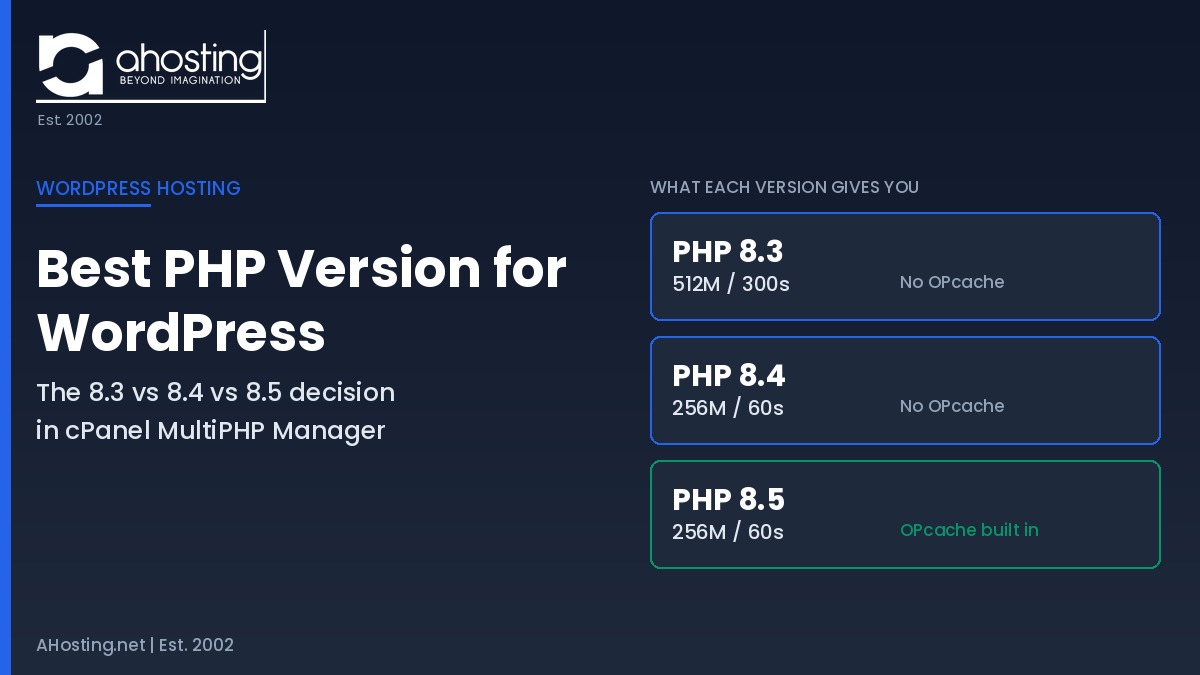
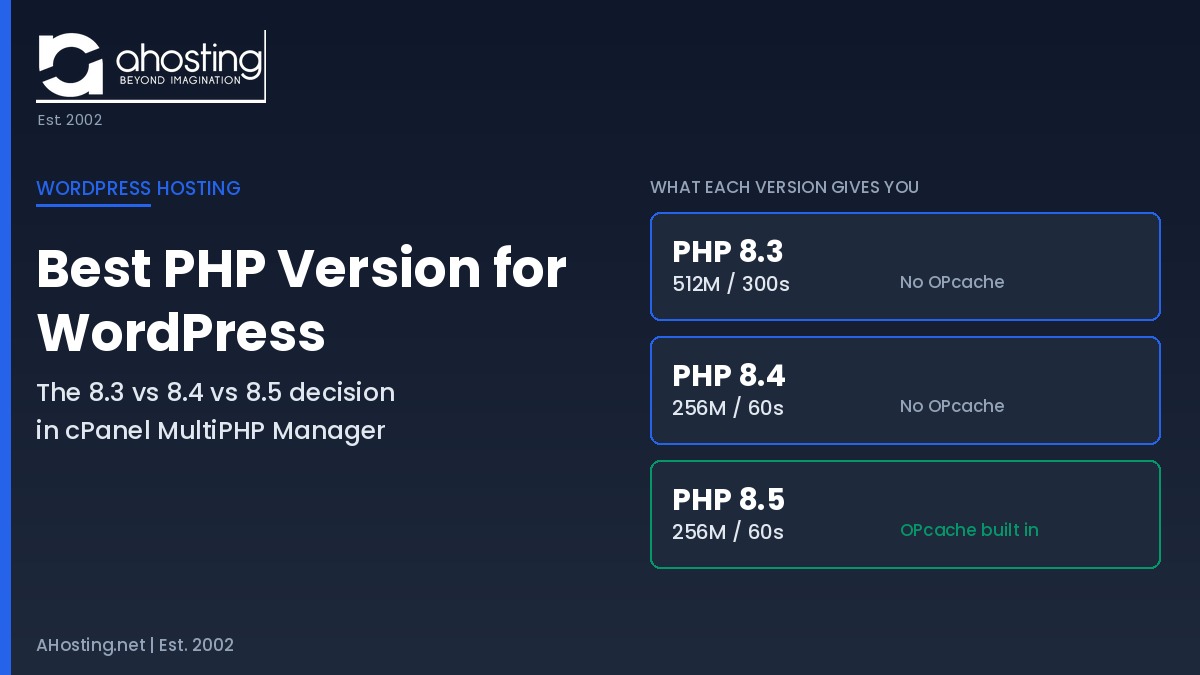
    Full root access lets you install and configure Redis, set PHP versions per site, tune MySQL buffer settings, manage firewall rules, and deploy custom software — none of which is possible on shared hosting. If your WordPress workload has outgrown the shared constraint, root access is what gives you the tools to build the right server configuration around it. The ability to configure PHP 8.3 or PHP 8.4 independently per site is particularly valuable when managing a mixed set of WordPress installations with different plugin compatibility requirements. For reference, the WordPress 7.0 hosting requirements include PHP 8.3 as the recommended minimum.

    AHosting WordPress VPS Hosting Plans: What Each Tier Handles

    AHosting WordPress VPS Hosting plans start at $8.79/month and use KVM virtualization for true hardware-level isolation. Every plan includes a free dedicated IP, free SSL, SSD storage, and 24/7 expert support with average response times under 5 minutes. The table below maps each plan to typical WordPress use cases.

    PlanvCPURAMStorageTrafficPriceBest For
    KVM-224 GB50 GB SSD4 TBFrom $8.79/moSingle WordPress site outgrowing shared hosting; first VPS upgrade
    KVM-4 ⭐48 GB75 GB SSD6 TBFrom $16.79/moWooCommerce stores; 3–5 WordPress sites; growing business sites
    KVM-8816 GB100 GB SSD8 TBFrom $28.79/moHigh-traffic WordPress sites; 5–10 sites; Redis + full optimization stack
    KVM-161632 GB150 GB SSD10 TBFrom $44.79/moAgency multi-site networks; enterprise WordPress; video/media sites

    All plans use KVM virtualization with guaranteed resources — no resource sharing with neighbors, no artificial performance throttling, and no usage warnings. Since 2002, AHosting has configured and supported thousands of WordPress VPS Hosting migrations for WordPress site owners at every stage of growth.

    WordPress VPS Hosting Upgrade Readiness Checker

    Answer the five questions below to get an instant assessment of whether your site is ready to upgrade from shared hosting to WordPress VPS hosting. The checker maps your answers directly to the seven upgrade signals covered above.

    WordPress VPS Hosting Readiness Checker

    5 questions — instant upgrade assessment

    + Your shared hosting is still working for you

    Your current scores suggest shared hosting is meeting your needs right now. Monitor TTFB monthly and revisit this checklist when your traffic grows or you add WooCommerce. When the signals appear, you’ll know exactly what they mean.

    Watch: Early upgrade signals are present

    One or more signals suggest your site is approaching shared hosting limits. This is the right time to evaluate VPS options — before the constraints become visitor-facing problems. The KVM-2 plan at $8.79/month is a low-risk starting point.

    View VPS Plans

    Upgrade: Your site has outgrown shared hosting

    Multiple signals confirm that shared hosting constraints are actively limiting your WordPress performance. Upgrading to a VPS will resolve the bottlenecks you are experiencing. Start with the KVM-4 (8 GB RAM) for most growing WordPress sites.

    See KVM VPS Plans from $8.79/mo

    A Practical Checklist: Is Your WordPress Site Ready to Upgrade?

    Run through the checklist below before committing to an upgrade. Each item maps to a specific shared-hosting constraint. If you check three or more, the upgrade economics are likely favorable regardless of the cost difference.

    • Uncached TTFB above 400ms on WebPageTest (test with all caching plugins deactivated)
    • Traffic spikes — even moderate ones — slow or crash the site
    • PHP memory limit errors appear in your error log or Site Health screen
    • Your hosting provider has warned you about resource usage
    • WooCommerce checkout produces timeouts or failed transactions during busy periods
    • Scheduled backups have failed or produced corrupt archives
    • You manage three or more active WordPress installations
    • You need Redis, a custom PHP version, or server-level configuration access
    • Your site handles sensitive customer data that requires strict file-system isolation

    The upgrade itself is straightforward. A standard WordPress migration to a VPS involves exporting the database, copying files, configuring the new server stack, importing the database, updating wp-config.php with new credentials, and pointing DNS only after the new site is confirmed working. Most migrations take two to four hours and complete with zero visitor-facing downtime.

    Frequently Asked Questions: WordPress VPS Hosting

    What is WordPress VPS hosting?

    Specifically, WordPress VPS hosting gives your site a private, isolated slice of a physical server with guaranteed CPU, RAM, and SSD storage that no other account can touch. Unlike shared hosting — where dozens of sites compete for the same resource pool — a VPS ensures your WordPress performance stays consistent regardless of what your neighbors do. KVM-based VPS plans use hardware virtualization so that isolation is enforced at the hypervisor level, not by software quotas that can be exceeded.

    How do I know when to upgrade from shared to VPS hosting?

    Generally, the clearest signals are: your TTFB regularly exceeds 600ms, traffic spikes crash or slow your site, you hit PHP memory limits repeatedly, your WooCommerce checkout times out, your host warns you about resource overuse, your scheduled jobs fail silently, or you are managing more than three active WordPress sites on one account. Any three of these signals together is a strong case for upgrading.

    How much RAM does a WordPress VPS need?

    For most WordPress sites, 4 GB of RAM is the functional starting point that handles typical plugin stacks, WooCommerce, and moderate traffic without memory pressure. However, sites running WooCommerce with heavy traffic, multiple plugins, or Redis object caching benefit significantly from 8 GB. The AHosting KVM-2 plan (4 GB RAM) suits sites that have just outgrown shared hosting, while the KVM-4 (8 GB RAM) handles the majority of growing business sites comfortably.

    Will migrating to VPS hosting break my WordPress site?

    Typically, a properly executed VPS migration does not break a WordPress site. The standard process — export database, copy files, import to new server, update wp-config.php with new database credentials, test on a staging URL before pointing DNS — keeps your live site running throughout. Most migrations take two to four hours from start to finish, with zero downtime if DNS is changed only after the new site is verified.

    Is managed VPS hosting better than unmanaged for WordPress?

    Indeed, for most WordPress site owners, managed VPS hosting is the better choice. Managed plans handle server OS updates, security patching, firewall configuration, and monitoring — tasks that require server-level expertise. Unmanaged VPS plans cost less but require you to configure and maintain the entire server stack yourself. If you are not comfortable with Linux command-line administration, a managed plan removes significant technical risk from your WordPress operation.

    What is TTFB and why does it matter for WordPress?

    Specifically, TTFB (Time to First Byte) measures the time from a browser’s request to the moment the first byte of the response arrives. For WordPress sites, it is the primary indicator of server-side health — covering PHP execution time, database query time, and server queue wait time combined. Google’s Core Web Vitals threshold for a good TTFB is under 800ms; leading hosting providers target under 200ms. A TTFB above 600ms on a clean WordPress installation almost always points to server-side constraints, not plugin configuration.

    Can I run WooCommerce on shared hosting?

    Technically yes, but in practice shared hosting struggles with WooCommerce under real customer traffic. WooCommerce checkout pages bypass page caching entirely because they contain dynamic cart and session data, which means every checkout request hits PHP and the database directly. On shared hosting with limited PHP workers, this creates checkout timeouts and abandoned carts during any meaningful traffic volume. Furthermore, WooCommerce requires persistent session storage and frequent database writes — workloads that benefit substantially from the dedicated RAM and isolated database resources that VPS hosting provides.

    How many WordPress sites can I run on a VPS?

    Notably, the number depends on the traffic and resource demand of each site rather than a fixed count. A 4 GB RAM VPS comfortably runs three to five low-to-medium traffic WordPress sites. An 8 GB RAM VPS handles five to fifteen sites depending on their plugin load and traffic patterns. Unlike shared hosting plans that impose artificial site-count limits, a VPS lets you add sites until you approach actual resource limits — at which point you upgrade the plan or move high-traffic sites to their own servers.

    Does VPS hosting improve WordPress SEO rankings?

    Directly, VPS hosting improves the server-side performance metrics that Google measures as Core Web Vitals ranking signals — specifically TTFB (which feeds into LCP) and overall page responsiveness (INP). Sites that consistently fail Core Web Vitals due to slow server response times are at a ranking disadvantage regardless of how well their content is optimized. Moreover, a dedicated IP on your VPS removes the IP-reputation risk that comes with shared hosting, where a neighbor’s spam activity can slow AI crawler indexing of your content.

    What is the difference between KVM VPS and shared hosting for WordPress?

    Fundamentally, KVM (Kernel-based Virtual Machine) VPS hosting uses hardware-level virtualization to create a fully isolated server environment with guaranteed, dedicated resources — CPU cores, RAM, and SSD storage that cannot be consumed by other accounts. Shared hosting places multiple accounts on one server with no resource guarantees; a busy neighbor can directly degrade your WordPress performance. KVM VPS hosting also gives you root access, letting you configure PHP versions, install server-level software like Redis, and optimize the entire stack for your specific WordPress workload.

    June 4, 2026
  • WordPress Multisite Hosting: What Your Server Actually Needs in 2026

    WordPress Multisite Hosting: What Your Server Actually Needs in 2026

    • What Is WordPress Multisite Hosting? (And Why Hosting Changes Everything)
      • The Three Network Architectures: Subdomains, Subdirectories, and Domain Mapping
    • The Server Requirements Most WordPress Multisite Hosting Guides Skip
    • WordPress Multisite Hosting: What Shared Hosting Can (and Cannot) Do
      • PHP Worker Allocation: The Network's Hidden Bottleneck
      • Database Table Growth: What Happens as Your Network Scales
      • Wildcard DNS and SSL: The Requirements That Rule Out Many Hosts
    • When to Upgrade from Shared to VPS for Your WordPress Multisite Hosting
    • Multisite vs. Reseller Hosting: Which Is Right for Agencies?
    • AHosting's Infrastructure for WordPress Multisite Hosting
    • A Practical Checklist: Is Your Hosting Multisite-Ready?
    • The AHosting Advantage: 22 Years of WordPress Hosting Infrastructure
    • Frequently Asked Questions: WordPress Multisite Hosting
      • What is WordPress Multisite hosting?
      • Does shared hosting support WordPress Multisite?
      • What are the minimum server requirements for WordPress Multisite?
      • What is the difference between Multisite subdomain and subdirectory mode?
      • How many PHP workers does a WordPress Multisite network need?
      • When should I use Reseller Hosting instead of WordPress Multisite?
      • Does WordPress Multisite affect SEO?
      • Can I use WordPress Multisite with a dedicated IP address?
      • What happens to my WordPress Multisite network if the server goes down?
      • How do I migrate an existing WordPress site into a Multisite network?
    TL;DR

    WordPress Multisite hosting requires wildcard DNS, adequate PHP workers, and a host that supports subdomain networks. Shared hosting works for small subdirectory networks but hits limits fast. At five or more active sites with real traffic, upgrade to a VPS — or switch to Reseller Hosting if you manage independent client sites that need full isolation.

    Listen to WordPress Multisite Hosting – Part of the Ahosting WordPress Podcast Series

    WordPress Multisite hosting sounds simple until you try to set it up on a shared plan and discover your host does not support wildcard DNS, your SSL certificate does not cover subsites, or your server runs out of PHP workers the moment three sites receive traffic at the same time. Most guides explain what Multisite is. This one explains what your server actually needs to run it — and when a different hosting architecture makes more sense.

    After more than two decades hosting WordPress sites, AHosting has seen every variation of Multisite deployment: universities managing department portals, franchise businesses publishing regional landing pages, and agencies who thought Multisite was the right tool before realizing their clients needed full isolation. The right answer depends entirely on your use case and your server environment.

    What Is WordPress Multisite Hosting? (And Why Hosting Changes Everything)

    WordPress Multisite is a built-in WordPress feature that lets a single WordPress installation power multiple websites simultaneously. All subsites share the same WordPress core files, plugins, and themes — but each site gets its own content, settings, and users. The entire network is managed from a single Super Admin dashboard. Multisite has been part of WordPress core since version 3.0, when it absorbed the separate WordPress MU (multi-user) project.

    The reason hosting changes everything is that WordPress Multisite hosting does not just multiply your content — it multiplies your server load. Every active subsite generates its own database queries, PHP execution, and file I/O. A server that handles one WordPress site smoothly may stagger under five. The hosting requirements for a Multisite network are fundamentally different from hosting a single site, and most budget shared plans are not designed for them.

    The Three Network Architectures: Subdomains, Subdirectories, and Domain Mapping

    WordPress Multisite supports three URL structures, and your hosting environment must match whichever you choose. Subdirectory mode creates sites as yourdomain.com/site1/ and is the easiest to configure — it works on any standard Apache or Nginx host with mod_rewrite enabled, requires no wildcard DNS, and uses your existing SSL certificate. Subdomain mode creates sites as site1.yourdomain.com and requires a wildcard DNS record (*.yourdomain.com pointing to your server’s IP) plus a wildcard SSL certificate covering all subsites. Domain mapping goes further, letting each subsite use an entirely separate domain — clientone.com, clienttwo.com — which requires pointing each domain’s DNS to your server and provisioning individual SSL certificates. Domain mapping is typically handled by a plugin such as Mercator or via server-level virtual host configuration.

    The architecture choice has direct hosting implications. Subdirectory mode is the lowest-friction option. Subdomain mode demands wildcard DNS support from your host — a feature that many basic shared plans either omit or route through support tickets. Domain mapping requires you to control DNS for each mapped domain and have a host that can provision or install SSL certificates per domain efficiently.

    The Server Requirements Most WordPress Multisite Hosting Guides Skip

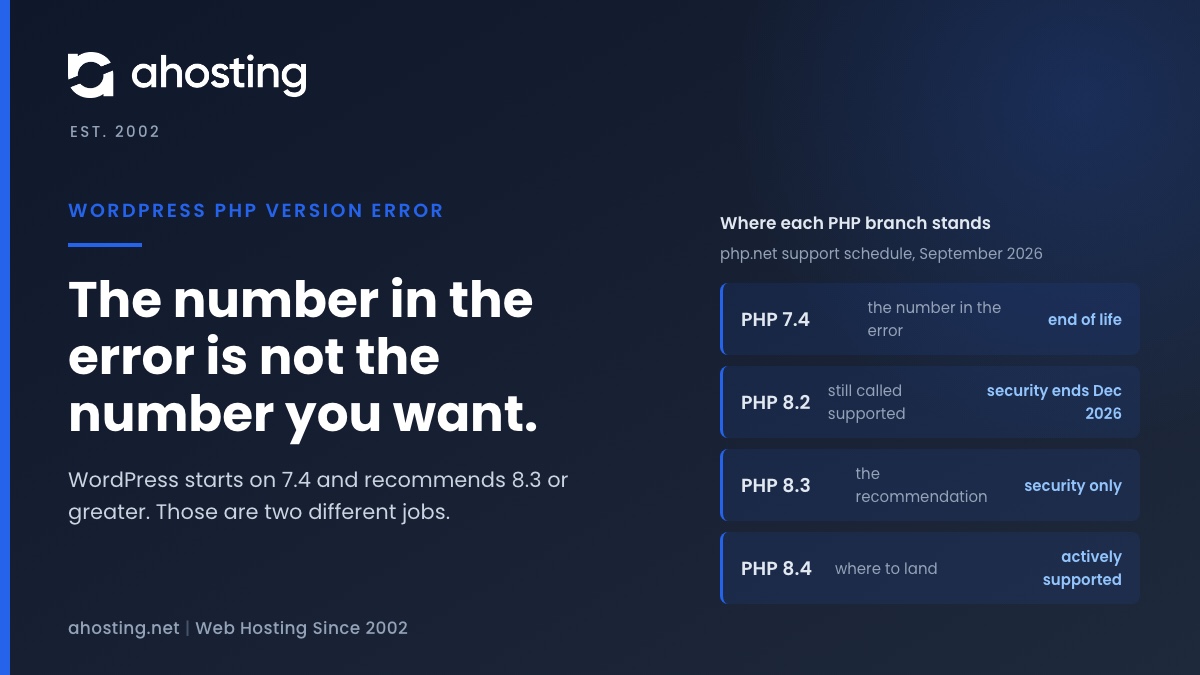
    The WordPress server requirements list PHP 7.4 and MySQL 5.7 as minimums. Those numbers are the floor for a single installation. For a Multisite network in 2026, they are inadequate. Here is what you actually need.

    RequirementBare MinimumRecommended for Multisite 2026
    PHP Version7.4 (EOL — no security patches)PHP 8.1 minimum; PHP 8.3 preferred
    DatabaseMySQL 5.7 / MariaDB 10.4MariaDB 10.6+ with InnoDB and query cache
    Web ServerApache with mod_rewriteLiteSpeed or Nginx for better worker efficiency
    PHP Workers4 (typical shared plan)8+ for networks of 5+ sites under load
    RAM per PHP process64 MB (WP default)256 MB minimum; 512 MB for larger networks
    SSL CertificateSingle-domainWildcard (subdomain mode) or multi-SAN (domain mapping)
    DNSStandard A recordsWildcard A record for subdomain networks
    Disk I/OStandard HDD (shared)SSD or NVMe — Multisite media grows fast

    One requirement stands out above the others: PHP memory limit. WordPress sets a default of 64 MB, which is already low for plugin-heavy single sites. Multisite loads every network-activated plugin on every page request across every subsite. With a modest set of network-activated plugins — security, caching, SEO, forms — you will exceed 64 MB easily. Set your PHP memory limit to at least 256 MB in wp-config.php with define('WP_MEMORY_LIMIT', '256M');.

    Infographic - WordPress Multisite Hosting
    WordPress Multisite Hosting – Infographic | Ahosting

    WordPress Multisite Hosting: What Shared Hosting Can (and Cannot) Do

    Shared hosting can run a WordPress Multisite network — with important caveats. The architecture that works on shared hosting and the architecture that does not are determined by three specific constraints: PHP workers, wildcard DNS support, and database table growth.

    PHP Worker Allocation: The Network’s Hidden Bottleneck

    On a shared hosting plan, your account receives a fixed number of PHP workers — processes that execute PHP code for your site’s visitors. A typical shared plan provides four to six workers. Each incoming request to any site in your network occupies one worker until the request is complete. When all workers are busy, additional requests queue or return a 503 error.

    A single WordPress site under modest traffic handles four workers fine because most requests are served from cache and never reach PHP. A Multisite network has more surface area: traffic spikes on any subsite consume workers that other subsites in the network need simultaneously. If subsite A gets a traffic surge and exhausts the worker pool, subsites B through E slow to a crawl or stop responding entirely — even if those sites have zero individual traffic. This is the shared-worker problem, and it is the most common reason Multisite networks degrade on shared plans.

    The AHosting cPanel environment uses CloudLinux with LiteSpeed and PHP 8.1 via lsapi. CloudLinux’s CageFS isolates each cPanel account’s resources, which means that other users on the shared server cannot consume your PHP workers. However, your own worker pool is still shared across all subsites in your Multisite network. For networks of two or three low-traffic sites, this is acceptable. Beyond five active sites with real concurrent visitors, you need more workers than a shared plan provides.

    Database Table Growth: What Happens as Your Network Scales

    WordPress uses a standardized set of tables: wp_posts, wp_options, wp_users, and so on. In a Multisite network, each new subsite gets its own prefixed table set: wp_2_posts, wp_2_options, wp_3_posts, and so forth. The users and usermeta tables remain shared across the network, which is efficient but means user data from all subsites lives in one place.

    A network of ten subsites creates roughly 120 to 130 database tables in a single MySQL database. A network of fifty creates 600 or more. Shared hosting plans that enforce database size limits or table count restrictions will eventually hit these ceilings. More importantly, every query that joins across the shared users table adds overhead that grows with network size. For networks that will grow beyond twenty to thirty subsites, a dedicated database server or VPS with a properly tuned MariaDB configuration is the right choice.

    Wildcard DNS and SSL: The Requirements That Rule Out Many Hosts

    If you choose subdomain mode — the most common choice for university networks, franchise sites, and media platforms — your hosting account must support wildcard DNS and wildcard SSL. Wildcard DNS means a single DNS record (*.yourdomain.com → your server IP) routes all subdomains to your server automatically, so new subsites are reachable immediately after creation without adding individual DNS records. Wildcard SSL means a single certificate covers *.yourdomain.com, so every subsite gets HTTPS without manual certificate provisioning per site.

    Many shared hosting plans either do not support wildcard DNS configuration at all, restrict it to higher-tier plans, or require a support ticket. Wildcard SSL certificates via Let’s Encrypt require the DNS challenge validation method (certbot certonly --manual --preferred-challenges dns) rather than the standard HTTP challenge, because an HTTP challenge cannot validate *.yourdomain.com across all possible subdomains. Confirm your host supports both before choosing subdomain mode.

    When to Upgrade from Shared to VPS for Your WordPress Multisite Hosting

    The decision to move from shared to VPS hosting for your Multisite network is driven by five clear signals. When two or more of these apply, it is time to upgrade.

    Signal 1 — PHP worker exhaustion. Your server logs show 503 errors or queue timeouts during normal business hours, not just during traffic spikes. This means you have hit the worker ceiling on your shared plan and additional requests are being dropped.

    Signal 2 — Network size beyond ten subsites. Once your network exceeds ten active subsites, the database query volume, shared options table reads, and user table joins start creating measurable latency. A VPS with a dedicated MariaDB instance and Redis object caching eliminates this.

    Signal 3 — Wildcard SSL and DNS requirements unmet. Your host does not support wildcard DNS or wildcard SSL certificates, which means subdomain mode is not available and you are restricted to subdirectory mode indefinitely. A VPS gives you root access to configure both.

    Signal 4 — Plugin and theme customization per-site. You need different plugins active on different subsites, or site administrators need permission to install their own themes and plugins. Multisite’s network activation model restricts this by design — VPS hosting does not change that, but it does give you the server headroom to run the full plugin complement each subsite needs.

    Signal 5 — Core Web Vitals scores declining across subsites. If your Lighthouse scores show consistently high TTFB (above 200 ms) across the network, the bottleneck is server response time, not frontend optimization. Plugins cannot fix a hosting ceiling — the server is the floor that all performance rests on.

    Multisite vs. Reseller Hosting: Which Is Right for Agencies?

    This is the question agencies get wrong most often. WordPress Multisite looks like an elegant solution for managing multiple client sites — one dashboard, one plugin update cycle, one hosting bill. The problem is that Multisite is designed for networks of related sites under a single administrator, not for independent client businesses that happen to share a hosting provider.

    With WordPress Multisite hosting, a bad plugin update takes down every client simultaneously. A security breach on one subsite can expose user tables that contain data from every other subsite. Individual clients cannot independently back up, migrate, or transfer ownership of their site. These are not edge cases — they are architectural realities that agencies discover after client number four or five comes with demands that Multisite cannot accommodate.

    Reseller Hosting solves these problems by giving each client a separate cPanel account with isolated resources, independent database access, and the ability to manage their own site or hand it off to another hosting provider without touching any of your other clients. This is the correct architecture for agencies managing independent client sites. Check out our blog post on WordPress Reseller Hosting for more information.

    FactorWordPress MultisiteReseller Hosting
    Best forRelated sites, same org, shared adminIndependent client sites, agency model
    Client isolationNone — shared DB, shared filesFull — separate cPanel per client
    Plugin conflictsAffects entire networkContained per account
    Security breach scopeEntire network at riskIsolated to one account
    Client self-managementLimited — Super Admin controls plugins/themesFull — each client has cPanel access
    Site transfer/migrationComplex — must export from MultisiteSimple — standard cPanel transfer
    Billing per clientManual — not built-inNative WHMCS integration available
    Server upgrade pathSingle account upgradeUpgrade reseller plan or add accounts
    Dedicated IPOne IP for the entire networkConfigurable per account
    Use case examplesUniversity depts, franchises, media networksWeb design agencies, freelancers, MSPs

    The deciding question is simple: do your subsites share a theme, a plugin set, and a user base — or are they independent businesses that happen to be your clients? If the former, Multisite is the right architecture. If the latter, Reseller Hosting is the right one. The two are not interchangeable.

    AHosting’s Infrastructure for WordPress Multisite Hosting

    AHosting has been running WordPress hosting since 2002, which means we have seen Multisite networks in every configuration — from five-subsite university portals to hundred-domain media networks. Our shared WordPress hosting plans run PHP 8.1 via lsapi on LiteSpeed with CloudLinux CageFS isolation, giving each account protected resource pools that prevent noisy neighbors from impacting your network. All plans include a dedicated IP address as standard — a meaningful advantage for subdomain Multisite networks because your wildcard SSL resolves on a dedicated address rather than a shared IP block.

    For networks that have outgrown shared hosting, our VPS hosting plans provide root access to configure wildcard DNS, install Redis for object caching, tune MariaDB for Multisite’s table-heavy schema, and allocate dedicated PHP workers. For agencies building client portfolios, our Reseller Hosting plans include WHM and full cPanel reseller capabilities with WHMCS billing integration — the correct foundation for the independent-client-site model. AHosting’s 22 years of hosting experience means our support team understands Multisite configurations that generic hosts treat as unsupported edge cases.

    One piece of AHosting-specific context worth noting: our cPanel stack uses LiteSpeed Web Server rather than Apache. LiteSpeed’s per-process worker model is more efficient under the concurrent-subsite load pattern that Multisite generates. Where Apache spawns a new process per request under heavy load, LiteSpeed handles multiple requests per worker thread — which means your worker allocation stretches further on our shared plans than it would on Apache-based shared hosting.

    A Practical Checklist: Is Your Hosting Multisite-Ready?

    Before enabling Multisite on your WordPress installation, verify each of the following against your hosting plan. A single missing item can block the architecture you need.

    WordPress Multisite Hosting Readiness Checker

    Answer five questions about your current hosting environment to get a readiness score.

    1. What type of network do you plan to create?

    2. Does your host support wildcard DNS (*.yourdomain.com)?

    3. What is your PHP version?

    4. How many PHP workers does your plan provide?

    5. What is the primary goal of your Multisite network?

    One additional item worth confirming before enabling Multisite: object caching. WordPress’s built-in object cache is non-persistent — it resets on every page load. For a Multisite network, where the wp_options table and user meta tables are queried on every request across every subsite, a persistent object cache backed by Redis or Memcached dramatically reduces database load. Redis object caching is available on our VPS plans and can be configured through the WordPress Redis Object Cache plugin once your server has Redis installed.

    The AHosting Advantage: 22 Years of WordPress Hosting Infrastructure

    AHosting has been running WordPress infrastructure since 2002 — before WordPress reached version 1.0. That history means our team has configured Multisite networks at every scale, debugged wildcard DNS failures, resolved wildcard SSL provisioning issues, and tuned MariaDB for the table-heavy schema that grows with every new subsite. We do not route Multisite configurations through a generic support queue; our team understands the architecture.

    Every WordPress hosting plan at AHosting includes a dedicated IP address as standard — no add-on fee. For Multisite networks in subdomain mode, this means your wildcard SSL certificate resolves on a consistent, dedicated address that is never shared with other hosting customers. Our LiteSpeed + CloudLinux + PHP 8.1 lsapi stack gives Multisite networks better worker efficiency than Apache-based shared plans at comparable price points.

    Whether you are building a Multisite network for a franchise, a university department system, or a media publication, or you are an agency realizing that Reseller Hosting is the better fit for your client model, AHosting’s infrastructure is built for the full range of WordPress architectures — not just single-site shared plans.

    Frequently Asked Questions: WordPress Multisite Hosting

    What is WordPress Multisite hosting?

    WordPress Multisite hosting is a server configuration that supports running multiple WordPress sites from a single WordPress installation. It requires wildcard DNS, a compatible web server, adequate PHP worker allocation, and a hosting plan that does not restrict subdomain creation or database table growth.

    Does shared hosting support WordPress Multisite?

    Some shared hosting plans do support WordPress Multisite in subdirectory mode. However, subdomain-based Multisite requires wildcard DNS, which many shared hosts either do not offer or charge extra for. Resource limits on shared plans — particularly PHP workers — also become a bottleneck as your network grows beyond five active sites.

    What are the minimum server requirements for WordPress Multisite?

    The minimum requirements for WordPress Multisite hosting are PHP 8.1 or higher, MySQL 5.7 or MariaDB 10.4 or higher, Apache or Nginx with mod_rewrite enabled, and sufficient PHP workers for simultaneous network traffic. For subdomain networks, wildcard DNS and a wildcard SSL certificate are also required.

    What is the difference between Multisite subdomain and subdirectory mode?

    Subdirectory mode creates sites as yourdomain.com/site1/ and works on any standard host. Subdomain mode creates sites as site1.yourdomain.com and requires wildcard DNS records and a wildcard SSL certificate. Domain mapping — where each subsite uses a completely separate domain — requires an additional plugin or server-level configuration.

    How many PHP workers does a WordPress Multisite network need?

    Each active site in a Multisite network consumes PHP workers just like a standalone WordPress installation. A network of five active sites under concurrent traffic needs at least 8 to 10 PHP workers to avoid queue buildup. Shared hosting plans typically provide 4 to 6 workers per account, which is adequate for low-traffic networks but insufficient for networks receiving simultaneous traffic across multiple subsites.

    When should I use Reseller Hosting instead of WordPress Multisite?

    Reseller Hosting is the better choice when you manage independent client websites that need separate cPanel accounts, separate backups, separate plugin sets, and full client isolation. Multisite is designed for closely related sites that share themes and plugins under one administrator. If a plugin conflict or security issue on one subsite would be unacceptable for other clients, Reseller Hosting provides the isolation that Multisite cannot.

    Does WordPress Multisite affect SEO?

    WordPress Multisite itself does not harm SEO. Each subsite can rank independently in search engines. However, shared server resources that cause slow load times across the network will hurt Core Web Vitals scores on every subsite. Subdirectory-mode networks share the root domain’s authority, which can be beneficial. Subdomain-mode networks are treated as separate sites by Google and must build authority independently.

    Can I use WordPress Multisite with a dedicated IP address?

    Yes, WordPress Multisite works with a dedicated IP address. In subdomain mode, a wildcard SSL certificate issued to *.yourdomain.com covers all subsites on that dedicated IP. For domain-mapped networks where each subsite uses a separate domain, each domain needs its own SSL certificate. AHosting includes a dedicated IP address as standard on all WordPress hosting plans.

    What happens to my WordPress Multisite network if the server goes down?

    Because all subsites in a WordPress Multisite network share a single WordPress installation and database, a server outage or database failure takes down every site in the network simultaneously. This is the core risk of Multisite compared to separate installations or Reseller Hosting, where each account is isolated. Choosing a host with a strong uptime guarantee and automated backups is essential for Multisite networks.

    How do I migrate an existing WordPress site into a Multisite network?

    First, enable Multisite on the WordPress installation by editing wp-config.php and .htaccess. Then create a new subsite in the network and use a plugin such as All-in-One WP Migration or WP Migrate to import the existing site’s content and database into the subsite. Media files and user accounts require special handling since Multisite reorganizes the uploads directory structure and merges user tables.

    June 3, 2026
  • WordPress Membership Site Hosting: The 500-User Threshold You Need to Know

    WordPress Membership Site Hosting: The 500-User Threshold You Need to Know

    • Why Membership Sites Break on Standard Shared Hosting
      • The PHP Worker Ceiling
      • Database Overload Without Object Caching
    • WordPress Membership Site Hosting Requirements in 2026
      • First Requirement: Dedicated IP Address
      • Second Requirement: PHP 8.3 or Higher
      • Third Requirement: Redis Object Caching
      • Fourth Requirement: Server Isolation
    • Hosting Spec Comparison: Membership Site vs Blog
    • When to Upgrade from Shared to VPS Hosting for WordPress Membership Site Hosting
    • AHosting and WordPress Membership Site Hosting
    • The Membership Site Hosting Readiness Checklist
    • Membership Plugin Hosting Considerations
      • MemberPress
      • WooCommerce Memberships
      • LearnDash and LifterLMS
    • The Hosting Plan Selector for Membership Sites
    • Conclusion: Match Your Hosting to Your Membership Architecture
    • Frequently Asked Questions: WordPress Membership Site Hosting
      • What hosting is best for a WordPress membership site?
      • Why does a membership site need more hosting resources than a regular WordPress blog?
      • How much RAM does a WordPress membership site need?
      • Does a membership site need a dedicated IP address?
      • What PHP version should a WordPress membership site use in 2026?
      • Do I need a VPS for a WordPress membership site?
      • What is the two-audience problem in membership site hosting?
      • What is CloudLinux CageFS and why does it matter for membership sites?
      • How does Redis help a WordPress membership site?
      • What plugins work best for WordPress membership sites in 2026?
    TL;DR

    WordPress membership site hosting must handle uncached logged-in traffic — something most shared hosts cannot do. In 2026, you need a dedicated IP address, at least 4 PHP workers, Redis object caching, and PHP 8.3+. AHosting WordPress plans include a dedicated IP on every plan, CloudLinux CageFS isolation, and the server stack membership sites actually require.

    Listen to the Podcast – Part of the Ahosting WordPress Hosting Series

    WordPress membership site hosting is one of the most misunderstood topics in the WordPress ecosystem. Most hosting guides treat all WordPress sites as equivalent — but membership sites behave nothing like blogs or brochure sites, and the hosting requirements are fundamentally different. If your members experience slow load times, login failures during traffic spikes, or emails landing in spam, the cause is almost always hosting infrastructure, not plugins or themes.

    This guide explains exactly what WordPress membership site hosting needs to do in 2026, which features to prioritize, and where the hidden failure points are on underpowered plans. AHosting has been providing WordPress hosting since 2002, and the patterns we see in failing membership site configurations are remarkably consistent.

    Why Membership Sites Break on Standard Shared Hosting

    Standard shared hosting is engineered for a specific workload: anonymous visitors requesting cached pages. A well-configured shared host can serve tens of thousands of monthly visits from static HTML cache, keeping CPU and PHP worker usage extremely low. This works perfectly for blogs, portfolio sites, and informational pages. Membership sites blow this model apart.

    Every logged-in member bypasses page cache entirely. WordPress cannot serve a personalized member dashboard, gated content page, or account area from a static cache file — the content changes per user. So every page request from every logged-in member becomes a live PHP execution: WordPress loads, the membership plugin checks entitlements, the database runs queries, and the server assembles the response from scratch. On a shared server with 4 PHP workers and 500 MB of RAM, 10 simultaneous logged-in members can exhaust all available workers and queue requests behind each other.

    This is the two-audience problem. Your public-facing pages load quickly (from cache), but every logged-in member hits raw PHP. Hosts that optimize for cached traffic look fast in marketing benchmarks — and fall apart the moment your launch day spike sends 50 members to their dashboards simultaneously.

    The PHP Worker Ceiling

    PHP workers are the threads that process WordPress requests. Each simultaneous uncached request consumes one PHP worker for the duration of its execution. On shared hosting, PHP workers are typically capped at 2-4 per account. When those workers are busy, new requests queue. When the queue fills, visitors see 503 errors or timeouts. A membership site with 200 concurrent logged-in users requires 200 available PHP workers — a number most shared plans cannot provide.

    Database Overload Without Object Caching

    MemberPress, WooCommerce Memberships, and similar plugins run multiple database queries per page load to verify membership status, check access rules, and retrieve member-specific data. Without Redis or Memcached object caching, every query hits the database engine directly. Under concurrent load, the database becomes the bottleneck. Redis stores query results in RAM and serves repeated queries instantly, reducing database load by 60-80% on typical membership sites.

    The Two-Audience Problem in WordPress Membership Site Hosting Public Visitors (Anonymous) PAGE CACHE HIT Static HTML served instantly Zero PHP workers consumed TTFB typically <100ms 90%+ of requests served from cache Shared hosting handles this well Logged-In Members CACHE BYPASSED Live PHP execution every time 1 PHP worker per member request Database queries on every load 100% of member requests hit live PHP Shared hosting fails here vs ahosting.net — Est. 2002 — WordPress Membership Site Hosting Guide 2026

    WordPress Membership Site Hosting Requirements in 2026

    Choosing the right hosting for a WordPress membership site starts with understanding four non-negotiable requirements. These are not upsells — they are the minimum functional spec for a site where logged-in users are your product.

    First Requirement: Dedicated IP Address

    A dedicated IP address is essential for membership sites because member-facing email is mission-critical. Welcome emails, payment confirmations, password resets, and access notifications go directly to your members’ inboxes — or to spam, depending on your IP reputation. Shared IP addresses on crowded hosting plans are routinely blacklisted due to other tenants’ behavior. A dedicated IP lets you build your own sending reputation and dramatically improves deliverability. AHosting includes a dedicated IP on all WordPress hosting plans.

    Second Requirement: PHP 8.3 or Higher

    PHP 8.1 reached end-of-life on December 31, 2025. Sites still running PHP 8.1 receive no security patches — any vulnerability discovered after that date stays permanently unpatched. For 2026, PHP 8.3 is the minimum for production membership sites, with PHP 8.4 available as the performance-forward option. According to independent benchmarks, PHP 8.4 handles approximately 21% more WooCommerce requests per second than PHP 7.4 — a meaningful throughput gain for membership sites under concurrent load. Your hosting must let you select your PHP version and upgrade it without a support ticket.

    Third Requirement: Redis Object Caching

    Redis stores the results of frequently repeated database queries in server RAM. For a membership site, the same entitlement checks, user role lookups, and content restriction queries fire on every page load for every member. Without object caching, each query goes to the database. With Redis, the first query populates the cache, and subsequent queries return results from memory in microseconds. The practical result is that your database handles a fraction of the requests it would without Redis, keeping response times stable even as concurrent member count grows.

    Fourth Requirement: Server Isolation

    Server isolation prevents a poorly behaved or compromised neighbor on a shared server from affecting your site’s performance or security. CloudLinux CageFS, which AHosting deploys across its shared infrastructure, creates a virtualized file system container for each account. Your processes cannot see or be affected by other accounts on the same server. For membership sites storing subscriber data, payment records, and gated content, this isolation is a fundamental security requirement, not an optional premium feature.

    Hosting Spec Comparison: Membership Site vs Blog

    The table below shows why a WordPress membership site hosting plan adequate for a blog can be catastrophically underpowered for a membership site of equivalent monthly traffic.

    RequirementWordPress Blog (10K visits/mo)Membership Site (10K visits/mo)
    PHP workers needed2-4 (most traffic cached)8-16 (all member traffic uncached)
    RAM recommended512 MB – 1 GB2 – 4 GB
    Object cachingNice to haveNon-negotiable
    Dedicated IPOptionalRequired (email deliverability)
    Database queries per page20-40 (cached after first load)60-120 (live every time)
    PHP version8.1+ acceptable8.3+ required (8.1 is EOL)
    Server isolationStandard shared acceptableCageFS or dedicated resources

    When to Upgrade from Shared to VPS Hosting for WordPress Membership Site Hosting

    Not every membership site needs a VPS from launch day. The right starting point depends on your concurrent member load, not your total member count. Total members is a marketing number. Concurrent active members is a server spec.

    A membership site with 500 registered members but a peak of 15 simultaneous logins can run comfortably on a well-resourced shared WordPress hosting plan. A site with 2,000 members and a Monday-morning content drop that brings 300 members online simultaneously needs a VPS with dedicated resources for adequate WordPress membership site hosting. The signal to watch is not your plan’s stated limits — it is your PHP worker exhaustion events, measured as 503 errors in your server logs, and your database query time under peak load.

    The upgrade path is clear: start on a WordPress shared plan with a dedicated IP and Redis, monitor concurrent user peaks and PHP worker usage, and move to a VPS when worker exhaustion becomes a regular occurrence. A VPS lets you configure PHP-FPM worker pools precisely, allocate dedicated RAM for Redis, and scale without the constraints of a shared environment.

    AHosting and WordPress Membership Site Hosting

    AHosting has provided managed WordPress hosting since 2002 — years before most current hosting providers existed. The infrastructure decisions made across those two decades reflect real-world WordPress at scale, not marketing checklists.

    Every AHosting WordPress plan includes a dedicated IP address as standard. This is not available as an add-on or reserved for premium tiers — it is included because email deliverability matters. Every plan also runs on CloudLinux CageFS, meaning your account operates in its own isolated container regardless of what other tenants on the shared server do. PHP 8.3 is deployed across AHosting WordPress plans, with PHP 8.4 available through your hosting panel for performance-forward configurations.

    For membership sites that have outgrown shared infrastructure, AHosting dedicated server plans provide dedicated RAM and CPU resources, full root access for PHP-FPM configuration, and the same CageFS isolation model at a dedicated resource level. You control the PHP worker count, the Redis memory allocation, and the database configuration — the three variables that determine membership site performance under load.

    AHosting also offers WooCommerce hosting specifically optimized for sites running WooCommerce Memberships or WooCommerce Subscriptions — the two most common e-commerce-driven membership plugins in 2026.

    The Membership Site Hosting Readiness Checklist

    Before launching or migrating a WordPress membership site, verify your hosting meets every item on this list. Missing any single item is the most common cause of membership site performance failures.

    Membership Site Hosting Readiness Checklist

    +Dedicated IP address included on your plan (not shared with other accounts)
    +PHP 8.3 or higher available and selected in your hosting control panel
    +Redis or Memcached object caching available (confirm with your host — most shared plans do not include it)
    +PHP worker count: minimum 4 for shared, minimum 8 for concurrent member loads above 50
    +Server isolation: CloudLinux CageFS or equivalent (prevents neighbor impact on your site)
    +SSL certificate included (required for member login pages and payment processing)
    +Automated daily backups (membership data loss is not recoverable from plugin caches)
    +NVMe SSD storage (HDD storage creates database query latency that no caching layer fully compensates)

    Membership Plugin Hosting Considerations

    Different membership plugins have different hosting footprints. Understanding the overhead of your specific plugin stack helps you size hosting correctly before launch rather than after a performance crisis.

    MemberPress

    MemberPress is a standalone membership plugin with a relatively lean database footprint. It adds access rules, member management, and subscription handling without requiring WooCommerce. The hosting overhead comes primarily from access rule checks on every page load for logged-in users. Redis object caching significantly reduces this overhead. MemberPress works well on a WordPress shared plan with Redis for sites under 200 concurrent members.

    WooCommerce Memberships

    WooCommerce Memberships runs on top of WooCommerce, which adds substantial database overhead. Every page load triggers WooCommerce cart fragment requests in addition to membership checks. According to WooCommerce’s High Performance Order Storage (HPOS) documentation, HPOS, introduced in WooCommerce 8.2 and now standard, significantly reduces database load on high-volume stores — but the underlying WooCommerce stack still requires more PHP memory and database capacity than a standalone membership plugin. Budget for at least 2 GB of RAM and a dedicated IP on any WooCommerce Memberships installation.

    LearnDash and LifterLMS

    LMS plugins add quiz engines, progress tracking, and course completion logic on top of standard membership functions. These create additional database writes — each quiz submission, lesson completion, and course progress update is a database write event, not just a read. High-volume LMS sites need a VPS with dedicated database resources. You can read our related guide on using FFmpeg hosting to deliver video content for LMS courses requiring video processing.

    The Hosting Plan Selector for Membership Sites

    The interactive tool below helps you identify the right starting point based on your membership site’s current or expected load.

    Membership Site Hosting Plan Selector

    Answer two questions to get a hosting recommendation.

    View Recommended Plans

    Conclusion: Match Your Hosting to Your Membership Architecture

    WordPress membership site hosting is not a minor variation on standard WordPress hosting — it is a different infrastructure problem. The two-audience problem, PHP worker ceilings, database load under concurrent member traffic, and email deliverability requirements all point to specific hosting features that generic shared plans omit.

    The formula is consistent: dedicated IP address, PHP 8.3+, Redis object caching, server isolation via CloudLinux CageFS or dedicated resources, and a clear upgrade path from shared to VPS as concurrent member load grows. AHosting has delivered that combination on WordPress since 2002. If your current hosting plan does not include a dedicated IP as standard, that is the first gap to close.

    Frequently Asked Questions: WordPress Membership Site Hosting

    What hosting is best for a WordPress membership site?

    WordPress membership site hosting should provide Redis object caching, at least 4 PHP workers, a dedicated IP address, and PHP 8.3 or higher. Shared hosting without these features cannot handle the uncached, logged-in traffic that every membership site generates. AHosting WordPress plans include dedicated IP addresses on every plan, CloudLinux CageFS isolation, and PHP 8.3, with PHP 8.4 available.

    Why does a membership site need more hosting resources than a regular WordPress blog?

    Every logged-in member bypasses page cache entirely. A membership site with 200 concurrent members creates 200 simultaneous uncached PHP requests, each requiring a PHP worker and a database connection. A regular blog of the same traffic volume serves 90%+ of requests from cache, so the server load is dramatically lower.

    How much RAM does a WordPress membership site need?

    A WordPress membership site typically requires 2-4 GB of RAM minimum, with 4-8 PHP workers and Redis object caching. Sites with fewer than 100 concurrent members can often start on a well-resourced shared hosting plan, while sites above that threshold usually need a VPS with dedicated resources to maintain acceptable response times.

    Does a membership site need a dedicated IP address?

    A dedicated IP address matters for membership sites because they rely heavily on transactional email — welcome emails, password resets, payment receipts, and member notifications. A shared IP on a low-quality plan may be blacklisted by previous tenants, causing critical emails to land in spam. AHosting includes a dedicated IP on all WordPress hosting plans.

    What PHP version should a WordPress membership site use in 2026?

    PHP 8.1 reached end-of-life on December 31, 2025, and receives no security patches. In 2026, WordPress membership sites should run PHP 8.3 or PHP 8.4. PHP 8.4 handles approximately 21% more WooCommerce Memberships requests per second than PHP 7.4 — a meaningful throughput gain for membership sites under concurrent load.

    Do I need a VPS for a WordPress membership site?

    You do not necessarily need a VPS from day one. A well-resourced shared WordPress hosting plan with a dedicated IP, PHP workers, and Redis can handle small membership sites under 100 concurrent members. However, once your site consistently serves 200+ simultaneous logged-in users, a VPS with dedicated RAM and CPU provides the headroom you need to scale without performance degradation.

    What is the two-audience problem in membership site hosting?

    The two-audience problem means a membership site serves two radically different traffic types simultaneously: anonymous public visitors (who can be served from page cache) and logged-in members (who cannot). Most shared hosts optimize for the public audience and have no mechanism to handle the logged-in audience efficiently, causing sluggish member experiences even when the public site appears fast.

    What is CloudLinux CageFS and why does it matter for membership sites?

    CloudLinux CageFS is a virtualized file system that isolates each hosting account in its own container, preventing a compromised or resource-heavy neighbor from affecting your site. For membership sites storing subscriber data, payment records, and gated content, CageFS adds a critical layer of server-level isolation that standard shared hosting does not provide.

    How does Redis help a WordPress membership site?

    Redis is an in-memory object cache that stores the results of database queries in RAM. When a logged-in member triggers the same database query that another member already triggered, Redis returns the result instantly from memory rather than hitting the database again. For membership sites where every page visit is uncached, Redis dramatically reduces database load and improves response times for all logged-in users.

    What plugins work best for WordPress membership sites in 2026?

    The most widely used WordPress membership plugins in 2026 are MemberPress, WooCommerce Memberships, Restrict Content Pro, LifterLMS, and LearnDash. Each has different hosting implications: WooCommerce Memberships adds WooCommerce database overhead, while LMS plugins like LearnDash and LifterLMS add quiz and progress-tracking queries. Your hosting must handle the specific plugin stack you choose.

    June 2, 2026
  • Reseller Hosting for Web Designers: Build Recurring Monthly Income in 2026

    Reseller Hosting for Web Designers: Build Recurring Monthly Income in 2026

    • Listen: Reseller Hosting for Web Designers — The 2026 Podcast Episode
    • What Exactly Is Reseller Hosting for Web Designers?
    • How Much Can You Realistically Earn Using Reseller Hosting for Web Designers?
    • What Infrastructure Powers Reseller Hosting for Web Designers?
    • Choosing the Right Reseller Hosting for Web Designers Plan in 2026
    • How to Launch Your Branded Reseller Hosting for Web Designers Business — Step by Step
      • First Step — Create Your Custom Packages in WHM
      • Second Step — Set Up Private Nameservers for White-Label Branding
      • Third Step — Provision Client Accounts and Install WordPress
    • How Web Designers Should Price Their Reseller Hosting for Web Designers Packages
    • How to Get Your First 5 Reseller Hosting Clients as a Web Designer
    • Reseller Hosting Mistakes That Hurt Web Design Businesses
    • Interactive Calculator: Your Reseller Hosting Revenue Estimate
    • Why AHosting Has Backed Web Designers with Reseller Hosting Since 2002
    • Your Reseller Hosting Launch Checklist for Web Designers
    • Frequently Asked Questions: Reseller Hosting for Web Designers
      • What is reseller hosting for web designers?
      • How much does it cost to start a reseller hosting business?
      • Will my clients know I am using AHosting's infrastructure?
      • Do I need technical experience to run a reseller hosting business?
      • Can I host WordPress sites for clients on a reseller plan?
      • What prevents one client from slowing down all the others?
      • How do I handle billing for my hosting clients?
      • How many websites can I host on one reseller plan?
      • Is reseller hosting profitable for a solo web designer?
      • What is the difference between reseller hosting and a shared hosting account?
    TL;DR
    Reseller hosting for web designers lets you sell white-label WordPress hosting under your own brand via WHM and cPanel — AHosting’s plans start at $7.79/month with CloudLinux isolation, LiteSpeed speed, and free private nameservers so clients never see AHosting.

    Listen: Reseller Hosting for Web Designers — The 2026 Podcast Episode

    Listen to the Podcast – Part of the Ahosting WordPress Series

    Reseller hosting for web designers is the recurring revenue model most freelancers discover too late. You build the WordPress site, hand over the login, collect your project fee, and the client disappears — along with the ongoing income that site could generate every month. A white-label reseller plan changes that equation completely.

    However, most web designers skip this model because it sounds technically complex. In reality, the parent host — in this case, AHosting — manages every layer below WHM. You handle packages, client accounts, and billing. Your clients get fast, isolated WordPress hosting under your studio’s brand. Furthermore, every new project becomes a new monthly contract without a separate sales conversation.

    What Exactly Is Reseller Hosting for Web Designers?

    Reseller hosting for web designers means purchasing a block of server resources from a parent host and subdividing those resources into individual hosting accounts for your clients. Each account is fully isolated and managed by the client through cPanel. You manage everything at a higher level through WHM, or Web Host Manager.

    Specifically, WHM is the reseller’s master control panel. It sits one layer above cPanel and gives you the power to create packages with custom resource limits, provision new client accounts instantly, and run DNS functions — all from a single dashboard. Your clients log into cPanel; they never touch WHM.

    Furthermore, the white-label layer is what makes reseller hosting viable as a business. You configure private nameservers — for example, ns1.yourstudio.com and ns2.yourstudio.com — that replace any AHosting reference in DNS records. Consequently, a client who checks their domain’s nameservers sees your brand, not your infrastructure provider.

    According to WordPress.org, WordPress now powers over 43% of all websites on the internet. That scale means nearly every client you build for is already in the WordPress ecosystem — and every one of them needs hosting for the lifetime of that site.

    How Much Can You Realistically Earn Using Reseller Hosting for Web Designers?

    The math on reseller hosting for web designers is direct. AHosting’s R Silver plan costs $12.79 per month and supports 10 client cPanel accounts. If you charge each of those 10 clients $25 per month for hosting, your gross revenue is $250 per month. After the $12.79 cost, your monthly profit is $237.21 — on an infrastructure investment that renews automatically.

    However, $25/month is a conservative rate. Many web designers charge $30–50 per month for managed WordPress hosting, particularly when bundling hosting with a care plan: monthly plugin and theme updates, security scanning, uptime monitoring, and backup verification. At $40/month per client with 10 clients, monthly recurring revenue reaches $400 before labor.

    Additionally, this income compounds with each new project. Every WordPress site you build is a candidate for your hosting service. Over 24 months with a steady pipeline of 2–3 projects per quarter, a reseller business on the R Gold plan (20 accounts) can produce $500–800 per month in predictable recurring income running alongside active project work.

    The interactive calculator further below models your specific scenario before you commit to a plan. Adjust client count, monthly price, and plan choice to see projected monthly and annual returns.

    What Infrastructure Powers Reseller Hosting for Web Designers?

    Understanding the infrastructure behind your reseller plan helps you sell it confidently and answer technical questions from clients. AHosting’s reseller hosting runs on CloudLinux OS with CageFS virtualization. Each client cPanel account operates inside its own Lightweight Virtual Environment — an LVE — with dedicated CPU and RAM allocations.

    Specifically, the CageFS layer virtualizes the file system for every account. A client cannot read files from another account, even through common exploits like symbolic link traversal. Furthermore, if one client’s site receives a traffic spike, LVE prevents it from consuming CPU or memory allocated to neighboring accounts. As a result, your business delivers consistent performance regardless of which client happens to be under load.

    The web server layer uses LiteSpeed with LSCache. LiteSpeed handles PHP requests faster than Apache for WordPress workloads, and LSCache provides server-level full-page caching without a separate plugin on each client site. Consequently, every WordPress site hosted on your reseller account arrives pre-optimized at the server level before you touch a single WordPress setting.

    Moreover, every reseller plan includes a free dedicated IP address and private nameservers. The dedicated IP improves email deliverability and SSL reliability for client domains. Private nameservers brand the DNS layer under your domain. Together, these two features are what transform a hosting account into a hosting business.

    Reseller Hosting for Web Designers — Business Model & Income Flow Infographic showing how reseller hosting works: AHosting infrastructure feeds your branded WHM reseller account, which creates isolated cPanel accounts for each client, generating monthly recurring income from $7.79/mo plan cost. Reseller Hosting for Web Designers — The Income Flow How AHosting’s white-label infrastructure becomes your monthly recurring revenue INFRASTRUCTURE YOUR BRAND YOUR CLIENTS REVENUE A AHosting Infrastructure LiteSpeed · CloudLinux · CageFS · LVE Isolation · Daily Backups · 24/7 Support USA + Europe Datacenters · 99.9% Uptime · Managed by AHosting 2002 WHM API WHM Your Brand — Reseller Account ns1.yourstudio.com · ns2.yourstudio.com · Custom packages · Full white-label Clients see YOUR brand only — AHosting is invisible $7.79/mo CLIENT 1 cPanel WordPress · SSL LiteSpeed cache CLIENT 2 cPanel WordPress · SSL LiteSpeed cache CLIENT 3–20 cPanel WordPress · SSL LiteSpeed cache CloudLinux CageFS — each account is fully isolated — no client can affect another $7.79/mo cost 5 clients × $25 = $125 gross → $117/mo profit 10 clients × $25 = $250 gross → $237/mo profit 90%+ margin after plan cost ahosting.net/reseller-hosting · Est. 2002 · USA + Europe
    Reseller hosting for web designers income flow: AHosting infrastructure → your branded WHM account → isolated client cPanel accounts → monthly recurring revenue. By Matt Chrust, AHosting.

    Choosing the Right Reseller Hosting for Web Designers Plan in 2026

    AHosting offers three reseller plans. All three share identical infrastructure — LiteSpeed, CloudLinux, CageFS, WHM, cPanel, free SSL per account, free dedicated IP, daily offsite backups, and 24/7 expert support. The differences are account capacity and storage.

    FeatureR BronzeR SilverR Gold
    Monthly priceFrom 7.79/moFrom 12.79/moFrom 22.79/mo
    cPanel accounts51020
    SSD disk space15 GB30 GB60 GB
    BandwidthUnlimitedUnlimitedUnlimited
    Hosted sites per accountUnlimitedUnlimitedUnlimited
    Dedicated IPFree ✅Free ✅Free ✅
    Private nameserversIncluded ✅Included ✅Included ✅
    White-label brandingFull ✅Full ✅Full ✅
    LiteSpeed + LSCache✅✅✅
    CloudLinux + CageFS✅✅✅
    Daily offsite backups✅✅✅
    24/7 expert support✅✅✅
    Best forFreelancers starting outGrowing designers (5–10 clients)Established agencies (10–20 clients)

    For most web designers starting out, R Bronze is the right entry point. It covers your first 5 clients at under /month. When you reach 4–5 active hosting clients, upgrade to R Silver before hitting the account limit. AHosting’s upgrade process is instant through the billing panel — no migration required.

    Additionally, AHosting provides datacenter locations in both the USA and Europe. Choose the location closest to the majority of your clients at signup. This reduces latency and improves page load times for end visitors, which matters for WordPress Core Web Vitals scores.

    How to Launch Your Branded Reseller Hosting for Web Designers Business — Step by Step

    Setting up your reseller hosting business takes less than one business day from plan signup to first client account. Specifically, the process covers three phases: configure WHM packages, establish your brand layer, and provision clients.

    First Step — Create Your Custom Packages in WHM

    Log into WHM at your reseller account URL. Navigate to Packages → Add a Package and create the tiers you want to sell — for example, a “Starter” package (2 GB disk, unlimited bandwidth) and a “Business” package (5 GB disk, unlimited bandwidth). These map directly to the product tiers you list on your studio’s website. Furthermore, LVE Manager lets you set CPU and memory limits per package, preventing any single site from monopolizing server resources.

    Second Step — Set Up Private Nameservers for White-Label Branding

    In WHM, navigate to Basic WebHost Manager Setup and enter your nameserver hostnames — typically ns1.yourdomain.com and ns2.yourdomain.com. Then register these as child nameservers (glue records) at your domain registrar. After propagation (2–4 hours), all client domains pointed to these nameservers display only your brand in DNS lookups. Notably, this step must be completed before you provision your first client account — it cannot be applied retroactively without a nameserver change on the client’s domain.

    Third Step — Provision Client Accounts and Install WordPress

    Provisioning a new client takes under two minutes. In WHM, navigate to Create a New Account, enter the client’s domain, assign the appropriate package, and set a cPanel password. AHosting provisions the account instantly. Consequently, the client can log into cPanel and install WordPress via Softaculous immediately. For a faster client experience, install WordPress yourself before handing over credentials — a fresh WordPress install configured for the client’s domain is a professional touch that strengthens the value perception of your hosting service.

    How Web Designers Should Price Their Reseller Hosting for Web Designers Packages

    Pricing reseller hosting correctly requires separating infrastructure cost from service value. The goal is not to compete with commodity hosts on price — it is to win on service, speed, and support. Most web designers who approach reseller hosting as a price competition end up undercharging, burning out on support tickets, and abandoning the model within a year.

    A three-tier pricing structure works well for most web design studios. The Basic tier (5–20/month) covers hosting only — suitable for clients who self-manage content and just need reliable infrastructure. The Managed tier (0–40/month) adds monthly plugin and theme updates, security scanning, and backup verification. The Priority tier (0–75/month) adds uptime monitoring, weekly performance reports, and a guaranteed response SLA for site issues.

    Additionally, bundle pricing at project delivery removes friction from the hosting sale. When a client is finishing a new WordPress build, they are actively thinking about launching and maintaining their site. Offering the first month of hosting free as part of the project handover converts the majority of project clients into hosting clients without a separate sales process.

    Web designers who manage clients in media-heavy industries — video producers, podcasters, or content networks that process audio and video on their WordPress sites — have a particularly strong upsell opportunity. AHosting also offers FFmpeg-powered hosting for video and audience-building tools, which pairs naturally with a managed WordPress reseller relationship for content-heavy clients.

    How to Get Your First 5 Reseller Hosting Clients as a Web Designer

    The fastest path to your first 5 clients is your existing project list. Every WordPress site you have already built is a potential hosting client. Specifically, look for past clients currently on commodity hosts like GoDaddy, HostGator, or Bluehost who have complained about slow load times, poor support, or price increases at renewal.

    Position the migration as a service, not an upsell. Offer to move their site at no charge — AHosting handles the technical migration for free on cPanel-to-cPanel moves. Frame the arrangement as your studio taking responsibility for their hosting, rather than them managing a third-party vendor. That framing is genuinely more convenient for most small business clients.

    For clients who need more power than shared WordPress hosting can offer, AHosting’s VPS hosting plans start at .79/month with dedicated vCPU and RAM, full root access, and instant provisioning. This gives you a natural upgrade path to recommend for high-traffic or resource-heavy clients — one you can handle inside the same hosting relationship rather than sending the client to a competitor.

    Furthermore, referral partnerships with adjacent freelancers amplify early growth. A copywriter, SEO consultant, or brand designer who regularly works with small businesses often crosses paths with clients who need websites — and therefore hosting. A simple referral arrangement adds new clients without additional marketing spend.

    Reseller Hosting Mistakes That Hurt Web Design Businesses

    Several mistakes consistently damage web designers who enter the reseller hosting market. Understanding them before launch prevents client churn and avoids the operational friction that causes most designers to abandon the model.

    Stacking multiple client sites in one cPanel account. Some designers put multiple client sites inside a single cPanel account to avoid using reseller account slots. However, this eliminates the isolation benefit entirely — a problem on one site affects all others sharing the account. Always create a separate cPanel account per client.

    Skipping private nameserver setup. Without private nameservers, a client running a DNS lookup sees AHosting’s nameservers instead of yours. That breaks the professional positioning of your hosting service. Configure glue records before provisioning any client account — it takes 30 minutes once and never needs to be redone.

    Underpricing to compete with commodity hosts. Reseller hosting for web designers is not a commodity. It comes with your expertise, your brand, and your support layer. Pricing at –8/month invites clients who have no loyalty and churn at the first renewal. Price based on service value instead.

    Failing to define a support boundary. Clients will contact you for every WordPress issue — forgotten passwords, broken plugins, layout complaints. Define clearly in your service agreement what hosting support covers (server availability, SSL, email) versus what requires a paid engagement (theme customization, plugin troubleshooting, content edits). For WooCommerce clients in particular, AHosting’s dedicated WooCommerce hosting plans provide the additional database performance and PHP resources that growing stores require, and recommending them proactively reduces support burden before it develops.

    Interactive Calculator: Your Reseller Hosting Revenue Estimate

    Reseller Revenue Calculator

    Estimate your monthly recurring income as a hosting reseller

    Monthly Revenue $125 Gross income
    Monthly Profit $112 After plan cost
    Annual Profit $1,347 Recurring income
    Profit Margin 90% After infrastructure
    Plan: R Silver covers up to 10 client accounts
    Start Your Reseller Business at AHosting

    Why AHosting Has Backed Web Designers with Reseller Hosting Since 2002

    AHosting has operated reseller hosting infrastructure since 2002 — over 22 years managing the exact WHM and cPanel environment described in this guide. That operational record means AHosting’s CloudLinux tuning, LiteSpeed configuration, and CageFS security policies reflect real-world conditions across thousands of accounts, not estimates from a first-year setup.

    Specifically, what has not changed in 22 years is the fundamental model: AHosting handles the infrastructure layer so that web designers can focus on the business layer. Notably, AHosting’s team manages hardware failures, security patches, DDoS mitigation, and server-level performance. Consequently, when a client reports a slow site at midnight, your investigation starts at the WordPress application layer — not at the data center.

    AHosting’s WordPress hosting plans and reseller infrastructure share the same server stack: LiteSpeed, CloudLinux, CageFS, and daily offsite backups on every account. The reseller plans start at $7.79/month for R Bronze (5 cPanel accounts), $12.79/month for R Silver (10 accounts), and $22.79/month for R Gold (20 accounts) — all with the same 99.9% uptime guarantee and 24/7 expert support with typical response times under five minutes.

    Your Reseller Hosting Launch Checklist for Web Designers

    Infrastructure setup. Sign up for an AHosting reseller plan matching your client count. Configure private nameservers (ns1/ns2 glue records) at your domain registrar. Log into WHM and create your hosting packages with appropriate resource limits and storage quotas.

    Brand layer verification. Confirm your WHM company contact information shows your studio’s details, not AHosting’s. Verify private nameservers resolve correctly before provisioning clients. Prepare a branded welcome email template for new hosting clients — include their cPanel login URL, credentials, and your support contact information.

    Billing configuration. Set up your invoicing system. If you use WHMCS for billing automation, configure the WHM API connection so provisioning is triggered automatically at payment. Define and document your support scope in a written service agreement.

    First client migration. Start with a client whose site you built and know well. Use AHosting’s free migration service. Verify the migrated site functions correctly on your reseller account before updating DNS. Test WordPress, all plugins, forms, and checkout flows if applicable. Confirm SSL is active. Then point the client’s domain to your private nameservers. Your first monthly recurring contract is live.

    Frequently Asked Questions: Reseller Hosting for Web Designers

    What is reseller hosting for web designers?

    Specifically, reseller hosting for web designers is a hosting model where you purchase server resources wholesale from AHosting and resell them to clients under your brand. You use WHM to create and manage client accounts while each client gets their own cPanel. Consequently, clients never see AHosting — they only see your brand and nameservers.

    How much does it cost to start a reseller hosting business?

    In practice, AHosting’s R Bronze reseller plan starts at $7.79 per month with 5 client cPanel accounts and 15 GB SSD storage. Therefore, one client paying $20/month covers your entire plan cost with profit remaining from day one.

    Will my clients know I am using AHosting’s infrastructure?

    No. Furthermore, AHosting’s reseller plans are fully white-label. You configure private nameservers under your own domain and AHosting never appears in any client-facing interface. Consequently, clients see only your brand throughout their relationship with you.

    Do I need technical experience to run a reseller hosting business?

    Overall, deep server administration knowledge is not required. AHosting manages the underlying hardware, security patches, and CloudLinux isolation. Specifically, your role covers WHM account management: creating packages, provisioning accounts, and handling client communications.

    Can I host WordPress sites for clients on a reseller plan?

    Yes. Indeed, AHosting reseller plans are optimized for WordPress hosting. Each client cPanel account includes Softaculous for one-click WordPress installation, LiteSpeed with LSCache, free SSL certificates, and daily offsite backups. Furthermore, the WordPress Manager in WHM oversees all client installations from one dashboard.

    What prevents one client from slowing down all the others?

    Notably, AHosting uses CloudLinux OS with CageFS and LVE isolation on all reseller plans. As a result, each cPanel account runs in its own isolated container with dedicated CPU and RAM. Consequently, a traffic spike on one client site cannot consume resources from neighboring accounts.

    How do I handle billing for my hosting clients?

    Typically, web designers use WHMCS to automate invoicing, provisioning, and renewals. WHMCS integrates with WHM via API so a new cPanel account is created automatically when a client pays. Moreover, WHMCS handles dunning emails, upgrades, cancellations, and support tickets without manual work from you.

    How many websites can I host on one reseller plan?

    In short, all AHosting reseller plans support unlimited hosted sites per cPanel account. Specifically, the primary limit is cPanel account count: 5 on R Bronze, 10 on R Silver, 20 on R Gold. However, each account can host unlimited domain names and websites within its storage quota.

    Is reseller hosting profitable for a solo web designer?

    Yes, and the math is direct. For example, a solo designer on R Silver ($12.79/month) with 8 clients at $25/month earns $200 gross — a $187.21 monthly profit. Additionally, bundling hosting with a care plan (updates, backups, security) typically adds $30–75 per client per month, multiplying recurring revenue significantly.

    What is the difference between reseller hosting and a shared hosting account?

    Specifically, a shared hosting account gives you one cPanel for your own sites. In contrast, reseller hosting gives you WHM — a control panel above cPanel — which creates multiple isolated cPanel accounts for different clients. Furthermore, each client account has its own resource limits and credentials, making reseller hosting the correct infrastructure for any web designer managing multiple clients.

    June 1, 2026
  • WordPress Hosting for Online Courses: LMS Requirements & Setup Guide 2026

    WordPress Hosting for Online Courses: LMS Requirements & Setup Guide 2026

    • What Makes WordPress Hosting For Online Courses Different from Standard Hosting
    • Minimum Server Requirements for WordPress Hosting for Online Courses & LMS Sites in 2026
      • Why PHP 8.3 Matters for LMS Performance in 2026: Factor 1
    • Can Shared Hosting Run WordPress Hosting for Online Courses & LMS? The Real Answer
    • Course Video Hosting: Why FFmpeg Support Changes Everything
    • When to Upgrade from WordPress Hosting to a VPS: 5 Signals
      • Signal 1: Concurrent Active Students Exceed 100
      • Signal 2: TTFB Climbs Above 600 Milliseconds
      • Signal 3: cPanel Resource Usage Logs Show CPU at 80 Percent or Higher
      • Signal 4: WooCommerce Checkout Timeouts During Course Launches
      • Signal 5: Five or More Video Courses with Self-Hosted Files
    • Setting Up WordPress Hosting for Online Courses: 5 Essential Hosting Steps
      • First Step: Confirm Your PHP Version and Memory Limit
      • Second Step: Enable Object Caching at the Server Level
      • Third Step: Optimize Your Database Before Student Activity Builds
      • Fourth Step: Configure Cloudflare CDN for Static Assets (Not Logged-In Pages)
      • Fifth Step: Create a Staging Environment and Test Every Plugin Update There First
    • WooCommerce and LMS: Selling Courses Requires Payment-Grade Hosting
    • AHosting's 22-Year Foundation – The Perfect WordPress Hosting For Online Courses Hosting
    • Is Your WordPress Hosting For Online Courses Ready? Pre-Launch Checklist
    • Conclusion: The Right WordPress Hosting for Online Courses is your Foundation for Success
    • Frequently Asked Questions: WordPress LMS Hosting
      • What makes WordPress hosting for online courses different from regular WordPress hosting?
      • How much RAM does a WordPress LMS site need?
      • Can shared hosting run a WordPress LMS like LearnDash or LifterLMS?
      • What PHP version do I need for LearnDash in 2026?
      • Do I need special hosting to serve course videos on WordPress?
      • When should I upgrade from WordPress shared hosting to a VPS for my course site?
      • Does WooCommerce add extra hosting requirements when selling courses?
      • What is object caching and why does it matter for WordPress LMS sites?
      • How many students can a shared WordPress hosting plan support?
      • What hosting features should I look for when launching a WordPress LMS site?
    TL;DR WordPress hosting for online courses requires PHP 8.1 or higher, a 256 MB PHP memory limit, NVMe SSD storage, and object caching support. Shared hosting works for up to 100 concurrent students; beyond that, a VPS upgrade is the reliable path. If you self-host course videos, you also need FFmpeg support — a feature most hosts skip entirely.
    Listen to Podcast – Part of the Ahosting WordPress Podcast Series

    WordPress hosting for online courses is a fundamentally different infrastructure challenge from hosting a blog or a brochure site, and choosing the wrong plan before you launch will cost you students, sales, and hours of troubleshooting mid-course. This guide covers the exact server requirements your LMS site needs, the honest answer to whether shared hosting is enough, how to handle course video delivery with FFmpeg, and the five signals that tell you it is time to upgrade to a VPS.


    What Makes WordPress Hosting For Online Courses Different from Standard Hosting

    WordPress hosting for online courses creates a constant stream of database write activity that ordinary shared plans were not designed to absorb. Every student interaction — a lesson marked complete, a quiz submitted, a progress percentage updated, a certificate generated — writes to the WordPress database in real time. On a standard blog, most traffic is read-only: visitors load cached pages and the database barely moves. On an LMS site, every logged-in student triggers live writes with every click.

    The practical result is that standard caching strategies do not work the same way. Full-page caching, which makes most WordPress sites fast, cannot cache pages for logged-in users — and all of your students are logged in. That means every dashboard load, every lesson page, and every quiz result hits your server fresh. Your hosting stack has to be ready for that.

    Three infrastructure differences matter most for LMS workloads: PHP memory limits, object caching availability, and database I/O throughput. We cover each in the sections below.


    Minimum Server Requirements for WordPress Hosting for Online Courses & LMS Sites in 2026

    The server requirements for a WordPress LMS site start from the official WordPress 7.0 Hosting Requirements but go significantly further once you add an LMS plugin on top.

    RequirementWordPress MinimumLMS RecommendedPower LMS (100+ students)
    PHP version7.48.18.3
    PHP memory limit64 MB256 MB512 MB
    DatabaseMySQL 5.7 / MariaDB 10.4MySQL 8.0 / MariaDB 10.6Same
    Storage typeHDD (any)NVMe SSDNVMe SSD
    Object cachingNot requiredRedis or MemcachedRedis (required)
    Web serverApache / NginxAny + LiteSpeed preferredLiteSpeed + LSCache
    SSLRequiredRequiredRequired

    PHP memory limit is the single most common LMS failure point. LearnDash, LifterLMS, and TutorLMS each load significant amounts of data into memory during course rendering. A 64 MB or 128 MB memory limit — common on budget shared hosting — causes “Allowed memory size exhausted” fatal errors under normal student activity. Always confirm the memory limit with your host before installing an LMS plugin.

    Why PHP 8.3 Matters for LMS Performance in 2026: Factor 1

    PHP 8.3 delivers measurably faster execution for object-heavy PHP workloads than PHP 7.4 — the kind of workload an LMS plugin produces constantly. According to benchmarks published by the PHP project and corroborated by hosting performance research, PHP 8.3 handles 14 to 20 percent more requests per second than PHP 7.4 for typical WordPress workloads. For WooCommerce course sales, the gains are even larger: roughly 23 percent higher throughput.

    PHP 8.1, 8.0, and 8.2 have all reached end-of-life or are approaching it. PHP 8.3 is the safe, well-supported choice for a new LMS build in 2026.


    Can Shared Hosting Run WordPress Hosting for Online Courses & LMS? The Real Answer

    Shared hosting can run a WordPress LMS site — with specific conditions attached. At AHosting, we have been running WordPress sites on shared infrastructure since 2002 and have seen every configuration of LMS hosting succeed and fail. The honest answer depends on your course load, not just your plan tier.

    Shared hosting works for LMS when:

    • Your active concurrent student count stays below 100
    • You are running a single LMS plugin (not LearnDash + WooCommerce + a membership plugin simultaneously)
    • Course content is text-based or embeds external video (YouTube, Vimeo) rather than self-hosted video files
    • Your host provides a 256 MB PHP memory limit and NVMe SSD storage
    • Object caching (Redis or Memcached) is available on the plan

    Shared hosting struggles when:

    • You run course launches that spike enrollment by 50 to 100 students simultaneously
    • Host video files directly on your server (without FFmpeg transcoding, large files strain both storage and CPU)
    • You run WooCommerce alongside your LMS (combined database writes during a launch can saturate shared resources)
    • Your host uses HDD storage instead of NVMe SSD, producing slow database queries under concurrent load

    The dividing line in our 22 years of operational experience: a well-configured shared hosting plan on modern infrastructure (NVMe, LiteSpeed, PHP 8.1+, Redis) serves early-stage course creators reliably. The moment a course launch sends simultaneous signups past 80 to 100 active users, the shared environment’s resource-sharing model becomes the bottleneck.


    Course Video Hosting: Why FFmpeg Support Changes Everything

    Self-hosting video content on WordPress is where most course creators run into an infrastructure wall that has nothing to do with their LMS plugin. Raw video files — the .mp4 or .mov files that come off a camera or screen recorder — are large, inconsistently formatted, and incompatible with all browsers without conversion.

    FFmpeg is the industry-standard open-source tool that transcodes video into web-optimized formats: H.264/AAC for broad compatibility, multiple resolutions for adaptive bitrate streaming, and compressed file sizes that reduce storage costs and load times. Without FFmpeg running at the server level, raw video is delivered as-is — which means slow loads, failed playback on certain devices, and storage bills that grow faster than your student count.

    Most shared and managed WordPress hosts do not include FFmpeg. It requires dedicated server resources and configuration, which most hosting companies do not provide outside of their highest-tier VPS or dedicated plans.

    AHosting’s FFmpeg hosting plans include server-side FFmpeg support alongside your WordPress environment. This means your course videos are transcoded, optimized, and served from the same hosting account as your LMS — without routing through a third-party video platform. For course creators who want full ownership of their video content and delivery, this is the configuration that makes self-hosting practical.

    For a detailed breakdown of how FFmpeg integrates with video hosting workflows, see our post on using FFmpeg hosting to build audiences.

    WordPress LMS Hosting Architecture — AHosting Diagram showing the request flow for a WordPress LMS site: Student Browser sends a request through Cloudflare CDN, then to LiteSpeed Web Server running under CloudLinux CageFS, which calls PHP 8.3, which checks Redis Object Cache before hitting the NVMe SSD database. All layers protected by SSL and Solid Security firewall. WordPress LMS Hosting Architecture Request flow: student to database Student Browser Cloudflare CDN + SSL LiteSpeed Web Server CloudLinux CageFS PHP 8.3 256 MB+ RAM WordPress + LMS Plugin LearnDash / LifterLMS Redis Cache Object Caching NVMe SSD MySQL 8.0 DB Cache HIT No DB query needed FFmpeg Video Transcoding Course video delivery WooCommerce Course sales + checkout Diagram: AHosting LMS Stack — ahosting.net
    WordPress LMS hosting architecture: how student requests flow from browser through Cloudflare, LiteSpeed, PHP 8.3, Redis object cache, and NVMe database. AHosting serves all these layers from one hosting account. By Matt Chrust, Director of Business Development, AHosting.

    When to Upgrade from WordPress Hosting to a VPS: 5 Signals

    Your shared WordPress hosting plan has a natural capacity ceiling. That ceiling is not posted in your plan’s feature list — it appears at runtime, usually during a course launch at the worst possible moment. Recognizing the upgrade signals before you hit the wall is the difference between a planned migration and an emergency one.

    At AHosting, we have watched these five patterns consistently precede the decision to upgrade:

    Signal 1: Concurrent Active Students Exceed 100

    Shared hosting resource pools are designed for burst traffic, not sustained concurrent load. A course launch that enrolls 80 to 120 students in a two-hour window — all logging in, loading lesson pages, and submitting quizzes simultaneously — creates a sustained database and PHP execution load that shared infrastructure cannot absorb cleanly. The first symptoms are slow admin dashboard responses and quiz submission timeouts. By the time your students notice, the damage to your course experience is done.

    Signal 2: TTFB Climbs Above 600 Milliseconds

    Time to First Byte (TTFB) above 600 ms on a logged-in student page means your server is spending too long processing each request before it sends the first byte back. This is a database I/O problem at its core. On NVMe SSD shared hosting with Redis enabled, TTFB should sit below 300 ms even under moderate concurrent load. If it consistently drifts higher, your shared environment’s resources are being contended by other accounts on the same server.

    Signal 3: cPanel Resource Usage Logs Show CPU at 80 Percent or Higher

    Your cPanel → Metrics → Resource Usage section shows real-time CPU and memory utilization. LMS sites that regularly push CPU above 70 to 80 percent during student activity windows are operating at the limit of their shared container. CloudLinux, which AHosting runs on all shared plans, enforces hard per-account CPU limits — which means resource spikes beyond the limit are queued, not served instantly.

    Signal 4: WooCommerce Checkout Timeouts During Course Launches

    If WooCommerce checkout pages time out or return errors specifically during enrollment windows, the problem is almost always database write saturation. WooCommerce and an LMS plugin running simultaneously during a launch spike can generate hundreds of concurrent database write operations. A VPS with dedicated CPU and RAM handles this workload without affecting the student experience on the LMS side.

    Signal 5: Five or More Video Courses with Self-Hosted Files

    Each self-hosted video course adds storage overhead, media library load, and streaming bandwidth pressure to your hosting environment. Shared hosting plans with storage and bandwidth limits will begin to strain at five or more active video courses with substantial enrollment. At this scale, either AHosting’s VPS hosting plans or our FFmpeg hosting tier — which handles video transcoding and delivery separately from your core WordPress environment — is the appropriate infrastructure choice.

    MetricShared Hosting ComfortableUpgrade Recommended
    Concurrent active studentsUp to 100100+
    TTFB (logged-in pages)Under 300 ms600 ms+
    cPanel CPU usageUnder 60%80%+ consistently
    Checkout timeout rate0%Any consistent errors
    Video courses hosted1–45+
    Monthly enrolled studentsUnder 500500+

    Setting Up WordPress Hosting for Online Courses: 5 Essential Hosting Steps

    Getting your WordPress hosting for online courses configured correctly before you install your LMS plugin saves hours of troubleshooting later. These five steps are the ones we walk through with every new LMS hosting customer.

    First Step: Confirm Your PHP Version and Memory Limit

    In cPanel, go to Software → Select PHP Version. Confirm you are running PHP 8.1 or higher — ideally PHP 8.3. Then open PHP Settings and locate memory_limit. It should be set to 256M or higher. If your host has locked the memory limit below 256M, contact support before installing an LMS plugin.

    Second Step: Enable Object Caching at the Server Level

    Object caching for WordPress requires server-side support — Redis or Memcached must be installed and running on your host’s server before any plugin can connect to it. Ask your host directly: “Is Redis or Memcached available on my plan?” If yes, install the Redis Object Cache plugin by Till Krüss from the WordPress.org plugin directory, then activate it from Settings → Redis. If Redis is not available on shared hosting, it is one of the primary reasons to move to a VPS.

    Third Step: Optimize Your Database Before Student Activity Builds

    LMS plugins write heavily to the WordPress options table and generate post meta at scale. Before you launch, run an initial database optimization using WP-CLI or a plugin like WP-Optimize to clean expired transients and post revisions. Schedule a weekly database optimization — LMS databases accumulate bloat faster than standard WordPress sites because every student progress update and quiz result is a database row.

    Fourth Step: Configure Cloudflare CDN for Static Assets (Not Logged-In Pages)

    Cloudflare’s CDN caches static assets — images, CSS, JavaScript — extremely well and should be enabled on all course sites. However, confirm that Cloudflare is configured to bypass caching for logged-in users and for WooCommerce cart and checkout pages. The Cloudflare WordPress plugin and W3 Total Cache’s CDN integration handle this automatically, but verify the bypass rules are active before your first launch.

    Fifth Step: Create a Staging Environment and Test Every Plugin Update There First

    Plugin conflicts are the leading cause of LMS site failures on shared hosting. A staging environment — a copy of your live site running on a separate subdomain or directory — lets you test LearnDash, LifterLMS, WooCommerce, and security plugin updates before applying them to production. This is particularly important for LMS sites because a broken quiz engine or a failed checkout page directly affects paying students. AHosting’s cPanel environment supports staging subdomain configuration out of the box.

    Course Hosting Finder

    Answer 4 quick questions to find the right AHosting plan for your online course site.

    1. How many active students do you expect at launch?

    2. Will you be selling courses directly through your site?

    3. How are you hosting your course videos?

    4. How technical are you?

    View Plan

    WooCommerce and LMS: Selling Courses Requires Payment-Grade Hosting

    Adding WooCommerce to your WordPress LMS site changes the hosting equation materially. Course sales through WooCommerce mean every enrollment goes through a checkout process that writes to the database at least five times per transaction: the cart is created, the order is placed, the payment gateway is called, the order status is updated, and the LMS plugin grants course access — all in sequence, sometimes within three seconds of the student clicking Buy.

    During a course launch window, you may have 50 to 100 students completing this sequence simultaneously. Without object caching and sufficient PHP memory, the checkout queue backs up, producing errors that cost you real revenue.

    AHosting's WooCommerce hosting plans are configured with the resource isolation and caching infrastructure that checkout-heavy LMS sites need. The plans run on CloudLinux, which guarantees that a traffic spike from a neighboring account on the shared server cannot borrow your CPU or RAM — a critical guarantee during the window when your launch is live and your students are paying.

    For course creators who are also managing multiple client sites or building a portfolio of online course products, AHosting's reseller hosting plans allow you to host multiple independent WordPress + WooCommerce + LMS installations under one cPanel/WHM account, each with its own isolated container.


    AHosting's 22-Year Foundation - The Perfect WordPress Hosting For Online Courses Hosting

    We have been running WordPress hosting since WordPress was in its earliest versions. That history is not just a marketing line — it means AHosting has seen every configuration of WordPress, WooCommerce, and LMS hosting succeed, fail, and recover.

    Our infrastructure runs LiteSpeed Web Server with LSCache, CloudLinux with CageFS resource isolation, PHP 8.1 as the current production standard (with PHP 8.3 available), and NVMe SSD storage across our shared and VPS tiers. We run cPanel and WHM across all plans, which means the setup path for an LMS site is the same documented cPanel workflow your developers already know.

    For online course creators specifically, the three AHosting products that matter are:

    • WordPress hosting plans — the starting point for new LMS builds with 1–100 students
    • WooCommerce hosting plans — optimized for checkout-heavy course sales
    • FFmpeg hosting plans — for course creators self-hosting video on their own server

    Is Your WordPress Hosting For Online Courses Ready? Pre-Launch Checklist

    Work through this checklist before you run your first course launch:

    Server Configuration

    • PHP version is 8.1 or higher (8.3 preferred)
    • PHP memory limit is set to 256 MB or higher
    • MySQL 8.0 or MariaDB 10.6 is the active database version
    • NVMe SSD storage is confirmed (ask your host if unsure)

    Caching and Performance

    • Redis or Memcached is available and configured for object caching
    • W3 Total Cache or LiteSpeed Cache is installed and active
    • Cloudflare is configured with logged-in user bypass rules active
    • TTFB on a logged-in student page is below 300 ms

    LMS Plugin Readiness

    • LearnDash, LifterLMS, or your chosen LMS plugin is on the latest version
    • WooCommerce (if used for course sales) is on the latest version
    • PHP Compatibility Checker has been run — no critical warnings
    • Staging environment created and used to test the latest plugin updates

    Video and Media

    • Course video files have been transcoded (FFmpeg or third-party tool)
    • Video files are under 500 MB per lesson where possible
    • CDN is configured to serve static media (images, CSS, JS)
    • If self-hosting video: FFmpeg support confirmed with your host

    Conclusion: The Right WordPress Hosting for Online Courses is your Foundation for Success

    WordPress hosting for online courses is not simply a matter of picking any WordPress plan and installing LearnDash. The database write patterns, concurrent user load, video delivery requirements, and WooCommerce checkout pressure that LMS sites generate require specific server-level features that generic shared hosting often lacks: sufficient PHP memory, object caching, NVMe SSD storage, and — if you plan to self-host videos — FFmpeg support.

    The good news is that a well-configured shared hosting plan covers the needs of most early-stage course creators. The upgrade path to VPS is clear and predictable. And for the specific combination of WordPress, WooCommerce course sales, and self-hosted video, AHosting has been running the infrastructure since 2002.

    Frequently Asked Questions: WordPress LMS Hosting

    What makes WordPress hosting for online courses different from regular WordPress hosting?

    LMS sites generate far more database writes than standard WordPress blogs. Every quiz submission, lesson completion, course progress update, and student login triggers database transactions that a basic shared plan was not designed to absorb. WordPress hosting for online courses needs a higher PHP memory limit (256 MB minimum), object caching support, and NVMe SSD storage to keep those transactions fast under concurrent load.

    How much RAM does a WordPress LMS site need?

    A WordPress LMS site needs at least 256 MB of PHP memory per site for smooth operation with plugins like LearnDash or LifterLMS. For sites with 100 or more concurrent students, 512 MB or more is advisable. The memory limit is a hosting-level setting — check your cPanel PHP Settings or ask your host before installing an LMS plugin.

    Can shared hosting run a WordPress LMS like LearnDash or LifterLMS?

    Yes, shared hosting can run a WordPress LMS for early-stage course sites with fewer than 100 active students, provided the host offers PHP 8.1 or higher, a 256 MB PHP memory limit, and NVMe SSD storage. Once you cross 100 concurrent users, process more than 30 quiz submissions per minute, or add video courses, VPS hosting becomes the more reliable choice.

    What PHP version do I need for LearnDash in 2026?

    LearnDash 4.x and above requires PHP 7.4 as a minimum, but the LearnDash team recommends PHP 8.1 or higher for full feature compatibility and performance in 2026. PHP 8.3 is the recommended version according to WordPress.org and delivers meaningful speed improvements for LMS database-heavy operations.

    Do I need special hosting to serve course videos on WordPress?

    Self-hosting course videos on WordPress requires FFmpeg support at the server level for video transcoding, format conversion, and delivery optimization. Without FFmpeg, raw video files are served as-is — large, slow, and incompatible with all browsers. AHosting FFmpeg hosting plans include server-side FFmpeg support specifically for video transcoding workloads.

    When should I upgrade from WordPress shared hosting to a VPS for my course site?

    The five clearest signals that your course site has outgrown shared hosting are: more than 100 concurrent active students, consistent TTFB above 600 ms, CPU usage hitting 80 percent or more in your cPanel resource log, WooCommerce checkout timeouts during course launches, and five or more live video courses consuming significant storage and bandwidth simultaneously.

    Does WooCommerce add extra hosting requirements when selling courses?

    WooCommerce adds significant database write pressure on top of the LMS plugin activity. Each checkout creates an order record, triggers payment gateway API calls, and logs customer data simultaneously. Object caching (Redis or Memcached), a PHP memory limit of at least 512 MB, and a host with isolated resources prevents checkout slowdowns from affecting your students course experience.

    What is object caching and why does it matter for WordPress LMS sites?

    Object caching stores the results of repeated database queries in memory using Redis or Memcached, so your server does not re-run the same query each time a student loads their dashboard. For LMS sites where every student sees a unique progress state, object caching dramatically reduces database load compared to standard page caching, which cannot cache logged-in user views.

    How many students can a shared WordPress hosting plan support?

    A well-configured shared WordPress hosting plan with PHP 8.1, 256 MB memory, and an object cache can support 50 to 100 concurrent active students reliably. Sites with large course libraries, video content, and active WooCommerce selling consistently exceed these limits and experience checkout timeouts or slow dashboards once active enrollment grows past that threshold.

    What hosting features should I look for when launching a WordPress LMS site?

    The essential hosting features for a WordPress LMS site are: PHP 8.1 or higher, a 256 MB or higher PHP memory limit, NVMe SSD storage, object caching support (Redis or Memcached), CloudLinux or similar resource isolation so other accounts do not affect your performance, daily backups, a staging environment for testing plugin updates, and SSL included. Bonus: FFmpeg support for self-hosted video courses.

    May 29, 2026
  • Dedicated IP WordPress Hosting: The Free Feature Most Hosts Charge $5/mo For

    Dedicated IP WordPress Hosting: The Free Feature Most Hosts Charge $5/mo For

    • The Myth That Won't Die: Does Dedicated IP WordPress Hosting Boost SEO Directly?
    • The Google Rankings Myth: What John Mueller Actually Said
      • First Step: Why the Myth Persists
    • What Dedicated IP WordPress Hosting Actually Does: 4 Real Benefits in 2026
    • Benefit One: Email Deliverability From Your WordPress Site
      • Second Step: The WooCommerce Implication
    • Benefit Two: Bad-Neighbor Protection — The Risk You Carry Right Now without Dedicated IP WordPress Hosting
      • Third Step: A Comparison Worth Remembering
    • Benefit Three: AI Crawler Trust in the 2026 Search Landscape
      • Fourth Step: AI Crawlers to Allow in Your robots.txt
    • Benefit Four: Brand Entity Consistency for AI Knowledge Graphs
    • Dedicated IP WordPress Hosting at AHosting: Standard Since 2002
    • The Decision Framework: Who Actually Needs Dedicated IP WordPress Hosting?
    • The Bottom Line: Dedicated IP in the AI Era
    • FAQ
    TL;DR
    Dedicated IP WordPress hosting does not directly boost your Google rankings, but it protects your email deliverability, shields your site from bad-neighbor reputation damage, and strengthens the trust signals AI search engines use when deciding which sources to cite.

    The Myth That Won’t Die: Does Dedicated IP WordPress Hosting Boost SEO Directly?

    Everyone who has researched dedicated IP WordPress hosting has hit the same wall. You ask whether a dedicated IP address helps your site. You get one of two answers. Either a hosting company insists it is essential for SEO and offers to sell it to you for an extra $5 per month, or a skeptical forum post tells you dedicated IPs are a scam and Google does not care about them at all.

    Both answers are incomplete. Moreover, in 2026, both answers are dangerously out of date.

    The dedicated IP debate has always focused on one narrow question: does Google rank sites with dedicated IPs higher than sites on shared IPs? The answer to that specific question is no, and it has been no for years. But that framing misses four concrete ways a dedicated IP does affect your WordPress site’s performance, deliverability, and authority — especially in a search landscape where AI engines like Perplexity and ChatGPT now retrieve and cite content differently from traditional search crawlers.

    This post covers what dedicated IP WordPress hosting actually does, what it does not do, and why AHosting has included it as standard on every WordPress plan since 2002.

    The Google Rankings Myth: What John Mueller Actually Said

    A dedicated IP address does not improve your Google search rankings. That statement is accurate and has been confirmed by Google’s own Webmaster Trends Analyst John Mueller, who noted that Google’s crawlers distinguish between sites hosted on the same IP without penalizing them. The algorithm evaluates content quality, backlink authority, page experience, and relevance — not the IP address your server uses.

    This means that switching from a shared IP to a dedicated IP, on its own, will not move your Google rankings at all. Anyone claiming otherwise is either misinformed or upselling you.

    That said, the conversation about dedicated IPs starts — not ends — with that fact.

    First Step: Why the Myth Persists

    The dedicated IP myth persists because it contains a kernel of truth that got overstated. Historically, before Server Name Indication (SNI) became standard, dedicated IPs were required for SSL certificates. Hosting companies bundled them with SSL. When SNI eliminated that requirement around 2013, the marketing around dedicated IPs shifted to vague SEO claims. Those claims entered the hosting advice ecosystem and have circulated unchecked ever since.

    In 2026, virtually every browser supports SNI. Dedicated IPs are not required for HTTPS, for SSL, or for any Google ranking signal. The myth is dead on that front. But the reasons to care about your IP address are alive and well — they have just moved to different parts of the problem.

    What Dedicated IP WordPress Hosting Actually Does: 4 Real Benefits in 2026

    Rather than rankings, what a dedicated IP genuinely affects comes down to four areas: email deliverability, bad-neighbor reputation protection, AI crawler behavior, and brand entity consistency. Each one is concrete, measurable, and more relevant in 2026 than it has ever been.

    Benefit One: Email Deliverability From Your WordPress Site

    Email deliverability is the most underappreciated reason to care about your hosting IP, and it affects almost every WordPress site that sends any automated mail at all.

    WordPress sends email constantly. Password reset links, new user registrations, contact form submissions, WooCommerce order confirmations, shipping notifications, and abandoned cart reminders all go out through your hosting server’s mail system, originating from your server’s IP address. Spam filters at Gmail, Outlook, and other inbox providers evaluate that sending IP’s reputation before they decide whether your email belongs in the inbox or the junk folder.

    On a shared IP, you share that reputation with every other site the hosting company has placed on the same address. If one of those neighboring sites begins sending phishing emails or marketing blasts that users mark as spam, the IP’s reputation degrades. Your WooCommerce order confirmations — which your customers are actively waiting for — start arriving in spam folders. You never changed anything. But a neighbor’s behavior changed your customers’ experience.

    A dedicated IP means you and only you are responsible for the reputation of that IP’s sending history. Your transactional emails arrive reliably in inboxes because the IP has never been associated with anyone else’s abuse.

    Second Step: The WooCommerce Implication

    For WooCommerce stores specifically, email deliverability is not a nice-to-have. It is revenue-critical. A customer who does not receive their order confirmation calls support, opens a dispute, or abandons the merchant entirely. A missed abandoned cart email is a missed sale. WooCommerce hosting that includes a dedicated IP is not a luxury upgrade — it is operational reliability.

    Benefit Two: Bad-Neighbor Protection — The Risk You Carry Right Now without Dedicated IP WordPress Hosting

    The bad-neighbor effect is real, documented, and more consequential than the old dedicated-IP-for-SEO myth ever was.

    On shared hosting, your site coexists on a server with dozens or hundreds of other websites. If the hosting provider’s screening is poor, or if a previously legitimate site gets compromised and begins distributing malware, the server’s IP can be added to blocklists maintained by major internet infrastructure providers. Those blocklists are not limited to email — some are used by CDN networks, DNS resolvers, and increasingly by AI crawler infrastructure to pre-screen sources.

    Being blacklisted does not require any mistake on your part. It requires only that you share an IP with someone who made one.

    The practical consequence varies by how well-managed the shared hosting environment is. Premium shared hosting with strict resource and abuse monitoring limits exposure significantly. But the exposure never reaches zero on a shared IP. A dedicated IP reduces it to zero — your IP’s history is exclusively your own.

    Third Step: A Comparison Worth Remembering

    Shared IPDedicated IP
    Email reputationShared with all co-tenantsYours alone
    Blacklist riskPresent — neighbor can trigger itNone — only your behavior matters
    CDN trust signalVariableStable
    AI crawler evaluationShared reputation poolIndependent
    ControlNone over neighborsComplete
    Cost at AHostingIncludedAlso included — no extra charge
    Dedicated IP WordPress Hosting Infographic
    Dedicated IP WordPress hosting: what it actually does in 2026. By Matt Chrust, Director of Business Development, AHosting — hosting since 2002.

    Benefit Three: AI Crawler Trust in the 2026 Search Landscape

    This is the benefit that no existing dedicated IP guide covers, and it is the one that matters most in 2026.

    AI search engines — Perplexity, ChatGPT with web access, Google AI Overviews, and Anthropic’s Claude — do not work like traditional search crawlers. They use Retrieval-Augmented Generation (RAG), meaning they retrieve content from sources they have evaluated for trustworthiness and then generate answers by synthesizing that retrieved content. When you get cited by Perplexity, it is because Perplexity decided your page was a reliable source to pull from.

    The evaluation criteria for that trustworthiness decision is not fully public. But hosting infrastructure is part of it. AI crawlers evaluate domain age, site consistency, crawl accessibility, and increasingly the stability and cleanliness of the IP address a site resolves to. A shared IP that has been flagged in spam databases, appeared on CDN blocklists, or shown irregular traffic patterns from neighboring abuse is a less stable signal than a dedicated IP with a clean, consistent history.

    AHosting has run dedicated IPs on every WordPress hosting plan since the company’s founding in 2002. That is 22+ years of clean, consistent IP history per domain — exactly the kind of stable infrastructure signal that AI retrieval systems reward when deciding which sources to trust. Our FFmpeg hosting guide also noted how dedicated IPs contribute to CDN trust signals for media-heavy sites — the same principle applies here.

    Fourth Step: AI Crawlers to Allow in Your robots.txt

    GPTBot          — ChatGPT / OpenAI web access
    PerplexityBot   — Perplexity AI
    ClaudeBot       — Anthropic / Claude
    Google-Extended — Google AI Overviews
    OAI-SearchBot   — OpenAI Search

    If any of these appear in a Disallow rule on your site, AI search engines cannot index your content and cannot cite you. Allowing them is required. A clean dedicated IP is the infrastructure that makes being cited worthwhile once they do.

    Benefit Four: Brand Entity Consistency for AI Knowledge Graphs

    AI systems maintain knowledge graphs — structured databases of entities (people, organizations, products) and the relationships between them. Google’s Knowledge Graph, Bing’s entity index, and the entity models embedded in large language models all contain representations of organizations they have indexed.

    For AI to cite your content consistently, it needs to identify you as a coherent, trustworthy entity. That identification draws on dozens of signals: your domain name, your NAP data (name, address, phone), your schema markup, your social presence — and your infrastructure consistency. An IP address that is stable, clean, and consistently associated with one domain strengthens the entity signal. A shared IP that rotates tenants, accumulates abuse flags from different sites, or resolves to dozens of domains simultaneously weakens it.

    This is not a claim that IP address is a primary entity factor. It is a claim that it is one consistent contributing signal in a complex evaluation — and that dedicated IP WordPress hosting removes a source of noise from that evaluation.

    The entity consistency argument ties directly to the broader GEO (Generative Engine Optimization) principle: everything that makes you easier to identify as a distinct, authoritative entity makes you more likely to be cited by AI systems. According to the Princeton Generative Engine Optimization research, source trustworthiness and entity clarity are among the strongest predictors of AI citation frequency.

    Dedicated IP WordPress Hosting at AHosting: Standard Since 2002

    AHosting has included a dedicated IP address as standard on every WordPress hosting plan since the company launched in 2002. This is not a 2026 upgrade or a response to AI search trends — it has been the architecture from the beginning.

    Most hosting providers treat dedicated IPs as an optional add-on. The practical result at AHosting: every site across the WordPress hosting plans — from the entry-level W Bronze tier through W Gold — has its own IP address, its own email reputation, and its own isolated hosting identity from day one. No shared-IP risk, no extra line item on the invoice.

    AHosting’s web hosting and VPS hosting plans carry the same philosophy: infrastructure quality is baseline, not premium.

    The Decision Framework: Who Actually Needs Dedicated IP WordPress Hosting?

    Given the four benefits above, the question is not whether dedicated IP hosting is better than shared IP hosting. It clearly is, all else being equal. The question is how much it matters for your specific situation.

    You benefit most from dedicated IP WordPress hosting if you run a WooCommerce store, send transactional emails from WordPress, are actively building AI search visibility, have been burned by email deliverability problems on shared hosting, or are building a brand entity you want AI systems to recognize and cite consistently.

    Your exposure is lower if you run a static brochure site with no outbound email, use a dedicated third-party email service such as Mailgun or Postmark for all WordPress mail, or already use a VPS or dedicated server with a clean IP history.

    The honest answer is that most WordPress sites benefit from dedicated IP hosting and most users do not realize it because the damage from shared IPs is invisible — it shows up as “emails going to spam” rather than a clear hosting diagnosis.

    Dedicated IP Risk Checker

    Answer 4 quick questions to see whether your current WordPress setup is exposed to shared-IP risks.

    1. Does your WordPress site send any automated emails?
    Yes — orders or bookings
    Yes — contact forms only
    No automated email
    2. Do you run a WooCommerce store?
    Yes, active store
    Planning to launch one
    No WooCommerce
    3. Are you building a brand you want AI search engines to cite?
    Yes, actively investing in AI visibility
    Somewhat — want more organic reach
    Not a priority right now
    4. Do you currently have a dedicated IP with your host?
    Yes — already included
    Yes — paying extra for it
    No — on shared IP
    Not sure

    The Bottom Line: Dedicated IP in the AI Era

    The old debate was narrow: does a dedicated IP boost Google rankings? The answer is no, and it has always been no. But that answer became a reason to dismiss dedicated IPs entirely, which was the wrong conclusion.

    In 2026, dedicated IP WordPress hosting matters for four reasons that have nothing to do with PageRank. It controls your email deliverability. It isolates your reputation from bad neighbors. It presents a stable, clean signal to AI search crawlers that are actively evaluating which sources to trust. And it contributes to the brand entity consistency that determines whether AI systems cite your content or your competitor’s.

    AHosting has included dedicated IPs on every WordPress hosting plan since 2002. Not because the SEO myth required it, but because it is the right way to host a site. The infrastructure question was always about reliability and trust — and in the AI era, that answer has only gotten more important.

    If you are currently paying extra for a dedicated IP that should have been included, or if you are on a shared IP and wondering why your WooCommerce emails keep landing in spam, the answer starts with your hosting choice.

    FAQ

    Frequently Asked Questions
    Everything you need to know about dedicated IP WordPress hosting
    0 of 10 answered

    Matt Chrust is Director of Business Development at AHosting.net. AHosting has provided web hosting services since 2002, with a focus on WordPress, WooCommerce, FFmpeg, and VPS hosting solutions.

    May 28, 2026
  • WordPress Hosting Security in 2026: The Server-Level Protection Plugins Can’t Add

    WordPress Hosting Security in 2026: The Server-Level Protection Plugins Can’t Add

    • Listen to the Podcast!
    • What WordPress Hosting Security Actually Means in 2026
    • Why WordPress Sites Get Hacked With Every Security Plugin Installed
      • The Three Failure Points Plugins Can't Reach
    • The Bad-Neighbor Problem: WordPress Hosting Security Risk #1
    • Account Isolation: How CageFS Contains the Spread
      • Isolation Also Stops the Resource Attack
    • Firewall at the Door: Blocking Attacks Before WordPress Loads
      • Real Operational Hardening, Not Just Defaults
    • Shared vs VPS vs Dedicated: How Much Isolation You Actually Need
    • Host vs Plugin: Who Protects What
    • The AHosting Approach: 22 Years of WordPress Hosting Security
    • A Practical WordPress Hosting Security Checklist
    • Conclusion: Real WordPress Hosting Security Starts Below the Plugin Layer
    • FAQ
    Home » WordPress » Page 2
    TL;DR
    WordPress hosting security in 2026 is decided below the plugin layer: account isolation, a server firewall, and a clean dedicated IP stop the cross-site hacks and brute-force floods that no plugin inside WordPress can reach.

    Listen to the Podcast!

    Hosted by Matt Chrust, AHosting

    You did everything the guides told you to do. You installed a security plugin, enabled two-factor login, set a long password, and kept WordPress core updated — yet the site still got defaced, or the host still suspended the account for sending spam. WordPress hosting security is the part of that story almost nobody explains, because the failure rarely happens inside WordPress at all. It happens one layer down, on the server, where your plugins have no visibility and no control.

    WordPress now powers a huge share of the web — around 43% of all websites — which also makes it the single most probed application on the internet. Consequently, the attacks that matter most in 2026 are automated, relentless, and aimed at the server first. This guide explains what your host controls that your plugins cannot, why shared servers leak from neighbor to neighbor, and how to tell whether your provider is actually protecting you.

    What WordPress Hosting Security Actually Means in 2026

    WordPress hosting security is the protection delivered by the server beneath your site — isolation, firewalling, secure PHP, and IP reputation — not the plugins running inside WordPress. In other words, it is everything that happens before a request reaches wp-load.php, plus everything that contains the damage if a site is ever compromised.

    Definition: WordPress hosting security is the set of server-level controls — per-account isolation, a network firewall, hardened PHP handling, and dedicated IP reputation — that protect a WordPress site from threats that application plugins cannot see or stop. It operates beneath WordPress, not inside it.

    Plugins, by contrast, defend the application layer: login forms, file changes, and known vulnerability signatures. That work is genuinely useful. However, a plugin only runs once WordPress has already loaded, which means it cannot stop traffic that never reaches PHP, and it cannot police the account next to yours. Therefore the two layers are complementary — and the lower layer is the one most site owners never see.

    Why WordPress Sites Get Hacked With Every Security Plugin Installed

    Most compromised sites were running a security plugin at the time. Typically, the breach arrives through a path the plugin was never positioned to guard: a single outdated component, a stolen credential, or a neighbor on the same machine.

    According to industry clean-up reports, the large majority of WordPress hacks trace back to a vulnerable plugin or theme rather than to WordPress core. Furthermore, credential attacks have industrialized: bots spray reused passwords against wp-login.php thousands of times a day, and a security plugin must wake up, evaluate, and respond to each attempt — consuming the very server resources the attacker is trying to exhaust.

    The Three Failure Points Plugins Can’t Reach

    First, there is traffic that never reaches your site logic. Brute-force and denial-of-service floods are most cheaply stopped at the network edge, before PHP spins up. Second, there is the neighbor problem, where another account on a shared server is breached and the infection walks across the file system. Third, there is IP reputation, where a stranger’s spam blacklists an address you happen to share. Notably, all three live below WordPress — so a plugin, however good, simply cannot intervene.

    The Bad-Neighbor Problem: WordPress Hosting Security Risk #1

    The bad-neighbor effect is the biggest WordPress hosting security risk that site owners never think about. Specifically, it is what happens when a different site on your shared server is hacked or blacklisted and the consequences spill onto you.

    On a poorly isolated shared server, every account can read across the same file system. As a result, when one site is compromised, the attacker scans the machine for other WordPress installations and harvests their databases — a documented, common shared-hosting attack pattern. Meanwhile, if a neighbor’s site starts blasting spam, the shared IP address lands on a blocklist, and suddenly your contact-form replies and password resets vanish into spam folders too.

    This is the failure mode that makes “is shared hosting safe?” the wrong question. The right question is whether the shared hosting is isolated. AHosting addresses the IP half of this problem directly: a dedicated IP is included with every WordPress hosting plan, so your reputation is never pooled with strangers. We covered the search-and-deliverability side of IP reputation in our earlier piece on how your hosting IP affects AI search

    Shared server, no isolation Hacked site A Site B exposed Site C exposed Site D exposed Shared file system + shared IP One breach spreads to all CloudLinux + CageFS Hacked site A (caged) Site B safe Site C safe Site D safe Each site sealed + dedicated IP Breach stays contained WordPress hosting security — server-level isolation, AHosting (est. 2002)

    Account Isolation: How CageFS Contains the Spread

    Account isolation is the server feature that stops one hacked site from reaching another, and it is the most important WordPress security control most buyers never check for. Essentially, it gives every account its own sealed environment so a breach stays contained.

    AHosting runs CloudLinux with CageFS on its WordPress servers. In practice, CageFS places each account inside a virtualized file system: from inside your cage, the other accounts on the machine do not appear to exist. Consequently, a compromised neighbor cannot read your wp-config.php, cannot reach your database credentials, and cannot list your files — the exact moves that turn one hacked site into ten.

    Isolation Also Stops the Resource Attack

    CloudLinux adds a second benefit that doubles as security. Because each account gets capped CPU, memory, and process limits, a neighbor under attack — or mining cryptocurrency after a breach — cannot starve your site of resources. Therefore the “noisy neighbor” crash and the “compromised neighbor” breach are contained by the same architecture. As AHosting’s own platform notes, every site “runs in its own secure environment, unaffected by traffic spikes or security issues on neighboring accounts,” on a LiteSpeed and LSCache stack. This server-side foundation is also why raw speed is a hosting decision, not a plugin one — a theme we detailed in the seven server-side speed factors no plugin can fix.

    Firewall at the Door: Blocking Attacks Before WordPress Loads

    A server firewall stops malicious traffic before it ever reaches PHP, which makes it the most efficient WordPress defense layer of all. Directly put: it is far cheaper to drop a brute-force flood at the network than to let WordPress and a plugin evaluate every request.

    AHosting uses ConfigServer Security & Firewall (CSF) at the server level. It watches for the signatures of automated abuse — repeated failed logins, request floods, and known scanner patterns — and blocks the source before the traffic touches your site. In Q1 2026, the average low-traffic site on our servers saw 50+ brute-force attempts blocked at this layer; higher-traffic sites saw exponentially more. A login plugin could, in theory, react to each of those attempts — but only after they had already consumed PHP workers and database connections.

    Real Operational Hardening, Not Just Defaults

    Furthermore, a firewall is only as good as how it is run. When a scanning subnet repeatedly probed our network, we blocked the entire range rather than chasing individual addresses, and we raised our deny-list capacity so that persistent offenders stay blocked rather than aging out. This is the kind of day-to-day operational work that WordPress’s own hardening guidance assumes a host is doing — and that no plugin can perform on your behalf.

    Shared vs VPS vs Dedicated: How Much Isolation You Actually Need

    The right amount of isolation depends on your traffic and your need for control, not on fear. For most WordPress sites, isolated shared hosting is genuinely secure; for large or sensitive workloads, a private environment adds a further wall.

    FactorIsolated Shared (CageFS)VPSDedicated Server
    Neighbor isolationPer-account cageFull OS-level containerEntire physical machine
    Root / config controlManaged by hostFull root accessFull root access
    Best forBlogs, business sites, small storesGrowing stores, membership sitesHigh-traffic or compliance-bound sites
    Resource limitsCapped per accountGuaranteed allocationAll hardware is yours
    Dedicated IPIncludedIncludedIncluded
    Winner for typical WordPress site✅ Sufficient for mostStep up under loadMaximum isolation

    In short, if you run a brochure site, a blog, or a modest store, isolated shared hosting with CageFS already gives you VPS-style separation. By contrast, once you need guaranteed resources, custom server software, or root-level control, a VPS adds a full container around your stack, and a dedicated server gives you the whole machine. All three include a dedicated IP as standard.

    Host vs Plugin: Who Protects What

    The clearest way to think about WordPress security is as a division of labor between two layers that cannot do each other’s jobs. Specifically, the host owns the server perimeter and isolation, while the plugin owns the application interior.

    ThreatStopped by the hostStopped by a plugin
    Brute-force login floods✅ Firewall drops at the edgePartial — reacts after PHP loads
    Cross-site (neighbor) infection✅ CageFS isolation❌ No visibility outside WordPress
    Blacklisted shared IP✅ Dedicated IP❌ Cannot change your IP
    Outdated plugin/theme exploitPartial — secure PHP limits blast radius✅ Vulnerability scanning, virtual patching
    Weak admin password❌✅ 2FA, login limits
    Resource-exhaustion abuse✅ CloudLinux limits❌

    Clearly, neither layer is optional. However, the layer most site owners never evaluate — the host — is the one that decides whether a single mistake becomes a single hacked site or a server-wide disaster.

    The AHosting Approach: 22 Years of WordPress Hosting Security

    AHosting’s approach to WordPress hosting security is to make isolation and firewalling the default, not an upsell. Fundamentally, we have operated multi-tenant servers since 2002, and that longevity is itself a security signal.

    “Security you can’t see is the kind that works. Isolation, a firewall, and a clean IP do their job silently — long before any plugin would have a chance to react.” — Matt Chrust, Director of Business Development

    Across our plans, every WordPress account runs inside CloudLinux with CageFS isolation, behind CSF at the network layer, on LiteSpeed with LSCache, with a dedicated IP included as standard. Together, these close the three gaps plugins cannot: the neighbor, the flood, and the shared reputation. For teams managing many client sites, the same isolation model underpins our web hosting plans, so one compromised client never threatens the rest.

    Is Your Host Actually Protecting You?

    Answer 6 questions about your current WordPress host’s server-level security.

    Score: 0 / 6
    Answer the questions to see how protected you are.
    See AHosting’s secure WordPress plans

    A Practical WordPress Hosting Security Checklist

    Use this checklist to judge whether your current host is doing the server-level work that plugins cannot. Generally, a “no” on any of the first four is a reason to move.

    Server-level (the host’s job):

    • Does every account run in its own isolated environment (CloudLinux / CageFS or equivalent)?
    • Is there an active server firewall dropping brute-force and scanner traffic before PHP?
    • Do you get a dedicated IP, so a neighbor’s reputation is never yours?
    • Are current, supported PHP versions available and enforced?

    Application-level (your job — and your plugin’s):

    • Are WordPress core, plugins, and themes updated promptly?
    • Is two-factor authentication enabled on every admin account?
    • Are unused plugins and themes removed entirely, not just deactivated?
    • Do you keep tested, off-site backups you could actually restore from?

    Importantly, the top group is the half most people skip — and the half a plugin can never cover for you.

    Conclusion: Real WordPress Hosting Security Starts Below the Plugin Layer

    For two decades the WordPress security conversation has pointed inward, toward plugins and passwords. Those things matter. Ultimately, though, the attacks that take sites down in 2026 — automated brute-force floods, cross-site neighbor infections, and shared-IP blacklisting — all strike below the application, where only the host can answer.

    AHosting was built for that layer. Since 2002, every WordPress site we host has run isolated by CageFS, guarded by CSF, and given its own dedicated IP — the protection plugins can’t add. To put that foundation under your site, explore our WordPress hosting plans and see what your current host has been leaving to chance.


    FAQ

    Frequently Asked Questions
    Everything you need to know about WordPress hosting security
    0 of 10 answered
    May 27, 2026
  • WordPress 7.0 Real-Time Collaboration: Is Your Hosting Ready?

    WordPress 7.0 Real-Time Collaboration: Is Your Hosting Ready?

    • Introduction: The Collaboration Feature Site Owners Are Scrambling to Understand
    • What WordPress 7.0 Real-Time Collaboration Actually Does
    • The Critical Hosting Gap: HTTP Polling vs WebSocket
    • WordPress Real-Time Collaboration Hosting: The Comparison Table
    • The Shared Hosting Reality in 2026
    • WordPress Real-Time Collaboration Hosting at AHosting: What's Already Supported
    • What Else Your Site Needs for Smooth Collaboration
      • First Check: PHP Version and Memory Allocation
      • Second Check: Heartbeat API Configuration
      • Third Check: Object Caching for Lower Latency
      • Fourth Check: User Roles and Permissions
      • Fifth Check: Caching Layer Compatibility
    • The AHosting Advantage: 23 Years of WordPress Real-Time Collaboration Hosting Ready Infrastructure
    • A Practical Checklist: Is Your WordPress Real-Time Collaboration Hosting Ready?
    • Conclusion: WordPress Real-Time Collaboration Hosting Starts at the Foundation
    TL;DR
    WordPress real-time collaboration hosting determines whether your team can co-edit in WP 7.0 — HTTP polling works on all shared plans out of the box, while WebSocket sync requires VPS or dedicated hosting with persistent connection support.
    Why Hosting Limits WordPress 7.0 Real-Time Collaboration – Part of the Ahosting WordPress Podcast Series

    Introduction: The Collaboration Feature Site Owners Are Scrambling to Understand

    WordPress 7.0 landed on May 20, 2026 — and it brought the platform’s most significant new capability in years. Specifically, multiple team members can now edit the same post simultaneously, with changes appearing in near-real time for every connected editor. However, most upgrade guides explain what the feature does. This one explains whether your server can actually run it. In short, your WordPress real-time collaboration hosting environment — not the feature itself — is what determines the quality of the experience. For a full list of what shipped, see the official WordPress 7.0 release announcement.

    Furthermore, the answer is not simple. Specifically, WordPress 7.0 ships with two transport modes for syncing collaborative edits, and each mode has very different hosting requirements. Notably, one works everywhere, and one works only on servers with the right infrastructure. Consequently, site owners on shared hosting are not locked out — but they do need to understand which mode they are running and what limitations come with it.


    What WordPress 7.0 Real-Time Collaboration Actually Does

    WordPress 7.0’s collaboration engine works at the block level. Additionally, it uses Conflict-free Replicated Data Types — CRDTs — to resolve simultaneous edits without data loss. Notably, this is the same underlying technology Google Docs and Figma use. Moreover, it means two editors can change the same paragraph at the same time and both changes merge cleanly. The full technical architecture is documented on the Make WordPress Core blog.

    In practice, the collaboration session activates automatically when a second editor opens a post that someone else is already editing. Furthermore, live cursors show each editor’s position in the document. Specifically, inline comments, @mentions, and a revision timeline round out the collaborative experience.

    However, all of that happens through one of two underlying transport layers.

    HTTP Polling (default) fires a POST request to admin-ajax.php every few seconds. Consequently, it works on every hosting environment without any server configuration changes. Additionally, it requires no special port access, no persistent process, and no root-level server configuration.

    WebSocket transport (optional) maintains a persistent, bidirectional connection between the browser and server. Moreover, it delivers near-instantaneous sync — under 100 milliseconds, versus 2–5 seconds for polling. However, it requires hosting infrastructure that explicitly supports WebSocket upgrades and long-lived PHP processes.

    The WordPress core team made a deliberate architectural decision. Specifically, they shipped HTTP polling as the universal default because it works on any host. WebSocket support, in contrast, is an optional upgrade requiring the right server environment.


    The Critical Hosting Gap: HTTP Polling vs WebSocket

    Here is where WordPress real-time collaboration hosting gets technically interesting. Most shared hosting environments impose hard constraints on persistent connections and PHP process lifetimes. Specifically, CloudLinux LVE — Lightweight Virtual Environment — constraints common on cPanel shared hosting cap concurrent PHP workers and terminate idle processes after 30–60 seconds.

    As a result, WebSocket connections typically fail on shared hosting before they can be useful. Additionally, shared hosting typically runs Apache with PHP-LSAPI or mod_php, neither of which supports WebSocket protocol upgrades natively without additional server-side configuration.

    Fortunately, this does not mean collaboration breaks on shared hosting. Instead, the WordPress core automatically detects that WebSocket is unavailable and falls back to HTTP polling. Consequently, the feature still works — it simply runs with 2–5 second latency between edits rather than sub-100ms.

    Furthermore, WordPress 7.0’s HTTP polling transport was a deliberate design choice, not a limitation. The core team explicitly built it to ensure the collaboration feature functions on the broadest possible range of hosting environments from day one.


    WordPress Real-Time Collaboration Hosting: The Comparison Table

    TransportWorks on Shared?Sync SpeedSimultaneous EditorsBest For
    HTTP PollingYes — all shared plans2–5 seconds2–3 editorsSmall teams, content sites
    Server-Sent EventsDepends on host config~1 second3–5 editorsMid-size teams
    WebSocketRarely on shared hostingUnder 100ms10+ editorsAgencies, large newsrooms
    WordPress Real-Time Collaboration Hosting: Transport Mode vs Hosting Type WordPress Real-Time Collaboration Hosting: Transport vs Plan SHARED HOSTING VPS HOSTING DEDICATED SERVER HTTP POLLING + All plans + All plans + All plans SERVER-SENT EVENTS ~ Config needed + Supported + Supported WEBSOCKET TRANSPORT x LVE limits + Root access + Full support POLLING SYNC 2-5 seconds WEBSOCKET SYNC Under 100ms FULL WS SYNC Under 100ms ahosting.net | WordPress Real-Time Collaboration Hosting Guide 2026
    WordPress real-time collaboration hosting transport comparison by plan type — AHosting 2026

    Notably, for the majority of WordPress site owners — individual bloggers, small businesses, and content teams of two or three — HTTP polling delivers a perfectly usable editing experience. Furthermore, it requires zero hosting changes and activates automatically the moment WordPress 7.0 is installed.


    The Shared Hosting Reality in 2026

    Most shared hosting plans run under CloudLinux with CageFS isolation. Specifically, each account operates inside a Lightweight Virtual Environment with defined CPU, RAM, and PHP worker limits. Consequently, persistent WebSocket connections — which require the server to hold an open process for each connected editor indefinitely — exceed these per-account process limits.

    The practical result is straightforward. On shared WordPress real-time collaboration hosting, polling mode activates automatically, and the feature works. However, the latency between a collaborator’s edit and its appearance on your screen is 2–5 seconds rather than under 100ms. For a two-person content team editing a blog post together, this is barely noticeable.

    Additionally, the WordPress Heartbeat API — which powers post locking, autosave, and now collaboration polling — fires more frequently with multiple editors active. Each pulse is an uncacheable POST request to admin-ajax.php. Moreover, ten simultaneous editors on a shared server generate 40+ uncacheable requests per minute. For most shared accounts with 2–3 editors, this load is manageable. However, larger editorial teams will begin to feel the PHP worker ceiling.

    Specifically, site owners expecting to run five or more simultaneous editors in real time should upgrade to VPS hosting. Furthermore, agencies managing multiple client sites with editorial teams should treat WebSocket hosting as a competitive differentiator for their managed WordPress services.


    WordPress Real-Time Collaboration Hosting at AHosting: What’s Already Supported

    AHosting’s WordPress hosting plans support the full HTTP polling collaboration mode out of the box. Specifically, every shared plan ships with PHP 8.1, 8.3, and 8.4 via cPanel’s MultiPHP Manager — the minimum PHP 7.4 requirement is easily met. Moreover, our infrastructure runs PHP-LSAPI on CloudLinux CageFS, delivering stable resource isolation without the aggressive process-killing timeouts found on older shared stacks.

    Additionally, all AHosting WordPress plans include:

    • PHP 8.3 and 8.4 available with no plan upgrade required
    • 512MB PHP memory limit — meets the WP 7.0 WP AI Client requirement
    • W3 Total Cache pre-configured for static asset delivery
    • Cloudflare CDN integration at no extra cost
    • MySQL 8.0 on all plans — recommended by WordPress 7.0

    For teams that require WebSocket-level collaboration speed, AHosting’s VPS hosting provides full root access, configurable persistent processes, and unblocked WebSocket upgrade support. Consequently, agencies and larger editorial teams can unlock sub-100ms collaboration without switching hosting providers.

    Furthermore, AHosting’s WooCommerce hosting customers benefit from the same PHP 8.3 baseline that supports the WP AI Client — the new Abilities API layer introduced alongside collaboration in WordPress 7.0.


    What Else Your Site Needs for Smooth Collaboration

    First Check: PHP Version and Memory Allocation

    Specifically, WordPress 7.0’s real-time collaboration engine requires PHP 7.4 as a minimum. However, the CRDT conflict-resolution library performs significantly better on PHP 8.2 or higher, and the WP AI Client component requires 512MB of PHP memory to run reliably. In cPanel, verify both settings under Software → MultiPHP Manager and Software → MultiPHP INI Editor. Moreover, switching PHP versions in cPanel takes under 60 seconds — no support ticket required.

    Second Check: Heartbeat API Configuration

    The WordPress Heartbeat API is the engine driving collaboration polling. Consequently, its tick rate directly determines how quickly collaborative changes appear for co-editors. By default, Heartbeat fires every 15 seconds. Notably, some performance optimization plugins — including certain configurations of WP Rocket and Perfmatters — reduce this interval to 60 seconds or disable it entirely to save server resources. Therefore, before enabling multi-editor collaboration, verify that Heartbeat is active at its default 15-second interval.

    Third Check: Object Caching for Lower Latency

    HTTP polling responses hit the database on every tick for each active editor. Specifically, without an object cache, each admin-ajax.php request generates multiple database queries for post state, user data, and CRDT merge tables. Moreover, enabling a persistent object cache — Redis or Memcached — reduces this database pressure significantly. However, on shared hosting, object caching typically requires a host that provisions a dedicated Redis instance per account. Indeed, checking with your host before enabling WP_CACHE in wp-config.php is essential.

    Fourth Check: User Roles and Permissions

    Real-time collaboration requires Editor or Administrator role on the post being edited. Additionally, Contributor and Author roles cannot trigger collaborative sessions by default. Consequently, reviewing your editorial team’s user role assignments in Users → All Users before expecting collaboration to work across all accounts prevents frustrating access failures.

    Fifth Check: Caching Layer Compatibility

    Page-level caching — W3 Total Cache, WP Rocket, or LiteSpeed Cache — must exclude the /wp-admin/ directory from all cache rules. Furthermore, the admin-ajax.php endpoint must never be cached at the server, plugin, or CDN level. Otherwise, collaboration polling requests return stale cached responses, effectively breaking the sync loop entirely. Therefore, verify exclusion rules in your caching plugin settings and in your Cloudflare Page Rules before inviting collaborators to a live editing session.


    WordPress Collaboration Hosting Checker

    Answer 4 quick questions to find out which collaboration mode your hosting supports.

    1. What type of hosting plan are you on?
    2. Which PHP version is active on your site?
    3. How many editors will co-edit the same post at once?
    4. Is your Heartbeat API enabled at the default interval?

    The AHosting Advantage: 23 Years of WordPress Real-Time Collaboration Hosting Ready Infrastructure

    AHosting has been operating WordPress hosting since 2002. Consequently, we have navigated every major WordPress infrastructure transition — from MySQL 4 to MySQL 8, from PHP 4 to PHP 8.4, from mod_php to PHP-LSAPI. Furthermore, our shared web hosting plans are built on CloudLinux with per-account CageFS isolation, delivering the stable PHP process environment that WordPress 7.0’s HTTP polling collaboration requires.

    “WordPress 7.0’s real-time collaboration uses HTTP polling as its default transport — which works on any properly configured shared host. Our infrastructure has supported this configuration since Day 1 of the WordPress 7.0 launch.” — Matt Chrust, Director of Business Development, AHosting

    Additionally, AHosting’s reseller hosting customers can offer their clients collaboration-ready WordPress plans without managing server configuration overhead. Moreover, PHP version selection in cPanel’s MultiPHP Manager takes seconds — giving every client account immediate access to PHP 8.3 or 8.4 collaboration performance without a plan change or support ticket.

    Furthermore, for teams ready to unlock WebSocket-level collaboration, AHosting’s VPS plans provide the persistent process control and root access required. Specifically, upgrading from shared to VPS within AHosting means no data migration, no DNS changes, and no downtime — just a faster collaborative editing experience.


    A Practical Checklist: Is Your WordPress Real-Time Collaboration Hosting Ready?

    Server Requirements

    • PHP 7.4 minimum installed — PHP 8.3+ recommended
    • PHP memory limit at 512MB or higher
    • MySQL 8.0 or MariaDB 10.6 installed
    • WordPress 7.0 update applied

    Collaboration Feature Checks

    • Heartbeat API active at 15-second default interval
    • Multiple editor accounts set to Editor or Administrator role
    • /wp-admin/ directory excluded from page caching
    • admin-ajax.php not cached at server, plugin, or CDN level

    For WebSocket Mode (VPS or Dedicated Servers Only)

    • WebSocket support explicitly confirmed with hosting provider
    • PHP 8.2 or higher installed for CRDT fiber support
    • Connection timeout configured at 60 seconds minimum
    • Persistent process manager — PHP-FPM or Node.js bridge — configured

    AHosting-Specific Verification

    • PHP version confirmed in cPanel MultiPHP Manager
    • W3 Total Cache admin exclusion rules verified
    • Cloudflare Page Rules set to bypass /wp-admin/*
    • VPS plan selected if WebSocket transport is required

    Conclusion: WordPress Real-Time Collaboration Hosting Starts at the Foundation

    WordPress 7.0 delivered something the platform has never had in its 23-year history: genuine, built-in collaborative editing. Consequently, every editorial team working on WordPress content can now co-edit in real time without relying on external tools. However, the quality of that experience depends entirely on what sits beneath the site.

    For most editorial teams, shared WordPress real-time collaboration hosting with HTTP polling performs adequately. Moreover, it activates automatically on any properly configured shared plan running PHP 7.4 or higher, with no hosting changes required. Furthermore, AHosting’s shared plans already meet every requirement WordPress 7.0 sets for polling-mode collaboration from Day 1.

    For agencies and newsrooms with five or more simultaneous editors, VPS is the right path. Specifically, WebSocket transport eliminates the latency ceiling that polling mode introduces, delivering the sub-100ms sync experience teams expect from modern collaborative tools. Additionally, AHosting’s VPS plans provide the full root access and persistent process control this requires.

    In either case, the hosting foundation matters. Specifically, a properly configured server — PHP 8.3, correct memory limits, Heartbeat active, cache exclusions verified — is the difference between a smooth collaborative editing experience and a frustrating one full of sync delays. Ultimately, WordPress real-time collaboration hosting is not just an infrastructure checkbox. It is the foundation every WP 7.0 editorial team is building on right now.

    Frequently Asked Questions
    Everything you need to know about WordPress real-time collaboration hosting
    0 of 10 answered
    May 24, 2026
  • WordPress Hosting Speed in 2026: The 7 Server-Side Factors No Plugin Can Fix

    WordPress Hosting Speed in 2026: The 7 Server-Side Factors No Plugin Can Fix

    • Listen to the Podcast!
    • Why Your Plugins Have Hit a WordPress Hosting Speed Wall
    • What “WordPress Hosting Speed” Actually Measures
    • Time to First Byte: Hosting Speed Factor 1
    • PHP Workers: Hosting Speed Factor 2
    • Database Server Performance: Hosting Speed Factor 3
    • Storage Tier: Hosting Speed Factor 4
    • Server-Level Caching vs Plugin Caching: Hosting Speed Factor 5
    • IP Environment and Network Congestion: Hosting Speed Factor 6
    • Resource Isolation: Hosting Speed Factor 7
    • AHosting’s WordPress Hosting Speed Stack: 22 Years of Performance
    • A Practical Checklist: Is Your Hosting Speed Bottlenecked?
      • Check Your TTFB
      • Check Your PHP Environment
      • Check Your Database Health
      • Check Your Server Infrastructure
    • Conclusion: WordPress Hosting Speed Starts at the Foundation

    Why Your Plugins Have Hit a WordPress Hosting Speed Wall

    You’ve done everything right. You installed a caching plugin, compressed your images, minified your CSS, and deferred your JavaScript. A CDN is running too. However, your wordpress hosting speed — specifically your Time to First Byte — stays stubbornly high despite all of it.

    Listen to the Podcast – WordPress Hosting Speed Tips!

    Listen to this post- a part of the AHosting WordPress Hosting series Podcast.
    TL;DR
    WordPress hosting speed is set by your server infrastructure — not your plugins. Seven server-side factors control the performance ceiling, and no plugin configuration raises it. Here’s exactly what those factors are and what good hosting provides for each one.

    However, here’s the part most WordPress speed guides skip entirely.

    Specifically, plugins optimise your server’s output — shrinking file sizes, deferring scripts, and serving pre-built HTML. However, none of that changes how fast your server generates that output in the first place.

    In practice, every WordPress page load starts with a server-side handshake. PHP processes the request, queries a database, and assembles the response. Specifically, that entire chain happens inside your hosting infrastructure. Consequently, no plugin touches it.

    In short, your host sets the performance ceiling. Plugins work within it.

    This post explains the seven server-side factors that control wordpress hosting speed. Moreover, it covers what good hosting looks like for each one — and why AHosting has built its infrastructure around all seven since 2002.


    What “WordPress Hosting Speed” Actually Measures

    Before diving into the factors, it helps to understand what speed testing tools actually measure.

    When you run a speed test, you see several distinct metrics. The most important is Time to First Byte (TTFB). Specifically, TTFB measures the gap between your browser sending a request and receiving the first response byte. Notably, Google recommends keeping TTFB under 800ms, but fast hosting routinely delivers it under 200ms.

    Indeed, TTFB is almost entirely determined by your server. It includes PHP processing time, database query execution, and the network latency of the server itself. Furthermore, a caching plugin can eliminate most TTFB by serving pre-built HTML — but even so, the server-side generation of that cached file still depends on the factors below.

    In 2026, Google’s Core Web Vitals framework measures three signals: Largest Contentful Paint (LCP), Cumulative Layout Shift (CLS), and Interaction to Next Paint (INP). Specifically, INP measures how quickly your page responds to interactions. A slow PHP environment directly inflates it.

    In short, wordpress hosting speed is a server-side measurement first, and a browser-side concern second.


    Time to First Byte: WordPress Hosting Speed Factor 1

    Indeed, TTFB is the single most revealing metric in any WordPress speed audit. A high TTFB confirms the problem lives on the server. Accordingly, no client-side optimization — JavaScript deferral, image compression, font swapping — can reduce it.

    Specifically, what good looks like in 2026: Under 200ms for cached pages. Under 400ms for dynamic, uncached pages. Above 800ms signals a clear hosting bottleneck.

    What drives TTFB on shared hosting:

    Specifically, your server’s PHP version matters enormously. PHP 8.2 and 8.3 are measurably faster than PHP 7.4 on identical hardware. Server location also matters. Indeed, a server in Dallas delivers faster responses to a Dallas visitor than one in Frankfurt does. That physical gap is irreducible.

    However, the biggest TTFB driver on crowded shared hosting is often PHP worker availability — the hidden queue nobody warns new WordPress users about.

    “After 22 years of hosting WordPress sites, we’ve learned that TTFB is the clearest x-ray of a hosting stack. It hides nothing.” — Matt Chrust, Director of Business Development, AHosting

    To test your own TTFB accurately, use WebPageTest’s TTFB report with a server location close to your visitors.


    PHP Workers: Hosting Speed Factor 2

    Notably, every WordPress page load consumes one PHP worker — a process slot that handles one request at a time. When all slots are full, new requests queue. That queue time adds directly to your TTFB.

    On shared hosting, the PHP worker pool is shared across accounts on the server. On CloudLinux-based hosting like AHosting’s plans, however, each account gets its own isolated worker allocation. Even so, that allocation has a ceiling set by the hosting plan tier.

    Why this matters more in 2026: AI plugins, membership areas, WooCommerce checkouts, and dynamic sidebars all hold PHP workers longer than a basic blog post. Furthermore, sites that ran fine at ten concurrent visitors two years ago now struggle because newer plugins make each request more expensive.

    What the fix looks like:

    On a VPS hosting plan, you control the PHP-FPM worker pool directly. Specifically, you set pm.max_children based on available RAM. On shared hosting, however, you work within the plan’s allocation.

    AHosting’s WordPress hosting plans provide higher per-account PHP worker allocations than budget shared plans. Moreover, upgrading to VPS gives you complete, configurable control.

    Signs you’re hitting your worker limit: Intermittent 503 errors during traffic spikes. The admin dashboard feels sluggish even when front-end traffic is low. TTFB spikes randomly without any changes to your site.


    Database Server Performance: Hosting Speed Factor 3

    On shared hosting, multiple accounts share a single MySQL server. Consequently, when a neighbor runs a heavy import or a poorly written plugin loops queries, it slows down the database for everyone on that server.

    Two specific bottlenecks hosting providers see daily:

    The wp_options Autoload Trap

    First, the wp_options autoload trap. WordPress loads every row marked autoload = yes in the wp_options table on every single page load. Notably, some poorly written plugins store large data sets with autoload enabled. After a few years of plugin activity, this table can balloon to 10–50MB of autoloaded data. Accordingly, that adds 200–500ms to every page load — even cached ones. The PHP bootstrapping process runs regardless of whether a page is cached.

    Consequently, this is a silent killer. Your GTmetrix score might look acceptable. However, your real-world TTFB tells a different story.

    MySQL Version and Storage Engine

    Second, storage engine lag. Modern MySQL 8.0+ running InnoDB is significantly faster than older MySQL 5.x with MyISAM tables. Indeed, a quality hosting provider keeps its MySQL version current.

    AHosting’s WordPress hosting plans run MySQL 8 on dedicated database servers. Therefore, your queries compete only with your own site’s traffic — not with 200 neighboring accounts. Additionally, our team can assist with wp_options audits on request.


    Storage Tier: Hosting Speed Factor 4

    Specifically, when PHP reads files — WordPress core files, plugin code, theme templates — it reads from disk. It reads from whatever storage technology your host installed.

    The performance gap is dramatic:

    Storage TypeTypical Read SpeedReal-World Impact
    Spinning HDD80–160 MB/sSlow PHP execution, high TTFB
    SATA SSD500–550 MB/sSignificantly faster startup
    NVMe SSD3,000–7,000 MB/sNear-instant file reads

    Notably, WordPress makes hundreds of file-system reads per request. It loads dozens of PHP files just to bootstrap the framework, before your theme or plugins even run. On HDD-based hosting, those reads introduce measurable latency on every single page load.

    Accordingly, NVMe SSD storage is now the baseline expectation for fast wordpress hosting speed in 2026. AHosting’s servers run NVMe throughout. Furthermore, that hardware advantage is permanent — it exists below any plugin configuration layer.

    The test: Install a clean, plugin-free WordPress site. Measure TTFB. That number is your server’s raw performance floor. No plugin can push below it.


    Server-Level Caching vs Plugin Caching: Hosting Speed Factor 5

    Overall, WordPress caching plugins are powerful tools. However, they operate within a caching stack that your host controls independently.

    Specifically, two server-level caching layers exist that plugin-level tools cannot replicate:

    OPcache: PHP compiles your code every time it runs — unless OPcache is active. OPcache stores pre-compiled PHP bytecode in server RAM. Accordingly, PHP execution time drops by 30–50% even before any WordPress code runs. Notably, OPcache is a server configuration. Plugin developers cannot enable it for you. Your host either runs it correctly or they don’t.

    Server-layer page caching: Some hosts implement full-page caching at the Apache or LiteSpeed layer, before PHP even loads. Furthermore, this server-layer caching handles concurrent traffic bursts that PHP-based plugins struggle with, because the web server responds directly from memory without spawning a PHP process at all.

    AHosting configures OPcache on all WordPress hosting accounts. Additionally, every plan includes W3 Total Cache — so server-level and plugin-level caching work together rather than in isolation.

    Together, this completes the server-side wordpress hosting speed stack for PHP execution. Moreover, combined with NVMe storage and database isolation, it creates a foundation that plugin-only optimisation can never replicate.


    IP Environment and Network Congestion: Hosting Speed Factor 6

    Specifically, your IP address is the connection between your WordPress site and the rest of the internet. On shared hosting, that IP connects many sites to the internet simultaneously.

    Two specific speed and SEO impacts:

    First, the bad neighbor effect. If another site on your shared IP sends spam or triggers a security block, Google may rate-limit crawling for all sites on that IP. Consequently, AI crawlers like PerplexityBot and GPTBot may visit your site less frequently — reducing citation frequency in AI search results. Moreover, Google’s John Mueller confirmed that shared IP neighbors can affect how Google evaluates your site’s environment.

    Accordingly, AHosting provides a dedicated IP address with every WordPress hosting plan. Therefore, your site’s network reputation is entirely your own. No other site can erode it.

    Second, Cloudflare CDN edge caching. AHosting sites integrate with Cloudflare’s global edge network. Accordingly, static assets — images, CSS, JavaScript — serve from edge nodes physically close to each visitor. Moreover, Cloudflare’s edge layer intercepts the majority of static requests before they ever reach your origin server. Notably, this CDN infrastructure operates at the network level — not the plugin level.


    Resource Isolation: Hosting Speed Factor 7

    Overall, every shared hosting environment imposes resource limits. CPU, memory, and I/O bandwidth are shared across accounts. However, how those limits are enforced matters enormously to WordPress hosting speed consistency.

    Without isolation: One account running a heavy WooCommerce import can peg the CPU, slowing every other account on that server. Accordingly, your TTFB spikes with no warning and no changes to your site.

    With CloudLinux CageFS (used on AHosting’s infrastructure): Each account runs in its own container with guaranteed minimum resources. Specifically, if account A consumes its full CPU allocation, account B remains entirely unaffected. Furthermore, I/O bandwidth is isolated too — a heavy backup job on one account doesn’t degrade disk access for others.

    Notably, this isolation makes wordpress hosting speed predictable. Indeed, a well-isolated hosting environment delivers consistent TTFB rather than the “sometimes fast, sometimes slow” pattern that plagues overcrowded shared servers.

    When to Upgrade from Shared to VPS

    Shared hosting with CloudLinux isolation handles the vast majority of WordPress sites comfortably. However, if your site regularly hits CPU limits — visible as persistent 503 errors, TTFB spikes during traffic surges, or admin dashboard lag under load — upgrading to AHosting’s VPS hosting plans gives you fully dedicated resources with no shared limits whatsoever.

    For WooCommerce stores specifically, the database and PHP worker demands of checkout flows often benefit from the step up to AHosting’s WooCommerce hosting.


    The 7 WordPress Hosting Speed Factors ahosting.net — Est. 2002 Your host controls all seven. Plugins control none of them. 1 TTFB Time to First Byte Target: < 200ms Set by server hardware + PHP + database 2 PHP Workers PHP-FPM pool size Controls concurrency Queue → 503 errors Host-set limit 3 Database Server MySQL isolation wp_options autoload Shared MySQL lag MySQL 8.0 required 4 Storage Tier NVMe vs HDD NVMe: 7,000 MB/s HDD: 160 MB/s Affects all file reads 5 Server Cache OPcache + page cache 30–50% faster PHP Below plugin layer Host-configured 6 IP Environment Dedicated IP + CDN No bad-neighbor risk Edge caching via CDN AI crawler frequency 7 Isolation CloudLinux CageFS Guaranteed resources No neighbor impact Consistent TTFB All 7 factors are included in every AHosting WordPress Hosting plan ahosting.net/wordpress-hosting.html · Est. 2002 · Dedicated IP Included

    AHosting’s WordPress Hosting Speed Stack: 22 Years of Performance

    Indeed, AHosting has been hosting WordPress sites since 2002. Over that time, we’ve refined our infrastructure around every aspect of wordpress hosting speed discussed above.

    Every WordPress hosting plan at AHosting includes:

    • Dedicated IP address — isolated network reputation, no bad-neighbor risk
    • PHP 8.1 via lsapi on CloudLinux CageFS — isolated PHP worker allocation per account
    • NVMe SSD storage — near-instant PHP file reads, well below SATA SSD speeds
    • MySQL 8 on dedicated database servers — your queries run in isolation
    • OPcache configured and active — 30–50% faster PHP execution on every request
    • W3 Total Cache included — full plugin-level caching stack, no extra cost
    • Cloudflare CDN integration — static assets served from edge nodes globally

    Furthermore, for sites with higher traffic or custom PHP-FPM requirements, AHosting VPS hosting gives you full control over every server-side variable in this list.

    Additionally, for agencies managing multiple client sites, AHosting reseller hosting provides the same performance infrastructure across an entire portfolio.


    WordPress Speed Bottleneck Diagnostic
    Answer 4 questions. Find out where your speed ceiling actually sits.

    A Practical Checklist: Is Your Hosting Speed Bottlenecked?

    Therefore, use these four checks to diagnose where your speed ceiling actually sits.

    Check Your TTFB

    • Run WebPageTest with a test server location close to your visitors
    • Is TTFB above 400ms on a cached page? Your server hardware or PHP workers are the issue
    • Is TTFB above 800ms? Your host’s infrastructure is fundamentally undersized

    Check Your PHP Environment

    • Go to WordPress → Tools → Site Health — check PHP version
    • Are you running PHP 7.4 or older? Upgrading to 8.1+ is a free, immediate speed gain
    • Are you seeing 503 errors during traffic spikes? You may be hitting PHP worker limits

    Check Your Database Health

    • Run this query in phpMyAdmin: SELECT SUM(LENGTH(option_value)) / 1024 / 1024 AS size_mb FROM wp_options WHERE autoload = 'yes'
    • Is autoloaded data above 1MB? Investigate which plugins are adding large autoloaded rows
    • Ask your host which MySQL version you’re running — MySQL 8.0+ is the 2026 standard

    Check Your Server Infrastructure

    • Does your plan include NVMe SSD? Ask support if you’re unsure
    • Is OPcache enabled? Check WordPress → Tools → Site Health → Info → Server
    • Do you have a dedicated IP? Check your hosting control panel

    Conclusion: WordPress Hosting Speed Starts at the Foundation

    Overall, plugins are genuinely useful tools. However, they operate within the ceiling your host sets. If that ceiling is low, no amount of plugin tuning raises it.

    The seven factors above — TTFB, PHP workers, database performance, storage tier, server-level caching, IP environment, and resource isolation — are all controlled by your host. Specifically, they represent the infrastructure that every WordPress site runs on.

    Indeed, after 22 years of hosting WordPress sites, we’ve built AHosting around all seven. Therefore, when wordpress hosting speed matters — for user experience, Core Web Vitals, and AI search citation frequency — the infrastructure decision comes first.

    Explore AHosting’s WordPress hosting plans and discover the difference a properly built foundation makes.

    Frequently Asked Questions
    Everything you need to know about WordPress hosting speed
    0 of 10 answered
    May 22, 2026
←Previous Page
1 2 3 4
Next Page→
Ahosting Logo

Hosting

  • WordPress Hosting
  • Web Hosting
  • FFMpeg Hosting
  • WooCommerce Hosting
  • Reseller Hosting
  • VPS Hosting
  • Dedicated Server

Domain

  • Register a Domain
  • Domain Transfer
  • Premium SSL Certificate

Support

  • Knowledge Base
  • Abuse Report
  • Submit A Ticket

Company

  • About Us
  • Datacenter
  • Contact Us
  • Blog
  • Sitemap

Legal

  • Privacy Policy
  • Terms of Service
  • Acceptable Use Policy
  • Service Legal Agreement
  • Resource Abuse Policy
  • Hosting +
    • WordPress Hosting
    • Web Hosting
    • FFMpeg Hosting
    • Woocommerce Hosting
    • Reseller Hosting
    • VPS Hosting
    • Dedicated Server
  • Domain +
    • Register a Domain
    • Domain Transfer
    • Premium SSL Certificate
  • Support +
    • Knowledge Base
    • Abuse Report
    • Submit A Ticket
  • Company +
    • About Us
    • Datacenter
    • Contact Us
    • Blog
    • Sitemap
  • Legal +
    • Privacy Policy
    • Terms of Service
    • Acceptable Use Policy
    • Service Legal Agreement
    • Resource Abuse Policy

Copyright © All Rights Reserved

Facebook X/Twitter Instagram LinkedIn YouTube