Ahosting Logo
  • Hosting
    • WordPress Hosting
      Fast, secure hosting for WordPress sites
    • Web Hosting
      Reliable, affordable hosting for sites
    • FFMpeg Hosting
      Fast hosting for FFmpeg projects
    • Reseller Hosting
      Start hosting biz with white-label plans
    • VPS Hosting
      Scalable VPS with full control & power
    • Dedicated Server
      High-power servers for max security
    • WooCommerce Hosting
      Fast hosting for WooCommerce shops
  • Domain
    • Register a Domain
      Secure your domain name in minutes
    • Domain Transfer
      Move domains to Ahosting with ease
    • Premium SSL Certificate
      Enterprise SSL to build customer trust
  • Support
    • Submit A Ticket
      Expert 24/7 help from our support team
    • Abuse Report
      Report abuse to keep network safe
    • Knowledge Base
      Quick answers via step-by-step guides
  • Company
    • Blog
      Expert articles to power your online growth
    • Compare Hosts
      Side-by-side comparison
    • Datacenter
      Secure, high tech datacenter for hosting
    • About Us
      Learn about our mission, values & team
    • Contact Us
      Contact sales for plans, pricing & advice
    • Sitemap
      Find info fast with our clear site map
My Account
Ahosting Logo
  • Hosting
    • Web Hosting
    • WordPress Hosting
    • FFMpeg Hosting
    • Reseller Hosting
    • VPS Hosting
    • Dedicated Server
    • WooCommerce Hosting
  • Domain
    • Register a Domain
    • Domain Transfer
    • Premium SSL Certificate
  • Support
    • Knowledge Base
    • Abuse Report
    • Submit A Ticket
  • Company
    • About Us
    • Contact Us
    • Blog
    • Sitemap
    • Datacenter
  • Legal
    • Privacy Policy
    • Terms of Service
    • Acceptable Use Policy
    • Service Legal Agreement
    • Resource Abuse Policy
My Account

AHosting Blog Home

How to Switch Web Hosts in 5 Quick Steps

Matt Chrust

Director of Business Development, AHosting Matt has led business development at AHosting since the company’s founding in 2002. He writes about WordPress hosting infrastructure, server performance, and the evolving requirements of WordPress sites at scale.

Last Updated

Home » Web Hosting News » How to Switch Web Hosts in 5 Quick Steps

Have you or your website outgrown your current host? Do you want to see if the grass is greener on the other side? People fear switching web hosts for a variety of reasons, but it shouldn’t be a hassle to move. Switching hosts can actually be done with no downtime at all, and although your IP address will be different, your domain name will stay the same. Below, I’ve listed a handful of quick steps that will have you ready for a quick and issue-free migration.

1. Stay with your old host for a few days

To avoid potential downtime to your website, maintain your agreement with your old host for for 48 to 72 hours until you’ve confirmed that the switch was properly completed. Additionally, to avoid any possibility of early termination, you may want to refrain from informing your old host that you are leaving until the process is complete.

2. Sign up with the new host

Find a host like AHosting.net that offers a 30 day money back guarantee on their hosting services. Take your time to carefully compare all specifications and features before choosing a package that is right for your website and its traffic.

3. Backup your entire website

Take ten minutes and back that thang up. Doing a full backup ensures that your website will look the same and no data will be lost in the case of a catastrophic incident. And don’t cut corners, a full backup includes all of the files in your home directory, e-mail, and MySQL databases.

For this step, I’ll use cPanel as the example. At AHosting.net, we provide access to cPanel for our hosting clients, so if your current hosting company uses cPanel, we will gladly help you migrate your site. For accounts under 500MB, go into cPanel and choose “Download or Generate a Full Website Backup”. Accounts over 500MB will need to have the database and all files backed up separately.

Next, download your files from the “public_html” folder to your computer via an FTP client. Take these files, with the same file and folder names, and upload them to the FTP of your new host. When this is complete, you should have a copy of your site with both hosts. Close out this step by running a link checker to make sure there are no broken links on the new site.

4. Point DNS to the new host

When you sign up with the new host, you will be given a pair of name servers. More often than not, DNS looks like this:

ns1.yourwebsite.com

ns2.yourwebsite.com

Switching the DNS to point to the new host can be done in one of two ways. You can either ask your domain registrar to make the DNS changes for you or you can do it yourself. To do it yourself, go into the account settings of your registrar and switch from the old name servers to the new name servers. The DNS change should occur within 24 to 48 hours.

5. Cancel your old host

After a day or two of smooth sailing with your new host, it’s time to let your old host know that you’re making a switch. If you bought your domain from the old host, do not cancel the domain registration, rather just the hosting service. This can be done through either customer service or the web hosting control panel.

If you require more assistance for a seamless transition between hosts, contact our round-the-clock support team of web hosting professionals for help..
Related posts:

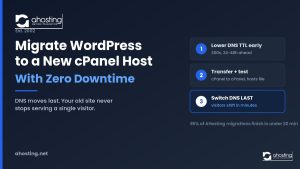
dedicated IP WordPress hosting — cover image showing 4 benefits: email, bad-neighbor protection, AI crawlers, brand entityDedicated IP WordPress Hosting: The Free Feature Most Hosts Charge $5/mo For How to Migrate a WordPress Site to a New Host With Zero Downtime Default ThumbnailChoosing Reliable FFmpeg Hosting Cutting Down Video SizeFive Tips For Cutting Down Video Size Without Killing Quality
«3 Reasons You Should Choose MODX For Your Business Site
AHosting Announces Optimized MODX Hosting Platform»

Categories

  • CMS
  • Concrete5
  • Drupal
  • FFmpeg / Video Hosting
  • Hosting Guides
  • How To
  • Joomla
  • MODX
  • News Releases
  • Security
  • SEO
  • Uncategorized
  • Video Content
  • Web Hosting News
  • WooCommerce
  • WordPress

Lets Connect!

  • X
  • Facebook
  • LinkedIn
  • Instagram
  • YouTube
  • Pinterest
Ahosting Logo

Hosting

  • WordPress Hosting
  • Web Hosting
  • FFMpeg Hosting
  • WooCommerce Hosting
  • Reseller Hosting
  • VPS Hosting
  • Dedicated Server

Domain

  • Register a Domain
  • Domain Transfer
  • Premium SSL Certificate

Support

  • Knowledge Base
  • Abuse Report
  • Submit A Ticket

Company

  • About Us
  • Datacenter
  • Contact Us
  • Blog
  • Sitemap

Legal

  • Privacy Policy
  • Terms of Service
  • Acceptable Use Policy
  • Service Legal Agreement
  • Resource Abuse Policy
  • Hosting +
    • WordPress Hosting
    • Web Hosting
    • FFMpeg Hosting
    • Woocommerce Hosting
    • Reseller Hosting
    • VPS Hosting
    • Dedicated Server
  • Domain +
    • Register a Domain
    • Domain Transfer
    • Premium SSL Certificate
  • Support +
    • Knowledge Base
    • Abuse Report
    • Submit A Ticket
  • Company +
    • About Us
    • Datacenter
    • Contact Us
    • Blog
    • Sitemap
  • Legal +
    • Privacy Policy
    • Terms of Service
    • Acceptable Use Policy
    • Service Legal Agreement
    • Resource Abuse Policy

Copyright © All Rights Reserved