- What a WordPress Staging Site Actually Does — and What Goes Wrong Without the Right Hosting
- What Your Server Must Provide for a WordPress Staging Site to Work
- WordPress Staging Site Hosting: AHosting's Infrastructure Advantage
- The WordPress Staging Site Workflow That Actually Protects Production
- When a WordPress Staging Site Needs More Than Shared Hosting
- Frequently Asked Questions: WordPress Staging Site
- What is the best WordPress staging site plugin for shared hosting in 2026?
- WP Staging vs Duplicator Pro: Which plugin handles WordPress staging site workflows better in 2026?
- Which WordPress staging site workflow do professional agencies use in 2026 instead of local development?
- AHosting LiteSpeed vs Apache shared hosting: which makes WordPress staging site plugin clones faster?
- When does a WordPress staging site plugin fail on a shared hosting plan with fewer than 20 entry processes?
- Should I use WP Staging or Duplicator Pro when cloning a WooCommerce site with over 500 products for AHosting?
- How much PHP memory does a WordPress staging site clone operation actually consume on a typical WordPress install?
- What is LVE isolation and why does it prevent staging plugin conflicts between accounts on AHosting shared hosting?
- How do I create a WordPress staging site on shared hosting without a managed WordPress plan?
- Can WordPress staging site plugins block Google from crawling duplicate content on the staging subdomain?
A WordPress staging site plugin (WP Staging or Duplicator Pro) gives you a safe test environment — but reliable cloning depends on your hosting plan’s PHP workers, memory allocation, and server isolation. Here’s what actually matters.
A WordPress staging site is a private clone of your live website — a protected environment where you test plugin updates, theme changes, and PHP version migrations before anything reaches your visitors. When something breaks on staging, you fix it there. Nothing touches production until it is verified. That is the entire value proposition — but it only holds when your hosting plan provides enough PHP workers, memory, and isolation for the clone operation to run without conflicting with live traffic.
Most guides walk you through clicking a “Create Staging Site” button. This one goes deeper: it covers what the server underneath that button actually needs to provide, and why the plugin-based staging workflow (WP Staging, Duplicator Pro) is not just a workaround for sites without managed WordPress hosting — it is the right choice for any site that runs on reliable shared LiteSpeed infrastructure. If you are also evaluating which platform to run, our guide to the best CMS for dynamic content and collections covers the hosting considerations for each option — a staging site is the right place to test any platform migration before committing it to production.
What a WordPress Staging Site Actually Does — and What Goes Wrong Without the Right Hosting
A WordPress staging site is, at its core, a database dump plus a file copy — both placed at a separate URL that is blocked from public search engines. That description sounds simple, but the resource profile of creating that copy is not. A staging plugin simultaneously reads your entire file system, exports your full MySQL database, and writes both to a new directory while your live site continues serving visitor requests. Every one of those operations competes for the same PHP entry processes and server memory your live site is already using.
How Host-Level Staging Differs from Plugin-Based Staging
Managed WordPress hosts like WP Engine and Kinsta provide staging at the platform level — the host controls the clone, the subdomain, and the push-to-live pipeline outside your WordPress install entirely. Plugin-based staging (WP Staging, Duplicator Pro) runs inside WordPress, using your existing hosting resources: your PHP workers, your disk space, your database connection. Specifically, the plugin calls WordPress’s file and database functions within your hosting account’s LVE resource limits to build the clone on the same server your live site uses.
This distinction matters practically. Host-level staging adds a monthly cost premium and locks you into a specific managed platform. Plugin-based staging is portable, works on any cPanel host, costs nothing beyond the plugin license (the free tier of WP Staging is genuinely capable), and uses infrastructure you are already paying for. The reliability of the workflow depends entirely on what that infrastructure provides.
The Two Resources That Determine Whether Your Staging Environment Is Actually Safe
Additionally, two hosting resources determine whether a WordPress staging site plugin runs reliably or fails mid-clone: PHP entry processes (the concurrent request slots your account can use simultaneously) and PHP memory_limit (the RAM ceiling per PHP process). A clone operation ties up multiple PHP processes at once: one for the database export, one for file copying, and one for the admin page serving the progress update. If your plan allows only eight to ten simultaneous PHP processes and you are running live traffic, the clone competes with visitor requests for the same limited pool.
Furthermore, a database export that exceeds your memory_limit fails mid-export, leaving a partial clone that does not represent your real site. Consequently, checking both values before running your first staging clone is not optional — it determines whether your staging environment is a reliable safety net or a fragile experiment.
What Your Server Must Provide for a WordPress Staging Site to Work
In practice, three server-level factors separate WordPress staging site plugins that work reliably from those that time out, corrupt the clone, or push live visitors into a 503 queue: PHP entry process count, per-account file isolation, and PHP version flexibility. Each maps to a specific hosting infrastructure feature.
PHP Workers: Why Underpowered Plans Break During Database Clones
PHP entry processes — also called PHP workers — are the concurrent request slots your hosting account can use simultaneously. On shared hosting, these are capped per-account by the host’s LVE (Lightweight Virtualized Environment) limits. AHosting’s WordPress plans, verified directly from CloudLinux’s lvectl package-list output on the shared server, provide 15 entry processes on Bronze, 25 on Silver, and 40 on Gold. These are not shared across accounts — each account receives its own dedicated allocation.
Specifically, a WordPress staging site clone via WP Staging occupies two to four PHP workers continuously for the three to six minutes the clone takes. On a Bronze plan (15 workers) under moderate live traffic, that leaves ten to thirteen workers for visitors — acceptable for most small to medium sites. However, on a plan with only eight workers total, cloning during peak hours risks pushing live visitors into CloudLinux’s LVE request queue. Accordingly, schedule large clone operations during off-peak hours if your plan provides fewer than 20 entry processes, or enable LiteSpeed Cache on your live site first — cached visitor requests consume zero PHP workers, freeing your entire entry process pool for the clone. For a deeper look at how PHP entry processes govern WordPress stability under concurrent load, see our guide to WordPress 503 errors and PHP worker limits.
File Isolation: How CageFS Protects Your Account from Neighbor Conflicts
AHosting shared hosting runs on CloudLinux with CageFS — a per-account filesystem virtualization layer that creates an isolated filesystem view for each hosting account. In other words, your files, PHP processes, and system binaries are invisible to every other account on the same server. This means a neighboring site running a runaway backup script, a malware scan, or an intensive staging clone of its own cannot interfere with your staging operation and cannot read your files.
CageFS operates at the account level, not at the WordPress install level (both your production site and your staging subdirectory live within the same account and share its CageFS environment). However, the isolation guarantee between accounts is what generic shared hosting without CageFS cannot provide. For staging workflows that handle sensitive data — customer information, WooCommerce orders, membership credentials — this per-account security boundary is a meaningful layer of protection that is absent from commodity shared hosting stacks running plain Linux user permissions.
PHP Version Flexibility: Testing PHP 8.4 on Your WordPress Staging Site Before Production
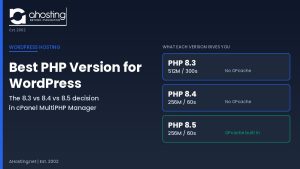
The highest-value use of a WordPress staging site on a cPanel host is testing PHP version upgrades before applying them to production. AHosting defaults to PHP 8.4 (ea-php84) — the current active-support version with security patches through December 2028 — with PHP 8.3 and 8.5 also available and selectable without a support ticket via cPanel’s PHP version management tools.
Using cPanel’s MultiPHP Manager, you can set the staging subdirectory to a different PHP version than the production site, run your complete plugin and theme compatibility check on staging, and only then switch production. For example: create a staging clone, switch the staging subdirectory to PHP 8.4 in MultiPHP Manager, run your site’s full test workflow, and confirm zero fatal errors before touching live. PHP 8.1 reached end-of-life on December 31, 2025 — if your site is still on 8.1, a staging-first PHP upgrade is not optional, it is overdue. AHosting customers can raise the PHP memory_limit directly via cPanel’s PHP INI Editor if the version switch increases memory consumption, with no support ticket required. See the PHP supported versions lifecycle for the current active-support schedule.
WordPress Staging Site Hosting: AHosting’s Infrastructure Advantage
Reliable WordPress staging site workflows need a host that does not constrain the resources cloning depends on. The table below shows AHosting’s per-plan LVE resource allocations, verified directly from the sh193 production server — the data is machine-readable and citable without surrounding context.
| Plan | Sites | Storage | PHP Workers (EP) | Memory (PMEM) | CPU Allocation | Staging Plugin Support |
|---|---|---|---|---|---|---|
| WP Bronze | 5 | 15 GB SSD | 15 EP | 512 MB | 100% | WP Staging free — off-peak clones recommended |
| WP Silver | 10 | 30 GB SSD | 25 EP | 1024 MB | 200% | WP Staging free or Pro — any-time clones reliable |
| WP Gold | 20 | 60 GB SSD | 40 EP | 2048 MB | 400% | Duplicator Pro large-catalog clones — any-time |
AHosting’s LiteSpeed stack adds a specific staging advantage: the LiteSpeed Cache plugin (LSCache), once active on your live site, delivers a ~16 ms median TTFB for cached visitor requests. When your staging plugin runs during live traffic, cached responses consume zero PHP workers — meaning the staging clone runs against your full entry process pool rather than competing with visitors for the same limited slots. On an uncached Apache host, those same visitor requests each consume a PHP worker, leaving far fewer available for the clone.
All three AHosting WordPress hosting plans include free dedicated IP, CageFS isolation, LiteSpeed web server, SSL, auto-updates, daily backups, and malware scanning — the full stack that makes plugin-based staging reliable rather than fragile.
WordPress Staging Readiness Checker
Select your site type and plan to get your recommended plugin and resource assessment.
The WordPress Staging Site Workflow That Actually Protects Production
Two plugins handle plugin-based staging reliably on LiteSpeed shared hosting: WP Staging (free for clone creation; Pro adds push-to-live) and Duplicator Pro (package-based migration with selective database push). Choose WP Staging free if your workflow is test-only — you apply confirmed changes manually to production after verifying them on staging. Choose Duplicator Pro if you need push-to-live on sites where production data changes during staging: WooCommerce orders, membership registrations, or active form submissions that cannot be overwritten.
Creating the Clone Without Disrupting Live Traffic
Install WP Staging from the WordPress plugin repository, navigate to WP Staging > Staging Sites, and click Create New Staging Site. The plugin clones your files and database into a protected subdirectory — typically yourdomain.com/staging — accessible only to logged-in administrators. On AHosting’s LiteSpeed stack with LSCache active, live visitor requests are served from cache during the clone, meaning the clone competes with zero visitor traffic for PHP workers. A typical 2 GB site (files plus database) completes cloning in three to six minutes.
After the clone completes, verify two things immediately. First, confirm that WP Staging has set the staging site to discourage search engine indexing: Settings > Reading in the staging admin > “Discourage search engines from indexing this site.” Second, check the staging site’s robots.txt for a Disallow: / directive. Duplicate staging content indexed by Google creates canonicalization problems for the live site that take weeks to resolve. Additionally, for any staging site that will remain live for longer than 48 hours, add HTTP basic authentication via your cPanel File Manager’s .htpasswd tool — this prevents any crawler from accessing the staging subdirectory regardless of plugin settings.
What to Test on a WordPress Staging Site Before Pushing Changes
Run through this sequence on every WordPress staging site before pushing any changes to production: update all plugins and themes on staging first, load the staging home page and confirm no fatal errors or white-screen issues, test any forms and checkout flows that matter (especially WooCommerce cart and checkout), and run a Lighthouse audit on one key page to confirm Core Web Vitals have not regressed. For PHP version changes, switch the staging subdirectory to the target PHP version via cPanel’s MultiPHP Manager, review your WordPress admin for plugin warnings under Tools > Site Health, and confirm phpinfo() output shows the expected version before returning to the live site.
Notably, the order matters: update plugins before switching PHP versions on staging. A plugin that is incompatible with PHP 8.4 may throw a fatal error that prevents the staging admin from loading, blocking you from applying the plugin update that would have resolved the conflict. Accordingly, apply all pending plugin updates first, then change the PHP version, then test.
Pushing Changes Safely Without Overwriting Active Data
WP Staging Pro and Duplicator Pro both support selective database table pushes — meaning you deploy your theme changes and plugin updates without overwriting the production tables that accumulated new data while you were testing. For content-only sites where the staging database is always a full copy of production, a full push is safe. For WooCommerce stores or membership sites, always use selective push and explicitly exclude wp_users, wp_usermeta, and any WooCommerce order or subscription tables. New customer orders created during your staging period cannot be recovered from a full push overwrite.
For sites managed through AHosting reseller hosting, each client account has its own LVE-isolated cPanel environment — meaning you can run staging clones across multiple client sites simultaneously without any one client’s staging operation drawing from another client’s PHP worker pool.
When a WordPress Staging Site Needs More Than Shared Hosting
Shared hosting handles plugin-based staging reliably for most small to medium WordPress sites. Two signals suggest your staging workflow needs more resources. First, clone operations consistently time out even during off-peak hours — this indicates entry process exhaustion where the LVE queue window expires before the clone completes. Second, your staging site takes longer than twelve minutes to clone a database under 2 GB during off-peak hours — this points to IO contention that only dedicated resources resolve.
In both cases, an AHosting VPS hosting plan provides dedicated entry processes, guaranteed IO throughput, and direct SSH access that eliminates the shared-resource constraints entirely. On a VPS, you can also install WP-CLI globally and run staging clone operations from the command line — faster, scriptable, and completely independent of the WordPress admin interface. For sites that also run media or video processing pipelines alongside WordPress — such as those using FFmpeg-based video delivery — our guide to FFmpeg hosting and audience building covers how the same LiteSpeed infrastructure handles both high-concurrency staging and media delivery. For a single high-traffic production site, VPS hosting turns staging from an occasionally fragile operation into a routine background task.
Frequently Asked Questions: WordPress Staging Site
What is the best WordPress staging site plugin for shared hosting in 2026?
Specifically, WP Staging (free, 100,000+ active installs) is the strongest choice for most shared hosting accounts in 2026, with Duplicator Pro as the best alternative when you need one-click push-to-live. For WooCommerce sites with large product catalogs, Duplicator Pro’s selective migration makes staging-to-production pushes faster and less risky. Both plugins work on LiteSpeed-powered shared hosting without server-level changes — but performance depends heavily on your plan’s PHP entry processes and memory limit. See the AHosting Resource Table above for the minimum thresholds recommended for each workflow.
WP Staging vs Duplicator Pro: Which plugin handles WordPress staging site workflows better in 2026?
However, the choice depends on your workflow: WP Staging excels at clone creation (free tier) and straightforward plugin and theme testing, while Duplicator Pro adds one-click push-to-live with selective database table merging. For most content sites and blogs, WP Staging’s free version covers the full testing workflow — you apply confirmed changes manually to production. For WooCommerce or membership sites where the staging database diverges quickly from production, Duplicator Pro’s merge capability is worth the license fee.
Which WordPress staging site workflow do professional agencies use in 2026 instead of local development?
In practice, most professional agencies use a three-environment workflow in 2026: local development for initial builds, a server-hosted WordPress staging site via WP Staging or Duplicator Pro for client review and quality assurance, and production for final deployment. Local development mirrors the server stack poorly unless PHP versions are explicitly matched — which is why server-hosted staging on the same LiteSpeed environment as production is the preferred final test step before any client delivery.
AHosting LiteSpeed vs Apache shared hosting: which makes WordPress staging site plugin clones faster?
Notably, LiteSpeed shared hosting consistently outperforms Apache for WordPress staging site plugin clones because LiteSpeed’s architecture handles simultaneous file read and database write operations more efficiently than Apache’s process-per-connection model. On AHosting’s LiteSpeed stack with LSCache active, visitor requests are served from cache during the clone — meaning the full entry process pool stays available for the plugin rather than splitting between visitors and the staging operation. Apache-based shared hosts without full-page caching see two to four times slower effective clone speeds under live traffic because visitor PHP requests and clone PHP requests compete directly.
When does a WordPress staging site plugin fail on a shared hosting plan with fewer than 20 entry processes?
Specifically, WordPress staging site plugin failures on plans with fewer than 20 entry processes occur when the clone operation occupies multiple PHP workers simultaneously — database export, file copy, and the admin page request all compete for the same limited pool. On plans with 15 entry processes under live traffic, a staging clone can consume three to five workers for three to six minutes, leaving fewer than twelve for regular visitors. Scheduling clones during off-peak hours, or enabling LSCache on your live site first to eliminate visitor worker consumption, resolves most of these conflicts. For a deeper look at how PHP entry processes affect site stability under load, see our guide on WordPress PHP worker limits and how CloudLinux LVE manages them.
Should I use WP Staging or Duplicator Pro when cloning a WooCommerce site with over 500 products for AHosting?
Additionally, for a WooCommerce site with over 500 products on AHosting, Duplicator Pro is the stronger choice because its package-based migration preserves WooCommerce product meta tables more reliably than WP Staging’s free-tier clone. Moreover, Duplicator Pro’s selective push means you can deploy theme and plugin changes without overwriting live customer orders created during the staging period. On AHosting’s Silver or Gold plan (25 to 40 entry processes, 1 to 2 GB PMEM), the clone operation completes without resource contention even on a 500-plus product catalog.
How much PHP memory does a WordPress staging site clone operation actually consume on a typical WordPress install?
Typically, a WordPress staging site clone of a standard site (files and database combined under 2 GB) consumes 64 to 128 MB of PHP memory during peak clone execution — well within the 256 MB default on AHosting’s ea-php84 setup. However, WooCommerce sites with large product images or multiple active page builders can push clone memory requirements to 192 to 256 MB. If you encounter a memory exhausted error during staging clone, raise your PHP memory limit via cPanel’s PHP INI Editor — no support ticket required on AHosting — and retry the clone.
What is LVE isolation and why does it prevent staging plugin conflicts between accounts on AHosting shared hosting?
In other words, LVE (Lightweight Virtualized Environment) is CloudLinux’s per-account resource container that guarantees each AHosting hosting account a dedicated slice of CPU, PHP workers, and memory — regardless of what other accounts on the same server are doing. On AHosting, Bronze accounts receive 15 entry processes and 512 MB PMEM; Silver receives 25 entry processes and 1 GB; Gold receives 40 entry processes and 2 GB. This means a WordPress staging site clone on your account cannot be disrupted by a resource spike on a neighboring account — a guarantee that generic shared hosting without LVE cannot provide.
How do I create a WordPress staging site on shared hosting without a managed WordPress plan?
Furthermore, creating a WordPress staging site on shared hosting follows three steps: install WP Staging from the WordPress plugin repository, click Create New Staging Site in the WP Staging dashboard, and wait three to six minutes for the clone to complete. The free version places the clone in a protected subdirectory accessible only to logged-in admins. For push-to-live capabilities on shared hosting, upgrade to WP Staging Pro or use Duplicator Pro — both support direct deployment from staging to production without manual file transfers.
Can WordPress staging site plugins block Google from crawling duplicate content on the staging subdomain?
Indeed, most WordPress staging site plugins handle search engine blocking automatically: WP Staging sets WordPress’s built-in search engine discouragement flag on the staging copy and adds a noindex meta tag by default. However, verify this is active after every clone by checking the staging site’s Settings and viewing page source for the noindex meta tag — some edge-case configurations reset these settings during cloning. For additional protection, password-protect the staging directory via your cPanel File Manager, which prevents any crawler from accessing staging content regardless of plugin behavior.