
- What the Not a Valid JSON Response Error Actually Means
- Why the Valid JSON Response Error Tells You Nothing
- The Sixty-Second Diagnosis: Read the Response Yourself
- What the Response Turns Out to Be
- Proof That a Real WordPress Failure Is Still a Valid JSON Response
- The Five Things That Answer Instead of WordPress
- Fixing Each Cause of a Not a Valid JSON Response Error
- A Practical Checklist for a Not a Valid JSON Response Error
- Frequently Asked Questions About the Not a Valid JSON Response Error
- How can I fix the "invalid JSON response" error in WordPress?
- Why is the response not a valid JSON response on a site that worked in 2026?
- What does a valid JSON response from WordPress actually look like?
- Does AHosting block the REST API and cause a not a valid JSON response error?
- Permalinks vs .htaccess: which one actually causes an invalid JSON error?
- Firewall vs plugin conflict: how do I tell which is breaking a valid JSON response?
- Can caching cause a not a valid JSON response on AHosting in 2026?
- Why does the block editor not show me the real error message instead?
- Does a bigger AHosting plan fix an invalid JSON response error?
- Is a not a valid JSON response error a security problem in 2026?
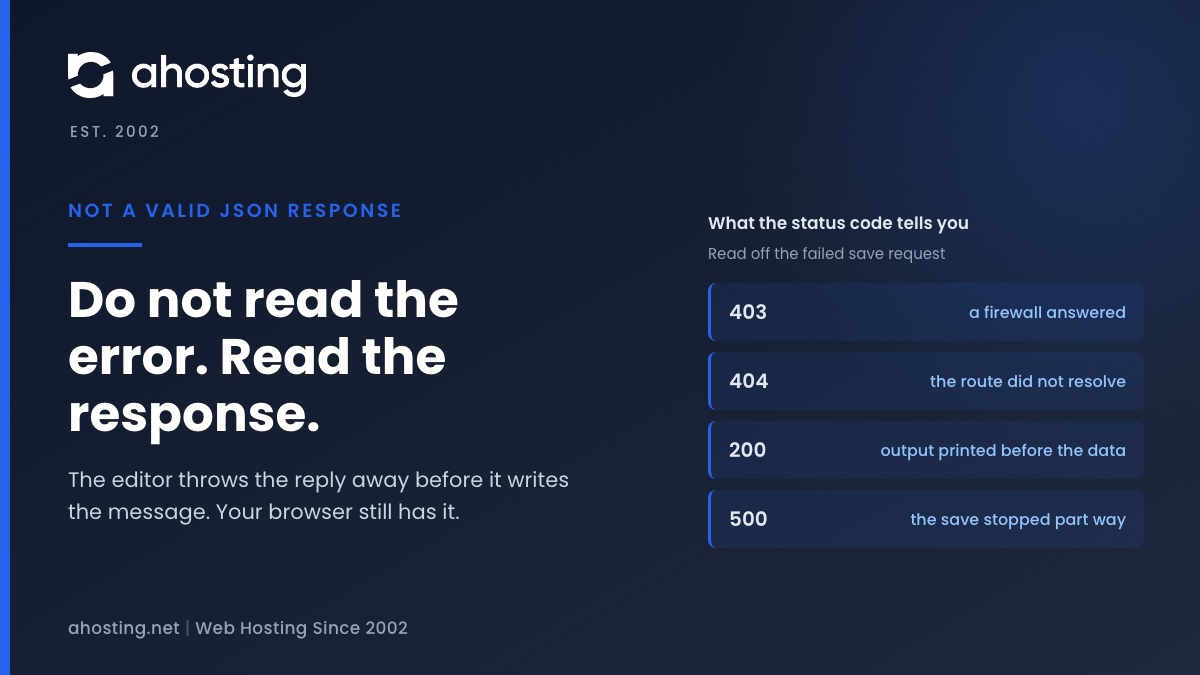
The block editor saves your post by asking the server for structured data, and this message means the reply was not structured data — it was a web page, or it had something printed in front of it. The editor cannot tell you which, because the code that catches the failure throws the reply away before composing the message. So do not work through a list of ten fixes: open the browser network panel, save again, and read the failed request. Its status code, content type and first characters name the cause in about a minute.
What the Not a Valid JSON Response Error Actually Means
When the block editor prints Updating failed. The response is not a valid JSON response., it is reporting one narrow technical fact and nothing more: it asked the server for structured data, and what came back could not be read as structured data. That is the entire meaning. It is not a statement that a plugin is broken, that the database is corrupt, or that the post is lost — and the post is almost never lost, which is the first thing worth knowing. The reply was a web page, or it was data with something printed in front of it. Which of those, and who sent it, is a question the message deliberately cannot answer.
The Editor Asked for Data and Got a Web Page
Saving a post in the block editor is not a form submission. The editor sends the post to a dedicated programming interface built into WordPress — the REST API that core has shipped since version 4.7 — and expects an answer in a strict machine format. That format is defined by ECMA-404, the international standard for JSON, and it is unforgiving by design: a document either parses or it does not, with no tolerance for stray characters. A page of markup beginning with an angle bracket fails at the very first character. So does correct data with a single line of warning text in front of it.
Why a Valid JSON Response Matters More Than the Save Itself
Here is the counter-intuitive part, and it reframes the whole problem. In a large share of cases the save already worked. The post was written to the database, the server composed its reply, and then something added to that reply or replaced it. The editor could not read the answer, so it assumed failure and told you so. Reloading the page in those cases shows the change present and saved. That single observation should change what you do first: before touching a plugin, reload and look, because it separates a real failure from a failure to communicate.
Why the Valid JSON Response Error Tells You Nothing
Every guide on this error is a list of ten things to try, and there is a reason for that shape which nobody writing them explains. The error is uninformative by construction. Two specific decisions in the WordPress source code remove the evidence before the message reaches you, and once you know what they are, the ten-item checklist stops looking like thoroughness and starts looking like what it is: guesswork forced by a missing diagnosis.
The Catch Block That Throws the Evidence Away
The code that reads the reply ships with WordPress and runs in your browser on every save. Its job is to parse the response, and its failure path is three lines long. The function is named parseJsonAndNormalizeError, and when parsing fails it catches the failure without capturing it — the catch takes no argument at all. It then throws a fixed object carrying the code invalid_json and the one sentence you are reading on screen. The status code is gone. So are the headers. Nothing is left of the body. Whatever the server actually said is discarded at that line, and no later code can recover it, because nothing kept it.
The Editor Also Refuses to Print Anything That Looks Like Markup
The second decision sits in the editor itself, where the notice is composed. Before appending an error message to the words Updating failed., the editor tests that message against a pattern that matches anything resembling a markup tag, and drops the message if it matches. The intent is sound: it prevents a raw error page being rendered into the interface. The consequence is that in exactly the situation where the server sent you a page explaining the problem — a firewall block naming its own rule, for instance — that explanation is the one thing guaranteed not to reach the screen.
Two Rules, One Result: The Notice Cannot Contain the Cause
Put the two together and the outcome is structural. The first rule destroys the evidence; the second would suppress it even if it survived. No amount of reading the notice more carefully will help, because the notice is not a summary of what happened. It is a placeholder printed where the explanation would have gone. That is why the fix is not a longer checklist but a different move entirely: go and read the response yourself, in the one place it still exists.
The Sixty-Second Diagnosis: Read the Response Yourself
The response never reached the editor intact, but it did reach your browser, and the browser keeps it. Every modern browser ships a network panel that records each request a page makes, along with the exact bytes that came back. Opening it turns a not a valid JSON response error from a guessing game into a lookup, and the whole procedure takes under a minute. It needs no server access, no plugin, and no help from anyone — which matters, because most people hitting this error are locked out of their own work while they read about it.
Open the Network Panel Before You Touch a Plugin
Press F12, or right-click the page and choose Inspect, then select the Network tab. In Safari the equivalent is the Web Inspector Network tab, which records the same information. Leave the panel open and save the post again so the failed request is captured. You are looking for the request made at the moment you clicked save: it will be a POST, and its address will contain either the letters wp-json or the words rest_route. Click it. Everything you need is in the Headers and Response sub-tabs.
Three Things to Write Down
Record the status code, the content type, and the first forty characters of the body. Those three facts are sufficient to name the cause in every case this guide covers, and they take ten seconds to read. The status code is in the Headers tab. Content type sits in the same tab, on the response side. The body is in the Response tab, and the very first character is the one that matters most — an angle bracket means a web page answered, and a brace means the data was correct but something else was wrong.
Why Reading the Body Beats Deactivating Plugins
The conventional advice is to deactivate every plugin, confirm the error clears, then reactivate one at a time. That procedure works, eventually, and it takes an hour on a site with thirty plugins. It also fails outright when the cause is not a plugin, which is most of the time. Worse, on a live site it means turning off the security plugin and the cache while visitors are watching. The response body identifies the layer at fault directly, so you deactivate plugins only in the one case where plugins are actually implicated.
What the Response Turns Out to Be
Across the five things that can answer in WordPress place, each leaves a distinct and easily recognized signature. The table below is the whole diagnosis, and it is worth keeping open in a second tab while you read the request you just captured. Match your three recorded facts against a row and the cause is named; the remedy in the last column is then the only work you need to do.
What a Valid JSON Response Signature Looks Like in Each Case
| Status code | How the body starts | What answered instead of WordPress | What to change |
|---|---|---|---|
| 403 | An angle bracket, then a page mentioning a block or a reference number | A web application firewall, either a plugin inside the site or a service in front of it | Find the reference in the firewall log and correct the one rule that matched |
| 404 | An angle bracket, then your own theme not-found page | The web server, because the route to the interface did not resolve | Re-save the permalink settings to rewrite the rules file on disk |
| 200 | Readable text or a warning, and then your post data further down | WordPress answered correctly, and PHP printed output in front of the answer | Fix the warning at its source and stop errors being displayed on a live site |
| 500 or 503 | An angle bracket, then a short server error page | The request reached the application and stopped part way through | Read the error log entry, and treat a resource ceiling as a headroom problem |
| 200 or 5xx | Nothing, the body is empty | The process was terminated before it could write a reply | Look for a memory or execution limit in the log at the same timestamp |
Proof That a Real WordPress Failure Is Still a Valid JSON Response
One assumption underlies the entire table above, and it deserves to be demonstrated rather than asserted, because it is the fact that makes the diagnosis reliable. The assumption is this: when WordPress itself rejects a request, it answers in the correct format anyway. A refusal is not malformed. So this error can never be caused by WordPress declining to do something — it can only be caused by something else answering, or by the answer being spoiled in transit.
What a Rejection From WordPress Looks Like
We sent a deliberately invalid save request to this blog — a POST to a post that does not exist — on 16 September 2026. The server returned status 404, which is a hard failure. It also returned the content type for structured data, and this body: {"code":"rest_post_invalid_id","message":"Invalid post ID.","data":{"status":404}}. That parses perfectly. Handed to the editor, it would have produced a clear notice reading Invalid post ID and no mention of JSON at all. A failure from WordPress tells you what failed.
What a Page From the Web Server Looks Like
We then requested an address on the same site that does not resolve to anything. The server returned status 404 again — the same status — but this time the content type was markup and the body was 137,871 bytes of it, beginning with an angle bracket and a document type declaration. Parsing that as structured data fails at character one. Two responses, identical status codes, completely different outcomes in the editor. The status code alone is therefore not enough, which is exactly why the first character of the body is the second thing worth recording.
The Rule This Gives You
From those two probes comes a test you can apply without any further knowledge. If the response parses, WordPress is talking to you and you should read what it says. If it does not parse, WordPress is not the thing talking, and looking for the fault inside WordPress is looking in the wrong place. Almost every wasted hour on a not a valid JSON response error comes from reversing that rule and hunting through plugins while a firewall or a rewrite file is answering the request.
The Five Things That Answer Instead of WordPress
Ordered by how often they occur in practice rather than by how often they are blamed, the five causes of a not a valid JSON response error divide cleanly. Four of them are configuration and cost nothing but attention. The fifth is a genuine resource problem, and it is both the rarest and the only one where the answer involves the plan the site runs on.
A Firewall Rule Matching Your Own Post Text
This is the most common cause and the most misleading, because it can follow one specific article while every other post saves normally. Rule sets used by ModSecurity, the open-source web application firewall and by the security plugins that wrap it inspect what is being submitted, and post content is submitted here. An article about SQL, a code sample, a shell command or an unusual string of punctuation can match a generic injection rule. The firewall then returns its own page with a 403 and a reference number. Nothing is compromised and nothing is broken; a rule matched text it was not written for.
Rewrite Rules That No Longer Route the Request
The address the editor calls is a pretty permalink, and it works only while the rewrite rules on disk are intact. Migrations, security plugins that harden file permissions, and failed updates all overwrite that file. When the rule is gone the request falls through to the ordinary page handler, which cannot find a page at that address and returns a 404 wrapped in your theme. Re-saving the permalink settings regenerates the file, which is why that advice appears everywhere without explanation.
PHP Printing Output in Front of the Data
A deprecation notice, a warning from an outdated plugin, or a stray blank line after a closing tag in a theme file all write text to the output before WordPress sends its reply. The data is still there, intact, further down the body. The parser never gets that far. This is the case where the save genuinely succeeded, and it is closely related to the output problems behind the WordPress white screen of death, where the same stray output arrives with nothing after it at all.
A Proxy or CDN Answering in the Server Place
Where a content delivery network or security proxy sits in front of the domain, it can answer a request without the server ever seeing it. A bot-protection challenge, a rate limit or a cached error page all come back as markup. Requests to the editor interface should never be cached, and a properly configured setup excludes them, but a broadly written rule catches them easily. We covered how those layers interact on this platform in the guide to running LiteSpeed Cache behind Cloudflare, and the exclusion list there applies directly.
The Request Stopped Part Way Through
The last cause is the only genuine resource failure. A save that hits a memory ceiling or is terminated for exceeding a process limit produces a 500 or 503 and a server error page, or sometimes an empty body. The distinguishing feature is timing: it arrives under load rather than constantly, and it tends to affect long posts and large block structures first. A related limit produces a different message entirely, which we covered in the guide to the expired link error — worth reading if your saves fail on size rather than on content.
Fixing Each Cause of a Not a Valid JSON Response Error
With the layer identified, each fix for a not a valid JSON response error is short and specific. Work the one your response points at and leave the others alone, because changing several things at once removes your ability to tell which one mattered. The decoder below takes the three facts you recorded and names the layer, and the table after it sets out what each fix costs and what it will not solve.
Invalid JSON Response Decoder
Save the post again with the browser network panel open, click the request that failed, and read three things off it. Enter them here and this names the layer that answered, what to change, and whether the problem is inside your site or in front of it.
What answered instead of WordPress:
Do this first:
What this is not:
This reads the three facts you recorded and nothing else, so it cannot see your site. Treat it as a way to order the work rather than a verdict, and confirm each change against the response before moving to the next one.
What Each Fix Costs and What It Leaves Untouched
| The layer that answered | The fix | What it costs you | What it does not fix |
|---|---|---|---|
| A firewall rule | Correct the single rule using the reference number in the block page | A few minutes in the firewall log, and nothing on the live site | Anything else in the chain. Switching protection off entirely is not a fix |
| Rewrite rules | Re-save the permalink settings, which rewrites the rules file | Nothing. Your settings are unchanged by re-saving them | A file the server cannot write to, which will silently fail to regenerate |
| PHP output before the data | Fix the warning at its source, and stop displaying errors publicly | Reading the log entry the output already named for you | The underlying deprecation, if you only hide the display of it |
| A proxy or CDN | Exclude the editor interface addresses from caching and challenges | One rule change, applied in front of the site rather than inside it | A firewall rule inside the site, which lives at a different layer |
| A resource ceiling | Read the log, then add headroom where the ceiling is genuinely reached | Either a configuration change or a plan that fits the workload | Configuration causes. Headroom will not fix a rule that matched your text |
What Not to Do About a Not a Valid JSON Response Error
- Do not disable the security plugin or the firewall outright. One rule matched your text; removing every rule to avoid correcting one is a large trade for a small problem.
- Do not switch to the classic editor as a permanent fix. It sends the save as an ordinary form submission, which sidesteps the symptom and leaves the broken layer in place for everything else that uses the interface.
- Do not deactivate plugins first. It is an hour of work that answers the question only in the one case where the status code was 200, and the status code is free to read.
- Do not assume the post was lost. Reload before you retype anything, because a spoiled reply to a successful save is one of the commonest shapes this takes.
- Do not paste the post body somewhere else to see if it saves. If a firewall rule is matching the content, you will reproduce the problem faithfully and learn nothing new.
- Do not buy a larger plan on the strength of this error alone. Four of the five causes are configuration, and a bigger plan changes none of them.
A Practical Checklist for a Not a Valid JSON Response Error
- Reload the post before anything else. If your change is there, the save worked and you are chasing a spoiled reply rather than a failed write.
- Open the browser network panel, save again, and find the POST request carrying wp-json or rest_route in its address.
- Record three things from it: the status code, the content type, and the first forty characters of the response body.
- Match those against the decoder table. The first character of the body separates a web page from spoiled data, and the status code separates the layers.
- Change only the thing the response points at, then save again with the panel still open and confirm the response is now well formed.
- If the status was 200 and text preceded your data, turn off public error display on the live site once the warning itself is fixed, not instead of fixing it.
- If the status was 500 or 503 and it arrives under load, read the error log at that timestamp before concluding anything about the plan.
When a Valid JSON Response Failure Is Really About Headroom
Four of the five causes are yours to correct in an afternoon and need nothing from a host. The fifth is the one worth being honest about, and it is genuinely the rarest: a save that is terminated part way because the account has reached its concurrent process or memory ceiling. On our WordPress plans those ceilings are published rather than discovered, and they were last verified on 9 September 2026 — 30 concurrent PHP processes and 2 GB of memory on Bronze, 40 and 3 GB on Silver, 50 and 4 GB on Gold. A long post with a large block structure saving while a backup runs is the realistic way to meet one of them.
Where the Work Stops Being Yours
What we take off your hands is the layer underneath the fix rather than the fix itself. LiteSpeed and its cache keep ordinary page requests out of PHP entirely, so the processes your plan allows stay available for the work that needs them, and the server-side cache excludes the editor interface by default so it is never the thing answering your saves. On the shared hosting plans the error log is in the control panel where you can read it yourself in the same sitting. Where a store is doing the saving, the WooCommerce plans start at the larger allocation for that reason. And where an account genuinely no longer fits, a VPS is the honest answer rather than a larger shared plan. The rule that matched your text is still yours to correct; the headroom around it is ours.
One Last Note on Reading Responses
The habit this error teaches is worth more than the fix. A browser network panel shows you what a server actually said, and the parsing method the editor relies on behaves the same way everywhere, because the Fetch Standard defines it for every browser. Any tool that reports a communication failure without quoting the response is asking you to guess, and the response is almost always still available somewhere. Reading it first is the fastest move in nearly every case, not only this one.
Frequently Asked Questions About the Not a Valid JSON Response Error
How can I fix the “invalid JSON response” error in WordPress?
Typically the fix is chosen after the diagnosis rather than before it, and that ordering is the whole difference between five minutes and an afternoon. Open the browser network panel, save the post again, and read the failed request: its status code, its content type, and the first characters of its body. Those three facts name the cause on their own. An HTML body with a 403 status is a firewall, an HTML body with a 404 is a rewrite problem, and a body that starts with readable text before the data is a plugin printing output. Fix the one the response points at.
Why is the response not a valid JSON response on a site that worked in 2026?
Specifically because something in front of the application changed while the application did not. The editor sends the same request it always sent, so a site that stops accepting it has usually gained a new layer rather than lost a feature. The common triggers are a security plugin updating its rule set, a firewall or proxy being switched on, a certificate or domain change that leaves the saved site address pointing somewhere else, and a rewrite flush that drops the rule routing requests to the interface the editor uses. None of those touch the post you were editing.
What does a valid JSON response from WordPress actually look like?
In practice it starts with a brace or a bracket and nothing else, because that is what the data format allows. A successful save returns the whole post as structured data. A failed save returns an error object carrying a code, a message and a status, which is still perfectly well formed. That second case is the one worth remembering: a rejection from the application is not malformed, so it produces a clear message in the editor rather than this one. Anything beginning with an angle bracket is a web page, and a web page is never a valid response here.
Does AHosting block the REST API and cause a not a valid JSON response error?
Fortunately no, and it is worth saying plainly because a host is the first thing suspected. AHosting shared and WordPress plans leave the interface the block editor depends on reachable by default, and a default install saves normally on them. What can block it is a rule inside a security plugin you installed, a firewall service placed in front of the domain, or a hand-edited rewrite file. Those are all inside the account rather than under it, which is why the diagnosis in this guide points at the response itself instead of at the plan.
Permalinks vs .htaccess: which one actually causes an invalid JSON error?
Notably they are two names for one mechanism, which is why the advice to re-save permalinks works without anybody explaining it. The saved permalink setting lives in the database; the rules that make it work live in the rewrite file on disk. Re-saving the setting rewrites that file. When the file has been overwritten by a migration, a security plugin or a failed update, the route the editor calls stops resolving and the server answers with an ordinary page instead. Re-saving does not change your settings, so it is safe to try early.
Firewall vs plugin conflict: how do I tell which is breaking a valid JSON response?
By contrast with each other these two leave completely different fingerprints, and the response body shows which you have. A firewall returns its own page, so you see a 403 status and a body mentioning a block, a reference number or a support identifier that does not belong to your site. A plugin printing output returns a 200 status with your data present but preceded by a warning or a stray line of text. If the body is your post data with something in front of it, no firewall is involved and deactivating plugins is the right move.
Can caching cause a not a valid JSON response on AHosting in 2026?
Indeed it can, although less often than it is blamed, and the mechanism is specific. Saves are sent to an address that should never be cached, so a correctly configured cache passes them straight through. Trouble starts when a rule is written broadly enough to catch them, or when a proxy in front of the site serves a stored error page to a request that should have reached the server. On AHosting the server-side cache excludes those addresses by default, so a cache implicated here is usually one added inside the site or in front of the domain.
Why does the block editor not show me the real error message instead?
Consequently this is the most reasonable question on the page, and the answer is in the code rather than in anyone opinion. The routine that reads the reply catches the failure without capturing what failed, so the status, the headers and the body are gone before any message is composed. The editor then declines to display any message containing something that looks like markup. Between those two rules, the notice you are shown cannot contain the evidence, no matter what went wrong. The evidence still exists in the browser, which is why reading it there works.
Does a bigger AHosting plan fix an invalid JSON response error?
Ultimately only in one of the five cases, so upgrading on the strength of this error alone is usually the wrong purchase. Four of the causes are configuration and cost nothing to correct. The fifth is genuine: when a save is stopped part way because the account has hit its concurrent process or memory ceiling, the server returns an error page and the editor reports this message. That case shows a 500 or 503 status in the response, arrives under load rather than constantly, and is the only one where more headroom is the actual answer.
Is a not a valid JSON response error a security problem in 2026?
Interestingly it is more often the opposite: the sign of a security control doing exactly what it was configured to do, to a request that happened to be yours. A firewall rule that inspects submitted content will sometimes match ordinary post text, which is why the error can follow one specific article and no others. That is a tuning problem rather than a breach. The genuine security mistake would be the reflex fix people reach for next, which is disabling the protection entirely instead of correcting the single rule that matched.
Related posts:
 Your Site Could Not Complete a Loopback Request: How to Read the Error and Fix It on Shared Hosting
 WordPress Could Not Establish a Secure Connection to WordPress.org: How to Read the Error and Fix It on Shared Hosting
 Choosing a Web Hosting Provider: The 12-Point Small Business Checklist (2026)
 One or More Recommended Modules Are Missing: How to Read the WordPress Site Health Warning and Fix It on Shared Hosting