
- What “The Link You Followed Has Expired” Actually Means
- Why an Upload Makes the Link You Followed Has Expired Appear
- The Four Limits That Decide Whether Your Upload Survives
- Reading Your Own Limits Before You Change Anything
- How to Fix the Link You Followed Has Expired on cPanel Shared Hosting
- When the File Size Is Not Why the Link You Followed Has Expired
- What the Ceilings Look Like on AHosting Shared Plans
- A Practical Checklist Before You Touch Any PHP Setting
- Frequently Asked Questions About the Link You Followed Has Expired
- Why does my WordPress theme upload say the link you followed has expired?
- Is the link you followed has expired a real error in 2026 or a browser glitch?
- post_max_size vs upload_max_filesize: which one causes this message?
- How do I fix the link you followed has expired on AHosting shared hosting?
- Why does the link you followed has expired mention expiry at all?
- Editing functions.php vs the PHP INI editor: why does one of them fail?
- Does the link you followed has expired mean AHosting limits are too low in 2026?
- Can a cache plugin cause this WordPress security token failure by itself?
- How do I tell which limit broke when the link you followed has expired appears on AHosting?
- Will raising every PHP limit stop the link you followed has expired for good in 2026?
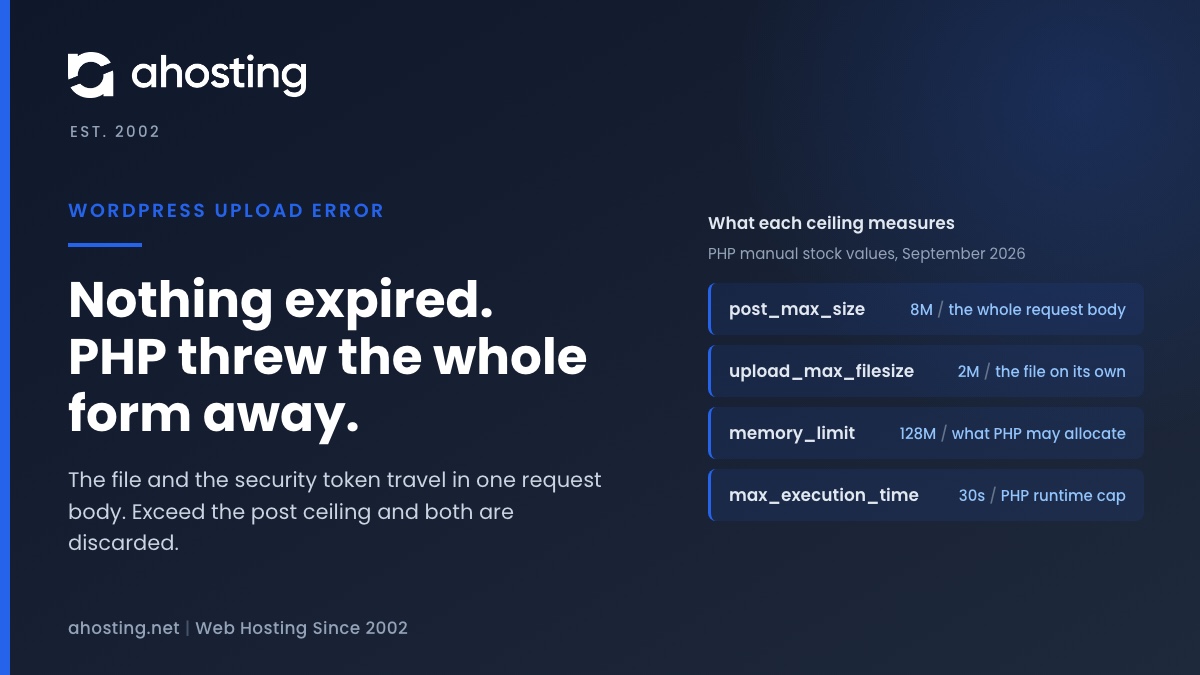
Nothing expired. WordPress prints this sentence when a form arrives without a security token it can verify, and on a theme or plugin upload the usual reason the token is missing is that PHP discarded the entire request body for exceeding post_max_size — the file and the token travel together, so both went. Raise the post ceiling above the upload ceiling in cPanel and the message stops. If the file was small, the cause is one of three others, and none of them is a timeout.
Nothing expired, and that is the first useful thing to know. When WordPress tells you that the link you followed has expired, it has refused a form submission it could not authenticate, and the wording it chose for that refusal is a guess. Core has exactly one sentence for a security token that failed, and it prints that sentence whether the token was old, wrong, or never arrived in the first place. On a theme or plugin upload the token almost always never arrived, and the link you followed has expired is what core says instead, because PHP threw the whole request away before WordPress read a byte of it. That distinction is the difference between a fix that takes a minute and an afternoon spent clearing caches. This guide covers where the sentence comes from, which PHP ceiling actually causes it, how to tell from the wording alone which limit you hit, and the three other causes that have nothing to do with file size.
What “The Link You Followed Has Expired” Actually Means
It means WordPress received a form it could not verify. Every administrative action in WordPress carries a short-lived token, and the request that arrives without a valid one is refused before anything is written to the database. The refusal is deliberate and it is protecting you from something real. What it is not doing is describing the cause: the message names a symptom that applies to one of several situations and gives you no way to tell which. Reading the link you followed has expired as a statement of fact — that a link aged out — sends most people to their browser, and the browser has nothing to do with it.
Where the Sentence Comes From in WordPress Core
One function prints it, and reading that function settles several arguments at once. Core keeps a small helper for exactly this case, and the string it prints is a literal inside it. You can read the whole thing as the wp_nonce_ays function in the WordPress reference, where the relevant branch is four lines long: take the message, append a link back to the page you came from labeled “Please try again”, and stop the request. That second line is why the screen looks like a browser history problem rather than a server one. Notice what the function is never given: the name of the form, the size of the request, or any indication of why verification failed. It cannot tell you, because by the time it runs the information is gone.
Why It Says Expired When the Link You Followed Has Expired Is Not Literally True
Two very different failures end at the same function, and core picks the friendlier explanation for both. A token that genuinely aged out is one of them. The other is a token that was never in the request at all, which is what happens on a failed upload, and for that case the word expired is simply wrong. Because the two are indistinguishable at the point the message is written, the wording was chosen to be true often enough rather than true always. The cost of that choice lands on the upload case, where the sentence quietly points every reader at the one place the problem is not.
Why an Upload Makes the Link You Followed Has Expired Appear
Because PHP discarded the form before WordPress could read it. The manual is unusually blunt about this: the post_max_size directive states that if the size of post data is greater than the limit, the POST and FILES superglobals are empty. Not trimmed. Not truncated to the part that fits. Emptied. PHP hands WordPress a request with no fields in it at all, and WordPress, finding no security token where one should be, does the only thing it can do with an unverifiable request. The ceiling that triggers this ships at eight megabytes, which a single page-builder theme has exceeded comfortably for about a decade.
Why the File and the Token Travel in the Same Envelope
A form with a file in it is still one request, and that is the detail everything else follows from. When the browser submits an upload it runs the multipart/form-data encoding algorithm, which walks every control on the form, collects each one into a single entry list, and encodes that list as one request body. Your forty megabyte theme archive and the forty-three byte security token are neighbors inside that body. So when the body is measured against a ceiling and found too large, there is no mechanism by which the small important part survives and the large part is dropped. Both go, together, and the page you land on reports only that the link you followed has expired.
What the Token Is Actually Defending
Worth saying plainly, because the instinct when a security check misfires is to turn it off. The token exists to stop a request that you did not intend from being executed with your credentials — a pattern classified as cross-site request forgery, where a page you visit quietly submits a form to a site you are logged into. Without the token, a link in an email could delete a post or install a plugin on your behalf, because your browser would attach your session to it automatically. Every workaround that suggests removing the check is therefore trading a five-minute configuration change for a permanent hole. Fix the ceiling instead.
The Four Limits That Decide Whether Your Upload Survives
Four PHP directives sit between a file on your desktop and a theme in your site, and any of the first three can end in the link you followed has expired, and they fail in visibly different ways. Knowing which failure looks like which is most of the diagnosis, because you get exactly one symptom and no log entry the average dashboard user can reach. The table below pairs each ceiling with what it measures and what you see on screen when that ceiling is the one you hit. Only one of the four produces the message this page is about.
| Directive | What it measures | Ships as | What you see when it binds |
|---|---|---|---|
post_max_size | The entire request body: the file plus every other field on the form | 8M | The link you followed has expired. The POST array is emptied, so the security token goes with it |
upload_max_filesize | The uploaded file alone, measured on its own | 2M | A polite notice inside the WordPress screen saying the file exceeds a directive in php.ini, with the page still rendering |
max_input_vars | How many fields arrive, not how large they are | 1000 | The same expiry message, or fields silently missing after a save, once later variables are truncated away |
max_execution_time | How many seconds the PHP process may run | 30 | A blank screen or a gateway error part way through unpacking, never this message |
Why upload_max_filesize Is Rarely the Limit That Breaks First
Stock PHP pairs a two megabyte upload ceiling with an eight megabyte post ceiling, so out of the box the upload ceiling is the one that binds — and it fails politely. The trouble starts when somebody raises it. A panel default, a host template or a well-meant tutorial pushes the upload ceiling to sixty-four megabytes and leaves the post ceiling at eight, and now the two disagree: WordPress advertises a sixty-four megabyte allowance in its uploader, accepts the file from you, and PHP discards the request on arrival. Every report of the link you followed has expired that begins “but I already increased the upload limit” is this pairing. The manual says plainly that the post ceiling must be larger than the upload ceiling, and that instruction is the one most often half-followed.
Reading Your Own Limits Before You Change Anything
Before changing a ceiling because the link you followed has expired appeared, find out what your site is actually running, because a configuration file is a claim and the running process is the fact. WordPress already collects these values for you: Tools, then Site Health, then the Info tab, then the Server panel lists the post size, the upload size, the memory ceiling and the time limit as PHP reports them at that moment. That panel is worth more than any php.ini you can find, because it reflects the file that won. Shared accounts commonly have three or four candidate configuration files in play — a global one, a per-account one, a per-directory one — and only one of them is in force.
The Number the Media Library Shows, and What It Leaves Out
Under every WordPress uploader is a line reading “Maximum upload file size”, and it is more honest than people assume and still not sufficient. Core computes it by taking the smaller of the two ceilings, so a site with a sixty-four megabyte upload allowance and an eight megabyte post allowance correctly advertises eight. What the number cannot account for is everything else in the envelope. A 7.9 megabyte archive under an 8 megabyte ceiling still fails, because the referring URL, the action field, the security token and the rest of the form are in the request too, and the total is what gets measured. Treat that figure as an upper bound with no headroom rather than a guarantee.
Matching the Symptom to the Limit
Three questions separate the four causes, and they take about thirty seconds. How large was the thing you were sending? A large archive that fails the instant you press the button is the post ceiling, every time. Was the form small but crowded — a menu with two hundred items, a product with eighty variations, a page-builder layout — and did it fail on save rather than on upload? That is the field-count ceiling, not the size ceiling. Had the page been sitting open since yesterday? That is the one case where the link you followed has expired means what it says, and reloading the page genuinely fixes it.
How to Fix the Link You Followed Has Expired on cPanel Shared Hosting
Two values, one screen, about a minute, and the link you followed has expired stops for good. In cPanel, open the Software section and choose MultiPHP INI Editor, switch it to the domain you are fixing, and set post_max_size one step above upload_max_filesize — 64M and 48M, say, for a theme bundle that unpacks to forty-odd megabytes. Leave memory_limit above both. Save, then re-run the upload from a freshly loaded page rather than refreshing the failed one, because the failed screen is a dead end with a spent token in it. Sites on a plan with a PHP selector can make the same change there; the values and their relationship are identical either way.
Why functions.php and .htaccess Advice Usually Fails
Most of the fixes you will find online for the link you followed has expired change the two limits that were never the problem, and the PHP manual explains why in a single column of a table. Both post_max_size and upload_max_filesize are marked as per-directory settings, which means PHP reads them as the request starts, before your theme or any plugin has loaded. A call to change them from inside your site therefore runs long after the decision was made. Meanwhile memory_limit and max_execution_time are marked as changeable anywhere, which is exactly why they are the two every tutorial tells you to put in your theme file: they are the two that appear to work. As for php_value lines in .htaccess, those are honored only when PHP runs as an Apache module, and on a modern cPanel server it usually does not — the line is either ignored or throws a server error.
This is the part we take off your hands. Every AHosting shared plan ships with a PHP configuration whose ceilings already agree with each other, so the pairing that causes the link you followed has expired is not one you inherit from us and then have to discover. The editor is there when you want a larger ceiling for a particular site, and support will set it for you if you would rather not. What we will not do is quietly raise every limit to a number that looks generous on a feature list, because two of the four are safer left where they are.
When the File Size Is Not Why the Link You Followed Has Expired
Small files fail too, and when they do the PHP ceilings are innocent. Three other causes produce the identical sentence, they are told apart by circumstance rather than by the message, and each has its own fix. None of them is helped by editing an upload limit, which is why a reader who has already raised every ceiling and still sees the error is usually looking at one of these.
A Genuine Expiry: the Twelve-to-Twenty-Four-Hour Window
Sometimes the message is simply true. WordPress tokens are tied to a tick counter that advances every twelve hours, and a token stays valid for the current tick and the one before it, which makes the real lifetime variable between twelve and twenty-four hours depending on when it was minted. Leave the post editor open overnight and press update in the morning and you will meet the error honestly earned. Reloading the page issues a fresh token and the problem goes away, which is the behavior that makes everyone think a reload is the general fix. It is the fix for this cause only.
A Cached Page Serving Somebody Else’s Token
Full-page caching and security tokens are a bad pairing, and the failure looks like the upload case with none of the same causes. If a page carrying a form is stored by a page cache and served to the next visitor, the token in that stored copy was minted for a different person in a different time window, and verification fails on arrival. The tell is that the error follows the page rather than the file: small forms break as readily as large ones, and the same page fails repeatedly until the cache entry rolls over. Exclude login, registration, checkout, cart and the admin area from full-page caching and the class of failure disappears. Our guide to reading a 508 resource limit error covers the related case where caching rules and resource ceilings interact.
Too Many Fields: max_input_vars on Menus and Page Builders
Crowded forms hit a different ceiling and it does not care how big they are. PHP counts incoming variables as well as measuring bytes, and the max_input_vars directive caps that count at one thousand by default, issuing a warning and truncating every variable past the limit. A navigation menu with two hundred items sends five or more fields per item; a variable product in a large catalog can send several hundred on its own. When the security token is late in the form it is among the variables thrown away, and you get the same sentence. Stores in that position are exactly who our WooCommerce plans are configured for. Raise this one only to what the form needs: the limit exists to blunt a denial-of-service technique built on hash collisions, so an arbitrarily large value is a real trade rather than a free win.
What the Ceilings Look Like on AHosting Shared Plans
Ceilings are arithmetic, and the link you followed has expired is what you see when two of them disagree, but what happens after they let the file through is a different matter. Once the archive is accepted it has to be written to a temporary directory and then unpacked, and both of those are disk writes against the account’s allowance rather than anything PHP decides. The map below is built from the LVE package configuration read on 2026-09-09 — the container memory ceiling and the disk write allowance each shared package actually carries — with the write time for two common archive sizes derived from it. No competitor publishes these, and we publish them because a reader part way through this problem deserves to know whether the next thirty seconds of apparent hang is normal.
| Shared plan | Container memory (LVE PMEM) | Disk write allowance | 48 MB archive: land and unpack | 96 MB archive | Concurrent PHP workers |
|---|---|---|---|---|---|
| W Bronze | 2 GB | 10,240 KB/s | about 9.6 s | about 19.2 s | 30 |
| W Silver | 3 GB | 20,480 KB/s | about 4.8 s | about 9.6 s | 40 |
| WooStart | 3 GB | 20,480 KB/s | about 4.8 s | about 9.6 s | 40 |
| W Gold | 4 GB | 30,720 KB/s | about 3.2 s | about 6.4 s | 50 |
Reading the Memory Column Before You Raise memory_limit
Read the memory column before touching memory_limit. The container ceiling is the one that applies, so setting a PHP memory value above it achieves nothing whatsoever — the request is stopped by the container long before PHP reaches its own number. Our write-up of WordPress memory limit errors covers that relationship in full. The worker column matters for a different reason: an upload occupies one worker for its whole duration, so a slow archive on a busy site is one fewer process available to serve everybody else while it runs.
Upload Headroom Calculator
Pick the size of the archive you are trying to install and the plan the site sits on. The tool reports the two ceilings that have to agree before the upload can land, and how long the write itself takes at that plan’s disk allowance.
Set the post ceiling to:
Set the upload ceiling to:
What the plan contributes:
What to leave alone:
Write times are derived from the LVE disk allowance recorded for each package on 2026-09-09 and cover the archive landing in the temporary directory plus one pass to unpack it. They are a floor, not a promise: a slow connection, a busy neighbor or a plugin that rewrites files during activation all add to it. The ceilings are arithmetic and apply on any host, not only ours.
When a Shared Plan Is Genuinely the Wrong Place for This
Occasionally the honest answer is that the ceiling is not the obstacle. A site that installs hundred-megabyte archives regularly, runs a build step on the server, or needs a php.ini nobody else shares has outgrown the arrangement where limits are set per domain inside a panel, and at that point a VPS stops being an upsell and starts being the cheaper option. That is a small minority of the people who arrive at this error, and it would be dishonest to pretend otherwise: for almost everyone, two values on one screen is the entire story.
A Practical Checklist Before You Touch Any PHP Setting
Work down this list in order and stop at the first line that matches, and the link you followed has expired will have named its own cause before you reach the end. Each step is reversible, none requires a support ticket, and the order is chosen so that the cheapest checks eliminate the most common causes first.
The Nine Checks, in the Order That Costs You Least
- Reload the page from the menu rather than refreshing the failed screen, then retry once. If it succeeds, the token had genuinely aged out and there is nothing to configure.
- Note the size of the file. Anything above eight megabytes on stock PHP settings is the post ceiling, and you can skip to step 6.
- Open Tools, Site Health, Info, Server and write down the live values for the post size, upload size and memory ceiling. Configuration files can disagree; this panel cannot.
- Compare the two size ceilings. If the upload ceiling is equal to or larger than the post ceiling, that pairing alone explains the failure.
- If the file was small and the form was crowded, count the fields instead. Menus over roughly a hundred and fifty items and products with many variations are the usual suspects.
- In cPanel, open Software and then MultiPHP INI Editor, select the domain, and set the post ceiling one step above the upload ceiling. Save.
- Retry from a freshly loaded page. Confirm the new value in Site Health rather than assuming the save applied to the domain you meant.
- If it still fails, disable full-page caching for the admin area and retry once more before changing anything else. A cached form is the cause that survives every limit you raise.
- Only then consider the field-count ceiling, and raise it to what the form needs rather than to a round number.
Change One Value at a Time, and Re-Test Between Each
One habit is worth more than the whole list: change one value at a time and re-test. Raising four limits at once and finding that the upload works tells you nothing about which one mattered, and two of the four are ones you would rather put back. Sites running an older PHP branch have a second variable in play as well, and our comparison of PHP versions on cPanel covers which defaults changed where. If the dashboard is also showing Site Health warnings you have not investigated, the write-up of the active PHP session notice explains another entry on the same screen that is routinely misread.
Frequently Asked Questions About the Link You Followed Has Expired
Why does my WordPress theme upload say the link you followed has expired?
Typically because PHP threw the upload away before WordPress ever read it. The browser sends your theme zip and every hidden form field in one request body, and when that body is larger than the post size ceiling, PHP empties both of the arrays the form arrived in rather than trimming the file out of them. WordPress then looks for the security token that was in the same body, cannot find it, and prints the only sentence it has for a token that failed. Nothing expired and nothing timed out, so raising the upload ceiling alone will not help.
Is the link you followed has expired a real error in 2026 or a browser glitch?
Specifically it is a real server-side refusal, and treating it as a browser problem is why people lose an afternoon to it. The sentence comes from WordPress core, not from the browser, and it is printed by the function core calls whenever a form arrives without a token it can verify. Clearing your cache, using a private window and pressing the back button all leave the cause untouched, because the cause is a limit in your PHP configuration. The only case where a refresh genuinely helps is the one where the token really had gone stale in an old tab.
post_max_size vs upload_max_filesize: which one causes this message?
In practice the post size ceiling causes it and the upload ceiling almost never does, and the wording of the failure is what separates them. When a file is larger than the upload ceiling, WordPress catches it politely and says the file exceeds a directive in php.ini, with the page still rendering around the notice. When the whole request body is larger than the post ceiling, PHP discards the body first and WordPress never gets far enough to be polite. So the message you are reading is itself the diagnostic.
How do I fix the link you followed has expired on AHosting shared hosting?
Fortunately this is one of the few WordPress problems with a fix that takes about a minute, and every AHosting shared and WordPress plan ships the tool for it. Open the PHP INI editor in cPanel, raise the post size ceiling so that it sits comfortably above the upload ceiling, and keep the memory ceiling above both. Adding lines to your theme functions file will not work for these two values, because PHP has already read them by the time your theme loads. Re-run the upload rather than refreshing the failed screen.
Why does the link you followed has expired mention expiry at all?
Notably because core cannot tell the difference between a token that went stale and a token that never arrived. Both paths end in the same function and that function has one sentence for both, so it picks the friendlier explanation and prints it. Tokens really do age out after somewhere between twelve and twenty-four hours, which is why the wording is right often enough to survive. On an upload it is simply wrong, and the wrongness is what sends people to cache plugins and browser settings instead of to their PHP limits.
Editing functions.php vs the PHP INI editor: why does one of them fail?
By contrast with the memory and execution limits, the two limits that matter here cannot be set from inside your site at all. PHP marks them as per-directory values, which means the parser reads them when the request starts, before any theme or plugin file is loaded, so a call to change them from a theme runs far too late to have any effect. The limits most tutorials tell you to raise in that file are the two that can be changed there, and neither is the one causing this. That mismatch is why the advice looks reasonable and still does nothing.
Does the link you followed has expired mean AHosting limits are too low in 2026?
Indeed it usually means the opposite, which is worth knowing before anyone changes plans over it. The message appears most often when an upload ceiling has been raised generously and the post ceiling was left at its stock value, so the two no longer agree with each other. A container with four gigabytes of memory will refuse a nine megabyte theme just as readily as a small one if that pairing is wrong. What the plan tier genuinely governs is how fast a large archive lands and unpacks once the ceilings let it through.
Can a cache plugin cause this WordPress security token failure by itself?
Consequently yes, and this is the variant that survives every PHP change you make. A full-page cache that stores a page containing a form will serve that stored copy, security token included, to whoever asks for it next, and a token minted for one visitor in one time window is not valid for another. The give-away is that the failure follows the page rather than the file size, and that small forms fail as readily as large ones. Excluding login, checkout, admin and any form-bearing page from the cache resolves it.
How do I tell which limit broke when the link you followed has expired appears on AHosting?
Above all, read the size of the thing you were sending before changing anything. A large archive that fails instantly points at the post size ceiling; a modest file that fails on a page with hundreds of fields points at the input variable ceiling; a form you left open overnight points at a genuinely stale token. Site Health lists the live values for each of these limits under its server panel, and that panel reflects what PHP is actually running rather than what a configuration file claims. Match the symptom to the limit first, then change exactly one thing.
Will raising every PHP limit stop the link you followed has expired for good in 2026?
Ultimately no, and two of those limits are actively worth leaving alone. The input variable ceiling exists to blunt a denial of service technique that abuses hash collisions, so setting it to an enormous number trades a rare inconvenience for a real exposure. Raising the memory ceiling past what the container allows achieves nothing at all, because the container ceiling is the one that applies. Raise the post size ceiling to fit the largest archive you genuinely install, leave a little headroom above it, and stop there.
Related posts:
 Why Raising the WordPress Memory Limit Doesn’t Work on Shared Hosting (and What Does)
 An Active PHP Session Was Detected: What WordPress Site Health Is Really Telling You, and How to Fix It on Shared Hosting
 One or More Recommended Modules Are Missing: How to Read the WordPress Site Health Warning and Fix It on Shared Hosting
 Your Site Could Not Complete a Loopback Request: How to Read the Error and Fix It on Shared Hosting