- What the WordPress White Screen of Death Actually Is (A Fatal PHP Error, Nothing More)
- Blank Page vs "Critical Error" vs Recovery Email: The Three Gates Core Runs
- The WSOD Outcome Matrix: Reading the White Screen of Death Backwards
- Why the WordPress White Screen of Death Is Usually a Hosting Problem
- How to Fix the WordPress White Screen of Death in Six Steps
- First Step: Confirm It Is a Fatal Error, Not Cache or DNS
- Second Step: Read the Server Error Log Before Touching Anything
- Third Step: Turn On Logging Without Turning On Display
- Fourth Step: Rule Out Plugins by Renaming, Never Deleting
- Fifth Step: Raise the Memory Ceiling at Both Layers
- Sixth Step: Roll the PHP Version Back, Then Forward Again
- AHosting Recovery Readiness by Plan
- WordPress Critical Error Triage: Which Outcome Are You In?
- A Practical Checklist: Recovering From a WordPress White Screen of Death
- Frequently Asked Questions About the WordPress White Screen of Death
- What causes the WordPress white screen of death in 2026?
- WordPress white screen of death vs critical error message: what is the difference?
- Why does the WordPress white screen of death show no error message at all in 2026?
- My WordPress site went blank after a plugin auto-update on AHosting shared hosting, what do I check first?
- What is the WSOD Outcome Matrix and how do I use it to diagnose a blank WordPress page?
- Is the WordPress white screen of death caused by memory limits or the PHP version more often?
- Why did I never receive the WordPress recovery mode email when my site showed a critical error?
- How does AHosting’s cPanel Errors interface help fix a WordPress white screen of death faster?
- Can the WordPress white screen of death delete my posts or media files?
- Does WordPress 7.0 change how the white screen of death behaves on AHosting shared hosting in 2026?
The WordPress white screen of death is a fatal PHP error, not an outage. Three server-controlled conditions decide whether you get a recovery email, a critical error page, or a silent blank screen.
Every hosting support desk knows this ticket: fine last night, a blank white rectangle this morning. In practice the WordPress white screen of death alarms people because it says nothing at all — no code, no file name, no line number. However, that silence is itself information, and it points at three conditions WordPress evaluated before deciding to show you nothing.
What the WordPress White Screen of Death Actually Is (A Fatal PHP Error, Nothing More)
Specifically, the WordPress white screen of death is a fatal PHP error that stopped execution before a single byte of HTML was sent. Notably, nothing was deleted, nothing was necessarily hacked, and the database is almost always untouched.
In practice the mechanics are mundane. PHP hits something unrecoverable — a call to a missing function, a class that never loaded, a memory allocation it cannot make — and terminates the request. Consequently the half-built page is discarded and the browser receives an empty body. Sometimes the server dresses that up as an HTTP 500 Internal Server Error, defined in RFC 9110; other times it arrives as a valid 200 response containing nothing. Notably, that difference is diagnostic.
Additionally, the blankness is deliberate. Specifically, WordPress and PHP suppress error output in production because raw error text names absolute file paths, database prefixes and occasionally credentials — the leak class cataloged as CWE-209, generation of an error message containing sensitive information. In other words, the platform protects you at the moment you most want it to talk.

Blank Page vs “Critical Error” vs Recovery Email: The Three Gates Core Runs
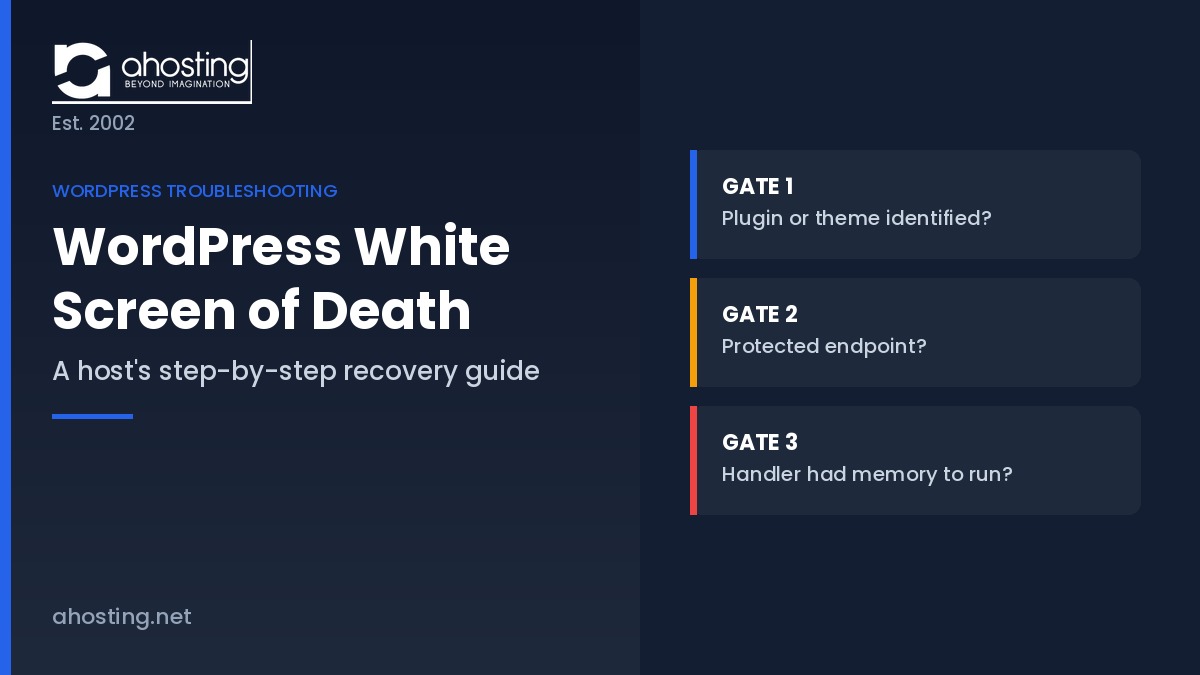
Ultimately, WordPress does not treat every fatal error alike. Since version 5.2 it has shipped a fatal error handler, and that handler evaluates three conditions in sequence before deciding what you see.
Gate One — Can WordPress Blame a Plugin or Theme?
First and foremost, WordPress tries to map the crashing file back to a plugin or theme directory. In practice, when it cannot, core returns an internal invalid_source result meaning the error was not caused by a plugin or theme, and no recovery session is offered. Consequently fatals in wp-config.php, a must-use plugin, core itself, or the database layer never produce a recovery email.
Gate Two — Did It Break on a Protected Endpoint?
Additionally, an attributed error only triggers the email when it happens somewhere WordPress protects. Specifically, the is_protected_endpoint() function in WordPress core returns true for exactly three things: the login screen, the admin backend on non-Ajax requests, and a short list of protected Ajax actions. Therefore a fatal firing only on public pages shows visitors the critical error screen and sends you nothing.
Gate Three — Did the Handler Itself Survive?
Finally, the handler has to run at all. In practice it executes during PHP’s shutdown sequence, so the interpreter must still be usable. Consequently a request that died from exhausted memory may leave no headroom to build a message. Similarly, a parse error in wp-config.php or a must-use plugin fires before WordPress loads its error-protection code. Interestingly, getting nothing at all is therefore a clue rather than a dead end.
The WSOD Outcome Matrix: Reading the White Screen of Death Backwards
Therefore the symptom is the diagnosis. Specifically, match what is on your screen to a row below, then read across to find which gate fired, where the evidence lives, and who can fix it.
| What you see | Gate that fired | Likely cause | Evidence | Who fixes it |
|---|---|---|---|---|
| Critical error page and a recovery email | None — all three passed | Plugin or theme fatal in wp-admin | The email names it | You, in Recovery Mode |
| Critical error page, no email | Gate 2, or mail delivery | Fatal on a front-end page only | cPanel Metrics, Errors | You, via File Manager |
| Blank page, HTTP 200 | Gate 1 — nothing to blame | Core, mu-plugin or database layer | PHP error log | You, then your host |
| Blank page, HTTP 500 | Gate 3 — handler never ran | Parse error in wp-config or .htaccess | Last modified file | Host, or restore |
| Blank wp-admin, front end fine | Gate 3 — memory exhausted | Heavy admin screen hits the ceiling | “Allowed memory size” log line | You, then a plan upgrade |
Furthermore, an HTTP 500 and an HTTP 503 mean different things here. In practice our diagnostic tree for 503 and 500 resource errors maps the four CloudLinux limits behind them; this guide covers the fatal-error side.
Why the WordPress White Screen of Death Is Usually a Hosting Problem
In practice all three gates are governed by settings that live on the server rather than in WordPress. Consequently the same broken plugin produces a helpful email on one host and total silence on another.
The Memory Ceiling You Cannot Edit Your Way Past
Specifically, CloudLinux shared hosting has two memory ceilings, and raising the wrong one changes nothing. In practice PHP’s memory_limit governs one request, while the container’s physical cap sits above it, untouchable from wp-config.php. Therefore a site configured for 512MB can still die at the container ceiling — the failure our guide to a WordPress memory limit that refuses to change on shared hosting unpacks.
Additionally, memory exhaustion is the most common route to a genuinely blank screen, because it can kill the handler along with the request. Notably, AHosting WordPress accounts run PHP 8.4 by default at a 256MB memory_limit, with PHP 8.3 selectable at 512MB. Moreover, customers raise that themselves through cPanel’s PHP INI Editor without a ticket, which is why a blank screen on AHosting’s WordPress hosting plans is usually a five-minute problem.
The PHP Version That Kills WordPress Before It Loads
By contrast, a version mismatch produces the most confusing white screens, because nothing in WordPress changed. In practice every PHP release removes functions and tightens behavior — the deprecations introduced in PHP 8.4 are representative — so a plugin that ran cleanly on an older branch throws an uncaught error after a switch. Consequently the site goes blank the moment someone touches MultiPHP Manager.
Notably, this sharpened in 2026. Specifically, WordPress 7.0 raised the minimum PHP version to 7.4, pulling a long tail of sites onto branches their plugin stack was never tested against — the floor our breakdown of the WordPress 7.0 hosting requirements covers in full. Fortunately the fix is trivial: switch the version back, confirm the site returns, then update the offending plugin.
The Recovery Email That Never Arrives
Interestingly, WordPress documents this failure itself. Specifically, the official Recovery Mode documentation warns that when a fatal fires before your SMTP plugin loads, the notification goes out through the server’s own mailer — and that a server IP flagged for spam may see it filtered or blocked. In other words, the feature designed to rescue you depends on your account’s deliverability.
Furthermore, core’s recovery email carries a default line telling the recipient to contact their host for assistance. That is WordPress handing the problem to us. Consequently sending reputation becomes an uptime concern, which is why every AHosting plan includes a free dedicated IP — and why our guide to WordPress email deliverability and hosting is worth reading before you need it.
How to Fix the WordPress White Screen of Death in Six Steps
Read the server error log first, then rename one plugin folder — those two moves resolve most cases in under five minutes.
However, work the sequence in order rather than jumping to a familiar fix. In practice each step rules out one gate, and skipping ahead is how a two-minute rename becomes an unnecessary restore.
First Step: Confirm It Is a Fatal Error, Not Cache or DNS
Initially, load the site in a private window with a cache-busting query string such as ?nc=1. Specifically, if the page renders, you are seeing a cached copy of a broken response and the fix is a purge. Additionally, check a second site on the account: if every site is blank, the fault is account-wide.
Second Step: Read the Server Error Log Before Touching Anything
Next, open cPanel, scroll to Metrics, and click Errors. In practice the interface lists recent server errors in reverse order, and the newest line names the file and line number that crashed. Therefore resist the urge to start deactivating things, because you are ninety seconds from the answer.
Third Step: Turn On Logging Without Turning On Display
Subsequently, if the server log is empty, enable WordPress-level logging. Specifically, set WP_DEBUG and WP_DEBUG_LOG to true and WP_DEBUG_DISPLAY to false, as the WordPress debugging handbook specifies. Consequently everything lands in wp-content/debug.log while visitors see nothing. Notably, capturing rather than displaying errors is the point of OWASP’s security logging and monitoring category. Finally, turn all three back off afterwards.
Fourth Step: Rule Out Plugins by Renaming, Never Deleting
Then, in File Manager, rename the plugin folder the log named, because WordPress deactivates anything it cannot find. Moreover, if the log gave you nothing, rename the whole plugins folder, then restore it and disable plugins one at a time. Similarly, switch to a default theme to test that layer. In contrast to deleting, renaming is reversible.
Fifth Step: Raise the Memory Ceiling at Both Layers
Meanwhile, if the log reports that the allowed memory size was exhausted, raise memory_limit in cPanel’s MultiPHP INI Editor rather than in wp-config.php, because the INI Editor writes at the layer that governs the request. Additionally, remember the container ceiling above it. Consequently, when a site needs more than its plan’s physical cap allows, no editing helps.
Sixth Step: Roll the PHP Version Back, Then Forward Again
Finally, if the blank screen began right after a PHP change, open MultiPHP Manager and select the previous branch. In practice the site returns instantly, which restores service and confirms the diagnosis. Afterwards, update the incompatible extension, move forward again, and verify on a staging copy first — a habit our guide to WordPress staging sites and hosting makes routine.
AHosting Recovery Readiness by Plan
Accordingly, here is what each AHosting WordPress plan gives you. Notably, every row is a published figure, and most hosts never disclose the container cap at all.
| Plan | Default memory_limit | Via version switch | Container cap | Entry processes | Dedicated IP |
|---|---|---|---|---|---|
| WP Bronze | 256MB (PHP 8.4) | 512MB (PHP 8.3) | 512MB | 15 | Included |
| WP Silver | 256MB (PHP 8.4) | 512MB (PHP 8.3) | 1024MB | 25 | Included |
| WP Gold | 256MB (PHP 8.4) | 512MB (PHP 8.3) | 2048MB | 40 | Included |
| WooStart | 256MB (PHP 8.4) | 512MB (PHP 8.3) | 1024MB | 25 | Included |
Consequently the Bronze row is the one to watch: its container cap and its maximum PHP memory limit are the same number, so a stack needing 512MB has no headroom left. In particular, cart and checkout requests bypass caching entirely, which is why WooCommerce-optimized hosting starts at the Silver-equivalent tier. Ultimately, when a site repeatedly exhausts the container cap, a VPS with guaranteed memory ends the problem class rather than postponing it.
WordPress Critical Error Triage: Which Outcome Are You In?
In practice, three questions place you on the matrix. Specifically, the tool below returns your outcome, the gate that fired, and the next action.
WordPress Critical Error Triage
Three questions. No data leaves your browser.
1. What does the page actually show?
2. Where is it broken?
3. Did you receive a recovery email from WordPress?
Answer all three questions to see your triage result.
A Practical Checklist: Recovering From a WordPress White Screen of Death
Ultimately, the same eight moves resolve nearly every case. Therefore keep it where whoever is on call can find it.
- Load the site with a cache-busting query string in a private window.
- Check a second site on the account to rule out an account-wide fault.
- Read cPanel Metrics, then Errors. The newest line usually names the file.
- Note the HTTP status code, because 200 and 500 point at different gates.
- Enable
WP_DEBUG_LOGwithWP_DEBUG_DISPLAYoff, never the reverse. - Rename the named plugin folder. Never delete it to save time.
- Check the memory log line first, then raise the limit at the INI layer.
- Roll the PHP version back if the blank screen started with a version change.
Additionally, agencies should keep this checklist beside their isolation policy, because one client’s fatal error must never be diagnosable from another client’s dashboard — the reason our reseller hosting accounts isolate every site at the container level. Finally, remember the reassuring part: a white screen is a rendering failure, not a data-loss event.
Frequently Asked Questions About the WordPress White Screen of Death
What causes the WordPress white screen of death in 2026?
Specifically, the WordPress white screen of death is caused by a fatal PHP error that halts execution before any HTML reaches the browser. In practice the four common triggers are an exhausted memory limit, a plugin or theme incompatible with the active PHP version, a syntax error in an edited file, and a corrupted core file. Notably, the blank page carries no clue, which is why the server error log is the first place to look.
WordPress white screen of death vs critical error message: what is the difference?
In practice, both are the same fatal PHP error, and only WordPress’s ability to catch it differs. Since version 5.2, WordPress has shipped a fatal error handler that intercepts the crash and prints the message There has been a critical error on this website. Furthermore, when the error cannot be traced to a plugin or theme, or the handler has no memory left to run, a blank screen is served instead.
Why does the WordPress white screen of death show no error message at all in 2026?
Notably, WordPress hides PHP error output by default because error text leaks file paths, database names and configuration details to anyone who loads the page. That silence is deliberate rather than a bug. Therefore the fix is never to switch error display on for visitors, but to switch error logging on for yourself, which the six-step recovery in this guide walks through.
My WordPress site went blank after a plugin auto-update on AHosting shared hosting, what do I check first?
First and foremost, open cPanel, go to Metrics, and click Errors, because the newest line names the exact file and line number that crashed. Additionally, if that path points inside wp-content/plugins, rename the single guilty plugin folder rather than disabling everything at once. On AHosting the error log is available immediately without a support ticket, which usually turns a multi-hour outage into a two-minute rename.
What is the WSOD Outcome Matrix and how do I use it to diagnose a blank WordPress page?
In other words, the WSOD Outcome Matrix is the five-row table in this guide that maps what appears on screen to which of WordPress’s three internal gates blocked recovery, where the evidence lives, and who can fix it. Specifically, you match your symptom to a row and read across. It exists because a blank page and a critical error page are different diagnoses.
Is the WordPress white screen of death caused by memory limits or the PHP version more often?
Typically, memory exhaustion is the more common cause on shared hosting, while PHP version mismatches produce the more confusing failures. Moreover, the two are easy to separate in the log: memory reports that the allowed memory size was exhausted, whereas a version mismatch reports a call to an undefined function or a parse error. In contrast to a memory fault, a version fault usually begins the moment someone changes the PHP branch.
Why did I never receive the WordPress recovery mode email when my site showed a critical error?
Ultimately, three separate conditions can stop that email. First, WordPress only sends it when the crash happens on a protected endpoint such as wp-admin or the login screen. Second, if the fatal fires before your SMTP plugin loads, the message goes out through the server’s own mailer. Third, if that server’s IP address carries a poor sending reputation, the email is filtered or dropped before it reaches you.
How does AHosting’s cPanel Errors interface help fix a WordPress white screen of death faster?
Specifically, the cPanel Errors interface surfaces recent server error log entries in the browser, so the file path and line number behind the WordPress white screen of death are one click away rather than buried behind SSH. Furthermore, AHosting pairs it with the MultiPHP INI Editor and MultiPHP Manager, so raising the memory limit and rolling the PHP version back are both self-service. Consequently, most recoveries never need a ticket.
Can the WordPress white screen of death delete my posts or media files?
Fortunately, no. Your posts, pages, users and uploads live in the database and in wp-content/uploads, and a fatal PHP error touches neither of them. In practice the crash stops PHP from rendering a page and runs no deletion of any kind. That said, take a backup before editing files, because the recovery steps rather than the error itself are where data is genuinely at risk.
Does WordPress 7.0 change how the white screen of death behaves on AHosting shared hosting in 2026?
Notably, no, because the fatal error handler and Recovery Mode behave in WordPress 7.0 exactly as they have since version 5.2. However, WordPress 7.0 raised the minimum PHP version to 7.4, so sites dragged forward from an ancient branch now execute code paths they never reached before. On AHosting, every plan can select PHP 8.3, 8.4 or 8.5 through cPanel’s MultiPHP Manager.