- WordPress Mixed Content: What Your Browser Is Actually Reporting
- How to Find Every Mixed Content Reference in Five Minutes
- Where WordPress Mixed Content Is Stored After an HTTPS Switch
- How to Fix WordPress Mixed Content Without SSH
- Why Redirects and Insecure-Content Plugins Do Not Cure Mixed Content
- How to Verify Mixed Content Is Gone for Good
- Frequently Asked Questions About WordPress Mixed Content
- How do I allow mixed content in Chrome in 2026, and should I do that on a WordPress site?
- Does WordPress fix mixed content by itself in 2026 once I switch the site URL to HTTPS?
- Why does my AHosting WordPress site show mixed content in 2026 after I installed an SSL certificate?
- Mixed content blocked vs mixed content upgraded: which WordPress resources does Chrome treat each way?
- Is a phpMyAdmin SQL REPLACE vs a search-replace plugin safer for fixing WordPress mixed content?
- What should I check when mixed content remains after search-replace on a site behind Cloudflare and W3 Total Cache?
- Does AHosting charge extra for an SSL certificate that removes the not secure warning on my site?
- How can I tell if a WordPress mixed content warning comes from a plugin option or a theme file?
- Will AHosting support help me trace a WordPress mixed content URL that I cannot find myself?
- How do I force my WordPress website to use HTTPS in 2026 without creating mixed content?
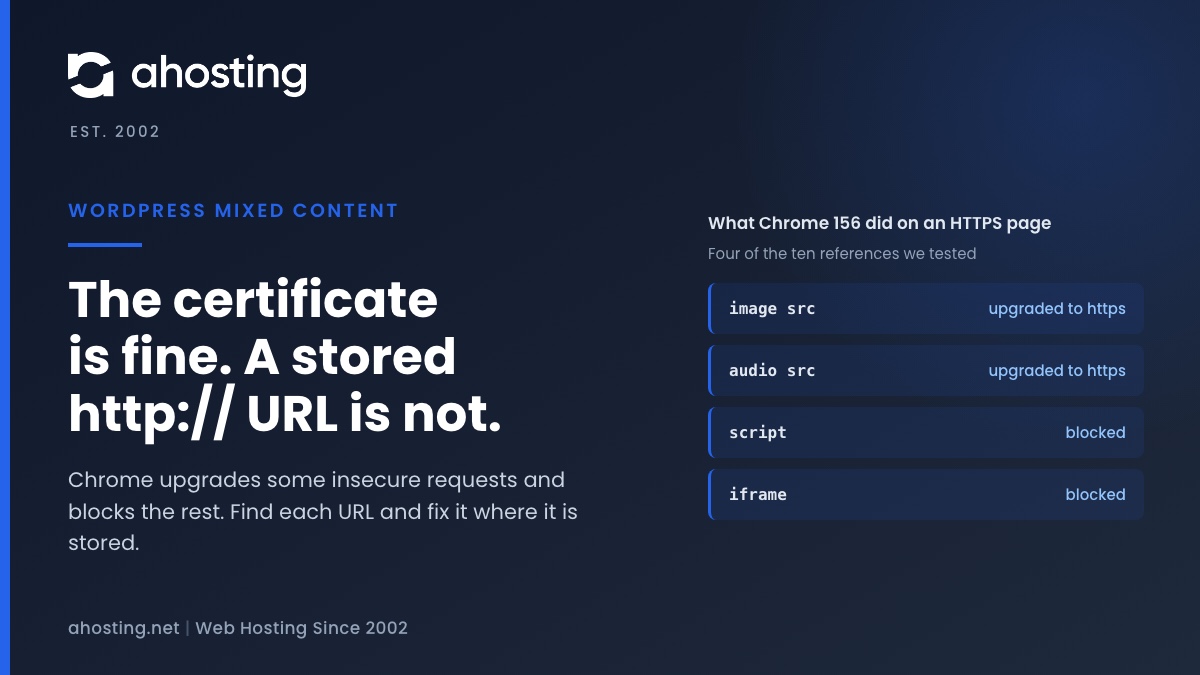
WordPress mixed content means an HTTPS page is asking for something over http://. In our Chrome 156 test, images, audio and CSS backgrounds were upgraded to HTTPS, while scripts, stylesheets, iframes, fetch calls and srcset images were blocked. WordPress rewrites only your own old home URL, and only after a flagged http-to-https switch, so everything else has to be fixed where it is stored. Read the console, change each URL at its source, purge every cache, then check again in a private window.
WordPress Mixed Content: What Your Browser Is Actually Reporting
WordPress mixed content is what you get when a page loads over HTTPS but asks for one or more of its parts over plain http://. The certificate is usually fine. The padlock changes, or a script quietly stops working, because a single stored URL still starts with the old scheme. Reissuing the certificate therefore does nothing, since the certificate was never the problem.
This guide covers how Chrome treats each kind of insecure request, how to find every one of them, where WordPress keeps them, and the order in which to fix them without SSH access. Everything about browser behavior below comes from a throwaway WordPress 7.1.4 site that we switched from http:// to https:// and loaded in Chrome 156 with the console captured, so the messages are quoted instead of paraphrased.

Upgraded, Blocked, or Only Warned: How Chrome Sorts Mixed Content
Browsers split insecure subresources into two groups. The W3C Mixed Content specification calls them upgradable and blockable: an upgradable request is rewritten to https:// automatically, and everything else is blocked. MDN describes the same split and names images, video and audio as the upgradable types. Chrome announced the move to auto-upgrading images in a Chromium blog post in 2019, and the other types are blocked.
Our test matched that split, with one result the references do not spell out. Each row below is one console line from the same page.
| Resource on the HTTPS page | Chrome 156 console wording | What happened |
|---|---|---|
| Image src (same host, other host or www variant) | insecure element … automatically upgraded to HTTPS | Request sent to https://, loaded because the host answered there |
| Audio src | insecure element … automatically upgraded to HTTPS | Upgraded |
| CSS background url() in a style attribute | insecure element … automatically upgraded to HTTPS | Upgraded |
| Image srcset candidate | insecure image … This request has been blocked | Blocked, even though the src of the same image was upgraded |
| Script | insecure script … This request has been blocked | Never ran |
| Stylesheet link | insecure stylesheet … This request has been blocked | Styles not applied |
| Iframe | insecure frame … This request has been blocked | Frame stayed empty |
| fetch() call from an inline script | insecure resource … This request has been blocked | Request never sent |
| Form action | contains a form that targets an insecure endpoint | Warning only, page not blocked |
| Link (a href) | No message | Not mixed content, because nothing loads until the visitor clicks |
The srcset Row of This Mixed Content Table Catches Most People
The srcset row is the one that catches people. A search that only looks for src= attributes will miss it, and the page still looks fine on most screens because the upgraded src loads. The srcset attribute only holds http:// URLs when something prints its own, such as hand-written HTML, imported content or a plugin or theme that builds the attribute itself, so look for it by name when the console reports an insecure image.
How to Find Every Mixed Content Reference in Five Minutes
Finding mixed content takes two views of the same page: what the browser refused, and which template printed it. The console answers the first question and the page source answers the second.
Read the Mixed Content Lines in the Console First
Open the affected page in Chrome, press F12 (or Cmd+Option+I on a Mac), choose the Console tab and reload. Type Mixed Content in the filter box. Every line names the page, the kind of resource (script, stylesheet, frame, image, element, resource) and the exact http:// URL. Blocked lines end with the sentence that the request has been blocked. Upgraded lines say they were automatically upgraded. Copy the URLs into a text file, because you will search for each one.
A page only reports what it requested while you watched. A lightbox script, a cookie banner or a chat widget may request its own insecure URL after a click or a delay, so scroll the page, open the menu and trigger the popups before you decide the list is complete.
Search the Page Source for the Same URLs
Next, open view-source: for the same page and search for http://. The console tells you what was refused, and the source tells you where in the HTML it appeared: inside the main content, in the footer, in a script tag near the closing body tag, or inside an inline script that builds a request. In our lab, a script printed from a plugin option and a script hard-coded in a theme tag both appeared in the footer, and both were blocked, while the same-host script in the post body had already been fixed by WordPress.
Expect some hits that are not mixed content. A plain link with an http:// address is harmless until someone clicks it. The same goes for the http://www.w3.org namespace inside an inline SVG, which is an identifier and not a request.
Decode a Mixed Content Console Line
The decoder below turns a pasted console line into a verdict and a first place to look. It uses the results from our test, so treat the wording as Chrome 156 specific.
Mixed Content Console Decoder
Paste one line from the Chrome console, or pick the resource type yourself. The decoder tells you what Chrome did and where to look in WordPress first.
Waiting for a console line or a type.
Where WordPress Mixed Content Is Stored After an HTTPS Switch
An http:// URL has to be stored somewhere to appear on the page. Knowing the storage location tells you which fix reaches it, which is why this section comes before the fix.
What WordPress Core Rewrites for You
Since WordPress 5.7, core can replace your own old http:// home URL on the fly. The function is wp_replace_insecure_home_url(). In the 7.1.4 source it sits in wp-includes/https-migration.php, and it does a plain string replacement of the http form of your home URL, and its JSON-escaped form, with the https form. It is attached to four filters in default-filters.php: the_content, the_excerpt, widget_text_content and wp_get_custom_css, so post content, excerpts, classic Text widgets and Additional CSS are covered.
Three conditions have to hold before the replacement runs. The site must be using HTTPS, the home and siteurl options must share a host, and the https_migration_required option must be true. That option is set by a hook on the home option, which fires when home changes from http to https, and it is set to false when the site is flagged as fresh. In our lab, changing the home option from http to https set the option to true, and an img tag and a script tag in a Custom HTML block of a post were both rewritten with no console message.
A direct database edit does not fire that hook. Neither does a WP_HOME or WP_SITEURL constant in wp-config.php, since the constant leaves the option alone. On those sites the option never becomes true, and the rewrite never happens. The WordPress HTTPS handbook page covers the settings and the proxy headers that WordPress needs to recognize HTTPS in the first place.
What WordPress Never Rewrites
The same grep that finds those four filters finds nothing else, so everything outside them keeps its stored http:// URL. The table lists the usual places, and the last column says what reaches each one.
| Where the http:// URL is stored | Rewritten by core? | What reaches it |
|---|---|---|
| Post and page content, excerpts | Yes, but only your own http home URL, and only when the migration option is true | SQL REPLACE on post_content |
| Additional CSS | Yes, same conditions | Edit it in the Customizer |
| Classic Text widget | Yes, same conditions | Edit the widget |
| Custom HTML widget and block widgets | No, core adds no rewrite to these filters | Edit the widget in Appearance, Widgets |
| Nav menus, post meta, theme mods, plugin options | No | Serialized-aware search-replace, or the plugin settings page |
| Another host, a www variant, a CDN hostname | No, measured with a www variant and a second hostname | Replace each host at its source |
| Hard-coded in a theme or plugin file | No, measured with a hard-coded script tag | Edit the file, or update or replace the theme or plugin |
Two of those rows cause most of the trouble that survives a migration. The first is the www variant: a site that was reached as http://www.example.com and is now at https://example.com has stored URLs that do not match the home URL, so the string replacement skips them. The second is the plugin option, where a stored absolute URL is printed into the page by the plugin on every request.
How to Fix WordPress Mixed Content Without SSH
Work in this order, because each step makes the next one smaller. Take a database backup from your control panel before you start, since two of these steps write to the database.
First Step: Make Both WordPress URLs HTTPS
In Settings, General, set the WordPress Address and the Site Address to https://. If either field is grayed out, the address is set by a WP_HOME or WP_SITEURL constant in wp-config.php, and the change goes there instead. This step also decides whether the core rewrite is active, so make it first and not last.
Second Step: Replace the Stored URLs in Post Content
Open phpMyAdmin from your control panel, select the WordPress database and run one statement in the SQL tab. Replace example.com with your domain, and change the wp_ prefix if your tables use another one.
UPDATE wp_posts SET post_content = REPLACE(post_content, 'http://example.com', 'https://example.com') WHERE post_content LIKE '%http://example.com%';This is safe for post content because the column holds plain text, and revisions in the same table are fixed too. Run it once for each host that appears in your console list, including the www variant. Do not use the same statement on the options, usermeta or postmeta tables, which brings up the next step.
Third Step: Use a Serialized-Aware Tool for Options, Widgets and Meta
WordPress stores arrays as PHP serialized strings, and each string carries its own length. We serialized a small array holding a 33-character URL, got s:33 in the output, replaced http:// with https:// blindly, and the string became 34 characters while the label still said 33. PHP then refused to read it: unserialize() returned false. In a real site that shows up as a plugin or widget that quietly resets its settings.
For those tables, use a search-replace plugin that states it handles serialized data, run its dry run first, and apply it to the options, postmeta and widget data. A fix there also clears plugin options that print absolute URLs, such as a script address stored in a settings page.
Fourth Step: Fix What Is Not in the Database
If the console URL is still there after steps two and three, it is hard-coded in a file. Download the theme or plugin folder and search it locally for http:// in a code editor. The File Manager search in cPanel matches file names only, so it will not find text inside a file. Fix it in a child theme or ask the theme or plugin vendor for an update, because an edit to a parent theme is lost at the next update.
Fifth Step: Purge Every Cache Layer
A page cache keeps the old HTML, and the old HTML still carries the old URLs. Purge the cache plugin first and the edge cache second. If your site sits behind Cloudflare, use Purge Everything there. Our LiteSpeed Cache and Cloudflare guide covers what happens when two cache layers disagree, and it explains why a fix can look missing for an hour.
Once the page is clean, the certificate behind it matters again. The AHosting SSL page lists a free DV certificate and paid OV and EV options, and our free SSL and domain management guide explains how certificate issuance fits into hosting. If you are choosing where to run the site next, you can compare our WordPress hosting and web hosting plans, and the migration guide shows how to move without breaking the URLs you just fixed.
Why Redirects and Insecure-Content Plugins Do Not Cure Mixed Content
Several quick fixes exist, and each one hides the symptom while leaving the stored URL in place. Knowing why helps you decide when a stopgap is acceptable.
A Redirect Moves Pages, Not the URLs Inside Them
A 301 redirect from http to https changes where a visitor lands. It does not change the URLs written inside the page they land on, and Chrome decides what to do with those URLs before any redirect could help. The result is a site with a perfect redirect and the same blocked script. Forcing HTTPS can also create a loop behind a proxy that does not pass the scheme through, which our guide to ERR_TOO_MANY_REDIRECTS in WordPress walks through.
Runtime Rewriting and upgrade-insecure-requests Only Mask the Problem
The upgrade-insecure-requests directive tells a browser to treat every insecure URL on the page as if it began with https://. The specification defines it, and the Mixed Content specification notes that the directive stays useful because it can upgrade blockable content, which browsers otherwise block. It works only when the resource exists at the https:// address. A plugin that rewrites URLs in the output on every request has the same limit, and it adds work to every page view.
Use either as a stopgap while you work through the five steps, then remove it. The stored URLs are still wrong, and the next export, migration or theme change will bring the warnings back.
How to Verify Mixed Content Is Gone for Good
Reload the page in a private window so that extensions and cached files cannot change the result, open the console and filter for Mixed Content. A clean page shows no such lines. Then repeat the check on the pages that use different templates: the home page, a single post, an archive, a contact form page, a login page and the 404 page. A footer script or a form action often appears on only one of them.
Trigger the features that load late, such as a popup, a map or a chat widget, and watch the console as you do. Check the console again after each plugin or theme update, because a vendor can reintroduce an absolute http:// address in a release. Finally, test the new content you add: a pasted embed code or an imported image block can bring an old URL back in one step.
Frequently Asked Questions About WordPress Mixed Content
How do I allow mixed content in Chrome in 2026, and should I do that on a WordPress site?
Specifically, Chrome has a per-site setting that allows blocked insecure content, but it only changes your own browser, so every other visitor still gets the broken page. Fix the stored http:// URLs instead, using the five-step order in the fix section above.
Does WordPress fix mixed content by itself in 2026 once I switch the site URL to HTTPS?
Typically only in part. WordPress 5.7 and later rewrites your own old http:// home URL in post content, excerpts, classic text widgets and Additional CSS, but only after the home option was changed from http to https and only for that one host, so other hosts, widgets, options and theme files are left alone.
Why does my AHosting WordPress site show mixed content in 2026 after I installed an SSL certificate?
Typically the certificate is fine and the page itself loads over HTTPS. The warning comes from one or more http:// URLs stored in your content, widgets, plugin settings or theme files, so the fix is to find each URL in the browser console and change it where it is stored.
Mixed content blocked vs mixed content upgraded: which WordPress resources does Chrome treat each way?
Specifically, in our Chrome 156 test images, audio and CSS background URLs were upgraded to HTTPS, while scripts, stylesheets, iframes, fetch calls and srcset image candidates were blocked, and a form action only produced a console warning.
Is a phpMyAdmin SQL REPLACE vs a search-replace plugin safer for fixing WordPress mixed content?
However, the answer depends on the table. A SQL REPLACE on the post_content column is safe because post content is plain text, but options, widgets and post meta can hold serialized data, where changing http to https alters a string length and breaks the value, so use a serialized-aware tool there.
What should I check when mixed content remains after search-replace on a site behind Cloudflare and W3 Total Cache?
Typically the old HTML is still cached. Purge the page cache in W3 Total Cache, then use Purge Everything in Cloudflare, and reload the page in a private window before you read the console again.
Does AHosting charge extra for an SSL certificate that removes the not secure warning on my site?
In other words, the AHosting SSL page lists a free DV certificate alongside paid OV and EV options, and none of them changes mixed content, because a certificate secures the connection and cannot rewrite URLs stored inside your pages.
How can I tell if a WordPress mixed content warning comes from a plugin option or a theme file?
Specifically, search the plugin settings pages and the Customizer for the exact URL the console names. If it is not stored in the database, it is hard-coded in a theme or plugin file, so download the theme and search the files locally in a code editor.
Will AHosting support help me trace a WordPress mixed content URL that I cannot find myself?
Indeed, you can open a ticket, and including the exact console line and the page address gives support what it needs to start. The AHosting site lists support as available 24/7 through tickets.
How do I force my WordPress website to use HTTPS in 2026 without creating mixed content?
Typically you set both the WordPress Address and the Site Address to https in Settings, General, add one 301 redirect from http to https, and then replace the stored http:// URLs. The redirect moves visitors to the secure page but does not change the URLs inside it, so a redirect alone leaves mixed content in place.