

- Why an Inode Limit Reports "Full" While Your Disk Is Half Empty
- How to Check Your Inode Limit and Usage in cPanel
- The AHosting Inode Ladder and the 42 KB Crossover
- What Actually Eats Inodes on a WordPress Account
- Find the Real Consumer: A Directory-Level Inode Census
- Reduce Inode Usage Safely, in Order of Payoff
- Estimate Which Ceiling You Will Hit First
- When the Honest Answer Is a Higher Inode Ceiling
- A Practical Checklist for Clearing an Inode Limit
- Frequently Asked Questions About Inode Limits on Shared Hosting
- What does it mean when a hosting account hits its inode limit in 2026?
- How do I check my inode limit and current usage in cPanel?
- Inode limit vs disk space: which one runs out first on a WordPress site?
- Inode limit vs entry process limit: how do the two failures differ?
- What is the inode limit on AHosting shared hosting plans in 2026?
- Does email count toward the inode limit on a cPanel account?
- What happens to a WordPress site when the inode limit is reached?
- How does LiteSpeed Cache on AHosting affect how many files an account stores?
- How many files does a typical WordPress installation hold in 2026?
- Does upgrading an AHosting plan raise the inode limit as well as storage?
An inode limit counts files, not bytes, so an account can report itself full with most of its disk unused. Open cPanel and read the File Usage row in the Statistics panel against the Disk Usage row above it. If the file count is near its ceiling while storage is not, adding gigabytes fixes nothing — find the directory holding the files instead, and start with mail, cache and old backups.
Nothing about this failure looks like a capacity problem, which is exactly why it costs people an afternoon. The media library refuses an upload. A plugin update dies halfway through. Last night’s backup says it finished and produced no file. Then you open cPanel, see 3 GB used of 10 GB, and conclude the host is broken. It is not: you have hit an inode limit, a second ceiling that counts how many files you store rather than how large they are. This guide shows you how to confirm it in two minutes, how to find the directory actually responsible instead of guessing, and how to tell a cleanup job from a tier you have genuinely outgrown.
Why an Inode Limit Reports “Full” While Your Disk Is Half Empty
Your account is capped twice, and the two caps measure different things. One counts bytes and is the number every hosting plan advertises. The other counts entries in the file system — one per file, one per directory — and most people never see it until it stops them. In POSIX terms that entry is the file serial number, described in the standard as a per-file-system unique identifier for a file; on Linux it is universally called an inode, and cPanel labels the running total File Usage.
The consequence of counting entries rather than bytes is the whole of this problem. Size is irrelevant to the count: one 2 GB archive costs a single entry, while 20,000 cache fragments of four kilobytes each cost 20,000. An account can therefore be 96 percent of the way through its file allowance while showing a third of its disk used, and no graph anyone normally looks at will hint at it.
What breaks when the ceiling is reached is every write, all at once and permanently until something is deleted. Uploads fail. Updates fail partway and leave a half-installed plugin. Incoming mail is rejected at the server. Worst of all, scheduled backups stop producing files while still reporting success, so the one thing that would let you recover quietly stops existing. Reading is unaffected, which is why visitors notice nothing and you notice everything.
How to Check Your Inode Limit and Usage in cPanel
Two numbers settle this, and both are already on the screen you land on. Log in to cPanel and look at the Statistics panel down the right-hand side. Find the row labeled File Usage: it prints your current count and your ceiling, separated by a slash, in the form 249,120 / 250,000. Directly above it sits Disk Usage in gigabytes.
Read them as a pair, never one at a time. That pairing is the diagnostic, because it tells you which ceiling is close and therefore which problem you actually have:
- File Usage near its ceiling, Disk Usage nowhere near — this article. More storage would change nothing.
- Disk Usage near its ceiling, File Usage comfortable — an ordinary storage problem. Find the large files.
- Both close — the account is simply full in every sense, and the tier is the answer rather than a cleanup.
- Neither close, writes still failing — not a capacity problem at all. Check file permissions and ownership before anything else.
One caution about the reading itself: File Usage is a snapshot updated on a schedule, not a live counter, so a large deletion can take a while to show. Give it time before concluding that a cleanup achieved nothing. Our knowledge base covers the same ground from the server side in understanding inodes and running out of them.

The AHosting Inode Ladder and the 42 KB Crossover
Most hosts do not publish a file ceiling at all, which makes the number impossible to plan against. We publish it on the plan pages beside the storage figure, and reading the two together produces something more useful than either alone. Divide the storage a plan allows by the files it allows and you get the average file size at which both ceilings fill on the same day. Below that figure the count binds first; above it, storage does.
| Plan | SSD storage | File ceiling | Files per GB | Crossover average file size |
|---|---|---|---|---|
| Bronze | 10 GB | 250,000 | 25,000 | 42 KB |
| Silver | 20 GB | 400,000 | 20,000 | 52 KB |
| Gold | 50 GB | 600,000 | 12,000 | 87 KB |
Two things fall out of that table. The first is a test you can apply to your own account in ten seconds: mail messages average a few kilobytes, cache fragments similar, and thumbnails commonly run 10 to 60 KB, so any account whose bulk is those three sits below the crossover. Photo originals, video and archives sit far above it.
The second matters when you are choosing a tier. Files per gigabyte falls as the ladder rises — 25,000, then 20,000, then 12,000 — because larger plans are shaped for accounts holding larger files. Gold carries five times the storage of Bronze but only 2.4 times the inode limit. For a media library that is right; for a mail-heavy account it means a tier buys less relief than the storage headline suggests. Every tier is listed on our shared web hosting plans.
What Actually Eats Inodes on a WordPress Account
Four things account for almost every case of an inode limit, and WordPress core is not one of them. A bare installation with a theme and a handful of plugins usually holds 10,000 to 20,000 files, a small fraction of even the entry ceiling. Everything below grows without a natural stopping point, which is the property that matters.
Media Uploads, Multiplied by Every Registered Size
One photograph is never one file. WordPress generates a derivative for each registered image size, and core alone reserves several by name — thumbnail, medium, medium_large and large — then adds further default sub-sizes on top, as the add_image_size reference sets out. Themes and page builders register more. Since version 5.3 an upload wider than 2,560 pixels also gets a scaled copy alongside the preserved original, so a single large photograph can land as eight files. Upload a thousand and the arithmetic stops being abstract.
Email, Where Every Message Is Its Own File
This is the one that catches people, because mail feels like it lives somewhere else. It does not. cPanel stores mail in Maildir format, whose founding property is that each message is stored in a separate file with a unique name. A mailbox holding 40,000 messages is holding 40,000 entries against your ceiling, and Spam and Trash folders are the usual culprits precisely because nothing empties them and nobody looks. Attachment size is beside the point here: a hundred one-line notifications cost exactly what a hundred invoices cost.
Page and Object Caches, Which Write a File Per Cached URL
Caching trades files for speed, and the trade is usually worth making. Full-page caching stores each cached page on disk, so a site with 5,000 URLs can hold thousands of cache files, and warming the cache with a crawler builds that set on purpose. LiteSpeed’s own cPanel documentation shows the per-site cache root configured under the account home directory, so on most cPanel servers those files sit inside your quota. Purging is not a fix, merely a deferral, and it costs you the performance you turned caching on for.
Backups, Staging Copies and Migration Leftovers
Duplicate trees are the quiet giant. A staging site is a second complete copy of every file you have, which is why we recommend running one on hosting built for WordPress staging rather than as a folder inside a full account. Backup plugins that keep local copies store an extracted tree per restore point. Migration debris outlives its usefulness by years, and our guide to migrating WordPress to a new host ends with the cleanup step most people skip.
Find the Real Consumer: A Directory-Level Inode Census
Guessing is the expensive part of this job. Deleting things at random can free tens of thousands of entries and still leave you at the inode limit, because the directory responsible was somewhere you never opened. A census fixes that by ranking directories by file count, and it takes about five minutes.
If you have terminal access, one command does the whole job. GNU coreutils documents du –inodes as being useful for exactly this — finding the directories that contain many files. Run du --inodes -x -d 3 ~ | sort -rn | head -30 from your home directory and read the list from the top; -x keeps it on one file system and -d 3 stops it drowning you in depth.
Without terminal access the same result comes from cPanel’s File Manager, more slowly. Start at the account root and work down, checking these five locations in this order, because they are ranked by how often each turns out to be the answer:
mail/— every domain, and inside each one the Spam, Junk and Trash folders.public_html/wp-content/cache/and any sibling cache directory a plugin created.public_html/wp-content/uploads/— sorted by year, so you can see when it accelerated.- Old backup and staging directories anywhere in the account, including outside
public_html. .trash,tmpand.cagefs, which are easy to forget and occasionally enormous.
Write down the count before you start deleting. Without a baseline you cannot tell whether a cleanup freed 2,000 entries or 200,000, and that difference decides whether the next step is another cleanup or a tier.
Reduce Inode Usage Safely, in Order of Payoff
Work down this list and stop when File Usage drops clear of the inode limit. Order is deliberate: each row costs less than the one below it and, on the tickets we see, clears more. Every one of them is reversible except where noted.
| Order | Change | What it frees | Effort |
|---|---|---|---|
| 1 | Empty Spam, Junk and Trash on every mailbox, then set them to auto-purge | Often 30–60 percent of the count on a mail-heavy account | Minutes |
| 2 | Delete old backup archives and any extracted restore trees held locally | Whole duplicate file trees at once | Minutes |
| 3 | Remove staging and migration leftovers you no longer need | A second complete copy of the site | Minutes |
| 4 | Purge page and object cache directories once, as a temporary measure | Thousands of small files, which will rebuild | Minutes |
| 5 | Uninstall plugins and themes you do not use, rather than deactivating them | Deactivating frees nothing; the files remain | Minutes |
| 6 | Unregister image sizes you never serve, then regenerate thumbnails | Several files per uploaded image, permanently | An hour |
| 7 | Move video and large media to object storage or a media host | Removes the growth curve rather than a snapshot | Developer time |
Row 6 deserves a warning, since it is the only one that is not simply reversible: unregistering a size and regenerating thumbnails deletes derivatives that existing posts may reference. Check what your theme actually serves before you run it. Row 5 deserves a correction of a common belief — deactivating a plugin frees nothing at all, because every file stays exactly where it was.
Estimate Which Ceiling You Will Hit First
Both numbers this needs are on your cPanel home screen already. Put them in and it will tell you how far along each ceiling you are, what your average file size works out at, and which of the two will stop you first — which is the only question that decides what you should do next.
Inode Limit Headroom Check
Both figures this needs are already on your cPanel home screen: File Usage and Disk Usage, in the Statistics panel. It compares how far you are along each ceiling and names the one that will stop you first.
Average file size is your storage divided by your file count, and it is the number that decides which ceiling you meet first. Deleting one large archive changes the disk figure and barely moves the file figure; emptying a spam folder does the opposite.
When the Honest Answer Is a Higher Inode Ceiling
Sometimes the files are the business. If you have worked down the list and what remains is a real media library, real customer mail and a cache serving real traffic, then nothing is misconfigured and the allowance is simply too small for what you run. The test we use is whether you can name what is holding the entries: if you can and it is work the site actually does, the ceiling is the problem; if you cannot, it is not.
That is the point where a tier change is the fix rather than an upsell, and the ladder moves every account-wide ceiling on the same step — file count, storage, entry processes, memory and disk throughput together. A content or membership site is usually served by the next step up on managed WordPress hosting. A store is a different shape: order mail, invoices and product image variants make stores unusually file-dense for their size, which is worth knowing before you size WooCommerce hosting. Where a single account is carrying many sites, the shared model itself is the constraint and VPS hosting gives you the whole file system rather than a slice of one.
Before you decide, check the other ceilings in the same sitting, because accounts that run out of files often turn out to be near something else as well. Our write-up of the 508 resource limit error covers the concurrency ceiling, and the companion piece on disk I/O throttling covers the one that never returns an error at all. Clean up first; move when the cleanup runs out.
A Practical Checklist for Clearing an Inode Limit
- Writes are failing while reads work normally, and the errors blame permissions or disk space rather than an inode limit.
- cPanel Statistics has been opened and File Usage read as a pair with Disk Usage, not one alone.
- The file count is genuinely near its ceiling while storage is not — otherwise this is a different problem.
- A baseline count was written down before anything was deleted.
- Mail was checked first, per domain, including Spam, Junk and Trash on every mailbox.
- Backup archives, extracted restore trees and staging copies have been located and assessed.
- Cache directories were counted, and it is understood that purging them is a deferral rather than a fix.
- Unused plugins and themes are uninstalled rather than merely deactivated.
- Registered image sizes have been reviewed against what the theme actually serves.
- If the count is still near the ceiling, the files that remain can be named and tie to work the site really does.
Frequently Asked Questions About Inode Limits on Shared Hosting
What does it mean when a hosting account hits its inode limit in 2026?
Typically it means your account has reached the maximum number of files and directories it is allowed to hold, which is counted separately from how many gigabytes those files occupy. Every file counts as exactly one entry regardless of size, so a single 2 GB archive costs one and twenty thousand tiny cache fragments cost twenty thousand. Once the ceiling is reached the account can no longer create anything: uploads fail, plugin installs fail, backups fail and incoming mail is rejected, usually with error messages that mention permissions or disk space rather than the real cause.
How do I check my inode limit and current usage in cPanel?
First and foremost, look at the Statistics panel down the right-hand side of the cPanel home screen and find the row labeled File Usage. It prints two numbers separated by a slash: the count of files and directories your account currently holds, and the ceiling your plan allows. Read that alongside the Disk Usage row directly above it, because the pair is what tells you which of the two ceilings is actually close. If File Usage reads 249,120 of 250,000 while Disk Usage sits at 3 GB of 10 GB, the file count is your constraint and adding storage would change nothing.
Inode limit vs disk space: which one runs out first on a WordPress site?
In practice the answer depends entirely on your average file size, and there is a specific number where the two ceilings meet. Divide the storage your plan allows by the file count it allows and you get the average size at which both fill on the same day. Below that figure the file count binds first; above it, storage does. WordPress accounts that carry a lot of email, a large page cache or years of thumbnail variants sit well below the crossover, which is why an inode limit surprises people who have been watching their disk graph.
Inode limit vs entry process limit: how do the two failures differ?
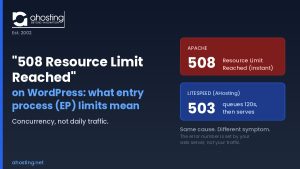
By contrast with an entry process limit, which throttles you only while traffic is heavy and clears itself the moment the rush passes, an inode limit is a hard stop that does not recover on its own. Running out of entry processes returns a 508 to some visitors for a few minutes; running out of files stops every write on the account until you delete something. The two also fail in different places. One is visible to your visitors and invisible in cPanel, and the other is invisible to your visitors and printed on the cPanel home screen in plain numbers.
What is the inode limit on AHosting shared hosting plans in 2026?
Notably, AHosting publishes the ceiling on the plan pages rather than describing it in adjectives. Bronze allows 250,000 files against 10 GB of SSD storage, Silver allows 400,000 against 20 GB, and Gold allows 600,000 against 50 GB. Those pairs are worth reading together, because the file allowance per gigabyte falls as the tiers rise: 25,000 per GB on Bronze, 20,000 on Silver and 12,000 on Gold. Higher tiers are calibrated for accounts holding larger files, so a mail-heavy or cache-heavy account gains proportionally less headroom from a tier change than a media-heavy one does.
Does email count toward the inode limit on a cPanel account?
Indeed it does, and on many accounts it is the single largest consumer. cPanel stores mail in the Maildir format, whose defining property is that each message is written as its own file, so a mailbox holding 40,000 messages holds 40,000 files. Spam and Trash folders are the usual offenders because nothing deletes them automatically and nobody looks at them. Attachments make the size worse but not the count; a hundred one-line notifications cost exactly as much against the ceiling as a hundred messages carrying invoices.
What happens to a WordPress site when the inode limit is reached?
Specifically, the site keeps serving pages and stops being able to write anything. Visitors usually notice nothing at first, because reading existing files is unaffected. Inside wp-admin the failures start immediately: media uploads return an error about the upload directory not being writable, plugin and core updates fail partway through, and any plugin that writes a log or a cache file fails silently. The most damaging symptom is the quiet one, which is that scheduled backups stop completing while still reporting that they ran.
How does LiteSpeed Cache on AHosting affect how many files an account stores?
Fortunately the trade is usually worth making, but it is a genuine trade and it is worth understanding before you tune anything. Full-page caching works by writing each cached page to disk as a file, so a site with 5,000 URLs can hold thousands of cache files at once, and enabling a crawler to warm the cache builds that set deliberately. On AHosting a cached page also consumes zero entry processes, so the caching layer is buying real protection against the concurrency ceiling with a modest cost against the file ceiling. Purging the cache to reclaim files is therefore a short-term fix that costs you performance.
How many files does a typical WordPress installation hold in 2026?
In fact a bare installation is small: WordPress core plus a theme and a handful of plugins usually lands somewhere between 10,000 and 20,000 files before any content exists. Growth comes almost entirely from four places, and none of them is the core software. Media uploads multiply because every registered image size becomes another file on disk, mail accumulates one file per message, page and object caches write and rewrite constantly, and old backups and staging copies duplicate whole trees. An account at 240,000 files is rarely a big website; it is usually a small website plus one of those four running unbounded.
Does upgrading an AHosting plan raise the inode limit as well as storage?
Accordingly it does, and both move on the same step rather than one at a time. Bronze to Silver takes the file ceiling from 250,000 to 400,000 while storage goes from 10 GB to 20 GB, and Gold carries 600,000 against 50 GB. Entry processes, memory, CPU and disk throughput rise on those same steps, so a tier change lifts every account-wide ceiling together. Check which one you are actually near before you decide, because an account that is at 96 percent of its file count and 30 percent of its storage is buying the file ceiling and nothing else.
Related posts:
 Why Raising the WordPress Memory Limit Doesn’t Work on Shared Hosting (and What Does)
 Five Ways You Can Keep Your WordPress Site Spam-Free
 Dedicated IP WordPress Hosting: The Free Feature Most Hosts Charge $5/mo For
 “508 Resource Limit Reached” on WordPress: What Entry Process (EP) Limits Really Mean