
- What "Autoloaded Options Could Affect Performance" Actually Measures
- Why the Autoloaded Options Warning Appeared on a Site Nobody Touched
- What Autoloaded Options Cost on Shared Hosting
- How to Measure Your Autoloaded Options in Three Places
- How to Reduce Autoloaded Options Safely, in Order of Payoff
- Estimate What Your Autoloaded Options Hold at Full Concurrency
- When Reducing Autoloaded Options Is Not the Fix
- A Practical Checklist for Clearing the Autoloaded Options Warning
- Frequently Asked Questions About Autoloaded Options on Shared Hosting
- How do I clean up autoloaded options in WordPress in 2026 without breaking the site?
- What does the Site Health warning "Autoloaded options could affect performance" actually measure?
- Autoloaded options vs transients: which one is filling the wp_options table?
- Page cache vs object cache: which one stops autoloaded options from costing anything on AHosting?
- Why is wp-admin slow while visitors say the site is fast on AHosting shared hosting in 2026?
- Why are some autoloaded options larger than 150 KB still loading after the WordPress 6.6 change?
- How many autoloaded options can a WordPress site hold on an AHosting Bronze plan before memory becomes the problem?
- Is 800 KB of autoloaded options still the right threshold in 2026 for a WooCommerce store?
- Will setting all autoloaded options to autoload off make WordPress faster on shared hosting?
- Should I raise the PHP memory limit to fix the autoloaded options warning in 2026?
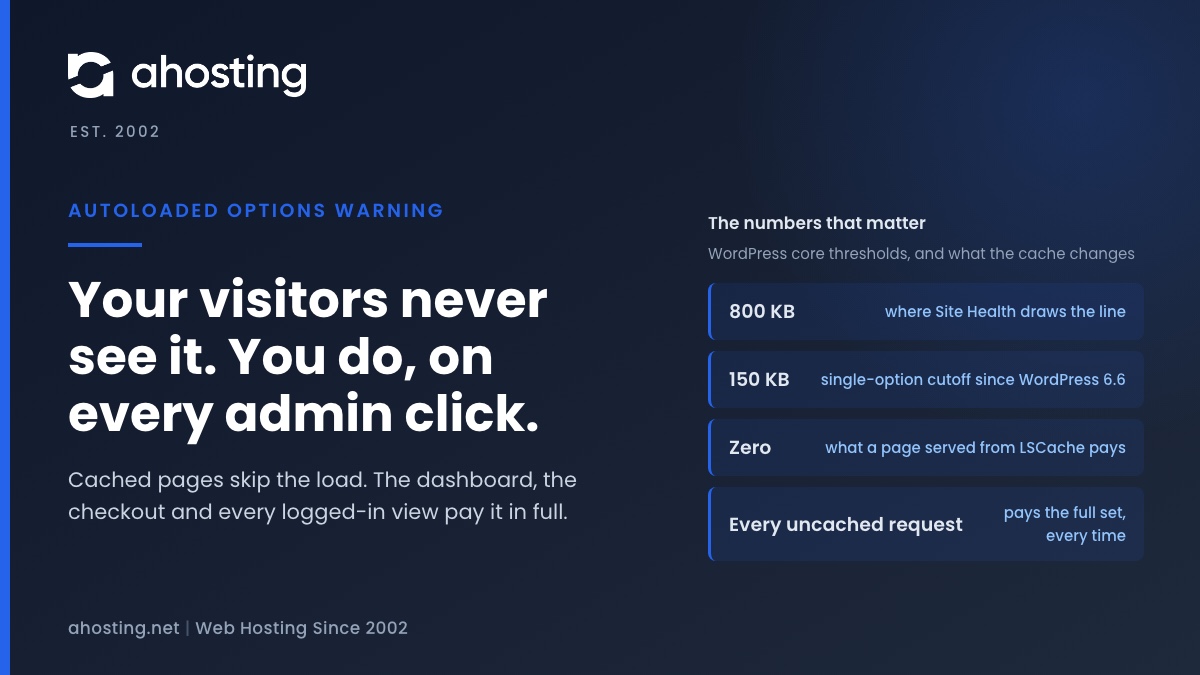
The warning that autoloaded options could affect performance means WordPress now loads more than 800 KB of settings before it routes every uncached request. Cached pages never pay it; your admin, your checkout and every logged-in view pay it in full. Export the options table, clear expired transients, delete leftovers from removed plugins, then switch autoload off per large row — never wholesale.
The message is short, it is marked critical, and it appeared on a site you did not change: autoloaded options could affect performance. Site Health prints a row count and a size beside it, neither of which means much on its own, and the advice you find next tends to be a plugin recommendation. This guide explains what the check measures, why it started firing on sites that had been fine for years, and what the cost actually is on a shared hosting account, where most of your visitors never pay it and you pay it on every click. Then it walks the cleanup in the order that clears the most with the least risk.
What “Autoloaded Options Could Affect Performance” Actually Measures
The warning measures one number: the combined size of every option WordPress loads before it knows which page it is serving. Settings live in the wp_options table, and each row carries an autoload flag. Rows flagged on are fetched together in a single query on every request that reaches PHP, unserialized into memory, and held for the life of that request so that core, the theme and every plugin can read their settings without a query each. That single load is what the check weighs.
Specifically, the Site Health test for autoloaded options sums the byte length of those rows and raises a critical issue at 800,000 bytes. The message is worth reading precisely, because it carries two numbers: “Your site has 1,068 autoloaded options (size: 1 MB) in the options table, which could cause your site to be slow.” The count tells you how many rows are loaded before routing; the size tells you how much data they carry. Size is the one that hurts, since a single 600 KB row costs more to fetch and unserialize than three hundred rows of a few bytes.
The warning is a measurement, not a diagnosis. It cannot tell you whether the set is made of settings a live plugin reads on every page or the debris of plugins you removed in 2021, and it says nothing about whether any visitor ever feels the cost. Both of those depend on where the request came from, which is the part this guide is about.
Why the Autoloaded Options Warning Appeared on a Site Nobody Touched
Three things changed in WordPress 6.6, released in July 2024, and together they explain why a site that had been quiet for years suddenly reported a critical issue. None of them made your options larger. One of them made you look.
The 800 KB Threshold Is New, but the Data Is Not
The check itself is what arrived in 6.6. Before that release, nothing in WordPress measured the autoloaded set, so a site could carry 4 MB of leftover settings for years and never hear about it. Upgrading did not create the problem; it installed the instrument. That is why the warning reads as though something broke, when what actually happened is that a total which had been growing since the site was built was printed for the first time.
Large Options Stop Being Autoloaded at 150 KB, but Only Going Forward
The same release changed how new options are stored. The Options API dev note for 6.6 describes a size threshold, defaulting to 150,000 bytes, above which an option written without an explicit autoload instruction is no longer loaded on every request. It also replaced the old yes-or-no flag with five values — on, off, auto, auto-on and auto-off — and the loader now treats yes, on, auto-on and auto as loaded. Two consequences follow. A plugin that explicitly asks for autoload still gets it at any size, and rows written before 6.6 keep whatever flag they had. So any row over 150 KB that is still in your set is either older than the change or deliberately forced on, and either way it is the first thing to look at.
Transients Without an Expiry Are Autoloaded Options Too
A transient is a cached value stored as an ordinary option row, and its expiry decides its autoload flag: set with no expiry it is written as autoloaded, set with one it is not. Plugins use the no-expiry form for things they expect to refresh themselves, and when the plugin goes, the rows stay. The scheduled-events list is stored the same way, as one autoloaded option that grows with every recurring task a plugin registers, which is one reason a site with a busy cron schedule tends to carry a larger set than its plugin count suggests.

What Autoloaded Options Cost on Shared Hosting
The generic answer is “memory and speed,” and it is half right in a way that sends people to the wrong fix. On a CloudLinux shared account the cost has a specific shape, because the account has a fixed number of concurrent PHP requests and a fixed pool of memory they all share, and because most requests never reach PHP at all.
Cached Pages Pay Nothing, Uncached Requests Pay Every Time
A page LiteSpeed serves from LSCache never starts PHP, so no options are loaded, nothing is unserialized, and on our platform that request consumes zero entry processes. The autoloaded set costs exactly nothing on that path, however large it is. Every request that reaches PHP pays the full price: the admin, every logged-in page view, a cart, a checkout, every AJAX call, search, scheduled tasks, and the first hit on any page before the cache holds it. Our guide to splitting TTFB into cached and uncached shows how to measure that difference on your own site, and it is the first thing to do before blaming the database.
An object cache does not change which path pays. WordPress checks the persistent cache for the whole autoloaded set before it queries the database, so a cache such as Redis or Memcached removes the query, but the set is still unserialized into PHP memory on every request that reaches PHP. That makes a bloated set cheaper, not free.
Every Concurrent Request Holds Its Own Copy: the AHosting Autoload Headroom Ladder
Each request that reaches PHP holds its own copy of the set for as long as it runs, and the account’s physical memory ceiling is shared by all of them. Our plan pages publish both halves of that arithmetic, the entry-process ceiling and the account memory, so the cost can be stated rather than described:
| Plan | Entry processes | Account memory | Per-request budget at full concurrency | Set held at 800 KB, all requests at once | Set held at 3 MB, all requests at once |
|---|---|---|---|---|---|
| Bronze | 30 | 2 GB | 68 MB | 24 MB (1.2%) | 90 MB (4.4%) |
| Silver | 40 | 3 GB | 77 MB | 32 MB (1.0%) | 120 MB (3.9%) |
| Gold | 50 | 4 GB | 82 MB | 40 MB (1.0%) | 150 MB (3.7%) |
Two things are visible in that table that the generic warning hides. The first is that memory is rarely the ceiling: even a set well past the line occupies a few percent of the account at full concurrency. The second is the per-request budget. When every entry process is busy, each request on Bronze has about 68 MB of the account to itself, and the set is subtracted from that before a single plugin has run. A request that needs more than its share reduces how many can run at once, so memory can become the first limit before the entry-process ceiling is ever reached. If you are already watching that ceiling, our write-up of the 508 resource limit error explains what it looks like from the other side.
Why the Admin Feels the Autoloaded Options Cost Before Visitors Do
A logged-in admin session is uncacheable, so every click in the dashboard runs the full boot, including the load. Visitors are served pages the cache built earlier and never see it. This is why a bloated set produces the specific complaint of an admin that feels slow while the public site tests fast, and why the same set on a store shows up at the cart and the checkout, which cannot be cached either. Stores compound it, because a busy admin also generates a steady stream of Heartbeat and admin-ajax requests, each of which is a full uncached boot. That is the reason our WooCommerce plans are sized on the uncached path rather than on catalog traffic, and it is the reason this cleanup pays off more on a store than on a blog with the same numbers.
How to Measure Your Autoloaded Options in Three Places
Three readings settle what you have, and each answers a different question. Site Health gives you the total, the database gives you the rows, and the command line gives you a number you can put in a monitoring script.
Site Health: the Total and the Count
Go to Tools, then Site Health, and read the Status tab. The autoloaded options item sits under Critical issues when the set is over the line and under Passed tests when it is not, and in both cases it prints the row count and the size. Write both down before you change anything, because the difference after each step is how you know which step mattered.
phpMyAdmin: the Query That Matches What WordPress Loads
Open phpMyAdmin from the Databases section of cPanel, as cPanel’s phpMyAdmin documentation describes, select the site’s database, and open the SQL tab. Most guides still filter on autoload = 'yes', which under-counts on any site running 6.6 or later, because rows written since then carry the new values. The query below matches the same four values the loader itself uses:
SELECT COUNT(*), ROUND(SUM(LENGTH(option_value))/1024) AS kb FROM wp_options WHERE autoload IN ('yes','on','auto-on','auto');
Then list the rows by size, using the same filter with ORDER BY LENGTH(option_value) DESC LIMIT 25 in place of the sum. The names usually identify the owner: a prefix matching a plugin you still run, a prefix matching one you removed, or _transient_ and _site_transient_ for cached values. If your table prefix is not wp_, substitute it in both queries. Our knowledge base article on cleaning up the WordPress database covers the rest of the table, including revisions and spam.
WP-CLI, If Your Shell Has It
Where WP-CLI is available, one command prints the total in bytes: wp option list --autoload=on --format=total_bytes, as the wp option list reference documents, and adding --fields=option_name,size_bytes lists the rows with their sizes. Put the first form in a weekly cron job and you have a trend line, which is worth more than any single reading: a set that grows 50 KB a week has an active writer, and finding it matters more than the cleanup.
How to Reduce Autoloaded Options Safely, in Order of Payoff
Work down this list and re-read Site Health after each row. The order is deliberate: every step is cheaper and safer than the one below it, and on the accounts we see the first three clear most cases. Nothing here needs a plugin, though one is named where it genuinely helps.
| Order | Change | What it does to the set | Reversible? |
|---|---|---|---|
| 1 | Export the options table as SQL from phpMyAdmin before touching anything | Nothing yet; this is the undo button for every row below | It is the undo |
| 2 | Clear expired transients (WooCommerce: Status, then Tools, then Clear expired transients) | Removes cached values whose time has passed | They regenerate |
| 3 | Delete rows whose prefix belongs to a plugin you have uninstalled | Removes the debris that is usually most of the total | From the export |
| 4 | Set autoload off, per row, on large rows a live plugin does not need on every request | Keeps the data, stops loading it | Set it on again |
| 5 | Measure which loaded options are actually used, then switch the unused ones off | Trims what the prefix method cannot classify | Set it on again |
| 6 | Find the plugin writing a row that keeps growing, and fix or replace it | Stops the set coming back | Depends on the plugin |
Row 1: Export Before Anything Else
Row 1 is not ceremony. phpMyAdmin’s export documentation puts it plainly: an SQL export can be used to restore your database, which is exactly what you want available before the first delete. Export the one table, not the whole database, and keep the file until the site has run a week.
Row 4: Switch Autoloaded Options Off per Row, Never Wholesale
Row 4 is where the real savings usually are, and it is also where people go wrong by doing it wholesale. Switching every row off makes things worse twice over: hundreds of small options that were read from one load now cost a query each, and the loader has a fallback that loads every option in the table when the autoload query returns nothing. Turn rows off one at a time, with wp option set-autoload option_name off or an UPDATE on that single option_name, starting with the largest.
Row 5: Measure Which Autoloaded Options Are Actually Read
Row 5 answers the question the prefix method cannot: whether a row from a plugin you still run is actually read on your pages. Joost de Valk built AAA Option Optimizer for exactly this, and his account of why option clutter matters is the clearest short explanation of the problem: those options are “still loaded into the memory on every pageview.” The plugin records which autoloaded options were used during real page loads over a few days, then lets you switch off or delete the ones that never were.
Estimate What Your Autoloaded Options Hold at Full Concurrency
Put in the size Site Health reported and pick your plan. If you also know the peak memory a request uses on your site, which Query Monitor shows in its overview, add that and the tool tells you whether memory or the entry-process ceiling is the limit you would reach first at peak.
Autoload Headroom Check
Take the size from the Site Health message, or from the query in the section above, and pick your plan. It tells you how far past the 800 KB line you are, what the set occupies across every concurrent request at once, and how much of the per-request budget it takes before a single plugin has run.
The occupancy figure is a floor: an unserialized PHP array is larger than the bytes it came from, and every request also carries its own object-cache copy of the set. The per-request budget is the account’s memory divided by its entry-process ceiling, which is what each request has when all of them are running at once.
When Reducing Autoloaded Options Is Not the Fix
Sometimes the set is already lean and the admin is still slow, and sometimes the set is large because a plugin you depend on genuinely needs it that way. Both are real, and both call for something other than another pass through the options table.
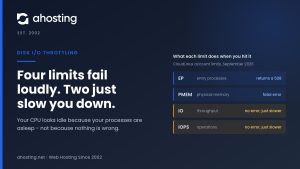
If Site Health passes and the dashboard still drags, the database is not your problem. Compare the same URL cached and uncached first, then look at the other account ceilings, because a slow admin with a small option set usually turns out to be a CPU, memory or throughput limit being reached, and disk I/O throttling in particular produces exactly this symptom without ever printing an error. Raising the PHP memory limit is not the answer either; our memory limit guide explains why a per-script limit cannot create memory the account does not have.
If the set is large for a reason, the honest fix is headroom rather than deletion. A plugin that keeps a big autoloaded structure because it reads it on every request is doing its job, and the cost it imposes is paid by concurrency. The cleanup above is the part you own; the ceilings it runs against are the part we publish, and the tier that fits is the one whose per-request budget your own reading lands inside. For a content site that is usually the next step on managed WordPress hosting, where the whole ladder moves together; for a general PHP application the same ceilings are listed on our shared web hosting plans; and where a single account carries many sites, each with its own set, VPS hosting gives every site the whole pool rather than a share of one.
A Practical Checklist for Clearing the Autoloaded Options Warning
- Site Health has been read and both numbers, the row count and the size, were written down before any change.
- One URL has been timed cached and uncached, so the cost is known to be on the uncached path rather than assumed.
- An SQL export of the options table exists, taken from phpMyAdmin, and the file is somewhere you will find it.
- Your size query used the four loader values, not
autoload = 'yes'alone, so it matches what WordPress loads on a 6.6-or-later site. - Each of the 25 largest rows has an owner named: a live plugin, a removed plugin, or a transient.
- Expired transients have been cleared, from the WooCommerce tools where the store runs or from a cleanup tool where it does not.
- Rows belonging to uninstalled plugins have been deleted, and rows whose owner cannot be named have been switched off rather than deleted.
- Any row over 150 KB that is still autoloaded has been switched off per row, never with a table-wide update.
- Site Health has been re-read after each step, so the step that mattered is known.
- If the set is under the line and the admin is still slow, the diagnosis has moved on to the account ceilings rather than back to the database.
Frequently Asked Questions About Autoloaded Options on Shared Hosting
How do I clean up autoloaded options in WordPress in 2026 without breaking the site?
First and foremost, export the options table before you touch it, then work in a fixed order: clear expired transients, delete the rows left behind by plugins you have already uninstalled, and only then turn autoload off for large rows that belong to plugins you still use. Every step except the last is reversible from the export, and the last one is reversible by turning autoload back on. The rule that keeps you safe is simple: never delete an option whose owner you cannot name. If a row's prefix does not match a plugin you recognize, set its autoload off rather than deleting it, and check what the site does over the following day.
What does the Site Health warning "Autoloaded options could affect performance" actually measure?
Specifically, it adds up the byte length of every row in the options table that WordPress loads on every request, and raises a critical issue when that total reaches 800,000 bytes. The check arrived in WordPress 6.6 and prints both the row count and the size, so a message reading 1,068 autoloaded options at 1 MB is telling you two things: how many rows are loaded before the page is routed, and how much data they carry. The number of rows matters less than the size, because one 600 KB row costs more to fetch and unserialize than three hundred rows of a few bytes each.
Autoloaded options vs transients: which one is filling the wp_options table?
In practice the two overlap, which is what makes the question confusing. A transient is stored as an ordinary option row, and a transient set with no expiry is written with autoload switched on, so it becomes part of the autoloaded set. A transient with an expiry is written with autoload off, so it fills the table without being loaded on every request. That distinction decides what each one costs you: expired transients with an expiry waste disk and slow the table down, while transients without one are loaded into memory on every uncached request until something deletes them.
Page cache vs object cache: which one stops autoloaded options from costing anything on AHosting?
Notably, only the page cache does. A page that LiteSpeed serves from LSCache never starts PHP, so no options are loaded and nothing is unserialized; on AHosting that request also consumes zero entry processes. A persistent object cache is different. It removes the database query, because WordPress checks the cache for the whole autoloaded set before it queries, but the set is still unserialized into PHP memory on every request that reaches PHP. So an object cache makes a bloated set cheaper per request, while a page cache makes it free on the requests it serves and leaves the admin, the checkout and every logged-in view paying the full price.
Why is wp-admin slow while visitors say the site is fast on AHosting shared hosting in 2026?
Typically because the two audiences are served by different paths. Visitors get pages LSCache built earlier, which skip PHP entirely, while a logged-in admin session is uncacheable and runs the full WordPress boot on every click, including loading and unserializing every autoloaded option. A large autoloaded set is therefore invisible to visitors and paid in full by the person who would notice it least kindly. The same split explains why a WooCommerce cart or checkout, which cannot be cached either, feels slower than the product pages around it.
Why are some autoloaded options larger than 150 KB still loading after the WordPress 6.6 change?
In fact the 6.6 rule only governs options written without an explicit autoload instruction. When a plugin saves a value that way and it exceeds roughly 150 KB, WordPress now records it as not autoloaded, but a plugin that explicitly asks for autoload still gets it at any size, and rows written before 6.6 keep whatever flag they already had. So a large row that is still loading on every request is one of two things: a legacy row from before the change, or a row a plugin deliberately marked to load every time. Both are fixed the same way, by setting that row's autoload off if nothing needs it on every request.
How many autoloaded options can a WordPress site hold on an AHosting Bronze plan before memory becomes the problem?
Interestingly, memory is almost never the ceiling the warning is about. On a Bronze plan the account holds 2 GB and allows 30 concurrent PHP requests, so even at the 800 KB threshold the autoloaded set occupies about 24 MB across all of them at once, and a 3 MB set occupies about 90 MB, a few percent of the account. What the warning is really about is the work each uncached request does before it can route the URL, and how much longer that request holds an entry process while it does it. The figure to watch is the per-request budget: at full concurrency each request on Bronze has about 68 MB of the account's memory, and a bloated set eats into that before any plugin runs.
Is 800 KB of autoloaded options still the right threshold in 2026 for a WooCommerce store?
Ultimately the 800 KB figure is WordPress's own line, unchanged since it was introduced in version 6.6, and it is a sensible warning level rather than a hard limit. Our support team's rule of thumb from the accounts we see is that a set under 1 MB is fine and one over 3 MB is worth an hour of your time. A store deserves more attention than a brochure site, not because the threshold changes but because more of its requests are uncached: cart, checkout, account pages and every AJAX call pay the full cost. A store sitting at 2 MB with a busy checkout is paying more for the same set than a blog sitting at 2 MB whose visitors are all served from cache.
Will setting all autoloaded options to autoload off make WordPress faster on shared hosting?
By contrast with the cleanup this guide recommends, switching every row off makes things worse in two ways. WordPress loads the set in one query precisely so that the hundreds of options core and your plugins read on every request do not each become their own query, so a site with nothing autoloaded runs hundreds of small queries where it used to run one. Worse, the loader has a fallback: if the autoload query returns no rows at all, it loads every option in the table instead, which is the largest possible set. Turn autoload off per row, for rows that are large and not needed on every request, and leave the small ones alone.
Should I raise the PHP memory limit to fix the autoloaded options warning in 2026?
That said, raising the limit changes nothing about the warning and very little about the cost. The check measures the size of the set, not the memory PHP is allowed, and the work of fetching and unserializing the rows is the same at any memory limit. Our plans allow a PHP memory limit of up to 512 MB, and the account also has a separate physical memory ceiling that every concurrent request shares, so a higher per-script limit does not create memory that is not there. Reduce the set instead; the limit only decides how large a single request may grow before it fails.
Related posts:
 7 Signs Your WordPress Site Has Outgrown Shared Hosting (Is It Time for WordPress VPS Hosting?)
 Does Your WordPress Hosting IP Address Affect AI Search? The 2026 Answer Will Surprise You
 Why Raising the WordPress Memory Limit Doesn’t Work on Shared Hosting (and What Does)
 Your Site Is Slow, CPU and Memory Are Fine: How to Tell If You’re Being Disk-I/O Throttled