
- What "Could Not Establish a Secure Connection to WordPress.org" Actually Means
- The Four Requests Behind the Secure Connection to WordPress.org, and Their Timeouts
- The AHosting WordPress.org Connection Decoder
- Why the Secure Connection to WordPress.org Fails on Shared Hosting Specifically
- How to Fix a Failed Secure Connection to WordPress.org, in Order
- Decode Your WordPress.org Connection Error
- When the Secure Connection to WordPress.org Is Not the Problem
- A Practical Checklist for a Failed Secure Connection to WordPress.org
- Frequently Asked Questions About the Secure Connection to WordPress.org Error
- Why does it keep saying an unexpected error occurred?
- What does "WordPress could not establish a secure connection to WordPress.org" mean in 2026?
- Is a failed secure connection to WordPress.org the same as a broken site?
- Site Health vs the update check: why does only one report a secure connection to WordPress.org problem?
- Can I fix a secure connection to WordPress.org error myself on AHosting shared hosting?
- cURL error 60 vs cURL error 28: which secure connection to WordPress.org failure is a firewall?
- Does a failed secure connection to WordPress.org stop security updates on a WooCommerce store in 2026?
- What does WP_HTTP_BLOCK_EXTERNAL do to the secure connection to WordPress.org on AHosting?
- How do I test the secure connection to WordPress.org from an AHosting cPanel account?
- Should I download cacert.pem to fix this error in 2026?
The warning means one HTTPS request to api.wordpress.org failed, and core then retried the same request over plain HTTP. So the message alone does not say whether updates are broken. Read the error line: a certificate error is the trust store on your server, a timeout is the three-second clock the update checks run on, and a blocked-URL message is a constant in your own wp-config.php.
The warning arrives at the top of wp-admin, usually while you are trying to do something else, and it reads like an outage: an unexpected error occurred, something may be wrong with WordPress.org or this server’s configuration. Core appends a second sentence that is far more useful, saying it could not establish a secure connection to WordPress.org and to contact your server administrator. Underneath sits one line naming what actually went wrong. This guide explains what the request was, why it runs on a clock most people never see, what each error line means on a cPanel account, and which half of the list you can fix yourself. A failed secure connection to WordPress.org is rarely what it looks like.
What “Could Not Establish a Secure Connection to WordPress.org” Actually Means
WordPress needs to ask an outside service one question repeatedly: is there anything newer than what this site is running. That question goes to api.wordpress.org over HTTPS, and the warning appears when the encrypted attempt comes back as an error rather than an answer. Nothing about your own site’s certificate is involved, and nothing about your visitors is involved either. The secure connection to WordPress.org is your server acting as a client, outbound, to somebody else’s server.
The Warning Is a Fallback Notice, Not a Failure
Here is the part almost every guide omits, and it changes what you should do next. When the HTTPS attempt returns an error, core prints this warning and then immediately repeats the identical request over plain HTTP to the same endpoint. The core version check shows the pattern plainly: the request is made, the warning is raised, and the unencrypted retry runs on the very next line. Two consequences follow. A site can carry this warning permanently while its updates work perfectly, because the fallback is succeeding and the check is simply running unencrypted. And a site can carry the same warning while nothing updates at all, because the fallback is failing too. The message does not distinguish them; the updates screen does.

Why the Secure Connection to WordPress.org Warning Appears Intermittently
Two mechanisms make the warning look random. The first is severity: core raises it as a user warning when output has already started or when debugging is switched on, and as a quieter notice otherwise, so whether it is drawn on screen depends on what the page was doing when the check ran. The second is throttling. Core waits a full minute between version checks and stores the result in a transient, so reloading the dashboard in frustration does not re-run anything. Neither mechanism means the fault is intermittent. The fault is constant, and its visibility is not.
The Four Requests Behind the Secure Connection to WordPress.org, and Their Timeouts
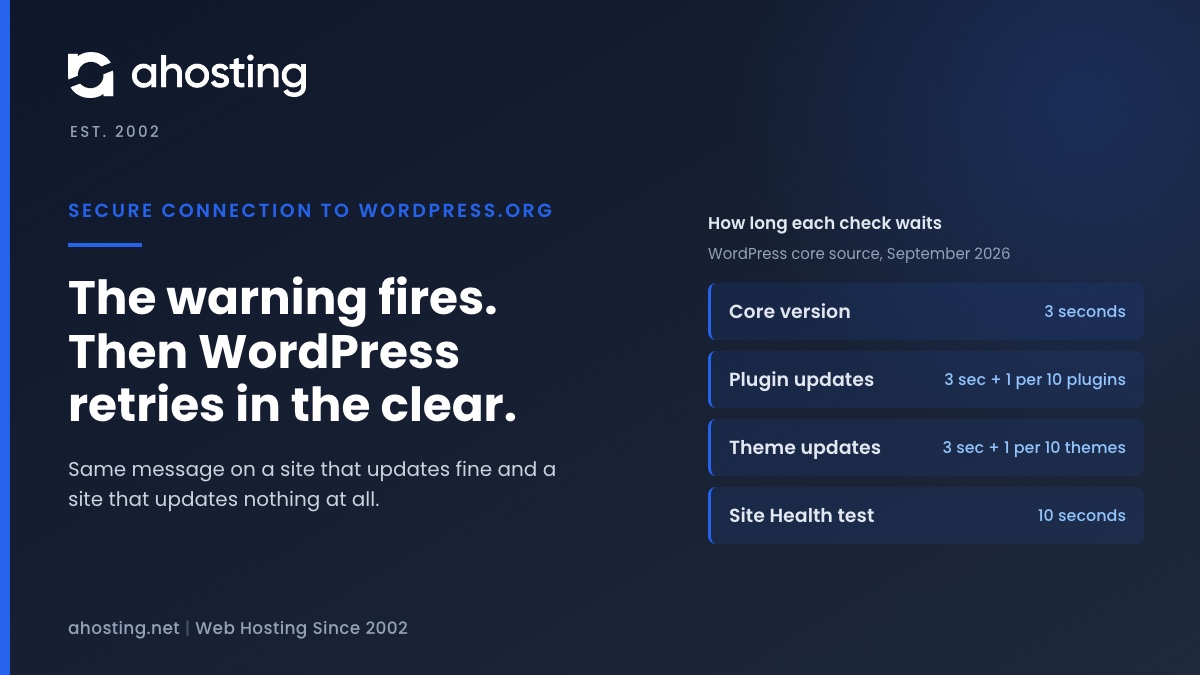
WordPress does not make one call to WordPress.org. It makes four, each from a different function, each to a different endpoint, and each with its own time limit. Every one of them prints this same warning independently when its HTTPS attempt fails, which is why the message can appear several times on one page load. The limits are the interesting part, because they are short enough to matter on shared hosting and are published nowhere a site owner would look.
| What WordPress is checking | Endpoint at api.wordpress.org | Time limit on an admin page load | Time limit under cron |
|---|---|---|---|
| Core version | /core/version-check/1.7/ | 3 seconds | 30 seconds |
| Plugin updates | /plugins/update-check/1.1/ | 3 seconds, plus 1 second per 10 plugins | 30 seconds |
| Theme updates | /themes/update-check/1.1/ | 3 seconds, plus 1 second per 10 themes | 30 seconds |
| Core file checksums | /core/checksums/1.0/ | 3 seconds | 30 seconds |
| Site Health communication test | the host root, by GET | 10 seconds | 10 seconds |
Why Site Health Passes While the Secure Connection to WordPress.org Fails
That last row explains the single most confusing version of this problem. Site Health runs a test called “Can communicate with WordPress.org” and gives its request ten seconds. Every update check gives its request three. A network path that completes in five seconds therefore passes Site Health and fails all four update checks, and the dashboard ends up asserting both that WordPress.org is reachable and that it could not be reached. Both are true. They were measured against different clocks, and the three-second one is the one your updates depend on.
The AHosting WordPress.org Connection Decoder
Find the line printed under the warning in the left column. Everything to the right of it is what that line means on a cPanel account running LiteSpeed and CloudLinux, and, in the last column, the thing generic advice never tells you: whether a failed secure connection to WordPress.org is yours to fix at all.
The Decoder Table
| The line under the warning | What failed | Usual cause on a shared account | Who changes it |
|---|---|---|---|
| cURL error 60: SSL certificate problem | Trust: the certificate could not be verified | Stale certificate authority bundle, or curl.cainfo pointing at a hand-downloaded file | Host |
| cURL error 35: SSL connect error | Trust: the handshake was refused | Old OpenSSL behind an old PHP version | You, then host |
| cURL error 77: error setting certificate verify locations | Trust: the bundle file is missing | curl.cainfo or openssl.cafile pointing at a path that no longer exists | Host |
| cURL error 6: Could not resolve host | Connectivity: DNS | The server resolver not answering, or filtering the name | Host |
| cURL error 7: Failed to connect | Connectivity: refused | An outbound firewall rule on port 443 | Host |
| cURL error 28: Operation timed out | Connectivity: no answer in time | A silent drop, or an account too throttled to finish inside three seconds | Host, or you |
| User has blocked requests through HTTP to the URL | Nothing left the account | WP_HTTP_BLOCK_EXTERNAL set in wp-config.php with no allowlist entry | You |
| A plugin name instead of a cURL code | A filter ran before the HTTP layer | A security plugin filtering outbound requests | You |
| The warning appears and updates still work | Only the encrypted attempt failed | The plain-HTTP retry is succeeding, so checks run unencrypted | Host, not urgently |
Trust Errors: When the Secure Connection to WordPress.org Cannot Be Verified
Errors 60, 35 and 77 all mean the connection reached WordPress.org and the encryption could not be established or believed. Certificate verification works from a local store: as curl’s own documentation puts it, “In your local CA store you have a collection of certificates from trusted certificate authorities that TLS clients like curl use to verify servers,” and curl verifies by default. That store is a file on the server. OpenSSL documents where it looks: a default directory, a default file, and environment variables that override both. The contents ultimately trace back to a root program rather than to your host, since Mozilla’s CA Certificate Program governs the NSS root store that “is not only used in Mozilla products such as the Firefox browser, but is also used by other companies in a variety of products.” When that file is old, a certificate that is perfectly valid looks untrustworthy.
Connectivity Errors: When the Request Never Reaches WordPress.org
Errors 6, 7 and 28 are a different class entirely, and no amount of certificate work touches them. Error 6 means the server could not turn api.wordpress.org into an address, so nothing was ever dialed. With error 7 the address was reached and the connection was refused, which on a shared server is usually an outbound rule on port 443 rather than anything about WordPress. Error 28 means the request went out and the answer did not arrive in time, and the time in question is three seconds on an ordinary page load. That last one is the error most often misread as a WordPress problem when it is a resource problem, in the same family as a 508 Resource Limit Reached page, and the next section is about why.
Why the Secure Connection to WordPress.org Fails on Shared Hosting Specifically
Three of the causes above behave differently on a shared account than on a server you administer yourself, and one of them is not a server question at all. Knowing which you are looking at decides whether the next step is a setting or a ticket, and that is worth establishing before anything gets changed.
The Certificate Bundle Is Not Yours to Change
This is the sentence that is missing from every forum thread on the subject. The certificate bundle PHP uses for cURL is chosen by the curl.cainfo directive, and PHP’s manual classifies that directive as INI_SYSTEM, meaning it can be set only in the master configuration. It cannot be changed from a .user.ini file, and it cannot be changed by ini_set inside a plugin. On a shared account the customer therefore cannot fix a stale trust store, no matter how many bundles they download. Downloading one is worse than useless, and the Common CA Database says why: root store data is curated for specific products, and while the bundles “may seem convenient for re-use,” re-purposing them is precisely what the operators warn against. A frozen snapshot of who was trusted in 2023 is not a fix. Root access, which every VPS plan includes, is what makes this directive reachable at all.
A Three-Second Clock Meets a Throttled Account
Three seconds is generous on an idle server and tight on a busy shared one. An account that is hitting its I/O or CPU ceiling does not fail loudly; it simply does everything more slowly, including opening a socket and completing a handshake. The result is a timeout that looks like a network fault and is really a capacity reading, and the published ceilings on our shared plans are what that capacity is measured against. Our write-up of disk I/O throttling on shared hosting covers the symptom in general, because a three-second outbound request is far from the only thing it quietly breaks. Note the asymmetry the timeout table creates: the same check that fails on a page load usually succeeds when cron runs it, because cron gets thirty seconds instead of three.
WP_HTTP_BLOCK_EXTERNAL Blocks It From Inside wp-config.php
One cause has nothing to do with the server, and it is worth ruling out first because it costs a minute. WordPress ships a constant that refuses outbound HTTP entirely, and the method that enforces it is documented plainly: defining WP_HTTP_BLOCK_EXTERNAL as true “will only allow localhost and your site to make requests,” while WP_ACCESSIBLE_HOSTS takes a comma-separated allowlist in which “wildcard domains are supported.” A site hardened years ago by a developer who has since moved on carries this quietly, and the error text is distinctive: it names the blocked URL rather than printing a cURL code. Adding api.wordpress.org to the allowlist restores update checks without undoing the hardening.
How to Fix a Failed Secure Connection to WordPress.org, in Order
Work through these in sequence and stop when the warning clears. The order matters: the first step decides how urgent this is, the second acts on what the error line names, and the third confirms the thing you actually care about rather than the thing that complained.
First Step: Find Out Whether Updates Are Broken At All
Before changing anything, establish which of the two situations you are in. Go to Dashboard, then Updates, and press Check Again. If the screen finds updates, the plain-HTTP fallback is working and your site is not in danger today, though every check is running unencrypted until this is fixed. If the screen reports everything current on a site you know has an outdated plugin, the fallback is failing too and the site is accumulating unpatched code while telling you the opposite, which is the gap server-level protection is there to narrow. That second case is the urgent one, and it is the reason this warning matters on a store far more than on a brochure site.
Second Step: Act on What the Error Line Names
- A blocked-URL message: open wp-config.php, then either remove WP_HTTP_BLOCK_EXTERNAL or add api.wordpress.org to WP_ACCESSIBLE_HOSTS. No server involvement at all.
- A plugin name in place of a cURL code: deactivate security and performance plugins one at a time, pressing Check Again after each, and stop when the warning goes.
- cURL error 35: switch the account to a current PHP version in cPanel and re-test, because the OpenSSL build follows the PHP version.
- cURL errors 60 and 77: open a ticket quoting the exact line and the PHP version. These are the system-level directives, and no customer-side change reaches them.
- cURL errors 6 and 7: confirm the name resolves from your own computer first, then open a ticket stating that it resolves for you and not from the server.
- cURL error 28: check the resource usage page in cPanel for faults around the time the warning appeared, and treat a clean page as evidence for the network path rather than the account.
For the trust errors specifically, there is a quick way to show the trust store is the problem rather than WordPress. From the cPanel terminal, request a page from the badssl.com test endpoints and compare: a healthy store accepts the ordinary host and rejects the untrusted-root one. A store that rejects both is stale, and that result belongs in the ticket.
Third Step: Confirm With a Real Update Check
Re-running Site Health is not confirmation here, because its ten-second limit will pass paths the update checks still fail. Press Check Again on the Updates screen instead, and watch whether the plugin list repopulates. If WP-CLI is available in your jailed shell, wp core check-update makes the same request WordPress makes and prints the error in full rather than truncating it to a line. A site that finds updates again, from a page load rather than from cron, has genuinely recovered. Anything else is the fallback still carrying it.
Decode Your WordPress.org Connection Error
Pick the line printed under the warning, say whether your updates screen still finds updates, and pick roughly how many plugins the site runs. The decoder names what failed, what usually causes it here, who holds the setting, and where to start.
WordPress.org Connection Decoder
Pick the error line printed under the warning, say whether your updates screen still finds updates, and pick how many plugins the site runs. It tells you what failed, what most often causes it on a cPanel account, who is able to change it, and the first thing to do.
What actually failed:
Most likely on a shared account:
Who can change it:
Do this first:
The decoder reads the error the way core produces it: the HTTPS attempt failed, the warning was printed, and the same request was then retried unencrypted. It cannot see your server logs, so treat the cause as the first thing to rule out rather than a verdict.
When the Secure Connection to WordPress.org Is Not the Problem
Two situations look like this and are not. The first is a site where updates never appear and no warning is printed anywhere: that is usually a scheduler that has stopped running rather than a connection fault, and our guide to the failed loopback request covers the request WordPress makes to itself, which is a different journey with different failure modes. The second is a PHP installation missing the OpenSSL extension outright, in which case core never attempts HTTPS, never prints this warning, and quietly does every update check in the clear. A look at the PHP version and extensions in cPanel settles that one in a minute.
The last column of the decoder is the honest part. Your side owns the blocking constant, the plugin filter and the PHP version, and those are the majority of real cases. The trust store, the resolver and the outbound firewall are ours, and a ticket quoting the exact error line is what our support works from, around the clock. What removes the whole question from your plate is on every plan we sell: a current managed trust store on the server, selectable PHP versions in cPanel, and on our WordPress plans a jailed shell with WP-CLI so you can run the real check yourself instead of reading a truncated notice. On a store, where an unflagged payment extension is the actual risk, that matters enough that the WooCommerce plans treat update visibility as part of the platform rather than as the site owner’s problem. The diagnosis above is what we would do on the ticket. The first two steps are what you can do tonight.
A Practical Checklist for a Failed Secure Connection to WordPress.org
- The full error line under the warning has been copied out, code and all, before anything was changed.
- The Updates screen has been checked with Check Again, so you know whether the plain-HTTP fallback is carrying the site or failing with it.
- wp-config.php has been searched for WP_HTTP_BLOCK_EXTERNAL, and api.wordpress.org added to WP_ACCESSIBLE_HOSTS if the constant is present.
- Security and performance plugins have been ruled out, one at a time, if the error names a plugin rather than a cURL code.
- The PHP version has been confirmed current in cPanel, since the OpenSSL build behind it follows the version.
- No certificate bundle has been downloaded by hand, because curl.cainfo is INI_SYSTEM and cannot be pointed at it from a shared account.
- For a trust error, the badssl.com endpoints have been requested from the terminal, and the result recorded for the ticket.
- For a timeout, the resource usage page has been read for faults at the time the warning appeared.
- Confirmation was taken from the Updates screen rather than from Site Health, whose ten-second limit passes paths the three-second checks fail.
- A ticket carrying the exact line has been opened for anything in the host column, rather than a description of the symptom.
Frequently Asked Questions About the Secure Connection to WordPress.org Error
Why does it keep saying an unexpected error occurred?
Typically it keeps appearing because the check behind it keeps running. WordPress asks api.wordpress.org four separate questions on a schedule, and each one prints this warning independently when its HTTPS attempt fails, so a single underlying fault produces the message again and again as the core, plugin, theme and checksum checks come round. The warning is also throttled rather than continuous: core waits a minute between version checks, which is why it can look intermittent on a busy dashboard. Nothing clears it except fixing the layer that is breaking the outbound request, because the message is printed fresh each time the request fails.
What does “WordPress could not establish a secure connection to WordPress.org” mean in 2026?
Specifically, it means the HTTPS request your server made to api.wordpress.org returned an error instead of a response. The sentence is appended by core to a more general warning, and it is the precise half: the failure happened while establishing the secure connection to WordPress.org, not while parsing the answer. What core does next is the part most guides omit. It immediately repeats the identical request over plain HTTP, so the warning on its own does not tell you whether updates are broken. It tells you that the encrypted attempt failed and that a fallback was tried.
Is a failed secure connection to WordPress.org the same as a broken site?
Notably it is not, and the distinction decides how urgent this is. Visitors reach your site over a path that has nothing to do with this request: they come inbound to your server, while the secure connection to WordPress.org is outbound from your server to somewhere else. A site with this warning serves pages normally, takes orders normally and keeps its own certificate. What it loses is the ability to learn that an update exists, which is a security problem that grows quietly rather than an outage anyone will phone you about.
Site Health vs the update check: why does only one report a secure connection to WordPress.org problem?
In practice they use different time limits, and that single difference explains the most confusing version of this problem. Site Health’s communication test allows ten seconds for its request. The update checks allow three seconds on an ordinary admin page load, plus one extra second for every ten plugins. So a path that completes in five seconds passes Site Health and fails every update check, and the dashboard ends up telling you both that WordPress.org is reachable and that it could not be reached. Both readings are accurate; they were measured against different clocks.
Can I fix a secure connection to WordPress.org error myself on AHosting shared hosting?
In particular, the answer turns on which error line you have, and for the most common one it is no. The certificate-authority bundle that verifies WordPress.org is chosen by the PHP directive curl.cainfo, which PHP classifies as INI_SYSTEM, meaning it cannot be changed from a .user.ini file or from ini_set inside a plugin. Only the host can move it. By contrast, a blocking constant in wp-config.php, a security plugin filtering outbound requests, and an overdue update queue are all yours to fix in minutes. The decoder in this guide splits the list on exactly that line.
cURL error 60 vs cURL error 28: which secure connection to WordPress.org failure is a firewall?
By contrast with what the numbers suggest, error 28 is the firewall candidate and error 60 is almost never one. Error 60 says the connection reached WordPress.org and the certificate could not be verified against the trust store on your server, which is a certificate-authority problem on your side of the wire. Error 28 says the request was sent and nothing came back before the clock ran out, which is what a firewall that drops packets silently produces, and also what a heavily throttled account produces when it cannot even open a socket in three seconds. So 60 points at trust and 28 points at the path.
Does a failed secure connection to WordPress.org stop security updates on a WooCommerce store in 2026?
Ultimately yes, and this is the reason the warning deserves attention on a store above anywhere else. WordPress does not poll each plugin author individually; it sends one request listing everything installed and receives one answer naming what has a newer version. When that exchange cannot complete, the updates screen shows nothing to update, which looks identical to being fully patched. A payment gateway or checkout extension with a published vulnerability therefore sits on the store unflagged, and automatic background updates that would normally close it never fire because they depend on the same answer.
What does WP_HTTP_BLOCK_EXTERNAL do to the secure connection to WordPress.org on AHosting?
Indeed this constant is the one cause that lives entirely inside your own installation, and it is worth checking early because it costs nothing to rule out. Defining it as true in wp-config.php tells the WordPress HTTP layer to refuse every outbound request except to localhost and to your own site, so the request never leaves the account at all. The companion constant WP_ACCESSIBLE_HOSTS takes a comma-separated allowlist and accepts wildcards, so adding api.wordpress.org restores the update checks while leaving everything else blocked. A hardening guide or a previous developer is the usual source, and the error text names the blocked URL rather than a cURL code.
How do I test the secure connection to WordPress.org from an AHosting cPanel account?
Fortunately you can reproduce the exact request rather than guessing, because every AHosting plan includes a jailed shell. Open Terminal in cPanel and run curl against api.wordpress.org, then read the exit status: a clean response means the trust store and the network path are both fine and the fault is inside WordPress. If WP-CLI is available, the wp core check-update command makes the same call WordPress makes and prints the error in full rather than truncating it. Running both takes under a minute and tells you whether to change a setting or open a ticket.
Should I download cacert.pem to fix this error in 2026?
As such this is the most common advice on the forums and the one most likely to cause a second problem. A certificate bundle downloaded by hand never updates itself, so it becomes a frozen snapshot of which authorities were trusted on the day you fetched it, and the Common CA Database warns directly that root store bundles are curated for particular products and are not meant to be re-purposed. On a shared account the directive that would point at your file cannot be set by you in any case. The durable fix is the server’s managed trust store being current, which is a ticket rather than a download.
Related posts:
 Your Site Could Not Complete a Loopback Request: How to Read the Error and Fix It on Shared Hosting
 One or More Recommended Modules Are Missing: How to Read the WordPress Site Health Warning and Fix It on Shared Hosting
 Autoloaded Options Could Affect Performance: How to Read the Site Health Warning and Clear It on Shared Hosting
 “Resource Limit Reached” vs. 503 vs. 500 Error WordPress: A Diagnostic Decision Tree