
- What "One or More Recommended Modules Are Missing" Actually Means
- The Fallback Chain Behind the Recommended Modules Are Missing Warning
- What Each Missing Module Actually Costs You
- The Handbook the Warning Links To Disagrees With the Warning
- How to Fix Recommended Modules Are Missing on an AHosting cPanel Plan
- Decode the Module Named in Your Warning
- A Practical Checklist for Clearing Recommended Modules Are Missing
- Frequently Asked Questions About Missing WordPress PHP Modules
- What does the "The optional module, imagick, is not installed or has been disabled" warning mean in WordPress?
- Can a WordPress site run normally when recommended modules are missing in 2026?
- What should I do first when Site Health reports recommended modules are missing?
- imagick vs gd: which one matters more when recommended modules are missing?
- intl vs mbstring: which missing PHP module breaks more on a WooCommerce store?
- Can I fix recommended modules are missing myself on AHosting shared hosting?
- Does AHosting enable imagick by default, and how do I check it in 2026?
- Why does the recommended modules are missing warning come back after a PHP version change?
- Will clearing recommended modules are missing speed up an AHosting WordPress site in 2026?
- Is libsodium missing from Site Health a problem I should be worried about?
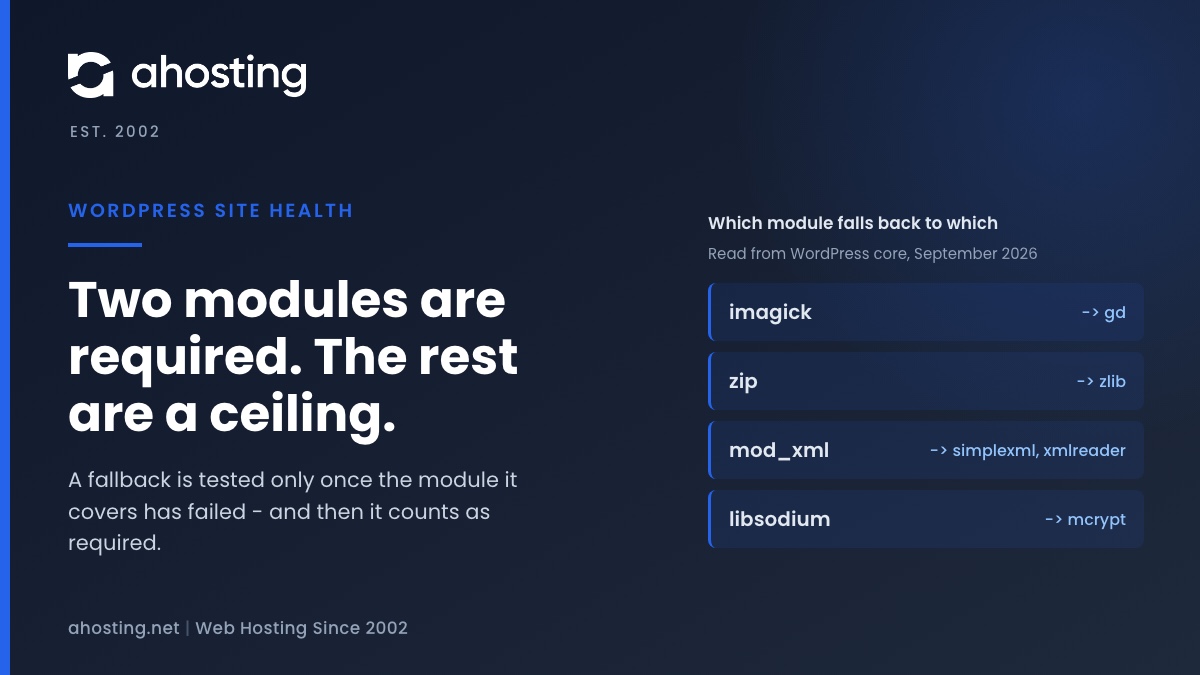
Site Health tests twenty PHP modules and marks only two of them required, so a heading saying recommended modules are missing is almost always a quality ceiling rather than a fault. Read the module names under it, not the heading. Four of those modules are fallbacks for other modules, and a missing fallback is the one case that turns the warning into a red critical — which is why the same screen can go from yellow to red without anything new breaking.
Site Health puts a blue Performance badge beside it, which makes it read like a speed problem, and it is not one. When WordPress reports that one or more recommended modules are missing, it has finished a test that walks a fixed list of PHP extensions and records which ones your server did not load. Almost every entry on that list is optional by design, so the heading is a statement about the ceiling your PHP build puts on WordPress rather than a fault report. The useful information is in the module names printed underneath it, and in one rule about fallbacks that decides whether this stays a yellow warning or turns red. This guide covers both, and what to do about each module on a cPanel account.
What “One or More Recommended Modules Are Missing” Actually Means
The heading is generated, not written. Core keeps a list of roughly twenty PHP modules, tests for each one in turn by looking for a function, a class, a constant or a loaded extension, and collects a line for every module it cannot find. If the collection is empty, the test reports that required and recommended modules are installed. If it is not empty, the heading changes to say that recommended modules are missing, or something stronger. So the sentence you are reading was assembled from whatever failed, and it will say exactly the same thing whether one module is absent or nine are. The color of the badge and the list beneath it are the only parts that vary. Site Health is worth reading this way generally: its other entries, like the loopback request test, behave the same way and are equally often misread as outages.

Why Site Health Says Recommended Modules Are Missing Rather Than Broken
Core marks only two of the modules it tests as required: the hashing extension and the JSON extension. Everything else in the list is flagged optional. That distinction is not cosmetic, because it changes the status the whole test returns. An optional module that is absent sets the status to recommended, which is the yellow badge and the wording you are looking at. A required module that is absent sets the status to critical, which is red and a different heading entirely. A site that can boot far enough to render the Site Health screen has both required modules by definition, since WordPress cannot run without either of them. In other words, the yellow version of this warning is the only version most people will ever see, and it can never by itself mean the site is broken.
Why the Module Names Do Not Match Anything You Can Install
When recommended modules are missing, two of the entries are named after the array key core uses internally rather than after the PHP extension you would go and enable, and both of them waste people an afternoon. The first is mod_xml, which tests for the libxml extension; searching for a PHP extension called mod_xml returns nothing because there is no such extension. The second is libsodium, which tests for a constant belonging to the extension PHP calls sodium. Search the libsodium project documentation and you will find a C library, not a checkbox. Both translations matter in the one place they are used, the extension list in cPanel, where your account sits isolated under CageFS with its own PHP configuration. Look for libxml and for sodium; the names Site Health prints are not the names the interface uses.
The Fallback Chain Behind the Recommended Modules Are Missing Warning
Five of the modules in the list are not tested on their own terms at all. Each one is declared as a fallback for another module, and core handles them with a rule that is easy to state and almost never stated: a fallback is examined only if the module it covers has already failed. If the primary module is present, the fallback is skipped entirely and can never appear in the warning, whether or not it is installed. If the primary module has failed, the fallback is examined and, for the duration of that check, it is treated as required rather than optional. One rule, two consequences, and the second one is the reason a screen reporting that recommended modules are missing sometimes turns red without anything new having gone wrong.
The WordPress PHP Module Fallback Chain
Read from WordPress core on 2026-09-14. Whenever recommended modules are missing, each row here is a pair core will never report together in the ordinary case, because the second column is invisible while the first column is healthy.
| Module core tests first | Its declared fallback | If only the first is missing | If both are missing |
|---|---|---|---|
| imagick | gd | One optional line. Status stays recommended. | gd is promoted to required. Status becomes critical. |
| zip | zlib | One optional line. Status stays recommended. | zlib is promoted to required. Status becomes critical. |
| mod_xml (tests libxml) | simplexml and xmlreader | One optional line. Status stays recommended. | Either fallback missing promotes it to required. Status becomes critical. |
| libsodium (tests sodium) | mcrypt | Nothing is reported on PHP 7.2 or newer. | Nothing is reported on PHP 7.2 or newer. |
When a Warning Silently Becomes a Critical
Picture a site with gd and without imagick, which is an extremely common shape. It reports that recommended modules are missing, names imagick, and everything works. Now the account is moved to a newly installed PHP version where neither image library has been enabled yet. Core tests imagick, fails, then tests gd because imagick failed, fails again, and promotes gd to required for that run. The badge goes red and the heading stops saying recommended. Nothing about the site changed except the PHP version, and no new component broke. This is the same class of surprise as the update-check warning that appears after a server change: the underlying state moved, and a test that was always running simply started reporting it differently.
The Two Modules Site Health Can Never Warn You About
The sodium check carries an extra condition. Core records a failure only when the module is unavailable and the running PHP is older than the version that bundled it, which is 7.2. On any supported PHP version the second half of that condition is false, so no failure is ever recorded, whether or not sodium is loaded. And because mcrypt is examined only when libsodium has already failed, and libsodium can no longer fail, mcrypt is never examined either. Two entries sit in the list permanently unreachable. That is worth knowing before you go looking for them, because their absence from your warning is not evidence that they are present.
What Each Missing Module Actually Costs You
When recommended modules are missing the practical question is never which ones, it is what you lose while they are. Some of these cost fidelity that only an editor would notice. One of them quietly weakens upload validation. One blocks the mechanism every update arrives through. Sorting the list by consequence, rather than working down it alphabetically, is most of the work.
The AHosting PHP Module Impact Ladder
The last column is the one that decides whether this is yours to fix. A module that is pure PHP is a checkbox on your own account; a module that wraps a library installed at the operating-system level can only be offered if that library is on the server.
| Module, as Site Health names it | What you enable | What stops working without it | Fallback | Needs a server-side library |
|---|---|---|---|---|
| curl | curl | Outbound requests fall to a slower transport; some plugins refuse to activate | None | Yes, libcurl |
| zip | zip | Unpacking plugin, theme and core update packages | zlib | Yes, libzip 0.11 or newer |
| imagick | imagick | High-fidelity resizing and PDF thumbnails in the media library | gd | Yes, ImageMagick 7.1 or newer |
| intl | intl | Locale-correct dates, currency, number formatting and sorting | None | Yes, ICU |
| fileinfo | fileinfo | Detecting an uploaded file type from its contents | None | No |
| mbstring | mbstring | Correct handling of accented and non-Latin text | None | No |
| exif | exif | Reading orientation and capture data from photographs | None | No |
| mod_xml | libxml | Feed reading, imports and any plugin that parses XML | simplexml, xmlreader | Yes, libxml |
imagick Is the One With a Memory Bill
WordPress ships two image editors and picks between them at runtime, preferring the Imagick editor when the extension is available. Enabling it is not free, and this is the part a host can tell you that a general guide cannot. The extension loads the ImageMagick library into the PHP worker, and ImageMagick keeps its own resource limits in a policy file separate from any PHP setting, including how much memory it will hold a decoded image in. Those limits sit inside your account container, not beside it. A WP Bronze plan publishes 2 GB of account memory and up to 30 concurrent PHP workers; a WP Gold plan publishes 4 GB and 50. Every worker that is resizing a large upload is spending from the same pool, which is the mechanism behind a PHP memory limit that appears not to work. The extension itself is a separate package rather than part of PHP, which is why it is a checkbox at all.
intl Is the One a WooCommerce Store Should Care About
Editors notice imagick. Shoppers notice intl. The extension carries the Unicode locale data that decides how a price, a date and a sorted list of names are rendered for a particular country, and without it those operations fall back to generic rules that read as correct English and as wrong almost everywhere else. A store selling in one country in one language will never see a symptom. A store selling across borders sees them on every invoice, and there is no fallback module standing in. If the extension is not offered on your account it is because the ICU library behind it is missing from the server, which is a different conversation from ticking a box. Anyone running a store should confirm it is loaded before the next peak trading period rather than during one.
The Handbook the Warning Links To Disagrees With the Warning
There is one genuine inconsistency worth knowing about, because it sends people looking for the wrong thing. The description core prints under the recommended modules are missing heading links to the WordPress Hosting Team handbook as the authoritative list of required and recommended modules. That handbook names the JSON extension and the mysqli extension as required. The Site Health test that printed the link marks the JSON extension and the hashing extension as required, and does not treat mysqli as required at all. The two documents therefore disagree about one entry each, in both directions. Neither is wrong for its own purpose: the handbook describes what a host should provide, while the test describes what core will check for and how it will grade the result. Read the handbook when you are choosing a plan. Read the test when you are reading the test.
How to Fix Recommended Modules Are Missing on an AHosting cPanel Plan
Every AHosting shared and WordPress plan publishes selectable PHP versions, and on a CloudLinux server the interface that selects the version is also the interface that carries the extension list for it. Each installed version keeps its own configuration directory and loads its own set of modules, which is both how you fix a recommended modules are missing warning and why it comes back after a version change.
- Open Site Health, expand the entry, and write down every module name it lists. This list is the whole input to the rest of the procedure.
- Translate the two names that need it: mod_xml means libxml, and libsodium means sodium.
- Open Select PHP Version in cPanel and confirm which version is currently active. If you are unsure whether to change it, choose the version first and the extensions second.
- Switch to the extensions list for that version and tick the modules you noted. Save.
- Return to Site Health and re-run it. The entry should clear, or name a shorter list.
- If a module you need is not in the list at all, stop. That is the server-library case, and nothing you do on this screen will change it.
What to Do When the Module Is Not in the List
An extension that wraps a system library cannot be offered unless the library is installed on the machine. imagick needs ImageMagick, intl needs ICU, zip needs libzip. When one of those is absent from the extension list rather than present and unticked, the fix is a support request naming the module, the PHP version and the site, and it is a reasonable request to make. Where this stops being reasonable is a module that is genuinely unusual, or a specific library version your application pins. At that point you have outgrown what a shared PHP build can be asked to carry, and a server with root access is the honest answer rather than a sales one, because installing an arbitrary extension is a root operation.
Why Enabling Every Module Is the Wrong Instinct
The extension list is long and the checkboxes are free, so the temptation is to tick everything and never read that recommended modules are missing again. Resist it for two reasons. Every loaded extension is memory in every PHP worker, and on a shared plan the workers are counted, so a bloated PHP build reduces how many requests the account can hold at once. And extensions occasionally conflict or change behavior in ways that surface as a fatal error on one plugin rather than as a warning anywhere useful. Tick what Site Health named, re-run the test, and stop. The same restraint applies to the rest of that screen, including the autoloaded options entry, where the reflex fix is also worse than the measured one.
Decode the Module Named in Your Warning
Pick the module Site Health named when it reported that recommended modules are missing. The decoder gives you what that module provides, what you lose without it, whether a fallback is quietly covering for it, and whether the fix is a checkbox or a ticket.
Missing Module Impact Decoder
Pick the module named in your warning, say what the site does, and it tells you what that module actually provides, what stops working without it, whether a fallback is covering for it, and whether this is a checkbox on your account or a library on the server.
What the module provides:
What stops working without it:
Is anything covering for it:
Do this first:
The decoder reads the module list the way core builds it: every entry is optional unless it is standing in for something that has already failed. It cannot see which extensions your PHP version actually loaded, so confirm against the extension list in cPanel before changing anything.
A Practical Checklist for Clearing Recommended Modules Are Missing
- Read the module names under the heading before touching any setting. The heading itself carries no information.
- Note the badge color. Yellow means every missing module is optional. Red means a fallback has failed and core has promoted it.
- Translate mod_xml to libxml and libsodium to sodium before searching the extension list.
- Confirm which PHP version is active, because the extension list belongs to the version and not to the account.
- Prioritize by consequence: curl and zip first, then fileinfo, then imagick and intl according to what the site actually does.
- A module missing from the list entirely, rather than present and unticked, is a server library question and belongs in a ticket.
- Re-run Site Health immediately after every PHP version change, and re-tick what the previous version had.
Clearing a recommended modules are missing warning needs no support ticket on an AHosting account, and that is deliberate: our WordPress plans include selectable PHP versions, WP-CLI and a jailed shell precisely so the reader of a warning like this can act on it in the same session they read it. Where a module turns out to need a library the server does not carry, that part is ours, and naming the module in a ticket is enough to start it. The work above is the part you keep; the part underneath it is what the plan is for.
Frequently Asked Questions About Missing WordPress PHP Modules
What does the “The optional module, imagick, is not installed or has been disabled” warning mean in WordPress?
Specifically it means WordPress looked for the imagick extension in the PHP your account is running, did not find it loaded, and recorded that as one line inside a larger Site Health test. The wording is generated by core from a list of modules it checks one at a time, so the sentence is identical whichever module is named and tells you nothing about severity on its own. What it does tell you is that imagick was absent at the moment the test ran, on the PHP version the site is using right now. A different PHP version on the same account can produce a different list, which is why the warning often appears immediately after a version change rather than after anything was uninstalled.
Can a WordPress site run normally when recommended modules are missing in 2026?
Typically yes, and that is the whole point of the word recommended. Core marks only two modules as required, and everything else in the test is optional, which means the site keeps serving pages, taking orders and running cron whether or not the named module is present. What changes is quality rather than availability: images are resized by a less capable library, dates and currency sort by byte order instead of locale rules, or an upload is accepted without its type being sniffed properly. The warning is a statement about the ceiling your PHP build puts on WordPress, not a statement that anything is broken.
What should I do first when Site Health reports recommended modules are missing?
First and foremost, read which module is named before you touch anything, because the list under the heading is the only part that carries information. Expand the Site Health entry, write down every module it lists, then check the PHP version the site is running, since those two facts together explain almost every instance of this warning. Only after that does it make sense to open the PHP settings in cPanel. Changing a PHP version to clear a warning you have not read is the most common way people turn a cosmetic notice into a site that throws fatal errors on a plugin that was never tested on the new version.
imagick vs gd: which one matters more when recommended modules are missing?
In practice gd matters more, because gd is what keeps working when imagick is absent. Core treats gd as the declared fallback for imagick, so a site with gd and no imagick still resizes every upload, still builds every thumbnail and still serves responsive image sets. The visible cost is fidelity on resizing and the loss of PDF thumbnails in the media library. The situation that actually hurts is the one nobody looks for: both absent at once, because the fallback rule changes what core does about it rather than simply adding a second line to the same warning.
intl vs mbstring: which missing PHP module breaks more on a WooCommerce store?
By contrast with imagick, both of these are felt by shoppers rather than by editors, and intl is the one that bites hardest on a store selling across borders. The intl extension carries the Unicode locale rules that decide how a price, a date and a sorted list of names are formatted for a given country, so without it those fall back to a generic representation that is correct English and wrong everywhere else. The mbstring extension matters wherever product names, addresses or reviews contain characters outside plain Latin text. A store trading in one country in English notices neither; a store trading in six notices both.
Can I fix recommended modules are missing myself on AHosting shared hosting?
Fortunately for most of the modules the answer is yes, and it takes about a minute. Every AHosting shared and WordPress plan includes selectable PHP versions, and the same cPanel screen that chooses the version carries the extension list for it, so enabling a module is a checkbox rather than a ticket. The exception is a module that depends on a library installed at the operating-system level rather than inside PHP: if that library is not on the server, the checkbox for it does not exist to be ticked. That case is the one worth a support ticket, and the guide above shows how to tell the two apart in the interface itself.
Does AHosting enable imagick by default, and how do I check it in 2026?
Accordingly the honest answer is that you should check rather than take anyone’s word for it, including ours, because the loaded extension list belongs to the PHP version the account is running and that is a per-account setting you control. Open Select PHP Version in cPanel and read the extension list for the version currently selected, which is the authoritative answer for your account at this moment. The command line gives the same answer faster if you prefer it, and every plan includes a jailed shell, so php -m printed from cPanel Terminal lists every module PHP has actually loaded.
Why does the recommended modules are missing warning come back after a PHP version change?
Indeed this is the single most common way the warning appears on a site that was clean yesterday, and the reason is that the extension list is a property of the version, not of the account. Each installed PHP version keeps its own configuration directory and loads its own set of modules, so switching from one to another swaps the whole list rather than carrying your selections across. A module you ticked two years ago on an older version is simply not ticked on the new one. Re-running Site Health straight after any version change, and re-ticking what the previous version had, turns this from a mystery into a two-minute step.
Will clearing recommended modules are missing speed up an AHosting WordPress site in 2026?
Ultimately no, and it is worth being blunt about that because the warning sits under a badge marked Performance and invites exactly this hope. Enabling imagick does not make pages render faster for visitors; it changes the quality of images produced when a file is uploaded, which is work that happens once per upload and never during a page view. The module most likely to affect what a visitor experiences is an object cache, and that is a separate Site Health entry with a separate recommendation. Treat this warning as a correctness and capability question, and look elsewhere for speed.
Is libsodium missing from Site Health a problem I should be worried about?
Interestingly you will almost certainly never see it named, because core skips the check entirely on any PHP version from 7.2 upward, where the extension ships with PHP itself. The test records a failure only when the module is unavailable and the running PHP predates the version that bundled it, so a modern site cannot produce that line whether or not the extension is actually loaded. The same silence covers mcrypt, which core only examines when libsodium has already failed. If you are running a supported PHP version, these two are outside what this test is able to report to you at all.
Related posts:
 Autoloaded Options Could Affect Performance: How to Read the Site Health Warning and Clear It on Shared Hosting
 Your Site Could Not Complete a Loopback Request: How to Read the Error and Fix It on Shared Hosting
 WordPress Could Not Establish a Secure Connection to WordPress.org: How to Read the Error and Fix It on Shared Hosting
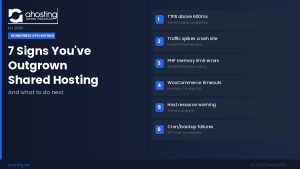 7 Signs Your WordPress Site Has Outgrown Shared Hosting (Is It Time for WordPress VPS Hosting?)