
- What Does the Unable to Create Directory Error Mean in WordPress?
- Why Unable to Create Directory Blames Permissions When Something Else Failed
- Unable to Create Directory Lab Results: Five Causes, One Message
- Read the Start of the Path in an Unable to Create Directory Message
- Unable to Create Directory on Shared Hosting: What Changes on a cPanel Account
- How to Fix Unable to Create Directory, Cause by Cause
- Unable to Create Directory vs the Other WordPress Upload Errors
- Frequently Asked Questions: Unable to Create Directory
- Why is WordPress unable to create directory wp-content/uploads in 2026?
- Unable to create directory vs the uploaded file could not be moved: which error points to what?
- Does chmod 777 fix unable to create directory on AHosting shared hosting in 2026?
- How do I fix unable to create directory uploads/2026/11 after moving WordPress to a new host?
- Why does unable to create directory appear when Site Health says the uploads directory is writable?
- Can a full disk quota cause unable to create directory on an AHosting cPanel account?
- Settings Media upload path vs the UPLOADS constant in wp-config.php: which one set my uploads folder?
- What mode does WordPress give a new year and month folder inside wp-content/uploads?
- How do I find the file that blocks unable to create directory in cPanel File Manager?
- When should I ask AHosting support about unable to create directory in 2026?
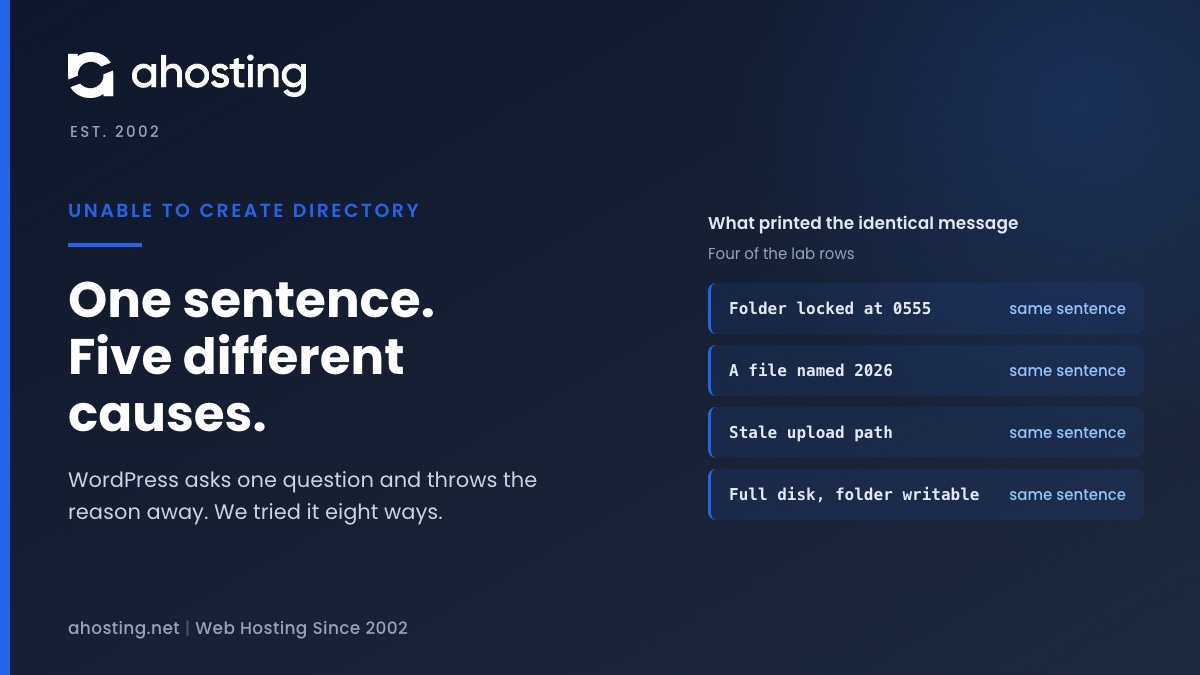
The unable to create directory error means a mkdir call for the month folder in your uploads folder was refused, and WordPress throws away the reason. In my lab, five different causes printed the identical sentence, including a full disk on a writable folder. Read how the path in the message begins: wp-content/uploads points to a blocking file, quota or ownership, and a bare uploads/ points to a stale upload path.
What Does the Unable to Create Directory Error Mean in WordPress?
The unable to create directory error means WordPress tried to make the month folder for an upload, such as wp-content/uploads/2026/11, and the operating system refused. The full message reads “Unable to create directory wp-content/uploads/2026/11. Is its parent directory writable by the server?” and it shows up in the Media Library next to a file that “has failed to upload”. WordPress asked once, got a no, and does not know why. The question in the second half of the sentence is a guess, not a diagnosis.
WordPress 7.1.4 builds that sentence in two places. In wp-includes/functions.php, wp_upload_dir() builds it at line 2446, and wp_upload_bits() builds it again at line 2979. Plugins call the second function when they write a file into uploads, so an importer, a backup plugin or an image tool can print the message with no upload button involved.
This post is based on a lab, not on a forum thread. I read the core source line by line, then triggered the error eight ways on a stock WordPress 7.1.4 install and wrote down what each one printed. Five different causes printed the identical sentence, including one where the folder was perfectly writable. The sections below show how to tell them apart from the one thing the message does give you: the start of the path.
Why Unable to Create Directory Blames Permissions When Something Else Failed
WordPress builds the upload path from two settings, the upload_path option and the year-and-month folder switch, then calls wp_mkdir_p() to make sure the folder exists. That function starts at line 2050. Its last real step, at line 2098, is a call to PHP’s mkdir written as @mkdir( $target, $dir_perms, true ). The leading at sign is PHP’s error control operator. It suppresses the warning PHP would otherwise raise, and that warning is where “Permission denied” or “No space left on device” would have been written down.
When mkdir returns false, wp_mkdir_p() returns false at line 2114, and wp_upload_dir() turns that into the sentence at line 2446. The operating system’s reason is gone by then. I confirmed it from the other side: with PHP’s log_errors switched on, none of my failing uploads wrote a warning or a notice to the error log. Only the web server’s access lines appeared, so there is nothing in the log to search for.
Three Ways wp_mkdir_p Gives Up
- The path already exists but is not a directory. Line 2076 returns the result of @is_dir() for any existing path, so a file where a folder belongs gives false.
- The path contains ../. Line 2080 refuses any path with a parent-folder step and returns false without calling mkdir.
- The mkdir call itself fails, because the mode forbids writing, the filesystem is read-only or full, or a quota is exhausted.
Only the third is the operating system saying no to a valid request. The first two are WordPress or the site’s own settings contradicting the folder tree, which is why chmod cannot fix them.
Unable to Create Directory Lab Results: Five Causes, One Message
The lab was stock WordPress 7.1.4 on PHP 8.5.10’s built-in server, with the SQLite integration plugin standing in for MySQL. PHP and the files belonged to the same operating system user, as they do on a cPanel account. For each run I logged in as an administrator, uploaded an 8-by-8 pixel PNG through the Media Library’s upload endpoint and recorded the message.
What it is not: an AHosting server, a LiteSpeed setup or a real disk quota. The full-disk row uses a 2 MB disk image filled to zero bytes free, which produces the same kind of refusal a quota produces, but it is a stand-in and I say so.
Unable to Create Directory Lab Results Table
| Setup | What WordPress printed | Why |
|---|---|---|
| Control: default settings, uploads writable | Upload succeeded | Month folder created with the parent’s mode, 0755 |
| Uploads folder at mode 0555, no month folder yet | Unable to create directory wp-content/uploads/2026/11. | mkdir refused, no write permission on the parent |
| Month folder 2026/11 exists but is 0555 | The uploaded file could not be moved to wp-content/uploads/2026/11. | Folder check passed, file write failed: a different message |
| A regular file named 2026 sitting in uploads | Unable to create directory wp-content/uploads/2026/11. | Path exists but is not a directory (line 2076) |
| Year folder fine, a regular file named 11 inside it | Unable to create directory wp-content/uploads/2026/11. | Same check, one level down |
| upload_path set to an absolute path from another server | Unable to create directory uploads/2026/11. | mkdir failed outside the WordPress folder, so the path loses wp-content |
| upload_path set to ../outside | Unable to create directory ../outside/2026/11. | Parent step refused at line 2080 |
| Uploads folder 0755 and writable, on a full volume | Unable to create directory wp-content/uploads/2026/11. | mkdir returned ENOSPC, no space left on device |
What the Lab Shows About the Message
Five of the eight rows print the same sentence: the locked folder, the two blocking files, the stale path and the full volume. In the last row the sentence asks whether the parent directory is writable, and it was. PHP’s is_writable() returned true, the mode was 0755 and the owner was the PHP user, yet mkdir failed with ENOSPC, which the shell reports as “No space left on device”. The message can be wrong about its own question.
Two details are worth keeping. The “could not be moved” row is the only one that tells you the folder exists and the final write failed, which is a narrower problem. And a new folder copies its parent’s mode: a parent at 0770 produced 0770 month folders and a parent at 0700 produced 0700, which matches line 2093. A wrong mode on uploads therefore repeats itself every month.
Read the Start of the Path in an Unable to Create Directory Message
The message does carry one piece of evidence, and it is easy to skim past. Lines 2438 to 2441 decide how the folder is printed. If the uploads base folder sits inside the WordPress folder, WordPress prints the path relative to it, which gives wp-content/uploads/2026/11. If it sits anywhere else, WordPress prints only wp_basename() of the base folder plus the year and month, which gives uploads/2026/11.
So a message that begins with uploads/ and has no wp-content in front is telling you the uploads folder is outside the WordPress folder. In my lab that was the stale-path row. It is also what a site shows after a migration when the upload_path setting still holds an absolute path from the old server.
What Each Path Start Points To
| The message path begins | What it means | Check first |
|---|---|---|
| wp-content/uploads/2026/11 | The default folder inside WordPress | A file in the way, the folder mode, quota, inode limit |
| uploads/2026/11, no wp-content | The uploads base folder is outside the WordPress folder | Settings, Media, Store uploads in this folder, then UPLOADS in wp-config.php |
| wp-content/ and a different name | A custom folder inside WordPress | The same checks, on that folder |
| ../ at the start | A relative upload path with a parent step | Clear the setting, because line 2080 refuses it |
WordPress hides the field that holds this setting unless it is not the default. The options-media.php screen shows “Store uploads in this folder” only when upload_path is set to something other than wp-content/uploads, or when upload_url_path is set (lines 118 to 127). If you can see that field in Settings, Media, the setting is not the default.
Which Cause Fits Your Unable to Create Directory Message?
Jump to the fix stepsUnable to Create Directory on Shared Hosting: What Changes on a cPanel Account
Search results for this message are dominated by answers written for a self-managed server. Several of the highest-ranking ones I read on 2026-11-10 tell you to run chown -R www-data:www-data on the folder. That advice assumes the web server runs as its own user. On an AHosting shared plan PHP runs as your own cPanel account user: when we counted on 2026-09-30, each of 38 PHP processes ran as the site user it served. There is no separate web user to hand the folder to.
Ownership is also rarely the broken part. When we checked one shared server on 2026-10-01, exactly two files out of all 530 website folders were not owned by their account user, both one-off hand uploads. No routine path, such as an installer, a cPanel restore or a transfer, had left foreign-owned files behind.
Quota and Inode Limits Can Cause Unable to Create Directory
A quota is the cause that every green light misses. Linux quotas can limit both disk blocks and the number of files, called inodes, per user, as the Oracle Linux and FreeBSD documentation both describe. Python’s errno list names the matching errors EDQUOT, “Quota exceeded”, and ENOSPC, “No space left on device”. WordPress receives either one as a plain false from mkdir and prints the same sentence.
Two of WordPress’s own checks cannot warn you. The Site Health line “The uploads directory” is wp_is_writable() on the base folder only (class-wp-debug-data.php, line 1757), so it reads Writable for a full account. On the shared server we measured on 2026-10-10, PHP’s disk_free_space() returned the free space of the whole partition, about 2,385 GB, not the account’s quota headroom, which is why the check in the disk space post reads good on every account. File counts matter too: see the inode limit post. The account’s temporary folder inside CageFS counts against both disk and inode quota.
How to Fix Unable to Create Directory, Cause by Cause
Work in this order. Each step is cheaper than the next, and the first two cannot be fixed by chmod at all. The widget above can tell you where to start.
Fix Unable to Create Directory After a Migration (Stale Upload Path)
If the message begins with uploads/ rather than wp-content/uploads/, open Settings, then Media. Clear the “Store uploads in this folder” field and save. An empty value means the default, because line 2471 treats an empty setting and wp-content/uploads the same way. Then check wp-config.php for a line that defines UPLOADS: line 2493 builds the folder as the WordPress path followed by that constant, so an old value there redirects uploads even when the setting is clear. This changes where new uploads go and does not move files already uploaded, so confirm older images still load.
Fix a File Sitting Where a Folder Belongs
Open your WordPress folder in cPanel File Manager and browse to wp-content/uploads. Look for an entry named after the year, 2026, or the month, 11, and check whether it is a folder or a file. Lab rows four and five show that a file in either spot prints the unable to create directory message even though the folder above it is writable. Rename the file rather than deleting it, reload the Media Library and upload again. Delete it only once you know nothing needs it.
Fix a Full Quota or Inode Limit
Open Disk Usage in cPanel and compare the account’s space and file counts with its plan limits. Old backups, cache folders and logs are the places to look first. Free some space or some files, then upload again. If the account sits at its plan ceiling and nothing is safe to remove, that is a plan question, not a WordPress setting.
Check Ownership and Permissions Last
WordPress’s file permissions guide documents 755 for folders and 644 for files. Check that the uploads folder belongs to your account user and is set to 755. Do not set 777: PHP runs as the owner, so the owner’s write bit is all it needs, and the full-volume row shows a wider mode would not have helped. A new month folder copies its parent’s mode, so correct uploads itself, not only the newest month.
If the message still appears after these four checks, open a ticket with the exact message, including the path it starts with, and we will look at it with you. If you run your own VPS, the shell shows what WordPress hides: run mkdir as the PHP user and read the error it prints. That is how I confirmed the full-volume row.
Unable to Create Directory vs the Other WordPress Upload Errors
Four neighbors get mistaken for this one. Each prints its own message, and the message is the clue.
- “The uploaded file could not be moved to wp-content/uploads/2026/11” means the folder exists and passed the check, but the final write failed. It was lab row three.
- “Missing a temporary folder” means PHP could not store the incoming file before WordPress saw it. See the temporary folder post.
- “Installation failed: Could not create directory” comes from plugin and theme installs, which go through WordPress’s filesystem API rather than the uploads folder. See the installation failed post.
- “The server cannot process the image” means the upload worked and the image library failed afterwards. See the image processing post.
Frequently Asked Questions: Unable to Create Directory
Why is WordPress unable to create directory wp-content/uploads in 2026?
Specifically, the server refused the mkdir call for the month folder, and WordPress discards the reason. In my lab the same sentence came from a locked folder, a file in the way, a stale upload path, a path with ../ in it and a full disk, so the message alone cannot name the cause.
Unable to create directory vs the uploaded file could not be moved: which error points to what?
In contrast to the first message, the could not be moved error means the month folder already exists and passed the check, and only the final file write failed. Unable to create directory means the folder itself could not be made, so look for a blocking file, a stale path or a quota before you look at the folder mode.
Does chmod 777 fix unable to create directory on AHosting shared hosting in 2026?
In practice, no, and you should not need it. PHP runs as your own cPanel account user, so the owner write bit on a 755 folder is enough. My full-disk lab row also printed the message on a writable 0755 folder, so a wider mode would not have changed anything.
How do I fix unable to create directory uploads/2026/11 after moving WordPress to a new host?
Specifically, a path that starts with uploads and has no wp-content in front means the uploads folder is outside the WordPress folder. Open Settings, then Media, clear the Store uploads in this folder field and save. Then check wp-config.php for a line that defines UPLOADS, because that constant also moves the folder.
Why does unable to create directory appear when Site Health says the uploads directory is writable?
Notably, Site Health tests only the base uploads folder, and only the permission bits. It never tries to create the month folder, so it cannot see a file named after the year or month, a full quota or a stale upload path. Each of those fails the real mkdir call while Site Health still reads Writable.
Can a full disk quota cause unable to create directory on an AHosting cPanel account?
Specifically, yes. A refused mkdir for a quota or for lack of space comes back to WordPress as a plain false, which prints the same sentence. My lab used a full disk image as a stand-in rather than a real quota, so check Disk Usage in cPanel and compare it with your plan limits.
Settings Media upload path vs the UPLOADS constant in wp-config.php: which one set my uploads folder?
Specifically, WordPress reads the upload_path option first and then, if wp-config.php defines UPLOADS, replaces the folder with the WordPress folder followed by that constant. If the Store uploads in this folder field is visible in Settings, Media, the option is not the default. Check both places.
What mode does WordPress give a new year and month folder inside wp-content/uploads?
Specifically, it copies the mode of the nearest existing parent folder. In my lab a parent at 0755 produced 0755 month folders, 0770 produced 0770 and 0700 produced 0700. As a result, a wrong mode on the uploads folder repeats itself in every new month folder.
How do I find the file that blocks unable to create directory in cPanel File Manager?
In practice, open wp-content/uploads in File Manager and look for an entry named after the year, such as 2026, or after the month, such as 11. Check whether that entry is a folder or a file. A file in that spot makes WordPress return false for the whole path, so rename it and upload again.
When should I ask AHosting support about unable to create directory in 2026?
Finally, ask after you have checked the start of the path, looked for a blocking file, compared Disk Usage with your plan and confirmed the folder is owned by your account at 755. Open a ticket with the exact message, including the path it starts with, and we will look at it with you.
Related posts:
 Installation Failed: Could Not Create Directory? Find the Folder, Then the Cause
 Request Header or Cookie Too Large: What the 400 Error Means (2026)
 Missing a Temporary Folder: Why WP_TEMP_DIR Won’t Fix This WordPress Upload Error
 Installation Failed: Destination Folder Already Exists in WordPress: What It Means and How to Fix It