- What “Installation Failed: Could Not Create Directory” Means
- Where Could Not Create Directory Comes From: Five Places, One Sentence
- Get the Path WordPress Hid From You
- Why a Full Account Says Could Not Create Directory
- When Could Not Create Directory Really Is Permissions
- “Could Not Create the upgrade-temp-backup Directory” on Updates
- How to Fix Could Not Create Directory, in Order
- Could Not Create Directory on AHosting Servers
- A Practical Checklist for Could Not Create Directory
- Frequently Asked Questions: Could Not Create Directory
- What does Installation failed: Could not create directory mean in WordPress?
- Which folder does WordPress fail to create when a plugin install fails in 2026?
- Could not create directory vs Could not copy file: what is the difference in WordPress?
- Disk space vs inode limit: which one causes could not create directory on shared hosting?
- Why does could not create directory appear when cPanel shows free disk space?
- Is chmod 777 on wp-content a safe fix for could not create directory?
- How do I see the full error path in WordPress 7.1 in 2026?
- Does AHosting shared hosting let WordPress create plugin folders directly in 2026?
- Can AHosting support fix could not create directory on my WordPress site?
- Do I need an AHosting VPS to stop WordPress plugin install errors in 2026?
Installation failed: Could not create directory means the server refused a new folder, and WordPress hides both which folder and why. Get the path first: the Upload Plugin screen prints it. Then read Disk Usage and File Usage in cPanel, because on a host where PHP runs as your own user the account limits come before the permissions, and WordPress reports a full account as this exact message. Folders belong at 755. Never use 777.
What “Installation Failed: Could Not Create Directory” Means
Installation failed: Could not create directory is the line WordPress prints on the plugin card when an install stops partway, and the usual advice is to loosen permissions until it goes away. Read against the code that produces it, that advice skips two steps. The sentence means PHP asked the server for a new folder and the server said no. It does not say which folder, and it does not say why, and both of those decide the fix.
The Sentence Leaves Out the Two Things You Need
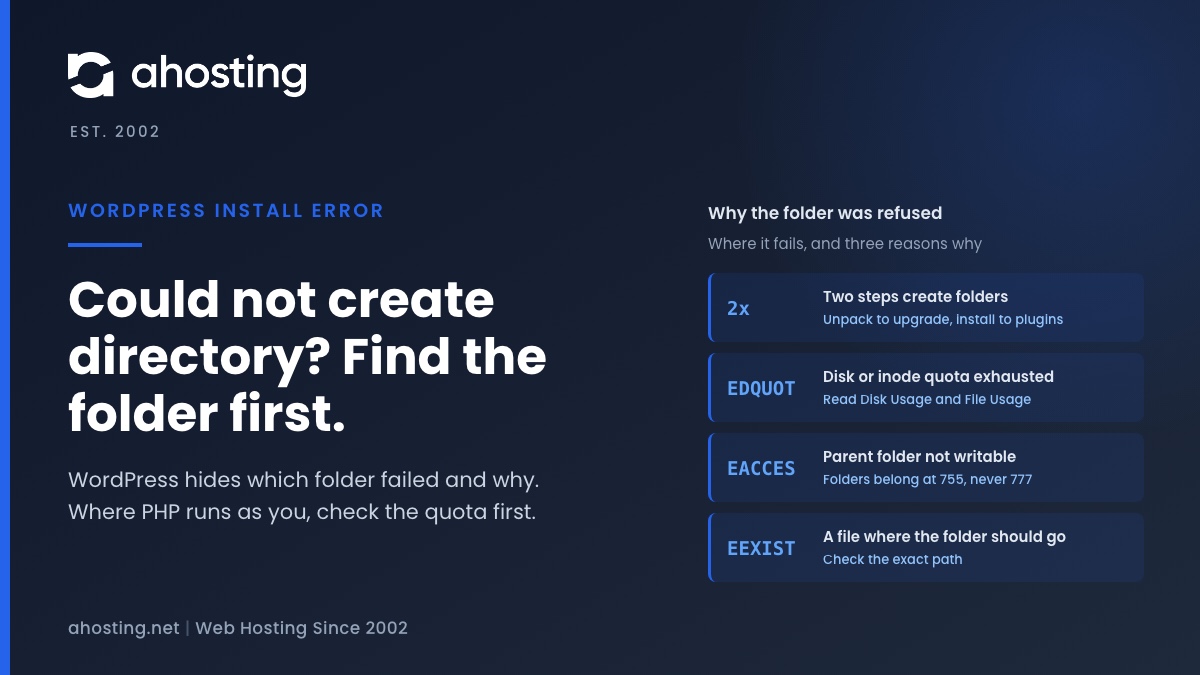
A plugin or theme install creates folders at two separate moments: when the zip is unpacked into a working area, and when the result is put in its final place. A refusal at either moment produces the same words. The reason is just as hidden. A folder can be refused because PHP may not write to the parent, because the account has no disk space left, or because it has no file slots left, and the message is identical in all three cases.
Why WordPress Cannot Tell You the Reason
When PHP fails to make a folder, the PHP manual for mkdir() says it emits a warning describing the problem. WordPress calls it with the warning suppressed and keeps only a yes or no answer. The operating system did report a reason, and that reason is discarded before the message is written. So treat Could not create directory as a symptom with several causes, and narrow it down in the order below rather than guessing.
Where Could Not Create Directory Comes From: Five Places, One Sentence
In WordPress 7.1.2, the current release, the identical sentence is produced in five places in the install and update code. Each one is a different step, each one knows the exact folder it failed on, and each one attaches that folder to the error as its path.
| Step | Folder being created | Error code | What it usually means |
|---|---|---|---|
| Unpacking with ZipArchive | wp-content/upgrade/ plus every folder inside the zip | mkdir_failed_ziparchive | No room, no free inodes, or wp-content/upgrade is not writable |
| Unpacking with the fallback unzipper | The same folders, when ZipArchive is not available | mkdir_failed_pclzip | The same causes as above |
| Creating the destination | wp-content/plugins/slug/ or the theme folder | mkdir_failed_destination | The plugins or themes folder is not writable, or the account filled up |
| Moving into place | The destination, when a direct move fails | mkdir_failed_move_dir | The same causes as the destination step |
| Copying a subfolder | A folder inside the destination | mkdir_failed_copy_dir | The account ran out of room partway through |
Unpacking Into wp-content/upgrade
The unpack step creates the most folders, so it has the most chances to fail. The unzip_file() reference describes the function WordPress uses: it extracts the package into a working folder under wp-content/upgrade. WordPress empties that folder at the start of each install by itself, so leftovers from an earlier failure are not the problem and do not need clearing by hand.
Moving Into wp-content/plugins or themes
Once the package is unpacked, WordPress moves it into its final folder under the plugin or theme slug. A failure here, after a clean unpack, points at the destination folder specifically: wp-content/plugins or wp-content/themes no longer accepts new folders, or the account filled up between the two steps.
Get the Path WordPress Hid From You
The path is already in the error. The Install Now button on a plugin card simply does not show it: the card prints Installation failed: followed by the message alone. Two screens print the rest, and either one turns a guess into a specific folder.
Upload the Plugin Zip Instead
Download the plugin zip from its page in the plugin directory, then go to Plugins, Add New, Upload Plugin and install the file. That screen uses the older step-by-step output. It prints Unpacking the package or Installing the plugin, then the error followed by the full folder path, then Plugin installation failed. The step printed just before the error tells you which of the two moments failed.
Turn On WP_DEBUG and Read the Browser Console
If you would rather keep using the button, set WP_DEBUG to true in wp-config.php. With it on, the install reply carries a list of debug messages and WordPress writes each one to the browser console. Open the developer tools, switch to the Console tab, click Install Now again, and the line ending in the folder path is there. Set it back to false afterward, since debug output does not belong on a live site.
What the Folder in the Path Tells You
- A path under
wp-content/upgrademeans the unpack step failed. Check the account limits first, then whetherwp-contentaccepts new folders. - A path under
wp-content/pluginsorwp-content/themesmeans the unpack worked and the final folder was refused. - A path outside the usual
wp-contentfolder meansWP_CONTENT_DIRinwp-config.phppoints elsewhere. Check that the folder it names exists and is yours.
Why a Full Account Says Could Not Create Directory
This is the cause the usual guides miss, and where PHP runs as your own user it is the first one to rule out. An account at its disk or file limit cannot create a folder, and WordPress has no separate message for that during a normal install. Two details in the code explain why the failure arrives in this exact form.
The Disk-Space Check Only Runs in the Background
WordPress does contain a clearer message: Could not copy files. You may have run out of disk space. It only checks for it while running scheduled tasks, which in practice means automatic background updates. An install or update you start by clicking a button skips that check entirely. The check also reads free space on the whole disk, not what is left in your account, so even in the background it can miss a full account.
Folders Are Created Before Any File
When WordPress unpacks a zip, it first lists every folder the package needs, creates all of them, and only then writes the files. Each folder takes one inode, the slot a server uses to track one file or folder. An account a few hundred inodes from its ceiling therefore fails on a folder, not a file, and the message reads Could not create directory rather than Could not copy file. Our guide to the WordPress inode limit on shared hosting explains how an account fills its file slots with gigabytes still free.
What the Server Actually Said
The operating system does give a reason when it refuses a folder. The Linux mkdir(2) manual page lists them, and these are the ones a hosting account meets. WordPress shows all of them as the same sentence.
| Reason code | What the manual says | What it means on hosting | Where to check |
|---|---|---|---|
| EDQUOT | The user quota of disk blocks or inodes is exhausted | The account is at its disk or file limit | Disk Usage and File Usage in cPanel |
| ENOSPC | No room for the new directory, or the disk quota is exhausted | The same, reported differently by some filesystems | Disk Usage in cPanel |
| EACCES | The parent directory does not allow write permission | Folder mode too low, or the folder belongs to another user | Permissions column in File Manager |
| EEXIST | The pathname already exists, not necessarily as a directory | A file is sitting where a folder should go | The exact path from the error |
Read Both Meters in cPanel
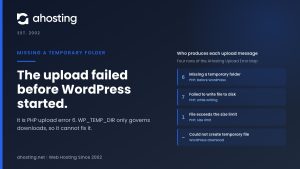
The cPanel sidebar shows Disk Usage and File Usage as separate figures, and either one at its limit blocks a new folder. The cPanel Disk Usage documentation notes that only your hosting provider can raise the quota itself. A plugin also needs more room than its zip suggests: the archive and its unpacked copy exist at the same moment, and the background check above asks for a little over twice the unpacked size. The same limit is behind the upload error described in our guide to Missing a temporary folder.
When Could Not Create Directory Really Is Permissions
Permissions are still a real cause, just not the first one to check. The test is simple: PHP needs write permission on the parent of the folder in the path. If it lacks it, the refusal is immediate, whatever the quota says.
The Modes WordPress Expects
Folders belong at 755 and files at 644. WordPress itself creates new folders at no less than 755. The ArchWiki page on file permissions makes the point that matters here: creating a file changes the directory, not the file, which is why write permission on the parent is what counts. The usual ways a parent loses it are a security plugin that hardens wp-content to 555, or a manual change that was never undone.
Why chmod 777 Is the Wrong Fix
A top-voted forum answer is to make wp-content 777. Mode 777 grants write access to three classes: the owner, the group, and everyone else. Red Hat’s guide to Linux file permissions explains that the third class, others, covers every account that is neither the owner nor in the group. On a shared server, that is every other process. When PHP runs as your own user, 755 already lets WordPress write. If 755 fails, the folder belongs to someone else or the account is full, and 777 fixes neither.
Ownership After a Migration or Restore
A folder owned by another user cannot be fixed with any mode you are allowed to set, because only the owner can change it. This is the same fault that makes WordPress ask for FTP details instead of writing directly, covered in our guide to WordPress asking for FTP credentials. Our knowledge base article on file permissions and ownership explains why ownership has to be corrected on the server side.
“Could Not Create the upgrade-temp-backup Directory” on Updates
Updates have a related message. Since WordPress 6.3, an update first moves the current version of the plugin or theme into wp-content/upgrade-temp-backup, so it can be restored if the new version fails. If that folder cannot be made, the update stops with Could not create the upgrade-temp-backup directory, and unlike the install error it carries no path, because the folder is always the same one.
Site Health tests this folder and marks problems as critical, but it only checks whether the folders exist and are writable. A writable folder in an account that is out of space or files passes that test and still fails the update. Check the same two meters before changing anything. An update that stops halfway can also leave the site showing the maintenance notice, which our guide to briefly unavailable for scheduled maintenance clears safely.
How to Fix Could Not Create Directory, in Order
Work through these in sequence. Each step either fixes the error or rules out a cause, and the order puts the checks you can make yourself first.
- Get the path. Install the zip through Upload Plugin, or turn on
WP_DEBUGand read the browser console. - Read Disk Usage and File Usage in cPanel. If either is near its limit, delete old backups, cache folders and unused plugins or themes, then retry.
- Open the folder from the path in the File Manager and check the Permissions column on it and on
wp-content. Set folders to 755. - Check that the name in the path is not already taken by a file. If it is, rename or remove that file.
- If a mode will not change, the folder is owned by another user. Stop there and contact your host.
| What you found | Cause | First fix |
|---|---|---|
| File Usage near its limit | No free inodes for the unpacked folders | Delete backups, caches and unused plugins, then retry |
| Disk Usage near its limit | No room for the zip and its unpacked copy | Free space or move to a larger plan |
| Path under wp-content/upgrade, meters fine | wp-content or upgrade not writable | Set both to 755 |
| Path under plugins or themes, meters fine | The destination folder is not writable | Set it to 755 |
| A mode that will not change | The folder belongs to another user | Contact your host with the full line |
| Everything above checks out | A layer outside the account | Contact your host with the path and the time |
Could Not Create Directory Decoder
Four questions about the failed install and your cPanel meters. The answer names the most likely reason the folder was refused and the next thing to do.
Most likely:
Do this next:
Read from the WordPress 7.1.2 source. It cannot see your server, so treat the answer as where to start, not as a diagnosis.
Could Not Create Directory on AHosting Servers
On our shared servers PHP runs as your own cPanel user, so WordPress writes to its own folders directly and needs no FTP details. We checked how often ownership goes wrong rather than assuming: a scan of all 530 docroots on one shared server found exactly two files owned by anyone other than the account, both one-off manual uploads. Each account’s temporary folder also sits inside its own quota, so the download and the unpack draw on the same allowance.
That is why, on our WordPress hosting plans and standard web hosting plans, the meters come first and the permissions second. If the folder is yours, the account has room and the install still fails, open a ticket with the full line, path included, and we will look at it with you.
A site that keeps running into its disk or file allowance has outgrown the plan rather than broken it. A VPS with full root access puts storage, ownership and quotas in your hands. One failed install is not a reason to move; a site that fills its allowance every few months might be.
A Practical Checklist for Could Not Create Directory
- Write down the full message, and whether it came from an install or an update.
- Get the path through Upload Plugin, or through
WP_DEBUGand the browser console. - Note which step failed: unpacking into wp-content/upgrade, or installing into plugins or themes.
- Read Disk Usage and File Usage in cPanel before touching any permissions.
- Free space or files if either meter is near its limit, then retry.
- Set wp-content and the folder in the path to 755, never 777.
- Check that no file has taken the name of the folder in the path.
- For the upgrade-temp-backup message, check the same meters and the Site Health result.
- Turn
WP_DEBUGoff again when you are finished. - Contact your host only when the folder is yours, the meters have room and the error remains.
Frequently Asked Questions: Could Not Create Directory
What does Installation failed: Could not create directory mean in WordPress?
In other words, PHP asked the server for a new folder and the server refused. WordPress needs new folders twice during an install, once to unpack the zip under wp-content/upgrade and once to place the plugin or theme in its final folder. The message names neither the folder nor the reason. Get the path first, then check whether the account is out of space or files before you touch any permissions.
Which folder does WordPress fail to create when a plugin install fails in 2026?
Typically one of two. In WordPress 7.1.2 the unpack step creates a working folder under wp-content/upgrade and every folder inside the zip, and the install step creates the final folder under wp-content/plugins or wp-content/themes. The error carries the full path, but the Install Now button does not show it. Uploading the same zip from the Add New screen prints the path after the message.
Could not create directory vs Could not copy file: what is the difference in WordPress?
In practice they are the same kind of failure at different moments. While unzipping, WordPress creates every folder in the package first and only then writes the files. If a folder cannot be made you see Could not create directory, and if all the folders fit but a file cannot be written you see Could not copy file. On an account near its file ceiling, the folder step usually fails first.
Disk space vs inode limit: which one causes could not create directory on shared hosting?
Notably, either one can. A new folder needs one free file slot and a little space, and the Linux mkdir call fails when the user quota of disk blocks or of inodes is exhausted. Because a plugin unpacks into hundreds or thousands of files, an account that still has gigabytes free can run out of file slots partway through. Check both the Disk Usage and the File Usage figures in cPanel.
Why does could not create directory appear when cPanel shows free disk space?
Typically because the file count, not the space, is full. Every file and folder uses one inode, and hosting accounts cap how many they may hold. In addition, the clearer out of disk space message in WordPress is only checked during background updates, so an install you start by hand reports a full account as a folder it could not create. Clear old backups, caches or unused plugins, then retry.
Is chmod 777 on wp-content a safe fix for could not create directory?
Fortunately you never need it. Mode 777 lets every account and process on the server write into the folder, which is exactly what file permissions exist to prevent. When PHP runs as your own user, as it does on our shared servers, 755 on folders already lets WordPress create what it needs. If 755 does not work, the folder belongs to someone else or the account is full, and 777 fixes neither.
How do I see the full error path in WordPress 7.1 in 2026?
First and foremost, repeat the install through Plugins, Add New, Upload Plugin with the zip downloaded from the plugin page. That screen prints the message followed by the folder it failed on. Alternatively, set WP_DEBUG to true in wp-config.php, open the browser developer console and click Install Now again, because WordPress then writes the full messages, path included, to the console. Turn WP_DEBUG off afterward.
Does AHosting shared hosting let WordPress create plugin folders directly in 2026?
Indeed it does. On AHosting servers PHP runs as your own cPanel user, so WordPress writes to its own folders directly and needs no FTP details. In a scan of every docroot on one of our shared servers, only two files across 530 sites belonged to anyone else. That is why, on our servers, a full disk or file allowance is the first thing to check when a folder cannot be created.
Can AHosting support fix could not create directory on my WordPress site?
Above all, run the three checks in this guide first, because each one rules out a cause: get the full path, read both cPanel usage meters, and confirm the folder modes are 755. If the folder is yours, the account has room and the install still fails, open a ticket with the full line, path included, and we will look at it with you.
Do I need an AHosting VPS to stop WordPress plugin install errors in 2026?
Fortunately not for this error alone. The causes this guide covers, a full account and a changed folder mode, are both fixed inside the account. A VPS makes sense when a site keeps outgrowing its disk or file allowance, or when you need root access to manage ownership and quotas yourself.