- What Briefly Unavailable for Scheduled Maintenance Actually Means
- Which Updates Put Your Site in Maintenance Mode, and Which Don’t
- How Long Has Briefly Unavailable for Scheduled Maintenance Been Showing?
- “Another Update Is Currently in Progress” Is a Different Lock
- What the Interrupted Update Left Behind, and How to Put It Back
- Why Updates Get Interrupted on Shared Hosting
- How to Update Without Seeing Briefly Unavailable for Scheduled Maintenance Again
- When a Server With More Room for Updates Makes Sense
- Frequently Asked Questions: Briefly Unavailable for Scheduled Maintenance
- How do I remove a WordPress site from maintenance mode when it says briefly unavailable for scheduled maintenance?
- How long does briefly unavailable for scheduled maintenance last before WordPress clears it in 2026?
- Deleting .maintenance vs waiting: which fixes briefly unavailable for scheduled maintenance faster?
- The .maintenance file vs the update lock: what is the difference between the two WordPress update errors?
- Why does my site still say briefly unavailable for scheduled maintenance after I deleted .maintenance?
- A plugin vanished after briefly unavailable for scheduled maintenance: how do I get it back?
- Does WordPress roll back a failed plugin update automatically in 2026?
- Is it safe to click Update all on an AHosting WordPress plan in 2026?
- Can AHosting support help when a site is stuck on briefly unavailable for scheduled maintenance?
- Should I move to an AHosting VPS if WordPress updates keep failing in 2026?
Briefly unavailable for scheduled maintenance means a WordPress update was running and did not finish cleanly. WordPress stops honoring the notice by itself ten minutes after the update began, so deleting .maintenance only saves you those ten minutes. The real job is what the interrupted update left behind: a plugin folder moved aside, a half-copied core, or a lock that blocks the next attempt. Fix that, then update in smaller batches.
What Briefly Unavailable for Scheduled Maintenance Actually Means
Briefly unavailable for scheduled maintenance is the page WordPress shows visitors while it swaps files during an update. When it sticks, the advice everywhere is the same: find the hidden .maintenance file and delete it. That works, but it skips two facts. WordPress already stops honoring that file ten minutes after the update began, so deleting it buys you minutes at most. And the notice was never the damage. It is the sign that an update stopped partway, and whatever it was replacing may still be half done.
The Notice, Word for Word
The full text reads Briefly unavailable for scheduled maintenance. Check back in a minute. WordPress 7.1.2, the current release on 1 October 2026, sends it with the HTTP status 503 and a Retry-After: 600 header, which tells browsers and crawlers to come back in ten minutes. The number is not a coincidence. It matches exactly how long WordPress will keep showing the page.
What Is Inside the .maintenance File
Before it touches any files, the updater writes a one-line file to the folder that holds wp-config.php: <?php $upgrading = 1790888968; ?>. The number is the moment the update started, as a Unix timestamp. On every request, wp_is_maintenance_mode loads that file and compares the timestamp with the current time. If less than ten minutes have passed, the visitor gets the notice. If ten minutes or more have passed, WordPress treats maintenance as over and serves the site normally, file or no file. It does not delete the file. It simply stops listening to it.
Which Updates Put Your Site in Maintenance Mode, and Which Don’t
Not every update writes the file, which is why briefly unavailable for scheduled maintenance can appear on one update and not the next. Read from the 7.1.2 upgrader classes, the rule is narrower than most guides assume: a manual update takes the site down only when it replaces code the site is running right now.
| Update | Writes .maintenance | Lock it takes | If the install fails |
|---|---|---|---|
| Core, manual | Yes, always | Core lock, 15 minutes | Re-run the update |
| Core, automatic | Yes, always | Core lock and background lock | Automatic rollback attempt |
| Plugin, manual, active | Yes | None | Restored if the copy reports an error (6.3+) |
| Plugin, manual, inactive | No | None | Restored if the copy reports an error (6.3+) |
| Plugin, automatic, active or inactive | Yes | Background lock, 1 hour | Restored on a reported error, plus a fatal-error check if it was active (6.6+) |
| Theme, manual, active or parent | Yes | None | Restored if the copy reports an error (6.3+) |
| Theme, manual, inactive | No | None | Restored if the copy reports an error (6.3+) |
| Translations | No | Background lock if automatic | Not applicable |
Why Update All Behaves Differently
Clicking Update all, or ticking several plugins and choosing Update, runs them as one batch. WordPress writes .maintenance once, before the first plugin, and removes it after the last. Every plugin in the batch shares that one timestamp. If the batch runs past ten minutes, visitors start seeing the site again while files are still being replaced. Automatic updates work the other way: each item rewrites the file with a fresh timestamp, so each one gets its own ten minutes.

How Long Has Briefly Unavailable for Scheduled Maintenance Been Showing?
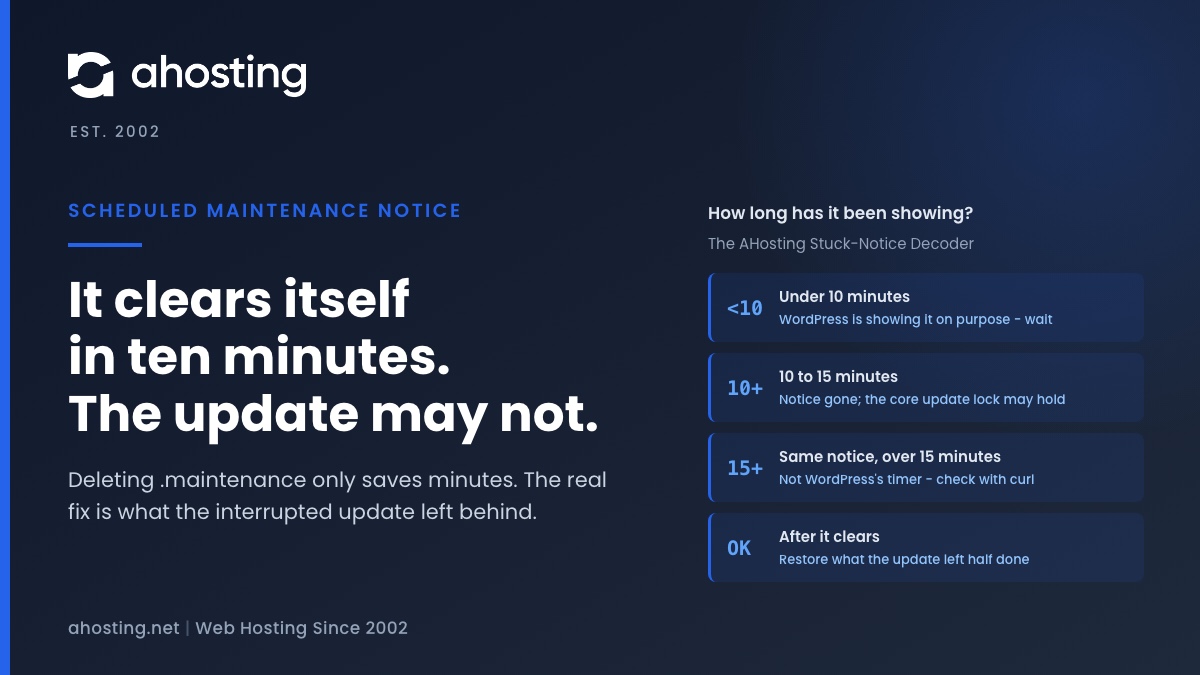
The time since the update started is the most useful thing you know, because it tells you which mechanism you are dealing with. Under ten minutes, WordPress is showing the notice deliberately. Over ten minutes, it is not, and deleting the file again will not help.
| Time since the update began | What is actually happening | What to check | What to do |
|---|---|---|---|
| Under 10 minutes | WordPress is honoring .maintenance; the update may still be running | Nothing yet | Wait, or delete .maintenance if visitors cannot |
| 10 to 15 minutes | The notice has lifted; a core update lock may still be held | The Updates screen | Wait for 15 minutes, then retry |
| Over 15 minutes, same notice | Not WordPress’s timer: a stored copy, or a file it did not write | The response status with curl | Purge caches, or find the real file |
| After it clears | The interrupted update left work undone | Plugins screen, Updates screen, error log | Restore or reinstall what it was updating |
Stuck Update Decoder
Three questions about what you can see right now. The answer tells you which of the update’s leftovers you are looking at and what to do about it.
What is happening:
Do this next:
Read from the WordPress 7.1.2 source. It cannot see your server, so treat the answer as where to start, not as a diagnosis.
Checking What the Server Actually Says
Your browser is not a reliable witness here, because it shows whatever it last received. Ask the server directly with curl -sI https://example.com/, using your own address. The first line is the status, and the curl project’s own guide explains how to read it: a 5xx code means a problem on the server side. A 503 with Retry-After: 600 means something on the server is still producing the briefly unavailable for scheduled maintenance page right now. A 200 means the server is fine and the copy you are looking at is stored somewhere, in your browser or in a cache in front of the site. Purge that cache and reload in a private window.
A Notice That Never Expires
If the server still answers 503 well past ten minutes, open the .maintenance file you find. WordPress itself always writes a plain number. A file containing $upgrading = time(); instead was written by hand or by a tool, and it never expires, because time() is always now. Delete it. If there is no file, look for a maintenance or coming-soon plugin, and check that the folder you cleaned is the WordPress copy the domain actually serves.
“Another Update Is Currently in Progress” Is a Different Lock
The second message people meet after briefly unavailable for scheduled maintenance looks related and isn’t. Another update is currently in progress. comes from the core updater only, and it has nothing to do with .maintenance. Before a core update starts, WordPress inserts a row named core_updater.lock into its options table, holding the current time. While that row is younger than fifteen minutes, any second core update is refused with that message.
Clearing the Core Update Lock
The lock is written by WP_Upgrader::create_lock, which also explains why waiting works: once the row is older than its timeout, the next attempt deletes it and takes a fresh one. So the simplest fix is to wait until fifteen minutes have passed and retry. If you cannot wait, open phpMyAdmin from cPanel, find the options table, and delete the row whose option_name is core_updater.lock. With WP-CLI it is wp option delete core_updater.lock. Deleting .maintenance does not touch it, which is why the two messages can turn up one after the other.
The Background Lock Nobody Sees
Automatic updates take a second lock, auto_updater.lock, held for an hour. It never produces a message. If a background run is cut off, the next scheduled run inside that hour finds the lock and quietly does nothing. That is harmless once, but it is one more reason to read the Updates screen after any interrupted update rather than assuming the next automatic run will finish the job.
What the Interrupted Update Left Behind, and How to Put It Back
Once briefly unavailable for scheduled maintenance has lifted, by waiting or by deleting the file, the site loads whatever the update left on disk. Most of the time that is the finished update and nothing is wrong. When it is not, it shows up in one of three ways, and each has a specific fix.
| What you see | Where to look | The fix |
|---|---|---|
| A plugin is missing or was deactivated | wp-content/upgrade-temp-backup/plugins | Move the folder back, then reactivate |
| There has been a critical error on this website | The error log, then the plugin or core files | Restore the plugin, or reinstall the current core version |
| The Updates screen still lists the update | Dashboard, Updates | Run it again, on its own |
A Missing Plugin Is Usually in upgrade-temp-backup
Since WordPress 6.3, the updater does not overwrite a plugin in place. As the 6.3 rollback announcement describes, it first moves the installed version into wp-content/upgrade-temp-backup/plugins/ under the plugin’s folder name, then copies in the new one. If the install fails, WordPress moves the old copy back. If the request is cut off between those two steps, the plugin folder is simply gone. The next time you open the Plugins screen, WordPress deactivates it with Plugin file does not exist. The old copy is still sitting in the backup folder. Move it back into wp-content/plugins with File Manager, reactivate it, and run the update again on its own. Do it the same day: a weekly cleanup task empties that folder.
A Critical Error Means Old and New Files Are Mixed
If the notice gives way to There has been a critical error on this website, the update stopped after replacing some files and before replacing others. For a plugin, restore it from the backup folder or reinstall it from its source. For core, open Dashboard, Updates and use the button to reinstall the current version, which copies every core file again. If wp-admin will not load at all, our white screen of death guide covers getting back in. While a plugin sits on its old version, look it up in the Wordfence vulnerability database to see whether that version has a known issue, which tells you how urgent the retry is.
Why Updates Get Interrupted on Shared Hosting
An update is an ordinary web request that happens to run for a long time. WordPress knows that and asks PHP for more room: the upgrader calls set_time_limit( 300 ) before each install, five minutes per package, and a background update of an active plugin gets ten for its fatal-error check. Most interruptions come from something that ends the request before the update can clean up after itself.
The Safety Net Catches Errors, Not a Request That Dies
The 6.3 rollback is scheduled only when the copy step returns an error that WordPress can see. It then runs in WordPress’s shutdown step, and the source comment says shutdown actions are “immune to PHP timeouts,” meaning the restore itself cannot be cut off by the clock once it has been scheduled. What the net cannot catch is the request dying in the middle of the copy. A timeout, a memory error or a killed process all end the request before WordPress learns the copy failed, so no restore is ever scheduled. .maintenance stays, any lock stays, and the old plugin stays in the backup folder.
The error log tells those three apart. A timeout or a memory error is a PHP fatal error, and PHP writes it to the log with the file it was running. A killed process leaves nothing in PHP’s log at all, because the Linux signal manual is blunt about SIGKILL: it cannot be caught, blocked or ignored. An interrupted update with an empty error log points at a limit outside PHP.
The Limits That Cause It
On shared hosting, several ceilings sit outside PHP: memory for the whole account, the number of processes, and disk space and file count. A batch of large plugins can reach one of them halfway through. Resource limit errors are the visible version of that. The quieter one is space. During an update the old and new copies of a plugin exist side by side, so an account near its file-count limit can fail mid-copy even though it looked fine a minute earlier.
How This Plays Out on AHosting Servers
On our shared servers, LiteSpeed runs PHP through lsphp as your own cPanel user, and WordPress chooses its direct write method by itself, so an update never stalls waiting for an FTP login. That check is the other way the updater fails. On our WordPress plans, PHP’s own memory limit sits roughly eight to twelve times below the account’s memory ceiling. In practice that means an update that runs out of memory is stopped by PHP itself, long before the account limit, and the error log names the file it was loading. A failed update here is a diagnosable one: the log says what stopped it, and the old copy is waiting in the backup folder.
How to Update Without Seeing Briefly Unavailable for Scheduled Maintenance Again
You cannot make an update instantaneous, but you can keep it short and easy to trace if it fails. Four habits cover nearly every case of briefly unavailable for scheduled maintenance that outlives its ten minutes.
- Update active plugins in batches of five or six, not all at once. Each batch gets its own request and its own ten-minute window, and a failure points at a short list.
- Leave the Updates tab open until WordPress says it has finished. Closing it does not always stop the work on the server, but you lose the only screen that reports what went wrong.
- Check Disk Usage and File Usage on the cPanel home screen before a large update. An update briefly needs room for two copies of each plugin.
- Update WordPress core on its own, never in the same session as a long plugin batch, so the core lock and the plugin work cannot get in each other’s way.
When to Bring Us In
Most cases end with the steps above. On AHosting shared and WordPress hosting plans, PHP already runs as your own account, so updates write files directly. If the same update keeps stopping at the same point, or the plugin folder is gone and upgrade-temp-backup is empty, open a ticket and we will look at the error log with you. It usually shows whether PHP ran out of time or memory, or whether a file could not be written. That applies on our standard web hosting plans too.
When a Server With More Room for Updates Makes Sense
Updates that keep failing are usually about size, not about the server being broken. A WooCommerce store with dozens of extensions or a multisite network can carry more update work than one web request comfortably holds. On a VPS with full root access, you can run updates from the command line with WP-CLI, where no browser request is involved, and set the time and memory limits yourself.
What does not justify a move is a single case of briefly unavailable for scheduled maintenance. A notice that clears in ten minutes and a plugin moved back from the backup folder is a repair, not a migration. Move when the size of every update is the problem, not one bad afternoon.
Frequently Asked Questions: Briefly Unavailable for Scheduled Maintenance
How do I remove a WordPress site from maintenance mode when it says briefly unavailable for scheduled maintenance?
In practice you rarely have to. WordPress ignores its own .maintenance file ten minutes after the update that wrote it started, so the notice lifts by itself. If you cannot wait, open cPanel File Manager, turn on Show Hidden Files, and delete .maintenance from the folder that holds wp-config.php. Then go to Dashboard, Updates and Plugins, because the notice only told you an update stopped partway. Whatever it was updating may still be half done.
How long does briefly unavailable for scheduled maintenance last before WordPress clears it in 2026?
Typically ten minutes at most. The .maintenance file holds the time the update began, and WordPress 7.1.2 stops honoring it once ten minutes have passed. The page even tells browsers and crawlers to retry after 600 seconds. A normal update finishes in seconds and deletes the file itself. A notice that is still showing after ten minutes is not coming from that timer, so look for a cached copy or a hand made file instead.
Deleting .maintenance vs waiting: which fixes briefly unavailable for scheduled maintenance faster?
Specifically, deleting the file is faster, because it ends the notice at once, while waiting can take up to ten minutes. Neither one repairs anything. The file is only a sign that an update was interrupted, and the interrupted update is the real problem: a missing plugin folder, a half copied core, or a lock that still blocks the next attempt. Delete the file if visitors are waiting, then check the update itself either way.
The .maintenance file vs the update lock: what is the difference between the two WordPress update errors?
In other words, one stops visitors and the other stops updates. The .maintenance file sits in the site folder and shows visitors the maintenance notice for up to ten minutes. The update lock is a row in the WordPress options table that makes a second core update fail with Another update is currently in progress, for up to fifteen minutes. Deleting the file does nothing to the lock, which is why the two errors can appear one after the other.
Why does my site still say briefly unavailable for scheduled maintenance after I deleted .maintenance?
In fact WordPress is usually no longer the one saying it. Check what the server actually returns with curl or the browser network panel. If the response is a 200, you are looking at a stored copy from a cache in front of the site, so purge it. If it is still a 503 with a Retry After header, a .maintenance file still exists somewhere, often in a different copy of WordPress than the one you cleaned, or a maintenance plugin is active.
A plugin vanished after briefly unavailable for scheduled maintenance: how do I get it back?
Fortunately WordPress usually kept the old copy. Since version 6.3 it moves the installed version into wp-content/upgrade-temp-backup/plugins before copying the new one. If the update was cut off before WordPress could put it back, that copy is still there. Move the folder back into wp-content/plugins with File Manager, then reactivate the plugin, because WordPress deactivates any plugin whose files are missing. If the folder is empty, reinstall the plugin from its source.
Does WordPress roll back a failed plugin update automatically in 2026?
Indeed it does, when it sees the failure. Manual plugin and theme updates restore the previous version if the install step reports an error, and automatic plugin updates also load the home page afterward and restore the old version if it shows a fatal error. What it cannot catch is the request itself dying partway, from a timeout, a memory error or a killed process. Then no restore is scheduled, and the old copy stays in the backup folder for you to move back.
Is it safe to click Update all on an AHosting WordPress plan in 2026?
Overall yes for a few plugins, and smaller batches are safer for many. On AHosting plans PHP runs as your own account, so updates write files directly without asking for FTP details. The risk is time: Update all puts the site into maintenance mode once for the whole batch, and every plugin in it shares one request. Updating five or six at a time keeps each run short and makes a failure easy to trace to the plugin that caused it.
Can AHosting support help when a site is stuck on briefly unavailable for scheduled maintenance?
Above all, try the two minute fix first, because it is usually all you need: wait ten minutes or delete .maintenance, then finish the update. If the same update keeps stopping at the same point, or the plugin folder is gone and there is nothing to move back, open a ticket and we will look at the error log with you. The log usually shows whether PHP ran out of time or memory, or whether a file could not be written.
Should I move to an AHosting VPS if WordPress updates keep failing in 2026?
Ultimately not for one stuck update, which is a repair rather than a reason to migrate. A VPS makes sense when updates are large and frequent, such as a WooCommerce store with dozens of extensions or a multisite network, and you want to run them from the command line with WP-CLI instead of through a browser request. Root access lets you set the time and memory limits yourself, and it puts the rest of the server in your hands as well.