
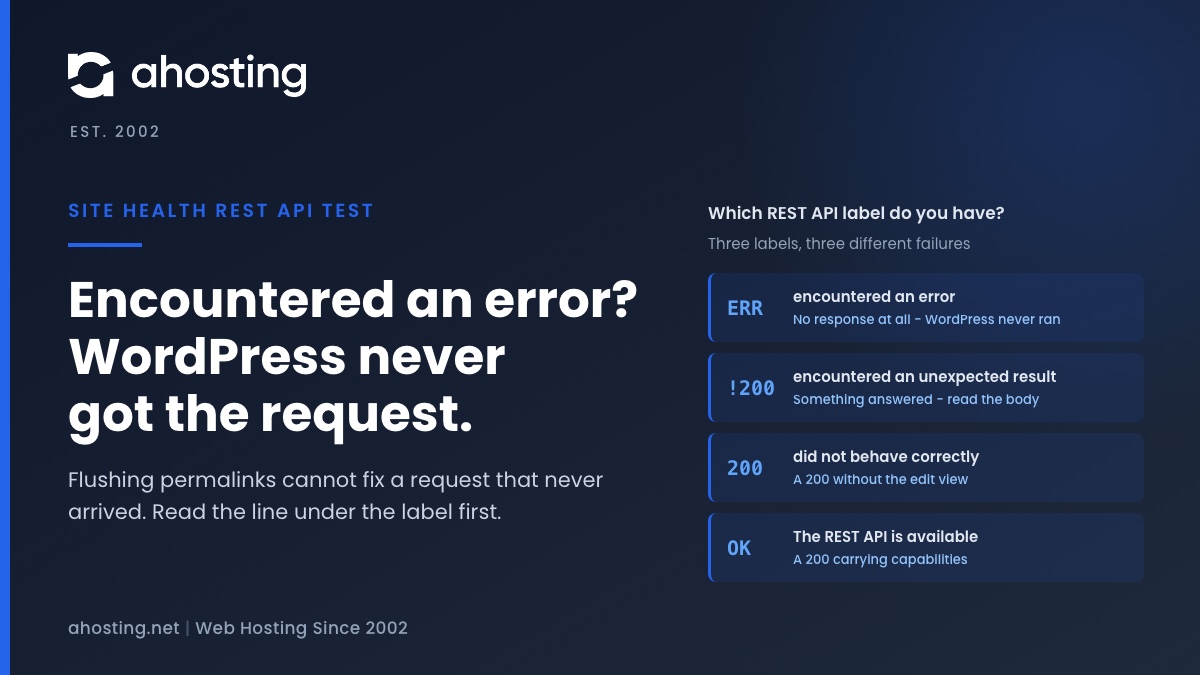
- What “The REST API Encountered an Error” Actually Tests
- Three Labels, Three Failures: Which REST API Result Do You Have?
- What Our Own Blog Returned When We Sent the Same Request
- The REST API Encountered an Error: The Request Never Arrived
- The REST API Encountered an Unexpected Result: Reading the Status
- The REST API Did Not Behave Correctly: A 200 That Is Not WordPress’s Answer
- How to Fix The REST API Encountered an Error, in Order
- When The REST API Encountered an Error Is the Server, Not the Site
- A Practical Checklist for a Failed REST API Test
- Frequently Asked Questions: The REST API Encountered an Error
- How do you fix an API error like the REST API encountered an error in WordPress?
- What request does Site Health send when it reports the REST API encountered an error in 2026?
- The REST API encountered an error vs an unexpected result: what is the difference?
- Loopback request failed vs the REST API encountered an error: why can one pass while the other fails?
- Why does wp-json show a 401 error in my browser when I am logged in to WordPress?
- Will flushing permalinks fix the REST API encountered an error in Site Health?
- What does REST API did not behave correctly mean in a WordPress 7.1 site in 2026?
- Does AHosting block the WordPress REST API on its shared hosting plans in 2026?
- Can AHosting support help when Site Health says the REST API encountered an error?
- Should I move to an AHosting VPS if the REST API test keeps timing out in 2026?
The REST API encountered an error means Site Health’s test request got no answer at all, so the REST API never ran. Permalinks and plugins cannot cause that; DNS, a firewall or a timeout can. The two other labels are different failures: “unexpected result” is a status code, and “did not behave correctly” is a 200 that was not WordPress’s answer. Read the line under the label, then read the code inside the response body, which Site Health never shows you.
What “The REST API Encountered an Error” Actually Tests
The REST API encountered an error is the critical result on the Site Health screen, and the usual advice is to flush permalinks and deactivate plugins until it goes away. Read against the code that produces it, that advice mostly misses. This label appears only when Site Health’s test request got no response at all, which means WordPress never ran and nothing a plugin does could have caused it. The two other REST labels on the same screen are different failures with different fixes, and the one thing that tells them apart is a line most people skip.
The Request Site Health Sends
The REST API is the interface the block editor uses to load and save content, and the Learn WordPress tutorial on it shows the basic shape: requests go to addresses under /wp-json/ and the answers come back as JSON. Site Health checks it with one request, and the method that runs it in WordPress 7.1.2 sets every detail:
- A GET to
/wp-json/wp/v2/types/postwith?context=edit, the view the editor itself asks for. - Your own login cookies, copied from the admin page you are looking at.
- An
X-WP-Nonceheader, the token that proves the request came from your session. - A
Cache-Control: no-cacheheader and a ten-second limit. - Certificate checks switched off, so an expired or self-signed certificate does not fail it.
It Goes to the Home URL, Not the WordPress Address
The address is built from your Site Address, the home URL, not from the WordPress Address where the core files live. The loopback test on the same screen does the opposite and posts to wp-cron.php on the WordPress Address. On most sites the two are identical. Where they differ, for example WordPress installed in a subfolder but served from the domain root, one test can pass while the other fails, because they never touched the same address. Settings, General shows both.
Three Labels, Three Failures: Which REST API Result Do You Have?
WordPress decides between the labels in a fixed order, and each step answers a different question about the response. Knowing whether you have the REST API encountered an error or one of the two other labels rules out most causes before you open a single file.
| Label | Severity | What the test saw | Did WordPress run? | What can fix it |
|---|---|---|---|---|
| The REST API encountered an error | Critical | No response: the HTTP request itself failed | No | DNS, firewall, network path, timeouts |
| The REST API encountered an unexpected result | Recommended | A response with a status other than 200 | Sometimes; the body tells you | Whatever the body names |
| The REST API did not behave correctly | Recommended | A 200 whose body has no capabilities field | Usually not for this request | Redirects, caches, query-string handling |
| The REST API is available | Good | A 200 carrying the edit view | Yes | Nothing to fix |
What Site Health Prints, and What It Leaves Out
Under the label sits a line beginning REST API Response:. For the critical result it carries the transport error, such as a cURL timeout. For an unexpected result it carries only the status and its standard text, for example (403) Forbidden. What it never prints is the body of the response, and that is a problem, because a 403 written by WordPress and a 403 written by a firewall look identical in that line. One is a JSON object with a named error code. The other is a web page.
Why a 200 Web Page Counts as Misbehaving
The third label is decided by decoding the body and looking for a key called capabilities, which only the edit view contains. The code is written to skip that check when decoding fails, but json_decode returns null on input that is not JSON, never false, so the skip never happens. A login page or a holding page that arrives with a 200 status therefore lands in “did not behave correctly”, not in an error. That is useful to know, because it means this label covers two quite different situations: JSON that is missing a field, and a response that was never JSON at all.

What Our Own Blog Returned When We Sent the Same Request
To show what each answer looks like in practice, we sent the test’s request to the AHosting blog on 2 October 2026, from outside the server and through Cloudflare, in four variations. None was logged in, which is the point: these are the responses a test sees when the login does not arrive with the request. All four matched the WordPress 7.1.2 source exactly.
| Request we sent | Status | Code in the body | What it shows |
|---|---|---|---|
| The test URL, no login, no nonce | 401 | rest_forbidden_context | What a browser address bar gets: no nonce means logged out |
| The same URL without context=edit | 200 | None; post type JSON without capabilities | What the third label sees when the context is lost |
| The test URL, an invalid nonce and a cookie that does not log in | 403 | rest_cookie_invalid_nonce, Cookie check failed | What Site Health gets when your login does not reach WordPress |
| The plain-permalink form, ?rest_route= | 401 | rest_forbidden_context | The API answers without any rewrite rules |
Why Your Browser Gets a 401 Even When You Are Logged In
The first row catches people out. Paste the test URL into a browser where you are signed in and you still get a 401, which looks like proof the REST API is broken. It is not. As the REST API authentication handbook says, if no nonce is provided the API sets the current user to 0, turning the request into an unauthenticated one even if you are logged in. An address bar sends cookies but never a nonce, so the edit view refuses it. Site Health always sends a nonce, which leads to the third row: when its cookie fails, the answer is a 403 with rest_cookie_invalid_nonce, not a 401.
The REST API Encountered an Error: The Request Never Arrived
When the critical label appears, the line under it holds an error from the HTTP client, usually written as a cURL error with a number. The request left WordPress, tried to reach your home URL and failed before any server sent a byte back. That narrows the search to three places: where the domain points, whether the connection was allowed, and whether anything answered within ten seconds. Our guide to the failed loopback request decodes each cURL number for the same stack, and the codes mean the same thing here.
DNS and the Home URL During a Migration
Since the test resolves your public domain, a site mid-migration sends it to whichever server the DNS still names. If that is the old host and it has closed the account, the connection fails and the REST API encountered an error appears. If the old copy still runs, the request reaches a different WordPress with different login keys, and you get a 403 instead. Either way the fix is DNS, not WordPress, and it resolves on its own once the domain points at the new server.
Ten Seconds and Two Entry Processes
The test also holds two PHP processes at once: the admin page running the check, and the REST request it makes. On our shared plans the published entry-process ceilings are up to 30 on Bronze, 40 on Silver and 50 on Gold. A page served from LiteSpeed’s cache uses none, so the slots fill only with uncached work such as wp-admin, carts and bots. When every slot is busy the request either waits past ten seconds and times out, giving the REST API encountered an error, or is refused with a 508. Our 508 guide covers what fills them.
Why Flushing Permalinks Cannot Fix The REST API Encountered an Error
Permalink rules decide which code handles a request once it reaches the server. A request that never reached the server is beyond their reach, so saving the Permalinks screen changes nothing for the critical label. The same goes for deactivating plugins: none of them ran. Both steps belong to the unexpected-result cases below, where something did answer.
The REST API Encountered an Unexpected Result: Reading the Status
An unexpected result means the request got through and something sent back a status other than 200. The status narrows it down; the body settles it. Open the response once, using the method in the fix section below, and match it against this table.
| Site Health printed | Body you will find | What answered | Usual cause on a cPanel account behind LiteSpeed and CloudLinux | First fix |
|---|---|---|---|---|
| (401) Unauthorized | An HTML page, with a login prompt header | The web server | A password-protected folder (cPanel Directory Privacy) | Remove the password or test without it |
| (403) Forbidden | JSON: rest_cookie_invalid_nonce | WordPress | Your login did not reach it, or reached another copy of the site | Check DNS, then anything that strips cookies |
| (403) Forbidden | An HTML page | A rule in front of WordPress | Security plugin, .htaccess deny, firewall rule, proxy challenge | Read that layer’s log for the test time |
| (404) Not Found | JSON: rest_no_route | WordPress | A plugin removed the posts route | Deactivate REST-disabling plugins one by one |
| (404) Not Found | An HTML page | The web server | Rewrite rules not sending /wp-json/ to WordPress | Save Settings, Permalinks; check .htaccess |
| (500) Internal Server Error | Often empty or an error page | PHP | A fatal error in code that runs on REST requests | Read the error log for the test time |
| (503) or (508) | An HTML page | WordPress or the server | Maintenance mode, or every entry process busy | Wait it out, or check resource usage |
REST API Result Decoder
Three questions about what Site Health printed and what the response body contains. The answer names the layer that failed and the first thing to do.
What answered:
Do this next:
Read from the WordPress 7.1.2 source. It cannot see your server, so treat the answer as where to start, not as a diagnosis.
Why a 401 Here Is Almost Never WordPress
WordPress returns 401 only to a request it treats as logged out, and a request carrying a nonce is never quietly treated that way: if the cookie fails, the nonce check fails too and the answer is 403. So on this test a 401 usually comes from the web server itself, asking for a folder password before PHP runs. Site Health forwards such a password only when PHP received one with the page that ran the test, which is why password-protected staging sites so often show this result.
Turning the REST API Off Is Not the Same as Restricting It
Many guides answer how to turn off the REST API in WordPress, and the answer matters here. A plugin or rule that blocks only logged-out visitors does not trip this test, because the test is logged in. One that disables the API for everyone, or removes routes, does, and so does any firewall rule matching /wp-json/ regardless of login. Our guide to stopping REST API user enumeration shows how to close the parts that leak usernames without switching the editor’s interface off.
The REST API Did Not Behave Correctly: A 200 That Is Not WordPress’s Answer
This label means the status was fine and the content was not. Either the JSON lacked the edit view, or the body was not JSON. In both cases something other than the REST route decided what came back, and the label’s own wording, that the API did not process the context parameter, points at the most common reason.
Dropped Query Strings, Redirects and Stored Copies
WordPress follows up to five redirects before it reads the body. A redirect rule that rewrites the address without carrying the query string across, for instance one that forces www or a trailing slash, delivers the request without ?context=edit. WordPress then answers correctly for the view it was asked for, a 200 without capabilities, which is our second test row. On plain permalinks the whole route lives in the query string, so the same redirect lands on the home page instead and the body is HTML. A login wall, a coming-soon plugin or a holding page reached by redirect does the same. The last case is a stored copy: a cache in front of the site that keeps a public response for /wp-json/ can hand it back to the test. Our write-up of LiteSpeed Cache behind Cloudflare covers which layer keeps what on this stack.
How to Fix The REST API Encountered an Error, in Order
Work from the outside in. Each step either names the layer or rules one out, and none of them involves deactivating everything and hoping.
- Read the full line under the label and note the cURL error or the status in brackets. That single line decides which section of this guide applies.
- For the critical label, check that the domain resolves to this server, then fetch
/wp-json/on the home URL with curl from your own computer. A timeout or a refused connection there confirms a network or DNS problem. - For a status, read the body. A JSON object with a
codefield came from WordPress; an HTML page came from something in front of it. - Fix the one layer the code names, using the decoder table above.
- Reload Site Health. The REST test runs again each time the screen loads, so the label changes as soon as the cause is gone.
Testing It Properly From the Block Editor
Because an address bar never sends a nonce, the honest test runs from a page that does. Open any post in the block editor, open the browser console and run wp.apiFetch({ path: '/wp/v2/types/post?context=edit' }). The editor’s fetch helper attaches your nonce and cookies automatically, so this is the request Site Health makes. A result with a capabilities object means the API works for you and the problem is specific to the server-side test. An error shows the real code. The same call on the Network tab shows headers and body together, and Firefox’s request details guide explains where each part sits. If saves are also failing with a JSON message, our guide to the not a valid JSON response error covers the editor side of the same failure.
When The REST API Encountered an Error Is the Server, Not the Site
Most cases end at step four with a setting, a plugin or a DNS record. On our WordPress hosting plans and standard web hosting plans the REST API is reachable by default, and a fresh install saves through it normally. What remains is the case the checks above cannot settle from inside the account: a timeout when nothing in resource usage looks busy, or a refusal you did not add and cannot find. In that case, open a ticket with the line Site Health printed and we will look at it with you.
If the timeouts are about capacity, with entry-process faults stacking up whenever the site is busy, the shared ceiling is the real limit. A VPS with full root access removes it and puts the firewall rules, the timeouts and the PHP limits in your hands. One red line in Site Health is not a reason to move; a pattern of them under load is.
A Practical Checklist for a Failed REST API Test
- Note whether Site Health says the REST API encountered an error or one of the two other labels before changing anything.
- Copy the line under it: the cURL error or the status in brackets.
- Compare Site Address and WordPress Address under Settings, General.
- Confirm the domain resolves to this server, especially after a migration.
- Open the response body and decide: JSON code, or an HTML page.
- Check cPanel Directory Privacy if the status is 401.
- Check the security plugin, .htaccess and any proxy firewall if the 403 is HTML.
- Look for redirects that drop the query string if the label is the third one.
- Read the error log for a 500, and resource usage for a 508.
- Reload Site Health after each change, not after all of them.
Frequently Asked Questions: The REST API Encountered an Error
How do you fix an API error like the REST API encountered an error in WordPress?
First and foremost, read the line under the label before changing anything. Site Health prints the error code or status it received, and that line names the layer that failed. A cURL error means the request never got an answer, so look at DNS, the firewall and your account limits. A status code means something did answer, so open the response body and read the code inside it. Fix that one layer, then reload Site Health to confirm the result has changed.
What request does Site Health send when it reports the REST API encountered an error in 2026?
Specifically, one GET request to the posts type route under wp-json on your home URL, with context set to edit. In WordPress 7.1.2 it forwards the cookies of the admin viewing the screen, adds a REST nonce header and a no-cache header, and allows ten seconds. It then expects a 200 response whose JSON carries a capabilities field. Each of the three warning labels means one of those expectations was not met.
The REST API encountered an error vs an unexpected result: what is the difference?
In other words, no answer versus the wrong answer. The REST API encountered an error is the critical label, and WordPress shows it only when the HTTP request failed outright, such as a DNS failure, a refused connection or a timeout. The unexpected result label means a response did arrive but with a status other than 200. So the first points at the network path, and the second at whatever answered.
Loopback request failed vs the REST API encountered an error: why can one pass while the other fails?
Notably, the two tests send different requests to different addresses. The loopback test posts to wp-cron.php on the WordPress address, while the REST test requests a wp-json route on the home address with your login cookies. When the two addresses differ, or a rule only matches wp-json, one test passes and the other fails. When both fail with the same cURL error, the shared network path is the problem.
Why does wp-json show a 401 error in my browser when I am logged in to WordPress?
Indeed this is expected and does not mean the API is broken. A browser address bar sends your cookies but no REST nonce, and WordPress treats any cookie request without a nonce as logged out. Asking for the edit context while logged out returns 401 with the code rest_forbidden_context. Remove the context parameter and you should get a 200 with JSON, which proves the API itself is answering.
Will flushing permalinks fix the REST API encountered an error in Site Health?
Typically no, and the source explains why. That label appears only when no response arrived at all, and permalink rules cannot affect a request that never reached WordPress. Flushing permalinks helps in one narrower case: a 404 page made of HTML rather than JSON, on a site using pretty permalinks, which means the rewrite rules are not sending wp-json to WordPress. Sites on plain permalinks use a query string and do not need rewrites.
What does REST API did not behave correctly mean in a WordPress 7.1 site in 2026?
In fact it means the test got a 200 response that was not the answer WordPress gives for that request. The body either was not JSON, such as a login or holding page reached through a redirect, or was JSON without the capabilities field, which happens when something dropped the context parameter or served a stored copy. WordPress follows up to five redirects, so a 200 at the end can hide where the request went.
Does AHosting block the WordPress REST API on its shared hosting plans in 2026?
Fortunately no. AHosting shared and WordPress plans leave the REST API reachable by default, and a default install saves posts through it normally. What usually blocks it is something added inside the account or in front of the domain: a security plugin, a password-protected folder, a firewall service on the domain, or a hand-edited rewrite rule. That is why this guide reads the response first instead of blaming the plan.
Can AHosting support help when Site Health says the REST API encountered an error?
Above all, run the two checks in this guide first, because they usually find the cause in minutes: read the line under the label, then fetch the endpoint from outside the server. If the answer points at the server rather than at a plugin or a setting, such as a timeout with nothing busy or a block you did not add, open a ticket with the line Site Health printed and we will look at it with you.
Should I move to an AHosting VPS if the REST API test keeps timing out in 2026?
Ultimately only if the timeouts come from load rather than configuration. A test that times out because every PHP slot is busy with uncached traffic is a capacity signal, and a VPS removes the shared ceiling. A test that times out because DNS or a firewall rule sends the request nowhere will time out on any server. Fix the configuration first, then decide on capacity using what the account limits page shows.
Related posts:
 “Resource Limit Reached” vs. 503 vs. 500 Error WordPress: A Diagnostic Decision Tree
 Stop REST API User Enumeration in WordPress (2026)
 Your Site Could Not Complete a Loopback Request: How to Read the Error and Fix It on Shared Hosting
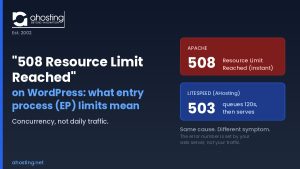 “508 Resource Limit Reached” on WordPress: What Entry Process (EP) Limits Really Mean