
- What “A Scheduled Event Has Failed” Actually Means
- A Scheduled Event Has Failed vs Is Late: Two Windows
- Why the Event It Names Is Rarely the One That Broke
- Four Reasons a Scheduled Event Has Failed
- “A Scheduled Event Is Late”: When to Ignore It
- How to Fix a Scheduled Event Has Failed, in Order
- A Scheduled Event Has Failed on AHosting Servers
- A Practical Checklist When a Scheduled Event Has Failed
- Frequently Asked Questions: A Scheduled Event Has Failed
- Why are my scheduled WordPress posts not being published on time?
- What does a scheduled event has failed mean in WordPress Site Health in 2026?
- A scheduled event has failed vs is late: what is the difference in Site Health?
- Which event does Site Health name when a scheduled event has failed?
- Why does a scheduled event has failed appear on a well cached WordPress site?
- DISABLE_WP_CRON vs server cron: which one stops a scheduled event has failed?
- How do I list every overdue cron event in WordPress 7.1 in 2026?
- Does AHosting run WP-Cron for my WordPress site automatically in 2026?
- Can AHosting support help when the scheduled event has failed warning keeps returning?
- Do I need an AHosting VPS for reliable WordPress cron jobs in 2026?
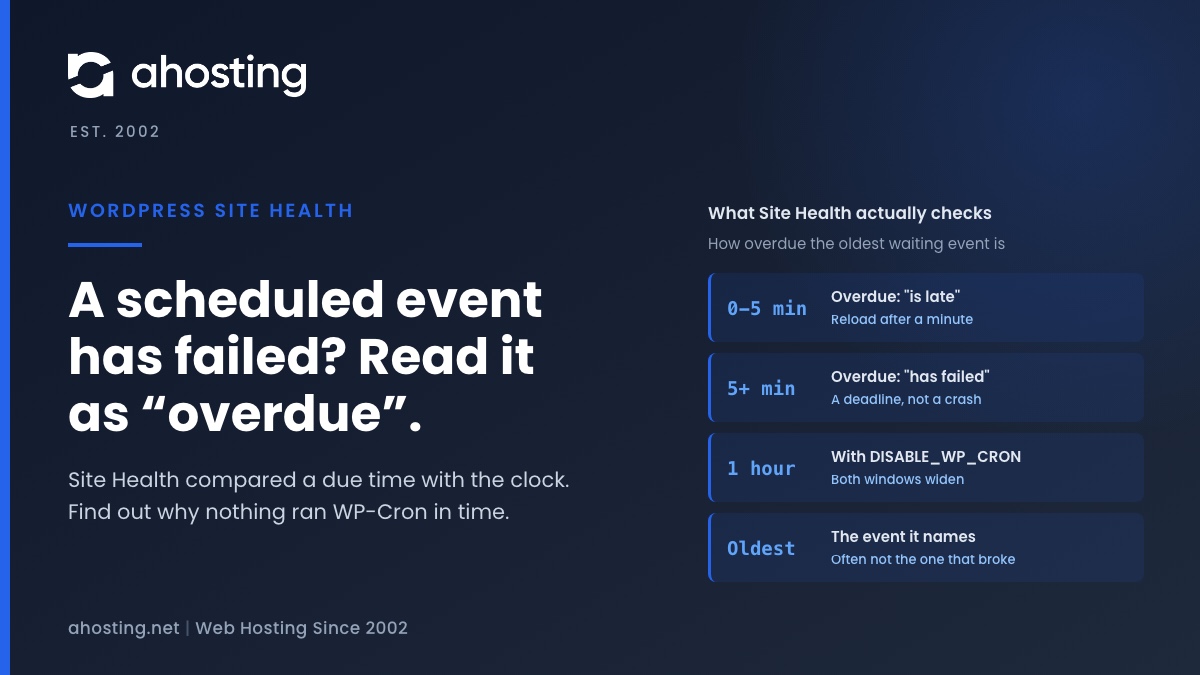
A scheduled event has failed does not mean the event it names tried to run and failed. Site Health compared each waiting event’s due time with the clock and found one more than five minutes overdue, or more than an hour if DISABLE_WP_CRON is set. The event it names is the oldest one still waiting, and often not the one that broke. Reload once after a minute, then find out why nothing ran wp-cron.php in time: visits answered entirely from cache, a broken loopback, WP-Cron disabled with no server cron, or a run that died partway.
What “A Scheduled Event Has Failed” Actually Means
A scheduled event has failed is the Site Health warning that reads like a crash report: The scheduled event, wp_version_check, failed to run. Read against the WordPress 7.1.2 code that writes it, the warning reports neither a crash nor an attempt to run. Site Health looked at the list of scheduled events, compared each due time with the current time, and found one that should have run more than five minutes ago.
A Clock Comparison, Not a Failure Report
WordPress keeps its scheduled events, also called cron events, in a single list in the database, each one stamped with the time it is due. When you open Tools, Site Health, the scheduled-events test reads that list fresh. It consults no log of past runs, and it stores nothing about late events between visits. If any due time is more than five minutes in the past, the label becomes A scheduled event has failed. The word failed describes a missed deadline, not an error that anything caught.
Why Site Health Files It Under Recommended
Site Health grades the warning as recommended, not critical, and the message itself says your site still works. That grade is accurate. Core features ride on this list, as the WordPress Plugin Handbook chapter on cron explains: checking for updates and publishing scheduled posts both depend on it. A stalled list delays those jobs; it does not take the site down. The only critical result this test can return is a different message, It was not possible to check your scheduled events, which appears when the list is empty.

A Scheduled Event Has Failed vs Is Late: Two Windows
The same test has a milder label, A scheduled event is late, and one constant in wp-config.php moves both thresholds. This is the full grading, read from the test in the current release. Both warnings are graded recommended.
| How overdue the oldest waiting event is | DISABLE_WP_CRON not set | DISABLE_WP_CRON set to true |
|---|---|---|
| Not due yet | Passes | Passes |
| Up to 5 minutes | A scheduled event is late | Passes |
| 5 to 15 minutes | A scheduled event has failed | Passes |
| 15 to 60 minutes | A scheduled event has failed | A scheduled event is late |
| More than 60 minutes | A scheduled event has failed | A scheduled event has failed |
Why DISABLE_WP_CRON Widens the Windows
Setting DISABLE_WP_CRON tells WordPress that something other than page loads runs the list, normally a server cron on a fixed interval. Site Health allows for the gap between those runs: 15 minutes before an event counts as late, and an hour before it counts as failed. Our own server-cron walkthrough uses a 15-minute interval for a standard site, which matches that allowance. Setting the constant with no server cron behind it is the one change guaranteed to produce this warning, just an hour later.
Is Late Can Be Your Own Page Load
Since WordPress 6.9, a page load starts the cron run at the very end of the request rather than near the start. The WordPress 6.9 performance field guide explains why: the old position could add up to a second to the time to first byte. One side effect matters here. When you open Site Health just as an event comes due, the test runs first and the cron run starts after it, so the screen can report a late event that your own visit is about to clear. Wait a minute and reload before you diagnose anything.
Why the Event It Names Is Rarely the One That Broke
The message names one event, and it is natural to blame the plugin that owns it. The code that runs the list says the name is a weaker clue than it looks.
It Names the Oldest Event Still Waiting
WordPress keeps the list in order of due time, and the test stops at the first event that crosses the threshold. So the name you see belongs to the most overdue event still in the list. On a site where nothing has run for hours, that is simply whichever job came due first, a core check such as wp_version_check just as easily as a plugin hook. It tells you the list stopped moving. It does not tell you why.
Each Event Leaves the List Before It Runs
When wp-cron.php works through the list, it handles due events in time order, inside one PHP process. For each one it first books the next occurrence if the event repeats, then removes the current entry, and only then runs the code attached to it. If that code ends the process with a fatal error, the event that caused it has already left the list. Everything queued behind it stays overdue, and Site Health names one of those. The event that broke the run is the one you will not see.
A Dead Run Holds the Lock for a Minute
Each run sets a lock when it starts and clears it when it finishes. A run that dies never clears its lock, and WordPress refuses to start another for 60 seconds, the default value of WP_CRON_LOCK_TIMEOUT. After that minute, the next qualifying visit starts a fresh run, which reaches the broken hook again only when that hook is next due. That is how a crashing job can produce a warning that comes and goes rather than one that never clears.
See the Whole Queue, Not One Name
To see every overdue event at once, use the WP-CLI command wp cron event list. It prints now for every event whose time has passed, however late, so add the next_run_gmt field to see how late each one really is. Without a shell, the free WP Crontrol plugin shows the same list in the dashboard. Two snapshots a few minutes apart tell you more than any single warning: an unchanged list means nothing ran, and a list that shrank but kept one plugin’s hooks overdue points at the code queued just ahead of them.
Four Reasons a Scheduled Event Has Failed
Every version of this warning comes down to one of two facts: nothing ran wp-cron.php in time, or something ran it and the run died. Four causes account for those, and each one leaves a different trace.
Every Visit Was Answered From Cache
WP-Cron has no clock of its own. The handbook is plain about it: WP-Cron is only triggered on page load. Each request that reaches WordPress checks the list and, if something is due, starts a run. A request answered by a full-page cache is served before WordPress gets as far as checking the list, and with a server-level cache such as LiteSpeed, PHP never starts at all. On a quiet site with a good cache, nearly every visit can be a cache hit, and a long stretch can pass without a single request that reaches the cron check. Our guide to LiteSpeed Cache and Cloudflare covers the two layers that can answer visits before WordPress does.
This is the cause the usual advice gets backwards. Clearing the cache makes the warning disappear for a while, because the next visits are built by WordPress again, and that is easy to mistake for a fix. Logging in to look usually has the same effect, since logged-in visits are normally not served from the page cache.
The Loopback That Starts Cron Fails
A page load does not run the jobs itself. It sends a short request from the site to its own wp-cron.php, waits a hundredth of a second, and moves on. If that request cannot reach the site, because a firewall or security rule blocks it, a password prompt guards the whole site, or the domain resolves somewhere else from the server, no run ever starts and nothing reports an error. Site Health tests the same route separately, and our guide to Your site could not complete a loopback request decodes that result.
DISABLE_WP_CRON Is Set and No Server Cron Runs
With DISABLE_WP_CRON set, page loads stop starting runs altogether. The constant is meant to be paired with a server cron, and a cron daemon works on the clock, not on visits: the cron(8) manual describes it waking up every minute to check what is due, and the Rocky Linux guide to cron jobs notes that tasks start on the daemon’s own notion of time. If that job was never added, was lost in a migration or points at the wrong folder, nothing runs the list, and after an hour the warning appears. Our walkthrough on when to disable WP-Cron covers the pairing step by step.
A Run Died Partway Through
A run can also start and not finish. A plugin hook can end it with a fatal error, a PHP time limit can stop it, or a process limit on the account can end it. The traces are the ones described above: the named event can change from one check to the next, and the PHP error log has an entry from the minute the run died that names the plugin file responsible. On shared hosting, our resource limit diagnostic tree shows how to tell an account limit from a code fault.
“A Scheduled Event Is Late”: When to Ignore It
The late label means the oldest waiting event is no more than five minutes overdue, or 15 to 60 minutes overdue when DISABLE_WP_CRON is set. On its own it can simply mean a run was about to start, or started a moment after the test.
A variant that comes up in searches is The scheduled event, action_scheduler_run_queue, is late to run. That hook belongs to Action Scheduler, the job queue that WooCommerce and many other plugins ship with. Its documentation says the queue runner is triggered by WP-Cron at most once a minute, so a hook due every minute is the first to look late whenever the gap between runs grows. It is a sensitive gauge, not a separate fault.
Ignore a late warning that clears on reload. Act on one that is still there after several reloads a few minutes apart, or one that turns into the failed label, because both mean the list is not moving.
How to Fix a Scheduled Event Has Failed, in Order
Work through these in sequence. Each step either clears the warning or narrows the cause, and the order puts the cheapest checks first.
- Wait a minute and reload Site Health. If the warning has gone, your own page load cleared it.
- Load your site’s
wp-cron.phponce by hand: your domain followed by/wp-cron.php. A blank page is the normal result, and the run continues after the page comes back. Wait a minute, then reload Site Health. - If the warning cleared, the list can run and the trigger is the problem. Check the loopback test, look in
wp-config.phpforDISABLE_WP_CRON, and consider how much of your traffic is answered from cache. - If a different event is named now, a hook is ending the run. Open the PHP error log in cPanel and read the entries from that minute. The plugin file named there is where to start.
- If nothing changed, the run did not start. Wait 60 seconds for the lock, try again, and check that no security rule refuses requests to
wp-cron.php. - For a quiet, well-cached site, stop depending on visits and run the list from a server cron, as our guide to WordPress cron jobs on shared hosting describes.
Decode Why a Scheduled Event Has Failed
The same steps as a lookup table, from the result you see to the cause and the first fix.
| What you see | Most likely cause | First fix |
|---|---|---|
| Late, and it clears on reload | Your own page load started the run | Nothing to fix |
| Failed, and it clears after loading wp-cron.php by hand | Nothing triggered a run in time | Find the missing trigger: cache, loopback or the constant |
| Failed on a quiet site with a page cache | Visits never reach the cron check | Add a server cron in cPanel |
| Failed, and the loopback test fails too | The run request never arrives | Fix the loopback first |
| Failed, and DISABLE_WP_CRON is set | The server cron is missing or broken | Check Cron Jobs in cPanel |
| A different event named after each run | A hook is ending the run | Read the PHP error log from that minute |
| Nothing changes after a manual run | The run did not start | Wait out the lock, then check security rules |
Scheduled Event Has Failed Decoder
Five questions about the warning and what happened when you tested it. The answer names the most likely reason the list stopped moving and the next thing to do.
Most likely:
Do this next:
Read from the WordPress 7.1.2 source. It cannot see your server, so treat the answer as where to start, not as a diagnosis.
A Scheduled Event Has Failed on AHosting Servers
Our shared servers run LiteSpeed, and LiteSpeed answers a cached page itself: on our servers a cached page consumes no entry processes, because no PHP process is started for it. That is good for speed and for staying inside a plan’s limits, and it is also why a quiet, well-cached site here can go a long stretch without running WP-Cron. In our July 2026 audit of one shared server, all 26 WordPress installs still used the default WP-Cron, and none of their 676 scheduled events was overdue. Sites with ordinary traffic kept their lists moving; the warning points at a quiet site, a broken trigger or a crashing hook.
We do not add a server cron to accounts by default. Cron Jobs in cPanel is available on our WordPress hosting plans and standard web hosting plans, and PHP runs as your own cPanel user, so a cron job runs WordPress with exactly the access the site already has. If wp-cron.php runs, the list drains and the warning still comes back, open a ticket with the event name Site Health shows and we will look at it with you.
Sites with heavy scheduled work, such as a large WooCommerce queue, can outgrow what a shared account allows. A VPS with full root access lets you set the cron schedule, the PHP time limits and the process counts yourself. One warning is not a reason to move; a queue that never catches up might be.
A Practical Checklist When a Scheduled Event Has Failed
- Note the exact label, failed or late, and the event name it shows.
- Wait a minute and reload Site Health before changing anything.
- Load
wp-cron.phponce by hand, wait a minute, and reload again. - Compare the full list of overdue events before and after, not just the one name.
- Check the loopback test result on the same Site Health screen.
- Look in
wp-config.phpforDISABLE_WP_CRON, and in cPanel for a matching cron job. - Read the PHP error log for entries from the minute a run died.
- On a quiet, well-cached site, move the list to a server cron rather than clearing the cache.
- Never set
DISABLE_WP_CRONuntil the server cron is confirmed to run. - Contact your host only when the list runs by hand, drains, and the warning still returns.
Frequently Asked Questions: A Scheduled Event Has Failed
Why are my scheduled WordPress posts not being published on time?
Typically because nothing ran WordPress cron when the post came due. Scheduled posts are published by a cron event, and WordPress only starts cron from a visit that is not answered by a page cache. On a quiet site, or one whose visits are all answered by a page cache, the publish time can pass with no such visit, and Site Health then reports that a scheduled event has failed. A server cron, or regular uncached visits with a working loopback, fixes it.
What does a scheduled event has failed mean in WordPress Site Health in 2026?
In other words, an event in the cron list is more than five minutes past its due time. In WordPress 7.1 Site Health compares each due time with the clock when you open the screen. It keeps no record of failed runs, and the warning does not mean the named event tried to run. With DISABLE_WP_CRON set, the threshold is one hour instead. The warning is graded recommended, and the site keeps working.
A scheduled event has failed vs is late: what is the difference in Site Health?
In practice it is only the size of the delay. Is late means the oldest waiting event is up to five minutes overdue, and has failed means more than five minutes. With DISABLE_WP_CRON set, late covers 15 to 60 minutes and failed covers anything past an hour. A late warning that clears when you reload a minute later can simply be your own page load starting the run.
Which event does Site Health name when a scheduled event has failed?
Specifically, the oldest event still waiting in the list. The list is kept in order of due time and the test stops at the first event past the threshold. Because WordPress removes each event from the list just before running it, a hook that crashes the run has already left the list, so the named event can be one queued behind the real cause. Read the PHP error log from the minute the run died.
Why does a scheduled event has failed appear on a well cached WordPress site?
Notably, a page answered by a full-page cache is served before WordPress reaches the step that starts cron. On a quiet site where nearly every visit is a cache hit, a long stretch can pass without a request that runs the cron list. Logging in to check can clear the warning, because logged-in visits are normally not served from the page cache, which hides the cause. A server cron removes the dependence on visits.
DISABLE_WP_CRON vs server cron: which one stops a scheduled event has failed?
Together, and never the constant alone. DISABLE_WP_CRON only stops page loads from starting runs and widens the Site Health threshold to one hour. Without a server cron running the list on a schedule, nothing runs it at all, and the warning returns once that hour has passed. Add the cron job in cPanel first, confirm that it runs, and only then set the constant in wp-config.php.
How do I list every overdue cron event in WordPress 7.1 in 2026?
First and foremost, use WP-CLI, where wp cron event list shows every scheduled event with its hook and due time. WP-CLI prints now for every event that is already due, however late, so add the next_run_gmt field to see how late each one is. Without a shell, the free WP Crontrol plugin shows the same list inside the dashboard. Two snapshots a few minutes apart show whether the list is moving.
Does AHosting run WP-Cron for my WordPress site automatically in 2026?
Indeed, WordPress runs its own WP-Cron on our servers exactly as it does anywhere, started by visits that are not answered from a page cache. We do not add a server cron to accounts by default, so a quiet or heavily cached site depends on those visits. Cron Jobs in cPanel is available on our WordPress and web hosting plans, and PHP runs as your own user, so you can add one without a ticket.
Can AHosting support help when the scheduled event has failed warning keeps returning?
Above all, run the checks in this guide first: reload after a minute, load wp-cron.php by hand, check the loopback test and look for DISABLE_WP_CRON. Each one rules out a cause. If wp-cron.php runs, the list drains and the warning still comes back, open a ticket with the event name Site Health shows and we will look at it with you.
Do I need an AHosting VPS for reliable WordPress cron jobs in 2026?
Fortunately not for this warning alone. Every cause in this guide, from cache-only traffic to a missing server cron or a crashing hook, is fixed inside a shared account. A VPS makes sense when scheduled work, such as a large WooCommerce queue, keeps outgrowing the limits of a shared plan, or when you want to set PHP time limits and process counts yourself.
Related posts:
 The Authorization Header Is Missing? What Site Health Tested, and the Fix
 One or More Recommended Modules Are Missing: How to Read the WordPress Site Health Warning and Fix It on Shared Hosting
 Autoloaded Options Could Affect Performance: How to Read the Site Health Warning and Clear It on Shared Hosting
 You Should Use a Persistent Object Cache: What WordPress Site Health Actually Measures