
- What “Log Errors to a Potentially Public File” Actually Means
- Why Moving debug.log Does Not Clear the Potentially Public File Warning
- Display Errors to Site Visitors vs a Potentially Public File
- Is Your Potentially Public File Actually Public? Test It
- How to Fix a Potentially Public File Warning, in Order
- Potentially Public File Warnings on AHosting Servers
- A Practical Checklist for the Potentially Public File Warning
- Frequently Asked Questions: Log Errors to a Potentially Public File
- Why does Site Health still say potentially public file after I moved debug.log?
- What does log errors to a potentially public file mean in WordPress in 2026?
- Potentially public file vs display errors to site visitors: which warning is worse?
- Can a potentially public file protected by htaccess still show as critical?
- Does turning off WP_DEBUG delete the potentially public file in wp-content?
- WP_DEBUG_LOG true vs a custom path: which one is safer on a live site?
- How do I set a custom debug log path in WordPress 7.1 in 2026?
- Where should I put debug.log on AHosting shared hosting in 2026?
- Can AHosting support help me read the log behind a potentially public file warning?
- Do I need an AHosting VPS to debug WordPress with errors displayed in 2026?
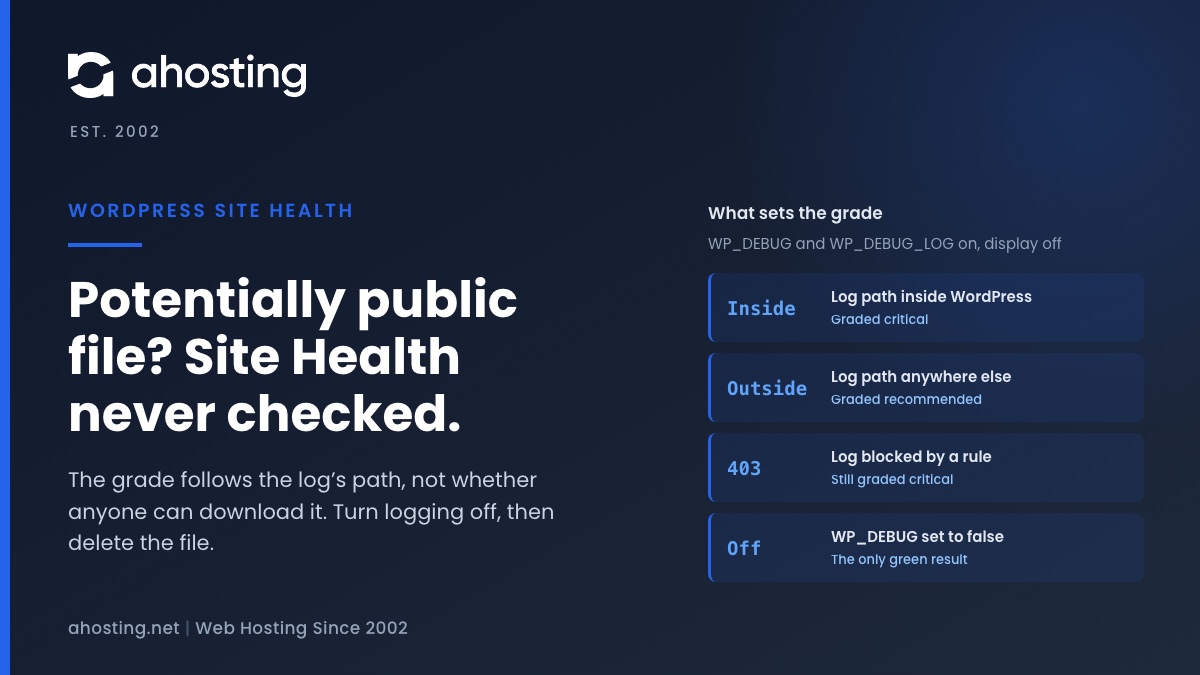
Your site is set to log errors to a potentially public file means two settings in wp-config.php, WP_DEBUG and WP_DEBUG_LOG, are both on while error display is off. Site Health never checked whether the log can be downloaded. The grade depends only on whether the log’s path sits inside your WordPress folder, so moving the file lowers the warning to recommended but never clears it. Read what you need, turn WP_DEBUG off, then delete the old debug.log, because turning logging off does not remove the file.
What “Log Errors to a Potentially Public File” Actually Means
Your site is set to log errors to a potentially public file is the Site Health warning that can turn up long after a fix, once nobody remembers switching debugging on. It sounds as if WordPress found your error log on the open web. Read against the WordPress 7.1.2 code that writes it, the message is much narrower: Site Health has not found the file, and it has not tried to.
Three Settings Checked, and No Look at the File
The test behind the warning, listed in Site Health as Debugging enabled, reads three constants from wp-config.php. When WP_DEBUG and WP_DEBUG_LOG are both on, and WP_DEBUG_DISPLAY is off, the label reads log errors to a potentially public file. The test does not open the log, does not check that it exists and does not request it over the web. Its own description calls the file potentially available to all users, and potentially is the operative word.
Set to true, WP_DEBUG_LOG sends every PHP error, warning and notice to debug.log in the content folder, usually wp-content/debug.log. As the WordPress debugging handbook explains, you can instead give it a full file path to have the log saved elsewhere. That one option is the whole difference between the two grades the warning can carry.
Critical or Recommended: Which Badge You Get
Site Health files the warning under its Security badge, and it can carry either grade. It is critical when the log path starts with the WordPress folder, the path WordPress calls ABSPATH, and recommended when it starts anywhere else. The default wp-content/debug.log sits inside that folder, so most sites see it as a critical issue. Neither grade means anything is broken. The site keeps working; the warning is about who else might be able to read your errors.

Why Moving debug.log Does Not Clear the Potentially Public File Warning
The most common surprise is that moving the log changes nothing visible. One reporter on the WordPress bug tracker put it plainly: setting the log path to a system folder should fix it, but does not. The code explains why. This is the full grading, read from the test in the current release.
| Settings in wp-config.php | Label Site Health shows | Grade |
|---|---|---|
| WP_DEBUG false or not set (anything else ignored) | Not set to output debug information | Good |
| WP_DEBUG true, WP_DEBUG_LOG false, display off | Not set to output debug information | Good |
| WP_DEBUG true, WP_DEBUG_DISPLAY true or not set | Display errors to site visitors | Critical (recommended in development) |
| WP_DEBUG true, WP_DEBUG_LOG true, display off | Log errors to a potentially public file | Critical |
| WP_DEBUG true, WP_DEBUG_LOG a path inside the WordPress folder, display off | Log errors to a potentially public file | Critical |
| WP_DEBUG true, WP_DEBUG_LOG a path outside the WordPress folder, display off | Log errors to a potentially public file | Recommended |
The Grade Follows a Path Prefix
The test compares the start of PHP’s error log setting with ABSPATH, and nothing more. A log outside the WordPress folder is graded recommended, but the label stays, because the label depends only on the two constants being on. So no log location turns the result green. The only green is WP_DEBUG off. Ticket #64071 on WordPress Trac asks for the test to treat a log outside the WordPress folder as safe. It is still open and marked for a future release, so in 7.1.2 the label remains.
A Protected Log Still Reads as Critical
The reverse also holds. A log in wp-content protected by a deny rule, so that a request for it returns an error, still starts with the WordPress folder and is still graded critical. The rule really does protect the file. Site Health simply has no way of knowing it is there, because it never sends a request to find out.
Recommended Does Not Mean Private
The prefix test can also err the other way. Say WordPress is installed in public_html/blog/ and the log is moved to public_html/logs/. That path does not start with the WordPress folder, so Site Health grades it recommended, yet the folder is still inside public_html, and the web server will deliver the file to anyone who asks for it. The grade measures a path. Whether the file can be downloaded is something you have to test.
Display Errors to Site Visitors vs a Potentially Public File
The same test has a second label, Your site is set to display errors to site visitors, and it is the worse of the two. It means errors are printed into the pages every visitor loads, rather than written to a file someone would have to know to request. Site Health grades it critical.
Why WP_DEBUG_DISPLAY Hides the Potentially Public File Label
WordPress defines WP_DEBUG_DISPLAY as true unless you set it yourself, and the code reference for wp_debug_mode() confirms that WordPress then forces errors to be displayed. When the display setting is true, the test overwrites the log label with the display label. So a site that turns on WP_DEBUG and WP_DEBUG_LOG and stops there sees display errors to site visitors, not the log warning. You only meet log errors to a potentially public file after display has been turned off, which makes it the warning of someone who followed the careful recipe. Setting display to null also counts as off here, because WordPress then leaves the server’s own display setting alone, so check that the server is not displaying errors itself.
The Development Environment Exception
One setting changes the display grade. When WP_ENVIRONMENT_TYPE is set to development or local, Site Health lowers the display warning to recommended, because printing errors on a development copy is expected. The log warning gets no such exception: its grade depends only on the path. Never set either environment type on a live site to quiet the warning, since plugins read the same value and may change how they behave.
Is Your Potentially Public File Actually Public? Test It
Because Site Health never checks, the only way to know is to ask for the file the way a stranger would. Open a private browser window, so no login cookie is sent, and request your domain followed by /wp-content/debug.log. From a terminal, curl -I with the same address prints only the response status. If you set a custom path inside public_html, request the address that matches it instead.
What a 200, 403 or 404 Means
- 200: the file is public. Anyone who requests that address can download it, and so can any automated tool that requests the default path.
- 403: a rule refuses the request. The file is protected at that address, whatever Site Health says.
- 404: there is no file at that address right now. Either nothing has been logged yet or the log lives elsewhere. A log created later at the same path would be served, so a 404 is not a reason to leave logging on.
What a WordPress Debug Log Gives Away
A debug log is written for whoever is fixing the site, so it holds what an attacker would otherwise have to work out. Each PHP warning carries the full server path to the file that raised it, which on shared hosting includes your account username, along with plugin and theme folder names. WordPress also logs failed database queries in full, prefixed with WordPress database error, table names included. MITRE’s description of gathering software information about a target lists accessible data sets as one way that information reaches an attacker. The UK National Cyber Security Centre’s introduction to logging for security purposes asks whether access to logs is limited to the people who need to analyze them. A log in a public folder fails that test by default.
How to Fix a Potentially Public File Warning, in Order
Work through these in sequence. The first two steps clear the warning, and the third closes the exposure that the warning was about.
- Save what you need. Download
debug.logthrough cPanel File Manager before you change anything, and read it on your own machine. - Turn debugging off. Set
WP_DEBUGtofalseinwp-config.php. That one change stops WordPress writing the log and turns the result green; the other two constants do nothing while it is off. - Delete the old log. Turning logging off does not remove the file, and it stays downloadable until you delete it. Request its address again afterward and expect a 404.
- If you need logging for days, move it. Create a folder outside
public_html, then setWP_DEBUG_LOGto the full path of a file inside it. PHP creates the file, not the folder. - If the log must stay in
wp-content, deny it. Add a rule to the.htaccessfile in that folder: aFilesblock namingdebug.logthat containsRequire all denied. Then request it again and expect a 403. The badge stays critical. - Next time, start with the server’s log. Our guide to the WordPress white screen of death shows where cPanel lists recent PHP errors, which often names the failing file without turning WordPress logging on at all.
Grade Your Potentially Public File Setup
The same logic as a tool: enter the settings from your wp-config.php and it returns the label and grade Site Health will show, whether the log can be downloaded, and the next step.
Potentially Public File Grader
Copy the debug settings from your wp-config.php. The answer is the label and grade Site Health will show, whether a visitor can actually download the log, and what to do next.
Grade:
Can a visitor download it?
Do this next:
Read from the WordPress 7.1.2 source. It cannot see your server, so confirm the download answer by requesting the file yourself.
Potentially Public File Warnings on AHosting Servers
On our shared servers, PHP runs as your own cPanel user, inside CloudLinux CageFS. Our post on server-level WordPress security explains what that isolation does. For a debug log it means two things. WordPress can write to any folder in your home folder without a permissions change, and a folder outside public_html has no address on the web. Your home folder is /home/ followed by your cPanel username, so a path such as /home/username/wp-logs/debug.log is the one to use. Avoid folders that serve another domain on the account.
Where to Put debug.log on AHosting
The handbook’s own example path is /tmp. That works here, but inside CageFS your /tmp is a private folder in your own account that counts against both your disk and inode quota, and a named folder is easier to find later.
| Where the log lives | Site Health grade | Can a visitor download it? | Verdict |
|---|---|---|---|
| wp-content/debug.log (WP_DEBUG_LOG true) | Critical | Yes, unless a rule blocks it | Only while you are reading it |
| wp-content/debug.log with a deny rule | Critical | No, if a test returns 403 | Acceptable for a short session |
| Elsewhere in public_html | Critical or recommended, by where WordPress is installed | Yes | Never |
| /tmp (the handbook example) | Recommended | No | Works; counts against disk and inode quota |
| /home/username/wp-logs/debug.log | Recommended | No | Best place for a log you need for days |
| Logging off (WP_DEBUG false) | Good | Only an old file, until you delete it | The only green result |
A Log Left Running Never Stops Growing
WordPress never rotates or trims debug.log. Every warning and notice adds a line, so a log left running grows against your disk quota and adds a steady stream of small writes; our guide to disk I/O throttling on shared hosting covers why those add up. That is a second reason to treat logging as a session with an end, not a setting.
Everything in this guide works the same way on our WordPress hosting plans and standard web hosting plans. If the log keeps filling with the same error and you cannot tell which plugin writes it, open a ticket with the first lines of the log and we will look at it with you. For a separate staging copy where errors can be displayed safely, a VPS with full root access lets you set the PHP logging setup for the whole server yourself. The warning alone is not a reason to move.
A Practical Checklist for the Potentially Public File Warning
- Note which label Site Health shows: the log warning or the display warning.
- Request
/wp-content/debug.login a private window and note the status. - Download the log before changing anything if you still need it.
- Set
WP_DEBUGtofalseas soon as the debugging is finished. - Delete the old
debug.log, then request it again and expect a 404. - For logging over several days, use a full path outside
public_html. - Create the folder first, because PHP creates the log file but not its folder.
- Never leave
WP_DEBUG_DISPLAYon for a live site. - Treat a recommended grade as a path check, not proof that the file is private.
- Check the cPanel error log first next time, before switching WordPress logging on.
Frequently Asked Questions: Log Errors to a Potentially Public File
Why does Site Health still say potentially public file after I moved debug.log?
In practice, the check never looks at the file. Site Health shows the label whenever WP_DEBUG and WP_DEBUG_LOG are both on. Moving the log out of the WordPress folder only changes the grade from critical to recommended, because the grade depends on whether the path starts with the WordPress folder. The label clears only when logging is off, so turn WP_DEBUG off once you have what you need.
What does log errors to a potentially public file mean in WordPress in 2026?
In other words, WP_DEBUG and WP_DEBUG_LOG are both set to true in wp-config.php while error display is off. In WordPress 7.1 Site Health reads those settings and nothing else. It does not check whether the log exists or whether a visitor can download it. The warning is critical when the log sits inside the WordPress folder and recommended when it sits anywhere else.
Potentially public file vs display errors to site visitors: which warning is worse?
Specifically, display errors to site visitors is worse, because every visitor sees the errors in the page itself. Both labels come from the same test. WP_DEBUG_DISPLAY defaults to true, so a site that turns on WP_DEBUG without turning display off gets the display label, graded critical. The potentially public file label only appears once display is off, and it describes a file someone has to request by its address, which is the same default address on every site.
Can a potentially public file protected by htaccess still show as critical?
Indeed it can. Site Health grades the log by its path alone, and a log in wp-content starts with the WordPress folder, so it is graded critical whether or not a rule blocks it. A deny rule that returns 403 does protect the file. It does not change the grade, and only turning logging off or moving the log changes what Site Health reports.
Does turning off WP_DEBUG delete the potentially public file in wp-content?
In fact, no. Setting WP_DEBUG to false stops WordPress from writing new entries and turns the Site Health result green, but the debug.log already on disk stays where it is, and the web server keeps serving it. Download it if you still need it, then delete it in File Manager. Request its address once more afterwards; a 404 confirms that it is gone.
WP_DEBUG_LOG true vs a custom path: which one is safer on a live site?
Typically a custom path outside the folder your domain serves. Set to true, WP_DEBUG_LOG writes to wp-content/debug.log, which the web server can deliver to anyone who requests it. Set to a full path in your home folder, it writes somewhere no address points to, and Site Health lowers the grade to recommended. Logging still writes on every error, so turn it off when you are done.
How do I set a custom debug log path in WordPress 7.1 in 2026?
First and foremost, create the folder, because PHP creates the log file but not the folder that holds it. Then set WP_DEBUG_LOG to the full path in wp-config.php, above the line that says to stop editing, for example /home/ followed by your cPanel username and /wp-logs/debug.log. Trigger a page load, confirm the file appears, and check that Site Health now grades the warning as recommended.
Where should I put debug.log on AHosting shared hosting in 2026?
Above all, outside public_html, in a folder of its own in your home folder. On our servers PHP runs as your own cPanel user inside CageFS, so WordPress can write to a folder there with no permission changes, and no address on the web points to it. Avoid other folders a domain on the account serves from, and turn logging off when the debugging is finished.
Can AHosting support help me read the log behind a potentially public file warning?
Notably, the warning itself needs no ticket: turning WP_DEBUG off clears it, and deleting the old file closes the exposure. If the log keeps filling with the same error and you cannot tell which plugin writes it, open a ticket with the first lines of the log and we will look at it with you.
Do I need an AHosting VPS to debug WordPress with errors displayed in 2026?
Fortunately not for this warning. Logging to a file outside public_html works on a shared plan and keeps errors away from visitors. A VPS makes sense when you want a separate staging copy where errors can be displayed safely, with the environment type set to development, or when you want to choose the PHP logging setup for the whole server yourself.
Related posts:
 Page Cache Is Not Detected: What WordPress Site Health Actually Checks
 The Authorization Header Is Missing? What Site Health Tested, and the Fix
 A Scheduled Event Has Failed? What Site Health Actually Checked
 One or More Recommended Modules Are Missing: How to Read the WordPress Site Health Warning and Fix It on Shared Hosting