
- What You Should Use a Persistent Object Cache Actually Means
- The Seven Limits Behind the Persistent Object Cache Recommendation
- Why a Small Site Trips the Persistent Object Cache Check
- What Your Host Appears to Support Redis Means for a Persistent Object Cache
- Can You Run a Persistent Object Cache on Shared Hosting
- Does Your Site Actually Need a Persistent Object Cache
- How to Clear the Persistent Object Cache Notice Honestly
- When a Persistent Object Cache Is Worth Moving For
- Frequently Asked Questions About the Persistent Object Cache Notice
- Is the persistent object cache warning in Site Health necessary to fix?
- Why does Site Health say I should use a persistent object cache in 2026?
- Can I use a persistent object cache on AHosting shared or WordPress hosting?
- Persistent object cache vs page cache: which one does my WordPress site need?
- Redis vs Memcached for a WordPress persistent object cache: does the choice matter?
- Why does my small blog trigger the persistent object cache recommendation?
- Does installing a Redis plugin clear the warning on shared hosting in 2026?
- What does your host appears to support Redis mean in Site Health?
- When is it worth moving to an AHosting VPS for a persistent object cache in 2026?
- Does AHosting LiteSpeed caching replace the need for an object cache?
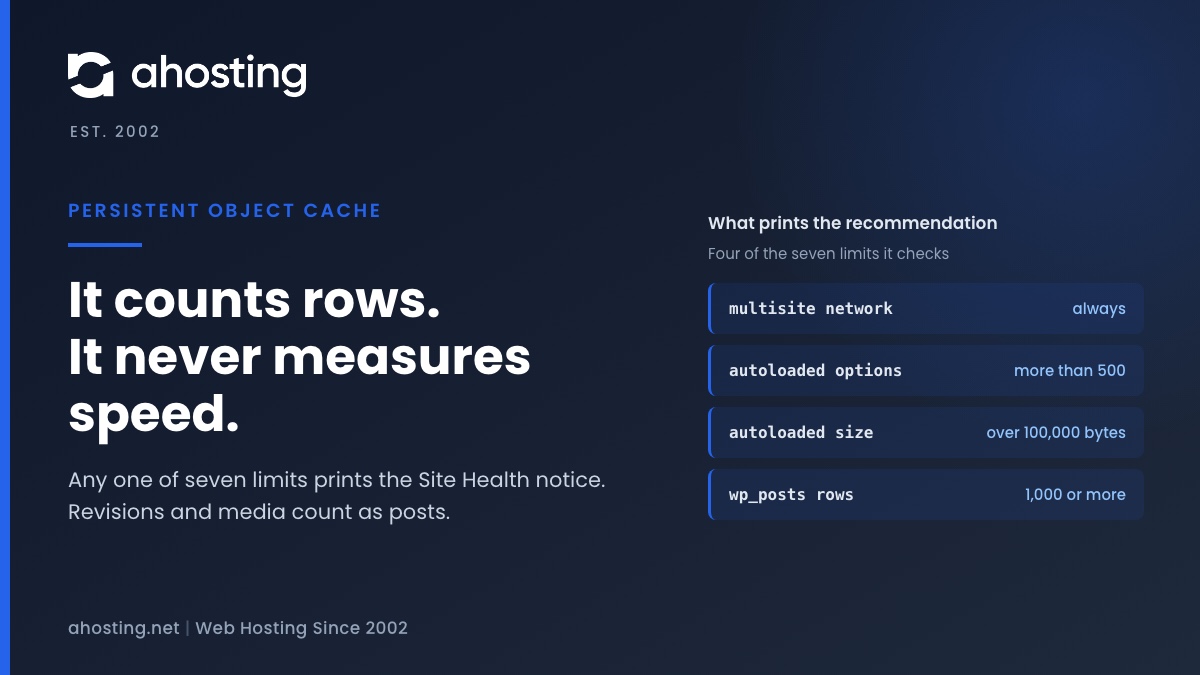
Site Health recommends a persistent object cache when your site crosses a size line, not when it is slow. Any one of seven counters is enough: a multisite network, more than 500 autoloaded options or 100,000 bytes of them, or 1,000 rows in the posts, comments, options, terms or users table. Revisions and media count as posts, so small sites trip it often. An object cache also needs a cache server, and a plugin alone cannot provide one. Decide first whether your traffic is the kind an object cache speeds up.
What You Should Use a Persistent Object Cache Actually Means
When WordPress Site Health prints You should use a persistent object cache, it has not found a fault. It has counted a few things about your database, found that one of them crossed a fixed line, and concluded that a site of this size would probably benefit from keeping some data in memory between visits. The notice sits under the Performance badge as a recommendation, never as a critical issue. Nothing in the test measures how fast your pages load or how many people visit them.
What a Persistent Object Cache Is
WordPress already caches. Every request builds a private store in memory for settings, posts and query results it has already looked up, so it does not ask the database twice for the same thing. At the end of the request that store is thrown away, and the next visitor starts from nothing. That is the non-persistent object cache, and every site has it. A persistent object cache keeps the same store in a separate memory server, usually Redis or Memcached, so it survives from one request to the next. WordPress switches to it when a drop-in file named object-cache.php is present in the content directory.
Why the Persistent Object Cache Notice Mentions Your Host
Below the heading, the notice adds that your hosting provider can tell you whether a persistent object cache can be enabled. That sentence is the honest part of the message. The official WordPress optimization handbook puts it more plainly: your hosting provider must offer you a cache server before any of this works. A plugin is the connector, the server is the cache, and without the server there is nothing to connect to.
The Seven Limits Behind the Persistent Object Cache Recommendation
The decision comes from one short function in core, and every result can be predicted from it. We read it at the WordPress 7.1.2 tag, the current release on 25 September 2026, and compared it with 6.1.0, where the test first appeared. The limits and their order have not changed in between; 7.1 only rewrote the final loop in a newer PHP style. The table lists what is checked, in the order core checks it.
| Check | Recommendation appears when | What it counts |
|---|---|---|
| Environment type | Only tested when it is production | The environment setting in the site configuration |
| Drop-in already loaded | Never; the test passes at once | Whether an external object cache is in use |
| Multisite | Always, for every network | Whether the install is a network |
| Autoloaded options, count | More than 500 | Options WordPress loads on every request |
| Autoloaded options, size | More than 100,000 bytes | The same options, serialized |
| Comments table | 1,000 rows or more | Estimated rows, including spam and trash |
| Options table | 1,000 rows or more | Estimated rows, including transients |
| Posts table | 1,000 rows or more | Estimated rows of all sixteen core content types |
| Terms table | 1,000 rows or more | Estimated rows of categories, tags and more |
| Users table | 1,000 rows or more | Estimated rows of every account |
A Size Test, Not a Speed Test
Every limit in that table is a count. None of them asks how long your pages take, how busy the server is, or how many of your visitors are logged in, which is the question that actually decides whether a persistent object cache would help. Core treats a large database as a proxy for a busy one. Often that holds. On small sites with long histories it frequently does not, and that is why so many people see this notice on sites nobody would call large. The two autoload limits are the same ones we traced in the guide to the autoloaded options warning, which fires from a separate test with its own, larger threshold.
Why a Small Site Trips the Persistent Object Cache Check
The row limit sounds generous until you look at what lives in each table. The posts table in particular is not a list of your articles. It is where WordPress keeps almost every kind of content it has, and several of those kinds grow without anyone deciding to create them.
The Posts Table Holds Sixteen Kinds of Content
| Stored in the posts table | How it grows | Visible to a visitor |
|---|---|---|
| Posts and pages | Each one you publish or draft | Yes, once published |
| Revisions | A new row on every save; unlimited by default | No |
| Attachments | One row per file in the media library | Partly |
| Menu items and navigation menus | One row per menu link | No |
| Templates, template parts and global styles | Created by block themes and the site editor | No |
| Reusable blocks and patterns | One row per saved pattern | No |
| Cached embeds | One row per embedded URL that WordPress has fetched | No |
| Custom CSS, font families, font faces, changesets, privacy requests | As those features are used | No |
Revisions Are the Usual Reason
WordPress keeps every revision unless you tell it otherwise, because the default for the revisions setting is simply true. The arithmetic is quick. A blog with 150 articles that were each saved six times holds 150 posts and 900 revisions, which is 1,050 rows before a single image is counted. Nobody would call that site large, and it meets the posts limit. We covered how to cap and clear revisions safely in the guide to limiting WordPress post revisions.
The Row Count Is an Estimate
Core does not count the rows. To stay fast, it reads the TABLE_ROWS figure from the database catalog, and the MariaDB reference for that catalog table notes that engines such as InnoDB may store an estimate there. A comment in the WordPress source says the same and calls it accurate enough. Usually it is, but after a large cleanup the estimate can lag behind the real count until the table statistics are refreshed. That is why the notice sometimes survives a cleanup that should have cleared it.
What Your Host Appears to Support Redis Means for a Persistent Object Cache
When the recommendation appears, it may carry one more sentence: Your host appears to support the following object caching services, followed by one or more names. People read this as confirmation that a persistent object cache is waiting to be switched on. It is not that, and the reason is visible in the source.
The Check Asks PHP, Not the Server
WordPress builds that list by asking PHP whether five extensions are loaded: APCu, Redis, Relay, Memcache and Memcached. It calls the PHP extension_loaded function for each name, and that is the entire check. A loaded Redis extension is a client library, the code PHP would use to talk to a Redis server. It says nothing about whether such a server is running, whether it is sized for your site, or whether your account is allowed to use it.
Three Kinds of Name on That List
Redis, Memcache and Memcached name client libraries for separate cache servers, so each one needs a server as well as the library. APCu is different: it keeps data inside PHP’s own memory rather than in a server you connect to, and whether that memory survives between requests depends on how the host runs PHP. Relay describes itself as both a Redis client and a shared in-memory cache, so it still expects a Redis server behind it. A host can install any of these for its own reasons on a server where no cache service is offered to customers. On some of our own shared servers the Redis client library is installed and no Redis service is sold, so Site Health on those servers may name Redis. Treat the list as a question to ask, never as the answer.
Can You Run a Persistent Object Cache on Shared Hosting
This is the question most guides to the notice skip, and it is the one that decides what you can actually do. The answer depends entirely on whether your host runs a cache server that your account is allowed to use, and most shared hosting does not.
Our Answer, Checked on Our Own Servers
On AHosting, the answer is no. None of our shared hosting plans or WordPress plans includes a persistent object cache, and we would rather say so here than let the notice imply otherwise. Before writing this guide we checked our shared servers directly, on 10 September 2026: none of them offered Redis or Memcached to customer accounts as a service. An object cache on AHosting means a VPS, where you have root access and run the cache server for your own site.
Why Installing a Plugin Does Nothing on Its Own
Object cache plugins for Redis or Memcached do one job: they install the drop-in file and point it at a server. Install one on a plan with no cache server and there is nowhere for the data to go. Depending on the plugin, the site either carries on without a persistent object cache or reports that it cannot connect. Neither result makes the site faster, and the notice stays.
Never Borrow a Cache Server You Did Not Set Up
One warning belongs in every guide to this notice. If a plugin finds a cache server on the machine and connects to it, check who that server belongs to before you rely on it. A cache server shared between accounts, without its own credentials for each site, means your data and other sites’ data are written into the same place. A persistent object cache you use should be one your host provisions for you, or one you run yourself.
Does Your Site Actually Need a Persistent Object Cache
Set the notice aside and ask a different question: how many of your requests reach PHP and the database at all? An object cache only speeds up the requests that do. If most of your visits are served from a page cache, it has very little to work with.
The Page Cache Comes First
A page cache stores the finished HTML of a page and hands it to the next anonymous visitor without starting WordPress. A persistent object cache stores the pieces WordPress uses while building a page, so it only helps when WordPress runs. The two are separate Site Health tests with separate notices, and we covered the other one in the guide to the page cache is not detected notice. On our WordPress plans pages are served by LiteSpeed with LSCache, and a page served from LSCache consumes no PHP process at all.
Traffic an Object Cache Helps
- Logged-in members, subscribers and students, whose pages are built for them and not served from a page cache.
- Store carts, checkouts and account pages, which change for every customer.
- A busy admin, with several editors saving and previewing at once.
- Heavy REST API or search traffic, where each request runs fresh queries.
If your site does little of this, a persistent object cache would save a few database lookups on requests that were already quick. If it does a lot, the notice is pointing at a real opportunity, whatever the reason it fired. Stores are the common case, which is why our WooCommerce plans start from a larger allocation: carts and checkouts can never be served from a page cache.
How to Measure It Before Deciding
The free Query Monitor plugin shows, on any page, how many database queries it took and whether an external object cache is in use; without one, it reports that an external object cache is not in use. Load a few of your slowest logged-in pages with it active. A page that runs hundreds of queries and repeats many of them is a candidate. A page that runs a few dozen fast ones is not.
How to Clear the Persistent Object Cache Notice Honestly
There are three honest outcomes, and only one of them involves a cache server. Start by finding out which limit fired, because the right move depends entirely on that.
Find Which Limit Fired
Open phpMyAdmin from your hosting control panel, select the site database, and run SELECT TABLE_NAME, TABLE_ROWS FROM information_schema.TABLES WHERE TABLE_SCHEMA = DATABASE(); to see the same estimates Site Health reads. Then run SELECT post_type, COUNT(*) FROM wp_posts GROUP BY post_type ORDER BY 2 DESC; to see what fills the posts table, adjusting the table prefix if yours is not wp_. Enter the results in the checker below.
Persistent Object Cache Threshold Checker
Enter the counts from the queries above. This applies the WordPress 7.1.2 limits and tells you which one fires first.
Tripped by:
Do this first:
This mirrors the default limits and cannot see your site. A plugin or host can change the limits through a filter, and the table counts Site Health reads are estimates.
Three Ways to Resolve It
| Option | What it changes | Choose it when |
|---|---|---|
| Reduce the counts | Caps and clears revisions, spam, expired transients and unused autoloaded options, then refreshes the table statistics | A limit fired because of history the site no longer needs |
| Record the decision in code | Tells Site Health you have decided the recommendation does not apply | Your traffic is mostly cached, you have measured, and no cache server is available |
| Add a real cache server | Runs Redis or Memcached for your site and installs a drop-in that connects to it | Much of your traffic reaches PHP and your pages repeat queries |
Reducing the Counts
For the posts table, cap revisions and clear the old ones; for the comments table, empty spam and trash; for the options table, clear expired transients and remove options left behind by deleted plugins. Then refresh the estimate, because the catalog figure may not move on its own straight away. In phpMyAdmin, the table’s Operations tab offers Analyze table, which refreshes the statistics the estimate comes from.
Recording the Decision in Code
Core provides a filter for sites that have weighed the recommendation and decided against it. A one-line must-use plugin containing add_filter( 'site_status_should_suggest_persistent_object_cache', '__return_false' ); makes the test report that a persistent object cache is not required. Use it only after the measurement above. It changes the notice, not the site, and it hides the notice on a day your traffic grows into it.
When a Persistent Object Cache Is Worth Moving For
If the measurement says your slow pages are the logged-in, cart or admin kind, and they repeat the same queries, then the notice is right about your site even if it fired for the wrong reason. The fix at that point is a cache server that belongs to you, sized for the site, with a drop-in connecting WordPress to it.
Where the Work Stops Being Yours
That is the part we take off your hands. An AHosting VPS is a KVM virtual machine with guaranteed CPU and memory and full root access, so you can run Redis or Memcached for your site alone rather than hoping a shared server offers one. Everything before this point, the counts, the revisions and the measurement, is yours to check, and this guide covers all of it. If you are weighing the move for other reasons too, our guide to the signs a WordPress site has outgrown shared hosting covers the rest of the decision.
A Short Checklist
- Read the notice as a size warning. Nothing in it measures speed.
- Run the two queries above and find which of the seven limits fired.
- If it is revisions, spam or stale options, clean them up and refresh the table statistics.
- Measure your slowest logged-in pages before deciding a cache server is worth having.
- Never point a plugin at a cache server that you did not set up and that is not yours alone.
- If the traffic justifies it, run a persistent object cache on a server that is yours.
Frequently Asked Questions About the Persistent Object Cache Notice
Is the persistent object cache warning in Site Health necessary to fix?
In practice it is a recommendation, not a fault, and many sites can leave it. Site Health shows it when a database table or the set of autoloaded options crosses a fixed size, not when anything is slow or broken. So the first question is whether your site sends much traffic that a page cache cannot serve, such as logged-in members, carts or a busy admin. If most visitors are anonymous and your pages are cached, the benefit of an object cache is small and the notice can wait.
Why does Site Health say I should use a persistent object cache in 2026?
Specifically because one of seven counters crossed its line. Every multisite network gets the notice. On a single site it appears when more than 500 options are autoloaded, when those options exceed 100,000 bytes, or when the posts, comments, options, terms or users table reaches 1,000 rows. The test has worked this way since WordPress 6.1 and is unchanged in 7.1.2. It measures size, never speed, and it only runs on sites whose environment type is production.
Can I use a persistent object cache on AHosting shared or WordPress hosting?
That said, the honest answer is no. A persistent object cache needs a cache server such as Redis or Memcached that your site connects to, and none of the AHosting shared or WordPress plans includes one. We checked our shared servers directly before writing this. A plugin on its own cannot supply the server. If your site genuinely needs one, it means a VPS where you have root access and can run the cache server yourself, and the rest of this guide explains how to tell whether it does.
Persistent object cache vs page cache: which one does my WordPress site need?
Typically the page cache first, because it helps more visitors for less effort. A page cache stores the finished HTML, so an anonymous visitor is served without WordPress running at all. An object cache stores the results of database lookups between requests, so WordPress runs faster when it has to run. Sites with mostly anonymous traffic get most of their gain from the page cache. Membership sites, stores and busy editorial teams send traffic a page cache cannot serve, and that is where an object cache earns its place.
Redis vs Memcached for a WordPress persistent object cache: does the choice matter?
Typically much less than people expect. Both are in-memory servers that WordPress reaches through a drop-in file and a plugin that provides it, and either one removes the repeated database lookups the notice is about. Redis can also write its data to disk and supports richer data types, which some teams want for other reasons. For a WordPress object cache the decision that matters more is having a server that is yours alone, sized for the site, and a well maintained plugin.
Why does my small blog trigger the persistent object cache recommendation?
In particular because the posts table is not a count of your posts. WordPress stores sixteen kinds of content in that one table, including every saved revision, every image and file in the media library, menu items, templates and cached embeds. Revisions are unlimited by default. A blog with a modest number of articles can therefore pass 1,000 rows without anyone noticing, and the count the test reads is an estimate from the database rather than an exact figure.
Does installing a Redis plugin clear the warning on shared hosting in 2026?
In fact not by itself, because the plugin is only a connector. It installs a drop-in file that tells WordPress to keep its cache in Redis, and it needs a Redis server to connect to. Without one there is nothing to store data in. Never point a plugin at a cache server that you did not set up and that is not yours alone, because a shared cache means your site and other sites write into the same place. Ask your host what is actually provisioned first.
What does your host appears to support Redis mean in Site Health?
Notably it means less than it sounds. WordPress checks whether PHP has loaded the client library for APCu, Redis, Relay, Memcache or Memcached, and names each one it finds. It never checks whether a cache server is running or whether your account may use one. A host can install a client library for its own reasons on a server where no cache service is offered to customers. Treat the line as a clue to ask about, not as confirmation that a cache is available to you.
When is it worth moving to an AHosting VPS for a persistent object cache in 2026?
Ultimately when your slow requests are ones a page cache cannot serve. Logged-in members, WooCommerce carts and checkouts, a busy admin and heavy REST traffic all reach PHP and the database on every request, and those are what an object cache speeds up. An AHosting VPS gives you root access, so you can run Redis or Memcached for your site alone. If your traffic is mostly anonymous and cached, a VPS for this reason alone is money spent on a notice rather than on speed.
Does AHosting LiteSpeed caching replace the need for an object cache?
Indeed for anonymous visitors it covers most of the same ground, and it is worth being clear about where it stops. AHosting WordPress plans run LiteSpeed with LSCache, and a page served from LSCache never starts PHP, so it needs no object cache at all. A logged-in session is not served from the page cache, so those requests still reach PHP and the database. If most of your visitors are logged in, the page cache helps them little and the notice deserves a closer look.
Related posts:
 Page Cache Is Not Detected: What WordPress Site Health Actually Checks
 Autoloaded Options Could Affect Performance: How to Read the Site Health Warning and Clear It on Shared Hosting
 An Active PHP Session Was Detected: What WordPress Site Health Is Really Telling You, and How to Fix It on Shared Hosting
 One or More Recommended Modules Are Missing: How to Read the WordPress Site Health Warning and Fix It on Shared Hosting