
- What “Available Disk Space Is Critically Low” Actually Checks
- Why Available Disk Space Is Critically Low Ignores Your Quota
- “Could Not Determine Available Disk Space for Updates”
- Which Number to Trust When Available Disk Space Is Critically Low
- Check Available Disk Space Is Critically Low Yourself in Two Minutes
- How to Fix Available Disk Space Is Critically Low, in Order
- Available Disk Space Is Critically Low on AHosting Servers
- A Practical Checklist for Available Disk Space Is Critically Low
- Frequently Asked Questions: Available Disk Space Is Critically Low
- Why does WordPress say available disk space is critically low when I have enough?
- What does available disk space is critically low mean in WordPress Site Health in 2026?
- Critically low vs low vs could not determine: what is the difference in Site Health?
- Does the available disk space is critically low warning read my hosting quota?
- Can I safely ignore available disk space is critically low in Site Health?
- Will creating a wp-content/upgrade folder fix the disk space warning in 2026?
- Site Health vs cPanel Disk Usage: which disk space number should I trust?
- How much disk space do AHosting WordPress hosting plans include in 2026?
- Can AHosting support check an available disk space is critically low warning?
- Does an AHosting VPS give an accurate Site Health disk space reading in 2026?
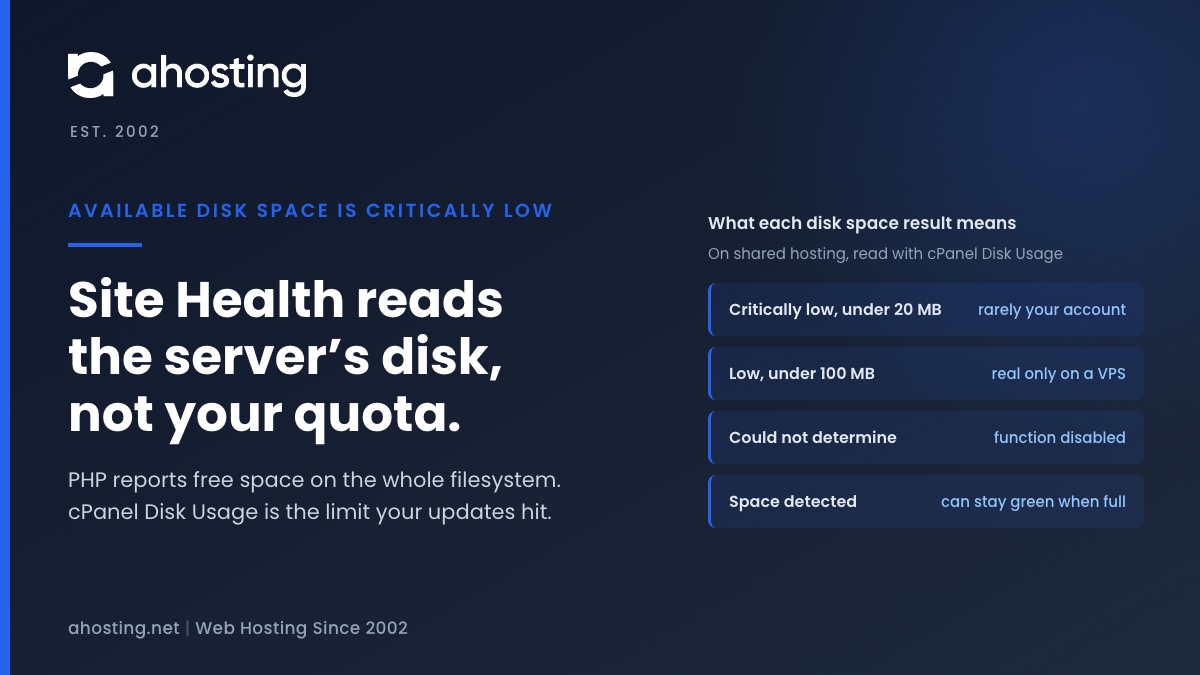
Available disk space is critically low means PHP reported under 20 MB free on the filesystem that holds wp-content. On shared hosting that filesystem belongs to the whole server, not to your plan, so the warning can be wrong in either direction. Read the Disk Usage meter in cPanel instead. Near its limit: clear old backups, logs and unused plugins before updating. Plenty of room: the warning is a measuring problem, not a full site.
What “Available Disk Space Is Critically Low” Actually Checks
Available disk space is critically low, less than 20 MB available. Proceed with caution, updates may fail. That is the full line WordPress Site Health prints, and it reads as if the site were about to run out of room. On shared hosting it often has nothing to do with your account. Read against the WordPress 7.1.3 code that writes it, the warning measures one thing, and that thing is not your hosting plan.
One PHP Call Behind the Warning
The test has been part of Site Health since WordPress 6.3 and runs every time the screen loads. It calls PHP’s disk_free_space() on WP_CONTENT_DIR, the folder holding your plugins, themes and uploads, and sorts the answer into three bands. Under 20 MB is critical. Under 100 MB is low, graded recommended. Anything above that passes. If PHP returns no number at all, a fourth message appears instead, covered further down.
The Heading That Never Changes
One detail confuses almost everyone who meets this warning. In every state, including critical, the row in Site Health is titled Disk space available to safely perform updates. Only the text underneath changes. So a reassuring heading sits in the Critical issues list, and you have to expand it to read that available disk space is critically low. The badge beside it says Security.
Why Available Disk Space Is Critically Low Ignores Your Quota
PHP documents disk_free_space() as the bytes available on the corresponding filesystem or disk partition. Its source code asks the operating system through statvfs and multiplies the free blocks available to ordinary users, f_bavail, by the block size. That is a property of the disk, not of the customer asking.
Shared hosting limits each customer a different way. As the Linux Quota mini-HOWTO explains, a quota caps the disk blocks and the number of files one user may own, per filesystem. Many accounts share one filesystem, each with its own ceiling. The free space of the filesystem and the room left under your ceiling are two separate numbers, and Site Health only reads the first.
| Site Health shows | Status | What PHP returned | Does it describe your account? | Next step |
|---|---|---|---|---|
| [Size] available disk space was detected, update routines can be performed safely | Good | Free space on the server filesystem | No, it can stay green with your quota full | Check cPanel Disk Usage anyway |
| Available disk space is low, less than 100 MB available | Recommended | Under 100 MB free on the filesystem | Only if the filesystem is yours, as on a VPS | Compare with Disk Usage |
| Available disk space is critically low, less than 20 MB available | Critical | Under 20 MB, or a non-number a host substituted | Rarely on shared hosting | Compare with Disk Usage; free space only if it is near the limit |
| Could not determine available disk space for updates | Recommended | False: the function is disabled or failed | No number at all | Watch Disk Usage before large updates |
Green With a Full Account
The quiet failure is the green one. Your account can sit at its limit while the server filesystem has plenty left, and Site Health reports space detected. The next plugin update then fails with a refusal to create a folder or copy a file. WordPress does have a clearer message, Could not copy files. You may have run out of disk space, but it measures the same filesystem and only runs during scheduled background updates.
“Could Not Determine Available Disk Space for Updates”
This is the same test reporting that PHP returned false. Some hosts add disk_free_space to their list of disabled PHP functions. WordPress then has no number and says so, graded recommended rather than critical. It is the honest version of the warning.
When a Disabled Function Reads as Critically Low
Trouble starts when a host replaces the function instead of disabling it. WordPress Trac ticket #59687 describes a managed host whose replacement returned null. WordPress only catches false, and in PHP null < 20 MB is true, so the test fell straight into the critical branch on sites with gigabytes free. Core developers closed it as a host issue. Ticket #59251, titled as Site Health incorrectly reporting low disk space, collected the same symptom from other sites before it was closed as fixed.
The Old Advice About wp-content/upgrade
Older forum threads tell you to create wp-content/upgrade. That worked once. WordPress 6.3.1 measured that folder, which a fresh install does not have yet, and a missing folder gave no number. In August 2024 a core commit pointed the test at WP_CONTENT_DIR itself, matching the unzip checks, and the change shipped in WordPress 6.7. Creating the folder today changes nothing.
Which Number to Trust When Available Disk Space Is Critically Low
Four places report disk space, and they answer four different questions. On shared hosting only one of them describes the limit your updates will run into.
| Where you read it | What it measures | Trust it on shared hosting? | On a VPS |
|---|---|---|---|
| Site Health, Status tab | Free space on the filesystem holding wp-content | No | Yes |
| cPanel Disk Usage | Space your account uses against its own quota | Yes, this is the limit | Not shown without cPanel |
| cPanel File Usage | Files your account owns against its file-count limit | Yes, the second limit | Rarely limited |
| Site Health, Info, Directories and Sizes | How big WordPress folders are | Yes, for finding what grew | Yes |
| df -h over SSH | Free space on the filesystem | No, same as Site Health | Yes |
| quota -s over SSH | Your usage and limits | Yes, where the command is available | Only if quotas are set |
Read Both Meters in cPanel
The cPanel sidebar shows Disk Usage and File Usage side by side, and either one at its limit stops a write. A site can have gigabytes to spare and still be blocked because it owns too many small files, which our guide to the WordPress inode limit on shared hosting covers in detail. The quota command shows the same two limits from a terminal, where your host provides one.
Check Available Disk Space Is Critically Low Yourself in Two Minutes
Start with the cPanel meters. If Disk Usage shows plenty of room, the warning is a measuring problem, and you can stop here. If you want to see the number Site Health sees, a one-line test file shows it. Create a file with a random name, such as ds-check-4b9e.php, in the folder your domain serves, containing <?php var_dump(function_exists('disk_free_space') ? disk_free_space(__DIR__) : 'disabled');. Load it in a browser, note the value, and delete it straight away.
What the Value Means
- A large float: free bytes on the server filesystem. Divide by 1,048,576 for megabytes. If it dwarfs the room left in Disk Usage, you are reading the shared disk.
- A float under 20,971,520: the filesystem really is under 20 MB. On shared hosting that is a server problem, not yours to solve.
- bool(false) or the word disabled: the function is unavailable, which is why Site Health could not determine a number.
- NULL: the host replaced the function. This is the false critical from ticket 59687.
Read Your Available Disk Space Is Critically Low Result
The same logic as a tool: enter the Site Health line and the cPanel meter, and it tells you whether the warning describes your account or the server, and the one step to take next.
Disk Space Warning Reader
Enter what Site Health and cPanel show. The answer is whether the warning describes your account or the server, which number to trust, and the one thing to do next.
What the warning describes:
Number to trust:
Do this next:
Read from the WordPress 7.1.3 and PHP source. It cannot see your server, so cPanel Disk Usage is what settles it.
How to Fix Available Disk Space Is Critically Low, in Order
Work through these in sequence and stop at the first one that applies. Most shared-hosting sites stop at the first or second step.
- If cPanel Disk Usage shows plenty of room, leave the warning. Nothing you delete will change what PHP reports about a disk the whole server shares, and your updates have space.
- If Disk Usage is near its limit, free space before the next update. Old backup archives, leftover folders in
wp-content/upgradeandwp-content/upgrade-temp-backup, cache folders, a growndebug.log, and plugins or themes you no longer use are the usual weight. Mailboxes on the same account count too. - If Site Health says it could not determine the space, nothing is broken. WordPress just cannot pre-check for you, so glance at Disk Usage before a large update.
- If an update failed while Site Health was green, read both meters at once. A full quota and a full file count produce the same refusal.
- If both meters show room and the warning still says critical, the measurement is the host’s. Ask, and send the exact Site Health line with the Disk Usage figure.
Where the Space Usually Goes
A failed install leaves its download behind, and our guide to installation failed: could not create directory shows what a full quota does to the next one. Temporary files count as well: PHP’s own temporary folder can sit inside your account, as our post on the missing a temporary folder error explains. And a debug log left switched on grows without limit, which is one more reason to follow our advice on logging errors to a potentially public file.
Available Disk Space Is Critically Low on AHosting Servers
On our shared servers, customer home folders sit on a filesystem that enforces a separate quota for every cPanel account, and each account’s PHP temporary folder lives inside that same quota. So the rule in this guide applies directly: Site Health reads the shared filesystem, and the Disk Usage meter in your cPanel is the number that decides whether a plugin, theme or core update can be written.
What the Plans Include
Our WordPress hosting plans include 10 GB, 20 GB and 50 GB of storage, and the standard web hosting plans carry the same three figures. A routine update needs only a fraction of that, but it needs the space at the moment it runs: the download and its unpacked copy exist side by side until the copy finishes. Keeping Disk Usage comfortably below its limit is what makes updates boring.
When to Open a Ticket
Clearing space is the fix in most cases, and it is yours to make. If cPanel shows room to spare and Site Health still says critically low, open a ticket with the exact Site Health line and the Disk Usage figure, and we will look at it with you. If you would rather the Site Health number be your number, a VPS with full root access puts the whole disk in your hands. The warning alone is not a reason to move.
A Practical Checklist for Available Disk Space Is Critically Low
- Expand the Site Health row; the heading reads the same in every state.
- Read cPanel Disk Usage before deleting anything.
- Read File Usage too; a file-count limit blocks writes just as a full disk does.
- Treat a critical warning with plenty of room in Disk Usage as a measuring problem.
- Ignore advice to create
wp-content/upgrade; it stopped mattering in WordPress 6.7. - Clear old backups, leftover upgrade folders, caches and logs when Disk Usage is near its limit.
- Keep room for the download and its unpacked copy before a large update.
- Delete any test file as soon as you have its value.
- Send the Site Health line and the Disk Usage figure with any question to your host.
Frequently Asked Questions: Available Disk Space Is Critically Low
Why does WordPress say available disk space is critically low when I have enough?
Typically because the number is not about your account. Site Health asks PHP how much space is free on the filesystem that holds wp-content, and PHP has no idea what your plan allows. A critical result with room to spare usually means the host replaced that PHP function with one that returns no number, or the shared server disk itself is nearly full. Check the Disk Usage meter in cPanel: if it shows room, nothing on your site needs deleting.
What does available disk space is critically low mean in WordPress Site Health in 2026?
In other words, PHP reported less than 20 MB free where WordPress keeps plugins, themes and uploads. WordPress 7.1 runs the check every time Site Health loads and grades it critical under the Security badge, because an update needs room to download, unpack and copy files. Between 20 MB and 100 MB the same test says low instead, graded recommended.
Critically low vs low vs could not determine: what is the difference in Site Health?
Specifically, all three come from one test. Critically low means PHP returned under 20 MB and is graded critical. Low means under 100 MB and is graded recommended. Could not determine means PHP returned no number at all, usually because the host disabled the function, and is also graded recommended. The heading above all three reads the same, so expand it to see which one you have.
Does the available disk space is critically low warning read my hosting quota?
In fact, no. PHP asks the operating system for the free space of the whole filesystem, and a hosting quota is a separate per-account limit kept on top of it. On a shared server the two numbers can be gigabytes apart in either direction. Your quota is the Disk Usage figure in cPanel, and that is the one your updates actually run into.
Can I safely ignore available disk space is critically low in Site Health?
Above all, make one check first. If cPanel Disk Usage shows plenty of room, the warning is a measuring problem and your updates will have space, so it is safe to leave. If Disk Usage is close to its limit, the warning is right for the wrong reason, and the next plugin or core update may fail halfway. Free space first, then update.
Will creating a wp-content/upgrade folder fix the disk space warning in 2026?
Ultimately, no. WordPress 6.3.1 measured the upgrade folder, which a fresh install does not have yet, so creating it changed the result. Since WordPress 6.7 the test measures wp-content itself, so the folder makes no difference in 2026. Old forum threads that recommend it describe a version you are no longer running.
Site Health vs cPanel Disk Usage: which disk space number should I trust?
In practice, trust cPanel on shared hosting. Disk Usage shows what your account has used against its own limit, which is what decides whether a file can be written. Site Health shows the free space of a disk the whole server shares. On a VPS the two describe the same disk, so either one will do.
How much disk space do AHosting WordPress hosting plans include in 2026?
Overall, as published on the plan pages in October 2026, the three WordPress plans include 10 GB, 20 GB and 50 GB of storage, and the standard web hosting plans carry the same three figures. Your own limit and how much of it is used appear in the Disk Usage meter in cPanel, which is the number to watch before a large update.
Can AHosting support check an available disk space is critically low warning?
Notably, a warning with plenty of room in cPanel Disk Usage needs no ticket for your site to keep working. If cPanel shows room to spare and Site Health still says critically low, open a ticket with the exact Site Health line and the Disk Usage figure, and we will look at it with you.
Does an AHosting VPS give an accurate Site Health disk space reading in 2026?
Fortunately yes, because on a VPS the filesystem belongs to your server alone, so the free space PHP reports is the free space you have. A warning there is real and worth acting on: clear old backups and logs first. A VPS is not needed just to clear this warning on a shared plan, though.
Related posts:
 Your Site Is Slow, CPU and Memory Are Fine: How to Tell If You’re Being Disk-I/O Throttled
 WordPress Asking for FTP Credentials? It’s a File-Owner Check, Not a Password Problem
 Missing a Temporary Folder: Why WP_TEMP_DIR Won’t Fix This WordPress Upload Error
 Installation Failed: Could Not Create Directory? Find the Folder, Then the Cause