
- The Package Could Not Be Installed: What WordPress Is Rejecting
- Read the Line Under the Package Could Not Be Installed Message
- Why the Package Could Not Be Installed: The One-Folder Rule
- AHosting Zip Layout Test Matrix: What Installed and What Did Not
- Where Zips Come From: GitHub, Vendor Bundles and macOS
- When the Package Could Not Be Installed Because of the Server
- Decode Your Own Message: The Package Could Not Be Installed Checker
- Fix It: Re-zip So the Plugin Sits in One Folder
- After the Zip Installs: Try Unknown Packages on a Copy First
- Frequently Asked Questions: The Package Could Not Be Installed
- What does the package could not be installed mean when I upload a WordPress plugin in 2026?
- Why is the package could not be installed followed by no valid plugins were found?
- How do I fix the package could not be installed when the theme is missing the style.css stylesheet?
- Does a __MACOSX folder cause the package could not be installed on a zip made on a Mac?
- Is the package could not be installed a PHP version problem or a zip layout problem?
- Does AHosting shared hosting cause the package could not be installed when I upload a plugin?
- Can I install a plugin from cPanel File Manager on AHosting web hosting in 2026?
- GitHub zip vs vendor zip: which is more likely to cause the package could not be installed?
- Is it safe to retry an upload after the package could not be installed on a live AHosting site?
- Theme zip vs plugin zip: how can I tell which one I downloaded before uploading in 2026?
The package could not be installed is only a headline. The line under it names the check that failed. In our WordPress 7.1.4 lab, a plugin zip installed only when its main file sat inside one folder and nothing else sat beside that folder. Open the zip, fix its top level, and upload again. A failed upload changes nothing on the live site.
The Package Could Not Be Installed: What WordPress Is Rejecting
When WordPress says the package could not be installed, it has already received your zip and unpacked it. The upload worked. What failed is the inspection that follows, and the verdict sits in a second line that most people skim past. That second line is the whole diagnosis.
This guide decodes it for plugin and theme uploads. It shows which zip layouts WordPress accepted and refused in a lab test, lists the few cases where the server rather than the zip is at fault, and ends with a decoder you can use on your own message. Everything was measured on stock WordPress 7.1.4 on one workstation. It was not measured on an AHosting server, and the guide says so wherever that matters.
In the source, the sentence is one string, declared at class-wp-upgrader.php line 205. Every refusal reuses it as a headline and attaches its own reason, which is why many different mistakes all print the same top line.
Read the Line Under the Package Could Not Be Installed Message
Match the second line to the first column below. Each row names the check inside WordPress that produced it, so you know what to fix before you touch the zip.
| Second line | Check that fired | Usual cause |
|---|---|---|
No valid plugins were found. | Plugin check: no PHP file with a Plugin Name header at the top of the folder it inspects | Zip layout, a theme uploaded as a plugin, or a zip inside the zip |
The theme is missing the style.css stylesheet. | Theme check: no style.css at the top of the folder it inspects | A plugin uploaded as a theme, or a wrapper folder |
The style.css stylesheet does not contain a valid theme header. | Theme check: style.css has no Theme Name | A stylesheet copied from another package |
Template is missing. | Theme check: no index.php, no templates/index.html, no Template header | A partial theme copy |
The PHP version on your server is ... | Requires PHP header is higher than the server version | A newer plugin on an older PHP version |
Your WordPress version is ... | Requires at least header is higher than the site version | A newer plugin on an older WordPress |
Incompatible Archive. on its own screen | Zip validation, before the installer runs | A truncated download or a file that is not a zip |
The first row has the least obvious cause, so this guide spends most of its time there.
Why the Package Could Not Be Installed: The One-Folder Rule
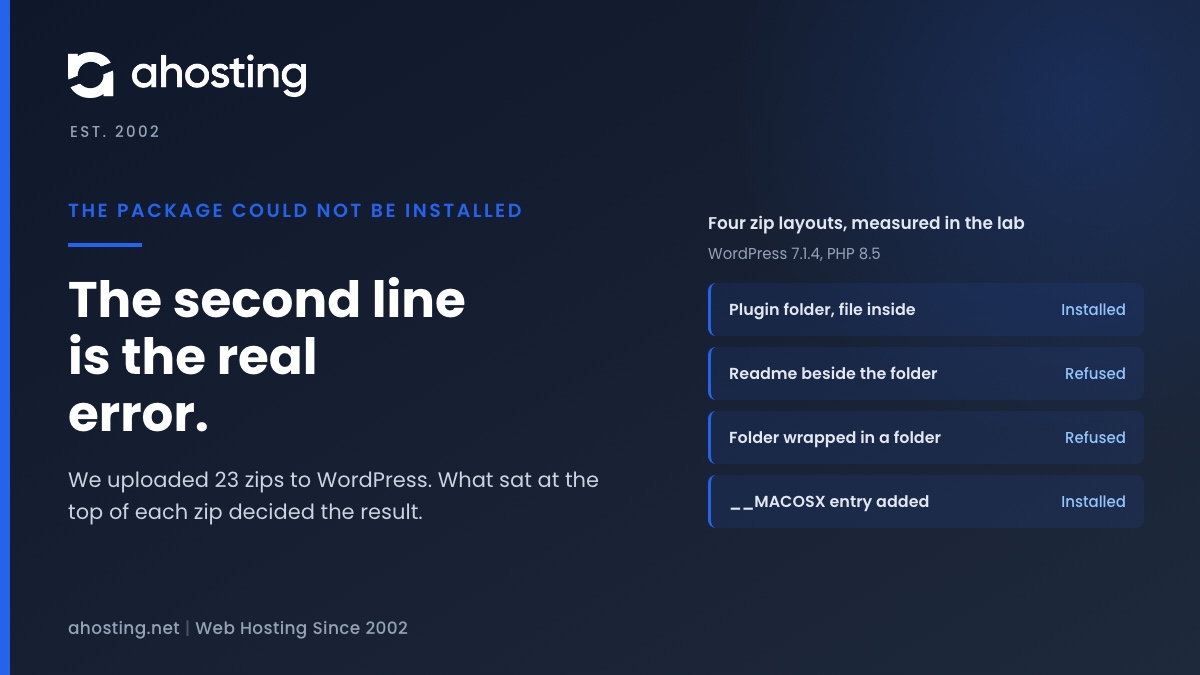
After unpacking, install_package() looks at what is directly inside the unpacked folder. If there is exactly one item and it is a folder, WordPress steps inside it and treats its contents as the package. Anything else, and WordPress uses the unpacked folder as it stands. That is the one folder rule, and it sits at lines 606 to 614 of the same file.
The plugin check then runs check_package() on whatever folder was chosen. It globs for *.php directly in that folder, reads the header of each file it finds, and stops at the first one that has a Plugin Name. It never looks into a subfolder. If no file qualifies, it returns No valid plugins were found., at class-plugin-upgrader.php line 490.
Two consequences follow. A readme.txt or a second folder next to the plugin folder is enough to fail, because WordPress no longer steps inside. And a plugin wrapped in an extra folder fails, because WordPress steps in once and finds only another folder. The header reader also takes only the first 8 KB of each file, so a Plugin Name comment buried under a long license block can be missed. The official header requirements page lists Plugin Name as the one required field. WordPress plugin header requirements explains where the comment belongs.
The graphic above shows the four layouts we tested first. The tables that follow cover the rest.

AHosting Zip Layout Test Matrix: What Installed and What Did Not
We built 22 test zips with a script, added one real GitHub archive, and uploaded each one through the normal Plugins and Themes screens on a fresh WordPress 7.1.4 install. The tables record exactly what the screen printed. The zips were made with Python, not with macOS Compress or a GitHub download, so the tables test layouts, not tools.
Plugin zips: layout
| Zip layout | Result |
|---|---|
my-plugin/my-plugin.php | Installed |
my-plugin.php directly at the zip root | Installed |
Plugin folder plus a __MACOSX folder | Installed |
Plugin folder plus readme.txt beside it | No valid plugins were found. |
| Plugin folder plus a second folder of docs | No valid plugins were found. |
wrapper/my-plugin/my-plugin.php | No valid plugins were found. |
my-plugin/includes/my-plugin.php | No valid plugins were found. |
| A zip inside the zip, plus a license file | No valid plugins were found. |
| A theme zip uploaded as a plugin | No valid plugins were found. |
| Real GitHub archive of the Classic Editor plugin, trunk | Installed, into the folder classic-editor-trunk |
| Only an empty folder | No valid plugins were found. |
Plugin zips: header, version and archive
| Zip content | Result |
|---|---|
| PHP file with no Plugin Name header | No valid plugins were found. |
| Plugin Name header after the first 9,000 bytes | No valid plugins were found. |
| Header says Requires PHP 99.0 | The PHP version on your server is 8.5.10, however the uploaded plugin requires 99.0. |
| Zip cut to half its size | Own screen: Incompatible Archive. No headline. |
| A text file renamed to .zip | Own screen: Incompatible Archive. No headline. |
The last two rows matter for diagnosis. A broken archive is caught earlier, by a validity check that runs before the installer, so it never prints the package error at all. If you see the headline, the file was a readable zip.
Theme zips
| Zip layout | Result |
|---|---|
my-theme/style.css plus index.php | Installed |
style.css and index.php at the zip root | Installed |
| A plugin zip uploaded as a theme | The theme is missing the style.css stylesheet. |
pkg/my-theme/style.css | The theme is missing the style.css stylesheet. |
Theme folder plus notes.txt beside it | The theme is missing the style.css stylesheet. |
| style.css with no Theme Name | The style.css stylesheet does not contain a valid theme header. |
| style.css but no index.php | Template is missing. |
Themes follow the same one folder rule, and the stylesheet rules are documented on the main stylesheet page for theme developers. In the lab, all three kinds of mistake printed the same headline with a different second line.
Where Zips Come From: GitHub, Vendor Bundles and macOS
GitHub archives
GitHub generates its archives with git archive, and says the repository name is part of the folder structure inside the file. GitHub documents this plainly. In the lab, the trunk archive of the WordPress Classic Editor plugin had one top-level folder and installed cleanly, but into a folder named classic-editor-trunk, not classic-editor. That shape works only when the plugin sits at the root of the repository. When the plugin lives in a subfolder, the wrapper layout from the matrix applies and you get the package error. Zip the subfolder yourself instead.
Vendor and marketplace bundles
Some vendors ship a download that holds the installable zip next to documentation, a license file or sample content. Upload that bundle as it comes and WordPress sees a zip inside a zip. The lab result is the same as for any other extra item at the top: No valid plugins were found. Unzip the bundle on your computer and upload the inner zip.
Zips made on a Mac
A popular explanation blames the __MACOSX folder that macOS adds to some archives. In WordPress 7.1.4 that is wrong: the unzip code skips __MACOSX/ entries at file.php line 1709, and our test zip carrying one installed normally. The real Mac risk is selecting several items before choosing Compress. Apple documents that several items at once become a file called Archive.zip, so open it and check what is at the top before you upload.
When the Package Could Not Be Installed Because of the Server
Most cases are zip layout. A smaller group is the archive itself. The plain Incompatible Archive screen appears when WordPress cannot open the file as a zip. It opens the file in a strict consistency mode, and the PHP manual for ZipArchive::open lists the error codes, including one for a file that is not a zip archive.
The usual reason is a download cut short. Zip files keep their index, the end of central directory record, at the end of the file, so a truncated copy has no index. The PKWARE format specification requires that record in every valid zip. Download the file again and compare its size with the source before you retry.
If the PHP zip extension is missing, WordPress falls back to its bundled PclZip library, so a missing extension alone does not cause this error. We forced that fallback in the lab with a filter and the results on three test zips matched the normal path exactly. We did not test a server where the extension is truly absent.
Size and permission problems print different messages. A file over the upload limit gets the link you followed has expired screen or a 413 error. A folder WordPress cannot write to gets could not create directory, and a repeat install of the same plugin gets destination folder already exists. If you see one of those, this guide is the wrong one.
Decode Your Own Message: The Package Could Not Be Installed Checker
Use the decoder to turn the second line into a cause and a fix. It runs in your browser and changes nothing on your site.
Package Error Decoder
Pick the line printed under the headline, then where the zip came from. Nothing is sent anywhere.
If activation fails next, read thisFix It: Re-zip So the Plugin Sits in One Folder
The repair is the same for almost every layout failure. Work on your own computer, not in WordPress.
- Unzip the download into an empty folder and look at the top level.
- Find the folder that holds the main plugin file, the PHP file that begins with a Plugin Name comment.
- Move anything else out of the way, so that folder is the only item you are about to zip.
- Zip that folder itself. On a Mac or Linux terminal,
zip -r my-plugin.zip my-pluginrun one level above the folder does it. - Open the new zip and confirm the main file is directly inside the single top-level folder.
- Upload it again on the Plugins, Add New screen.
A failed upload is harmless to a live site. In our lab nothing was added to the plugins folder, and the unpacked files waited in wp-content/upgrade until the next install or update cleared that folder, at class-wp-upgrader.php lines 384 to 394. If the plugin installs but then will not turn on, that is a different problem and the plugin could not be activated guide covers it.
You can also skip the upload screen. Upload the zip with cPanel File Manager and use its Extract action. cPanel notes that Extract works for zip files only when the zip extension exists on the server. Extracting by hand skips the installer check, so a bad package simply fails to appear in the Plugins list. Treat that as a workaround, not a fix.
After the Zip Installs: Try Unknown Packages on a Copy First
Re-zipping solves the error. If you install third-party zips on a site that earns money, the habit worth keeping is trying them on a copy first. The WordPress hosting plans list a staging site for exactly that, so a plugin that installs but breaks something never touches the live pages.
For the manual route above, the web hosting plans list File Manager and SSH access. And if you handle many client sites with their own PHP settings, a VPS with root access and snapshots lets you roll a whole server back after a bad package.
Frequently Asked Questions: The Package Could Not Be Installed
What does the package could not be installed mean when I upload a WordPress plugin in 2026?
Specifically, it is the headline WordPress prints whenever it unpacks your zip and then refuses what is inside. The upload itself worked. The line directly under the headline names the check that failed, such as no valid plugins were found or a missing style.css.
Why is the package could not be installed followed by no valid plugins were found?
In practice, it means WordPress looked at the top of the unpacked folder and found no PHP file with a Plugin Name comment. The usual causes are a second item beside the plugin folder, a plugin nested one level too deep, a zip inside the zip, or a theme uploaded as a plugin.
How do I fix the package could not be installed when the theme is missing the style.css stylesheet?
Typically the zip holds a plugin, or the theme sits inside a wrapper folder, or a stray file sits beside the theme folder. Open the zip, make sure style.css is directly inside the single top-level folder, and upload the re-zipped file again.
Does a __MACOSX folder cause the package could not be installed on a zip made on a Mac?
In practice, no. In our WordPress 7.1.4 lab a plugin zip that carried a __MACOSX entry beside the plugin folder installed normally, because the unzip code skips that folder. Look for a second visible item or a nested folder instead.
Is the package could not be installed a PHP version problem or a zip layout problem?
However, it can be either, and the second line tells you which. A line that starts with The PHP version on your server is a version problem. No valid plugins were found, or a missing style.css, is a zip layout problem.
Does AHosting shared hosting cause the package could not be installed when I upload a plugin?
In fact, the checks read the contents of your zip, so the host rarely matters. The host matters only when the server cannot open the archive at all. We measured on a workstation lab, not on an AHosting server, so treat that last point as untested.
Can I install a plugin from cPanel File Manager on AHosting web hosting in 2026?
Indeed, yes, with a caveat. The web hosting plans list File Manager, and cPanel documents an Extract action for zip files. Extracting by hand skips the upload screen, so the installer check never runs and an invalid package simply will not appear in the Plugins list.
GitHub zip vs vendor zip: which is more likely to cause the package could not be installed?
For example, a GitHub archive keeps the repository name in its folder structure, so it fails when the plugin lives in a subfolder of the repository. A vendor download fails when it bundles the real zip beside documentation. Both end at the same second line.
Is it safe to retry an upload after the package could not be installed on a live AHosting site?
Indeed, it is safe. In our lab a failed install added nothing to the plugins folder. The unpacked files stayed in wp-content/upgrade until the next install or update cleared that folder, so nothing active changed.
Theme zip vs plugin zip: how can I tell which one I downloaded before uploading in 2026?
Finally, open the zip without installing it. A theme has a style.css file with a Theme Name comment. A plugin has a PHP file that begins with a Plugin Name comment. Uploading either one on the wrong screen produces the package error.
Related posts:
 Plugin Could Not Be Activated Because It Triggered a Fatal Error: Find the Real Cause (2026)
 What Does Website Hosting Cost Per Month? Real 2026 Pricing
 WordPress 7.0 Real-Time Collaboration: Is Your Hosting Ready?
 Installation Failed: Destination Folder Already Exists in WordPress: What It Means and How to Fix It