
- 413 Request Entity Too Large in WordPress: Find the Layer That Said No
- What a 413 Request Entity Too Large Error Actually Means
- The Five Layers a 413 Request Entity Too Large Crosses
- How to Tell Which Layer Returned the 413 Request Entity Too Large
- Which Layer Is Rejecting Your 413 Request Entity Too Large Upload?
- What the Lab Measured About the 413 Request Entity Too Large Error
- Fix the 413 Request Entity Too Large at the Layer That Answered
- When a Bigger Limit Is the Wrong Fix for a 413 Request Entity Too Large
- What AHosting Can Do About a 413 Request Entity Too Large
- Frequently Asked Questions: 413 Request Entity Too Large
- What does a 413 request entity too large error mean on WordPress in 2026?
- Why does WordPress still show a 413 request entity too large error after I raise upload_max_filesize?
- Nginx vs Apache vs Cloudflare: which one returns the 413 request entity too large error?
- 413 request entity too large vs the link you followed has expired: how do I tell them apart in 2026?
- How large can an upload be before Cloudflare returns a 413 request entity too large error on the Free plan in 2026?
- What default limit makes nginx return a 413 request entity too large error for a WordPress upload?
- Can I fix a 413 request entity too large error myself on AHosting shared hosting?
- Does AHosting WordPress hosting include WP-CLI so I can add a large file past a 413 request entity too large error?
- What should I send AHosting support when a 413 request entity too large error blocks my upload?
- Why does the media uploader say the server cannot process the image when the real cause is a 413 request entity too large?
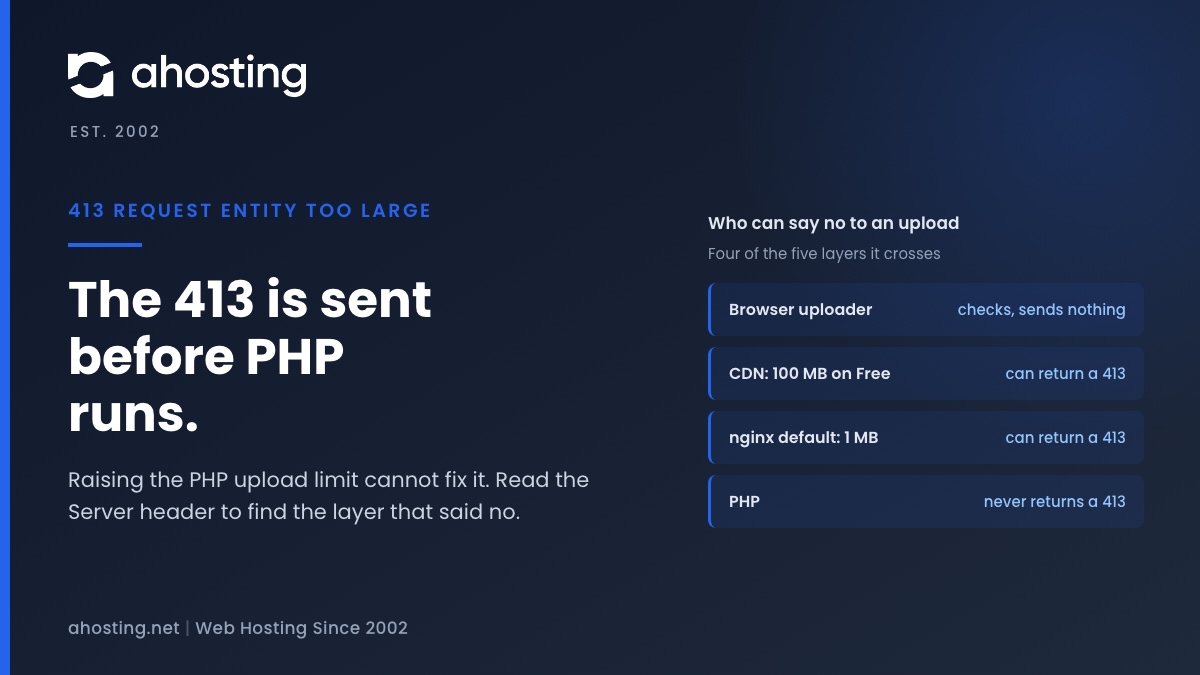
A 413 request entity too large error means a layer in front of WordPress refused the upload before PHP saw it, so raising upload_max_filesize cannot fix it. Five layers can say no: the browser uploader, a CDN, the web server, PHP and WordPress. Read the Server header of the failed request to find the one that answered, then change the limit there. In a WordPress 7.1.3 lab, nginx rejected a 1 MB file while the Media screen promised 100 MB.
413 Request Entity Too Large in WordPress: Find the Layer That Said No
A 413 request entity too large error appears when you upload a file and the response is not a WordPress screen at all, just a short page with a status code. Most guides answer it with the same advice: raise upload_max_filesize and try again. A forum thread in the search results describes exactly that: a site set to 500 MB that still fails on a 15 MB file.
The reason is where the 413 is generated. It comes from a layer that handles your request before PHP starts, so no PHP setting can change it. We tested this on a WordPress 7.1.3 install in a lab on 2026-10-26: PHP set to 100 MB, nginx in front with no extra setting, and a 1 MB file. The upload was rejected with a 413 while the Media screen still read “Maximum upload file size: 100 MB.”
This guide shows the five layers an upload crosses, how to read which one answered, and where each limit is changed. It also covers what WordPress prints on its own, because that message often hides the real status. If your error reads “The link you followed has expired” instead, that is a different failure with a different fix, and we compare the two below.

What a 413 Request Entity Too Large Error Actually Means
A 413 is an HTTP status code. It says the server is refusing the request because the body, the part that carries your file, is larger than the server is willing to process. RFC 9110, section 15.5.14, now names it “Content Too Large”; nginx still prints the older phrase “Request Entity Too Large”, and Cloudflare’s documentation calls it “Payload Too Large”. All three describe the same status.
Two things follow from that definition. First, the server decides on size, and it does so as soon as it reads the request headers or the first part of the body, long before WordPress loads. Second, a 413 is never produced by wp-admin code. In the WordPress 7.1.3 upload scripts no branch handles a 413 on its own, and the bundled uploader library only maps the number to its name, so a 413 lands in a generic error message.
Compare that with the two PHP limits, which behave very differently. In our lab a file over upload_max_filesize got a polite WordPress notice, and a request over post_max_size got the expiry page with status 403. Neither was a 413. Our guide to the link you followed has expired message covers that half in detail, so this guide stays on the layers in front of PHP.
The Five Layers a 413 Request Entity Too Large Crosses
An upload is one long POST request. On its way from your browser to the folder on disk it passes five checkpoints, and each can refuse it with its own message. Only two of them can send a 413.
The 413 Layer Decoder Table
The table below lists each layer with the status it returns, the default we could verify, and who can change it. It is the reference the rest of this guide uses.
| Layer | What it returns | Default we verified | Who changes it |
|---|---|---|---|
| 1. Browser uploader | No request is sent. Message: “[file] exceeds the maximum upload size for this site.” | The value the Media screen shows, the smaller of the two PHP limits | You, through the PHP limits |
| 2. CDN or proxy | A 413 from the CDN; the Server header names it | Cloudflare: 100 MB on Free and Pro, 200 MB on Business, up to 5 GB on Enterprise | You, in the CDN dashboard, within the plan |
| 3. Web server | A 413 page that names the server | nginx: 1m. Apache: 1 GiB since 2.4.54, unlimited before. LiteSpeed: its own setting, not measured here | The server owner; on shared hosting, the host |
| 4. PHP | No 413. A notice for the file limit, or a 403 expiry page for the body limit | Stock PHP: 2M file limit, 8M body limit | You, through the cPanel PHP editor or a user INI file |
| 5. WordPress | Stores the file, or reports its own error | Reads the PHP values through wp_max_upload_size() | Plugin or code filter |
What the 413 Request Entity Too Large Table Does Not Claim
Two caveats are worth stating. The nginx and Apache defaults come from their official documentation, and the nginx figure was also measured in the lab. We did not reproduce an Apache 413 in the lab, and we did not measure LiteSpeed, so the table gives no LiteSpeed number. Cloudflare’s figures come from its support page on error 413, dated by that page 2026-09-28.
How to Tell Which Layer Returned the 413 Request Entity Too Large
You do not need server access to find the layer. Open your browser developer tools, switch to the Network tab, repeat the upload, and click the failed request. It is usually the one named async-upload.php. The status column shows 413, and the response headers show who sent it.
Read the Server Header of the 413 Request Entity Too Large
The Server header names the software that answered. In our lab the nginx rejection carried Server: nginx/1.31.6 and a one-line page reading “413 Request Entity Too Large”. A response from behind Cloudflare carries server: cloudflare and a cf-ray header; we confirmed both on this site on 2026-10-26. If the header names Cloudflare, the request never reached your web server.
Be careful with one case. A Cloudflare header proves Cloudflare is on the path, not that it was the one that refused. Even when a file under 100 MB fails with a Cloudflare header, the web server behind it may have been the one that refused, and the response body tells you which. Likewise, a page that names nginx or Apache came from the web server.
What WordPress Prints When a 413 Request Entity Too Large Arrives
The WordPress media uploader maps any HTTP status of 400 or higher to one generic error, and the wording depends on the file. In the 7.1.3 source, plupload.js treats a status at or above 400 as an HTTP error, and wp-plupload.js turns it into one of two sentences. See the two strings in script-loader.php for the exact text.
- For a non-image file: “Unexpected response from the server. The file may have been uploaded successfully. Check in the Media Library or reload the page.”
- For an image: “The server cannot process the image. This can happen if the server is busy or does not have enough resources to complete the task. Uploading a smaller image may help. Suggested maximum size is 2560 pixels.”
The image sentence is the misleading one. It sends you off to resize pictures when the real status was a 413 about request size. We read this in the source and did not run the browser uploader in the lab, so treat the mapping as read from code, not observed on screen. The PHP-side causes of that same sentence are in our guide to the server cannot process the image error.
Which Layer Is Rejecting Your 413 Request Entity Too Large Upload?
Use the tool below if you already have the failed request open. It asks what you saw and what the Server header says, then points to the matching section.
Find the Layer That Said No in Three Questions
What the Lab Measured About the 413 Request Entity Too Large Error
The lab was one workstation, not an AHosting server. It ran WordPress 7.1.3 on the PHP 8.5.10 built-in server with SQLite, with nginx 1.31.6 as a reverse proxy. Each request logged in as an administrator, read the upload nonce from the Media screen, and posted a file of random bytes to async-upload.php with curl.
| Setup | File | Result |
|---|---|---|
| PHP file limit 2M, body limit 8M | 1 MB | HTTP 200, file stored |
| Same | 4 MB | HTTP 200, notice: the file exceeds the upload_max_filesize directive |
| Same | 10 MB | HTTP 403, page: “The link you followed has expired.” |
| PHP 100M and 100M, nginx with no setting | 1 MB and 2 MB | HTTP 413 from nginx; Media screen still said 100 MB |
| nginx limit raised to 64m | 2 MB | HTTP 200, file stored |
| nginx limit 64m | 70 MB | HTTP 413 from nginx |
Why the 413 Request Entity Too Large Appeared Below the PHP Limit
Rows four to six carry the finding. With PHP at 100 MB and nginx on its stock setting, a 1 MB file produced a request of 1,049,122 bytes, and the nginx log said the client “intended to send too large body”. The Media screen reported 100 MB the whole time, because it reads PHP, not nginx.
The same finding explains how a real browser reaches a 413 at all. In the 7.1.3 source the uploader is configured with a size filter equal to the value the Media screen reports, so it should refuse a larger file before sending anything. A request therefore reaches a lower layer only when that layer’s limit is below the PHP value. That is read from the code, not run in a browser, and our curl requests skipped the browser check on purpose.
What the Lab Did Not Cover
An Apache reverse proxy with a body limit let the 2 MB request through, so we have no Apache measurement and make no claim from one. We also did not run LiteSpeed, Cloudflare, MySQL or multisite, and we did not run the browser uploader. Where this guide states those, it cites the documentation or the source instead.
Fix the 413 Request Entity Too Large at the Layer That Answered
Change the limit at the layer that returned the page, and keep the three values in a sensible order: the outer limit at least as large as the PHP body limit, which is at least as large as the PHP file limit. On shared hosting you control the PHP values, and the host controls the layers in front.
If nginx Returned the 413 Request Entity Too Large
The directive is client_max_body_size. The nginx documentation gives a default of 1m, says a larger request gets the 413, and says that a value of 0 turns the check off. It can be set in the http, server or location context, so a value in one place can be overridden in another. Set it a little above the largest upload you intend to allow, reload nginx, and repeat the upload.
In the lab, client_max_body_size 64m; let a 2 MB file through and still stopped a 70 MB file, which is the behavior you want. Avoid 0 on a public site, because it removes the only brake on request size.
If Apache Returned the 413 Request Entity Too Large
The directive is LimitRequestBody, and the Apache core documentation lists a default of 1073741824 bytes, with 0 meaning unlimited. The same page says that in 2.4.53 and earlier the default was 0. The Apache 2.4 change log records the change in the 2.4.54 release: “Change default value of LimitRequestBody from 0 (unlimited) to 1GB.” An older server therefore allows any size and a newer one stops at 1 GiB.
If Cloudflare Returned the 413 Request Entity Too Large
Cloudflare’s page lists a maximum upload of 100 MB on Free and Pro, 200 MB on Business and up to 5 GB on Enterprise, and says the Maximum Upload Size can be adjusted from the zone’s Network page. When the file is above the plan limit, either change the setting where the plan allows it, or send the file by a route that avoids the proxy, such as SFTP.
If PHP Returned the Message, It Was Not a 413 Request Entity Too Large
A notice about upload_max_filesize or the “link has expired” page is a PHP answer. On our shared servers the PHP limits can be set in the cPanel MultiPHP INI Editor, and a .user.ini file is read by PHP, which by default re-reads it every 300 seconds, so a change can take up to five minutes. Our guide to the missing a temporary folder error lists the other messages PHP can print for an upload.
When a Bigger Limit Is the Wrong Fix for a 413 Request Entity Too Large
A size limit is a safety brake, and raising every layer to a huge number trades one problem for another. A handful of large files a year rarely justifies a permanent change, so consider the routes that never send the file through a browser request.
- Where your plan includes SSH access, upload the file over SFTP, then register it with
wp media import, which the WP-CLI reference describes as creating attachments from local files or URLs. No HTTP request body is involved, so no 413 is possible. - For very large files, use an uploader built on a resumable protocol such as tus, which splits one file into many small requests so that no single request meets a size limit.
- For video, upload to a video service and embed it. A multi-gigabyte file in the Media Library also fills the plan’s disk quickly, and our post on the available disk space critically low warning shows what that looks like.
- When you move a whole site, do not push the archive through the browser at all. Our guide to the migration to a new host compares four methods.
What AHosting Can Do About a 413 Request Entity Too Large
Once you know the layer, the fix is usually one line. The hard part on shared hosting is that the web server is the one layer you cannot edit. Our servers run LiteSpeed, and we have not published a request body figure for them, so we do not quote one here. If the Server header names LiteSpeed, or the 413 appears below your PHP limits, open a ticket with the exact words on the error page and the size of the file, and we will look at it with you.
The shared plans on our web hosting page list SSH access, and the WordPress hosting plans list WP-CLI access, which is the route that avoids this error entirely. If you run several client sites, the reseller hosting plans are the page to compare.
Frequently Asked Questions: 413 Request Entity Too Large
What does a 413 request entity too large error mean on WordPress in 2026?
Specifically, it means a server or proxy in front of WordPress refused the request because the body was bigger than that layer allows. WordPress itself never sends a 413. The layer decoder table in this guide lists the five places that can say no and what each one prints.
Why does WordPress still show a 413 request entity too large error after I raise upload_max_filesize?
In practice, upload_max_filesize is read by PHP, and the 413 is returned before PHP starts. In the lab a site set to 100 MB behind nginx with no extra setting rejected a 1 MB file, while the Media screen still said 100 MB. Change the limit at the layer that returned the page, not in PHP.
Nginx vs Apache vs Cloudflare: which one returns the 413 request entity too large error?
Typically, whichever has the lowest limit on the request path. Nginx ships with a 1 MB default, Apache has allowed up to 1 GiB since version 2.4.54, and Cloudflare allows 100 MB on the Free and Pro plans. Read the Server header on the failed request to see which one answered.
413 request entity too large vs the link you followed has expired: how do I tell them apart in 2026?
For example, a 413 comes back as a plain server page that names nginx, Apache or Cloudflare, while the expiry message is a WordPress page with HTTP status 403. In the lab a body over post_max_size produced the expiry message, not a 413. The first needs a web server or proxy change, and the second needs a PHP limit.
How large can an upload be before Cloudflare returns a 413 request entity too large error on the Free plan in 2026?
As a result of the plan table on the Cloudflare support page, the maximum upload size is 100 MB on Free and Pro, 200 MB on Business, and up to 5 GB on Enterprise. The same page says the Maximum Upload Size can be adjusted from the zone Network page. A file under the limit that still fails points to a layer closer to your site.
What default limit makes nginx return a 413 request entity too large error for a WordPress upload?
Specifically, the nginx documentation gives a default of 1m for the client_max_body_size directive. In the lab a 1 MB test file produced a request of 1,049,122 bytes, which is over 1,048,576, so nginx rejected it. Raising the value to 64m let a 2 MB file through and still rejected a 70 MB file.
Can I fix a 413 request entity too large error myself on AHosting shared hosting?
In practice, you can change the PHP limits yourself in the cPanel MultiPHP INI Editor, but a 413 is a web server answer and the web server is ours to manage. Open a ticket with the exact text of the 413 page, the size of the file and the page you were on, and we will look at it with you.
Does AHosting WordPress hosting include WP-CLI so I can add a large file past a 413 request entity too large error?
Indeed, the WordPress hosting page lists WP-CLI access, and the WP-CLI media import command creates attachments from local files. Upload the file over SFTP first, then import it, because that path never sends the file through a browser request. Check that your plan includes SSH access before you rely on it.
What should I send AHosting support when a 413 request entity too large error blocks my upload?
Specifically, send the exact words on the error page, the Server header from the browser Network tab, the size of the file in megabytes, and the address of the screen where it failed. Leave out passwords and database exports. Those four items tell us which layer answered without guessing.
Why does the media uploader say the server cannot process the image when the real cause is a 413 request entity too large?
Notably, WordPress maps every HTTP error status of 400 or higher to one generic uploader message, and for image files that message talks about a busy server and a 2560 pixel maximum. It does not mention the 413. Open the Network tab and read the status code of the failed request before you resize anything.
Related posts:
 Your Site Could Not Complete a Loopback Request: How to Read the Error and Fix It on Shared Hosting
 Five Tips For Cutting Down Video Size Without Killing Quality
 WordPress LiteSpeed Hosting 2026: Why Server-Level Caching Changes Everything
 Page Cache Is Not Detected: What WordPress Site Health Actually Checks