-

Available Disk Space Is Critically Low? What WordPress Is Really Measuring
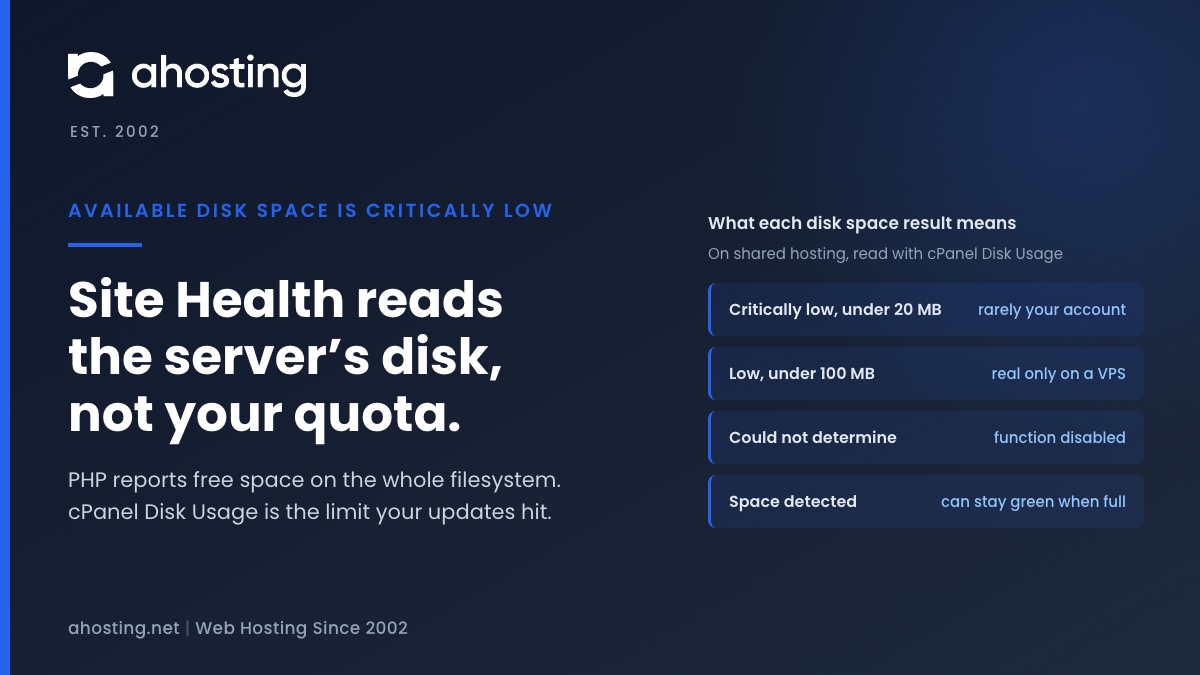
TL;DRAvailable disk space is critically low means PHP reported under 20 MB free on the filesystem that holds wp-content. On shared hosting that filesystem belongs to the whole server, not to your plan, so the warning can be wrong in either direction. Read the Disk Usage meter in cPanel instead. Near its limit: clear old backups, logs and unused plugins before updating. Plenty of room: the warning is a measuring problem, not a full site.
Categories
- CMS
- Concrete5
- Drupal
- FFmpeg / Video Hosting
- Hosting Guides
- How To
- Joomla
- Security
- SEO
- Uncategorized
- Video Content
- Web Hosting News
- WooCommerce
- WordPress
Lets Connect!
-
Opcode Cache Is Not Enabled? What WordPress 7 Actually Checks
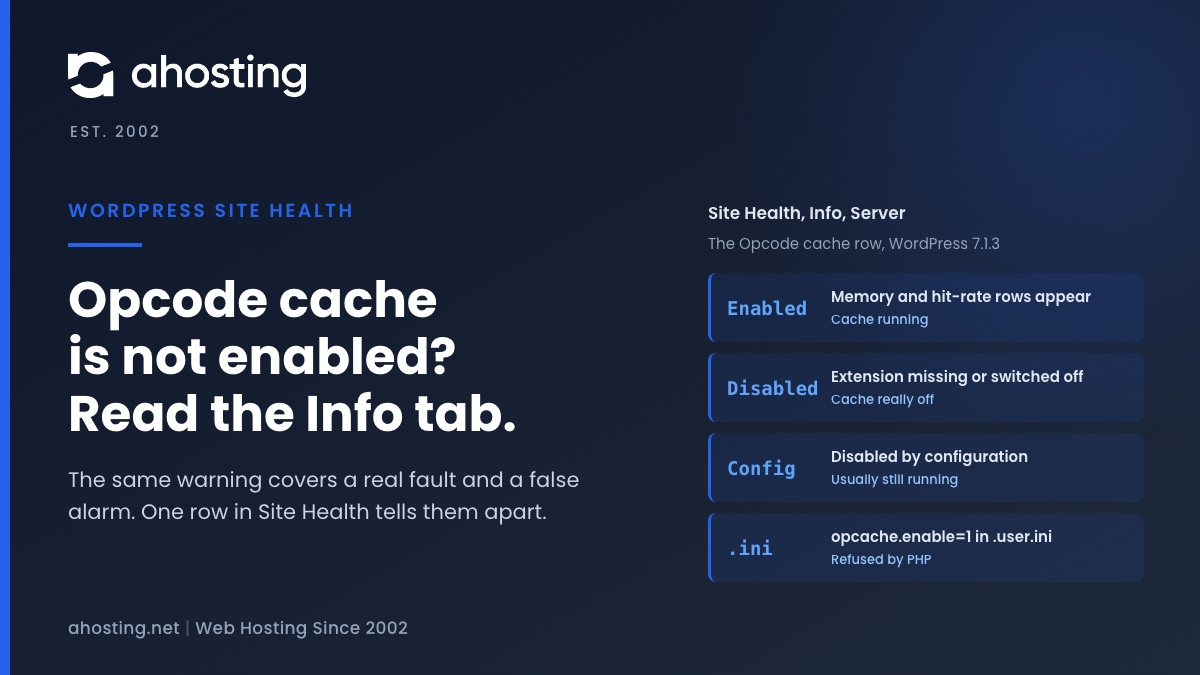
TL;DROpcode cache is not enabled means one PHP function, opcache_get_status, did not confirm that OPcache is on. That happens when the cache really is off, and also when it is running but your host restricts the function. Open Site Health, Info, Server first. Disabled by configuration usually means the cache works and there is nothing to fix. Disabled means it is off, and only a PHP version change or your host can turn it on, because PHP refuses to switch it on from .user.ini.
-
Log Errors to a Potentially Public File? What Site Health Checks
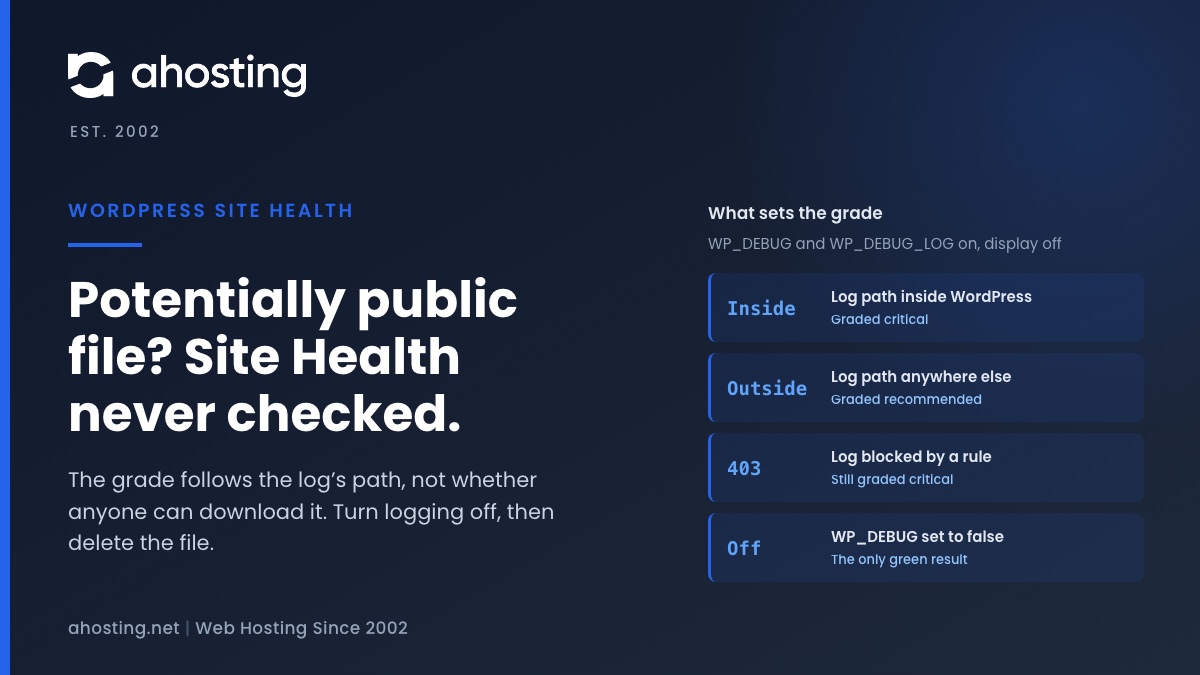
TL;DRYour site is set to log errors to a potentially public file means two settings in wp-config.php, WP_DEBUG and WP_DEBUG_LOG, are both on while error display is off. Site Health never checked whether the log can be downloaded. The grade depends only on whether the log’s path sits inside your WordPress folder, so moving the file lowers the warning to recommended but never clears it. Read what you need, turn WP_DEBUG off, then delete the old debug.log, because turning logging off does not remove the file.
-
A Scheduled Event Has Failed? What Site Health Actually Checked
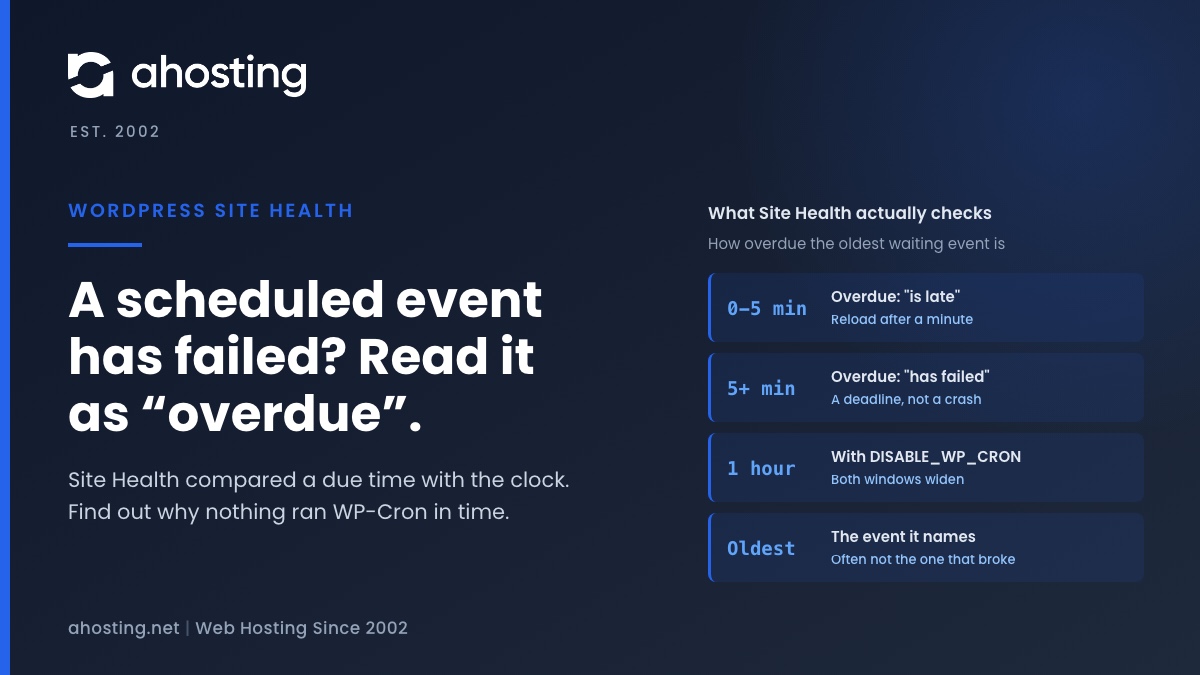
TL;DRA scheduled event has failed does not mean the event it names tried to run and failed. Site Health compared each waiting event’s due time with the clock and found one more than five minutes overdue, or more than an hour if DISABLE_WP_CRON is set. The event it names is the oldest one still waiting, and often not the one that broke. Reload once after a minute, then find out why nothing ran wp-cron.php in time: visits answered entirely from cache, a broken loopback, WP-Cron disabled with no server cron, or a run that died partway.
-
Installation Failed: Could Not Create Directory? Find the Folder, Then the Cause
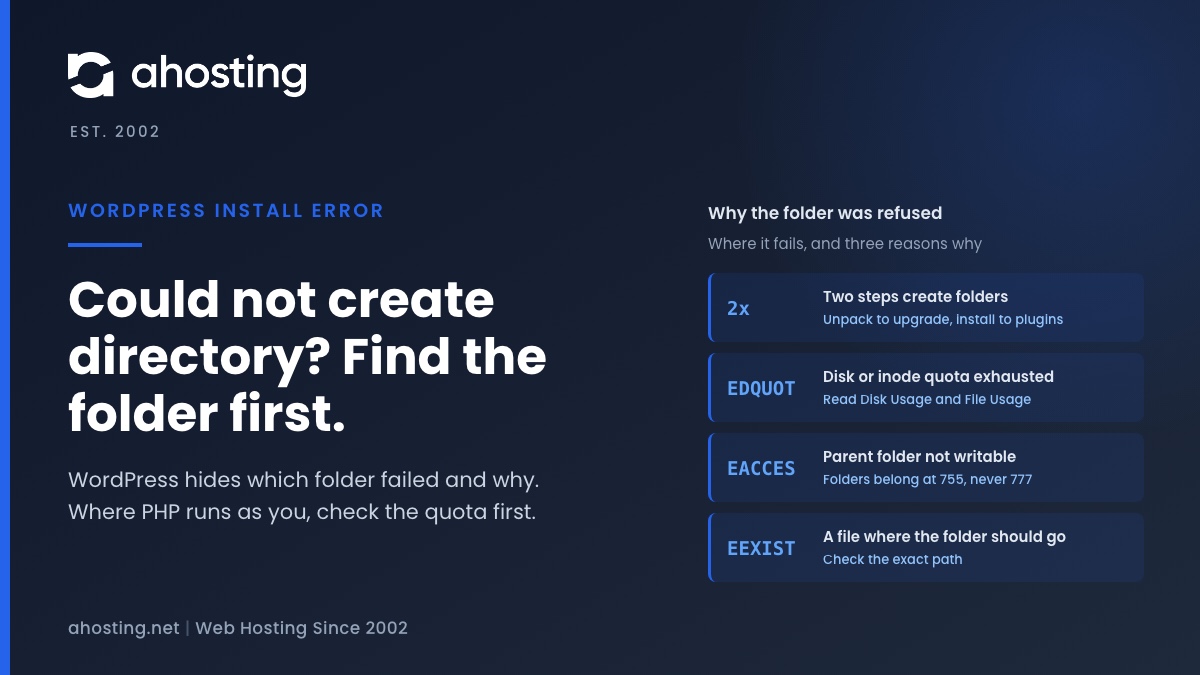
TL;DRInstallation failed: Could not create directory means the server refused a new folder, and WordPress hides both which folder and why. Get the path first: the Upload Plugin screen prints it. Then read Disk Usage and File Usage in cPanel, because on a host where PHP runs as your own user the account limits come before the permissions, and WordPress reports a full account as this exact message. Folders belong at 755. Never use 777.