-

Available Disk Space Is Critically Low? What WordPress Is Really Measuring
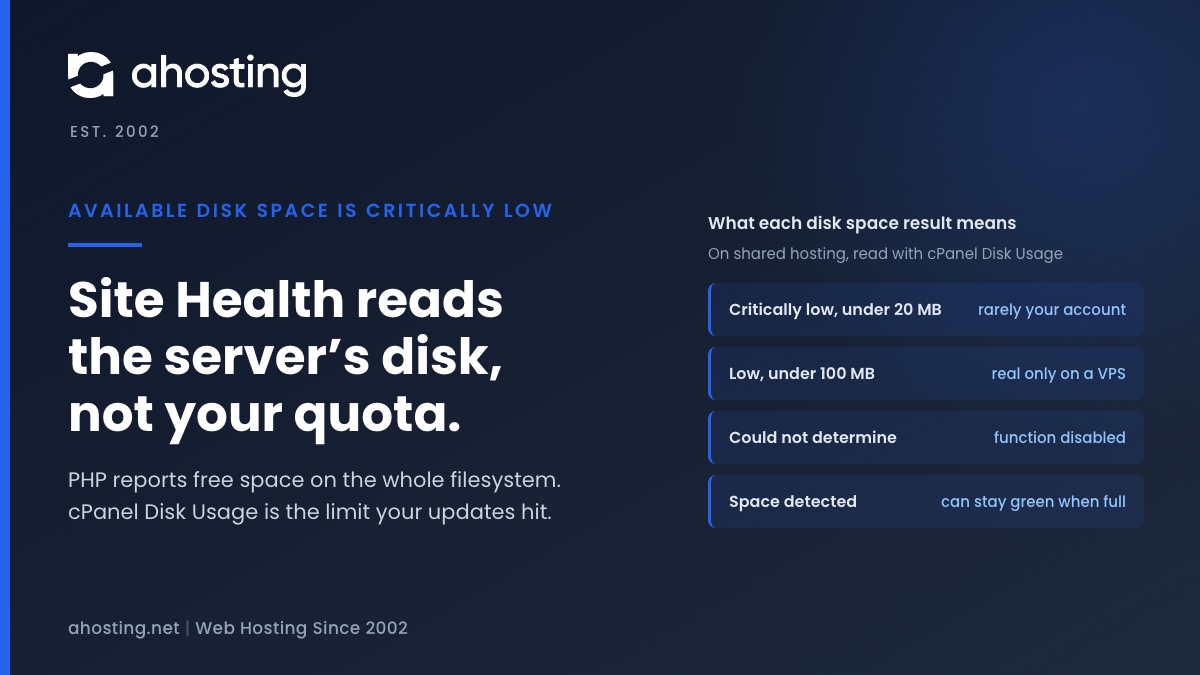
TL;DRAvailable disk space is critically low means PHP reported under 20 MB free on the filesystem that holds wp-content. On shared hosting that filesystem belongs to the whole server, not to your plan, so the warning can be wrong in either direction. Read the Disk Usage meter in cPanel instead. Near its limit: clear old backups, logs and unused plugins before updating. Plenty of room: the warning is a measuring problem, not a full site.
Categories
- CMS
- Concrete5
- Drupal
- FFmpeg / Video Hosting
- Hosting Guides
- How To
- Joomla
- Security
- SEO
- Uncategorized
- Video Content
- Web Hosting News
- WooCommerce
- WordPress
Lets Connect!
-
Missing a Temporary Folder: Why WP_TEMP_DIR Won’t Fix This WordPress Upload Error
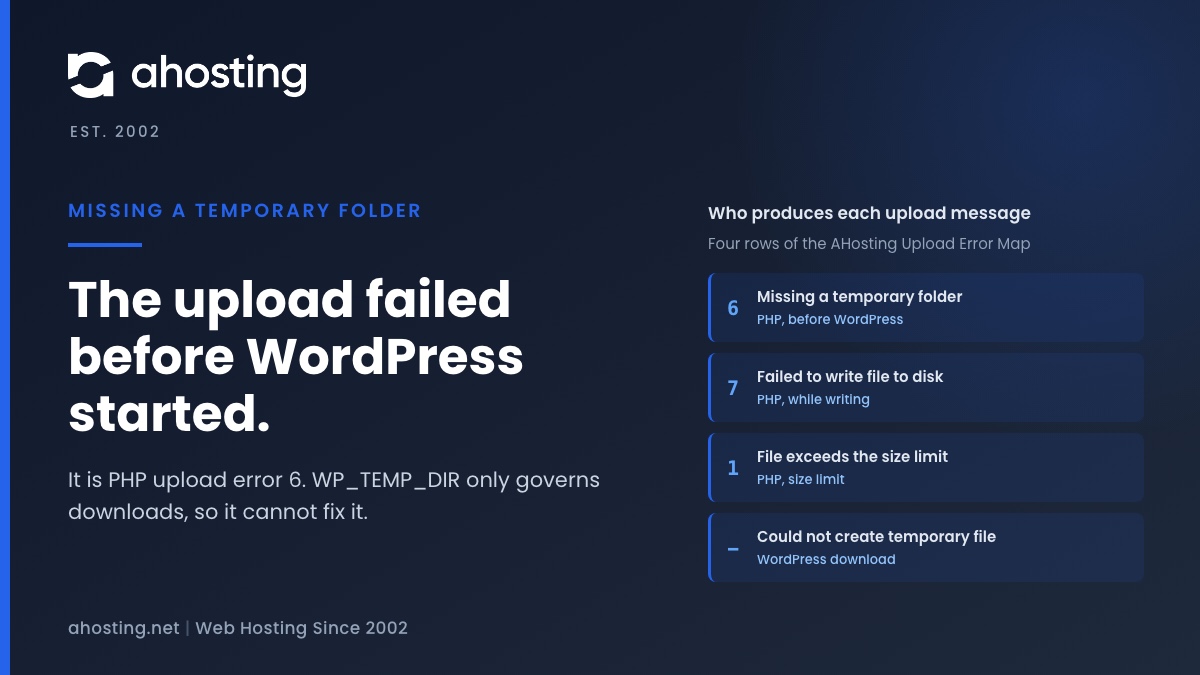
TL;DRMissing a temporary folder is PHP upload error 6, set before WordPress loads, when PHP cannot create the temporary file an upload is written into. WordPress only prints the text. That is why the popular WP_TEMP_DIR fix cannot touch it: that constant governs downloads, not uploads. Check whether the account is out of files or space, then read the PHP error log. PHP lets only the server configuration set the upload directory, so on shared hosting what remains is your host’s to fix.
-
You Should Use a Persistent Object Cache: What WordPress Site Health Actually Measures
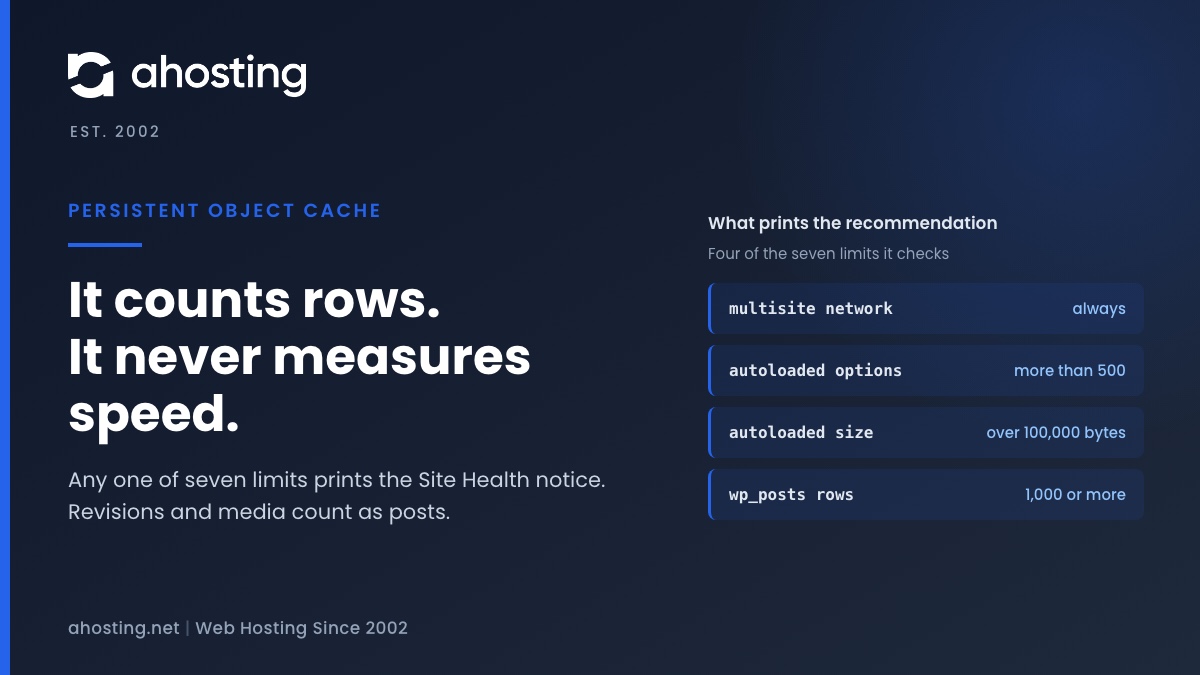
TL;DRSite Health recommends a persistent object cache when your site crosses a size line, not when it is slow. Any one of seven counters is enough: a multisite network, more than 500 autoloaded options or 100,000 bytes of them, or 1,000 rows in the posts, comments, options, terms or users table. Revisions and media count as posts, so small sites trip it often. An object cache also needs a cache server, and a plugin alone cannot provide one. Decide first whether your traffic is the kind an object cache speeds up.
-
The Server Cannot Process the Image: What WordPress Is Telling You
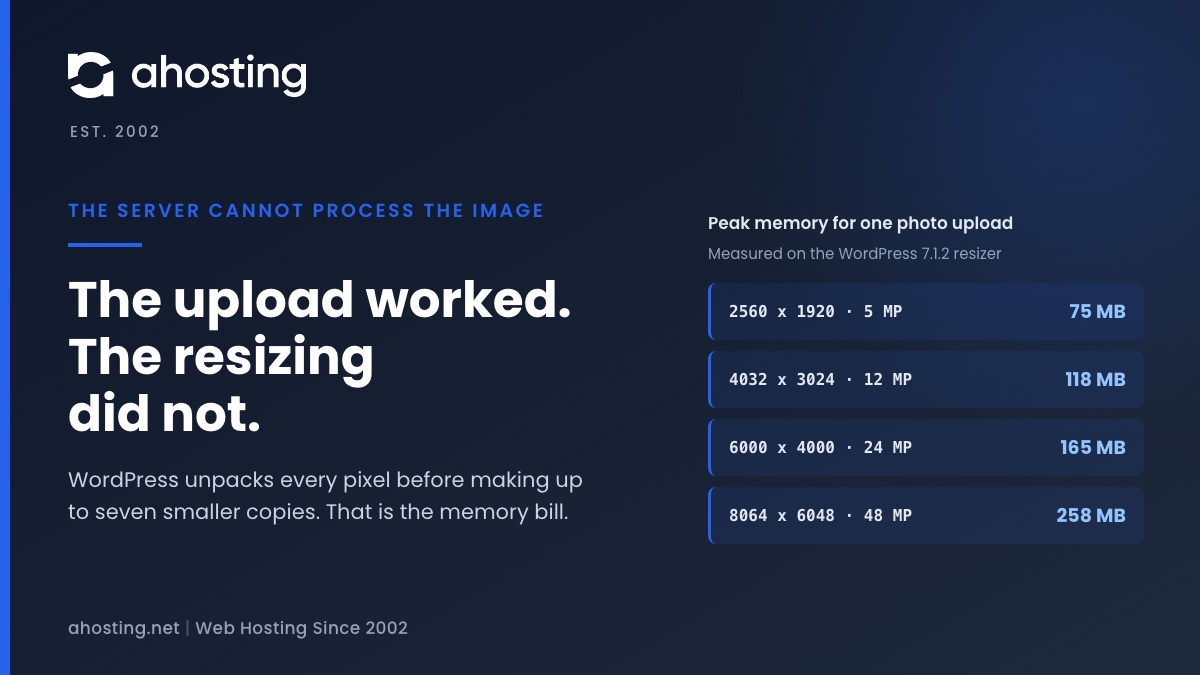
TL;DRWhen WordPress says the server cannot process the image, the upload almost always worked. What failed is the resizing that follows, which unpacks every pixel of the photo into memory before making up to seven smaller copies. We measured that at about a quarter of a gigabyte for a 48 megapixel phone photo. Since WordPress 7.1 the block editor can do the resizing in your browser instead, while the Media Library still does it on the server, so the same photo can fail in one and work in the other. The fix depends on which limit stopped the resize, and your error log usually says which.
-
Page Cache Is Not Detected: What WordPress Site Health Actually Checks
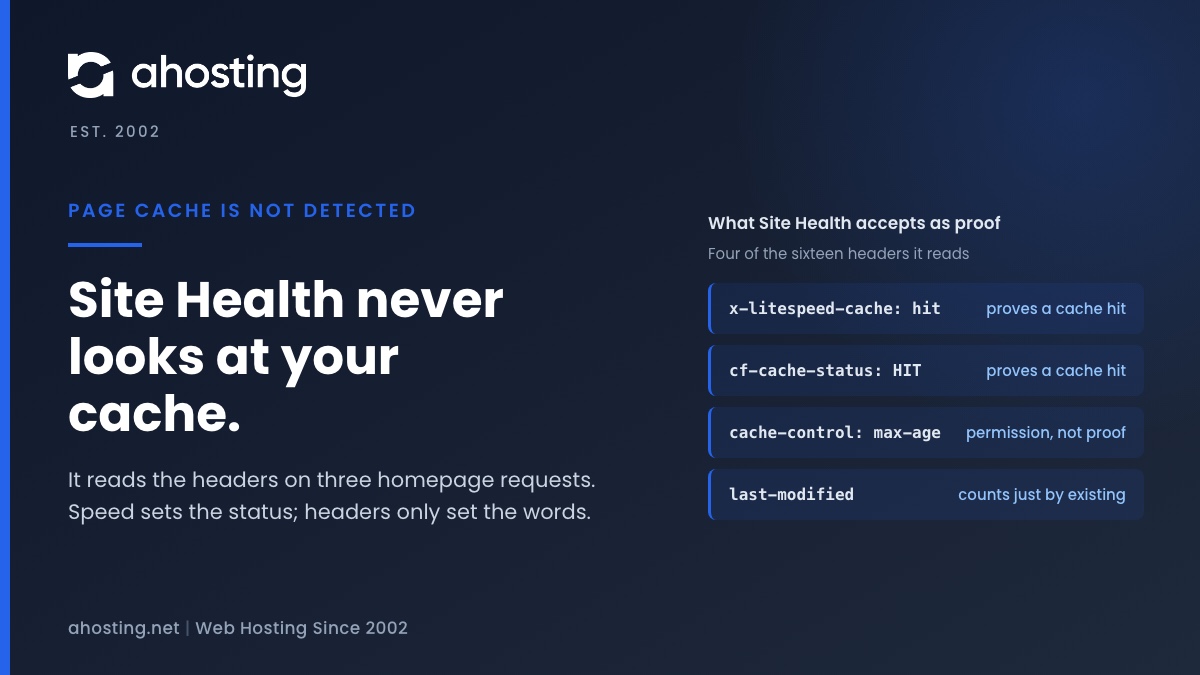
TL;DRSite Health decides whether you have a page cache by requesting your homepage three times from your own server and looking for a caching header, or for a cache drop-in file. It never looks at the cache itself. So the message can appear on a site that is cached perfectly well, and it can stay silent on a site with no cache at all. Response time alone decides whether the result is a recommendation or critical. Read the headers your homepage actually returns and you will know in a minute which of the two you have.