
-

The Server Cannot Process the Image: What WordPress Is Telling You
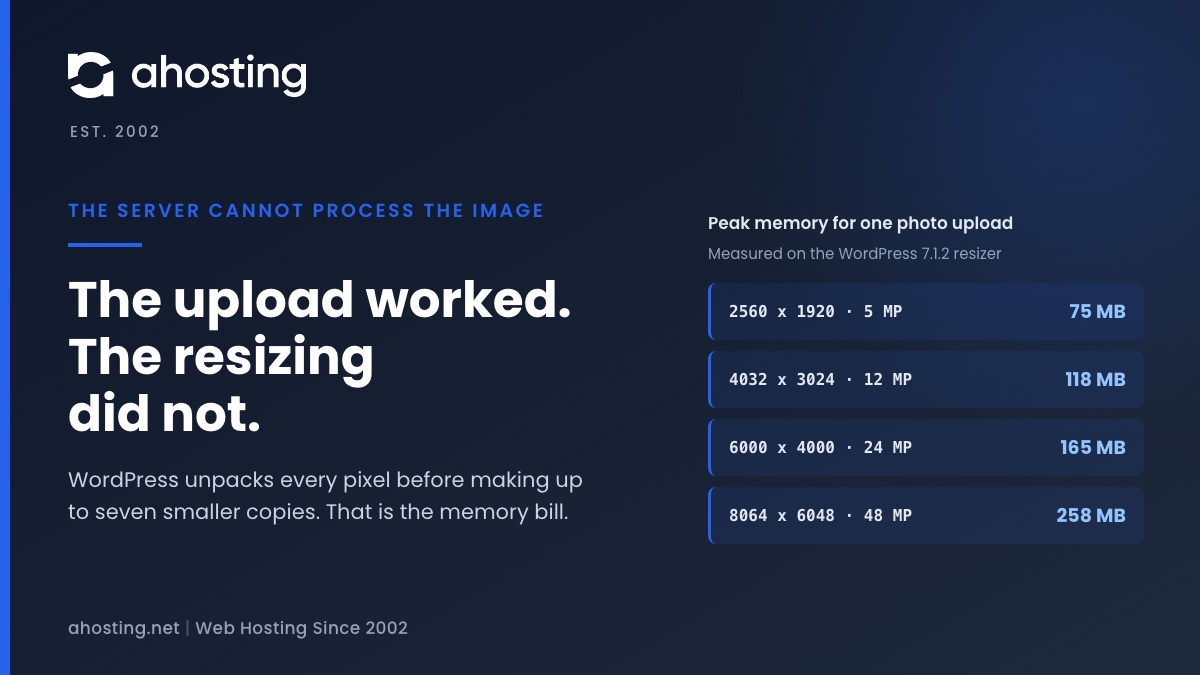
TL;DRWhen WordPress says the server cannot process the image, the upload almost always worked. What failed is the resizing that follows, which unpacks every pixel of the photo into memory before making up to seven smaller copies. We measured that at about a quarter of a gigabyte for a 48 megapixel phone photo. Since WordPress 7.1 the block editor can do the resizing in your browser instead, while the Media Library still does it on the server, so the same photo can fail in one and work in the other. The fix depends on which limit stopped the resize, and your error log usually says which.
Categories
- CMS
- Concrete5
- Drupal
- FFmpeg / Video Hosting
- Hosting Guides
- How To
- Joomla
- Security
- SEO
- Uncategorized
- Video Content
- Web Hosting News
- WooCommerce
- WordPress
Lets Connect!
-
Your Hosting Says 100% Full With 8 GB Free: How to Fix a WordPress Inode Limit
TL;DRAn inode limit counts files, not bytes, so an account can report itself full with most of its disk unused. Open cPanel and read the File Usage row in the Statistics panel against the Disk Usage row above it. If the file count is near its ceiling while storage is not, adding gigabytes fixes nothing — find the directory holding the files instead, and start with mail, cache and old backups.
-
Your Site Is Slow, CPU and Memory Are Fine: How to Tell If You’re Being Disk-I/O Throttled
TL;DRA disk I/O limit never returns an error. CloudLinux puts your processes to sleep, so the page still loads and simply takes longer, which is why CPU and memory look innocent. Open cPanel, go to Logs and then Resource Usage, and read the Faults column for the minutes the site was slow. Faults on the disk rows and none on the entry process row means you are throttled, not out of workers.
-
FFmpeg Server Requirements: How to Size a Plan From Your Own Encode Queue
TL;DRFFmpeg server requirements come from one number: finished encode-minutes per day. Measure a single job, multiply by your rendition ladder, then read off the tier that clears it. The plan name is the last decision, not the first.
-
AI Crawler Traffic Is Now a Hosting Cost: 65,044 Fetches, Measured
TL;DRAHosting logged 65,044 AI crawler fetches in 28 days against 298 Google clicks. Most of that load costs nothing, because a cached page consumes no entry process — and most of it cannot be blocked with robots.txt either, because 72% of it is user-triggered.


