- Sorry, This File Type Is Not Permitted for Security Reasons: What WordPress Is Telling You
- Why the File Type Is Not Permitted Message Reads Two Ways
- The Three Checks
- Files Where the File Type Is Not Permitted by Default
- When the File Type Is Not Permitted Because the Content Does Not Match
- Who Can Skip the Check: Administrators Are Not Exempt
- Fixing the Error for One Type with upload_mimes
- Why ALLOW_UNFILTERED_UPLOADS Is the Wrong Fix
- When a Server Is the Cause: What the fileinfo Extension Changes
- The File Type Is Not Permitted Decoder Table
- Try the File Type Finder
- What Can AHosting Do?
- Frequently Asked Questions: File Type Is Not Permitted
- Why does WordPress keep saying the file type is not permitted in 2026?
- How do I fix the file type is not permitted error for SVG files in WordPress 2026?
- Is the file type is not permitted message vs not allowed to upload this file type the same error?
- Why is the file type is not permitted even when I am logged in as an administrator?
- Is ALLOW_UNFILTERED_UPLOADS vs the upload_mimes filter the safer fix when the file type is not permitted?
- Why does WordPress say the file type is not permitted for a text file I renamed to .jpg?
- Can AHosting support tell me why the file type is not permitted on my WordPress upload?
- Should I ask AHosting to change a server setting when the file type is not permitted?
- Will the file type is not permitted error go away after I update WordPress in 2026?
- On AHosting WordPress hosting, is zipping a blocked file better vs converting it when the file type is not permitted?
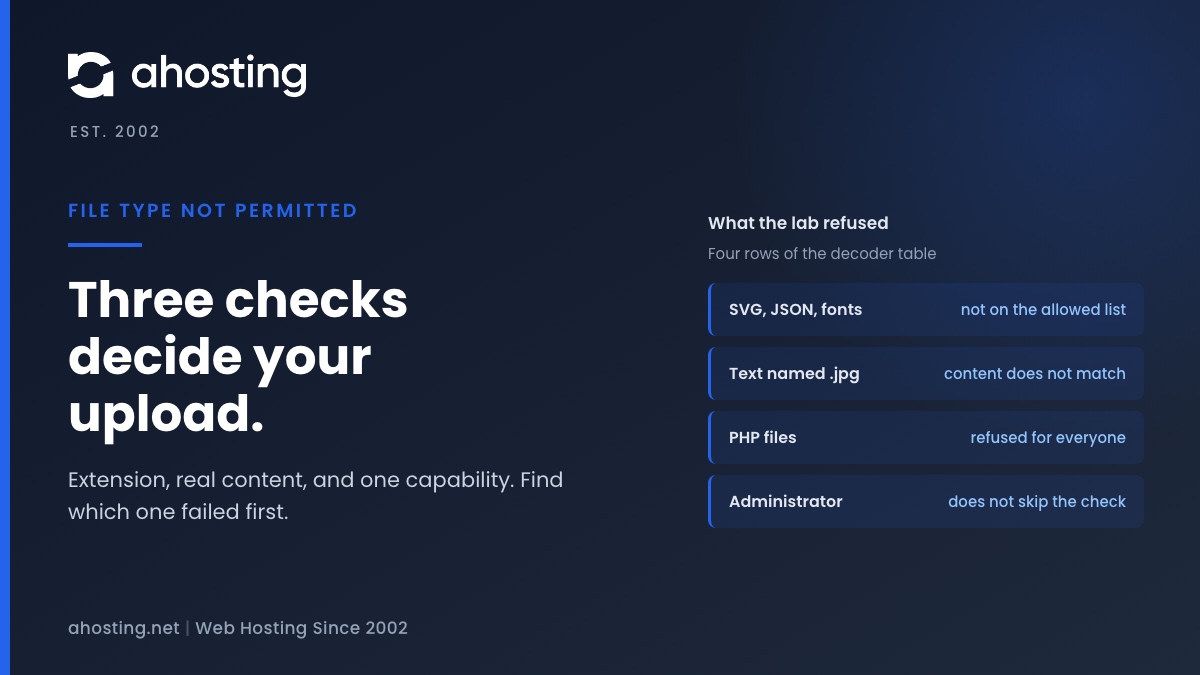
WordPress refuses an upload when the extension is not on its allowed list, when the real content of the file does not match the extension, or when neither check passes and your account lacks the unfiltered upload capability. SVG, JSON and font files fail the first check on a default install. In a WordPress 7.1.4 lab, an administrator was refused all three, a text file renamed to .jpg was refused, and one upload_mimes filter let the first three types through.
Sorry, This File Type Is Not Permitted for Security Reasons: What WordPress Is Telling You
You pick a file in the Media Library and WordPress answers that the file type is not permitted for security reasons. The text comes from the WordPress upload code itself: WordPress ran a short list of checks on the upload, and your file failed one of them. This guide walks through the three checks, shows which files fail them on a default install, and gives the smallest safe fix for each case.
We tested every claim here on a real WordPress 7.1.4 install with PHP 8.5.10 and read the matching lines of core code. It was a workstation lab, not an AHosting server, so where a result depends on server software we say so.
Short version: the message names the file type, but the file type is only the symptom. Three different problems produce the same sentence, and each has a different fix, so the first job is to tell them apart.
Why the File Type Is Not Permitted Message Reads Two Ways
Search results mix two sentences, and they come from different WordPress releases. Reading the upload code for each release, we found the old sentence, “Sorry, this file type is not permitted for security reasons.”, in version 4.9 and in version 5.2, at wp-admin/includes/file.php in the 5.2 tag. In the 5.9 tag, and in every tag we checked up to 7.0, the same place prints “Sorry, you are not allowed to upload this file type.” We checked tags rather than release notes, so we cannot name the exact release that changed the wording.
The conditions around the sentence did not change in a way that matters to you. On current WordPress the line is wp-admin/includes/file.php line 972, and it fires when the type or the extension came back empty and your account lacks one capability. Older sites, plugins that print their own text and forum posts still use the first sentence, which is why it keeps its search volume.
Two neighbors look similar but are different faults. An empty file produces a separate message about the file being empty. A server that cannot store the upload gives the different errors in our guides to the missing temporary folder error and the 413 request entity too large error. A similar-sounding permissions message, covered in our guide to the not allowed to access this page error, is a different fault. If your message is neither of the two sentences above, you are on the wrong page.
The Three Checks
Every upload through the Media Library passes through one function, wp_check_filetype_and_ext(), which the WordPress developer reference describes. It runs the file through three checks in a fixed order.
- The extension. WordPress matches the end of the file name against its allowed list. The matching code,
wp_check_filetype(), looks only at the name. If nothing matches, there is no type. - The real content. If the PHP fileinfo extension is loaded, WordPress asks it what the file actually contains. When that answer differs from the type the extension claims, WordPress treats the file as dangerous and discards the type (
functions.phplines 3207 to 3209 and 3310 to 3318). - The capability. Back in the upload handler, if the type or extension is still empty, the error appears unless your account holds
unfiltered_upload(file.phplines 971 and 972).
That order explains most confusion. The third check is the only one that names your account, and on a default install nobody passes it. So the extension and the content decide the result for everyone, administrators included.
Notice that the type your browser sends plays no part. In the lab we sent an SVG as application/octet-stream and WordPress decided from the name and the content alone, and a browser MIME sniffing standard describes the same idea from the browser side, weighing a supplied type against what the content shows. Changing the type in a plugin or a script therefore cannot help.
Files Where the File Type Is Not Permitted by Default
The allowed list is built by get_allowed_mime_types() from a table in wp_get_mime_types(). We read that table in WordPress 7.1.4. It has entries for JPEG, PNG, GIF, WebP, AVIF, HEIC, PDF, ZIP, CSV, text and common office files. It has no entry for SVG, JSON, WOFF, WOFF2, TTF or OTF. The function also removes SWF and EXE for everyone, and removes HTML and JS for any account without the unfiltered_html capability.
The table shows what we saw when we uploaded each file as an administrator on a single site through the same endpoint the Media Library uses.
| File | Real type found | Result on a default install |
|---|---|---|
| logo.svg | image/svg+xml | Refused, extension not on the list |
| data.json | application/json | Refused, extension not on the list |
| font.woff2 | font/woff2 | Refused, extension not on the list |
| shell.php | text/x-php | Refused, PHP is not on the list |
| script.js with one word | text/plain | Refused, the content was read as plain text |
| notes.txt and data.csv | text/plain | Accepted |
| real PNG, JPEG and HEIC images | image/png, image/jpeg, image/heic | Accepted |
| empty.txt | application/x-empty | Different message, the file is empty |
Read the first four rows as the answer to most searches. The content check found the correct real type for SVG, JSON and WOFF2, and they were still refused. Nothing is wrong with those files. Their extensions are simply not listed, so the fix is on the list rather than on the file.
When the File Type Is Not Permitted Because the Content Does Not Match
The second check catches files whose name and content disagree. We made two such files. A plain text file named fake.jpg was refused, and so was a text file named doc.pdf. In both cases fileinfo reported plain text while the extension claimed an image or a PDF.
Real images with the wrong extension behaved differently, and the reason is a nice detail. For image types, WordPress runs a separate correction first. A PNG named real-as.jpg was accepted and stored with a corrected .png name, and a JPEG named real-as.png was stored as .jpg. The correction lives in the image branch of wp_check_filetype_and_ext() and sets a replacement file name. Anything that is not an image goes to the strict comparison instead.
So a refusal of a “photo” almost always means the file is not what its name says. Export from a graphics app, a camera or a phone often leaves a file with an extension the content does not back up, for example a text error page saved as an image by a download tool. Open the file in an editor, confirm it shows a picture, then save a fresh copy as JPEG or PNG. Our plain guide to the server cannot process the image error covers the next problem you may meet after a file passes this check.
If WordPress still refuses a file you know is a real image, send us the file name and the exact sentence. We can check how fileinfo reads it on your account, which is something a dashboard cannot show you.
Who Can Skip the Check: Administrators Are Not Exempt
It is easy to assume that administrators bypass upload restrictions. In the lab that was false. As a single-site administrator we were refused SVG, JSON, WOFF2, PHP and a one-word JS file. The administrator role does hold the unfiltered_upload capability, set in schema.php lines 891 to 895. The capability does not work on its own, though. capabilities.php lines 587 to 593 turn it into do_not_allow unless a constant named ALLOW_UNFILTERED_UPLOADS is defined as true, and on a multisite network only a super administrator gets it even then.
The practical meaning is simple. On a default install the account type changes nothing. Whether you are an administrator, an editor or an author, the extension list and the content check decide. Logging in with a stronger account, or asking a client for one, is not a fix.
Fixing the Error for One Type with upload_mimes
When the extension is the problem, add that single type to the allowed list. WordPress built this hook for the purpose. A comment above the check in file.php line 959 says to override the list or use the upload_mimes filter, and the filter documentation describes the same hook. Put the code in a small plugin or a must-use plugin, not in a theme file you might switch later.
add_filter( 'upload_mimes', function ( $mimes ) {
	$mimes['svg'] = 'image/svg+xml';
	return $mimes;
} );
In the lab we added SVG, JSON and WOFF2 this way. All three uploaded after the filter was active, and each was stored under its own name. The same filter left fake.jpg and shell.php refused, because it changes only the extension list and the content check still ran. That is the behavior you want from a fix.
Keep two cautions in mind. An SVG is a text document that can contain script, so allow it only for accounts you trust, and consider a plugin that cleans SVG files if visitors can upload. A font file will be served by your site, so confirm you hold the license. If a standard format exists, converting the file is simpler than changing the list.
Why ALLOW_UNFILTERED_UPLOADS Is the Wrong Fix
The other popular answer is to add define( 'ALLOW_UNFILTERED_UPLOADS', true ); to wp-config.php. It works, and that is the problem. With the constant set, every upload we tried succeeded, including the SVG, the JSON file, a JS file, a PHP file, a text file named as a JPEG and a text file named as a PDF. The constant does not add a type. It switches the check off for everyone who holds the capability.
We did not request the PHP file after uploading it, so we cannot say whether a server would run it. Whether it runs depends on server configuration that differs between hosts. The point stands without that test: an upload form that accepts a file because it is allowed to accept anything is a much larger opening than the one type you needed.
One practical note from the run. The first upload attempt, made seconds after we edited wp-config.php, still failed, and the same files succeeded a few seconds later. We read that as the old configuration still being served from cache. If you add the constant, allow a moment before testing, and remove it once you are done.
When a Server Is the Cause: What the fileinfo Extension Changes
The content check runs only when the fileinfo extension is loaded. In functions.php line 3207 the condition reads extension_loaded( 'fileinfo' ). Without it, WordPress skips the real-content comparison and decides from the extension alone. We did not test that case, because fileinfo is part of our lab PHP, and we do not claim what any hosting server has.
What you can check yourself is where the message comes from. It is produced by WordPress PHP code, so the request already reached WordPress. If a web firewall stopped the upload earlier, you would see a different response from the server, not either WordPress sentence. We did not test a firewall, so treat that as something to read in your own logs.
Server software can still matter through the file you send. A tool in your workflow may change how it writes a file, and fileinfo then reads the new bytes. If the same file uploads on one site and not on another, compare the real file, not the name. The file command project explains the idea behind content detection: it looks at what a file contains instead of relying on the extension.
The File Type Is Not Permitted Decoder Table
Use this table with the file and the message in front of you. Match the symptom, then run the first check. The last column records what we saw in the lab.
| Symptom | Likely cause | First check | Lab result |
|---|---|---|---|
| SVG, JSON or font refused | Extension not on the list | Is the type in the upload_mimes filter? | Accepted after the filter |
| A photo refused | Content does not match the name | Does the file open as an image on your computer? | Text named .jpg refused |
| A real image stored with a different extension | None, WordPress corrected the name | Check the stored file name | PNG named .jpg stored as .png |
| PHP, JS or HTML refused | Not allowed or needs unfiltered HTML | Use FTP or a plugin for code, not Media | PHP and JS refused |
| Works for you, fails for a client | Account difference only for HTML and JS | Compare roles for the unfiltered HTML capability | Admin not exempt for the rest |
| Everything accepted, even odd files | ALLOW_UNFILTERED_UPLOADS is on | Search wp-config.php for the constant | All seven test files accepted |
| Message about an empty file | Zero bytes arrived | File size, then PHP upload limits | Different message |
Try the File Type Finder
Pick the kind of file and the account you used. The tool names the likely cause and jumps to the section that fixes it.
Find Why Your File Type Is Not Permitted
What Can AHosting Do?
Once you know which check failed, the fix is one filter, one converted file or one removed constant. The part you cannot see from the dashboard is how fileinfo reads your file and whether something on the account changes the request. If a plain JPEG is refused, or the message is neither sentence above, open a ticket with the exact text, the file name and the page where you uploaded it, and we will look at it with you.
The shared plans on our web hosting page include a cPanel File Manager and FTP access, which is the right route for code files that do not belong in the Media Library. The WordPress hosting plans are the page to compare if you want the upload and file work handled on a WordPress-focused account. If you meet this after every client launch, see the reseller hosting plans.
Frequently Asked Questions: File Type Is Not Permitted
Why does WordPress keep saying the file type is not permitted in 2026?
Specifically, WordPress compared your file with its list of allowed types and found no match. The comparison looks at the extension, at the real content of the file and at your user capabilities. SVG, JSON and font files fail the first check on every default install.
How do I fix the file type is not permitted error for SVG files in WordPress 2026?
In practice, add the SVG type to the upload_mimes filter in a small plugin, then upload again. In our lab on WordPress 7.1.4 that one filter let SVG, JSON and WOFF2 files through. Remember that an SVG is a text document that can carry script, so allow it only for people you trust.
Is the file type is not permitted message vs not allowed to upload this file type the same error?
Indeed, they are the same check with different wording. WordPress 5.2 printed the first sentence and WordPress 5.9 and later print the second at the same place in the upload code. The cause and the fixes are identical, so use whichever text you see.
Why is the file type is not permitted even when I am logged in as an administrator?
Typically, the administrator role does not skip the check on a default install. The skip needs the unfiltered upload capability, and WordPress grants it only when a constant in wp-config.php switches it on. In our lab an administrator was refused SVG, JSON, PHP and font files.
Is ALLOW_UNFILTERED_UPLOADS vs the upload_mimes filter the safer fix when the file type is not permitted?
Overall, the filter is the safer fix. It opens one named type and every other check still runs. The constant removes the check for every user who holds the capability, and in our lab it accepted a text file named as a JPEG and a PHP file.
Why does WordPress say the file type is not permitted for a text file I renamed to .jpg?
In fact, WordPress reads the file content as well as its name. The content check reported plain text, which does not match the JPEG type that the extension claims, so the upload was refused. Save a real image in the format you need rather than renaming one.
Can AHosting support tell me why the file type is not permitted on my WordPress upload?
Specifically, open a ticket with the exact message, the file name and extension, and what happened when you tried a small real image. That tells us whether this is the allowed-type list, a content mismatch or something on the server, so the first reply can be specific.
Should I ask AHosting to change a server setting when the file type is not permitted?
Typically, no. In our lab the message came from WordPress core code, which ships with WordPress itself. Ask us only if a plain JPEG is refused, if the message differs from the two WordPress sentences, or if a security rule blocks the request before WordPress runs.
Will the file type is not permitted error go away after I update WordPress in 2026?
Overall, an update will not add SVG, JSON or font types to the allowed list. WordPress 7.1.4 still has no entry for them, and the message wording only changed between the 5.2 and 5.9 releases. Keep the site current, then handle the type with the filter.
On AHosting WordPress hosting, is zipping a blocked file better vs converting it when the file type is not permitted?
Ultimately, converting is the cleaner choice when a standard format exists, such as a PNG or JPEG. WordPress lists ZIP as an allowed type in its source, and we did not upload a ZIP in our lab. A zip hides the file inside a download, so readers cannot see it on the page.