
- Installation Failed: Destination Folder Already Exists, Explained
- Where the Destination Folder Already Exists Check Lives in WordPress Core
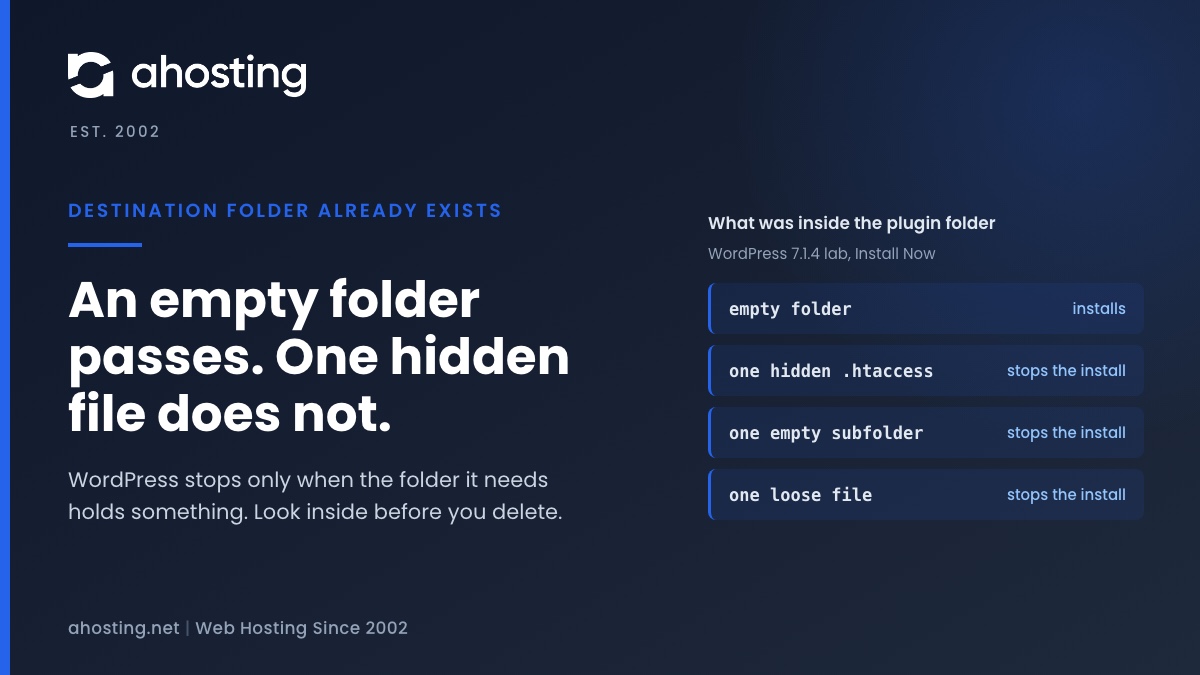
- Why an Empty Folder Passes and a Hidden File Fails: the Lab Results
- How WordPress Decides When Destination Folder Already Exists Appears
- Zip Upload Versus Install Now
- The Destination Folder Already Exists Decoder Table
- Find Your Destination Folder Already Exists Fix
- Fix Destination Folder Already Exists From the WordPress Dashboard
- Fix Destination Folder Already Exists in cPanel File Manager
- When Destination Folder Already Exists Keeps Coming Back
- What the Destination Folder Already Exists Lab Did Not Test
- Still Seeing Destination Folder Already Exists? Send the Exact Message
- Frequently Asked Questions: Destination Folder Already Exists
- What does the destination folder already exists error mean in WordPress in 2026?
- Why does WordPress say destination folder already exists when the plugin is not installed?
- Can I delete the folder safely when destination folder already exists appears in 2026?
- Does an empty folder cause the destination folder already exists error?
- Replace current with uploaded vs deleting the folder: which fixes destination folder already exists?
- Install Now vs zip upload: which shows the destination folder already exists error differently in 2026?
- How do I find hidden files that cause destination folder already exists in cPanel File Manager?
- Can AHosting support look at it when destination folder already exists keeps coming back?
- What should I send AHosting in 2026 when a plugin install fails with this folder error?
- Is destination folder already exists a WordPress problem or an AHosting server problem?
WordPress stops with Destination folder already exists when the folder it needs is already on disk and is not empty. An empty folder passes; a single hidden file does not. Read the full path in the message, look inside with hidden files shown, then delete or move the leftover and install again. For a zip of a plugin you already have, Replace current with uploaded clears the old folder first, so back up before you click it.
Installation Failed: Destination Folder Already Exists, Explained
WordPress shows Installation failed: Destination folder already exists. when it unpacks a plugin or theme and finds that the folder it needs is already on disk and is not empty. The message ends the install. Nothing is overwritten, and the folder that stopped it stays exactly as it was.
This guide is for the person who just clicked Install Now or uploaded a zip and got that line. It tells you which folder is in the way, why WordPress treats it as a stop, and the shortest safe fix for each case. Every behavior below was measured on a WordPress 7.1.4 test install, and every core line number comes from that source.
One finding changes the usual advice. An empty folder does not trigger the error, while a folder holding a single hidden file does. So “delete the folder” is right, but only after you have looked inside it.
What the message looks like
The full line reads Installation failed: Destination folder already exists. and is followed by the full path of the folder, for example a path ending in wp-content/plugins/classic-editor/. On a plugin install WordPress adds Plugin installation failed. below it. That path is the most useful part of the message because it names the folder you have to inspect. Copy it before you do anything else.

Where the Destination Folder Already Exists Check Lives in WordPress Core
The check sits in WP_Upgrader::install_package() in wp-admin/includes/class-wp-upgrader.php. In WordPress 7.1.4 the decision is on lines 699 to 707. Plugin installs, theme installs and zip uploads all pass through it, and the developer reference for the method documents the argument that controls it: abort_if_destination_exists, which defaults to true.
In plain words the logic has three branches. If the caller asked WordPress to clear the destination, the old folder is removed and the install continues. If not, and a folder is already there, WordPress reads its contents with dirlist() (line 703). An empty result lets the install continue. Anything else makes WordPress delete its own unpacked copy (line 706) and return the folder-exists error with the folder path attached (line 707).
Why a normal install never clears the folder
Both installers default to not overwriting. Plugin_Upgrader::install() sets overwrite_package to false at line 121 of class-plugin-upgrader.php, and the theme installer does the same at line 233 of class-theme-upgrader.php. The plugin installer then passes that value on as clear_destination (line 139). Updates are different: upgrade() asks for the clear at line 228, which is why updating a plugin never raises this error while installing the same plugin over a leftover does.
Why an Empty Folder Passes and a Hidden File Fails: the Lab Results
We reproduced the error on a clean WordPress 7.1.4 install, using the Classic Editor plugin and the Install Now button. The lab ran on one workstation with PHP 8.5.10 and a direct filesystem. It was not an AHosting server, and the results below describe WordPress core, not our hosting platform.
| What was inside wp-content/plugins/classic-editor | Result of Install Now | What it shows |
|---|---|---|
| No folder at all | Installed | The normal case |
| An empty folder | Installed | An empty listing does not stop WordPress |
| One loose file, leftover.txt | Destination folder already exists. | Any visible file counts |
| One hidden file, .htaccess | Destination folder already exists. | Hidden files count too |
| One empty subfolder, js | Destination folder already exists. | A subfolder is an entry, even when empty |
Two rows surprise people. The hidden .htaccess file counts because WordPress lists everything in the folder, while many file managers hide names that start with a dot. The same convention exists on the command line, where the ls manual says -a is needed to stop ignoring entries that start with a dot. After every failure the folder in the way was unchanged, so the error never damages what is already there.
How WordPress Decides When Destination Folder Already Exists Appears
The diagram below turns the three branches into one question: does the folder hold any entry at all? If it does, the install stops. If it does not, the install goes ahead, whether the folder was missing or merely empty.
Zip Upload Versus Install Now
A zip upload goes through the same check and then does something extra. In our 7.1.4 lab, uploading the same Classic Editor zip twice produced the error line followed by a screen headed This plugin is already installed. It held a table comparing the current and uploaded plugin name, version, author, required WordPress version and required PHP version, and a button labeled Replace current with uploaded. The code that draws it is in class-plugin-installer-skin.php, from line 192, and is marked as added in WordPress 5.5.0.
The screen appears only when WordPress can find a plugin in that folder. That skin calls get_plugins() (line 201) and gives up if nothing matches. WordPress recognizes a plugin by its main file, and the plugin header requirements say a header must contain at least the Plugin Name field. So a leftover folder with a stray text file gets the bare error and no button. We saw exactly that, and with a theme zip we saw This theme is already installed even though the stray folder was not a working theme.
If your upload fails earlier, before any unpacking, the message is a different one, and our guide to the missing temporary folder error covers it.
The Destination Folder Already Exists Decoder Table
Open the folder named in the error message with hidden files shown, find your row, and follow the fix. The rows are ordered from the most common situation to the least.
| What you find in the folder | What it usually is | First fix |
|---|---|---|
| A working copy, listed under Installed Plugins | The plugin is already installed | Update or delete it from the Plugins screen, or use Replace current with uploaded for a zip |
| Files that WordPress does not list as a plugin | Leftovers from an earlier attempt, an FTP upload or a restore | Back up, then delete or move the folder |
| Only hidden files such as .htaccess | A dotfile someone or something wrote there | Show hidden files, back up, delete or move the folder |
| Only an empty subfolder | A leftover directory structure | Delete or move the folder |
| Nothing, even with hidden files shown | Not this folder, or a stale listing | Re-read the full path, refresh, and check again |
| You cannot delete or move it | The folder belongs to another user or is locked | Open a ticket with the full path |
Find Your Destination Folder Already Exists Fix
Choose how you started the install and what the folder holds. The finder returns the matching row of the table above.
Destination Folder Already Exists Fix Finder
Fix Destination Folder Already Exists From the WordPress Dashboard
- Read the full path in the message and note the last folder name. That is the folder in the way.
- Open Plugins, then Installed Plugins, and search for that plugin. If it is listed, update it there, or deactivate and delete it, then install again.
- If you uploaded a zip and see This plugin is already installed, compare the versions in the table. Replace current with uploaded installs your zip over the old copy.
- Back up first. In our lab the Replace button removed every file in the old folder, including a note file we had added, so anything you stored inside a plugin folder is gone afterward.
- If you see the bare error with no comparison table, WordPress found no plugin in that folder. Continue with the File Manager steps below.
Fix Destination Folder Already Exists in cPanel File Manager
- Open File Manager, choose Settings, and select Show Hidden Files (dotfiles), as the cPanel File Manager documentation describes. Without this, a folder that holds only a dotfile looks empty.
- Browse to the folder named in the error message, usually under wp-content/plugins or wp-content/themes.
- Look at what it holds and compare it with the decoder table above.
- Create a folder outside wp-content, for example in your home directory, and move the leftover folder into it. The File Manager documentation lists Move and Rename among the toolbar actions.
- Run the install again. If it succeeds, delete the moved copy once you are sure you do not need it.
Delete the leftover instead of keeping it inside wp-content
Move the folder out rather than renaming it inside wp-content, because WordPress scans that directory for plugins and a renamed copy can still be listed. A leftover plugin is also a security question. One vendor write-up on inactive plugins makes the point that a plugin switched off still leaves its files on the server, where they can be requested directly. So when the leftover is truly unwanted, delete it.
When Destination Folder Already Exists Keeps Coming Back
A folder that refills after you empty it needs a closer look. This section lists things to check. We did not reproduce any of them, so treat them as places to look rather than diagnoses.
Check what keeps writing into the folder
Look at the folder again just before you retry. If it already holds files, something wrote them in the meantime. Possibilities include an FTP client that is syncing a local copy, a backup restore, or a plugin that creates its own data folder. The date and time on the files in File Manager show when they appeared.
Rule out space and permissions first
This error is not a disk or permission error. Those show other messages. If you see Could not create directory read our guide to that error, and if the account is near its file limit read the inode limit guide. If WordPress asks for connection details instead, the FTP credentials guide explains why.
What the Destination Folder Already Exists Lab Did Not Test
Four limits apply to everything above. First, the lab ran on one workstation with a direct filesystem, so FTP and SSH filesystem methods were not tested. Second, Install Now from the theme directory screen was not run, only a theme zip upload. Third, we did not test multisite, an interrupted install, a timeout partway through unpacking, or WP-CLI. Fourth, we read the cPanel documentation for the hidden files setting but did not click through File Manager.
We also make no claim about how any AHosting server is configured. The behavior described is WordPress core behavior on version 7.1.4.
Still Seeing Destination Folder Already Exists? Send the Exact Message
Once the folder is clear and the plugin installs, you are done. If the error keeps returning, the useful next step is a look at the account itself. AHosting runs web hosting and reseller hosting accounts on cPanel, and the steps in this guide are the same on both.
Open a ticket with the exact line including the full folder path, whether you used Install Now or a zip, and what the folder holds with hidden files shown. We will look at it with you.
Frequently Asked Questions: Destination Folder Already Exists
What does the destination folder already exists error mean in WordPress in 2026?
Specifically, it means WordPress unpacked your plugin or theme, found a folder with the same name already on disk, saw that the folder was not empty, and stopped. In WordPress 7.1.4 that decision sits in wp-admin/includes/class-wp-upgrader.php, lines 699 to 707. Nothing is overwritten, and the folder is left as it was.
Why does WordPress say destination folder already exists when the plugin is not installed?
In other words, the folder is on disk but WordPress does not list a plugin in it. In our lab a folder with one loose file, one hidden .htaccess file or one empty subfolder all stopped the install. A leftover from an earlier attempt, an FTP upload or a restore is a common way to get there.
Can I delete the folder safely when destination folder already exists appears in 2026?
Typically yes, after you look inside it. Check the full path in the message, show hidden files, and move anything you want to keep to a folder outside wp-content. Then delete the leftover and run the install again. If a working copy is listed under Installed Plugins, update or delete it from the Plugins screen instead.
Does an empty folder cause the destination folder already exists error?
Indeed it does not. In our WordPress 7.1.4 lab an empty plugin folder installed normally. The check reads the folder contents and only stops when the result is not empty, so the folder you are looking at may be a different one from the path in the message, or it may hold hidden files that your file manager is not showing.
Replace current with uploaded vs deleting the folder: which fixes destination folder already exists?
However, they do different things. Replace current with uploaded appears only for a zip upload of a plugin that WordPress already lists, and in our lab it removed every file in the old folder before installing. Deleting the folder by hand gives the same clean result for any case, including leftovers WordPress does not recognize. Back up either way.
Install Now vs zip upload: which shows the destination folder already exists error differently in 2026?
Notably, the zip upload adds a screen. When WordPress finds a valid plugin in the folder it shows This plugin is already installed, a comparison table and a Replace current with uploaded button. Install Now from the plugin directory shows the plain error and the words Plugin installation failed. Both use the same underlying check.
How do I find hidden files that cause destination folder already exists in cPanel File Manager?
Specifically, open File Manager, choose Settings, and select Show Hidden Files (dotfiles), as the cPanel documentation describes. Then open the folder named in the error message. A file such as .htaccess counts as content for WordPress even though File Manager hides it by default, so the folder looked empty until you changed that setting.
Can AHosting support look at it when destination folder already exists keeps coming back?
In practice, open a ticket. Include the exact message with the full folder path, whether you used Install Now or a zip upload, and what the folder holds with hidden files shown. We will look at it with you. A folder that refills after you empty it needs a closer look than a one-off leftover.
What should I send AHosting in 2026 when a plugin install fails with this folder error?
Overall, four things: the exact line including the path, the name and version of the plugin or theme, the method you used, and the time of the attempt. That lets us tell a leftover folder, a permission problem and a disk limit apart without guessing. Please do not send a password in the ticket.
Is destination folder already exists a WordPress problem or an AHosting server problem?
Overall, it is mostly a WordPress result. The check is in WordPress core and it reports what it found in the folder. As a result, a disk limit or a permission problem shows a different message, such as Could not create directory. We cannot say from the message alone how a given account got the leftover, so ask us if it repeats.
Related posts:
 Installation Failed: Could Not Create Directory? Find the Folder, Then the Cause
 Missing a Temporary Folder: Why WP_TEMP_DIR Won’t Fix This WordPress Upload Error
 The All-Inclusive Guide To Securing Your WordPress Installation
 Failed to Open Stream in WordPress: What the Message Is Really Telling You