
- Your PHP Installation Appears to Be Missing the MySQL Extension: What the Message Says
- What WordPress Checks Before It Prints the Missing the MySQL Extension Message
- Why Hosting Accounts Show the Missing the MySQL Extension Message
- Missing the MySQL Extension or Something Else: Check Your Message
- How to Fix the Missing the MySQL Extension Message in cPanel
- What Does Not Fix the Missing the MySQL Extension Message
- After the Fix: What Our Team Can Look at With You
- Frequently Asked Questions: Missing the MySQL Extension
- Which PHP extensions does WordPress require to run in 2026?
- Does the missing the MySQL extension message mean my database or posts were deleted?
- Can a PHP version change in cPanel at AHosting cause the missing the MySQL extension message in 2026?
- Missing the MySQL extension vs Error establishing a database connection: which one is it?
- mysqli vs nd_mysqli: which extension set should an account use for WordPress in 2026?
- Will reinstalling WordPress fix the missing the MySQL extension error on my site?
- How can I check whether mysqli is loaded without SSH on AHosting shared hosting?
- Does the missing the MySQL extension error also appear on wp-login.php and wp-admin?
- Why would a site show the missing the MySQL extension message after moving to AHosting from another host?
- Can the missing the MySQL extension message appear on PHP 7.4 as well as PHP 8.4?
The missing the MySQL extension message means PHP cannot find the function mysqli_connect, so WordPress stopped before it touched your database. Check the PHP version and the extension list for the account, choose one MySQL driver set, and reload. Plugins, themes and wp-config.php are not the cause.
Your PHP Installation Appears to Be Missing the MySQL Extension: What the Message Says
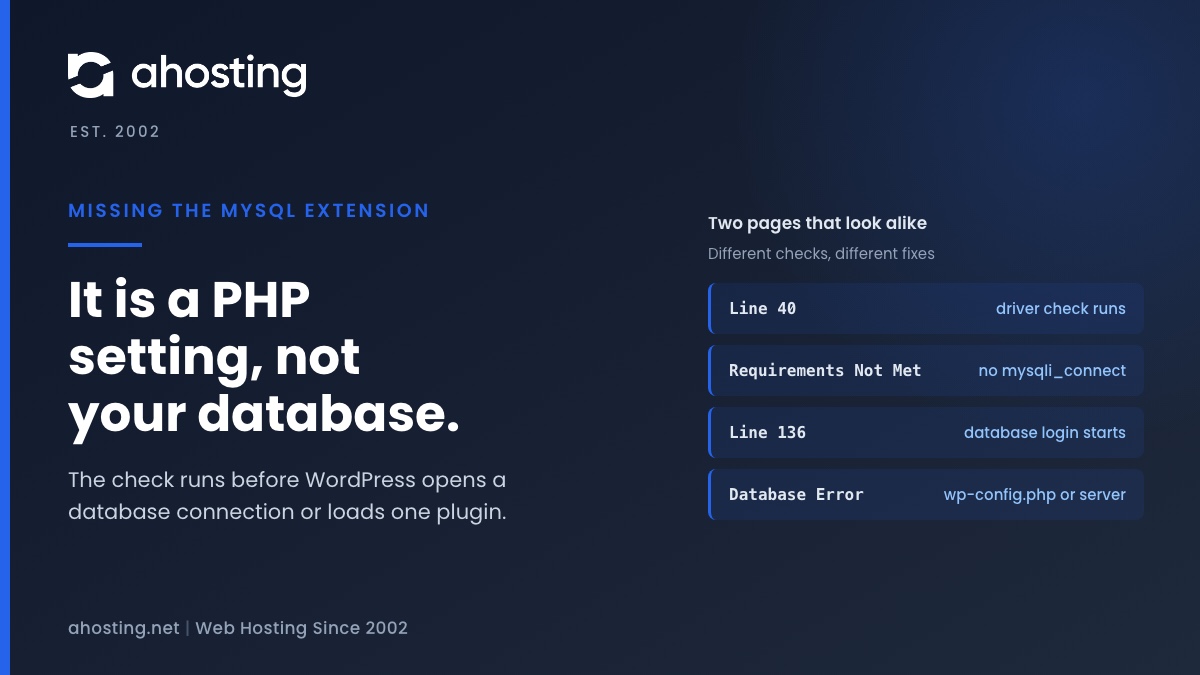
When a WordPress site answers every address with “Your PHP installation appears to be missing the MySQL extension which is required by WordPress,” the page title reads Requirements Not Met and the HTTP status is 500. Visitors, the login page and wp-admin all get the same page. The missing the MySQL extension check has failed: PHP could not find a function called mysqli_connect, so WordPress stopped before it tried to reach the database.
Two things follow from that. First, your data is not involved, because the check runs before WordPress opens a database connection, so a post, an order or a user row cannot cause it. Second, no plugin or theme is involved either, because none of them has loaded yet. Deactivating plugins, renaming the theme folder or restoring a backup will not change the page.
The cause is almost always on the PHP side of the account. The PHP version was changed, an extension was unticked, or the site landed on a PHP build that does not carry the MySQL driver. This guide covers what the check does, why it happens on cPanel and CloudLinux accounts, how to prove which case you have in about five minutes, and what does not help. If your page is blank or says “critical error” instead, that is a different fault, covered in our white screen of death guide.
What WordPress Checks Before It Prints the Missing the MySQL Extension Message
The message comes from one function, wp_check_php_mysql_versions() in wp-includes/load.php. In WordPress 7.1.4 it is called on line 40 of wp-settings.php, which makes it one of the first things WordPress does after wp-config.php loads. It runs three tests in order: the PHP version against the minimum of 7.4, the extensions listed in $required_php_extensions, which holds only json and hash, and then the MySQL driver.
The driver test is short. WordPress prints the message when mysqli_connect does not exist as a function and no file named wp-content/db.php is present. A database drop-in can replace the MySQL layer entirely, so core does not insist on the driver when one is installed. The page itself is produced by wp_die() with the error code mysql_not_found and the title Requirements Not Met.
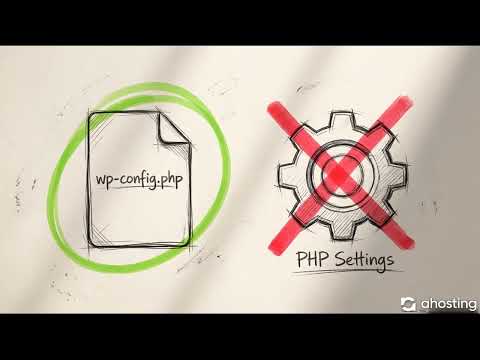
The test asks whether a function exists, not whether an extension file sits on disk. Anything that removes that function therefore triggers the page, including a PHP setting that has nothing to do with extensions. A later section shows one such case, which we reproduced in a lab.
Missing the MySQL Extension vs Error Establishing a Database Connection
These two pages are confused constantly, and they need different fixes. We produced both on stock WordPress 7.1.4 running on PHP 8.5.10, on one workstation rather than a hosting server, and recorded what each returned.
| Missing the MySQL extension | Error establishing a database connection | |
|---|---|---|
| Page title | Requirements Not Met | Database Error |
| Message | Your PHP installation appears to be missing the MySQL extension which is required by WordPress. | Error establishing a database connection |
| HTTP status in the lab | 500 | 500 |
| Same on the home page, wp-login.php and wp-admin | Yes, one identical 2,843-byte page | Yes, same message on all three |
| Raised at | wp-settings.php line 40 | require_wp_db(), called on line 136 |
| Line written to the PHP error log in the lab | None | None |
| Question it asks | Does the function mysqli_connect exist? | Can WordPress log in with the wp-config.php values? |
| Where the fix lives | PHP version or extension list for the account | wp-config.php values or the database server |
If your page says Database Error, stop here. That is a credentials or database-server problem, and the steps below will not help.
Where the Check Sits in the WordPress Start-Up Order
The diagram below shows the order for 7.1.4 with the line numbers we read. The Requirements Not Met page can only appear at step 2, which is why nothing you change in plugins, themes or the database moves it.
Why Hosting Accounts Show the Missing the MySQL Extension Message
On shared hosting the PHP build is chosen per account, so the usual triggers are changes someone made in the control panel rather than damage to the site. The common ones are a PHP version switch, an edited extension list, and a restore or migration that lands a site on a different PHP setup than it had before.
On AHosting shared servers the PHP versions come from the cPanel MultiPHP Manager, where ea-php56, ea-php70 to ea-php74 and ea-php80 to ea-php85 are available, and the CloudLinux builds are reached through Select PHP Version. The two routes do not offer the same extensions: Imagick, for example, exists only in the CloudLinux builds. A switch between them can therefore change what a site can load.
We have not reproduced this message on an AHosting server, and this guide does not claim it is common there. The check behaves the same everywhere, which is why the same causes show up in vendor documentation. What follows relies on that documentation and on the lab.
The nd_ and Non-nd Extension Sets Cannot Be Mixed
CloudLinux documents this exact message in its PHP Selector knowledge base, in an article called “Missing MySQL extension or MySQL_ND vs MySQL”. It says the symptom can appear while the customer has the MySQL PHP modules enabled. The reason is that two driver sets exist and they are mutually exclusive: mysqlnd with nd_mysqli and nd_pdo_mysql, or mysqli with pdo_mysql. Selecting both, or mixing them, breaks the connection from PHP to MySQL.
The article’s suggested fix is to switch from one set to the other, and it names /etc/cl.selector/php.extensions.conflicts as the file that lists incompatible extensions. It showed an update date about eight months before we read it on 2026-11-07. The PHP manual adds that from PHP 8.2.0 mysqlnd is the only client library for mysqli. Read together, the practical rule is to choose one set and to expect the nd_ set to be the one that matches a recent PHP version. Whether your Select PHP Version list shows both sets is something only that screen can tell you.
A disable_functions Line Produces the Same Message
A second route needs no missing extension at all. The WordPress test calls function_exists, and the PHP directive disable_functions makes a listed function behave as if it did not exist. In the lab we started PHP with disable_functions=mysqli_connect while the mysqli extension was fully loaded. WordPress printed the Requirements Not Met page on the home page, wp-login.php and wp-admin, each a 2,843-byte HTTP 500.
The PHP manual lists disable_functions as INI_SYSTEM only, so it is set in server-level configuration and not in a .user.ini or .htaccess file that a site owner edits. We do not know that any hosting account carries such a line. We show it because it explains why the extension list can look correct while the page still appears, and why that case is one to raise with your host rather than hunt for in site files.
Other Applications Name Different Modules
The same missing driver reads differently in other software, which matters when one account hosts more than one application. Joomla’s technical requirements list mysqlnd or pdo_mysql or pdo_pgsql and do not name mysqli. Nextcloud’s Preparing PHP page lists pdo_mysql for MySQL and MariaDB. Each application tests for the module it uses, so one can fail while another on the same account keeps working.
Missing the MySQL Extension or Something Else: Check Your Message
Four different start-up pages look alike at a glance. Pick the one on your screen and what changed just before it appeared. The checker below repeats what the source says for each page and gives the next step.
Missing the MySQL Extension Message Checker
Jump to the fix stepsHow to Fix the Missing the MySQL Extension Message in cPanel
Work in this order, because each step produces evidence for the next. Nothing here edits WordPress files, and every step can be undone.
Step 1: Prove What PHP Loads for This Site
Create a file named mysqli-check.php in the site’s folder with the lines below, open it in a browser, then delete it. It asks PHP the same question WordPress asks, so a no on the second line is the diagnosis.
<?php
header('Content-Type: text/plain');
echo 'PHP version: ', PHP_VERSION, "\n";
echo 'mysqli_connect exists: ', function_exists('mysqli_connect') ? 'yes' : 'no', "\n";
echo 'mysqlnd loaded: ', extension_loaded('mysqlnd') ? 'yes' : 'no', "\n";
If the second line says yes and the site still shows Requirements Not Met, the file you opened and the files WordPress runs may be on different PHP settings. Check the domain and the folder, because add-on domains and subfolders can run their own PHP version in MultiPHP Manager. The Site Health notice about recommended modules is a separate, softer test and does not print this page.
Step 2: Match the Extension List to One Driver Set
Open Select PHP Version, then the extensions list for the PHP version in use. Tick one driver set and leave the other unticked, as in the table. Save, reload the check file, then reload the site.
| Set | Extensions | Rule |
|---|---|---|
| mysqlnd set | mysqlnd, nd_mysqli, nd_pdo_mysql | CloudLinux pairs it with PHP 5.3 to 7.1 and later; the PHP manual calls it the only option from PHP 8.2.0 |
| Classic set | mysqli, pdo_mysql | CloudLinux pairs it with PHP 4.4 to 5.3; the PHP manual says it is not supported from PHP 8.2.0 |
| Both ticked | Any mix of the two | Mutually exclusive, per CloudLinux: pick one set only |
If the list offers no MySQL driver at all, stop there, because that is a question about how the server build was made. CloudLinux notes that after a change an administrator may need to refresh the account’s environment on the server; that is done by the host with root access, not from cPanel.
Step 3: Switch Versions and Compare if Step 2 Does Not Help
In MultiPHP Manager, set the domain to a PHP version that you know worked before the problem began, then reload the site and the check file. If the site recovers, the newer version’s extension list is the cause, and that comparison is the evidence to give your host. Keep the older version until the list is fixed.
Do not go below PHP 7.4. WordPress 7.1.4 declares 7.4 as its minimum and prints a different message under it, which our guide to the PHP version error explains. For choosing a version in the first place, see the best PHP version for WordPress on cPanel.
What Does Not Fix the Missing the MySQL Extension Message
Most search results for this message list fixes that work on a machine you fully control and do nothing on a hosting account. These are the ones to skip.
- Reinstalling WordPress core or deleting plugins. The check is on line 40 of
wp-settings.php, and plugins do not load until line 582. - Editing the database name, user, password or host in
wp-config.php. Those values are not used until line 136, and a wrong value gives the other page. - Repairing or optimizing the database. The check fails before any connection is attempted.
- Adding
extension=mysqlito a php.ini in the site folder. On our shared servers PHP does not read a php.ini placed in a site folder, though it does read.user.ini, so extensions are chosen in the selector instead.
One more trap is that the page leaves no trace in the PHP error log. In the lab, with logging switched on, neither this page nor the database page wrote an error-log entry, and only the web server’s access line recorded the 500. A clean error_log therefore does not mean the problem is somewhere else.
After the Fix: What Our Team Can Look at With You
If the check file still says no after step 3, or the extensions list offers no MySQL driver, open a ticket with the exact text on the page and the PHP version shown in MultiPHP Manager, and we will look at it with you.
Plans differ in how much of the PHP setup you control. Compare AHosting WordPress hosting plans, web hosting plans and VPS hosting plans to see what each one includes before you decide where a site should run.
Frequently Asked Questions: Missing the MySQL Extension
Which PHP extensions does WordPress require to run in 2026?
Specifically, WordPress 7.1.4 lists two required extensions, json and hash, and it needs PHP 7.4 or newer. Separately, it needs a working MySQL driver: it stops with the Requirements Not Met page when the function mysqli_connect does not exist and no wp-content/db.php drop-in is present. Everything else, such as gd, curl and mbstring, is recommended or needed by plugins rather than by the start-up check.
Does the missing the MySQL extension message mean my database or posts were deleted?
Fortunately, no. The check runs before WordPress opens any database connection, so it cannot read, change or damage your content. The message only reports that PHP cannot find the MySQL driver function, and the database stays exactly as it was until the driver is available again.
Can a PHP version change in cPanel at AHosting cause the missing the MySQL extension message in 2026?
That said, a different PHP build can carry a different extension list, so a version change is a possible trigger. We have not reproduced the message on an AHosting server and we do not claim it is common here. If it appears right after a change, switch the domain back in MultiPHP Manager, confirm the site recovers, and open a ticket with the exact text and the version shown.
Missing the MySQL extension vs Error establishing a database connection: which one is it?
In contrast, the two pages come from different checks. Requirements Not Met means PHP has no mysqli_connect function, and the fix is in the PHP version or the extension list. Database Error with the text Error establishing a database connection means the driver exists but the login or the database server failed, and the fix is in wp-config.php or the database.
mysqli vs nd_mysqli: which extension set should an account use for WordPress in 2026?
Notably, the two sets are mutually exclusive in the CloudLinux PHP Selector, so the answer is one set, never both. The PHP manual says mysqlnd is the only client library for mysqli from PHP 8.2.0, so on a recent version the nd_ set, which is mysqlnd with nd_mysqli and nd_pdo_mysql, is the one that matches. Check which names your own Select PHP Version list offers before changing anything.
Will reinstalling WordPress fix the missing the MySQL extension error on my site?
In fact, no. The check runs on line 40 of wp-settings.php, before plugins, themes or the database are touched, so reinstalling core files, deactivating plugins or restoring a backup leaves the PHP function missing and the same page returns. The fix is in the PHP version or the extension list for the account.
How can I check whether mysqli is loaded without SSH on AHosting shared hosting?
Specifically, upload a short PHP file that prints the result of function_exists with mysqli_connect, open it in a browser, then delete it. That is the same question WordPress asks, so a no is the diagnosis. The extensions list in Select PHP Version shows related information without a file, for the PHP version you have chosen.
Does the missing the MySQL extension error also appear on wp-login.php and wp-admin?
Indeed, in our lab the same 2,843-byte page came back with HTTP 500 from the home page, wp-login.php and wp-admin. Because the check runs before any cookie or user code, being logged in as an administrator changes nothing. A site that shows the home page but fails only in wp-admin has a different problem.
Why would a site show the missing the MySQL extension message after moving to AHosting from another host?
In practice, files move but PHP settings do not, so a site that worked on the old host can meet a different PHP build or extension list on the new account. Compare the PHP version and the extension list on both, and use the check file from step 1 to see what the new account actually loads.
Can the missing the MySQL extension message appear on PHP 7.4 as well as PHP 8.4?
Indeed, the test is not tied to a PHP version: the same function_exists check runs on every PHP version WordPress 7.1.4 supports, from 7.4 upward. What changes between versions is which extensions a given build or account carries, not the check itself.
Related posts:
 Installation Failed: Destination Folder Already Exists in WordPress: What It Means and How to Fix It
 Request Header or Cookie Too Large: What the 400 Error Means (2026)
 The Active Theme Is Broken. Reverting to the Default Theme: What It Means (2026)
 Missing a Temporary Folder: Why WP_TEMP_DIR Won’t Fix This WordPress Upload Error