- What the WordPress PHP Version Error Actually Is (And Why Your Whole Site Is Down)
- Which WordPress PHP Version Error Are You Looking At?
- The Number in the WordPress PHP Version Error Is Not the Number You Want
- How to Fix the WordPress PHP Version Error in cPanel
- What Breaks After You Raise PHP (And What Doesn't)
- When You Cannot Change PHP – and What That Says About Your Host
- A Practical Checklist: Before, During, and After the PHP Switch
- Frequently Asked Questions About the WordPress PHP Version Error
- How do I fix the WordPress PHP version error on shared hosting in 2026?
- WordPress PHP version error vs the white screen of death: what is the difference?
- PHP 8.3 vs PHP 8.4 for WordPress in 2026: which version should I choose?
- Does the WordPress PHP version error affect AHosting customers running ea-php81 on shared plans?
- Why does WordPress still show the old PHP version after I changed it in cPanel?
- Which PHP extensions does WordPress 7.1 actually require in order to boot?
- What is the recommended PHP version for WordPress, and is it the same as the minimum?
- Can I clear the WordPress PHP version error without losing my AHosting memory limit?
- How does AHosting help resolve a WordPress PHP version error in 2026 without downtime?
- What does the WordPress PHP version error mean when MySQL is named in the message?
The WordPress PHP version error is a pre-boot fatal, not an admin notice. Raise PHP in cPanel to clear it, but do not stop at the number in the message: WordPress enforces 7.4 and recommends 8.3 or greater.
The WordPress PHP version error is the one that gets pasted into Google verbatim, semicolons and all, because there is nothing else left to do with it. One line of text, no dashboard, no menu, no theme. If you searched the exact string and landed here, your site is returning an HTTP 500 and the fix takes about ninety seconds once you know which of four similar messages you are actually looking at.
That last part is where most advice goes wrong. A WordPress PHP version error is not one message but four, and they mean different things, fire in different places, and need different responses. Worse, the version number printed in the message is not the version you should move to. This guide covers all of it, in the order an outage actually forces you to work.
What the WordPress PHP Version Error Actually Is (And Why Your Whole Site Is Down)
The WordPress PHP version error means the PHP interpreter on your server is older than the floor WordPress will start on, so WordPress refuses to boot at all. It is not a warning, not a notice, and not something you can dismiss. Every request to every URL on the site gets the same sentence and nothing else.
The exact line of WordPress that kills the request
A WordPress PHP version error comes from a function called wp_check_php_mysql_versions(), which lives in wp-includes/load.php and runs before almost anything else. It compares PHP_VERSION against a value WordPress sets in wp-includes/version.php. If PHP is older, WordPress sends a 500 Internal Server Error header, prints the sentence, and calls exit. Nothing after that point in the boot sequence ever runs, which is why the page has no styling, no header, and no way back in.
That detail matters more than it sounds. Because the failure happens before plugins, themes, and the admin area are loaded, none of the usual recovery routes exist. You cannot deactivate a plugin, you cannot switch themes, and you cannot reach wp-admin. The only surfaces still available are your hosting control panel, SFTP, and the file system.
Why “check Site Health” is advice for a different problem
Search results for this error are full of instructions that begin inside the WordPress dashboard. Open Tools, then Site Health, then read the PHP recommendation. That advice is written for the version notice WordPress shows when the site is working, not for the fatal that fires when it is not. If you can reach Site Health, you are not seeing the pre-boot error, and you have more time than this guide assumes.
Holding that distinction is worth the effort, because it is also the difference between an urgent fix and a scheduled one. A live site that is down is an emergency you resolve in the panel. A dashboard notice is a maintenance task you can plan around a backup and a staging test. Our white screen of death recovery guide covers the adjacent case where WordPress boots and then fails silently.

Which WordPress PHP Version Error Are You Looking At?
Four distinct strings in WordPress mention PHP versions, and they are routinely treated as one problem. They are not. The table below is the WordPress PHP Error Map: it names each message, the file it is emitted from, when it fires, and whether your site is currently serving traffic. Read your message against it before you change anything.
| The message you are seeing | Emitted from | When it fires | Is the site up? |
|---|---|---|---|
| Your server is running PHP version X but WordPress Y requires at least Z. | wp-includes/load.php | Every request, before WordPress boots | No – HTTP 500 on every URL |
| WordPress X requires the json PHP extension. | wp-includes/load.php | Every request, before WordPress boots | No – HTTP 500 on every URL |
| You cannot update because WordPress X requires PHP version Y or higher and MySQL version Z or higher. | wp-admin/update-core.php, upgrade.php, install.php | Inside wp-admin, when you try to update or install | Yes – only the update is blocked |
| The update cannot be installed because WordPress X requires PHP version Y or higher and MySQL version Z or higher. | wp-admin/includes/update-core.php | During an update that has already started | Yes – the update aborts, the old version keeps running |
If your message is one of the bottom two, close this section and breathe. Your site is serving visitors normally and you are looking at a blocked upgrade, which is a different job with a different urgency. Those bottom two rows also name MySQL alongside PHP, and the database half is the one people miss: WordPress checks both in the same place, so a message that mentions PHP may be failing on the other requirement.
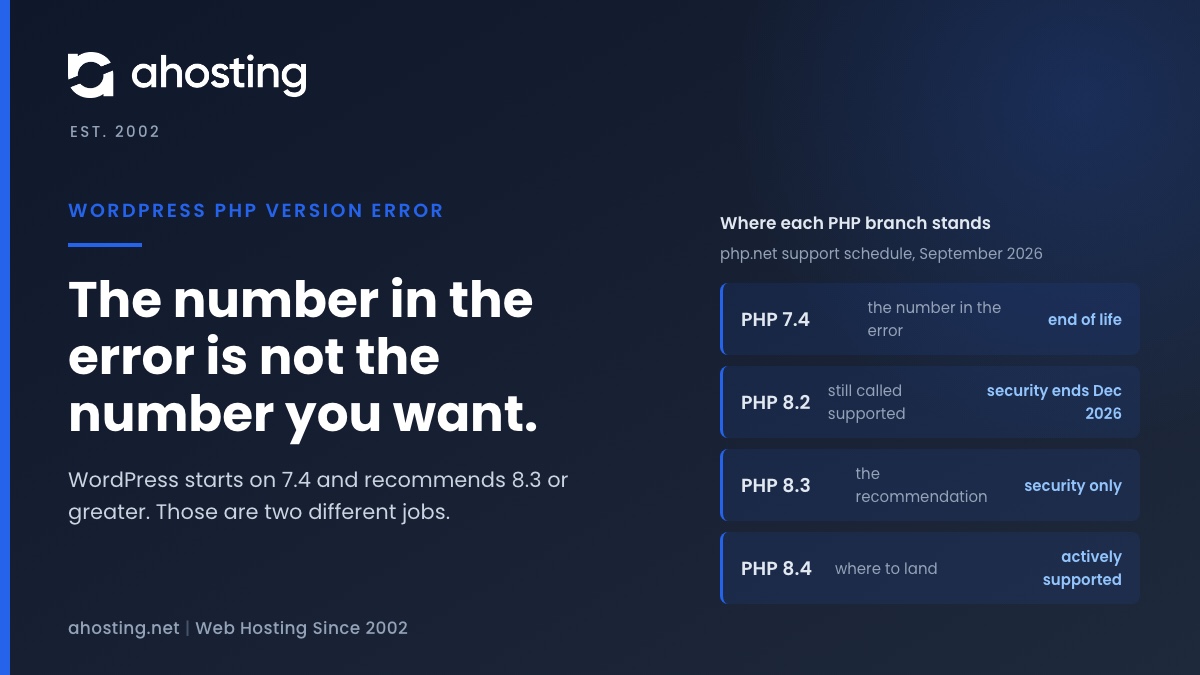
The Number in the WordPress PHP Version Error Is Not the Number You Want
Here is the part almost nobody says out loud. The version a WordPress PHP version error prints is the absolute floor it will start on, and that floor is a version that stopped receiving security fixes years ago. Clearing the error by moving to exactly that number ends your outage and leaves you running unsupported PHP, which is a different problem you have now agreed to have.
What WordPress requires versus what WordPress recommends
WordPress 7.1 sets its minimum to PHP 7.4. That is the number in the error. On its server requirements page, WordPress recommends PHP 8.3 or greater, alongside MariaDB 10.11 or MySQL 8.0, and states plainly that while WordPress will still run on the older baseline, those versions have reached end of life and may expose your site to security vulnerabilities. Two numbers, two purposes: one keeps the software from starting, the other keeps it defensible.
So the target of a WordPress PHP version error fix is not the number in the message. Aim for the recommendation and land above both. If you want the reasoning behind picking a specific modern branch rather than the newest available, our guide to choosing a PHP version in cPanel works through the tradeoff in detail.
Where each PHP branch stands right now
PHP publishes a fixed support calendar: two years of active support, then a third year of security-only fixes, then nothing. The table below is that calendar as it stands today, taken from the PHP project support schedule. Anything not listed on that page, including PHP 8.1 and everything below it, receives no fixes from the project at all.
| PHP branch | Active support until | Security support until | What that means for a WordPress site today |
|---|---|---|---|
| 8.1 and older | Ended | Ended | No project fixes at all. Move off it. |
| 8.2 | 2024-12-31 | 2026-12-31 | Security fixes only, and they stop this December. |
| 8.3 | 2025-12-31 | 2027-12-31 | Security fixes only. Clears the WordPress recommendation. |
| 8.4 | 2026-12-31 | 2028-12-31 | Actively supported. The sensible default today. |
| 8.5 | 2027-12-31 | 2029-12-31 | Newest branch. Fine once plugins confirm support. |
A quick way to keep this straight later is the PHP end-of-life calendar, which renders the same dates as a timeline. Note the shape of the trap: 8.2 is still described as supported in a lot of writing, and its security window closes in December. Choosing a branch that is merely alive today buys you very little.
How to Fix the WordPress PHP Version Error in cPanel
With the target version settled, clearing a WordPress PHP version error is short work. On any cPanel host, including every AHosting shared plan, the PHP version is set per domain rather than per account, so you can move one site without touching the others. Take a backup first if the account has one available, then work through the two steps below in order.
Change the version in MultiPHP Manager
Log in to cPanel and open MultiPHP Manager under the Software section. You will see a list of every domain and subdomain on the account with its current PHP version beside it. Select the checkbox for the affected domain, choose 8.4 from the PHP Version dropdown, and apply. The change takes effect on the next request, so reload the site immediately and check whether the message is gone.
One setting to avoid here is inherit, which tells the domain to follow the server default. Inherit is convenient until the server default moves underneath you, and it also prevents you from enabling PHP-FPM on that domain. Choose an explicit version so the domain keeps the version you picked regardless of what changes at the server level later.
When the version changes and nothing happens – the AddHandler trap
If MultiPHP Manager reports the new version and the site still returns the same WordPress PHP version error, the panel is not being obeyed. The usual cause is an AddHandler line in the .htaccess file at your document root that names a specific old PHP handler. Directory-level Apache configuration takes precedence over the panel setting, so the panel is telling you one thing while the web server does another.
Open .htaccess over SFTP or the cPanel File Manager and look for a line naming a handler such as ea-php74 or ea-php56. Comment it out with a hash at the start of the line, save, and reload. This is worth checking before anything else, because it explains the majority of cases where a correct version change appears to do nothing at all, and it is invisible from inside WordPress.
What Breaks After You Raise PHP (And What Doesn’t)
Your site is back. Now comes the part the outage hid from view, because raising a PHP version changes the runtime underneath every plugin and theme on the site. Two things are commonly feared here, one of which is almost never the problem, and one genuine change that is easy to miss because nothing announces it.
The extension fatal almost nobody hits
WordPress core requires exactly two PHP extensions to boot: json and hash. Both have been compiled into PHP by default for years, so the missing extension fatal listed in the error map above is rare in practice. If somebody tells you that switching handlers will strip the extensions WordPress needs, they are describing plugin requirements rather than core ones.
The real post-switch failures come from plugin and theme code that has not kept up with the language. Jumping from PHP 8.1 to 8.2 or later, for example, triggers the deprecation described in the PHP RFC on dynamic properties, which raises a warning for every undeclared property an older plugin sets. It still works, but it fills logs, and the same code becomes a hard error in PHP 9. The rest of the 8.2 changes are documented in the PHP 8.2 deprecation notes.
The memory limit that moved when you weren’t looking
This is the change nothing tells you about. On a cPanel host, PHP memory_limit is a property of the handler, not of the site, so selecting a different PHP version can hand you a different per-request memory ceiling. On AHosting shared plans the three handlers we run are not configured identically, and the spread is wide enough to turn a working site into an intermittently failing one.
| Handler | PHP memory_limit | Community support status | What changes if you move here |
|---|---|---|---|
| ea-php84 | 256 MB | Active support until 2026-12-31 | Current default. Halves the ceiling coming from ea-php83. |
| ea-php83 | 512 MB | Security fixes until 2027-12-31 | The highest ceiling of the three handlers. |
| ea-php81 | 128 MB | End of life since 2025-12-31 | The lowest ceiling, on an unsupported branch. |
Read that table in the direction you are actually moving. A site moving from ea-php83 to ea-php84 gains a supported branch and loses half its memory ceiling in the same click, which surfaces later as an exhausted memory error on a heavy admin page rather than as anything connected to the version change. Check phpinfo once the switch is done, and see our guide to WordPress memory limit errors for why raising the value in wp-config often achieves nothing.
One more distinction worth keeping. The PHP memory_limit is not the same thing as the container memory cap your plan enforces, and raising the first above the second buys you nothing at all. If your errors after a handler change look like resource exhaustion rather than a version problem, our diagnostic tree for 500, 503, and resource limit errors separates the three.
Check Your PHP Version Against WordPress
Pick the PHP version your server reports. This tells you whether WordPress will boot, whether the branch is still patched, and what to do next.
Select a version to see where you stand.
When You Cannot Change PHP – and What That Says About Your Host
Sometimes MultiPHP Manager is not there, or the versions offered stop below what WordPress recommends, or the setting is locked to the server default. That is a real constraint and worth naming honestly, because at that point the version problem has stopped being a WordPress problem and become a hosting one.
There are two legitimate ways out. If the blocker is application code rather than the panel, commercial long-term support for end-of-life PHP branches exists and covers 7.2 through 8.1, which buys time to rewrite rather than permission to stop. If the blocker is the platform, the answer is a platform where the choice is yours to make.
For context on what that looks like: our shared platform runs CloudLinux 9 and LiteSpeed with ea-php80 through ea-php85 selectable per domain from MultiPHP Manager, and older branches available for legacy applications that genuinely need them. If deciding between handlers is not work you want to own at all, that is exactly the decision our managed WordPress hosting plans make for you, and the root account is yours to hold on a VPS if you would rather own the handler yourself. The tuning above is the part we take off your hands.
Whichever route you take, moving hosts to escape a PHP ceiling is a planned job rather than an emergency one. Our WordPress hosting requirements guide lists what to check before you commit, and a WordPress PHP version error is a poor reason to rush that decision.
A Practical Checklist: Before, During, and After the PHP Switch
Work through this in order. Sequence matters here because two of the steps are things people only discover they skipped once the site is already back up and quietly misbehaving.
- Read the exact message against the error map above and confirm whether your site is actually down or merely blocked from updating.
- Take a backup, or confirm one exists from within the last day, before touching the handler.
- Set the target version to 8.4 in MultiPHP Manager, per domain, and avoid the inherit setting.
- Reload the site immediately. If the message survives, open .htaccess and remove any AddHandler line naming an old handler.
- Check phpinfo and confirm both the running version and the memory_limit, which may have changed with the handler.
- Load a few heavy pages, including the admin dashboard and one editor screen, rather than only the homepage.
- Check the error log for new deprecation warnings from plugins and themes, and update anything that is producing them.
- If a plugin fatals on the new branch, roll the handler back to the previous version, then fix the plugin rather than living on the old runtime.
The last item is the one worth arguing about. Rolling back is a legitimate move under time pressure, but it is a pause and not a resolution, because the branch you rolled back to is the one that stops receiving fixes. Set a date to come back to it while the details are still fresh.
Frequently Asked Questions About the WordPress PHP Version Error
How do I fix the WordPress PHP version error on shared hosting in 2026?
Specifically, open cPanel, go to MultiPHP Manager, select the affected domain, and set the PHP version to 8.3 or 8.4. The site returns as soon as the handler changes. If the message survives the change, an AddHandler line in .htaccess is overriding the panel, and that line has to be removed before anything else will work.
WordPress PHP version error vs the white screen of death: what is the difference?
In contrast to a white screen, the WordPress PHP version error prints an actual sentence. That difference tells you where the failure happened. The version error is thrown by wp-includes/load.php before WordPress boots, so nothing else has run yet. A white screen means WordPress booted and then something later, usually a plugin or theme, fataled with display_errors off.
PHP 8.3 vs PHP 8.4 for WordPress in 2026: which version should I choose?
Typically, choose 8.4. Both clear WordPress recommended baseline of 8.3, but 8.3 left active support on 2025-12-31 and now receives security fixes only, while 8.4 stays in active support until 2026-12-31 and is patched for security until 2028-12-31. Pick 8.3 only when a plugin you cannot replace is not yet 8.4 compatible.
Does the WordPress PHP version error affect AHosting customers running ea-php81 on shared plans?
Notably, no. PHP 8.1 is far above the 7.4 floor WordPress enforces, so the error never fires on ea-php81. The reason to leave that handler is different: PHP 8.1 fell out of community security support on 2025-12-31, and on AHosting shared plans ea-php81 also carries a 128 MB memory_limit, the lowest of the three handlers we run.
Why does WordPress still show the old PHP version after I changed it in cPanel?
In practice, an AddHandler directive in your .htaccess is pinning the old handler for that directory, and directory-level configuration wins over the panel setting. Open the .htaccess in the document root, comment out or delete the AddHandler line naming the old version, and reload. This is the single most common reason a correct MultiPHP Manager change appears to do nothing.
Which PHP extensions does WordPress 7.1 actually require in order to boot?
Specifically, two: json and hash. Both are compiled into PHP by default on every modern build, which is why the missing extension fatal is rare in practice. Everything else people describe as required, including mysqli, curl, gd, and mbstring, is required by plugins, themes, or particular features rather than by the core boot sequence.
What is the recommended PHP version for WordPress, and is it the same as the minimum?
In fact they are different numbers, and confusing them is the whole trap. WordPress enforces a minimum of PHP 7.4, which is the number printed in the error. WordPress separately recommends PHP 8.3 or greater on its requirements page. Satisfying the minimum clears the outage; only the recommendation leaves you on PHP that is still receiving fixes.
Can I clear the WordPress PHP version error without losing my AHosting memory limit?
Ultimately yes, but check the number afterward rather than assuming it carried over. On AHosting shared plans the per-request memory_limit travels with the handler: ea-php84 ships 256 MB, ea-php83 ships 512 MB, and ea-php81 ships 128 MB. Moving between handlers changes that ceiling silently, so read phpinfo once the switch is done.
How does AHosting help resolve a WordPress PHP version error in 2026 without downtime?
Fortunately, the handler change itself is instantaneous, so the fix is measured in seconds rather than a migration window. Our shared platform runs CloudLinux 9 and LiteSpeed with ea-php80 through ea-php85 selectable per domain, and support will read the .htaccess for a conflicting AddHandler line before you do. The checklist above is the same order we work in.
What does the WordPress PHP version error mean when MySQL is named in the message?
Accordingly, you are looking at the update-time message, not the pre-boot fatal, and your site is still running. The wp-admin variants name both requirements together because WordPress checks PHP and the database in one place before allowing an update. Your site is up; what is blocked is the version jump, and the database half may be the real reason.