
- What This Site Can't Be Reached Means in WordPress
- This Site Can't Be Reached: What Each Chrome Code Tells You
- Is It Your Network, the Domain or the Server? Three Commands
- Why Only wp-admin Says This Site Can't Be Reached
- What Each Code Needs From Your Host
- This Site Can't Be Reached: Fix Checklist
- Frequently Asked Questions: This Site Can't Be Reached
- How do I fix this site can't be reached on a WordPress website in 2026?
- Why does this site can't be reached appear only on wp-admin and the WordPress login page?
- Is this site can't be reached a WordPress error or a browser error in 2026?
- What is the difference between ERR_CONNECTION_REFUSED vs ERR_CONNECTION_TIMED_OUT for this site can't be reached?
- Does this site can't be reached mean my AHosting server is down?
- Can a recent DNS change cause this site can't be reached on a new WordPress site?
- What should I send AHosting support when this site can't be reached after a WordPress move?
- Can a VPN or antivirus be the reason this site can't be reached in 2026?
- Should I use an online DNS checker vs the command line when this site can't be reached?
- Can I fix a wrong WP_HOME on AHosting with cPanel File Manager when wp-admin will not load?
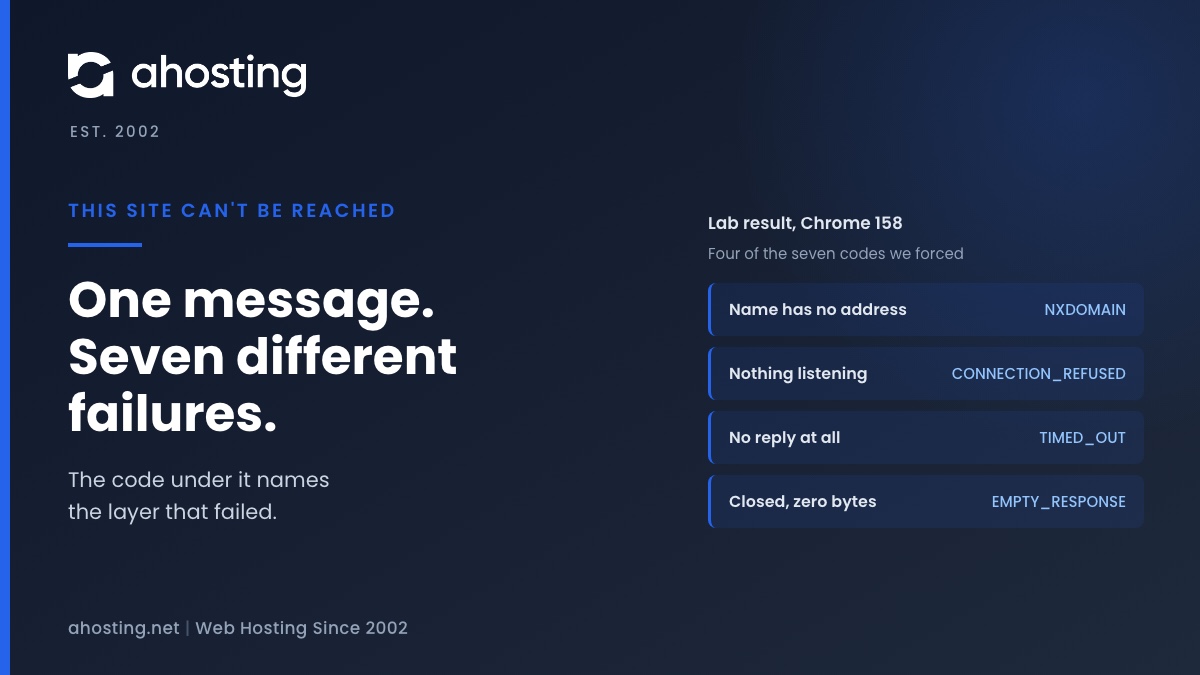
This site can’t be reached is Chrome telling you it got no usable answer, and the code under the message names the layer that failed: DNS, the connection, or the secure handshake. We forced seven failures in Chrome 158 and each printed a different code. A wrong WordPress address can break wp-admin while the front end stays up. Three commands, dig and two curl lines, tell you which layer to chase.
What This Site Can’t Be Reached Means in WordPress
This site can’t be reached is the message Chrome prints when it gets no usable answer from the address in the bar. It is not a WordPress message, and it is not an HTTP status either. The page you wanted was never delivered, so nothing in WordPress, PHP or your theme had a chance to say anything.
That matters because most advice for this site can’t be reached starts with clearing the cache and restarting the router. Those steps help when the fault is on your side. They do nothing when the fault is a missing DNS record or a server that is not listening, and the browser tells you which one, in a code printed small under the message.
It Is Chrome Speaking, Not WordPress
Chrome decides in four stages: it looks up the name, opens a connection, shakes hands for https and then asks for the page. A failure at any stage before the page arrives ends in a message like this one. Chromium keeps the full list of those failures in its net error list, and the next section shows seven of them measured.
This Site Can’t Be Reached: What Each Chrome Code Tells You
We forced each failure on one Mac with Chrome 158 and read the error the browser reported. The lab was a Python socket server, a closed local port and a made-up hostname ending in .invalid. It was not an AHosting server, and it was not Firefox or Safari, so read the table as how Chrome behaves, not as a measure of any host.
| Code printed by Chrome | Heading Chrome showed | What we did | First place to look |
|---|---|---|---|
| DNS_PROBE_FINISHED_NXDOMAIN | This site can’t be reached | Opened a made-up .invalid name | Domain, nameservers, A record |
| ERR_CONNECTION_REFUSED | This site can’t be reached | Opened a local port with nothing listening | Server stopped, wrong IP or port |
| ERR_CONNECTION_TIMED_OUT | Not captured | Connected to an address that never replies | Firewall drop, wrong IP, route |
| ERR_CONNECTION_RESET | This site can’t be reached | Server accepted, then sent a reset | Security rule, limit, crash |
| ERR_EMPTY_RESPONSE | This page isn’t working | Server accepted, then closed with no data | Error log, crash, closing rule |
| ERR_SSL_PROTOCOL_ERROR | This site can’t provide a secure connection | Used https against a plain HTTP listener | https on a port without TLS |
| ERR_CONNECTION_CLOSED | This site can’t be reached | Used https against PHP’s built-in server | Same as the row above |
Three details are easy to miss. The empty-response case printed a different heading, This page isn't working, so searching for the heading alone misses it. The same mistake, https spoken to a server that only talks HTTP, printed two different codes depending on what was listening. And the timeout was not instant: our attempt had not failed at 120 seconds and had failed by 127.
Why Refused and Timed Out Differ
The reasons behind refused and timed out are old networking behavior, not a Chrome invention. The Nmap port-state documentation describes a closed port as reachable with no application listening, and a filtered port as one where packet filtering stops the probe, with silent drops far more common than error replies. That is exactly the gap between a fast refusal and a slow timeout.

Is It Your Network, the Domain or the Server? Three Commands
Run these from your own computer. Replace the example domain with yours.
dig +short www.example.com
curl -sI https://www.example.com/wp-admin/
curl -sI --resolve www.example.com:443:203.0.113.10 https://www.example.com/
The first line asks your resolver for the address. No output means no address, which is the DNS_PROBE_FINISHED_NXDOMAIN case. For our own domain, on 2026-11-25, it returned two addresses that belong to Cloudflare, because www.ahosting.net sits behind that proxy. If your site does too, the address you see is the proxy’s, not your server’s.
The second line is the one that saves time. A reply with a status line means a server answered, and the location header shows where wp-admin sends you. If that header names a host that is not your domain, you have found the cause without opening a browser. The third line swaps in the server’s own address, so you can test the server while DNS is wrong, stale or still changing. Use the real address from your hosting account in place of the documentation address shown.
For a second opinion without a terminal, Google Public DNS answers lookups as JSON. The made-up .invalid name returned Status 3 there, the code for a name that does not exist, and example.com returned Status 0 with two addresses. dig on our Mac agreed: NXDOMAIN.
AHosting Can’t-Be-Reached Decoder
See WordPress hosting plansWhy Only wp-admin Says This Site Can’t Be Reached
A common version of this site can’t be reached is a front end that loads while wp-admin and the login page fail. After a move, a domain change or a switch to https, WordPress can hold an address that no longer exists. The dashboard builds its login URL from that address, so it sends your browser there.
We reproduced it on WordPress 7.1.5 by setting both address constants to a hostname that does not resolve. A request for wp-admin on the real host got a 302 whose Location was the login page on the other host. Chrome followed it and printed DNS_PROBE_FINISHED_NXDOMAIN for that other host. The code is accurate, but the address in the bar was not the one we typed, and that is the clue most people miss.
| Address WordPress held | Request | What WordPress sent | What Chrome printed |
|---|---|---|---|
| A hostname that does not resolve | wp-admin | 302 to that host’s login page | DNS_PROBE_FINISHED_NXDOMAIN |
| An address with nothing listening | wp-admin | 302 to that address’s login page | ERR_CONNECTION_REFUSED |
| An https address on a server speaking only HTTP | wp-admin | 302 to the https address | ERR_CONNECTION_CLOSED |
| A hostname that does not resolve | wp-login.php | 200, with 15 references to the other host | Page returned; assets point away |
The mechanism is short. In WordPress 7.1.5, auth_redirect() builds the login URL with wp_login_url(), which starts from the site address, and then redirects to it. Nothing in that path checks that the address can be reached.
The Repair Without the Dashboard
The repair does not need the dashboard. The WordPress wp-config documentation says that WP_HOME overrides the value in the wp_options table without changing the database. Add both lines to wp-config.php, above the line that loads wp-settings.php, which is where our lab file defined them:
define( 'WP_HOME', 'https://www.example.com' );
define( 'WP_SITEURL', 'https://www.example.com' );
Core confirms the override: _config_wp_home() returns the constant whenever it is defined, and Settings, General disables its two address fields when the constants exist. Once wp-admin loads, correct the stored values, then remove the lines, because a constant left behind hides the mistake the next time the site moves.
What Each Code Needs From Your Host
Some rows in the table are yours and some are your host’s. A missing DNS answer is a registrar or DNS-host task, and your hosting plan cannot fix it. A wrong WordPress address is a file you control. The refused, timed-out, reset and empty-response rows describe what the server or its firewall did, and on a shared plan the web server, the ports and the firewall belong to the host.
So the useful message to a host is not “my site is down”. It is the exact code, the output of the three commands and the time. A host that reads ERR_CONNECTION_REFUSED next to a good dig result knows to check the web server; one that reads ERR_CONNECTION_TIMED_OUT knows to check blocks. The same applies to a store, where an unreachable checkout is lost orders. If the cause turns out to be on the server side and you are weighing a move, our WooCommerce hosting and web hosting pages list the plans.
Our other guides cover the neighbors of this error. When the browser does show a page, the 502 Bad Gateway guide and the database connection error guide explain the server-side messages. A certificate warning is a different failure, covered in Your connection is not private, and a loop between two addresses is covered in ERR_TOO_MANY_REDIRECTS.
This Site Can’t Be Reached: Fix Checklist
- Read the code under the message and write it down. Do not troubleshoot from the heading alone.
- Try the site from mobile data. If it loads there, the fault is your network, VPN or device.
- Run
dig +shortfor the domain. No output means fix DNS at your registrar or DNS host. - Run
curl -sIon the home page and on wp-admin. A status line means a server answered, so read thelocationheader. - If wp-admin redirects to a host that is not yours, set the two address constants in wp-config.php, then correct the stored values.
- When curl shows refused or times out, send your host the code, the dig output, the curl output and the time.
- For a server that answers while https fails, check that port 443 serves a certificate and that WordPress is not forcing https where it is not served.
Frequently Asked Questions: This Site Can’t Be Reached
How do I fix this site can’t be reached on a WordPress website in 2026?
In practice, read the code printed under the message, because each code names a different layer. Then run dig and curl -I from your own machine: no address means a DNS fix at your registrar, a refused or timed-out connection means the server or its firewall, and a redirect to another hostname means a wrong WordPress address. Only after that is it worth clearing caches or restarting the router.
Why does this site can’t be reached appear only on wp-admin and the WordPress login page?
Specifically, WordPress sends wp-admin visitors to the login page built from its own site address, and in our lab that redirect pointed at a host that did not exist. The front end stayed up while the dashboard failed. Compare the host in the address bar after the redirect with your real domain, then correct WP_HOME and WP_SITEURL.
Is this site can’t be reached a WordPress error or a browser error in 2026?
In practice it is a browser error. Chrome prints it when it cannot get any response from the address in the bar, so WordPress is often not involved at all. WordPress can still cause it indirectly, by redirecting the browser to an address that cannot be reached.
What is the difference between ERR_CONNECTION_REFUSED vs ERR_CONNECTION_TIMED_OUT for this site can’t be reached?
Specifically, refused means something answered right away to say no program is listening on that address and port. Timed out means nothing answered, which usually points to a firewall silently dropping packets or a wrong address. In our lab the refused page appeared within the same second, while the timed-out attempt had not failed at 120 seconds and had failed by 127.
Does this site can’t be reached mean my AHosting server is down?
In fact, not necessarily. A server that is down usually produces a refused or timed-out code, but a missing DNS record, a typo in the address, a VPN or a wrong WordPress address produce the same heading. Run dig and curl -I first, and if both fail from two networks, send the exact code and the command output to AHosting support.
Can a recent DNS change cause this site can’t be reached on a new WordPress site?
Indeed, it can. Until your resolver learns the new address it may return no address at all, and Chrome then prints DNS_PROBE_FINISHED_NXDOMAIN. Moreover, resolvers cache answers for the lifetime the record states: the example.com answer we looked up carried a lifetime of 300 seconds. Check a public resolver, and wait out the old lifetime before changing anything else.
What should I send AHosting support when this site can’t be reached after a WordPress move?
Typically, the useful message holds four things: the exact code under the message, the output of dig +short for the domain, the output of curl -sI for the home page and for wp-admin, and the time you tried. With those, the reader can tell in one pass whether to look at DNS, the server or the WordPress address.
Can a VPN or antivirus be the reason this site can’t be reached in 2026?
In practice, yes, but only when the site loads from another network. A VPN or a security suite that filters traffic can drop or reset connections on your side alone. Therefore test from mobile data before you touch the server, and treat a site that fails on every network as the server’s problem.
Should I use an online DNS checker vs the command line when this site can’t be reached?
Overall, use both, because they answer different questions. The command line asks your own resolver, which is the one your browser used. An online lookup asks a public resolver, so a mismatch shows that your local cache is stale or that only some resolvers have the new record.
Can I fix a wrong WP_HOME on AHosting with cPanel File Manager when wp-admin will not load?
Indeed, because the fix lives in a file rather than in the dashboard. Open wp-config.php in the File Manager editor, add the two address lines above the line that loads wp-settings.php, and save. Keep a copy of the file first, and remove the lines again once the database values are correct.
Related posts:
 Warning: Undefined Array Key in WordPress: What It Means and Whose Code to Blame (2026)
 WordPress Email Going to Spam? The Hosting-Side Fixes (Dedicated IP,SPF/DKIM/DMARC, Blacklists)
 The REST API Encountered an Error? WordPress Never Reached It
 Request Header or Cookie Too Large: What the 400 Error Means (2026)