
- Why WooCommerce Slow Checkout Is a Measurement Problem, Not a Plugin Problem
- The Four Layers Where WooCommerce Slow Checkout Time Actually Goes
- The AHosting Avoid WooCommerce Slow Checkout Latency Budget
- How to Measure Each Layer: Three Commands and One Header
- WooCommerce Slow Checkout Under Load: The Worker Math
- Reading Your Results: What Each Failing Layer Means
- Where AHosting Fits Once You Have a Diagnosis
- A Practical Checklist: Is Your WooCommerce Slow Checkout Diagnosis Complete?
- Conclusion: Measure First, Then Buy
- Frequently Asked Questions About WooCommerce Slow Checkout
- Why is my WooCommerce slow checkout worse than my product pages?
- How do I measure where WooCommerce slow checkout time is actually going?
- What counts as an acceptable checkout time in 2026, and what does AHosting target?
- TTFB versus total checkout time: which should I diagnose first?
- Server-Timing header versus Query Monitor for diagnosing WooCommerce slow checkout?
- Checkout runs fast at night but slows at noon, so what does that mean?
- What does a two-minute checkout hang followed by a 503 indicate?
- How many concurrent checkouts does an AHosting WooStart plan sustain in 2026?
- What TTFB does AHosting measure on uncached WooCommerce checkout requests?
- Does the MySQL slow query log show WooCommerce checkout queries specifically?
WooCommerce slow checkout is a measurement problem before it is a hosting problem. Split one request into four layers — network, server, database, gateway — then measure each. Whichever breaches its threshold is the one to fix.
Why WooCommerce Slow Checkout Is a Measurement Problem, Not a Plugin Problem
Most advice about WooCommerce slow checkout begins with a fix. Install a cache plugin, trim your checkout fields, upgrade your hosting. However, every one of those recommendations assumes somebody has already identified which part of the request is slow — and on most stores, nobody has.
The reason this matters is that a checkout request is not a single event. Instead, it is four sequential stages, each with its own failure mode and its own remedy. Consequently, a store owner who buys a bigger hosting plan to solve a payment-gateway delay has spent money without moving the number, while a store owner who trims checkout fields to solve an entry-process ceiling has done the same.
Our companion guide to WooCommerce hosting requirements covers what a store environment needs. This guide covers something different and prior to it: how to find out which requirement your store is currently failing. Furthermore, every measurement below runs on a live store without installing anything.
The Four Layers Where WooCommerce Slow Checkout Time Actually Goes
Before measuring anything, it helps to know what you are dividing. Accordingly, a checkout request decomposes into four layers that occur in strict order.
First Layer: Network and TLS
Initially, the shopper’s browser resolves your domain, opens a TCP connection, and negotiates TLS. Notably, none of this involves WordPress or WooCommerce at all. Nevertheless, on a misconfigured DNS setup or a distant origin server, this layer alone can consume 300 milliseconds before your server has seen a single byte of the request.
Second Layer: Server Response and Time to First Byte
Subsequently, your web server accepts the request and hands it to a PHP process. Critically, this is where checkout diverges from every other page on your store. Because cart and checkout pages bypass full-page caching by design, there is no finished HTML file to send. Instead, the server must build the page from scratch on every single request, which means time to first byte on checkout reflects your true uncached server speed.
Third Layer: PHP Execution and Database Work
Meanwhile, inside that PHP process, WordPress bootstraps, WooCommerce loads its session, recalculates the cart, applies tax rules, and writes order records. Specifically, this layer is where autoloaded options, unindexed queries, and legacy order storage inflate response time. Moreover, it is the layer most sensitive to plugin quality, since every active plugin runs during checkout.
Fourth Layer: Payment Gateway Round-Trip
Finally, when the shopper submits payment, your server makes a blocking outbound call to the payment processor and waits. Importantly, this time belongs to the gateway, not to your host. Therefore, no hosting upgrade will shorten it, and diagnosing it as a server problem wastes both money and attention.
This layer is also the one most often misattributed, because the shopper experiences it as your store being slow. Meanwhile, the delay is happening on infrastructure you neither own nor control. Notably, real-time shipping quotes and address-validation services behave identically: each is a blocking outbound request that pauses PHP execution until the third party answers.
Consequently, the diagnostic rule for the fourth layer is different from the other three. Rather than measuring on your server, read the latency figures in your processor’s own dashboard and compare them against the request timestamps in your order log. Should the two agree, the delay is external and your hosting is not the variable to change.

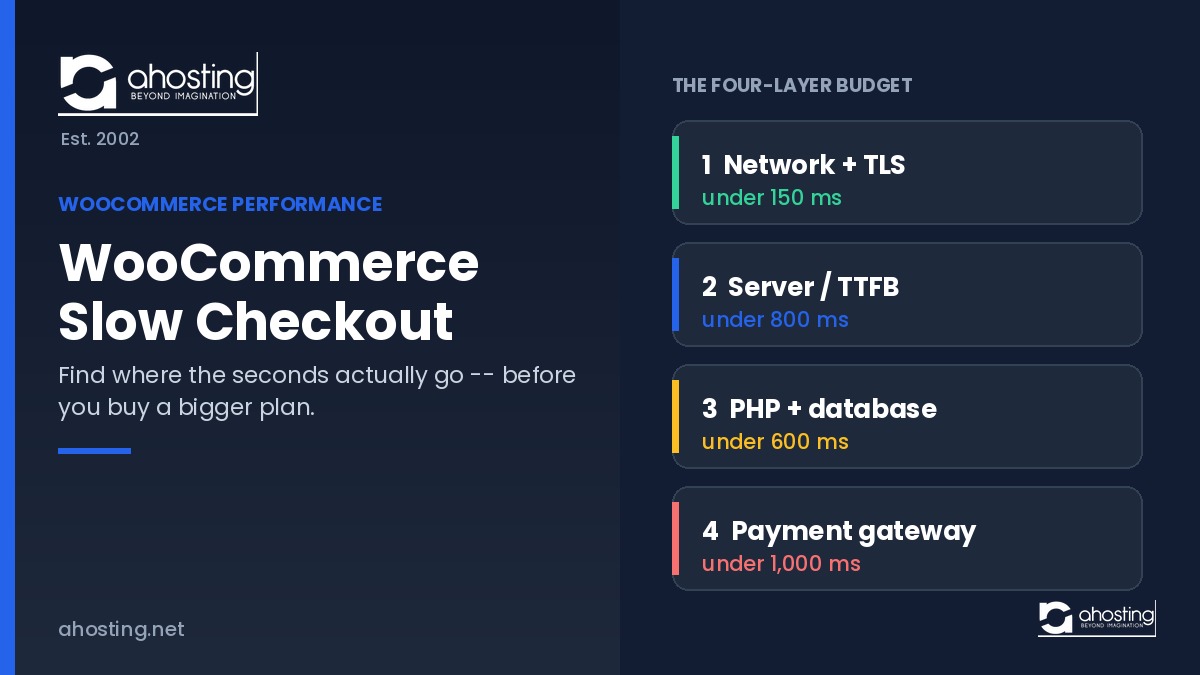
The AHosting Avoid WooCommerce Slow Checkout Latency Budget
Given four layers, the practical question becomes how much time each is allowed to consume. Accordingly, the table below sets a target and a failure threshold for each layer, together with the instrument that measures it. Overall, a store whose four layers all sit inside target completes checkout comfortably under two seconds.
| Layer | Target | Investigate above | Measure with |
|---|---|---|---|
| Network and TLS | Under 150 ms | 300 ms | curl timing breakdown |
| Server response (TTFB) | Under 800 ms | 1,200 ms | curl time_starttransfer |
| PHP and database | Under 600 ms | 1,000 ms | Server-Timing header |
| Payment gateway | Under 1,000 ms | 2,000 ms | Gateway dashboard logs |
For context, AHosting measures roughly 16 milliseconds time to first byte on cached requests across its LiteSpeed platform, against 700 to 1,400 milliseconds on uncached WordPress requests. Consequently, the uncached figure is the one that matters for checkout, and it is why the second layer carries the widest budget in the table.
How to Measure Each Layer: Three Commands and One Header
First Method: The curl Timing Breakdown
To begin, curl reports the exact boundary between network time and server time. Specifically, its --write-out option exposes a set of timing variables documented in the official curl manual page. Run this against your own checkout URL:
curl -o /dev/null -s -w "dns: %{time_namelookup}\ntcp: %{time_connect}\ntls: %{time_appconnect}\nttfb: %{time_starttransfer}\ntotal: %{time_total}\n" https://yourstore.com/checkout/Interpreting the output is straightforward. Namely, the gap between tls and ttfb is your server’s thinking time, and everything before tls is network. Additionally, run the command five times and take the median, because a single sample tells you nothing about a store under real load.
Second Method: The Server-Timing Response Header
Next, once you know the server is slow, the Server-Timing header tells you what it was doing. As MDN’s Server-Timing reference describes, this response header surfaces backend metrics such as database read and write time directly in browser developer tools. Consequently, you can attribute server time to specific internal operations on real shopper requests rather than on your own admin session.
This distinction matters more than it first appears. Because an administrator session is never cached and loads the full admin bar, profiling checkout while logged in systematically overstates the problem. Therefore, always measure as an anonymous shopper.
Third Method: The MySQL Slow Query Log
Finally, when the third layer is the offender, the database itself will name the queries. However, one default defeats most attempts at this. According to the MySQL 8.0 slow query log documentation, long_query_time defaults to 10 seconds — a threshold no checkout query will ever cross, which is why store owners enable the log and see nothing.
Instead, lower the threshold for a short diagnostic window. Notably, the value accepts microsecond resolution, so 0.2 seconds is a practical setting for checkout work. Afterward, restore the default, because a permanently low threshold generates substantial log volume on a busy store.
WooCommerce Slow Checkout Under Load: The Worker Math
So far every measurement has assumed one shopper. Under promotional traffic, though, a second constraint appears. Because each uncached checkout occupies one entry process for its full duration, your plan’s entry-process allocation sets a hard ceiling on simultaneous checkouts.
| AHosting plan | Entry processes | Checkouts per minute at 2s | Checkouts per minute at 4s |
|---|---|---|---|
| Bronze | 15 | 450 | 225 |
| Silver | 25 | 750 | 375 |
| WooStart | 25 | 750 | 375 |
| Gold | 40 | 1,200 | 600 |
Notice what the two right-hand columns imply. Namely, halving your checkout duration doubles your throughput without changing plans, which is why measurement precedes purchasing. Furthermore, when every entry process is occupied, additional requests queue rather than fail immediately — and LiteSpeed on AHosting holds those queued connections for 120 seconds before returning an error.
That queue behavior explains a symptom store owners frequently misreport. Specifically, a checkout that spins for roughly two minutes and then dies is not a slow checkout at all; it is a saturated one. Our guides to PHP workers and 503 errors and to the 508 resource limit reached message cover that failure mode in detail.
Reading Your Results: What Each Failing Layer Means
Having measured all four layers, the diagnosis follows mechanically. Enter your figures below to identify which layer is outside budget.
Checkout Latency Diagnostic
Enter your measured values in milliseconds. Leave a field blank if you have not measured it.
Two readings deserve special comment. Firstly, a healthy server response paired with poor total time means the delay is in front-end rendering, not hosting. Secondly, a time-of-day pattern — fast overnight, slow at noon — almost always indicates resource contention rather than code, which is why measuring during your busiest hour is essential.
Where AHosting Fits Once You Have a Diagnosis
Only after measurement does an infrastructure decision make sense. Specifically, if the second layer is your bottleneck, the fix is a faster uncached environment; our WooCommerce hosting plans run LiteSpeed with checkout exclusion rules applied at server level rather than plugin level, which is what keeps uncached response times inside the budget above.
Similarly, if the worker math rather than the latency is your constraint, more entry processes is the answer, whether through a larger shared plan or a move to VPS hosting. Meanwhile, stores whose database layer has outgrown shared resources entirely benefit from a dedicated server. For everything else, our general WordPress hosting environment carries the same LiteSpeed and CloudLinux foundation. Additionally, our guide to LiteSpeed hosting explains why the server layer behaves differently under mixed cached and uncached traffic.
It is worth restating what WooCommerce itself expects. According to the official WooCommerce server environment documentation, a production store needs a modern PHP release, MySQL 8.0 or MariaDB 10.4 and above, HTTPS throughout, and object caching support. Nevertheless, meeting those requirements is a floor, not a diagnosis — which is precisely why measurement comes first.
A Practical Checklist: Is Your WooCommerce Slow Checkout Diagnosis Complete?
- Measured as an anonymous shopper, never while logged in as administrator
- Took the median of at least five curl runs rather than a single sample
- Ran the measurement during your busiest hour, not overnight
- Separated network time from server time using the curl timing breakdown
- Confirmed the checkout URL returns an uncached response, not a cached one
- Lowered
long_query_timebefore reading the slow query log - Checked payment gateway latency in the processor dashboard, not on your server
- Compared concurrent checkout demand against your plan’s entry-process allocation
Conclusion: Measure First, Then Buy
WooCommerce slow checkout resists generic advice because the same symptom has four unrelated causes. Consequently, the store owner who measures first spends once and fixes the right thing, while the one who guesses often spends repeatedly without moving the number at all.
Ultimately, the four layers, the latency budget, and the worker math in this guide reduce a vague complaint to a specific number with a specific owner. Afterward, the infrastructure conversation becomes simple, because you already know which layer you are buying against.
Frequently Asked Questions About WooCommerce Slow Checkout
Why is my WooCommerce slow checkout worse than my product pages?
Specifically, product pages are served from full-page cache as finished HTML, while cart and checkout pages must bypass that cache entirely because their contents are unique to each shopper. Consequently, checkout exposes your server’s raw uncached response time, which product pages hide behind cached files.
How do I measure where WooCommerce slow checkout time is actually going?
In practice, you split one checkout request into four measurable segments using three tools. Notably, curl reports DNS, TCP, TLS and time-to-first-byte; the Server-Timing response header reports backend work; and the MySQL slow query log reports database time. Therefore, whichever segment exceeds its threshold is your bottleneck.
What counts as an acceptable checkout time in 2026, and what does AHosting target?
Generally, a healthy uncached checkout response completes server-side work in under 800 milliseconds, with total interaction under two seconds. Furthermore, AHosting measures roughly 16 milliseconds time-to-first-byte on cached requests and 700 to 1,400 milliseconds on uncached WordPress requests across its LiteSpeed platform.
TTFB versus total checkout time: which should I diagnose first?
Initially, diagnose time-to-first-byte, because it isolates server-side work from everything the browser does afterward. Subsequently, if TTFB is healthy but total time is poor, the delay lives in front-end rendering or third-party scripts rather than in your hosting environment.
Server-Timing header versus Query Monitor for diagnosing WooCommerce slow checkout?
Essentially, Query Monitor profiles a request in your own browser session as a logged-in administrator, which distorts checkout behavior. Conversely, the Server-Timing header reports on real shopper requests in production without a plugin, making it the more accurate instrument for live checkout diagnosis.
Checkout runs fast at night but slows at noon, so what does that mean?
Typically, a time-of-day pattern points to resource contention rather than code. Specifically, your account is hitting its CPU, entry-process or I/O ceiling during peak hours while the same code runs unobstructed overnight. Therefore, measure during your busiest hour, never at midnight.
What does a two-minute checkout hang followed by a 503 indicate?
Ordinarily, that signature means every entry process is occupied and the request queued until the web server timed out. Notably, LiteSpeed on AHosting holds queued connections for 120 seconds before returning 503, which produces exactly this long hang then hard failure pattern.
How many concurrent checkouts does an AHosting WooStart plan sustain in 2026?
Practically, the WooStart plan allocates 25 entry processes, so it sustains 25 simultaneous uncached checkout requests. Consequently, at a two-second checkout that clears roughly 750 checkouts per minute, while a four-second checkout halves that figure to around 375.
What TTFB does AHosting measure on uncached WooCommerce checkout requests?
Currently, AHosting measures approximately 16 milliseconds time-to-first-byte for cached responses and 700 to 1,400 milliseconds for uncached WordPress responses on its LiteSpeed infrastructure. Additionally, checkout always falls in the uncached range because cart pages are excluded from full-page caching by design.
Does the MySQL slow query log show WooCommerce checkout queries specifically?
Indeed, it does, provided you lower the threshold first. Importantly, MySQL defaults long_query_time to 10 seconds, which no checkout query will ever reach. Therefore, set it to 0.2 seconds during a diagnostic window to capture the queries that actually delay checkout.
Related posts:
 Exclude Checkout From Cache: The WooCommerce Verification Guide (2026)
 WooCommerce Hosting in 2026: What Stores Need That Generic WordPress Hosting Does Not Give Them
 How to Fix WooCommerce Cart Fragments Slowing Every Page (2026)
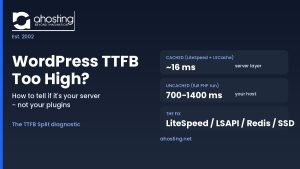 WordPress TTFB Too High? How to Tell If It’s Your Server (Not Your Plugins)