
- Plugin Could Not Be Activated Because It Triggered a Fatal Error: What WordPress Just Did
- Why the Plugin Could Not Be Activated Notice Never Shows the Real PHP Error
- Decode the Error: What Each Plugin Could Not Be Activated Message Means
- When a Plugin Could Not Be Activated and You Are Locked Out: Fix It from cPanel
- Why a Plugin Could Not Be Activated on Shared Hosting: PHP Version, Extensions, Memory
- When a Plugin Could Not Be Activated Because Two Plugins Collide
- Four Screens That Look Like a Plugin Could Not Be Activated Error
- Before the Next Plugin Could Not Be Activated Message: A Safer Install Routine
- Frequently Asked Questions: Plugin Could Not Be Activated
- Why does WordPress say the plugin could not be activated because it triggered a fatal error in 2026?
- How do I see the real error when the plugin could not be activated and the screen shows no details?
- Why would a plugin could not be activated message appear on AHosting shared hosting but not on my old host?
- Does a PHP 8.4 upgrade explain why a plugin could not be activated in 2026?
- Activation fatal error vs critical error: what is the difference between the two WordPress screens?
- Plugin could not be activated vs plugin does not have a valid header: which message do I actually have?
- How do I deactivate a plugin from AHosting cPanel File Manager when a plugin could not be activated and wp-admin is locked?
- Why does a parse error line number point one line after my real mistake in a plugin file?
- Does AHosting include Imagick for plugins that need it, or will the plugin could not be activated message return?
- What should I check before installing a plugin in 2026 so the plugin could not be activated message never appears?
When a plugin could not be activated because it triggered a fatal error, WordPress 7.1.4 hides the real PHP message. Load the failed address with action=error_scrape to read it, then match the line to a cause.
Plugin Could Not Be Activated Because It Triggered a Fatal Error: What WordPress Just Did
When a plugin could not be activated because it triggered a fatal error, the plugin did not break your site. WordPress ran it once as a test, PHP stopped partway through, and WordPress refused to switch it on. The message tells you that something failed. It does not tell you what, and that is the part this guide fixes.
Activation is a trial run, not a toggle. In WordPress 7.1.4, activate_plugin() checks the plugin header and its PHP requirements, sends the browser a redirect to an error address, and only then loads the plugin file inside an output buffer. If the file finishes, the plugin is saved as active. If PHP dies, nothing is saved and the browser follows the redirect that was already sent.
We read those steps in wp-admin/includes/plugin.php lines 647 to 679 and checked them in a lab. The lab was a stock WordPress 7.1.4 install on PHP 8.5.10 with one workstation as the server, so treat the screens below as what WordPress does, not as AHosting server output. A set of small plugins, each broken on purpose, produced every message in this post.
Two details in that flow explain most of the confusion. The redirect goes out before the plugin loads, so the error page appears even though no plugin code has finished. The test also loads only the plugin’s main file, which is why a plugin can activate cleanly and still crash later on a normal page request. Look-alike screens, including that second case, are covered further down.
Why the Plugin Could Not Be Activated Notice Never Shows the Real PHP Error
Older WordPress versions printed the PHP message in a small frame under the notice. WordPress 6.3.5 still does. From 6.4 the same notice goes through wp_admin_notice(), and in 7.1.4 that function ends with wp_kses_post() (wp-includes/functions.php line 9318). That sanitizer does not allow an iframe, so the frame that carried the PHP message is removed before the page is sent.
We measured it rather than inferring it. The notice HTML held the sentence and nothing else, the nonce check passed, and a direct call to wp_kses_post() with an iframe in the input returned only the paragraph. In plain terms, on a stock 7.1.4 site the screen that says a plugin could not be activated has no way to show you why.
How to read the hidden error with one address change
The error is still produced. WordPress keeps the code that prints it (plugins.php lines 176 to 195) and the address of that code is sitting in your browser. After the failed activation, the address bar reads like this:
/wp-admin/plugins.php?error=true&plugin=folder%2Ffile.php&_error_nonce=1a2b3c4d5e
- Change
error=truetoaction=error_scrape. - Rename
_error_nonceto_wpnonceand keep its value. - Load the new address while you are still logged in as an administrator.
WordPress loads the plugin again with error display switched on and prints the raw PHP message, for example Fatal error: Uncaught Error: Class "Imagick" not found with a file name and line. The nonce is tied to your login and the plugin, so the address does not work for anyone else. If it returns a permission page, use the log route described for lockouts below.

Decode the Error: What Each Plugin Could Not Be Activated Message Means
The scraped line starts with a PHP error class, and each class points at a different cause. This table is what the lab printed for six plugins we broke on purpose, with the first fix for each. Use it, or use the decoder underneath, which carries the same rows plus the two screens that are not fatal errors.
| Line the scraped error starts with | What caused it in the lab | First fix |
|---|---|---|
Class "Imagick" not found | The plugin used an extension that is not loaded | Check the module list for that PHP version, or pick a plugin that falls back to GD |
Call to undefined function create_function() | Code written for PHP 7 and earlier meets PHP 8 | Update or replace the plugin |
Cannot redeclare function lab_shared_helper() | A second plugin defined the same function name | Deactivate the other copy first |
Failed opening required after a require_once warning | An includes file the plugin loads was not there | Upload a complete copy of the plugin |
Allowed memory size of 16777216 bytes exhausted | The load tried to allocate 64 MB under a 16 MB limit | Raise memory_limit, then look at what loads at start-up |
Parse error: syntax error, unexpected token | A missing parenthesis on line 6, reported on line 7 | Read the line above the one reported |
Plugin Activation Error Decoder
Pick the line your scraped error starts with and read the cause, the fix and the guide that goes deeper.
Read the matching guideOne row deserves a second look. The parse error pointed one line past the real mistake, because PHP reports where it noticed the problem. When the line you are shown looks fine, the fault is almost always the line above it.
When a Plugin Could Not Be Activated and You Are Locked Out: Fix It from cPanel
If the plugin never activated, you are not locked out: the plugin is simply off. The lockout case is the other one, where a plugin that is already active fails and takes wp-admin with it. Both are fixed the same way, from outside WordPress.
- Open File Manager in cPanel and go to
wp-content/plugins. - Rename the plugin folder, for example
my-plugintomy-plugin-off. - Reload wp-admin. WordPress sees the plugin as missing and drops it from the active list.
- Read the error in the account error log or in
wp-content/debug.log, which the WordPress debugging guide explains how to switch on. - Fix or replace the code, rename the folder back, and activate again.
The same steps work over SSH or SFTP, and every AHosting web hosting plan includes a File Manager and SSH access, so you never need a support ticket just to rename a folder. Keep a copy of the folder before you edit anything inside it.
Why a Plugin Could Not Be Activated on Shared Hosting: PHP Version, Extensions, Memory
Most activation failures on a shared server come down to three things the plugin assumed and the server did not provide. Check them in this order, because each is a one-minute test.
PHP version: old plugins meet a new PHP
A plugin that calls create_function() worked until PHP 8.0 and fails on every later version, because the manual lists the function as removed. On the shared server we checked, the default PHP moved from 8.2 to 8.4 on 2026-10-22, although each domain keeps whatever version it is set to in MultiPHP Manager. Our guide to the best PHP version for WordPress on cPanel explains how to check and change it.
Extensions: the Imagick case
A missing extension prints as a missing class. On our servers, Imagick is not part of the standard PHP builds, while GD is bundled on every version. Imagick exists only in the CloudLinux selector builds, which you reach by switching to alt-php in Select PHP Version. List what your version really loads with php -m, as the recommended modules warning guide shows.
Composer is the other common source. A plugin that ships without its vendor folder stops on require_once vendor/autoload.php because Composer generates that file at install time. A partial upload leaves the include path pointing at nothing, which the failed to open stream guide walks through.
Memory: the load itself can run out
Loading a plugin counts against memory_limit like any other request. Raise it in MultiPHP INI Editor, as the WordPress memory limit guide describes. If a plugin needs more than a few hundred megabytes just to load, raising the limit hides the problem. A VPS with root access is the right place for software that needs its own PHP extensions or a custom build, not a larger limit on shared hosting.
When a Plugin Could Not Be Activated Because Two Plugins Collide
In the lab we activated plugin A, which defines lab_shared_helper(), and then plugin B, which defines the same name. Plugin A stayed active and plugin B printed Cannot redeclare function lab_shared_helper() with the file and line of the first definition. The active list held only plugin A afterward.
Real collisions are usually the same plugin installed twice, such as a free copy and a pro copy, or an old folder left behind after a manual update. Look at the file named in parentheses: it tells you which plugin got there first. Authors avoid the problem with prefixes or the PHP namespaces feature, so a collision between two well-maintained plugins is rare and worth reporting to both authors.
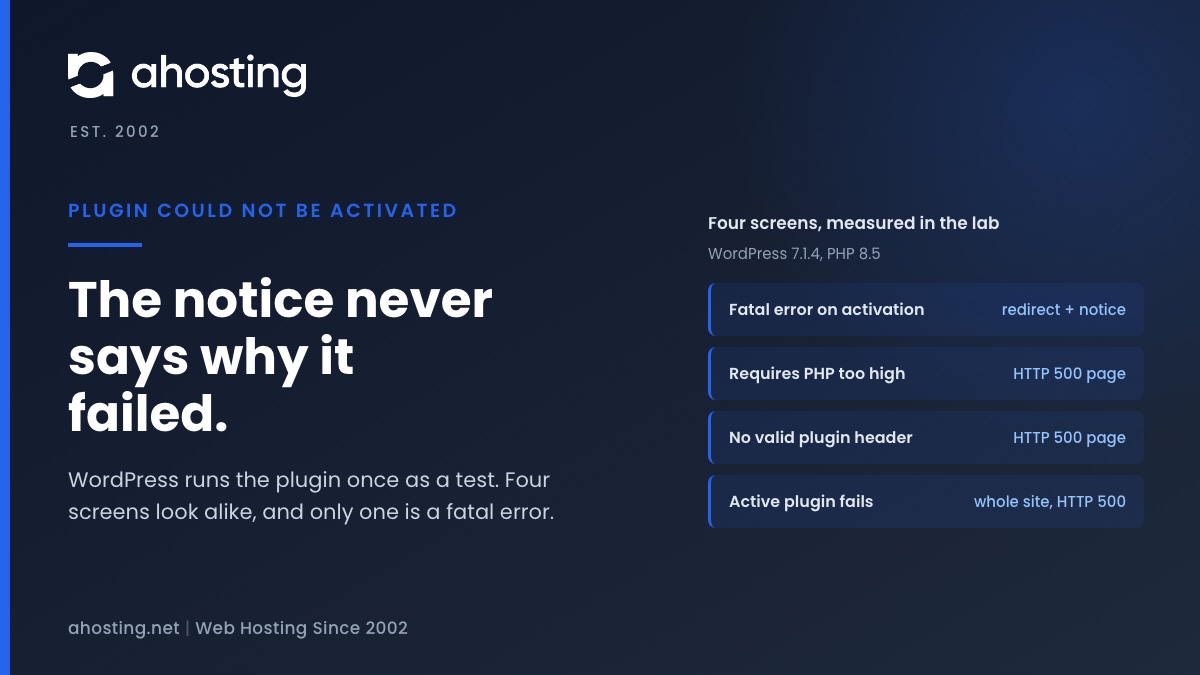
Four Screens That Look Like a Plugin Could Not Be Activated Error
Four different outcomes read like the same problem. We triggered each one on purpose and recorded what the browser received.
| Screen | What the browser received | What it means | State afterward |
|---|---|---|---|
| Plugin could not be activated because it triggered a fatal error | A redirect, then the notice page | PHP failed while loading the plugin file | Plugin stays inactive |
| Current PHP version does not meet minimum requirements | HTTP 500 error page | The header declared a PHP version higher than yours | No plugin code ran |
| The plugin does not have a valid header | HTTP 500 error page | No usable plugin header in that folder | No plugin code ran |
| There has been a critical error on this website | HTTP 500 on the front end, wp-login.php and wp-admin | Code that was already active failed on a request | Whole site affected |
The last row is the one that costs money. WordPress added fatal error protection in 5.2, and the core team write-up on recovery mode explains how a fatal error now reaches the administrator. The WP Tavern report on that release reports that WordPress emails the administrator, who can then deactivate the failing plugin. Our lab had no mail server, so we checked the screen but not the email.
A related message uses the word resumed instead of activated. The same file prints it when a paused plugin cannot start again. We did not trigger that case in the lab.
Before the Next Plugin Could Not Be Activated Message: A Safer Install Routine
You can turn most of these failures into a note on a staging copy. Keep the routine short enough that you actually follow it.
- Read the plugin page for Requires PHP and any named extensions, and compare them with your site.
- Take a backup of the site and the database first.
- Activate on a staging copy before the live site.
- If the notice appears, use the address change described earlier before you reinstall anything.
- Delete a failed plugin folder rather than leaving it in
wp-content/plugins.
That solves the problem without any new hosting. If you want the staging step built in, the AHosting WordPress hosting plans include a staging site, and our staging site guide shows what to test there. The routine works on any host, and the plugin could not be activated message becomes something you read on a copy, not on your live pages.
Frequently Asked Questions: Plugin Could Not Be Activated
Why does WordPress say the plugin could not be activated because it triggered a fatal error in 2026?
Specifically, WordPress loaded the plugin main file once as a test and PHP stopped with a fatal error before activation finished. The plugin stays inactive, and the message gives no detail, so the cause is whatever PHP printed on the line after the failure. The decoder table in this guide maps each error line to its fix.
How do I see the real error when the plugin could not be activated and the screen shows no details?
In practice, copy the address from the failed activation page, change error=true to action=error_scrape and rename the _error_nonce parameter to _wpnonce, then load that address while logged in. WordPress runs the plugin again with errors displayed and prints the raw PHP message. If that is blocked, read debug.log or the account error log instead.
Why would a plugin could not be activated message appear on AHosting shared hosting but not on my old host?
In particular, the two servers usually differ in PHP version or loaded extensions, not in WordPress. For example, a plugin that needs the Imagick extension runs where Imagick is installed and fails where it is not. Compare the PHP version in MultiPHP Manager and the module list from php -m in cPanel Terminal on both.
Does a PHP 8.4 upgrade explain why a plugin could not be activated in 2026?
In practice, yes, when the plugin is old. Code that calls a function PHP removed, such as create_function in PHP 8.0, stops with Call to undefined function the moment the file loads. Update or replace that plugin rather than moving the whole site back to an older PHP version.
Activation fatal error vs critical error: what is the difference between the two WordPress screens?
Specifically, the activation message appears while you are trying to turn a plugin on, and the plugin stays off. The critical error screen appears when code that is already active fails on a normal request, so the front end and wp-admin return HTTP 500. In our lab the first was a redirect to a notice and the second took the whole site down.
Plugin could not be activated vs plugin does not have a valid header: which message do I actually have?
In contrast to the fatal error notice, the valid header message means WordPress never ran any plugin code. It found no usable plugin header in the folder you gave it, often because a zip was unpacked one folder too deep. The fatal error notice means the header was fine and the code failed.
How do I deactivate a plugin from AHosting cPanel File Manager when a plugin could not be activated and wp-admin is locked?
In particular, open File Manager, go to wp-content/plugins and rename the plugin folder, for example by adding -off to its name. WordPress then treats the plugin as missing and clears it from the active list on the next admin load. Rename it back only after you have fixed or replaced the code.
Why does a parse error line number point one line after my real mistake in a plugin file?
Notably, PHP reports the place where it noticed the problem, not where you made it. In our lab a missing closing parenthesis on line 6 was reported on line 7 at the next token. Read the reported line, then look at the line above it for an unclosed bracket, quote or semicolon.
Does AHosting include Imagick for plugins that need it, or will the plugin could not be activated message return?
Specifically, Imagick is not part of the standard PHP builds on our shared servers, while GD is bundled on every version. Imagick exists only in the CloudLinux selector builds, reached by switching to alt-php in Select PHP Version. A plugin that needs Imagick and does not check for it first will fail at activation until you do that or the plugin falls back to GD.
What should I check before installing a plugin in 2026 so the plugin could not be activated message never appears?
Finally, read the plugin page for its Requires PHP version and required extensions, compare them with your site, and activate it on a staging copy first. Keep a current backup. That order turns a surprise on the live site into an error you read on a copy.
Related posts:
 WordPress Hosting Speed in 2026: The 7 Server-Side Factors No Plugin Can Fix
 What Does Website Hosting Cost Per Month? Real 2026 Pricing
 More WordPress Plugin Vulnerabilities Have Surfaced – Here’s What You Need To Know
 Missing a Temporary Folder: Why WP_TEMP_DIR Won’t Fix This WordPress Upload Error