
- Problems Auto-Updating Plugins and Themes: What the Warning Actually Tests
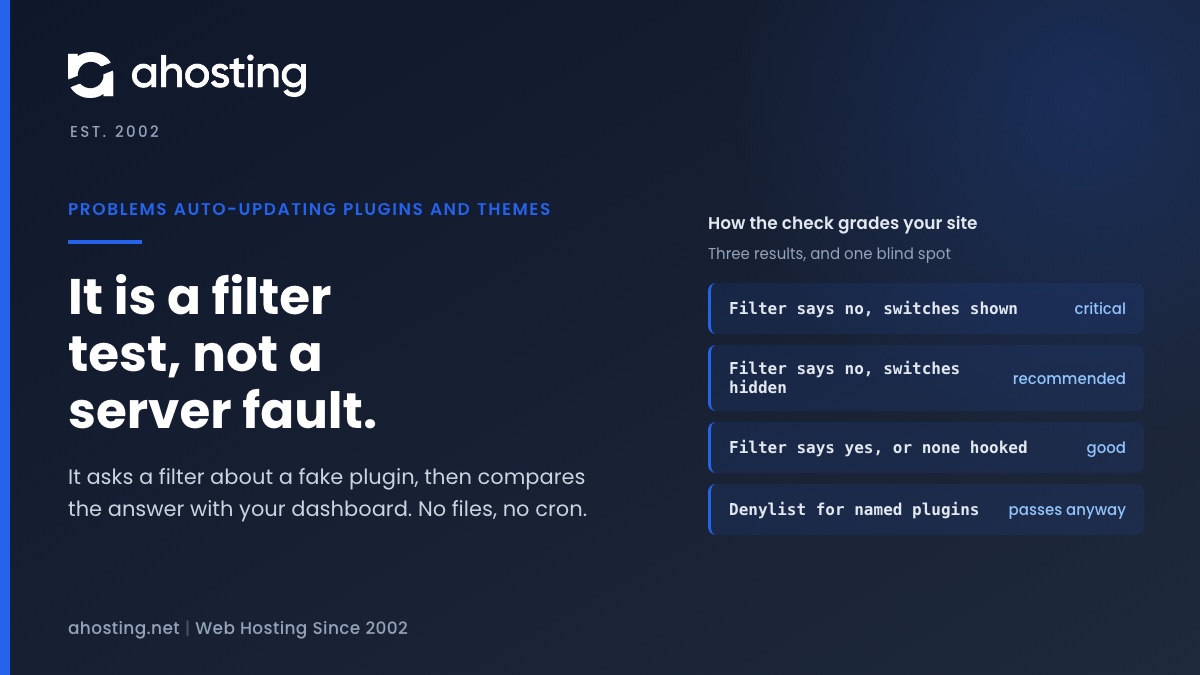
- The Three Results of the Problems Auto-Updating Plugins and Themes Check
- Why Site Health Reports Problems Auto-Updating Plugins and Themes as Critical
- Finding the Code Behind Your Problems Auto-Updating Plugins and Themes Warning
- What the Problems Auto-Updating Plugins and Themes Check Cannot See
- Fixing Problems Auto-Updating Plugins and Themes on AHosting
- Frequently Asked Questions: Problems Auto-Updating Plugins and Themes
- Why won't my WordPress plugins update in 2026 when Site Health reports problems auto-updating plugins and themes?
- Is it safe to ignore the problems auto-updating plugins and themes warning if I update plugins by hand?
- Does the problems auto-updating plugins and themes warning mean my cron or file permissions are broken?
- Critical vs recommended in 2026: which problems auto-updating plugins and themes result is worse?
- Can AHosting support help me find which plugin is behind the problems auto-updating plugins and themes warning?
- On AHosting WordPress hosting, auto_update_plugin filter vs plugins_auto_update_enabled filter in 2026: which switches updates off?
- How do I clear the problems auto-updating plugins and themes warning on an AHosting WordPress plan without editing core files?
- What does DISALLOW_FILE_MODS do to the problems auto-updating plugins and themes check on a WordPress site?
- Will fixing problems auto-updating plugins and themes make my WordPress site safer in 2026?
- Must-use plugins vs wp-config: where should an auto-update filter live to avoid problems auto-updating plugins and themes?
Your site may have problems auto-updating plugins and themes means one thing: code on your site is returning false from the auto_update_plugin or auto_update_theme filter for a made-up test plugin. It is not a cron fault, a permissions fault or a full disk. Critical means the dashboard still offers auto-updates that the filter overrides. Recommended means the filter and the dashboard agree that updates are off. Search your files for the filter, then reload Site Health.
Problems Auto-Updating Plugins and Themes: What the Warning Actually Tests
Site Health says Your site may have problems auto-updating plugins and themes, and the natural reaction is to hunt for a broken cron job, a permissions fault or a full disk. None of those is what this check looks at. The test never touches a file, never reads the cron schedule and never contacts WordPress.org. It asks a narrower question: has some code told WordPress to refuse plugin or theme updates while the dashboard still offers the switch? When the answer is yes, you get problems auto-updating plugins and themes in your Site Health list.
We read the source instead of the forum threads. This guide follows the WordPress 7.1.3 source tag, which we opened on October 14, 2026. The test is get_test_plugin_theme_auto_updates() at line 1815 of class-wp-site-health.php, and the warning label is set at line 1836. The actual decision is made further down in detect_plugin_theme_auto_update_issues(), which you can read on GitHub at lines 3192 to 3267. Core’s own comment on that function admits it is making educated guesses, because nobody can prove auto-updates are configured correctly from inside a request.
The short answer: the warning means a filter named auto_update_plugin or auto_update_theme returned false for a made-up plugin, so the per-plugin switches on your Plugins screen are probably being overridden. Here is the whole test in one diagram.
The Three Results of the Problems Auto-Updating Plugins and Themes Check
The function can return only three statuses, and Site Health changes its label only when the status is not good. Good keeps the calm label that says auto-updates appear to be configured correctly. Critical and recommended both swap in the warning you are reading about, and the sentence under it is the only clue to which one you have.
| Result | Condition in the code | What the message says | Lines |
|---|---|---|---|
| Critical | The filter returns false for the fake plugin or theme AND the dashboard still shows the switches | Auto-updates appear disabled, yet the settings are still displayed, which could stop them working | 3231 to 3238 |
| Recommended | The filter returns false, a filter is hooked, and the dashboard switches are already hidden | Auto-updates for plugins, themes or both appear disabled, so new versions will not arrive on their own | 3240 to 3260 |
| Good | Anything else, including no filter at all | There appear to be no issues with plugin and theme auto-updates | 3263 to 3266 |
Notice the order. Critical is tested first, so it wins whenever the dashboard and the filter disagree. Recommended is the quieter state: someone turned auto-updates off on purpose and made the screen match. The label is identical for both, which is why people assume the worst.
Why Site Health Reports Problems Auto-Updating Plugins and Themes as Critical
What the test sends through the filter
WordPress builds a fake plugin with the slug a-fake-plugin and version 9.9, and a fake theme called a-fake-theme (lines 3194 to 3216). It then calls the same hook a real update would use, passing true as the starting answer (lines 3223 and 3224, through wp_is_auto_update_forced_for_item() at line 1085 of update.php). The hook is documented as the auto_update_{$type} filter. If nothing is hooked, true comes back unchanged and the result is good.
Why the dashboard switch stops meaning anything
The real updater starts from your own choice. The per-plugin switch is stored in a site option, read at line 227 of class-wp-automatic-updater.php, and the result is then passed through the same filter at line 268. Whatever the filter returns replaces your choice. A blanket false therefore turns every plugin switch into decoration: you can click Enable auto-updates on all of them and none will update.
Filter patterns that trip the check, and ones that do not
Because the test uses a fake slug, the shape of your filter decides the result. We worked these out from the source, and have not yet confirmed each one on a clean install.
| Filter pattern | Answer for the fake plugin | Result |
|---|---|---|
| Return false for every plugin | false | Trips the check |
| Allowlist: true only for named slugs | false, because a-fake-plugin is not on the list | Trips the check |
| Denylist: false only for named slugs | true, because a-fake-plugin is not on the list | Passes, even though real plugins are blocked |
| Return true for every plugin | true | Passes |
| No filter hooked anywhere | true, unchanged | Passes |
The denylist row matters most. A green result does not prove your plugins update, because the check cannot see a filter aimed at specific slugs. The allowlist row is the surprise: a careful setup that updates only approved plugins looks identical to a blanket block.

Finding the Code Behind Your Problems Auto-Updating Plugins and Themes Warning
The filter is ordinary PHP that something on your site registers. You are looking for four strings: auto_update_plugin, auto_update_theme, plugins_auto_update_enabled and themes_auto_update_enabled. Search for them in this order, which runs from the most likely culprit to the least:
- The
wp-content/mu-pluginsfolder. Must-use plugins load on every request and cannot be switched off from the Plugins screen, so a forgotten snippet can sit there for years. - Active plugins. Anything that manages updates, maintenance mode, staging or client handover may register the filter. Search the plugin folders rather than guessing from names.
- The active theme’s
functions.phpand any child theme. Snippets pasted here vanish and reappear with theme changes. wp-config.php. It can holdadd_filterlines as well as constants, and it is the file people forget to read.
If you have terminal access, a recursive search for those strings finds them quickly. Without it, open each file in the order above and read it. Do the bisecting on a copy, not the live site: our WordPress staging guide covers setting one up, and renaming a plugin folder on production switches that plugin off for every visitor.
If the search finds nothing, the filter may be registered from code that builds the hook name dynamically, or from a plugin that is only active for some users. In that case switch the suspects off one at a time on the staging copy and reload Site Health after each change. The plugin whose removal turns the warning to good is the one holding the filter.
Constants that change what the dashboard shows
Two constants affect the interface side of the test rather than the filter side. AUTOMATIC_UPDATER_DISABLED and DISALLOW_FILE_MODS both make the updater report itself as disabled (is_disabled(), lines 33 to 59 of the updater class, and wp_is_file_mod_allowed() at line 1829 of load.php). Both are documented on the wp-config reference. On their own they hide the switches and still leave the result good, because nothing has filtered the starting true. Together with a false filter they give you recommended.
The hide-the-interface filters work the same way. The WordPress 5.5 developer note says returning false from plugins_auto_update_enabled or themes_auto_update_enabled only removes the interface, and does not turn auto-updates on or off. That is exactly why a site can end up critical: the filter blocks updates and nothing hides the switch.
What the Problems Auto-Updating Plugins and Themes Check Cannot See
Equally important is what this test ignores. It does not check that the server can write files, that cron fires, that the disk has room or that WordPress.org is reachable. Core runs a different item for those: Background updates, which is get_test_background_updates() at line 1740 and hands off to a separate class of tests. A site can pass this check and still fail to update, and fail this check while every other part of the update path is healthy.
So match the symptom to the right guide. Should WordPress ask for FTP details when you click Update, read why it is a file-owner check, not a password problem. If updates are scheduled but never run, what the scheduled event check actually tests explains the cron side, and core’s own auto-update message at line 1096 of update.php blames WP-Cron when the update event is missing. When an install fails midway, finding the folder before the cause covers it.
Why the filter matters for security
The reason to care is the gap between a fix being published and installed. The US government publishes a catalog of vulnerabilities known to be exploited, the National Vulnerability Database records them, and WPScan lists WordPress plugin vulnerabilities specifically. A filter that silently blocks auto-updates removes the one mechanism that closes that gap without your attention, and the critical result is the one where nothing on screen tells you so.
Fixing Problems Auto-Updating Plugins and Themes on AHosting
The fix is a decision followed by a small change. Decide first whether you want auto-updates at all, because the answer sets which Site Health result is acceptable.
- You want auto-updates. Remove the filter that returns false, or replace a blanket false with a denylist of the few plugins you must pin. Reload Site Health: the result should return to good.
- You want an allowlist. The check cannot see through it, so you will get critical while the switches show. Hide them with
plugins_auto_update_enabledandthemes_auto_update_enabledand you will get recommended, which is accurate and honest. - You want no auto-updates. Return false from the two interface filters as well, so the screen matches the code. The result becomes recommended, and you take on every update yourself.
Whichever you pick, put the filter in a single must-use plugin file with a clear name, so the next person can find it. The same filters work identically on our AHosting shared web hosting and AHosting VPS hosting plans, because the filter lives in your WordPress files and not in the server. After the change, reload Site Health to confirm the result.
Check the cron side separately. The Plugins screen has an auto-updates column, and the WordPress 5.5 developer note says it carries the toggle links and the time until the next update attempt. That time is built from the shared wp_version_check event (line 1096 of update.php), so it shows that cron is alive, not that your filter is clear. Site Health answers the filter question, and the column answers the cron question.
Replay the result before you change anything
The reader tool below runs the same two questions as core, so you can check which result you should expect before and after the change.
Replay the Auto-Update Check
Answer the two questions the test asks, and see which Site Health result core would print.
When to open a ticket
If you have searched every file above and the warning remains, open a ticket with the exact Site Health line and the list of must-use plugins in your account, and we will look at it with you.
Frequently Asked Questions: Problems Auto-Updating Plugins and Themes
Why won’t my WordPress plugins update in 2026 when Site Health reports problems auto-updating plugins and themes?
Specifically, this warning does not explain a failed manual update. It says a filter named auto_update_plugin or auto_update_theme returned false for a made-up test plugin, so the per-plugin auto-update switches are probably being overridden. If a click on Update now also fails, that is a separate problem: check file ownership, disk quota and the Background updates item in Site Health.
Is it safe to ignore the problems auto-updating plugins and themes warning if I update plugins by hand?
In practice, yes for the moment, because the filter governs automatic updates, not the Update now button. The risk is the gap between releases: if you rely on auto-updates for a security fix and a filter blocks them, nothing installs until you notice. Either remove the filter or accept that you own every update.
Does the problems auto-updating plugins and themes warning mean my cron or file permissions are broken?
However, nothing in this test reads cron or permissions. It builds a fake plugin and theme, asks the auto_update filters what they would do, and compares that with whether the dashboard shows the toggles. Broken cron and wrong file ownership produce other Site Health items, not this one.
Critical vs recommended in 2026: which problems auto-updating plugins and themes result is worse?
Notably, critical is the contradictory one. It means a filter refuses updates while the dashboard still offers the switch, so the screen is lying to you. Recommended means the filter and the dashboard agree that updates are off, which is a deliberate state that only needs a decision.
Can AHosting support help me find which plugin is behind the problems auto-updating plugins and themes warning?
In practice, yes. Open a ticket with the exact Site Health line and the list of must-use plugins in your account, and we will look at it with you. The filter lives in your own files, so the quickest route is usually a search for auto_update_plugin across wp-content.
On AHosting WordPress hosting, auto_update_plugin filter vs plugins_auto_update_enabled filter in 2026: which switches updates off?
Specifically, the auto_update_plugin filter decides whether a given update runs, and returning false there blocks it. The plugins_auto_update_enabled filter only decides whether the dashboard shows the switches. Returning false from it hides the interface without turning anything on or off, which is why the two together can produce either Site Health result.
How do I clear the problems auto-updating plugins and themes warning on an AHosting WordPress plan without editing core files?
In other words, find the code that returns false and change that, never WordPress itself. Search mu-plugins, active plugins, the theme functions file and wp-config for auto_update_plugin and auto_update_theme, then remove the blanket false or narrow it to named plugins. Reload Site Health afterward to confirm.
What does DISALLOW_FILE_MODS do to the problems auto-updating plugins and themes check on a WordPress site?
Indeed, on its own it does not trigger this warning. The constant makes the updater report itself as disabled, which hides the dashboard switches, but the test still starts from true and nothing has filtered it, so the result stays good. Pair the constant with a filter that returns false and you get the recommended result instead.
Will fixing problems auto-updating plugins and themes make my WordPress site safer in 2026?
Consequently, only if the filter was blocking updates you wanted. Auto-updates close the gap between a plugin vulnerability being published and your site receiving the fixed version, but they do nothing about plugins that are abandoned or themes that no longer receive releases. Treat the fix as one control among several.
Must-use plugins vs wp-config: where should an auto-update filter live to avoid problems auto-updating plugins and themes?
For example, a must-use plugin is the safer home because it is a single named file that does not depend on the active theme, so you can find it again. Filters pasted into wp-config or a theme functions file get lost in upgrades, which is how they end up blocking updates years later.
Related posts:
 WordPress TTFB Too High? How to Tell If It’s Your Server (Not Your Plugins)
 WordPress Hosting Security in 2026: The Server-Level Protection Plugins Can’t Add
 Updating Failed: The Response Is Not a Valid JSON Response — Read the Response, Not the Checklist
 Five WordPress Plugins Your Blog Needs To Have