
- What The Server Cannot Process the Image Actually Means
- What WordPress Does After the Server Cannot Process the Image
- Why the Server Cannot Process the Image in One Screen but Not Another
- The Memory Bill of One Photo Upload
- Which Limit Stops the Server From Processing the Image
- How to Fix The Server Cannot Process the Image, in Order
- When the Fix Is More Headroom
- Frequently Asked Questions About The Server Cannot Process the Image
- How do I fix the server cannot process the image error in WordPress?
- Why does WordPress say the server cannot process the image for ordinary photos in 2026?
- Is my photo still uploaded when the server cannot process the image?
- Does AHosting WordPress hosting have enough memory to avoid the server cannot process the image?
- GD vs Imagick: which image library fails less often with large photo uploads?
- Block editor vs Media Library: why does only one of them show this upload error?
- Will an AHosting plan upgrade fix the server cannot process the image in 2026?
- Can I raise the memory limit myself so large photo uploads stop failing?
- How do I check which image library my AHosting WordPress site is using?
- Does the server cannot process the image error affect SEO or page speed in 2026?
When WordPress says the server cannot process the image, the upload almost always worked. What failed is the resizing that follows, which unpacks every pixel of the photo into memory before making up to seven smaller copies. We measured that at about a quarter of a gigabyte for a 48 megapixel phone photo. Since WordPress 7.1 the block editor can do the resizing in your browser instead, while the Media Library still does it on the server, so the same photo can fail in one and work in the other. The fix depends on which limit stopped the resize, and your error log usually says which.
What The Server Cannot Process the Image Actually Means
When WordPress tells you the server cannot process the image, it is describing the second half of an upload, not the first. The file reached your site. WordPress saved it and created its media library entry before it did anything else. Then it began making the smaller copies every theme and page builder asks for, and somewhere in that work the request ended in a server error. The message is what the uploader prints when that happens. It is a guess about the cause, and the guess is often right: a busy server, or one without enough resources for the job it was just given.
The Upload Worked. The Resizing Did Not.
This distinction decides everything that follows. A failed upload means the file never arrived, which is a question of file size limits and is covered in our guide to the link you followed has expired. A failed resize means the file arrived and the server then ran out of something while working on it. For a photo larger than 2560 pixels on its long edge, WordPress first makes a scaled copy at that size, then six more copies at the default sizes of 150, 300, 768, 1024, 1536 and 2048 pixels. That is seven images written from one upload, before any theme adds sizes of its own.
Three Wordings for One Failure
You may be searching for an older version of this message. WordPress 5.3 introduced it as Post-processing of the image failed, followed by advice to scale a large photo down. Versions 5.4 to 5.8 said Post-processing of the image failed likely because the server is busy or does not have enough resources. Since 5.9 the wording has been The server cannot process the image. This can happen if the server is busy or does not have enough resources to complete the task. Uploading a smaller image may help. Suggested maximum size is 2560 pixels. All three come from the same code path, and everything below applies to each of them.
What WordPress Does After the Server Cannot Process the Image
Most guides stop at the message. The code behind it is more useful, because it explains two things people report and cannot account for: photos that appear in the library and then disappear, and failures that happen instantly with no attempt to recover. Both are deliberate, and both are visible if you know where to look.
A Header That Carries the Media Entry Number
Just before WordPress starts resizing, it sends a response header named X-WP-Upload-Attachment-ID carrying the number of the media entry it has just created. The core source comments explain why: it lets the browser resume creating the resized copies after a fatal PHP error. If resizing then crashes the request, the error response still carries that header, and the uploader in your browser knows exactly which entry was left half finished.
Five Retries, Then the Upload Is Deleted
In the Media Library uploader, both the Add New screen and the media window inside the editor, a server error in the 500 range with that header present starts a recovery loop. The browser asks the server to create only the missing copies, and if that request fails too, it asks again, up to five times. Should any attempt succeed, the upload completes as if nothing happened. If all five fail, the browser sends one last request asking the server to delete the entry and its files, which the server does only if the entry is less than ten minutes old and you are allowed to delete it. Then the error appears. That is the photo that was there a moment ago.
When the header is missing, there is no loop at all. WordPress holds its headers until it replies, so a PHP process stopped from outside never sends one, and neither does an error page from a proxy, a firewall rule or the web server. So what is left in your library is a diagnosis. A photo that vanished after retries points at a PHP error, which the error log will name. A photo that stayed without its thumbnails points outside PHP.
Why the Server Cannot Process the Image in One Screen but Not Another
WordPress 7.1 added something no current guide to this error mentions, and it changes the diagnosis. The block editor can now do the resizing in your browser, using a WebAssembly build of the libvips image library running in a background worker. When it does, the server receives copies that are already the right sizes and never decodes the full photo. The Media Library uploader has not changed: it still sends the original and resizes on the server. So the same photo, on the same site, can fail from Media and upload cleanly from the editor.
The Conditions for In-Browser Resizing
In-browser resizing is switched on only when every condition below is met. Most of them are decided by your browser or your connection to the site, which is why two people on the same site can see different results. The table is read from the WordPress 7.1.2 source.
| Condition | Why it matters | If it is not met |
|---|---|---|
| The dashboard is served over HTTPS | WordPress checks this on the server before offering the feature at all | Server-side resizing for everyone |
| A Chromium browser from version 137 | WordPress sends the Document-Isolation-Policy header only to Chrome, Edge and other Chromium browsers at 137 or later | No isolation, so the next check fails |
| The page is cross-origin isolated | The resizer needs shared memory between threads, which browsers allow only on isolated pages | Server-side resizing |
| At least 2 CPU cores and more than 2 GB of device memory | The editor checks the device before starting the resizer | Server-side resizing |
| Data saver is off and the connection is faster than 2G | The resizer downloads a large WebAssembly module | Server-side resizing |
| The Content Security Policy allows blob: workers | The resizer runs in a worker created from a blob, which a strict worker-src rule blocks | Server-side resizing |
| A standard editor screen | Page builders that replace the editor screen are skipped on purpose | Server-side resizing |
A Console Line That Tells You Which Path Ran
You do not have to guess which path an upload took. Open the block editor, open your browser’s developer console, and upload an image. If the browser could not do the work, the editor logs a line beginning Client-side media processing unavailable, followed by the reason and the words Using server-side processing. The reason is precise. The most common one names the missing shared memory feature, which on current browser support tables is available only on isolated pages. Safari and Firefox users will usually see it, because WordPress sends its isolation header only to Chromium. No line means the browser did the resizing.
One consequence is worth stating plainly: switching to Chrome is a legitimate workaround when the server cannot process the image, not a superstition. It moves the heavy work off the server entirely. The header WordPress sends is defined in the Document Isolation Policy specification, and a proxy that strips unfamiliar response headers from the dashboard will quietly turn the feature off for everyone.
The Memory Bill of One Photo Upload
The size of the file you upload tells you very little about the work it causes. A JPEG is compressed; to resize it, the image library has to decompress every pixel into memory first. A 12 megapixel phone photo that is a few megabytes on disk becomes tens of megabytes once decoded, and that decoded copy stays in memory while the smaller ones are made. To see why the server cannot process the image, we measured it rather than repeat a rule of thumb.
What We Measured
We ran the WordPress 7.1.2 GD image editor, the real class from core rather than a reconstruction, through the exact sequence core follows for an upload: load the original, scale it to 2560 pixels, save it, reload the scaled copy and make the six default sizes. Each photo size ran three times on PHP 8.5, and we recorded the peak memory the whole PHP process used, which is the figure an account memory cap counts. PHP alone started at about 25 MB.
| Photo | Megapixels | Decoded original | Image data PHP must hold | Measured process peak |
|---|---|---|---|---|
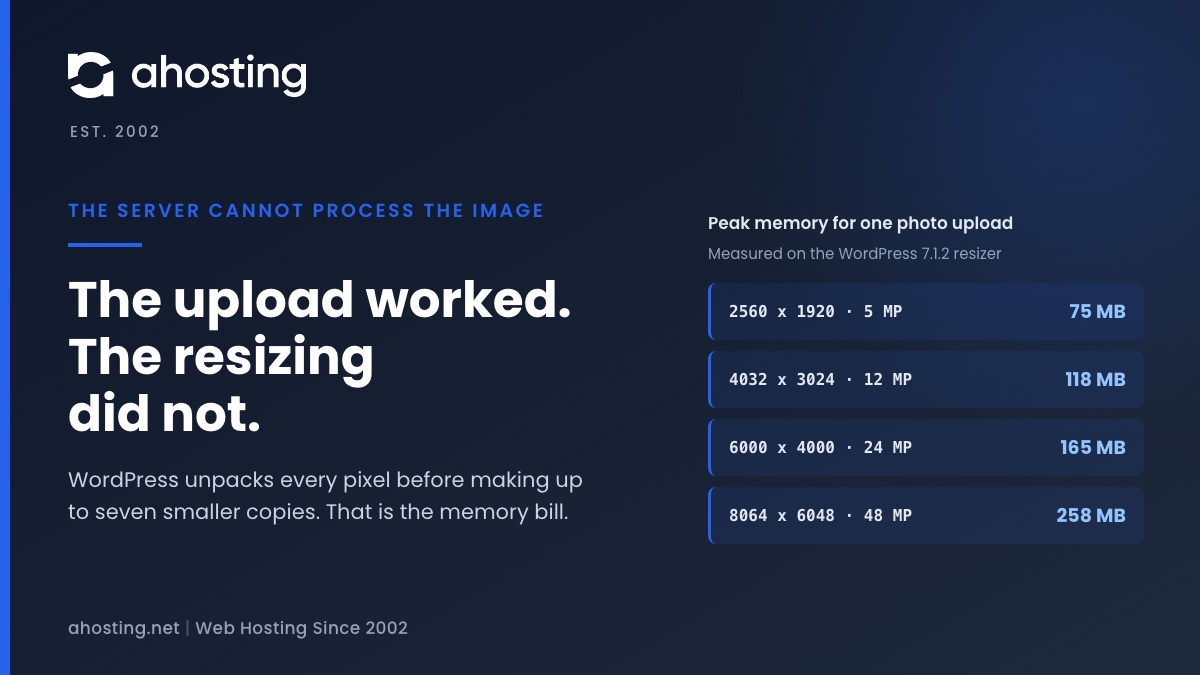
| 2560 x 1920 | 4.9 | 19 MB | about 31 MB | 75 MB |
| 4032 x 3024, a common phone camera | 12.2 | 47 MB | about 65 MB | 117 to 118 MB |
| 6000 x 4000, a common DSLR | 24.0 | 92 MB | about 108 MB | 149 to 165 MB |
| 8064 x 6048, a 48 MP phone mode | 48.8 | 186 MB | about 205 MB | 237 to 258 MB |
The ladder rises with pixel count, not with file size, and the top rung is the one that matters now that phones save 48 megapixel photos. Roughly a quarter of a gigabyte for one upload, before WordPress and your plugins add their own share of the same request.
Why Your Error Log May Say Nothing
Here is why the server cannot process the image with nothing in the error log. Whether that image memory counts against PHP’s memory limit depends on how PHP was built. The copy of GD bundled with PHP routes every allocation through PHP’s own allocator, as the PHP source defines it, so it counts, and running out leaves an Allowed memory size exhausted line in the error log. A PHP built against an external GD does not count it, and neither does Imagick, which manages its own memory under ImageMagick resource limits and can spill large images to disk. In those builds PHP never objects. The process can still be stopped by the account memory cap, and then the log is silent.
Which Limit Stops the Server From Processing the Image
When the server cannot process the image, one of three separate limits ended the resize, and each leaves a different trace. Finding the right one first saves you from raising a setting that was never the problem, which is the most common wasted fix for this error.
PHP Memory, and the 256 MB WordPress Already Asks For
WordPress raises PHP’s memory limit on its own before any image work, to the value of WP_MAX_MEMORY_LIMIT. That constant defaults to 256 MB, or to your PHP limit if that is already higher, and the raise only works where the host lets PHP change the setting at runtime. So raising your PHP limit from 128 MB to 256 MB does nothing for images, a mistake we see often. A PHP limit above 256 MB is adopted automatically, and defining the constant higher in wp-config.php is the alternative. Our guide to WordPress memory limit errors covers where each one is set.
The Account Memory Cap
On shared hosting, every PHP process on your account draws from one memory allowance, whatever limit each process was given. A single 48 megapixel upload fits easily. Five of them dropped into the uploader together, a gallery plugin regenerating thumbnails in the background, and a busy front end can add up to more than the account allows, and the process that tips it over is stopped before it can reply, so no retries follow. A request refused for too many simultaneous processes arrives as a 508, which we explained in the guide to 508 resource limit errors. The uploader shows this same message for it, even though that photo never reached WordPress at all.
The Clock
Sometimes the server cannot process the image because it ran out of time. Resizing a very large photo on a busy shared processor is slow, and two clocks are running. PHP stops a script that exceeds its maximum execution time, and any proxy in front of the server gives up after its own timeout and returns an error page of its own. The first is a PHP error, so the retries run, and because each retry makes only the copies still missing, a timeout often clears on a later attempt. The second carries no header and is never retried. Our resource limit diagnostic tree walks through telling these apart from the account usage graphs.
How to Fix The Server Cannot Process the Image, in Order
Work through these in order whenever the server cannot process the image. The early steps take a minute each and tell you which of the later ones you need, so skipping ahead usually means changing a setting that was not the limit.
Photo Upload Memory Check
Pick the photo size, the image library and the memory WordPress may use for images. This uses the figures we measured running the WordPress 7.1.2 resizer on four photo sizes, so you can see which limit a server-side upload is closest to.
Measured peak:
Which limit sees it:
Do this first:
Peaks were measured on a workstation with only the WordPress image editor loaded. A real dashboard request also carries WordPress and your plugins, so treat a result marked tight as a likely failure.
Seven Steps When the Server Cannot Process the Image
- Check the media library before retrying. A photo that stayed without thumbnails means no retries ran, because the process was stopped from outside PHP or something else answered. One that appeared and then vanished was deleted after five failed retries.
- Read the PHP error log from the time of the upload. An Allowed memory size line means PHP memory. A log with nothing in it points at the account cap, a process limit or a timeout.
- Try the same photo from the block editor in Chrome. If it succeeds there and fails in Media, the server was the limit, and in-browser resizing is a working route around it.
- Scale the photo to 2560 pixels on its long edge before uploading. WordPress would make that copy anyway, and it removes most of the memory bill.
- If you need full-size originals, raise the PHP memory limit above 256 MB, within your plan’s ceiling. WordPress uses any higher PHP limit for images without further changes.
- Remove image sizes nobody uses. Every size a theme or plugin registers is another copy made from the decoded original on every upload.
- Rebuild any copies that were never made with the WP-CLI media regenerate command and its only-missing option.
Fixes by What You Found
| What you found | Likely limit | Fix | What not to do |
|---|---|---|---|
| Allowed memory size exhausted in the error log | PHP memory for the request | Raise the PHP limit above 256 MB, or pre-scale the photo | Raise the PHP limit to exactly 256 MB, which WordPress already uses |
| Maximum execution time exceeded in the error log | The PHP time limit | Pre-scale the photo, or retry once, since each retry makes only missing copies | Raise the memory limit for a time problem |
| Photo stayed without thumbnails, log silent | Account memory cap, a process limit, or a proxy answered | Upload one photo at a time, then check the resource usage page and proxy logs | Keep retrying the same batch |
| Works in the block editor, fails in Media | Server-side resizing only | Upload from the editor, or pre-scale for Media | Treat the site as broken |
| Fails only on very large originals | The threshold is disabled or raised | Restore the default through the big_image_size_threshold filter | Disable the threshold on shared hosting |
When the Fix Is More Headroom
Most sites never need a bigger plan when the server cannot process the image. A photo scaled to 2560 pixels needs less than a third of the memory of a 48 megapixel original, and the block editor can now do the work in the browser. The plan starts to matter when full-resolution originals are part of the job, as they are for photographers and for stores that zoom product images, or when several people upload at once. Before changing anything, confirm which library WordPress is using, as our guide to recommended modules that are missing explains.
Where the Work Stops Being Yours
What we take off your hands is the ceiling. Every one of our WordPress plans publishes a PHP memory limit of up to 512 MB, twice what WordPress asks for by default, inside an account allowance of 2, 3 or 4 GB, so a full-size 48 megapixel photo resizes on the server with room to spare once the limit is raised. The account allowance is shared by every site on it, which is why the WooCommerce plans suit stores uploading large product galleries. For sites that are not WordPress, our web hosting plans carry the same PHP limit, and a site processing images all day belongs on a VPS with memory of its own.
Frequently Asked Questions About The Server Cannot Process the Image
How do I fix the server cannot process the image error in WordPress?
Typically by finding out which limit the resize ran into rather than by retrying the same file. The upload itself usually succeeded, so first check the media library. A photo that stayed without its thumbnails points outside PHP, and one that vanished after a pause was deleted by WordPress after five failed retries. Then read the PHP error log for an allowed memory size line. If one is there, the image needs more PHP memory than the request was allowed. If the log is silent, the process was stopped from outside PHP, by the account memory cap or a timeout. Shrinking the photo to 2560 pixels on its long edge before uploading fixes either case.
Why does WordPress say the server cannot process the image for ordinary photos in 2026?
Specifically because ordinary photos are now very large once decoded. A current phone camera can save a 48 megapixel image, and while the file on disk may be only a few megabytes, the resizer has to unpack every pixel into memory before it can shrink it. In our measurement that single step took a quarter of a gigabyte for a 48 megapixel photo. WordPress then makes up to seven resized copies from it. The error is the message WordPress shows when the server gave up partway through that work.
Is my photo still uploaded when the server cannot process the image?
In practice it arrives, but it may not stay. WordPress saves the file and creates its media library entry before it starts resizing, and it reports the entry number back to the browser in a response header for exactly this situation. The Media Library uploader then asks the server five more times to finish the resized copies. If every attempt fails, it asks the server to delete the entry and its files, which is why a photo can appear briefly and then vanish. When no retries ran, the original usually remains without its copies.
Does AHosting WordPress hosting have enough memory to avoid the server cannot process the image?
That said, memory is only one of the limits involved, so it is worth being precise. AHosting WordPress plans publish a PHP memory limit of up to 512 MB and account memory of 2, 3 or 4 GB depending on the plan. In our measurement a 48 megapixel photo peaked at about a quarter of a gigabyte during resizing, which fits comfortably inside both once the PHP limit is set above 256 MB. What can still fail is several large uploads at once, because every site on the account shares the same memory cap, and a timeout on a very slow resize.
GD vs Imagick: which image library fails less often with large photo uploads?
By contrast with the usual advice, neither is simply safer, because they fail in different places. GD, when PHP was built with its bundled copy, counts every decoded pixel against the PHP memory limit, so it fails early and leaves an allowed memory size line in the error log. Imagick allocates outside that limit, so PHP never objects, but the process still counts against the account memory cap and can be stopped there without any PHP error at all. The library that fails less is the one whose limit has more room.
Block editor vs Media Library: why does only one of them show this upload error?
Notably WordPress 7.1 changed where resizing happens. On a site served over HTTPS, in a browser that allows it, the block editor now resizes images inside the browser and sends the finished copies to the server, so the server never has to decode the full photo. The Media Library uploader still sends the original and resizes on the server. So the same photo can fail from Media and succeed from the editor. The browser console in the editor prints a line saying which path it used.
Will an AHosting plan upgrade fix the server cannot process the image in 2026?
Ultimately only if the limit you hit belongs to the plan, and the error log tells you whether it does. A larger plan raises the account memory cap and the number of processes that can run at once, which helps when several large uploads or a busy site share the account. It does not help when the PHP memory limit is set below what one photo needs, because that is a setting you can raise yourself within the published ceiling. Check that setting first, and upgrade only when the account cap is the proven limit.
Can I raise the memory limit myself so large photo uploads stop failing?
Indeed you usually can, and it helps to know what WordPress already does. Before image work it raises the limit to the value of the WP_MAX_MEMORY_LIMIT constant, which is 256 MB unless your PHP limit is higher, so raising the PHP limit from 128 to 256 changes nothing for images. Set the PHP limit above 256 MB and WordPress adopts the higher figure on its own. Defining the constant in wp-config.php is the other route, where PHP may raise its own limit. Neither can exceed the account cap.
How do I check which image library my AHosting WordPress site is using?
Fortunately WordPress will tell you without any code. Open Tools, then Site Health, then the Info tab, and expand Media Handling. The Active editor line names the library WordPress picked, the GD version line shows whether GD is the bundled build, and when Imagick is loaded its resource limits are listed too. On an AHosting account the extension list for each PHP version is in Select PHP Version in cPanel, so turning Imagick on or off for the version you run is a checkbox.
Does the server cannot process the image error affect SEO or page speed in 2026?
Interestingly the error itself affects nothing visitors or crawlers see, because it only happens in the dashboard. What it affects is what you publish next. A photo that uploads without its resized copies, or one that is re-uploaded at full size to get around the error, can end up served to phones at many times the size they need, and oversized images are among the most common causes of a slow largest contentful paint. So fix the resize, not the symptom, and check that the resized copies exist.
Related posts:
 An Active PHP Session Was Detected: What WordPress Site Health Is Really Telling You, and How to Fix It on Shared Hosting
 “508 Resource Limit Reached” on WordPress: What Entry Process (EP) Limits Really Mean
 WordPress Hosting for Elementor 2026: What the Page Builder Actually Needs From Your Server
 Your Server Is Running PHP Version X but WordPress Requires Y” – What to Actually Do